

This guide shows you how to personalize Muzie so it fits the way you teach. You’ll learn how to update your teacher profile, choose application preferences, create custom AI actions, adjust advanced lesson settings, manage security options, and customize the look and feel of your workspace - so your account is easier to use and your lessons are set up the way you want them.
Profile and UI Setup
-
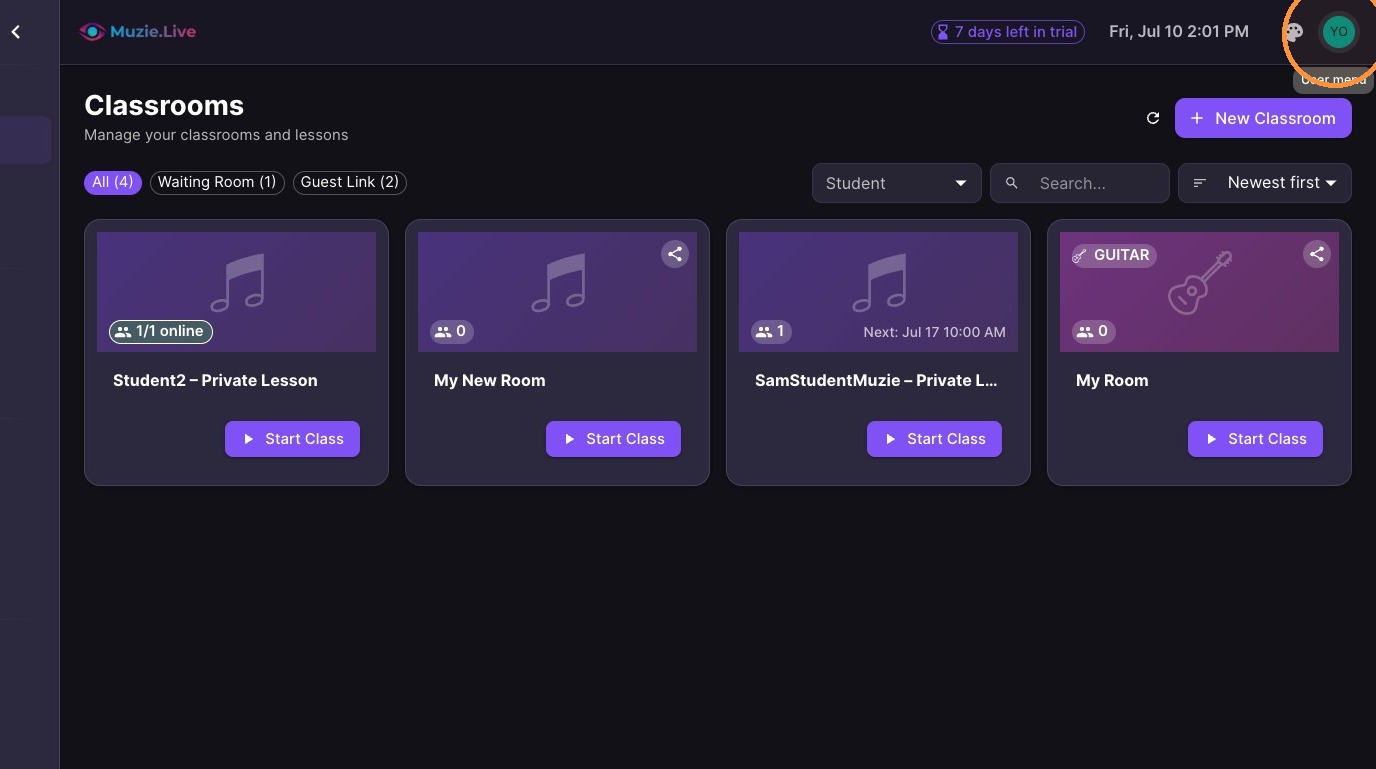
Click Your Profile Icon
-
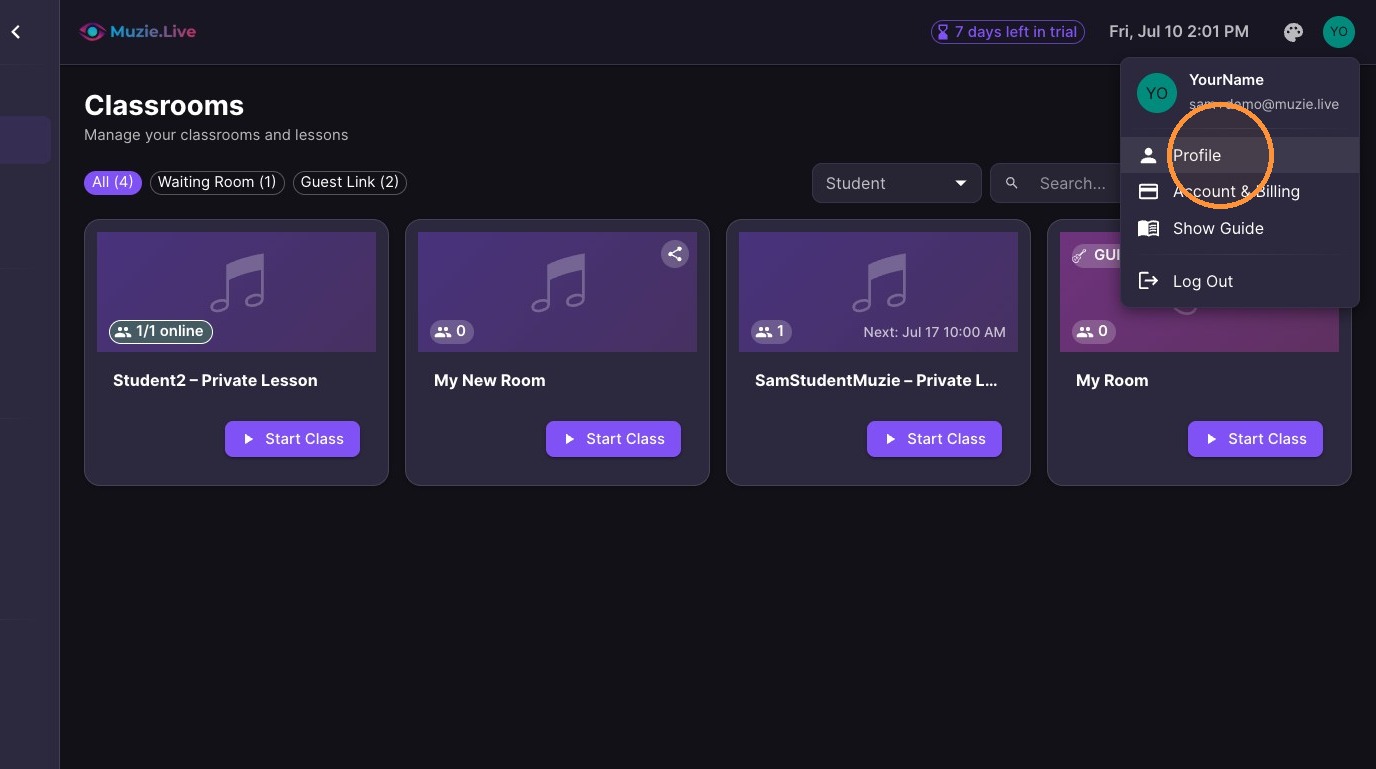
Click "Profile"
-
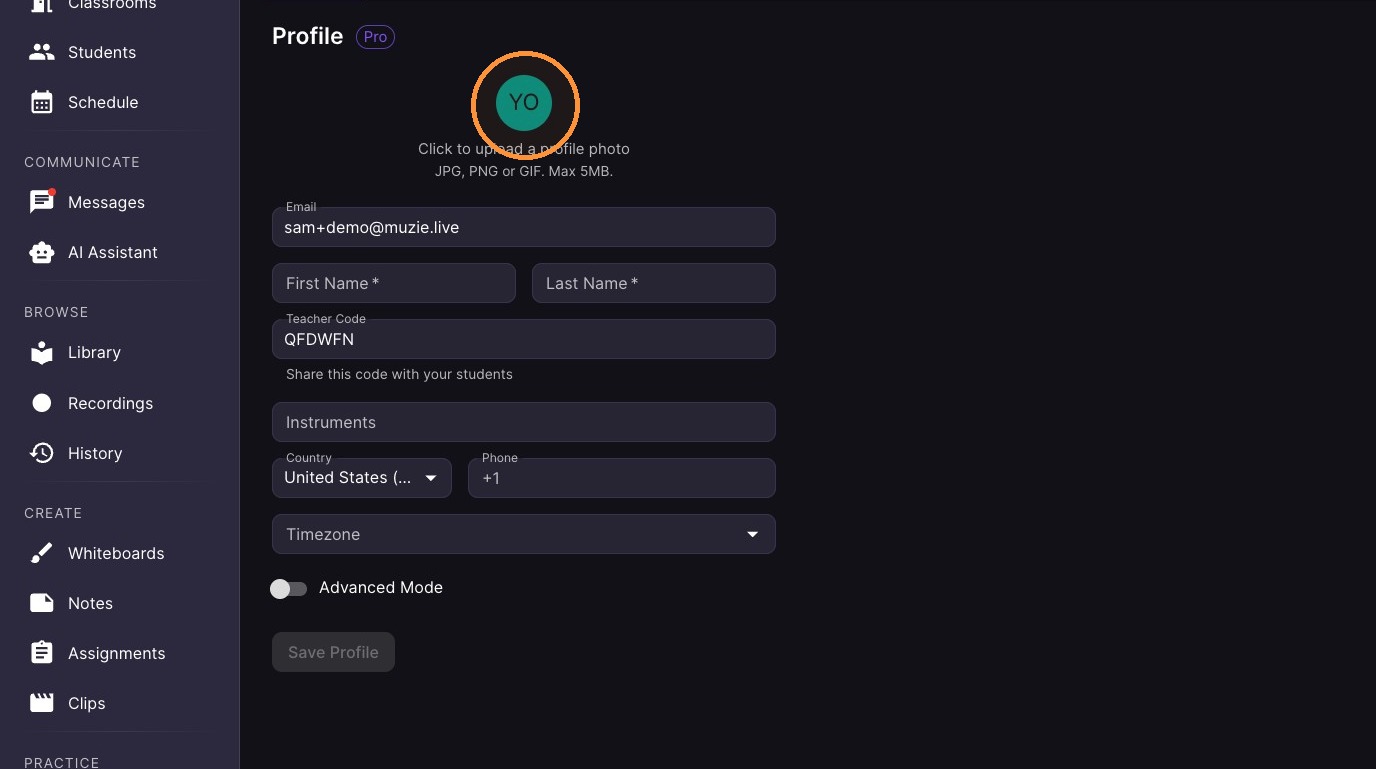
Complete your profile page
-
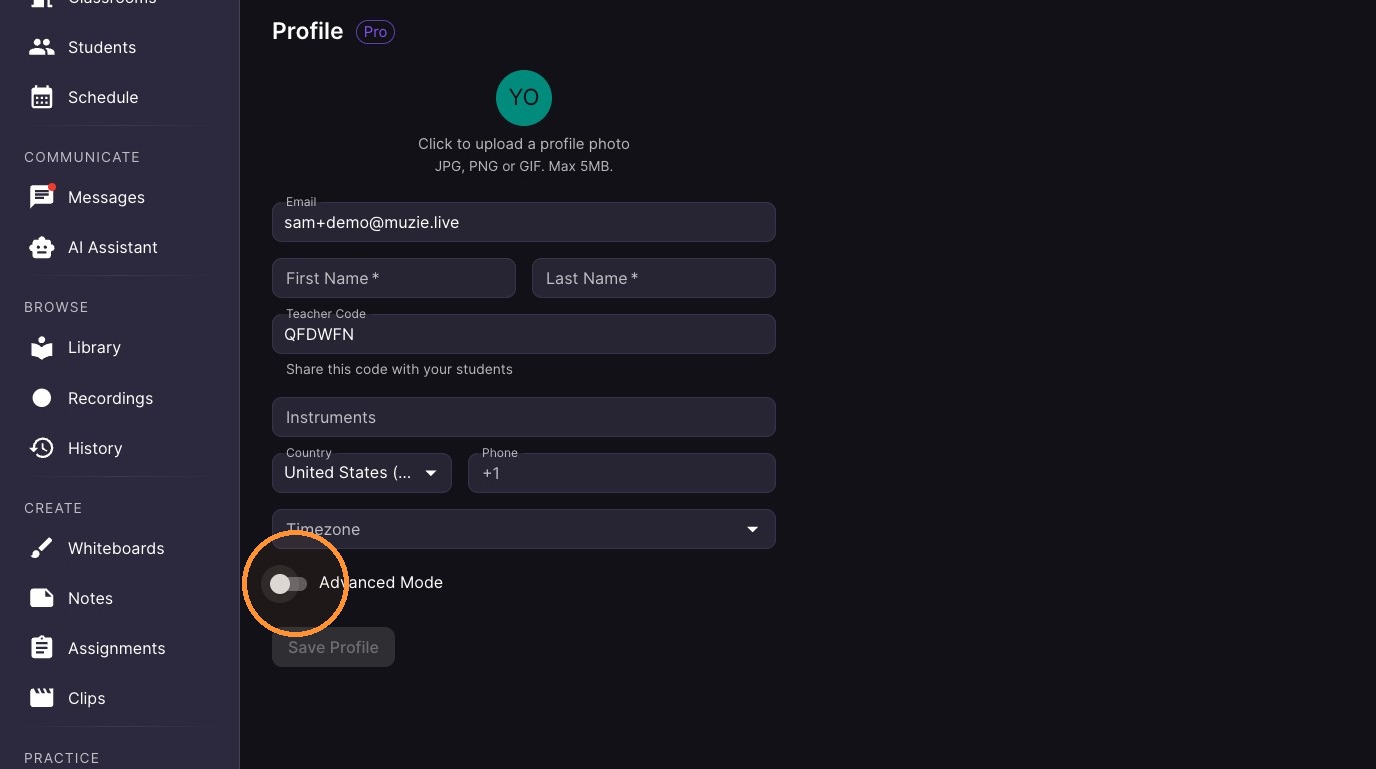
Toggle Advanced Mode switch (only use this if you are very comfortable with software configuration)
Application Preferences
-
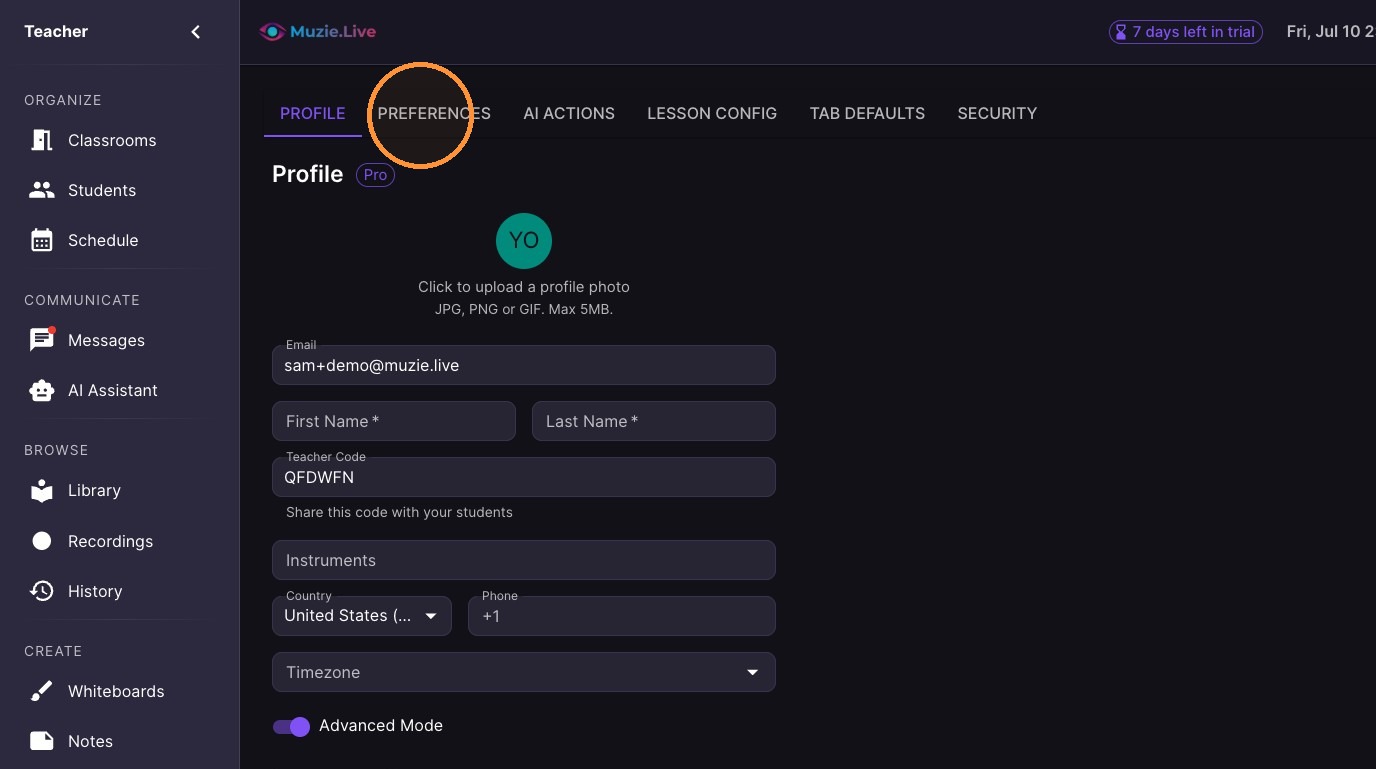
Select Preferences tab
-
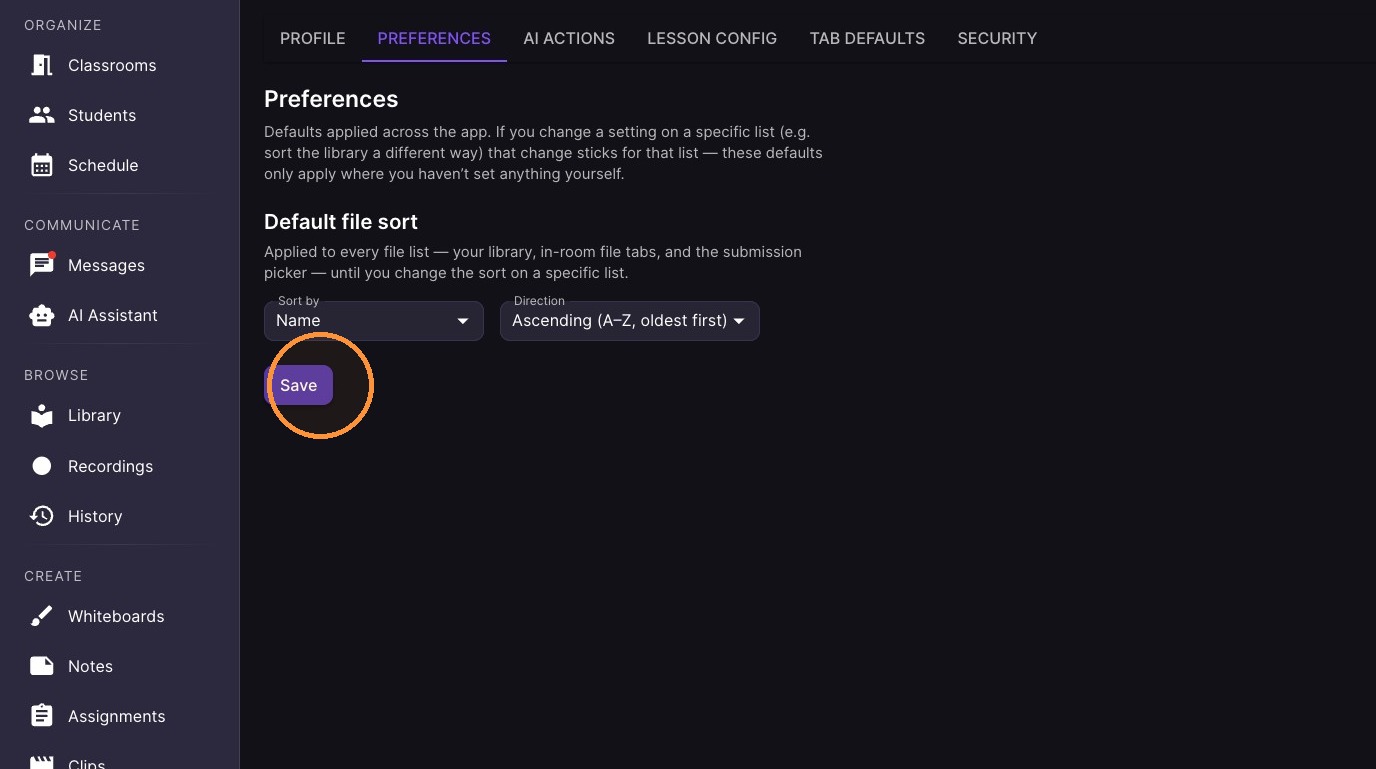
Select how files will be sorted by default (more to come)
-
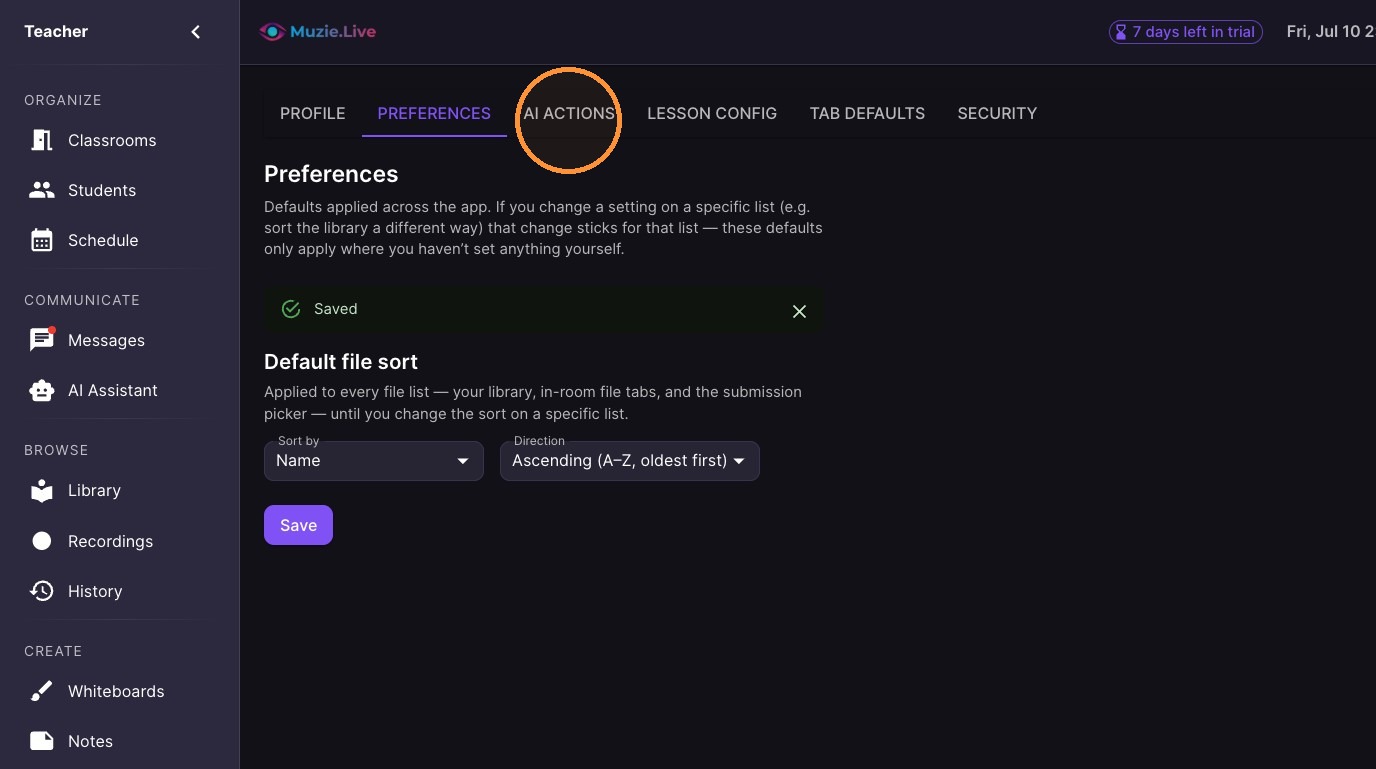
Select AI Actions tab
-
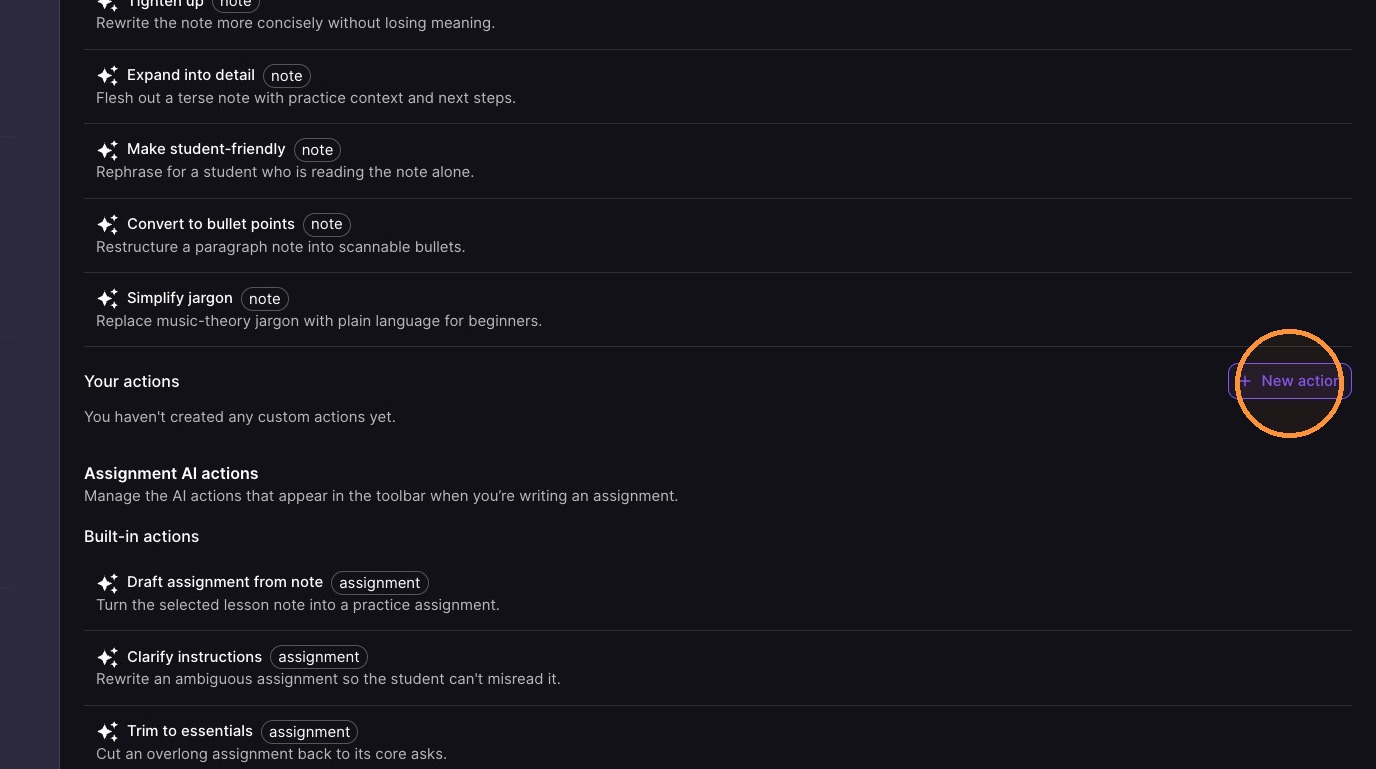
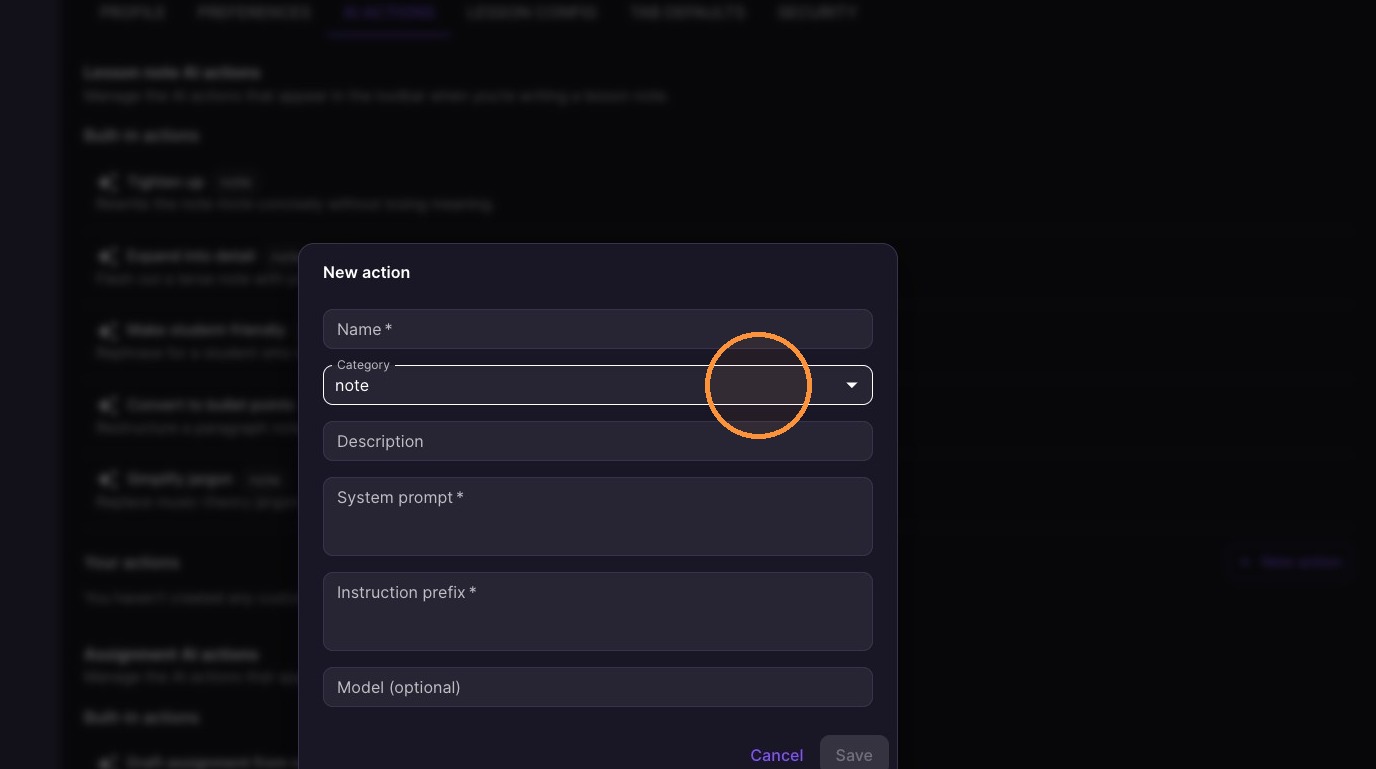
Click New Action to make new custom AI prompts
-
Configure your AI prompts
Lesson Configuration
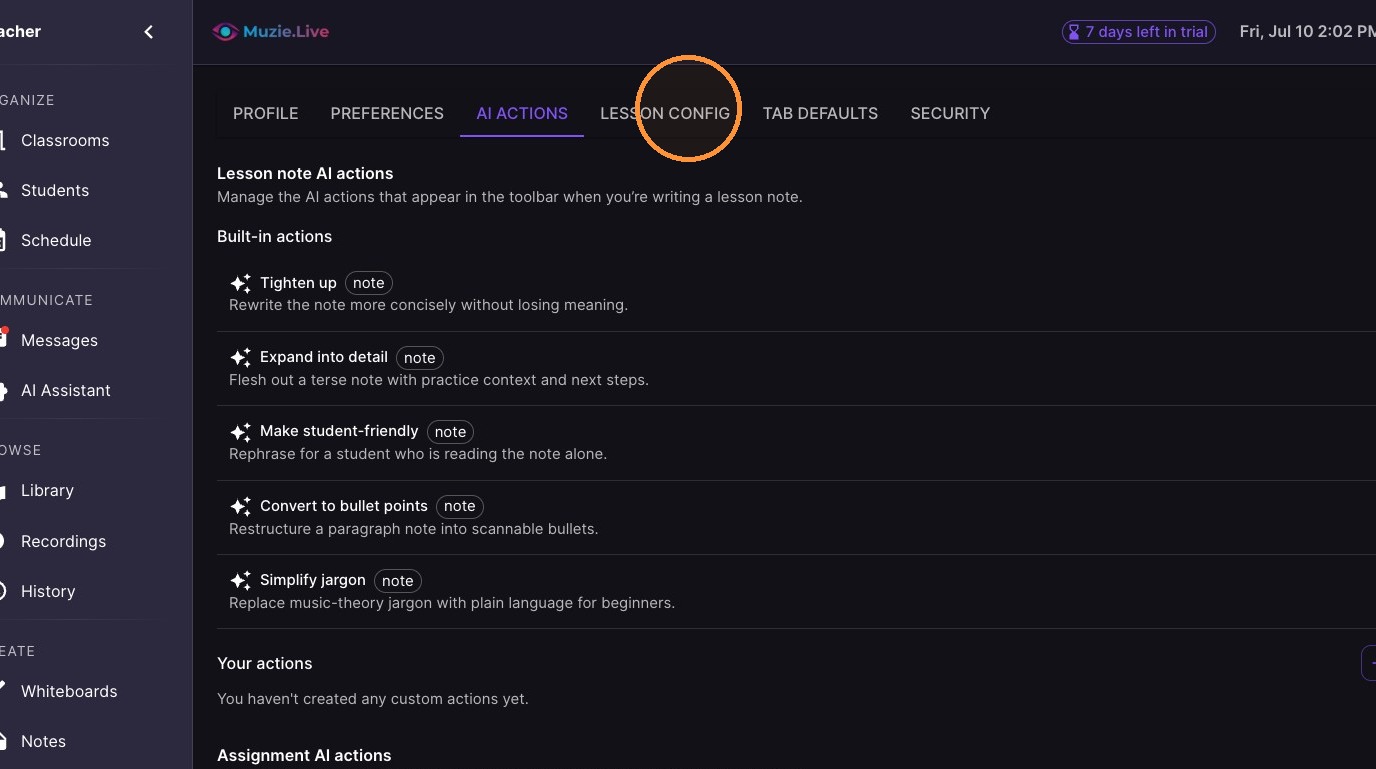
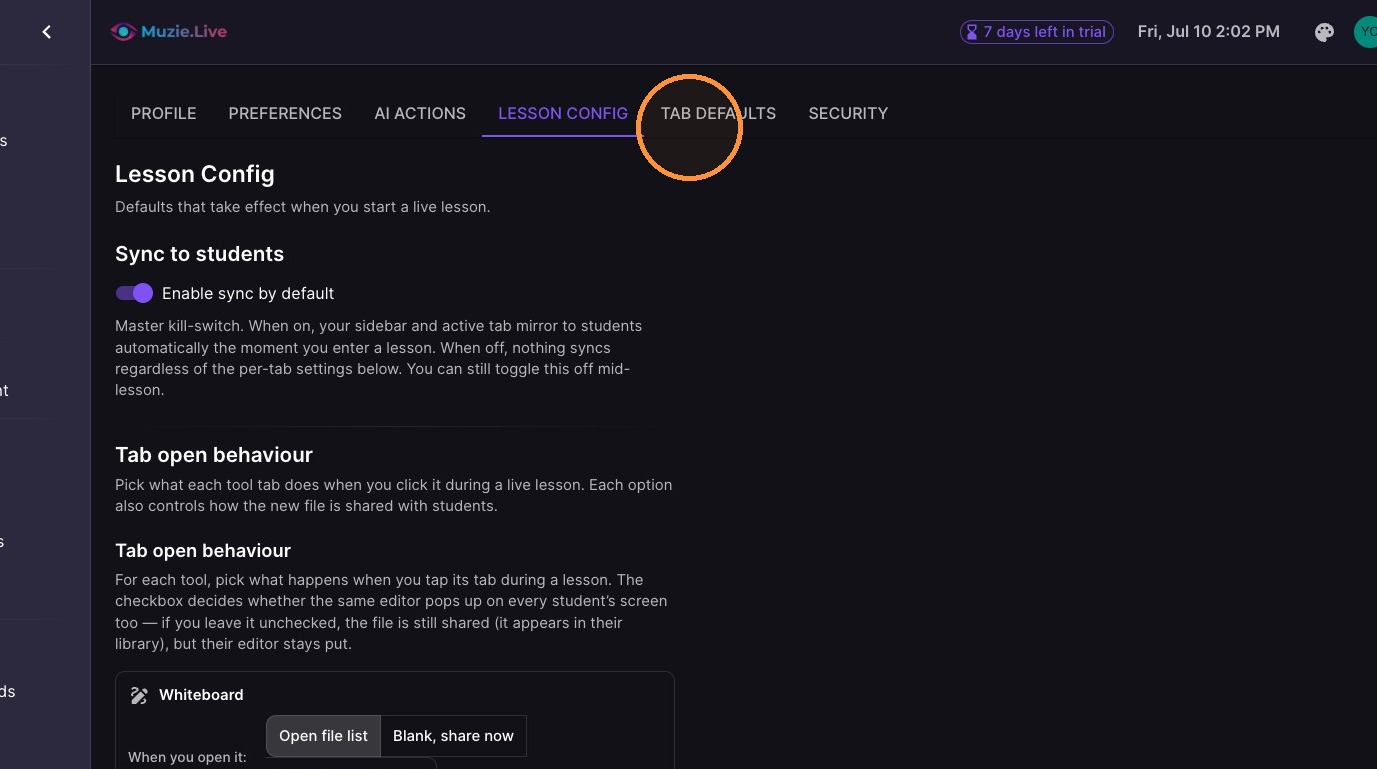
10. Select Lesson Config tab (Advanced Mode)
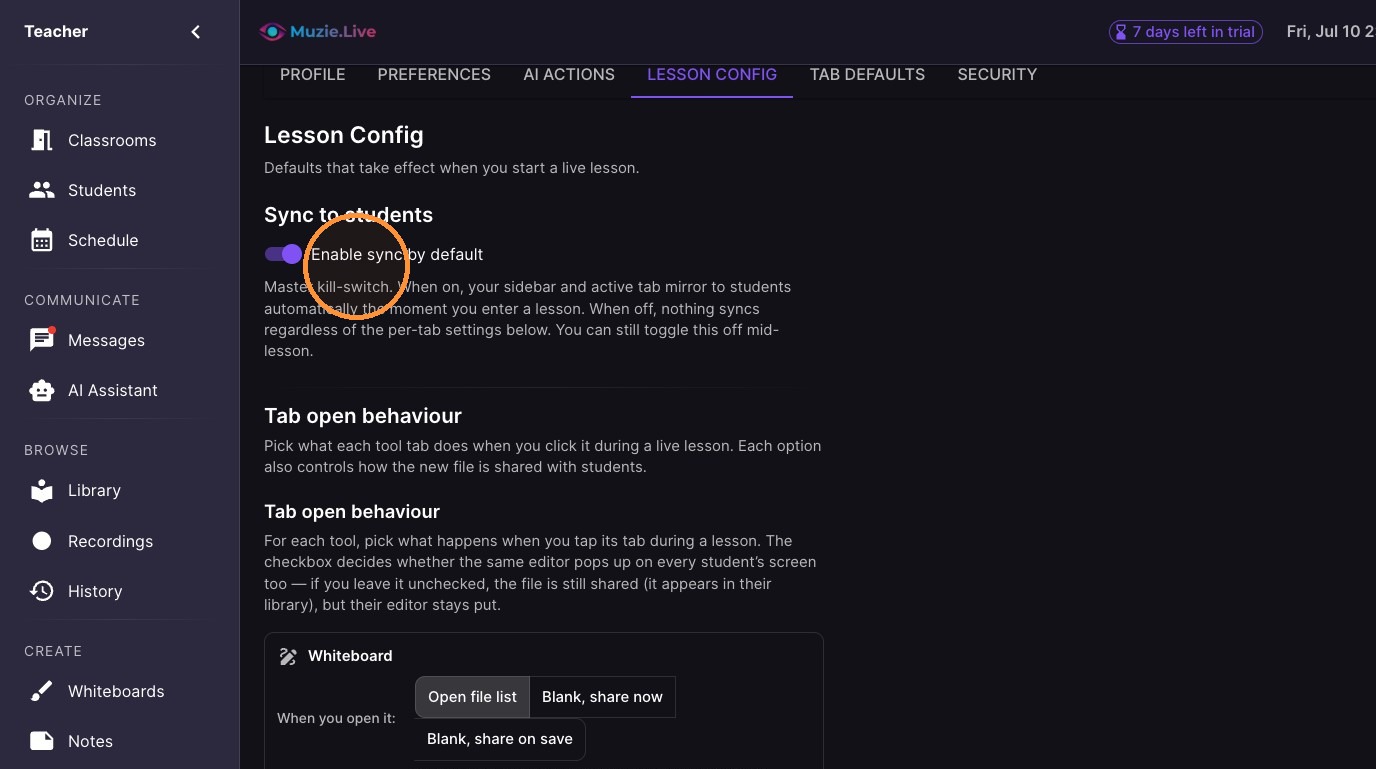
11. Choose how you want lesson windows to behave - (Advanced Mode)
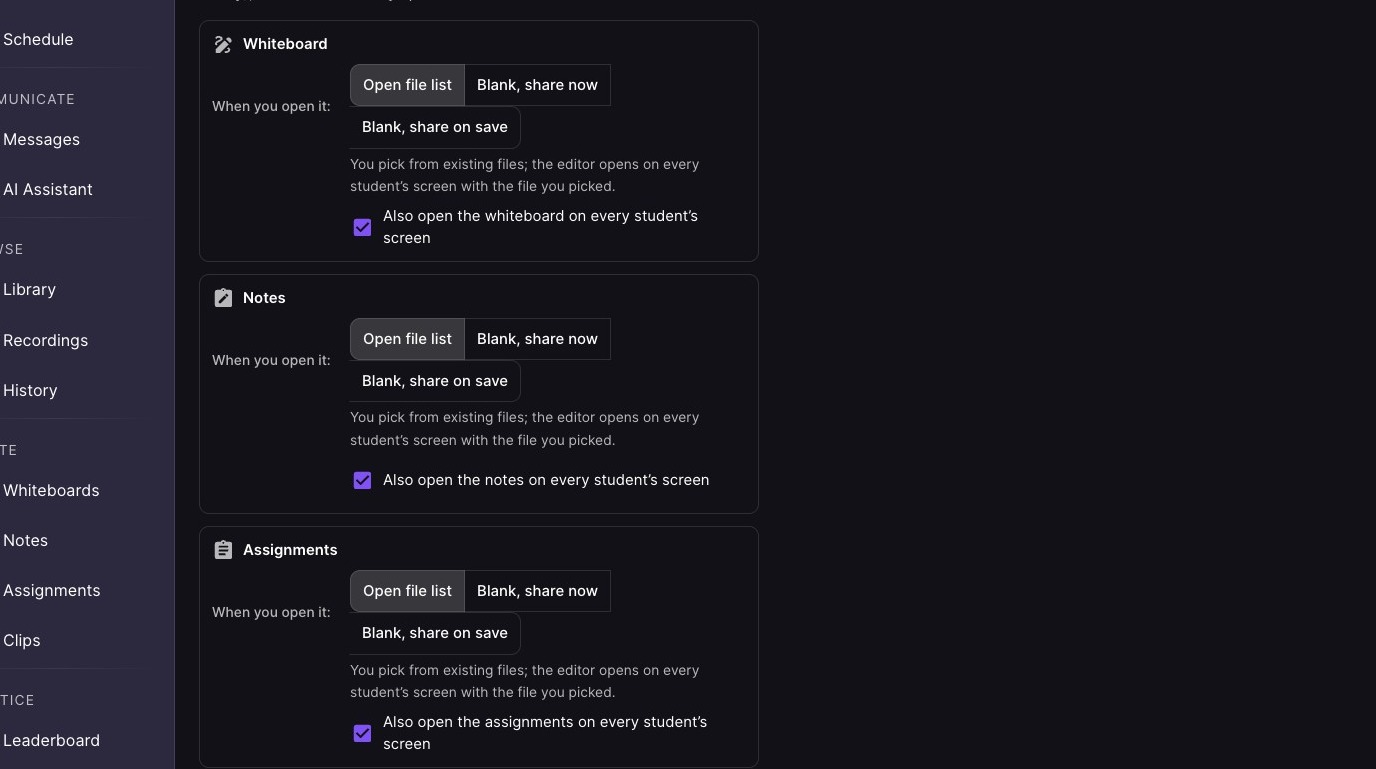
12. Configure how you would like tools to work in your lessons (Advanced Mode)
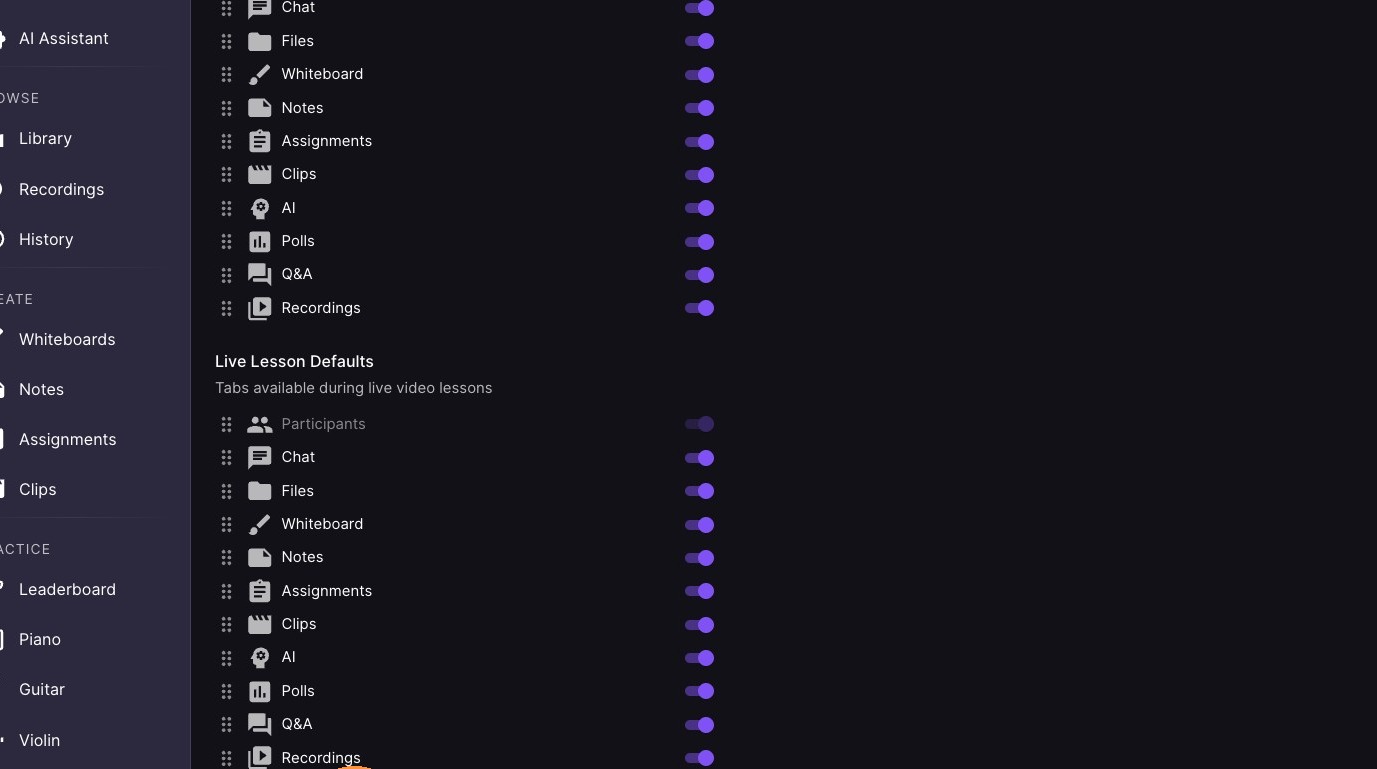
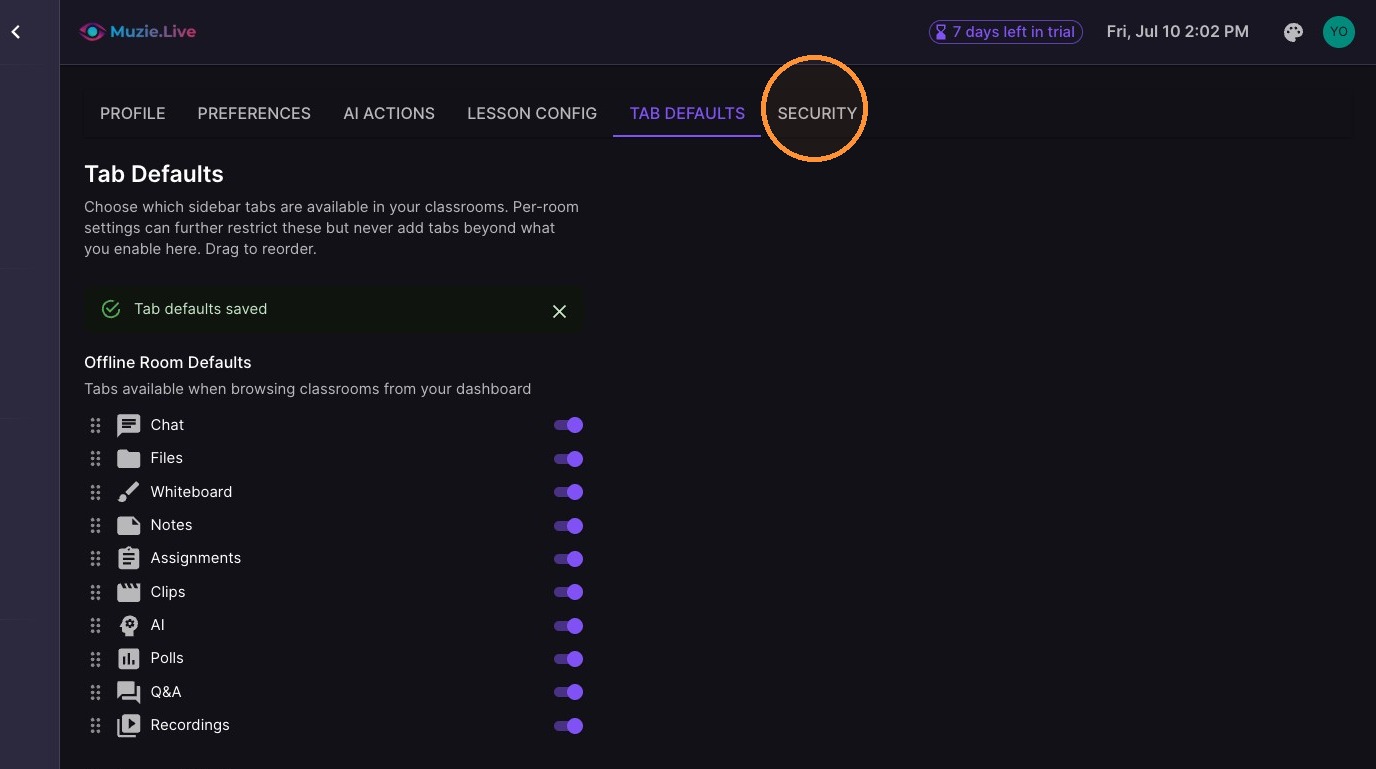
13. Select Tab Defaults tab
14. Configure which tabs and tools are available to you and your students
Security and Personalization
15. Select Security tab
16. Click 'Change password' to initiate a reset via email
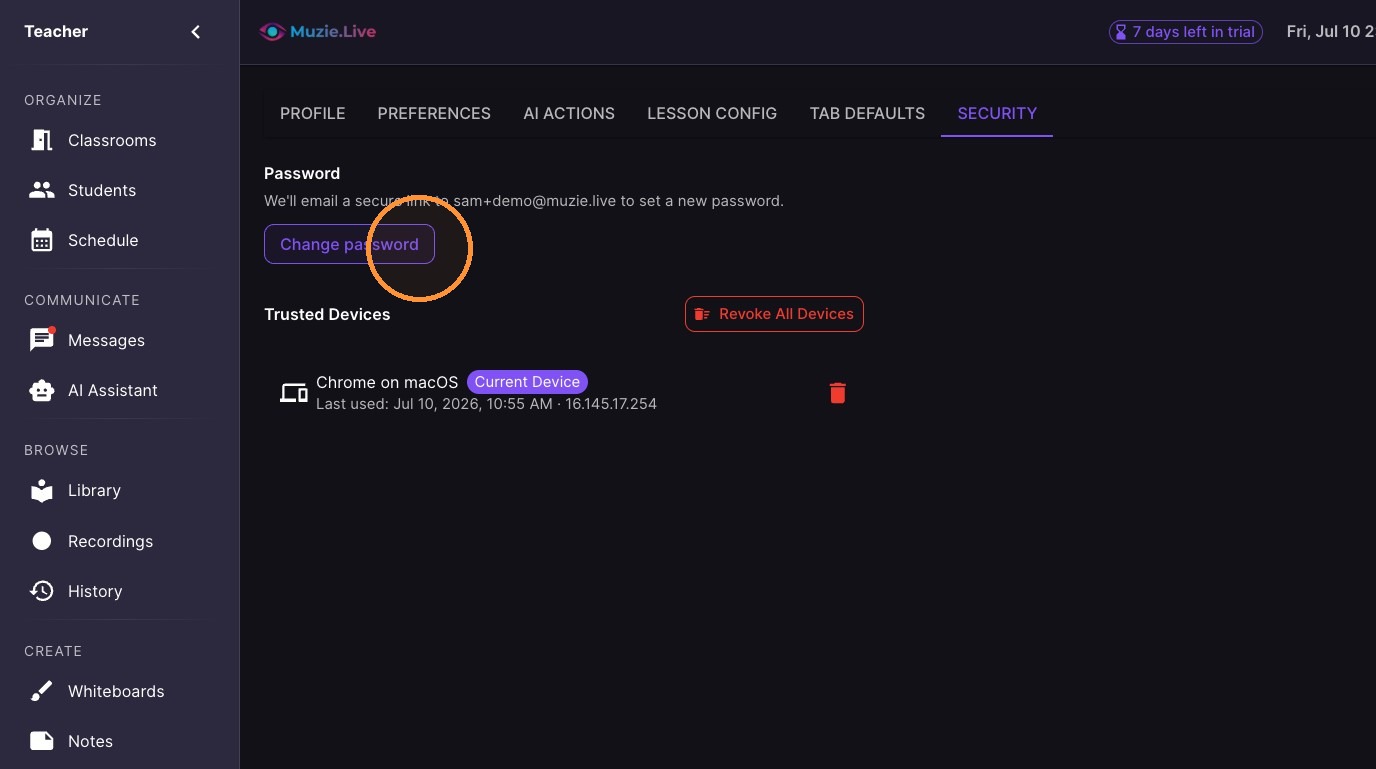
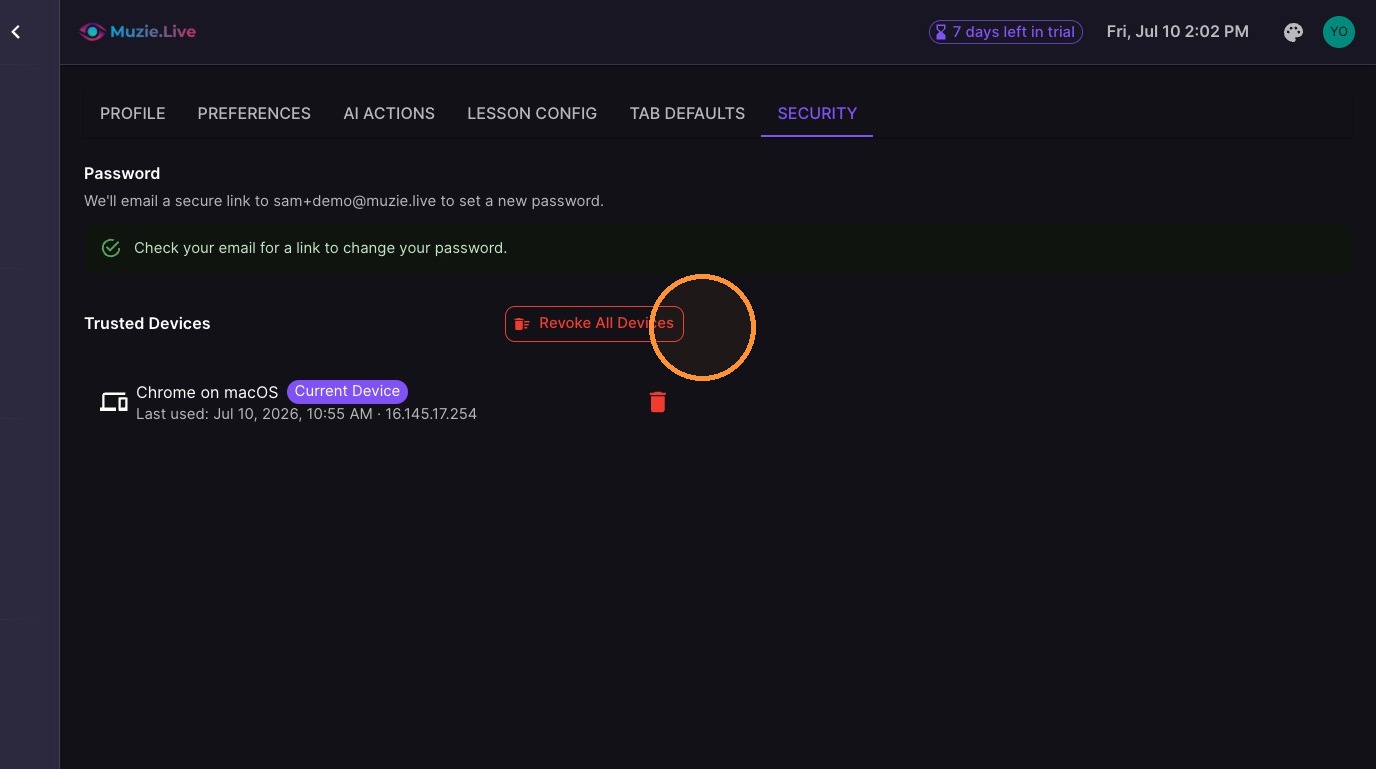
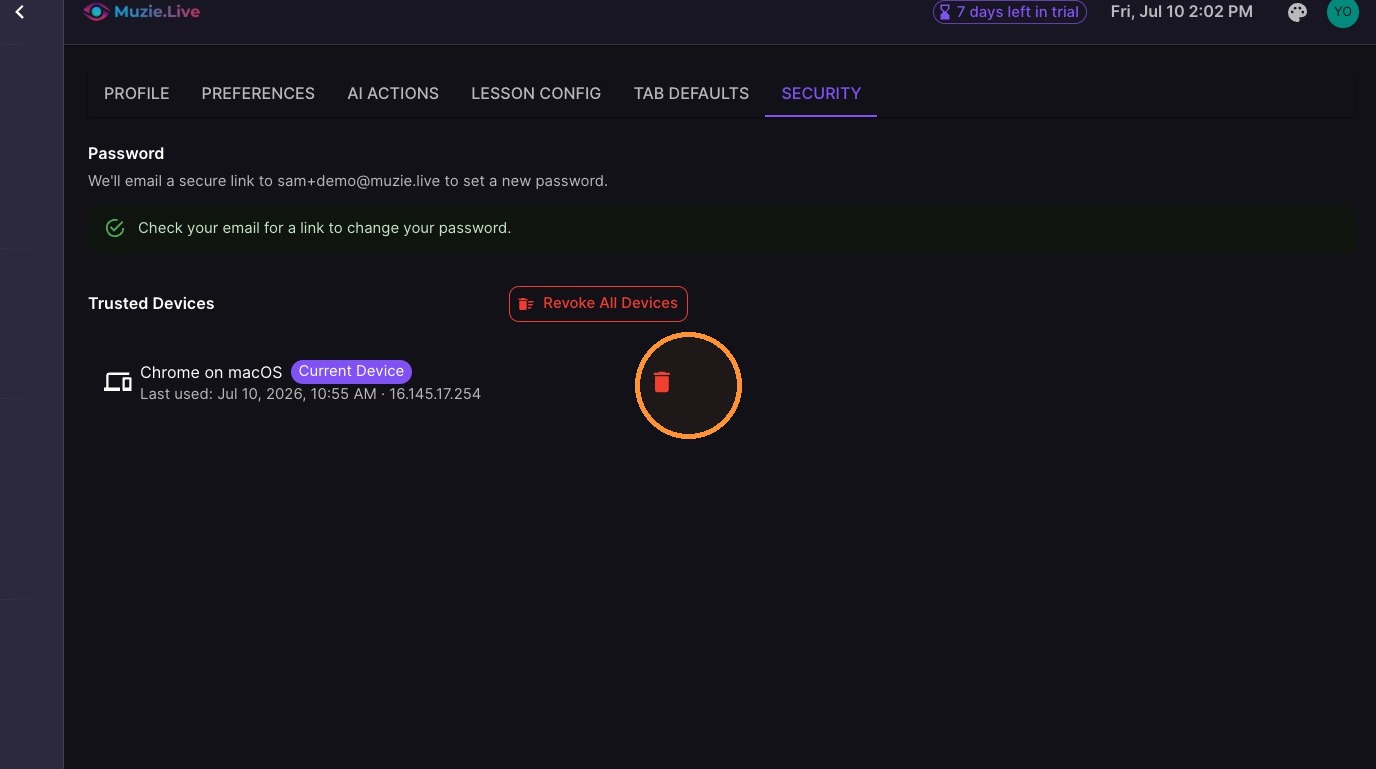
17. Trusted Devices - which browsers and computers are allowed to log into your account without multifactor authentication.
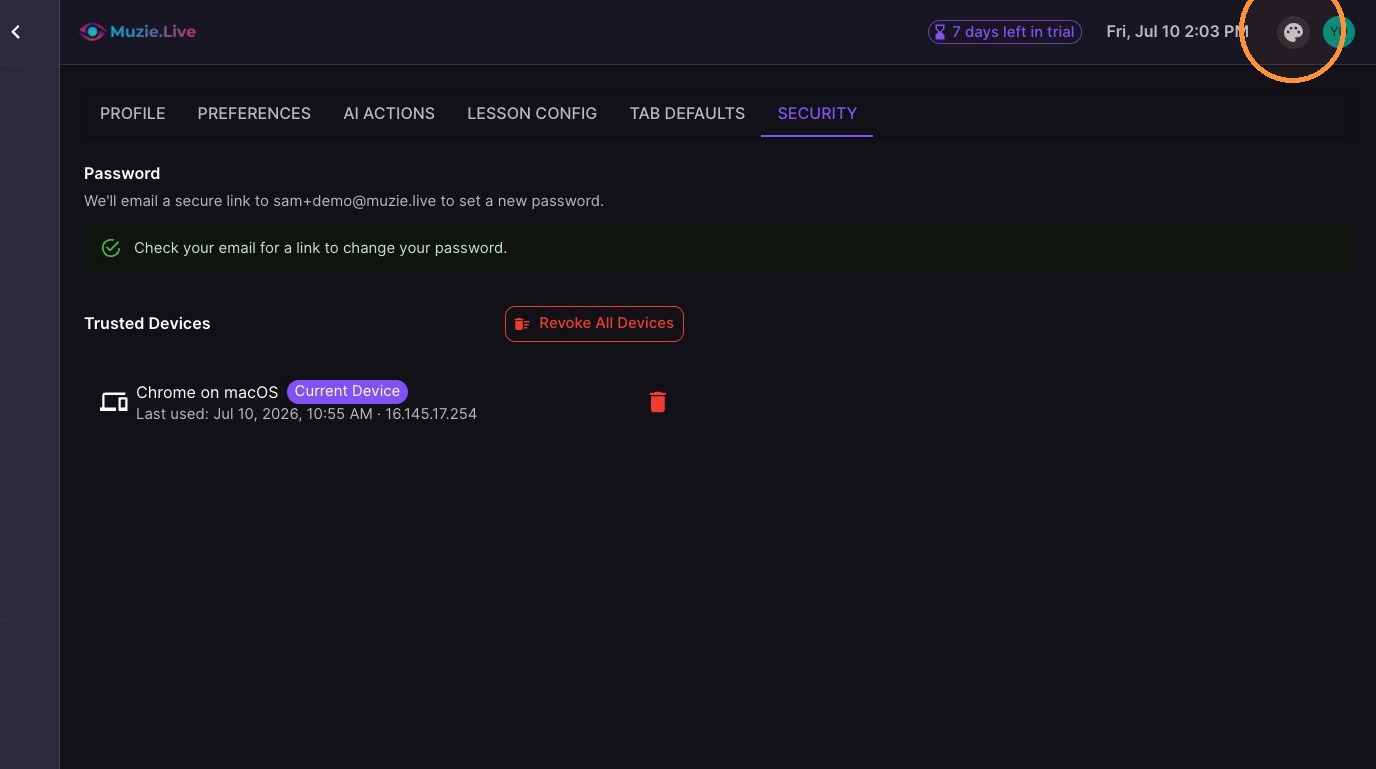
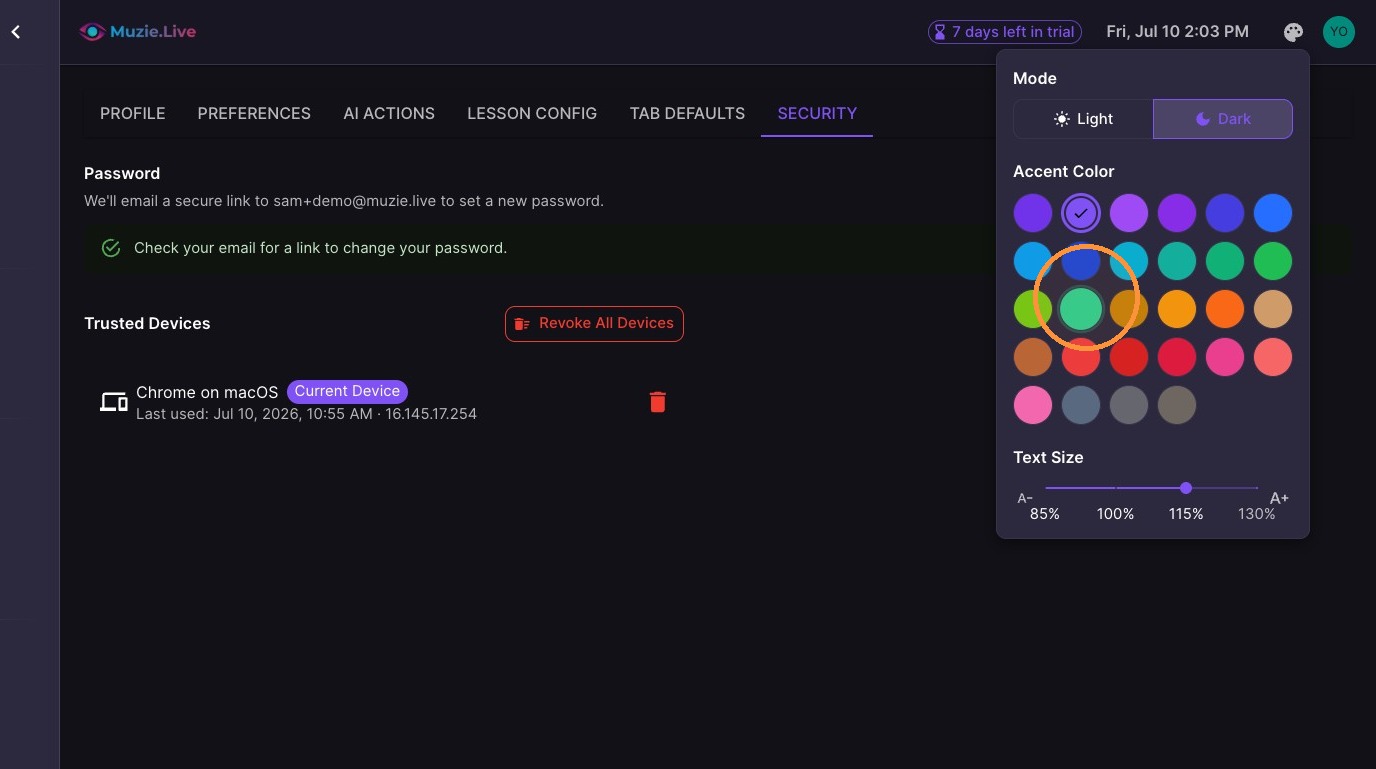
18. Custom Themes
19. Light Mode
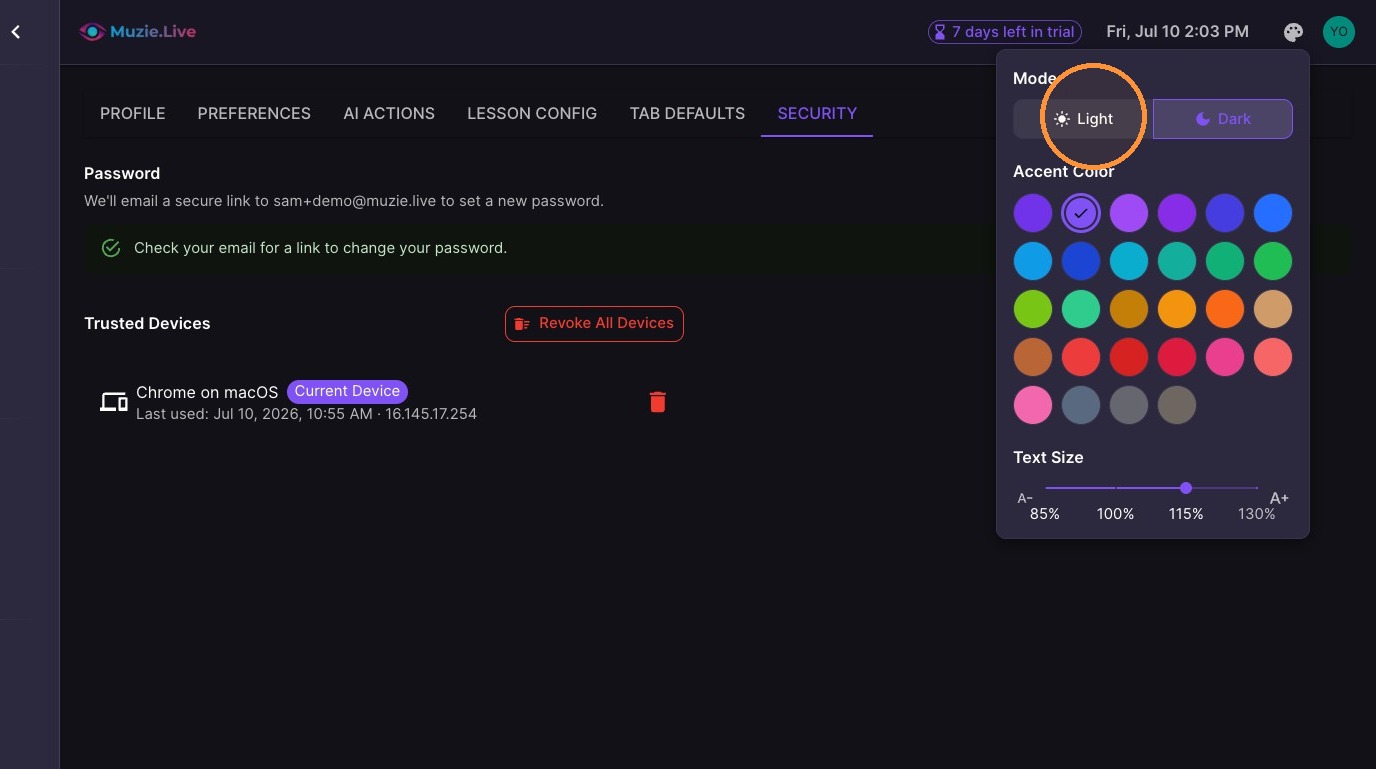
20. Dark Mode
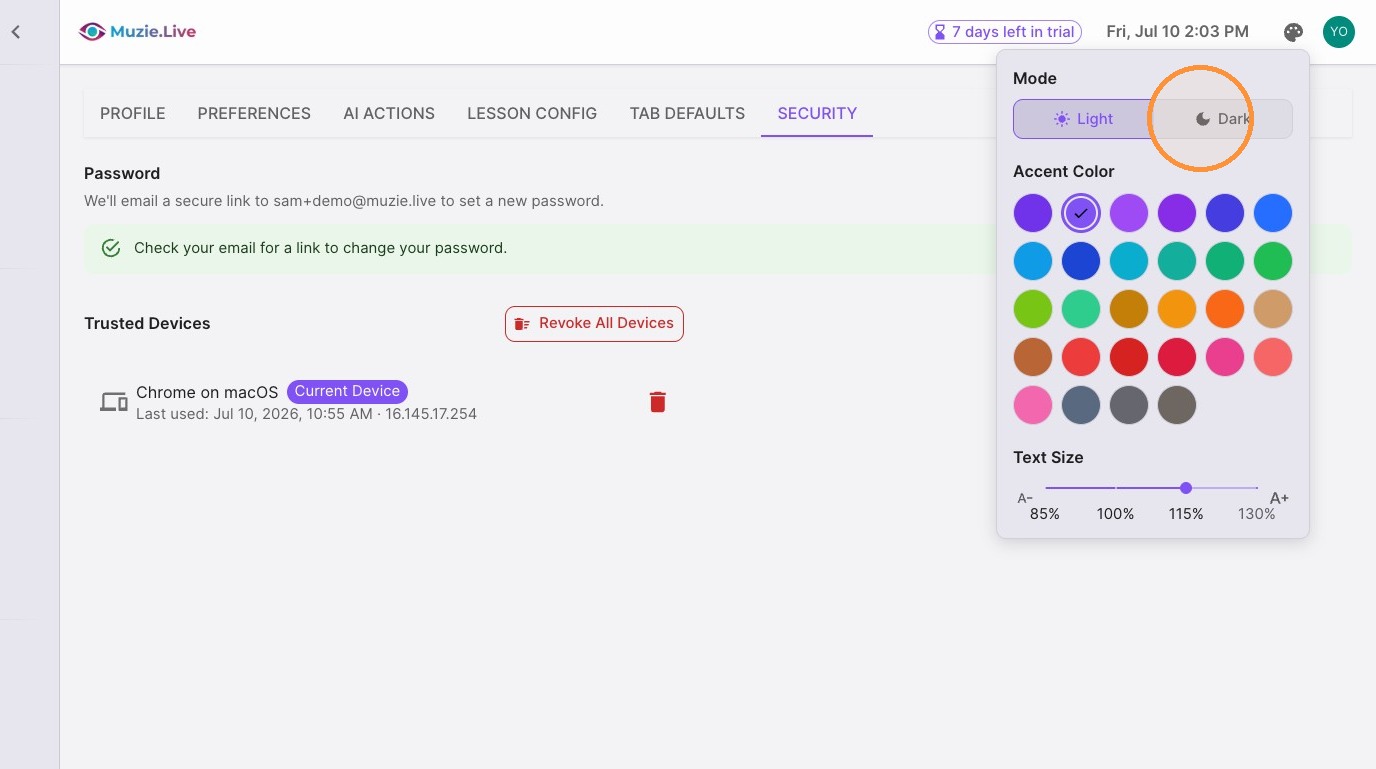
21. Accent Color
22. Font Size
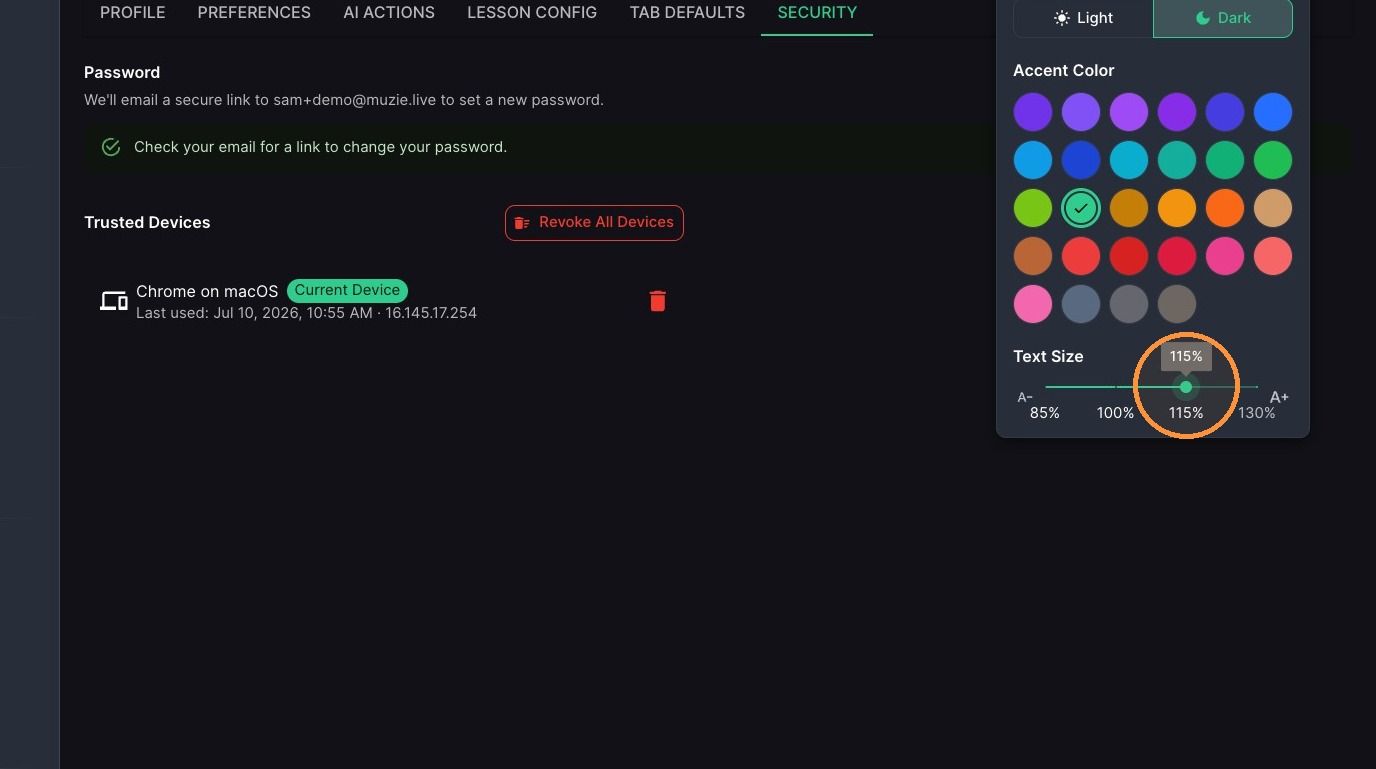
Where the theme controls are: Custom Themes, Light Mode, Dark Mode, Accent Color and Font Size are not on the Security tab. Click the colour-palette icon next to your profile icon at the top of the page, and choose the theme, accent colour and text size there.