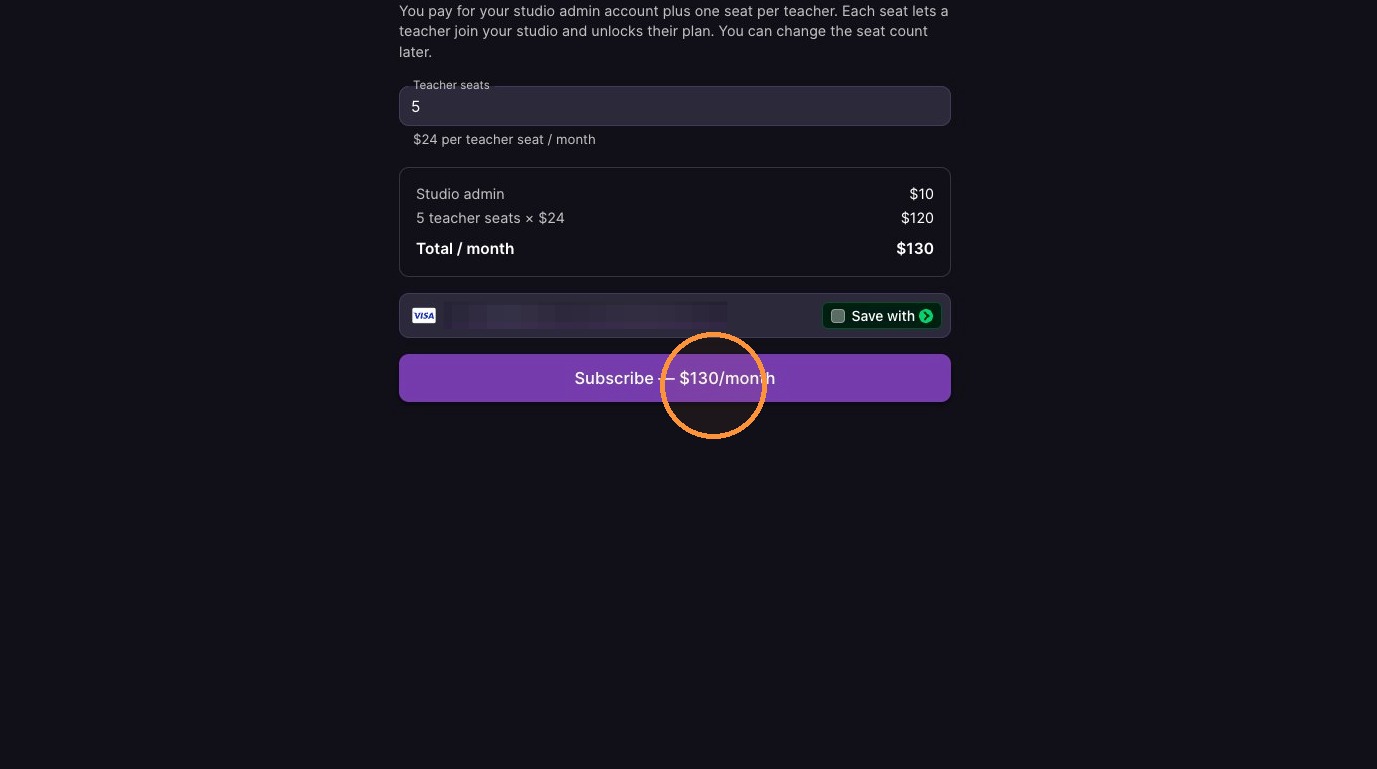
Use this guide to create and set up a Muzie Studio Admin account. Follow the sections below in order to register your studio, verify your email address, choose the number of teacher seats, and enter payment information.
This help guide is for studio owners or administrators who are setting up Muzie Studio for the first time, or upgrading from an existing teacher account.
Before you start, make sure you have:
-
Access to the email address you want to use for the Studio Admin account.
-
A secure password ready to create your login.
-
Your current teacher code, if you are upgrading from an existing teacher account.
-
Your payment details and the number of teacher seats your studio needs.
Start with Account Registration, then continue through Email Verification and Subscription and Payment.
*Only Pro teacher accounts can be used with a studio
Account Registration
-
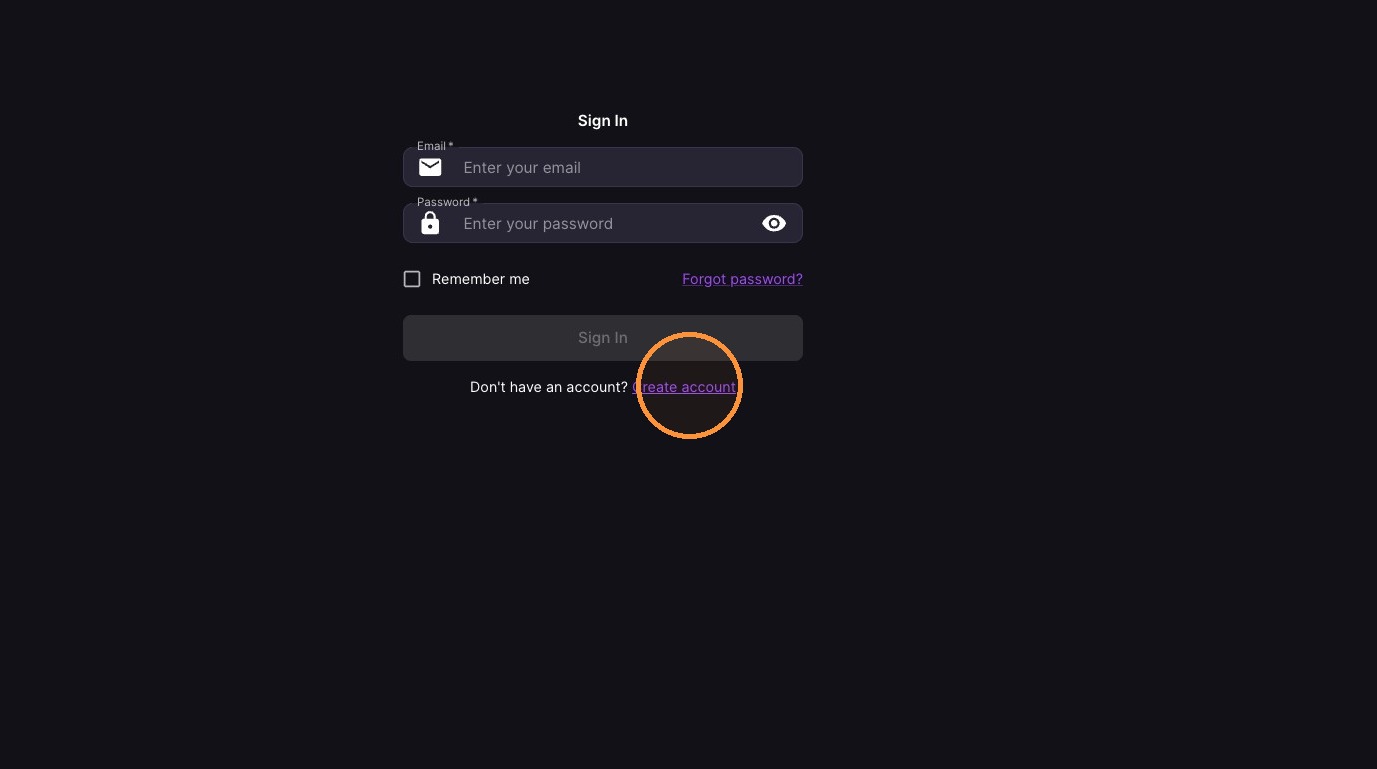
Click "Create account"
-
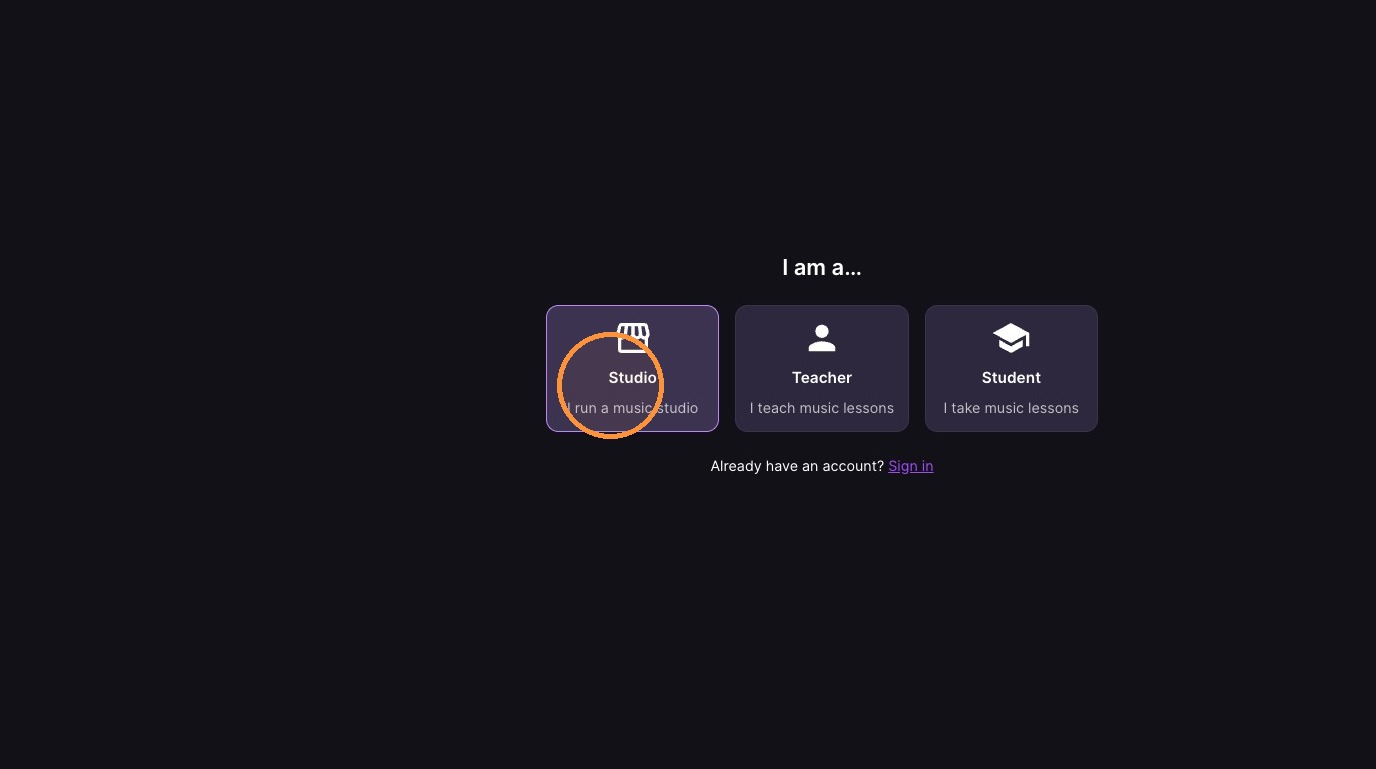
Select the Studio account type
-
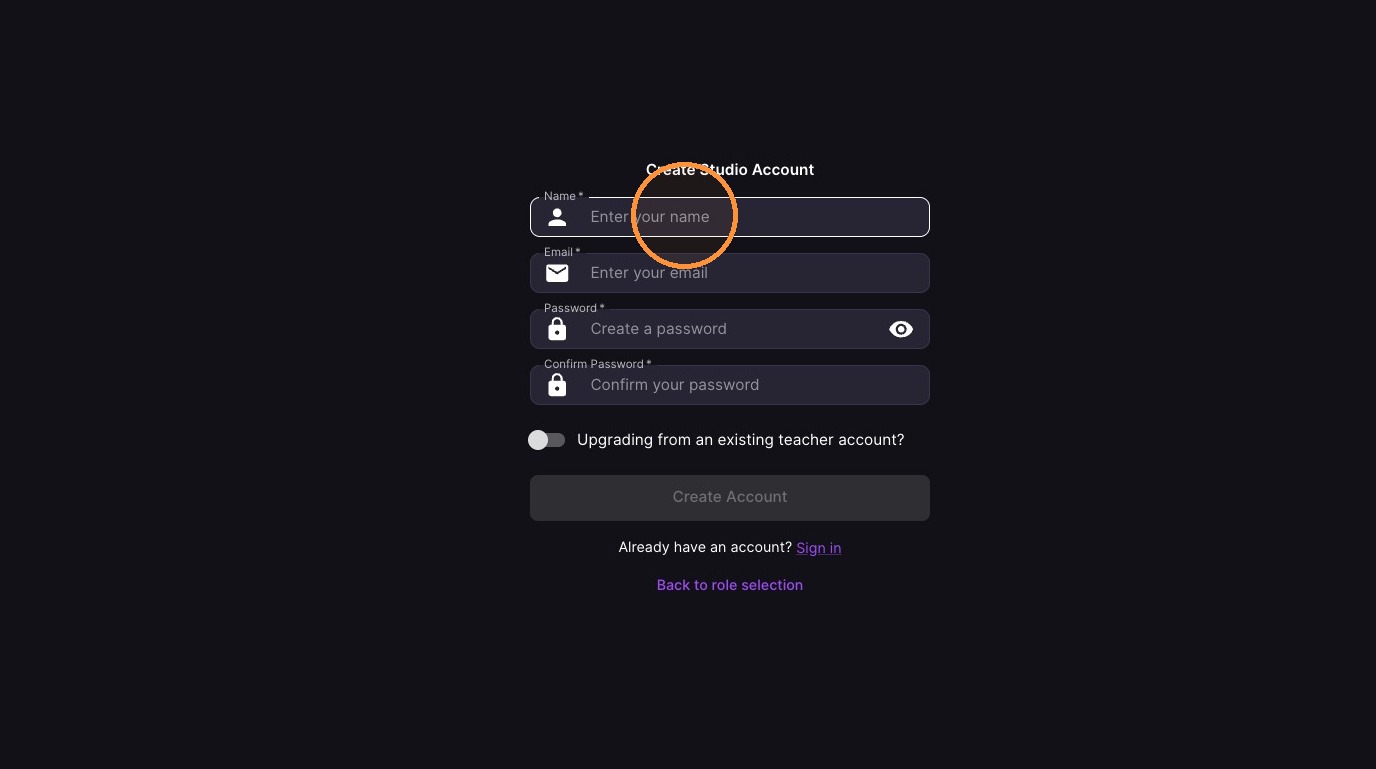
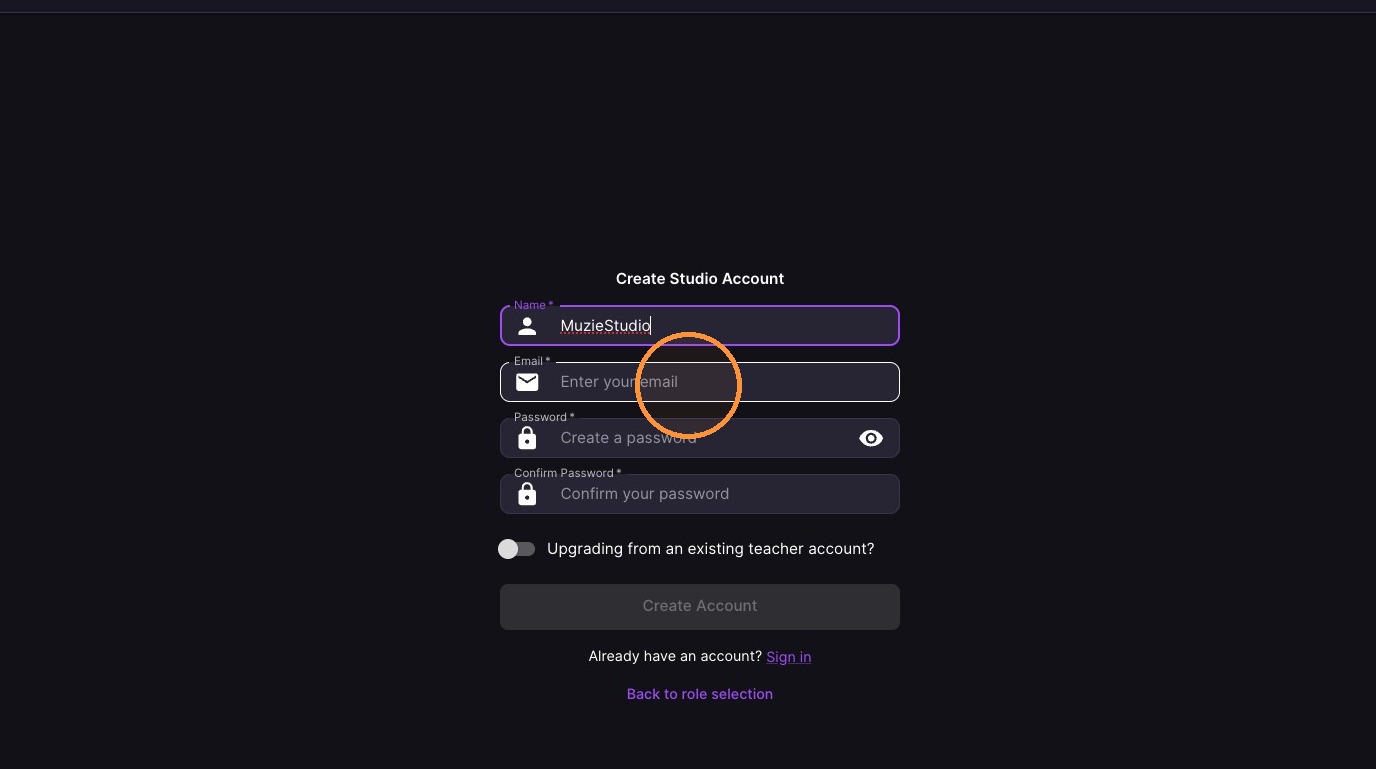
Enter "MuzieStudio" in the Name field
-
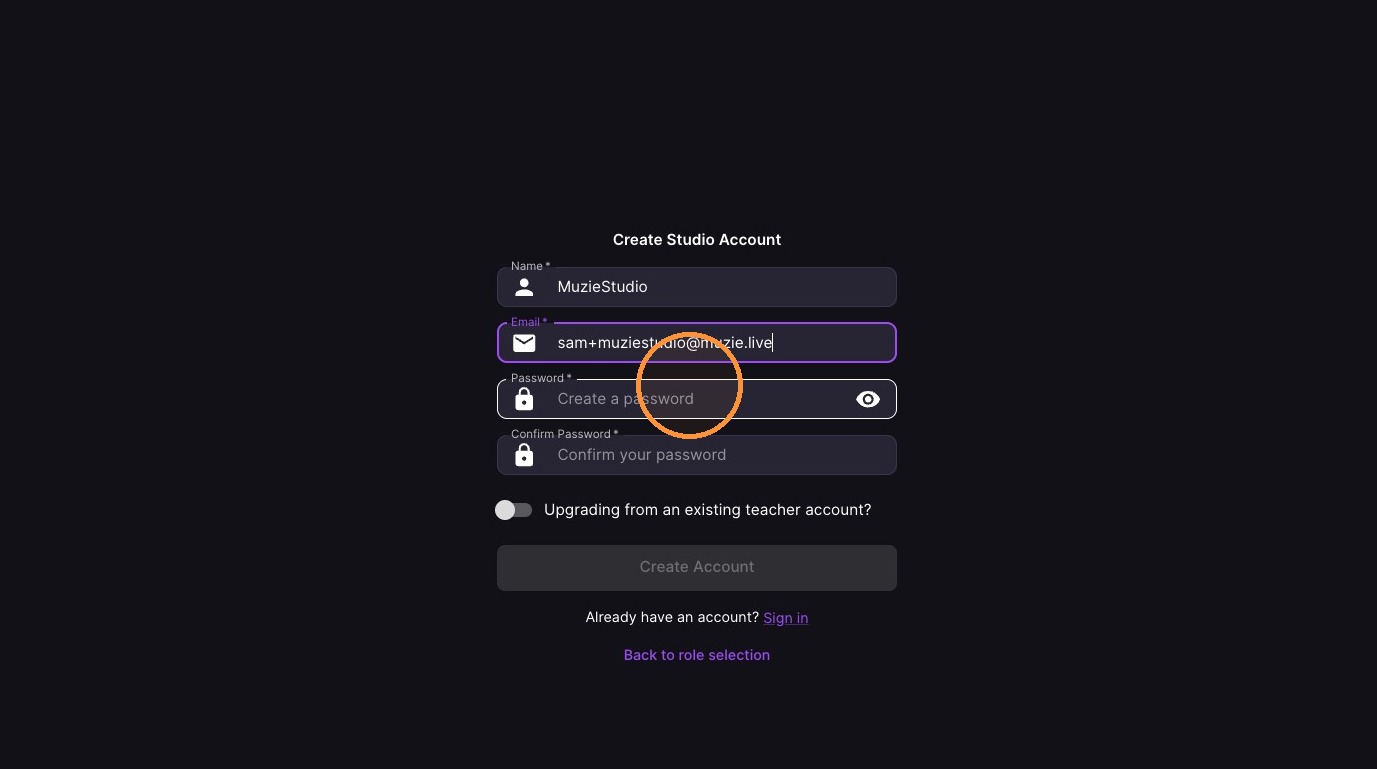
Enter your email address
-
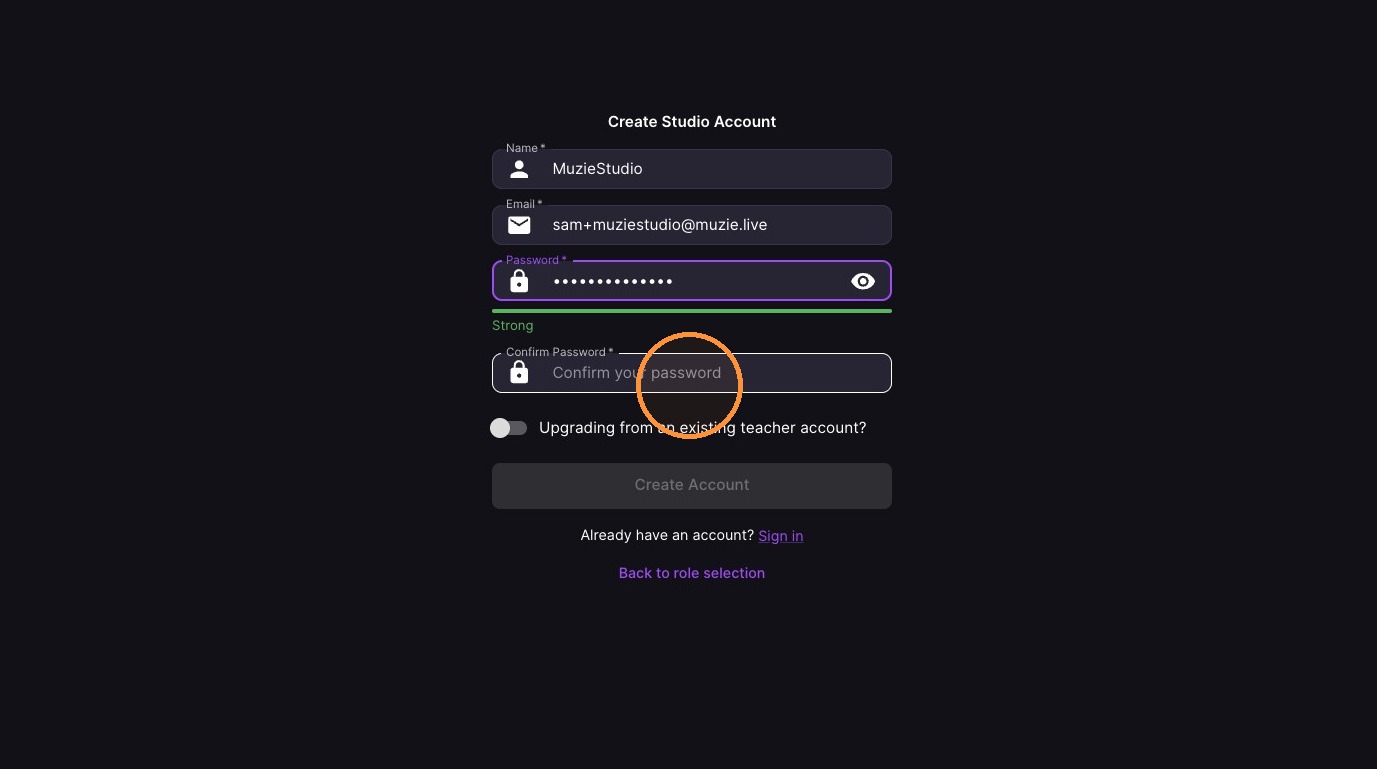
Enter and confirm your password
-
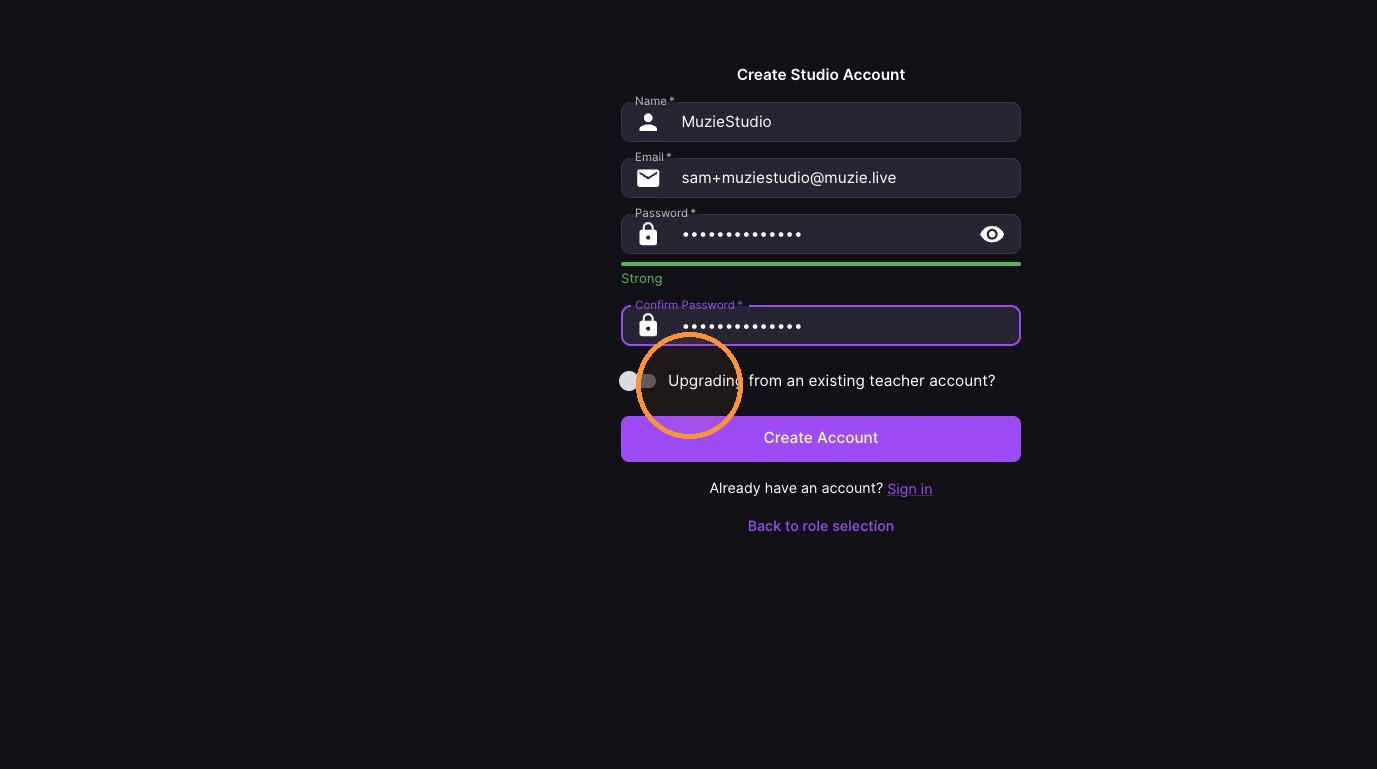
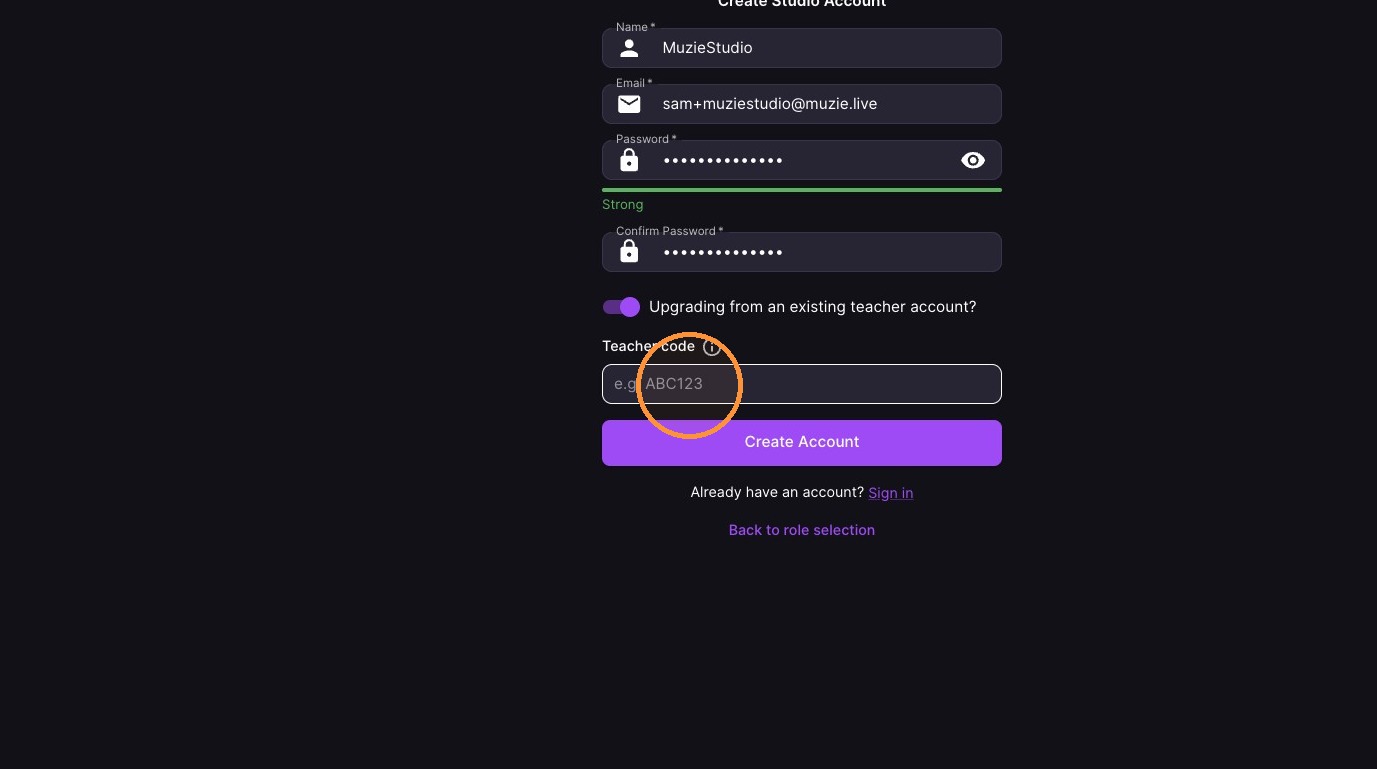
If you already have an account, click "Upgrading from an existing teacher account?"
-
Enter your current "Teacher code" to link your admin account to your current account
-
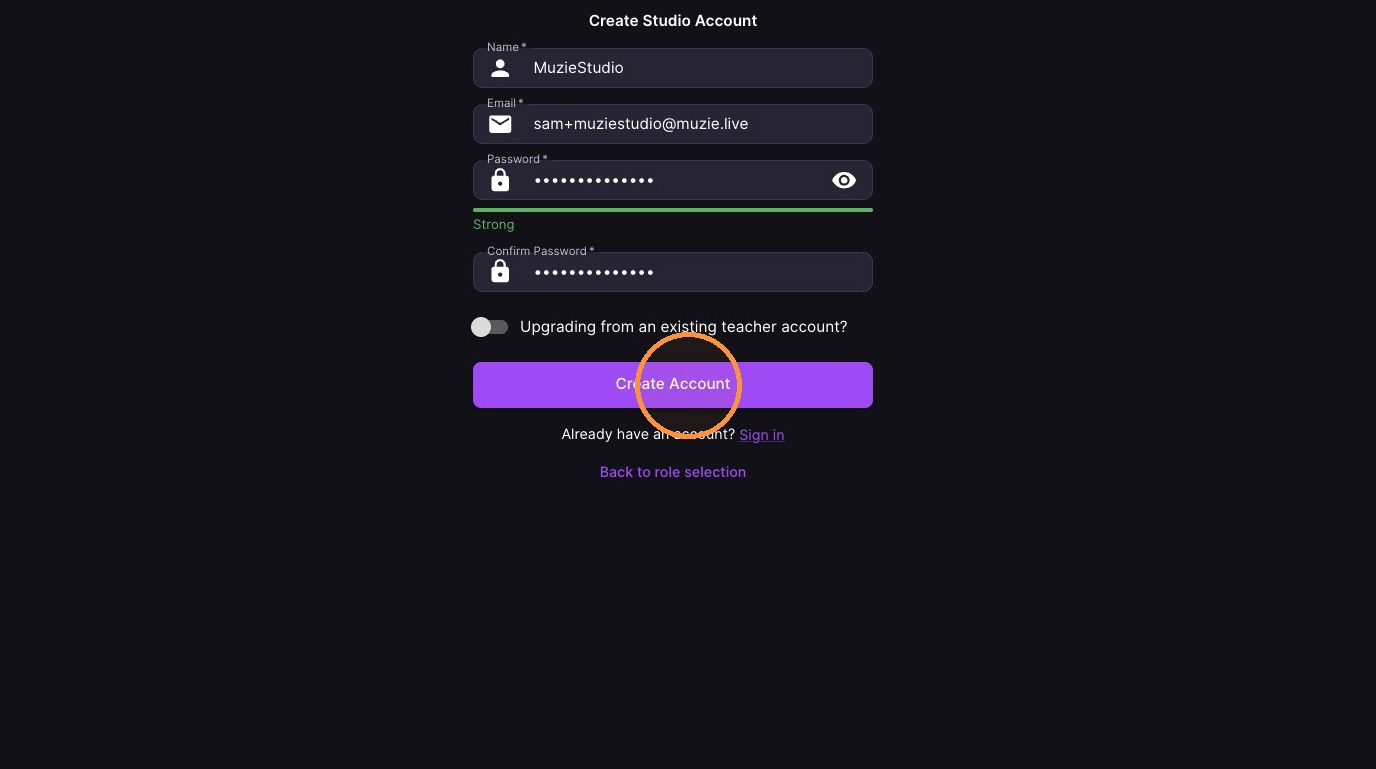
Click Create Account
Email Verification
-
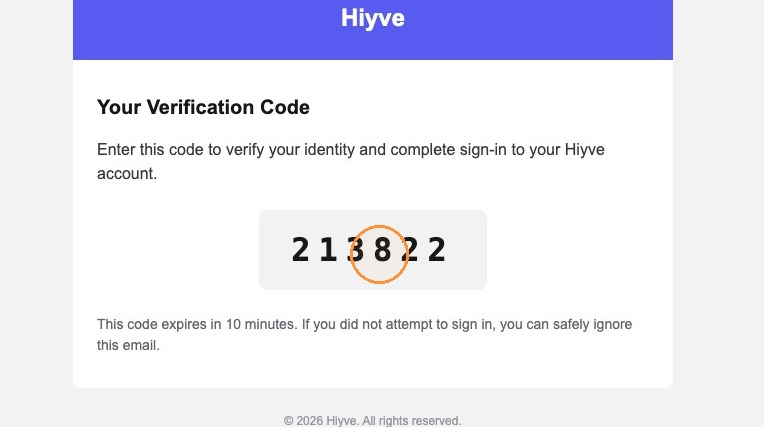
Copy the verification code from the email
10. Switch back to the Muzie.Live tab
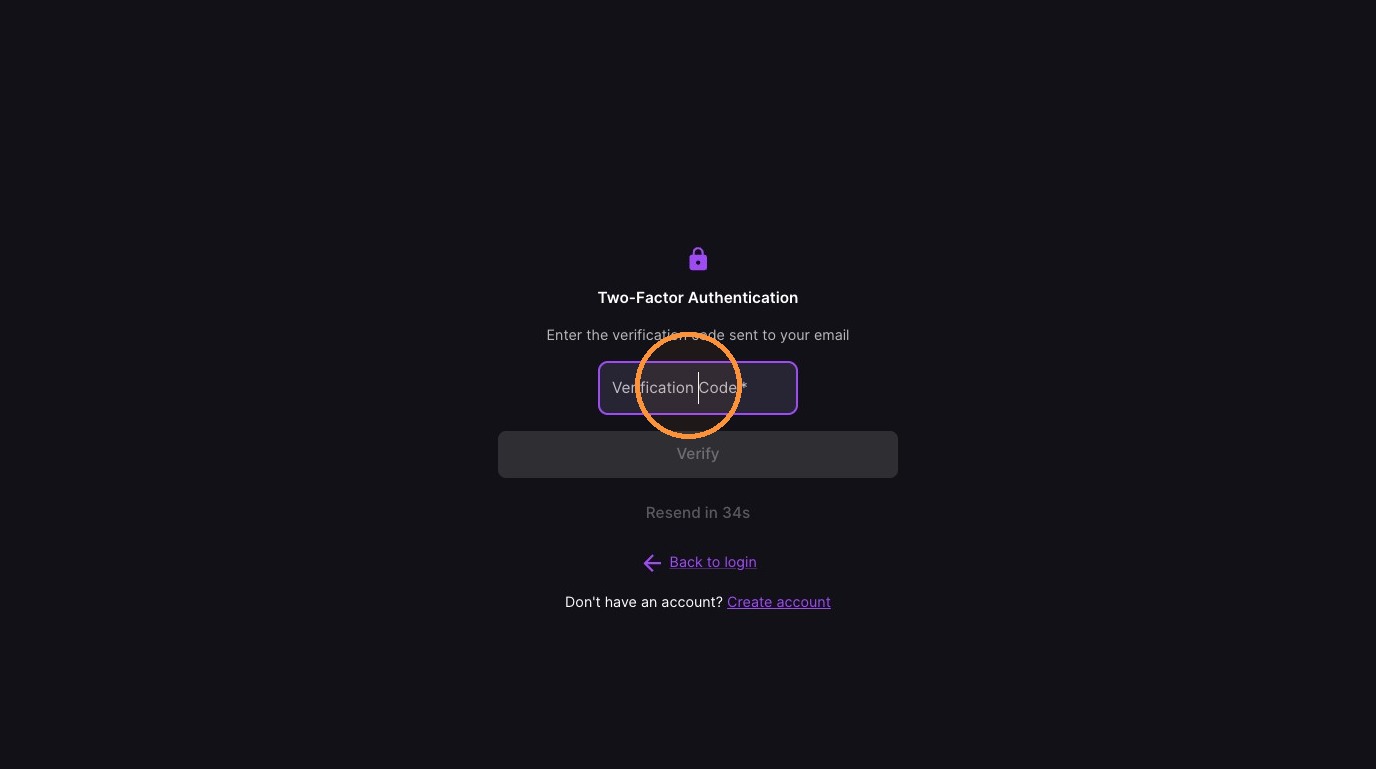
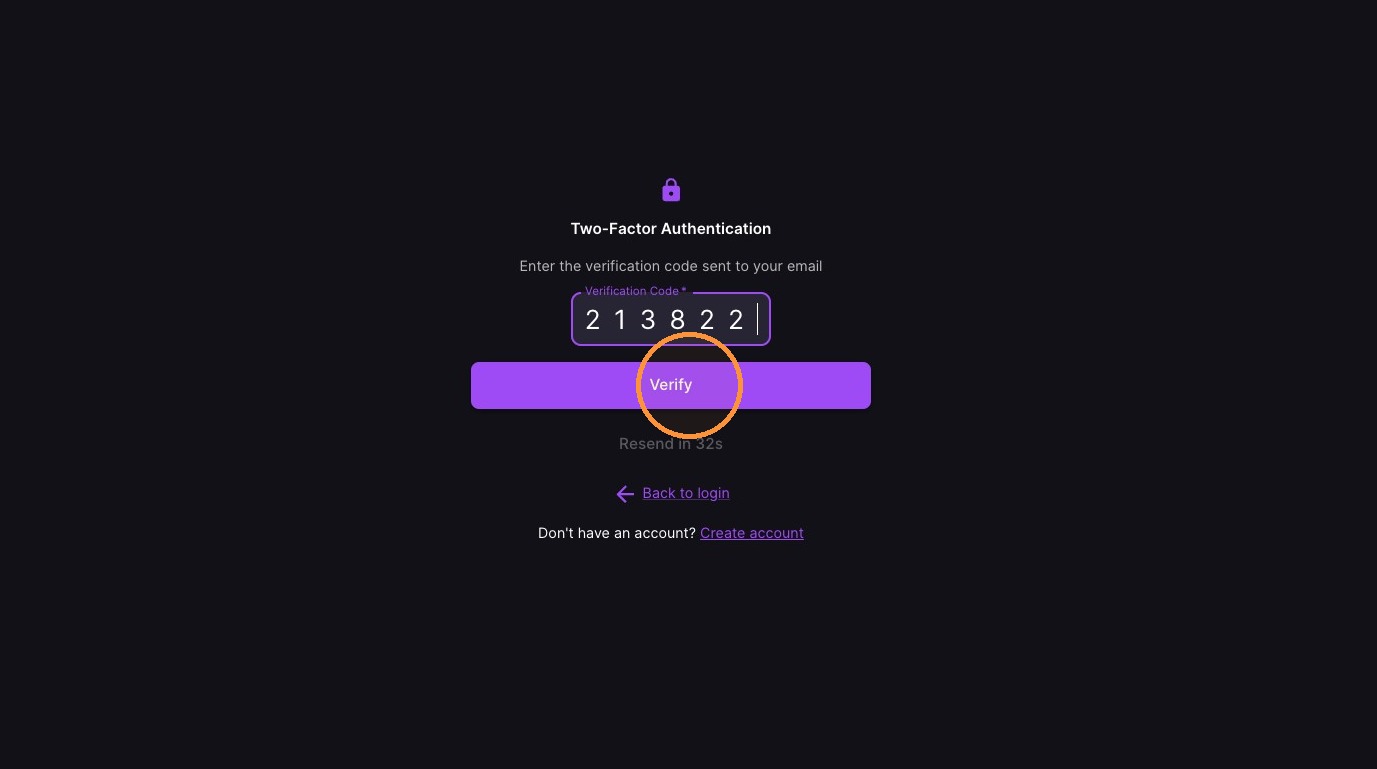
11. Enter the verification code and click Verify
Subscription and Payment
12. Specify the number of teacher seats
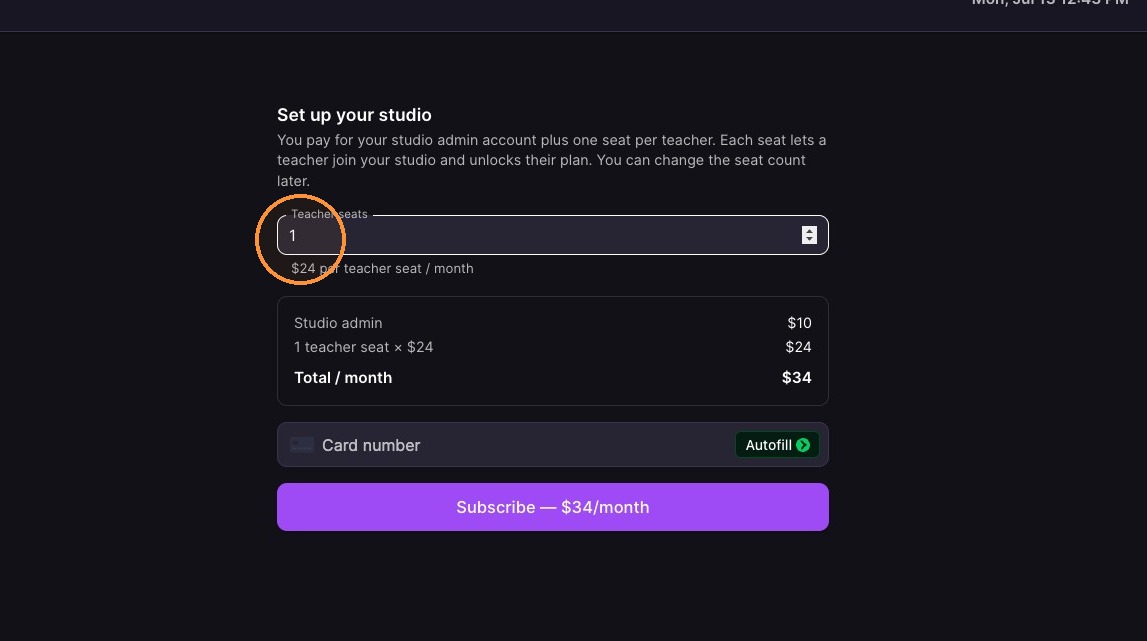
13. Enter payment info a and click "Subscribe"