This guide is for Studio Admin users who need to manage students in the Students section. Use it to view a student profile, dashboard and stats, add an admin-only nickname, assign students to one or more teachers, and enable or disable student access on your roster. Keep in mind that nicknames are only visible to admins, students can be assigned to multiple teachers at the same time, and disabling a student removes them from the roster until they are enabled again.
-
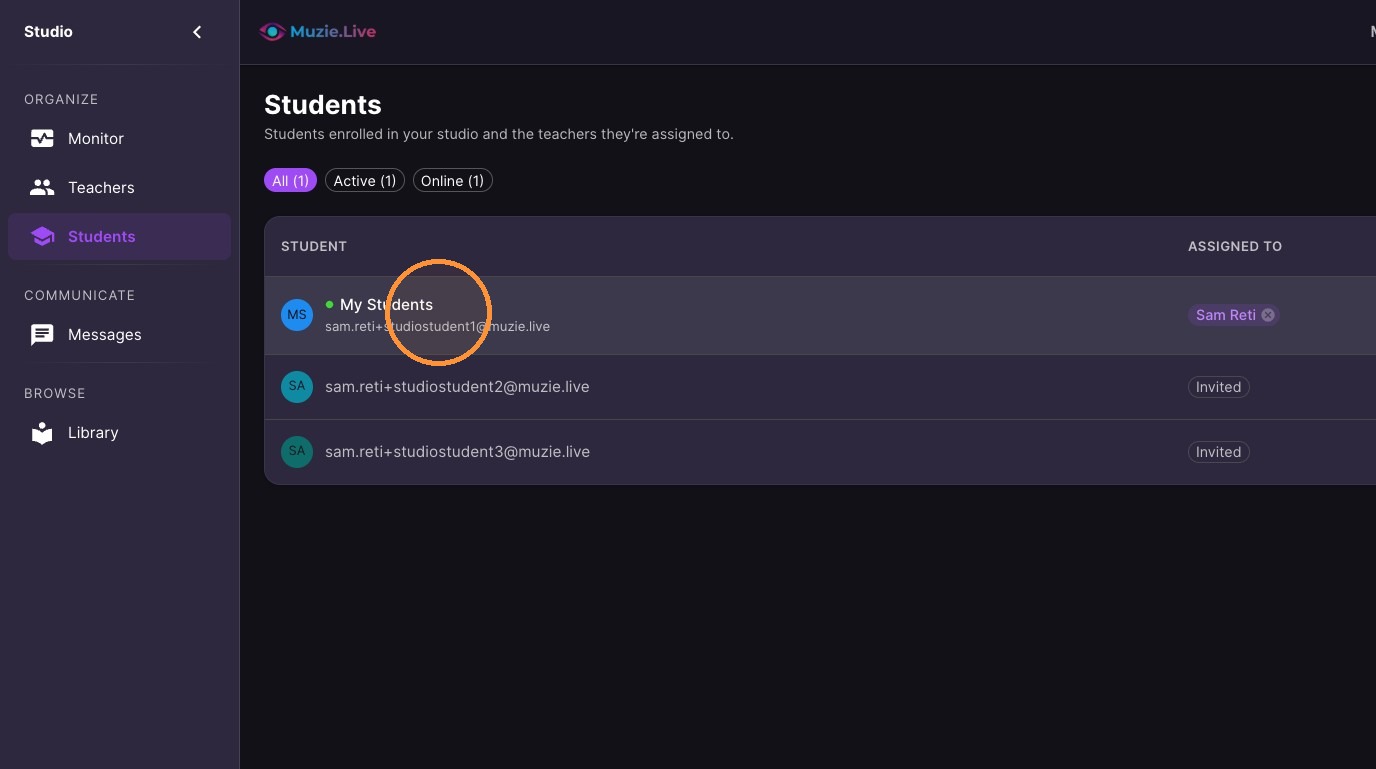
Click student name to view their profile
-
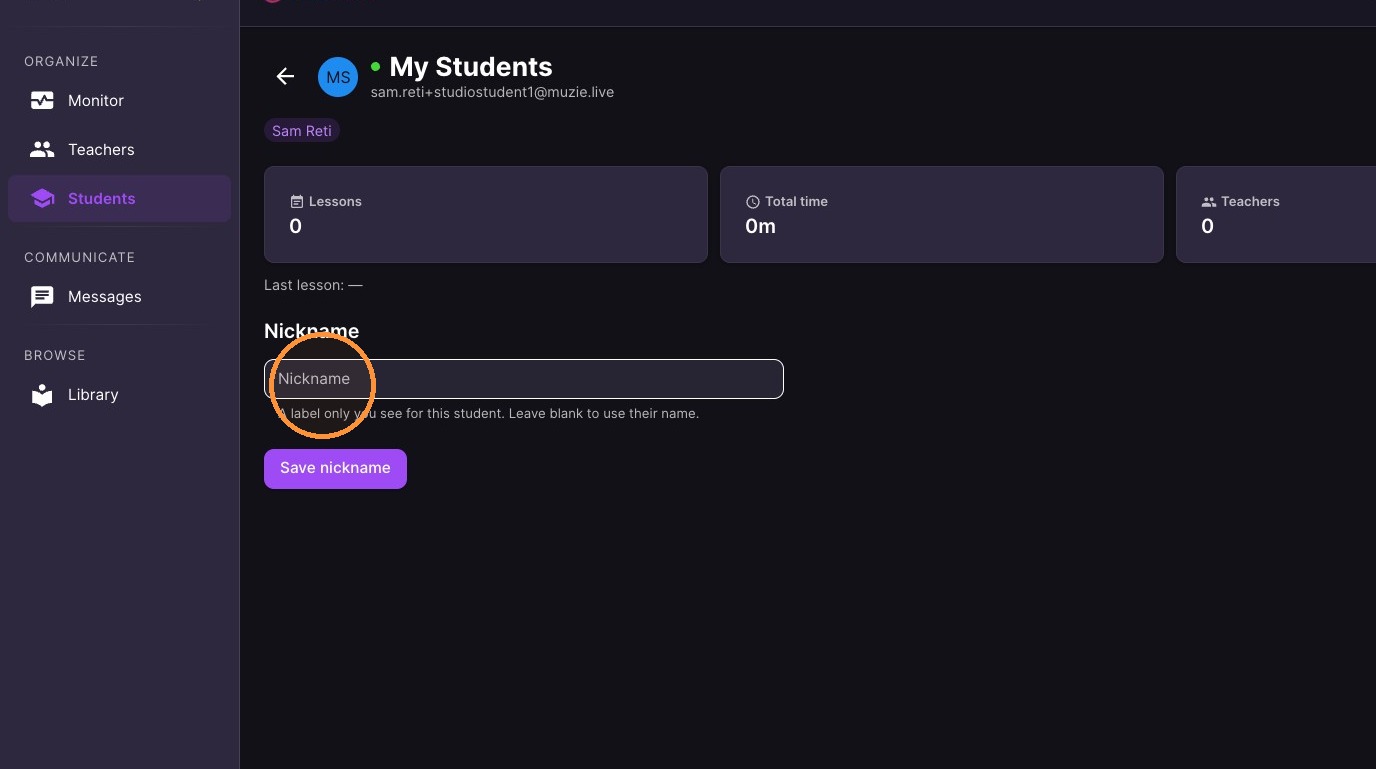
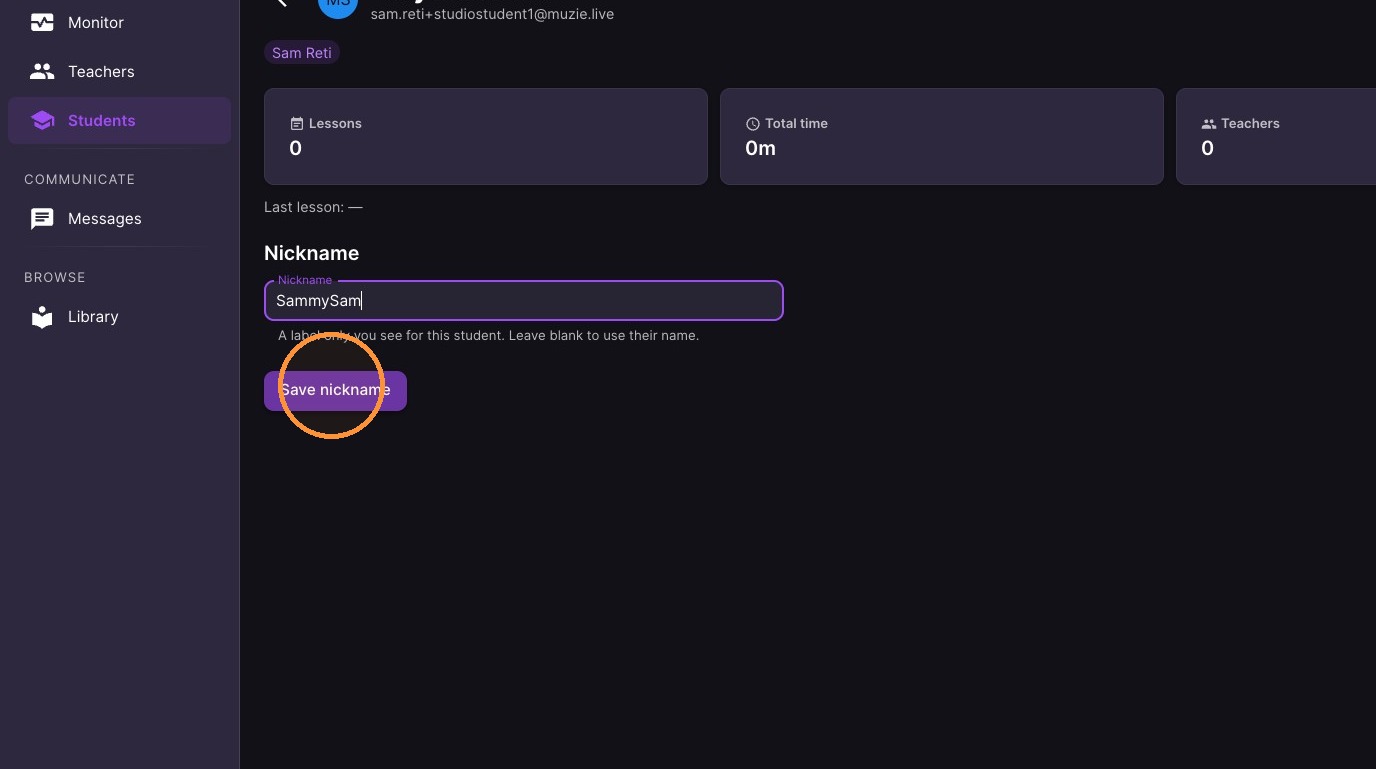
Enter a nickname (This is a name only the Admin can see)
Teacher Assignment
-
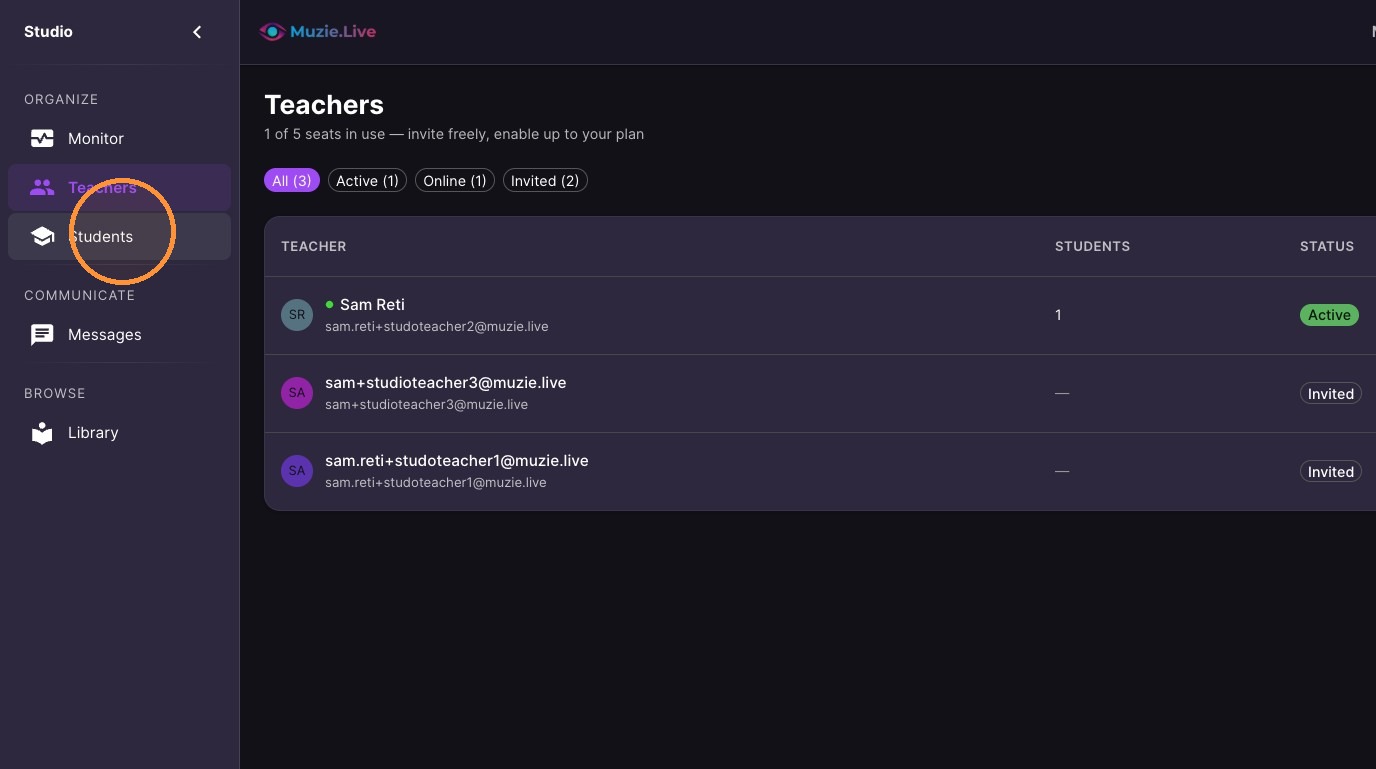
Navigate back to the Students section
-
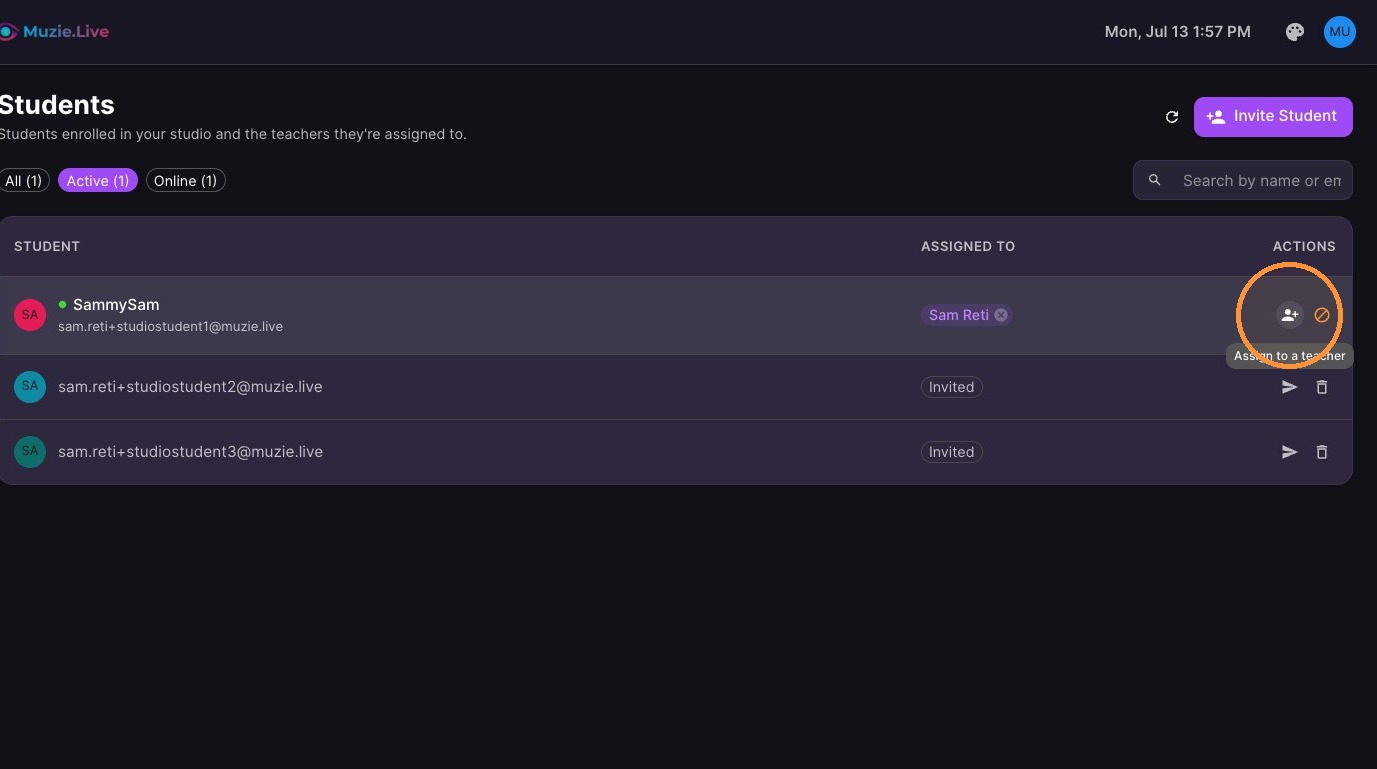
Click Assign to teacher
-
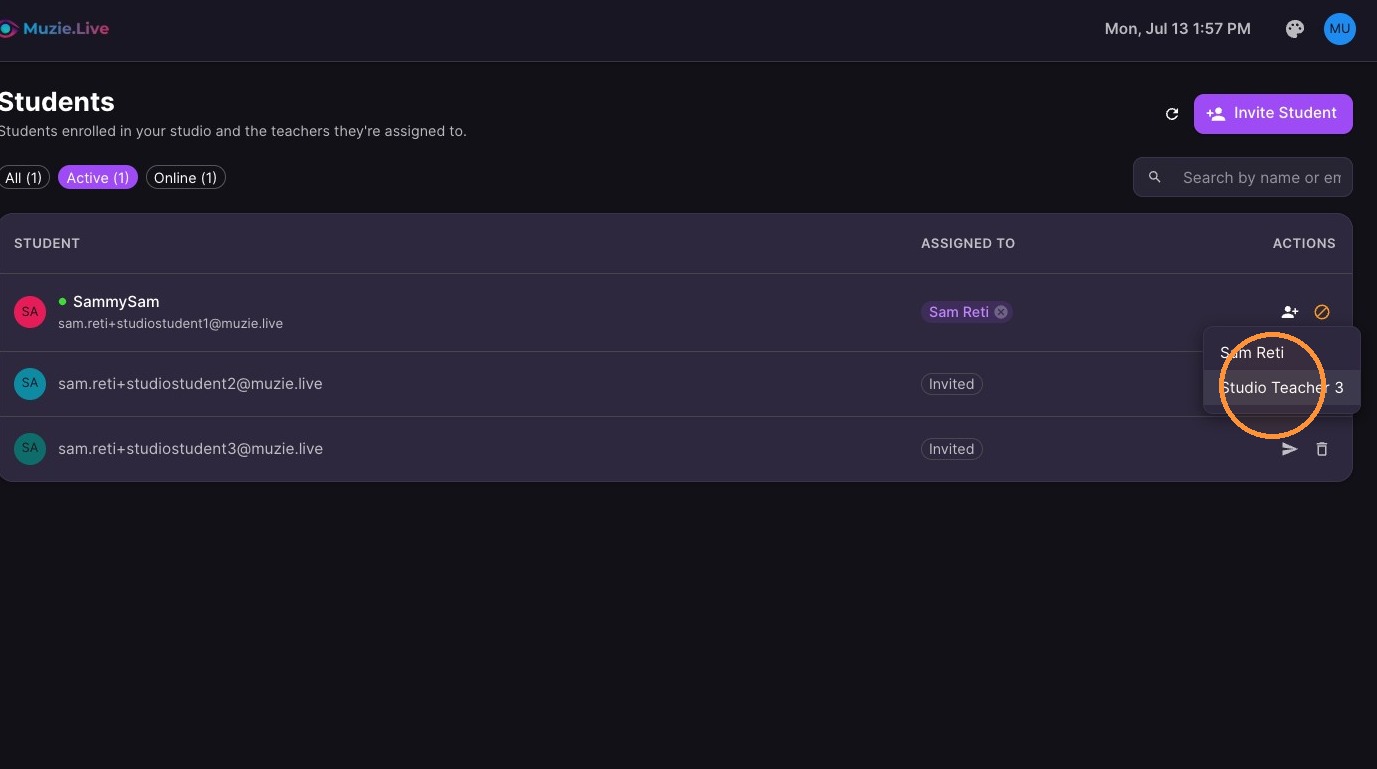
Select the teacher
-
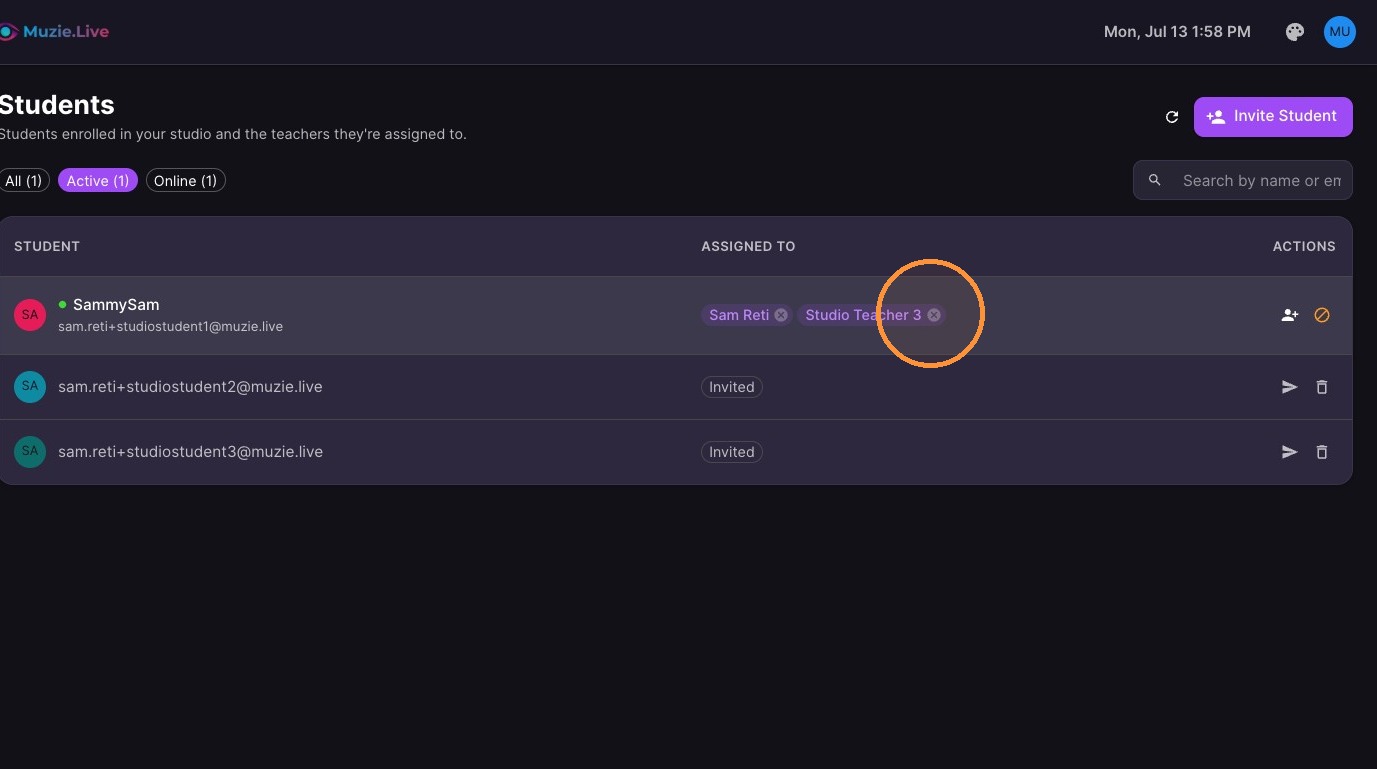
You can now see student is assigned to multiple teachers. (Click the X to remove any assigned teacher)
-
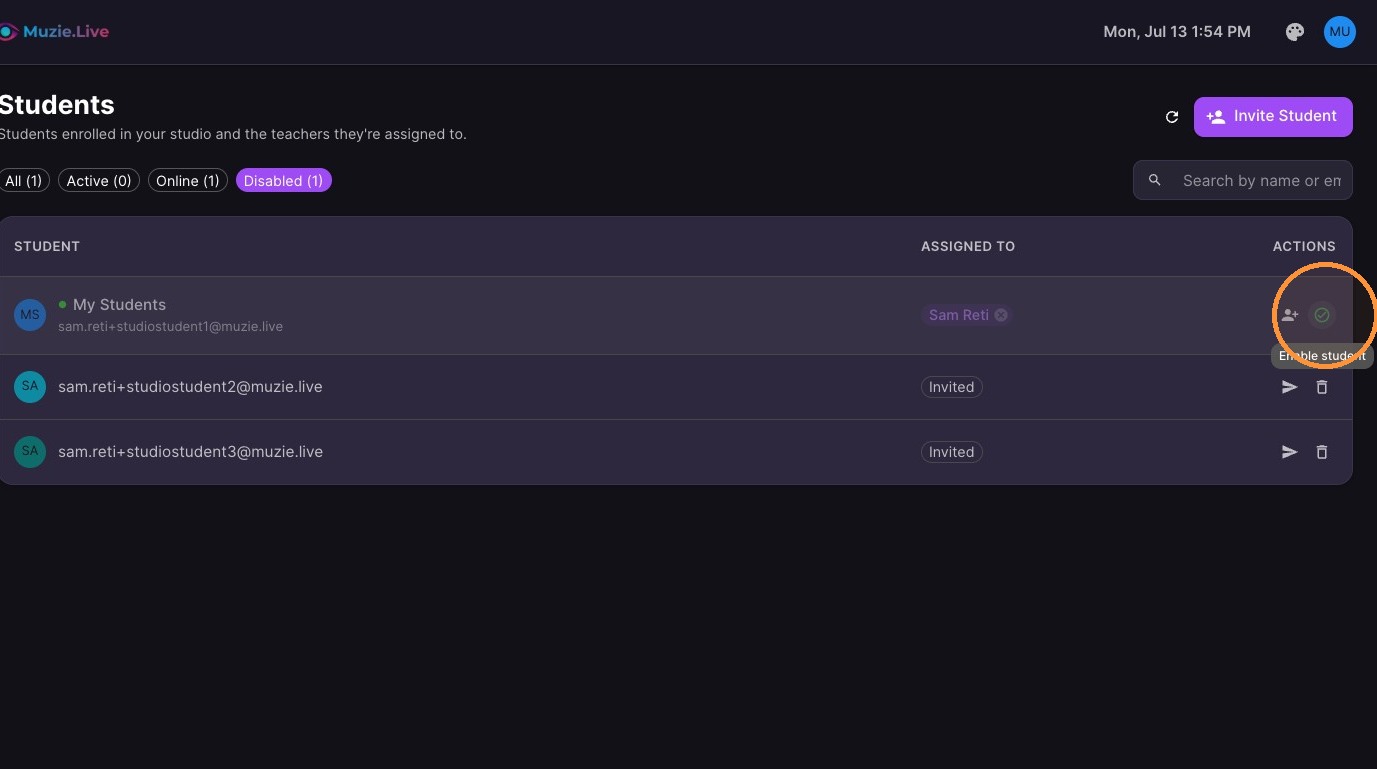
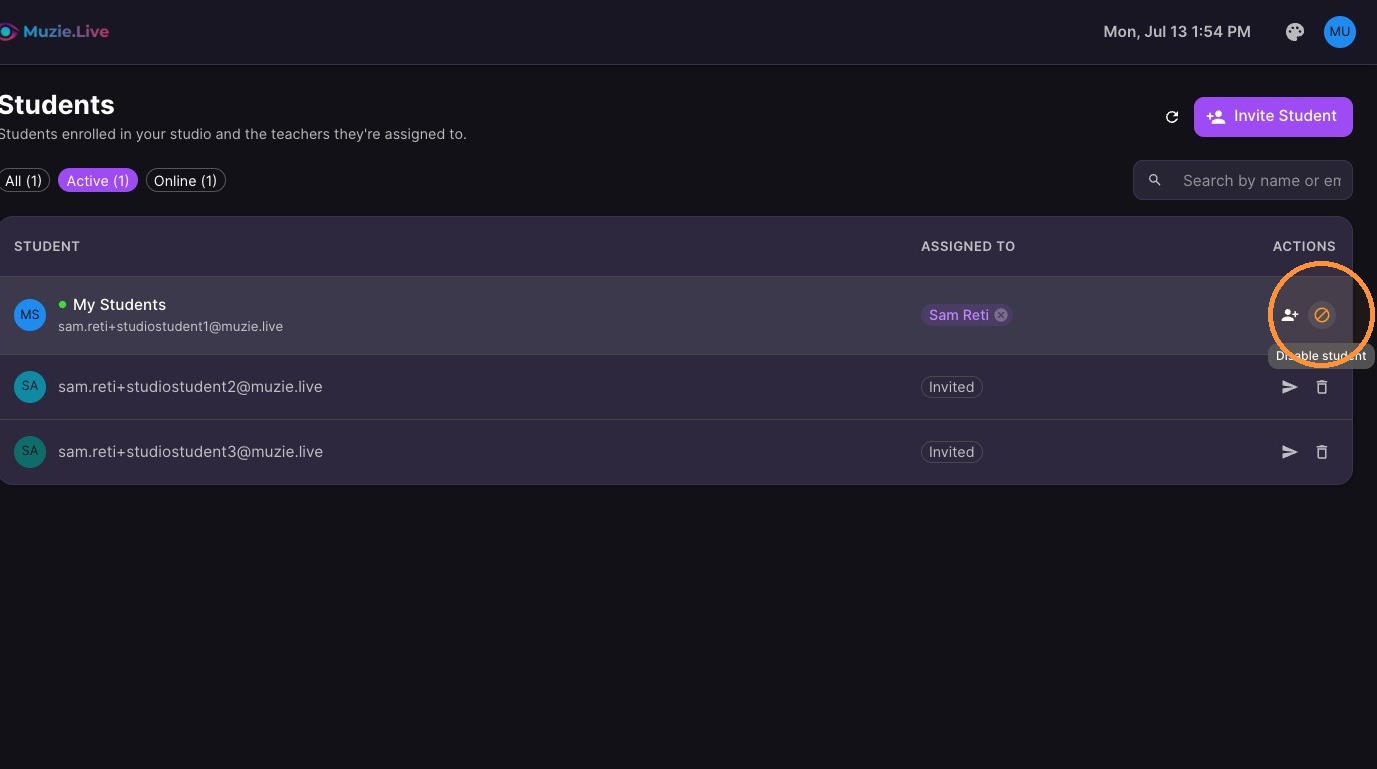
Click 'Disable student' icon to remove a student from your roster
-
Click 'Enable student' icon to bring them back