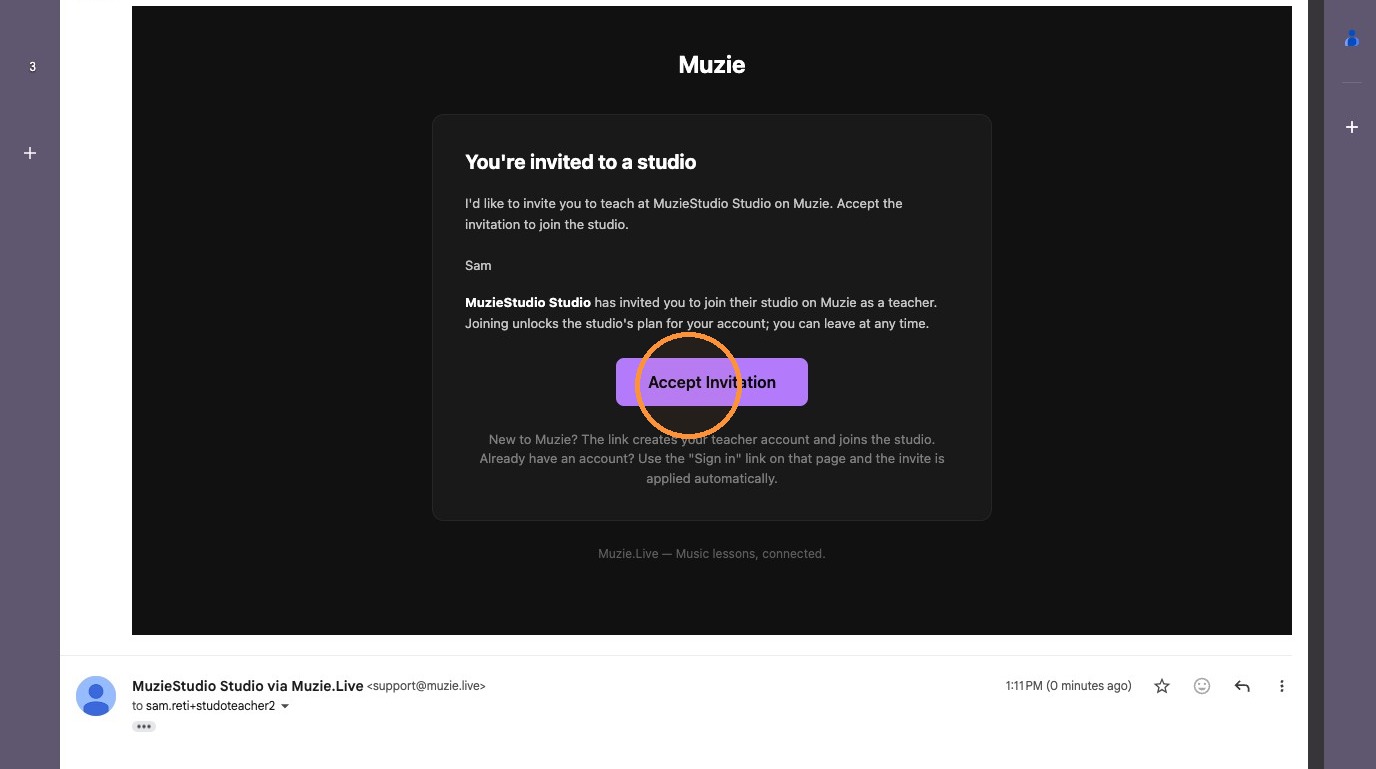
This guide is for Studio Admins who need to invite new teachers to join MuzieStudio. Before you start, make sure you have Studio Admin access and the email addresses for each teacher you want to invite. By the end, you’ll have sent the invitation email, and each teacher will appear as invited until they accept and create their account.
Studio Navigation
-
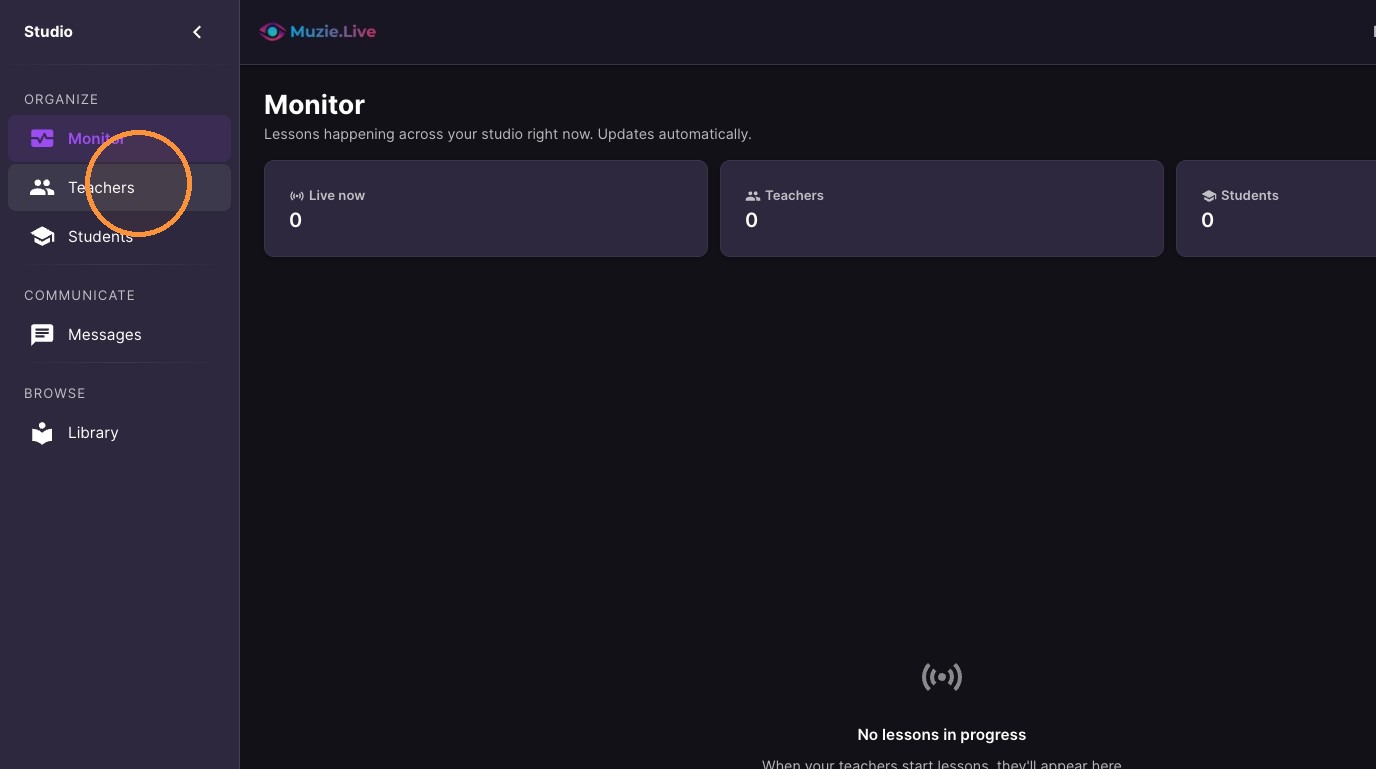
Click "Teachers" in the side navigation menu.
Teacher Invitations
-
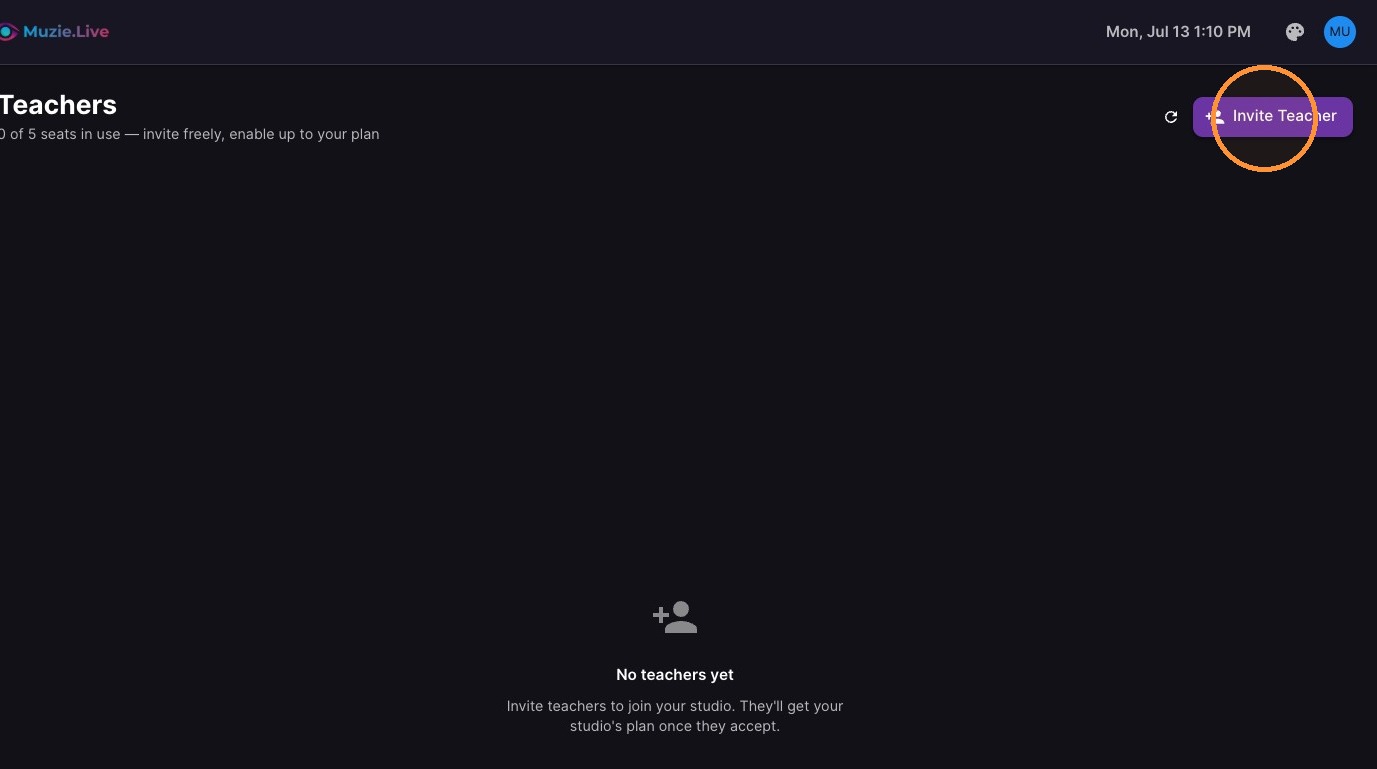
Click "Invite Teacher"
-
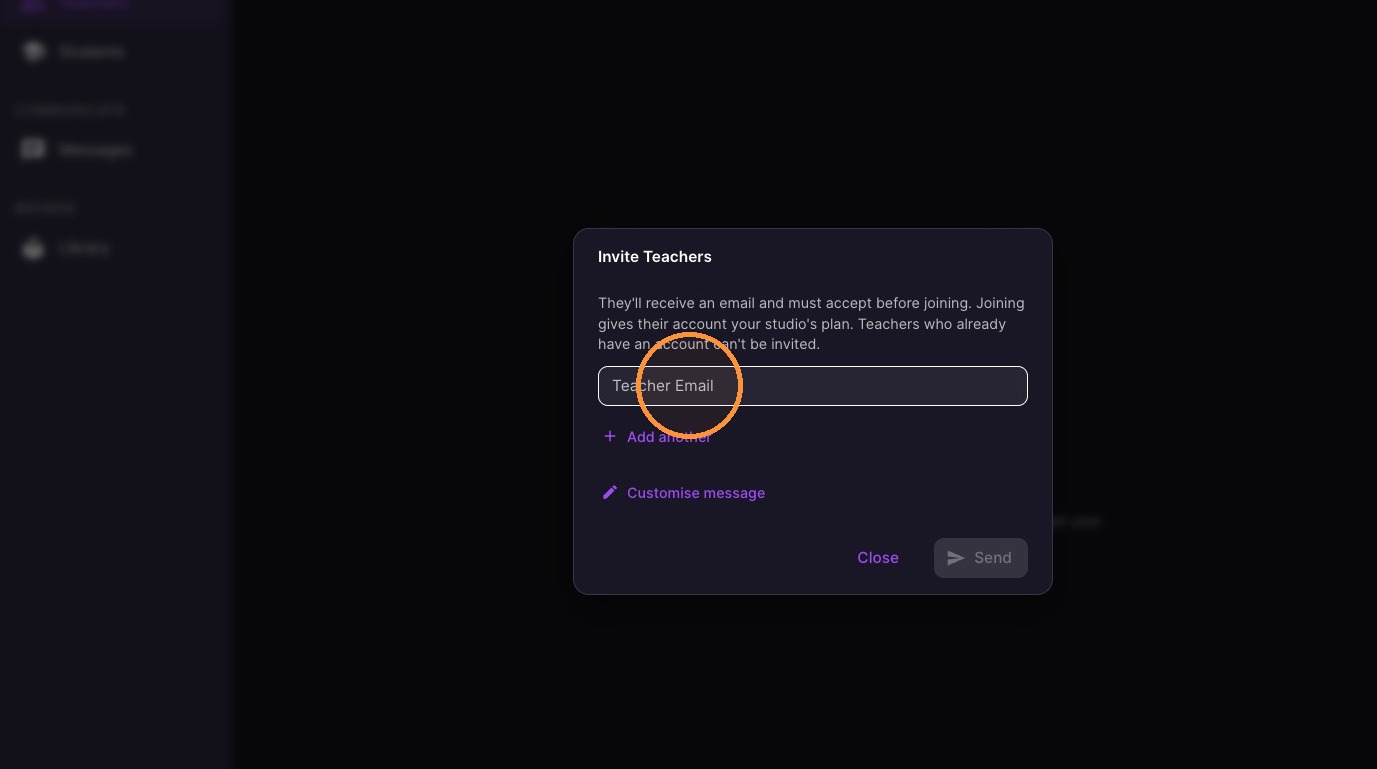
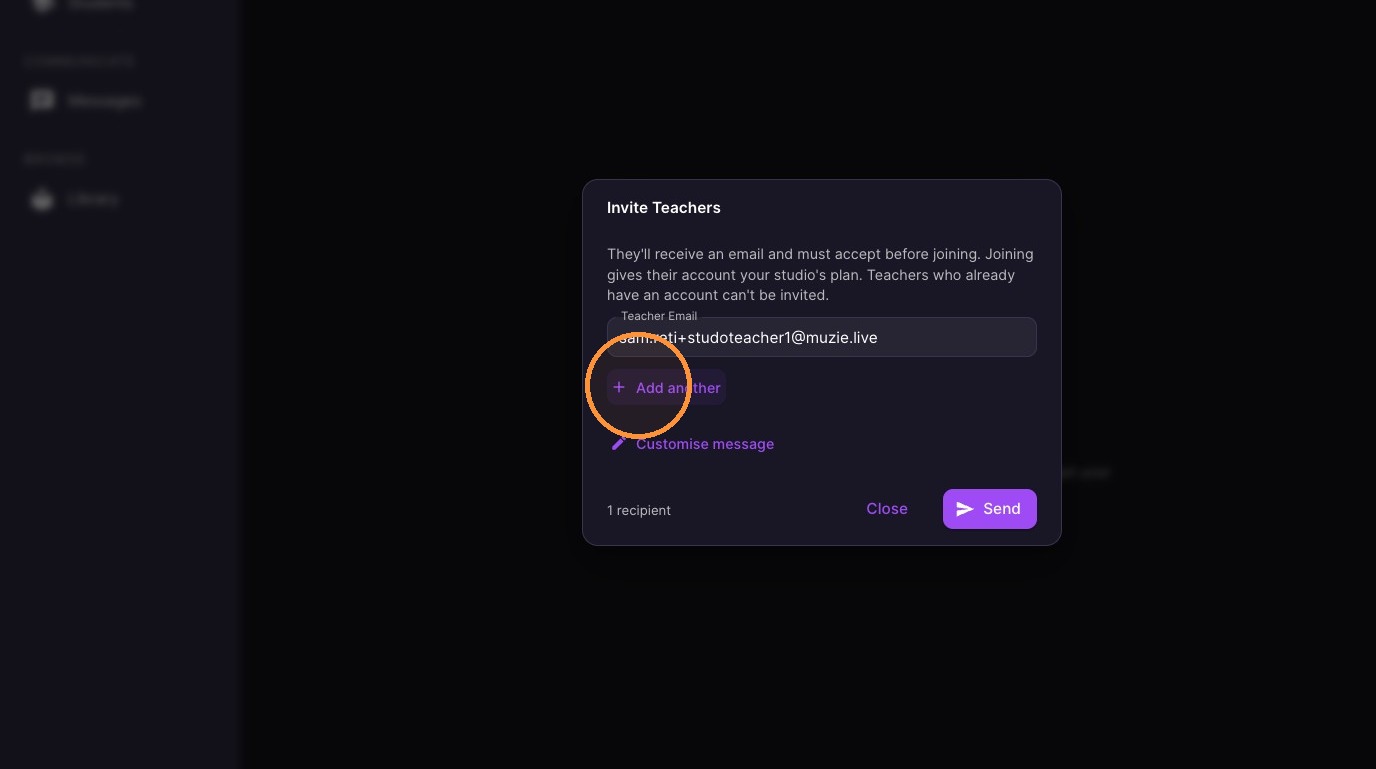
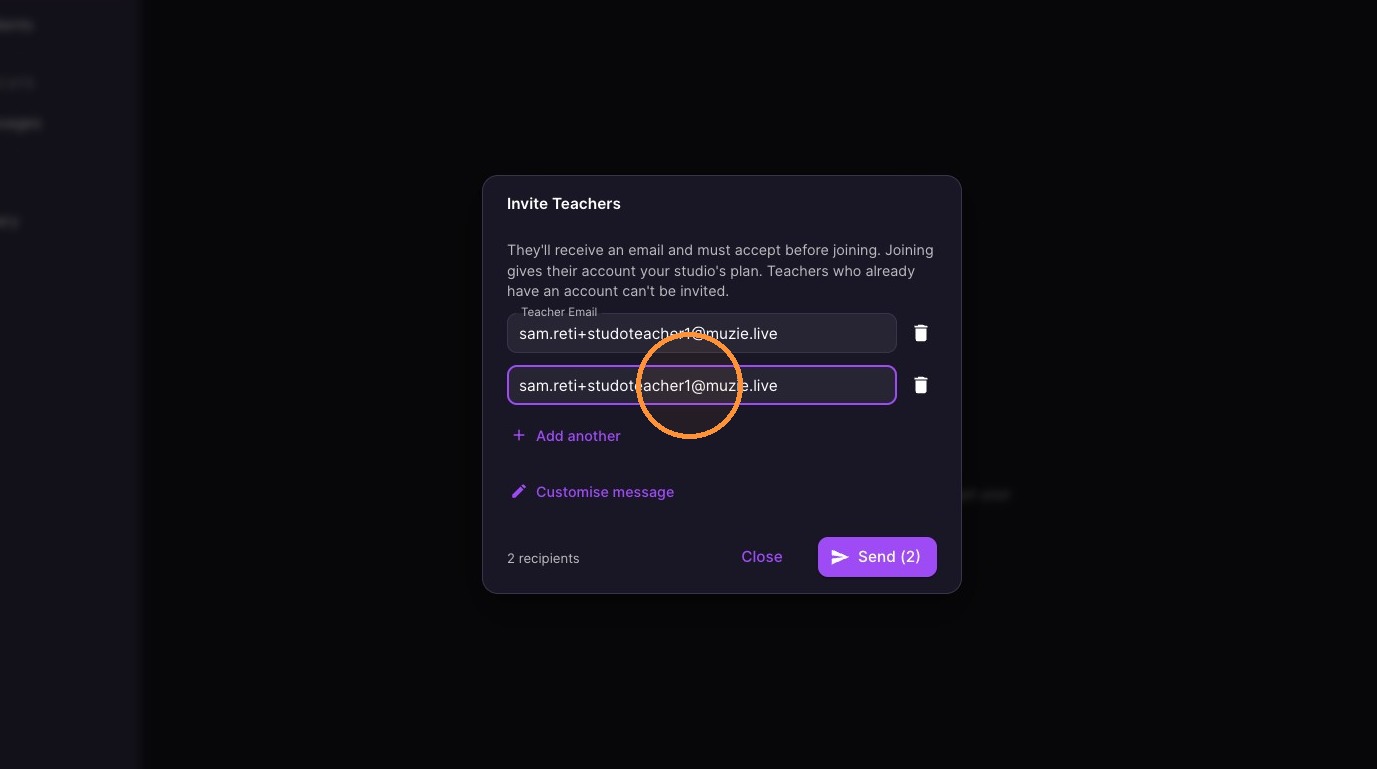
Enter the email addresses for the teachers you wish to invite, clicking "Add another" for each additional recipient.
-
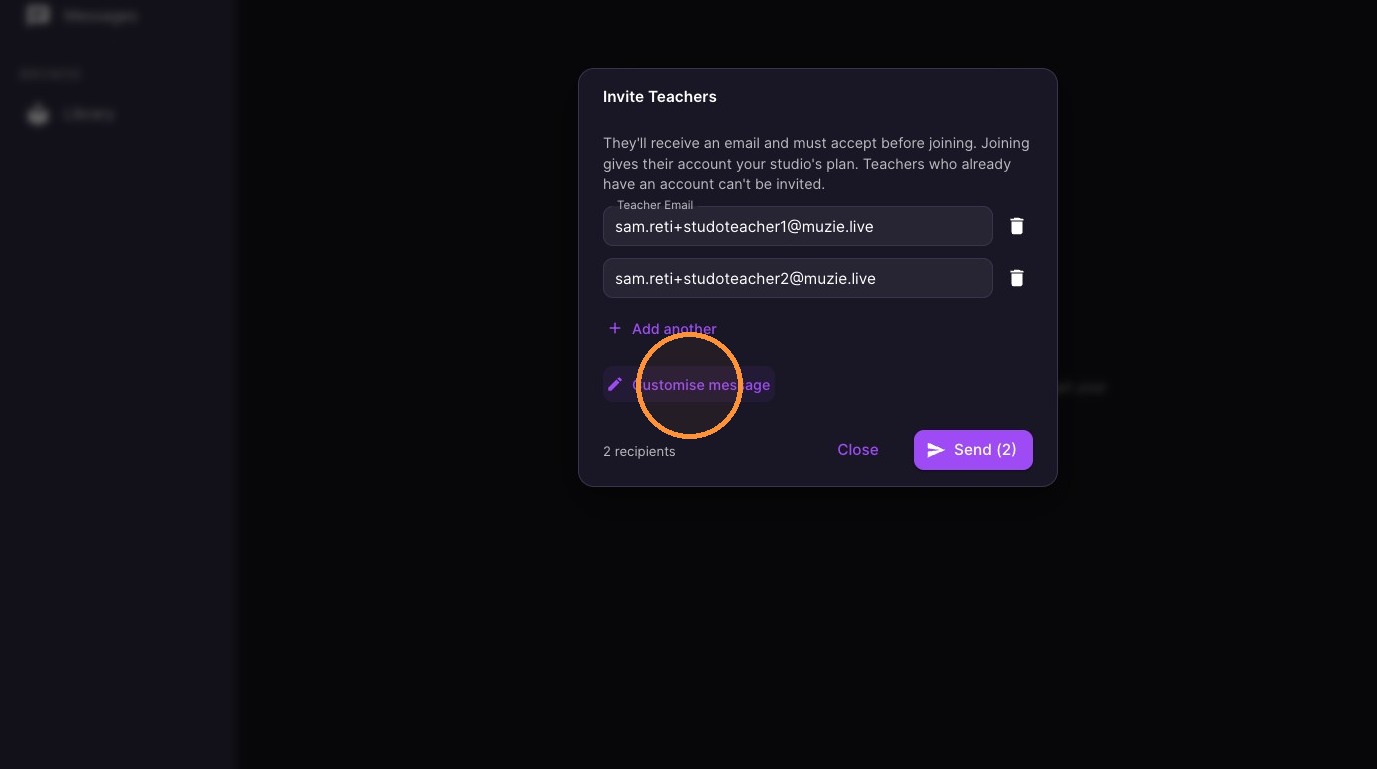
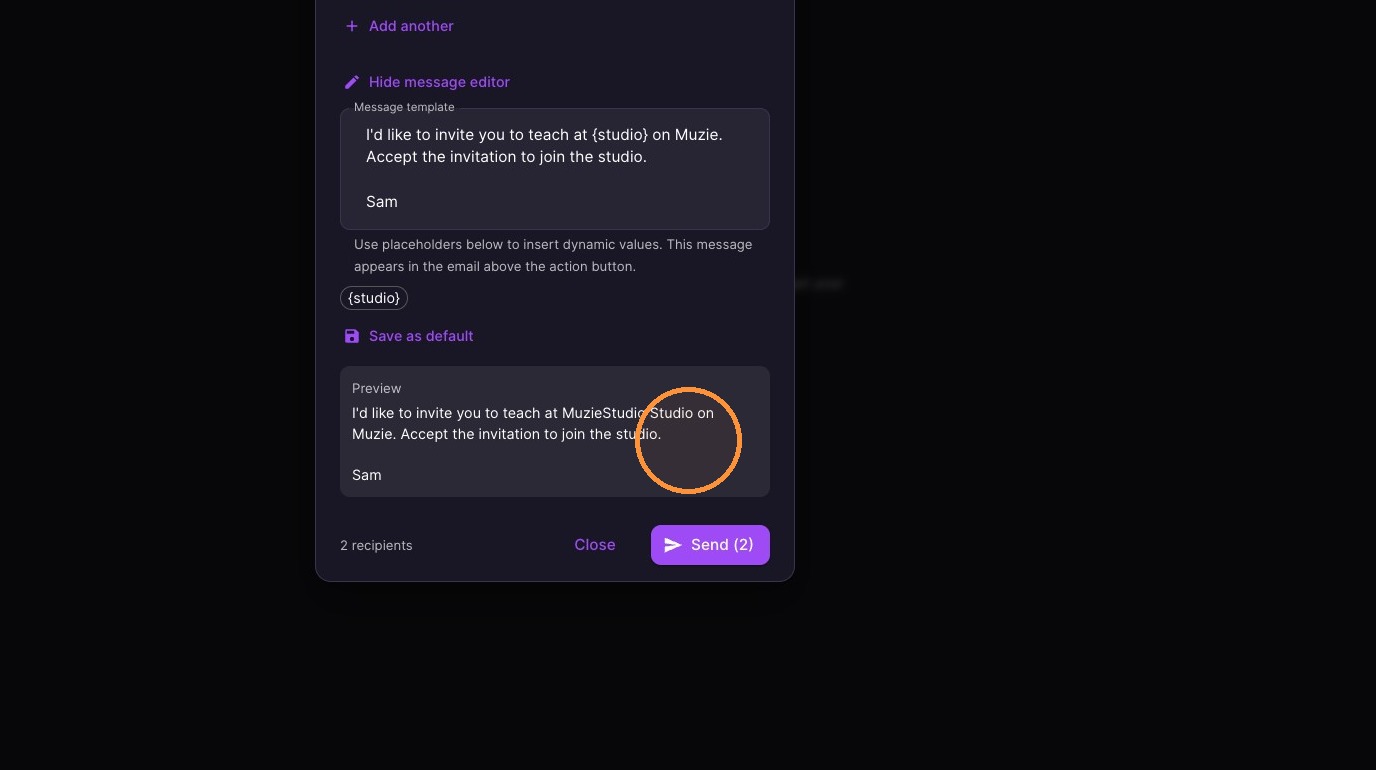
Click "Customise message" to expand the invitation text editor.
-
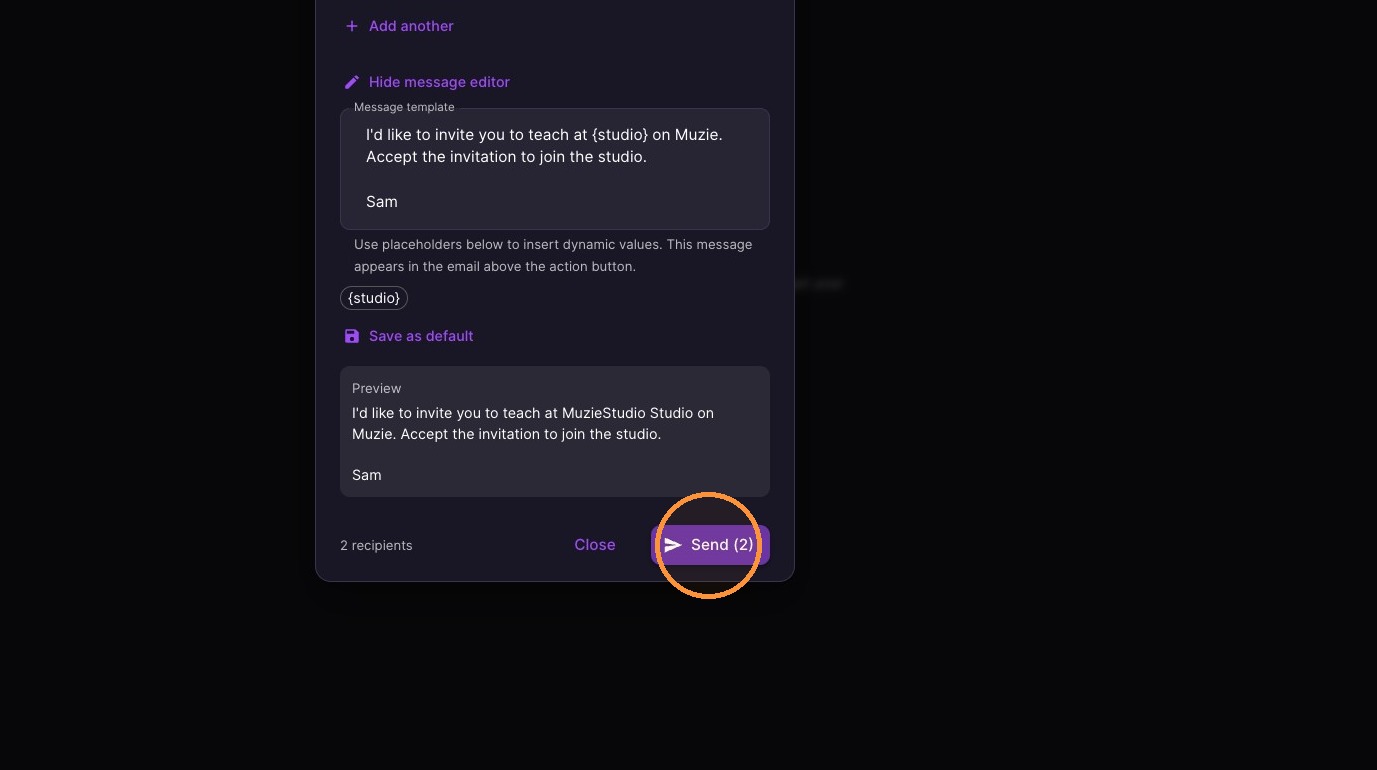
Optional** Edit the invite message
-
Click "Send" to email the invitations.
-
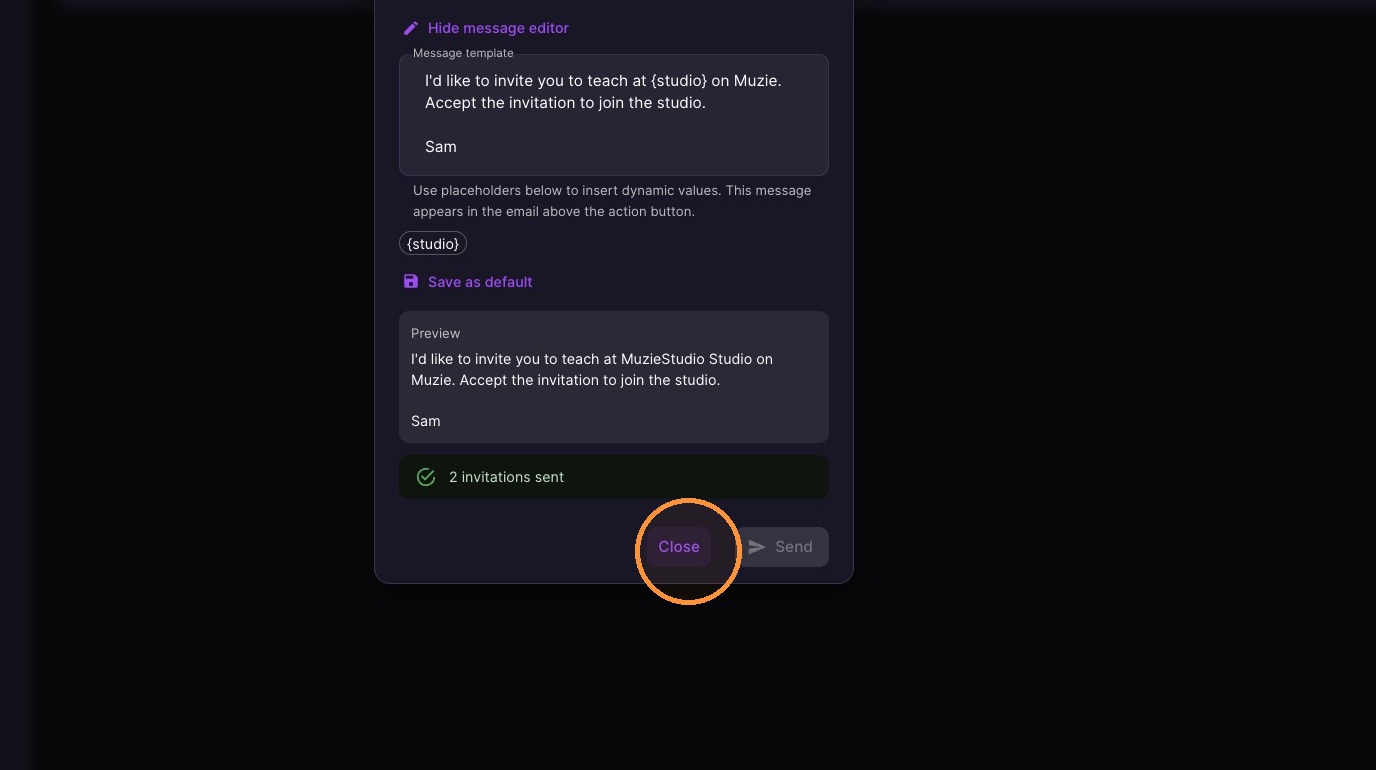
Click "Close"
Invitation Status and Acceptance
-
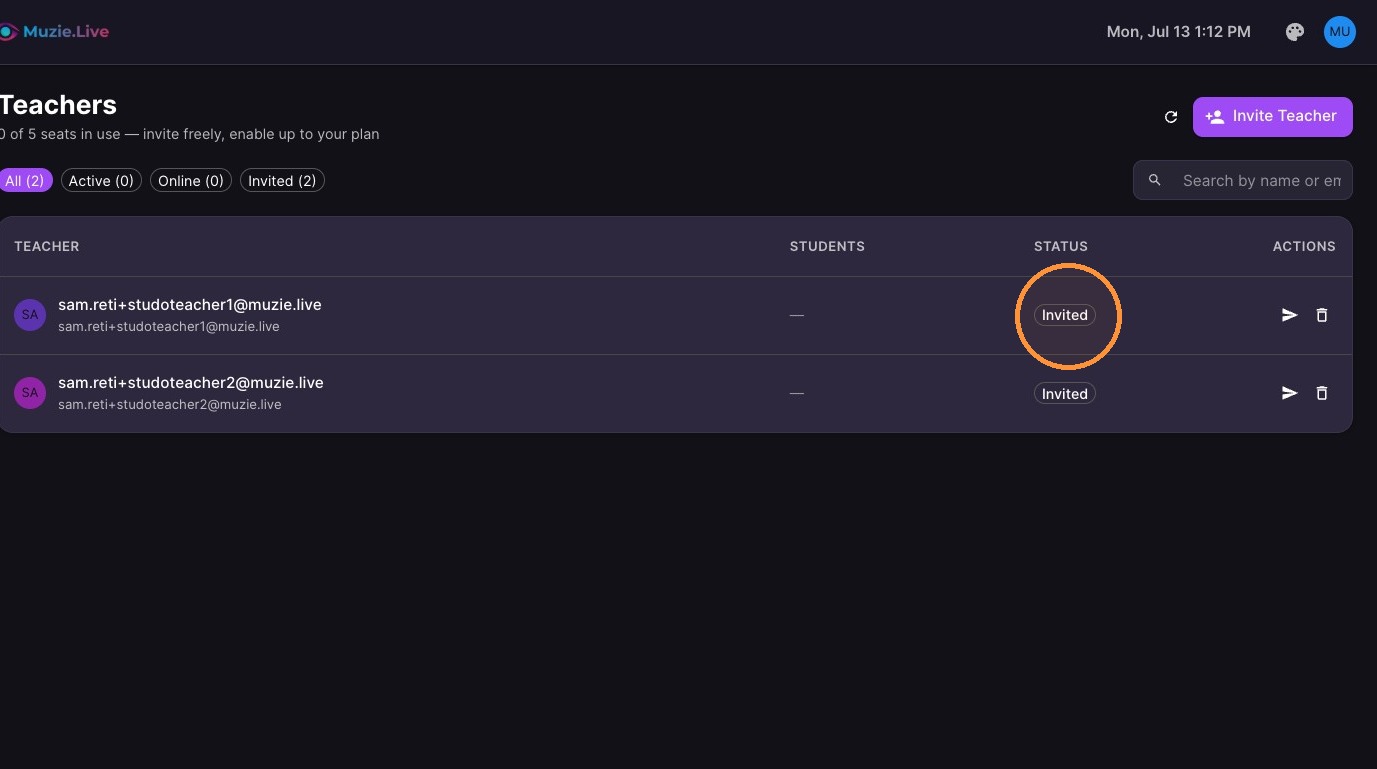
Teachers will show as invited until they sign up for their account
-
This is the invite the teacher will see in their email