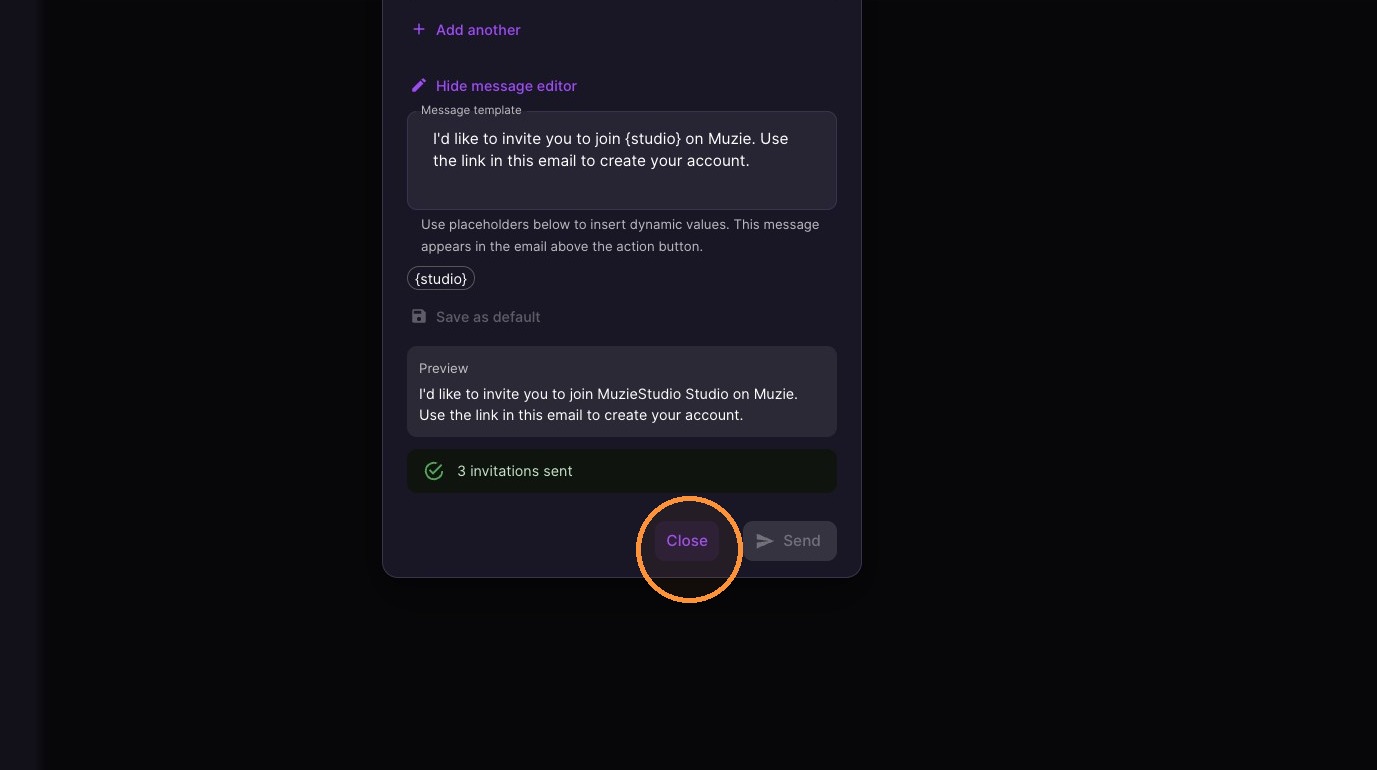
This help guide is for Studio Admins who need to invite students to a Muzie.Live studio account. Before you begin, make sure you have access to Studio Admin, the student email addresses you want to invite, and, if applicable, the teacher each student should be assigned to. By the end of these steps, students will receive an email invitation and appear under the assigned teacher in your studio.
-
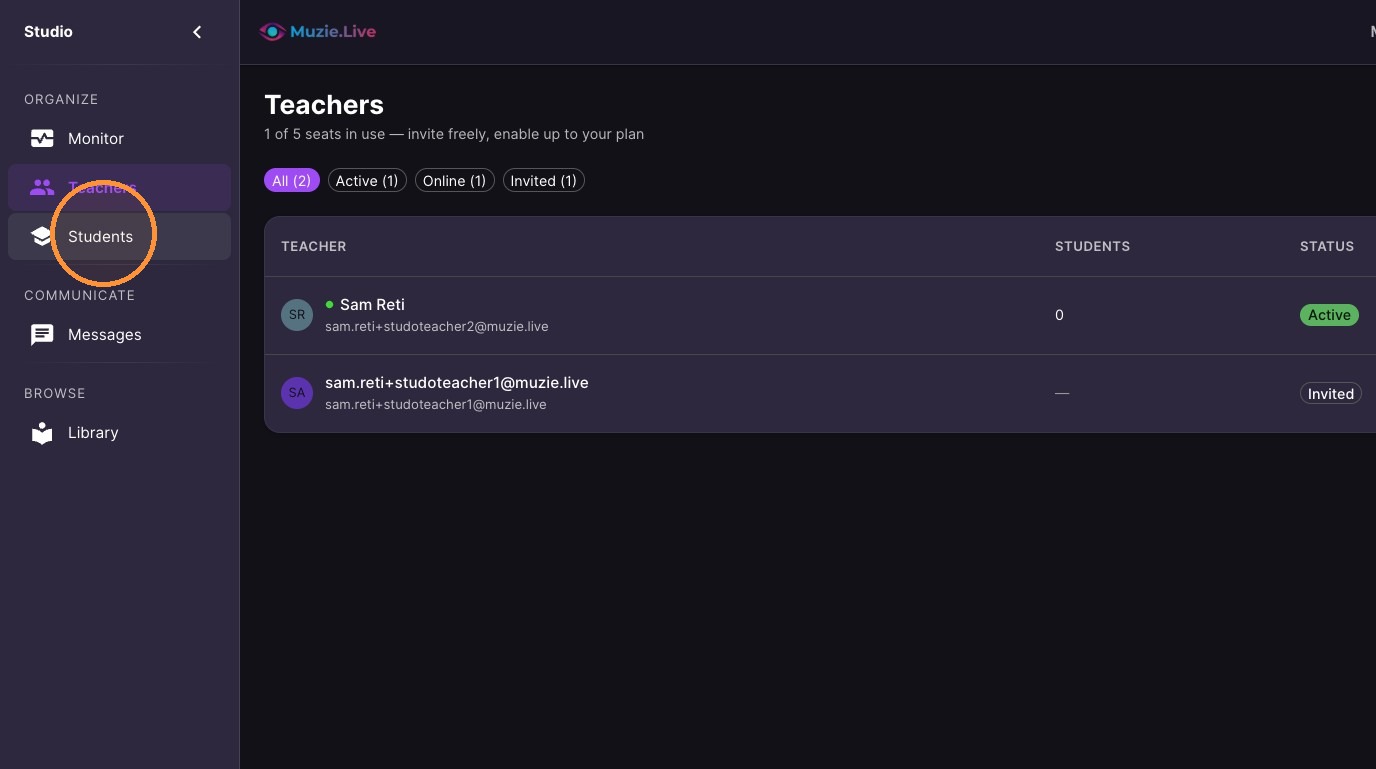
Select "Students" from the sidebar menu.
Student Invitations
-
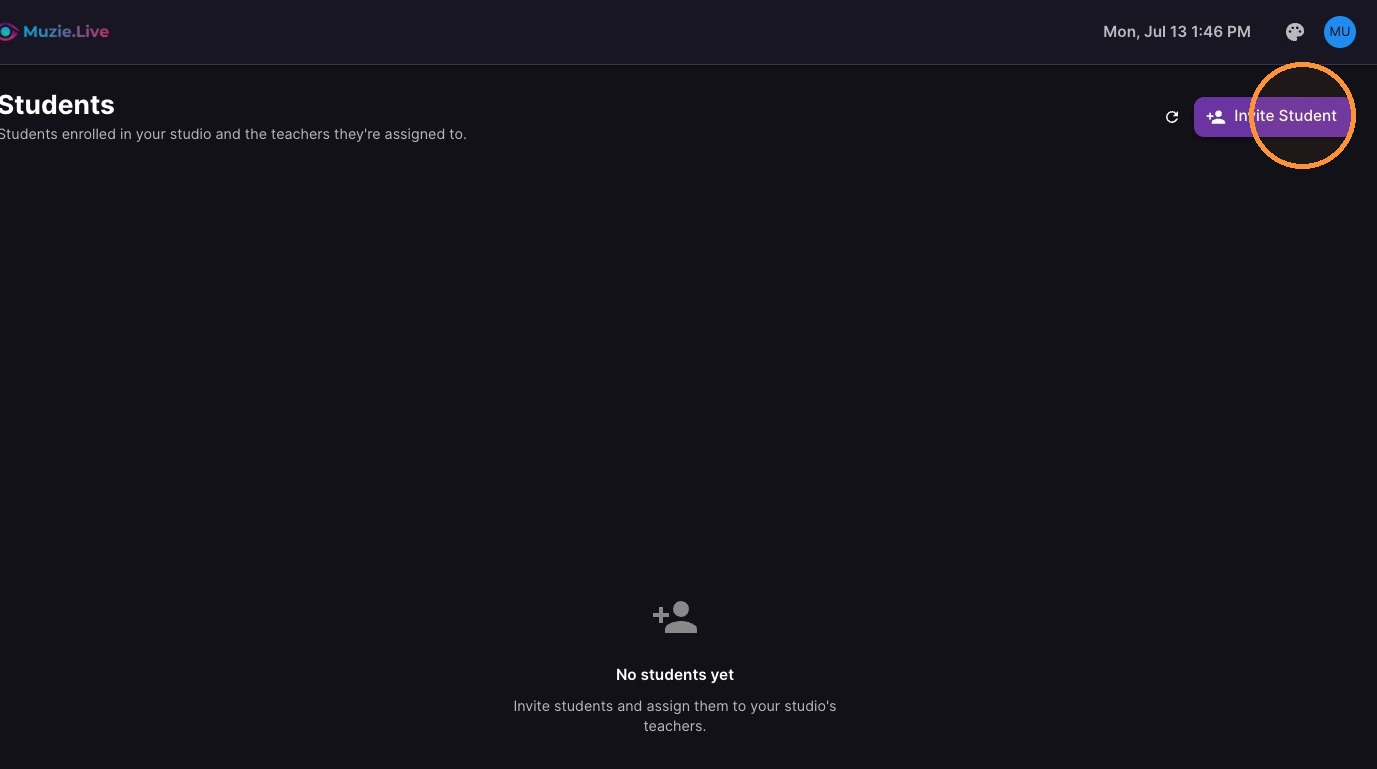
Select "Invite Student".
-
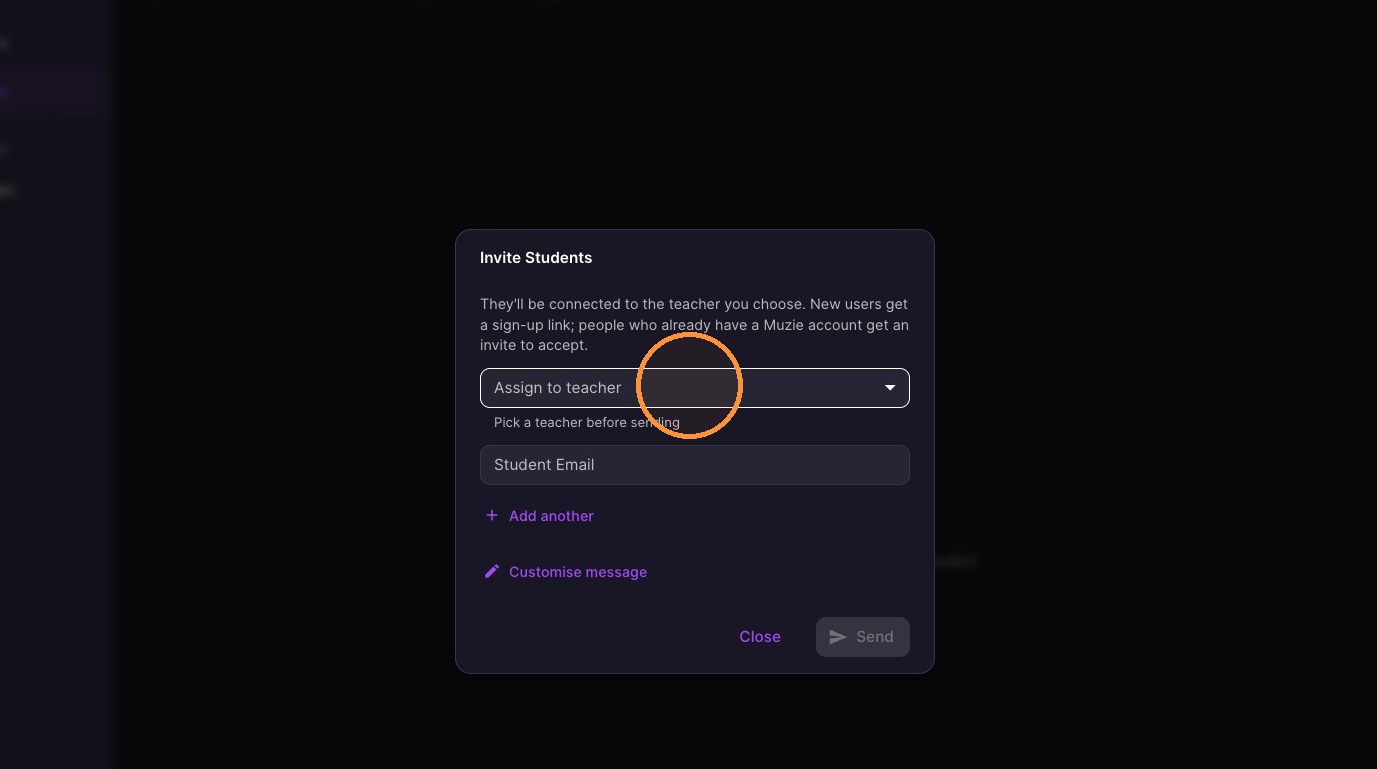
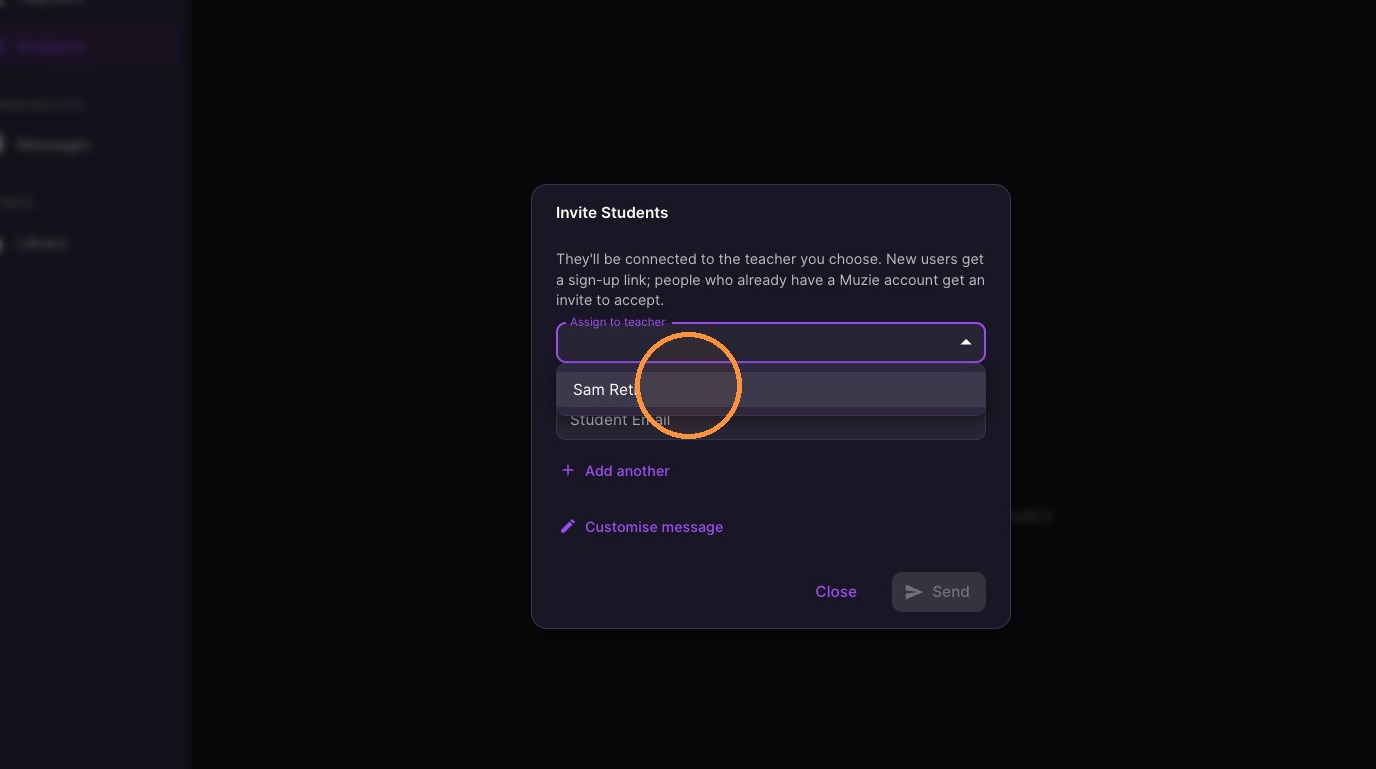
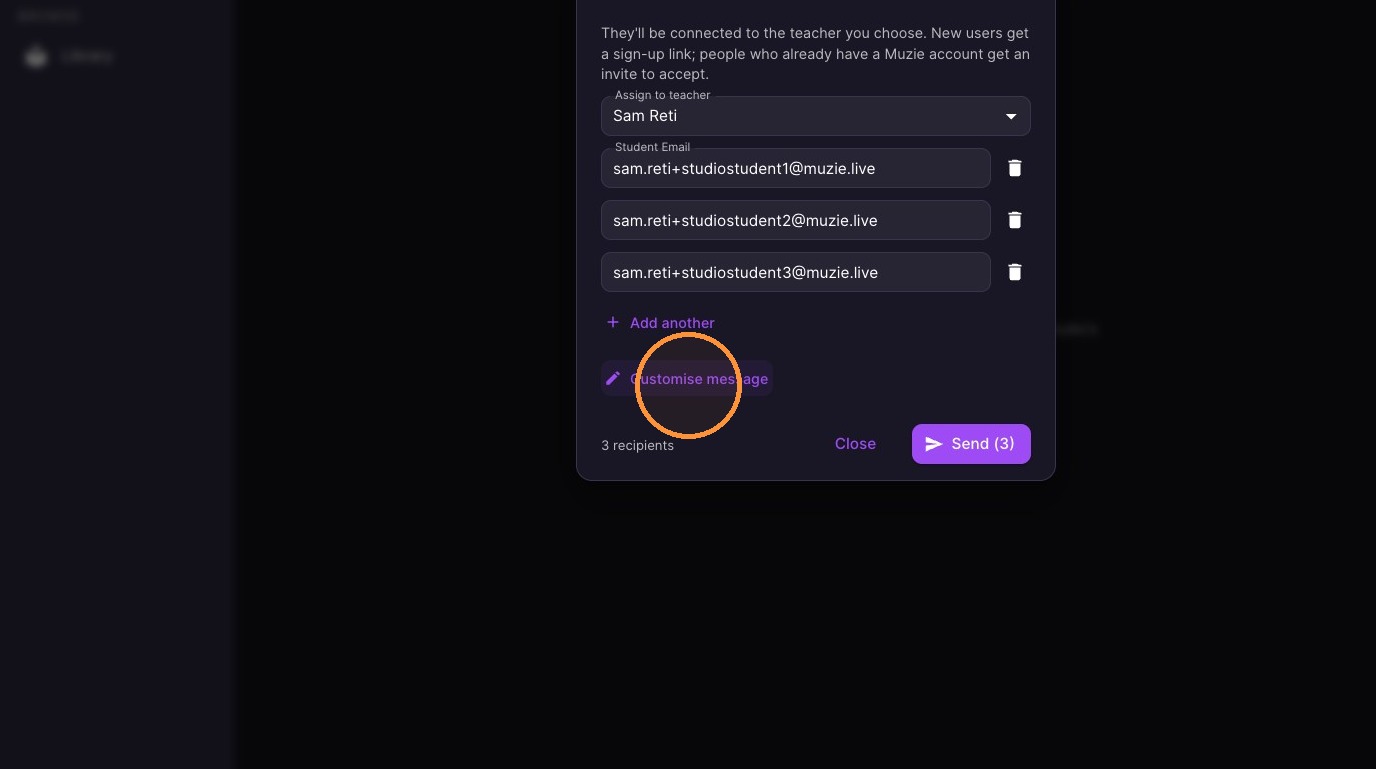
Select a teacher from the "Assign to teacher" dropdown.
-
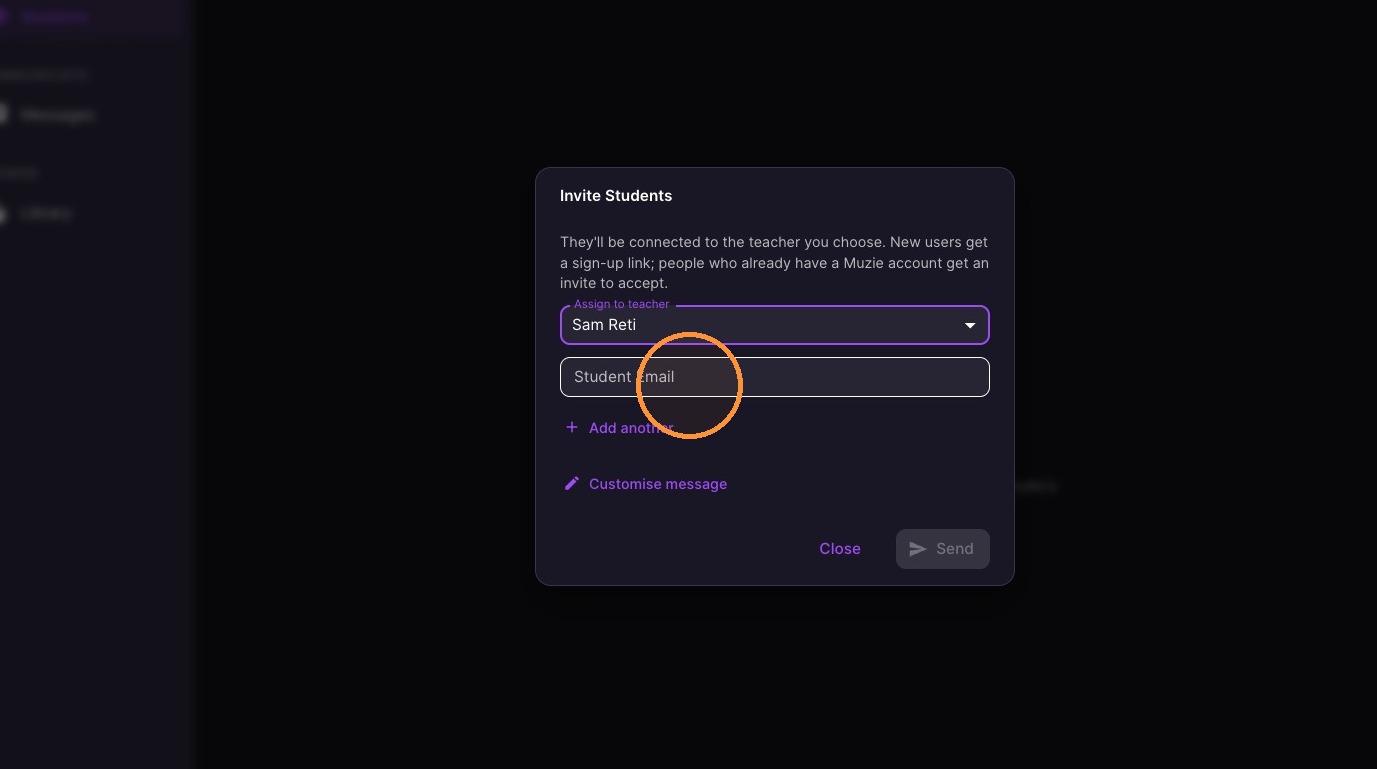
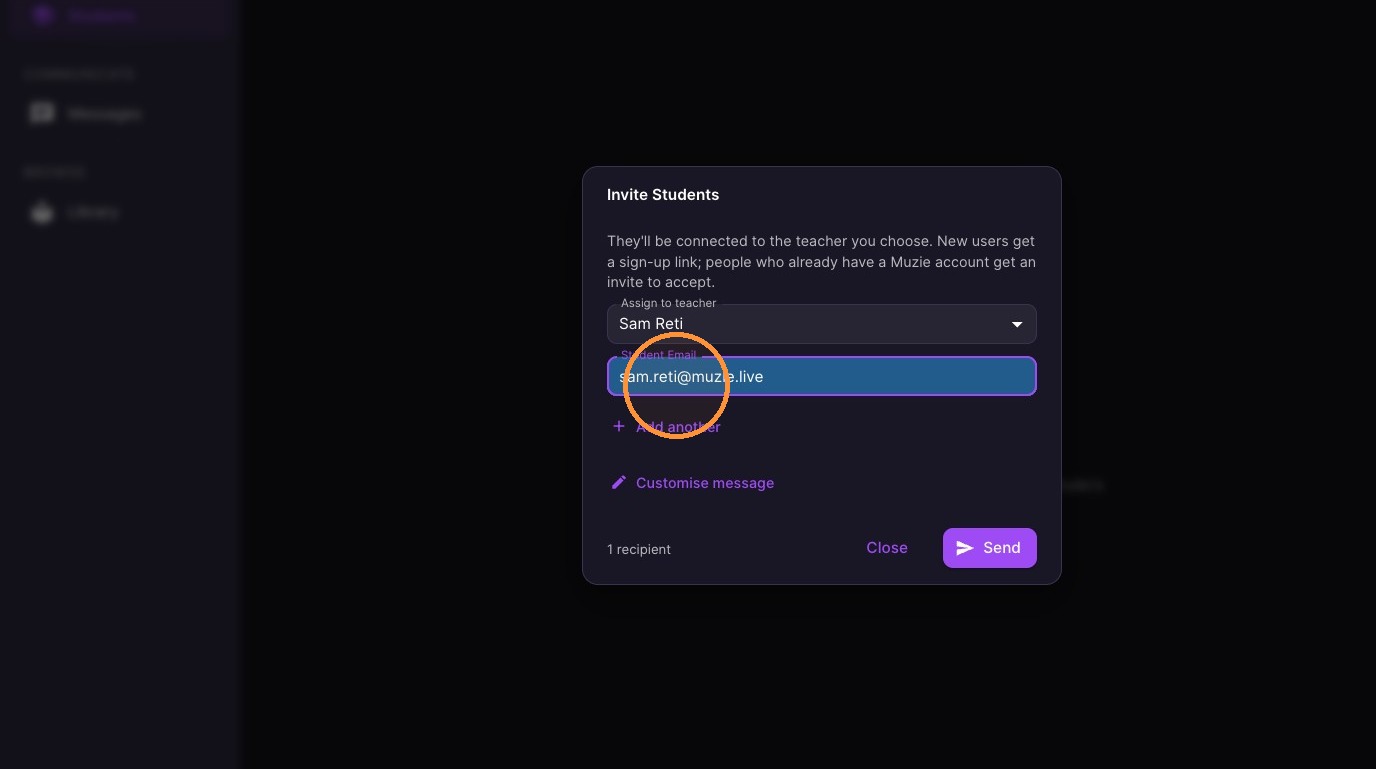
Type the student email address in the provided field.
-
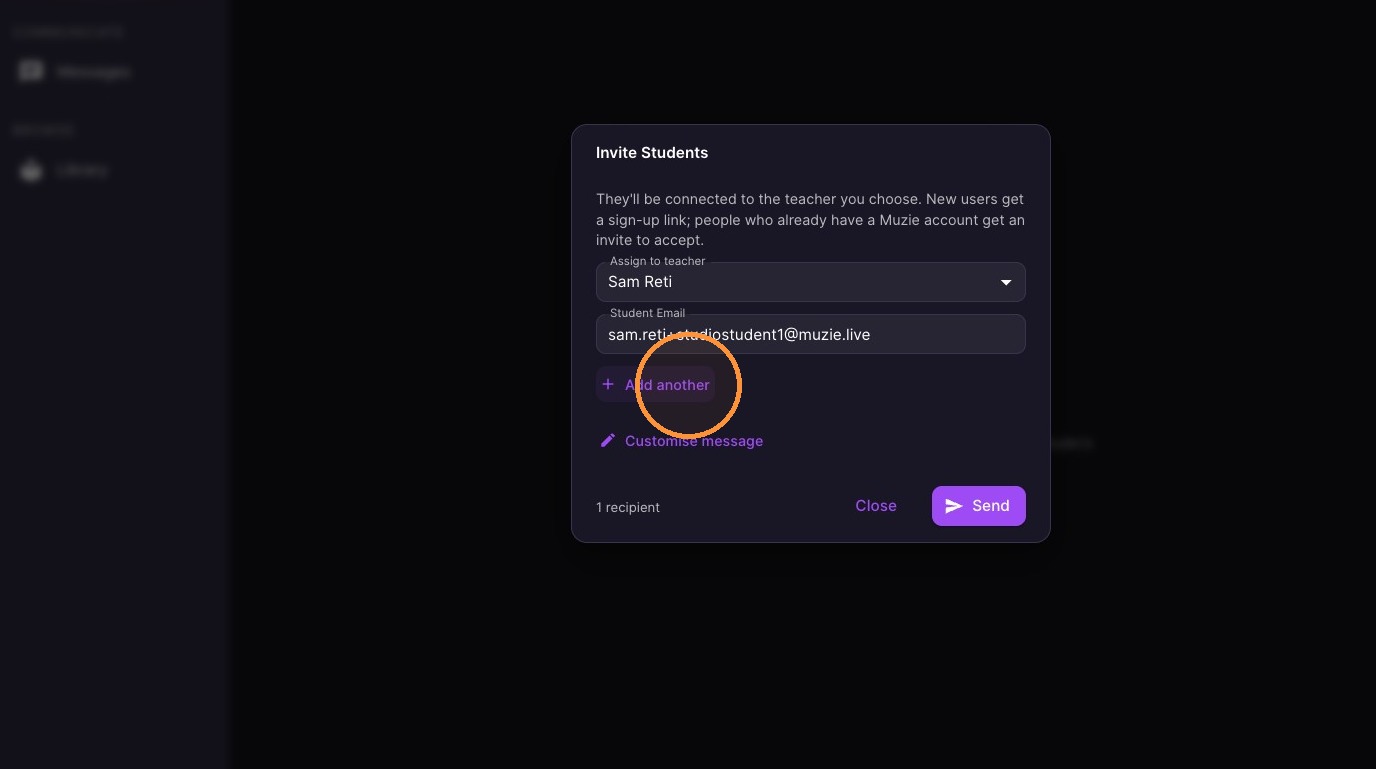
Click "+ Add another" to invite additional students.
-
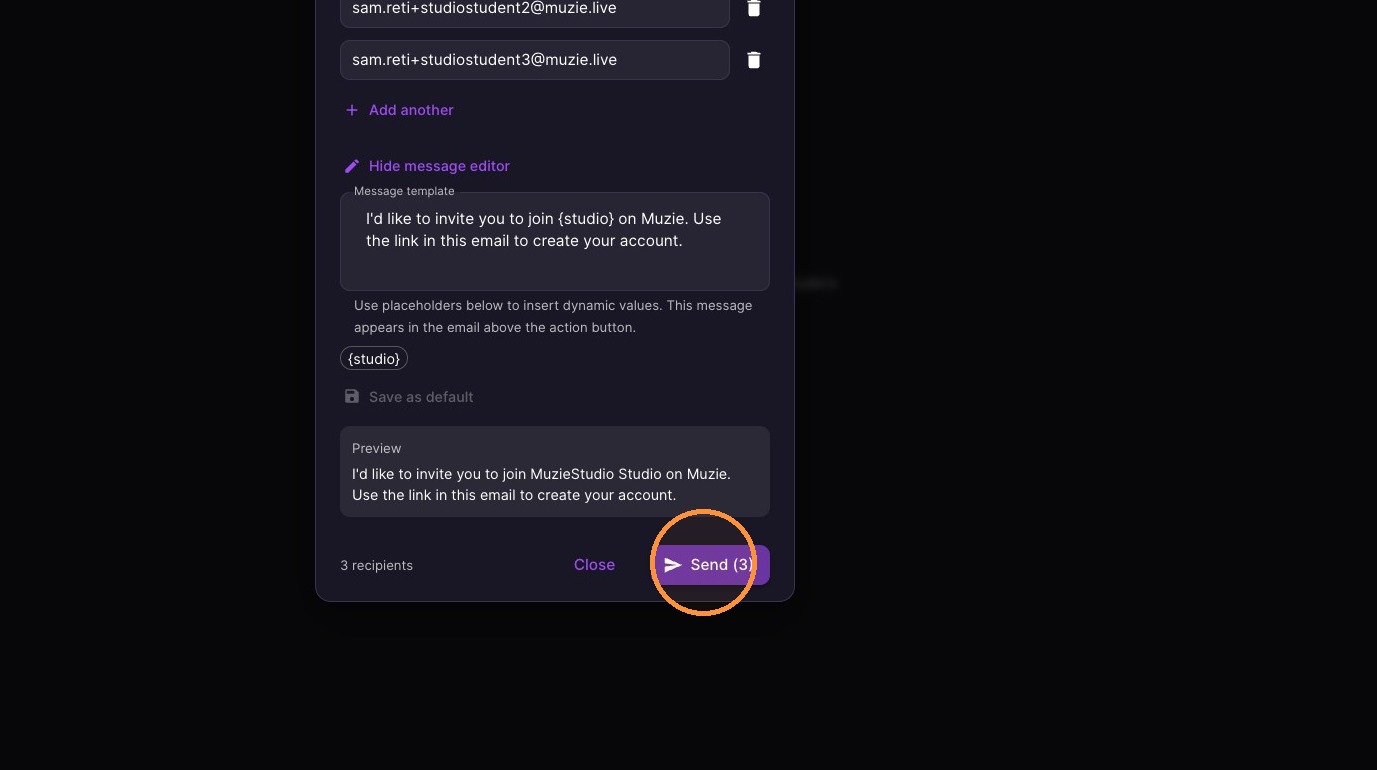
Click "Customise message" to modify the invitation email.
-
Click "Send" to email the invitations.
-
Click "Close" to exit the invitation modal.