This guide shows Studio Admins how to organize, upload, and share lesson files from the Library so teachers have the materials they need before class starts.
Use this guide when you need to:
-
Set up folders for lesson materials
-
Upload files into the Library
-
Share files with specific teachers or groups
Before you start: Make sure you have Studio Admin access and the files you want to share are ready to upload.
Access Library
-
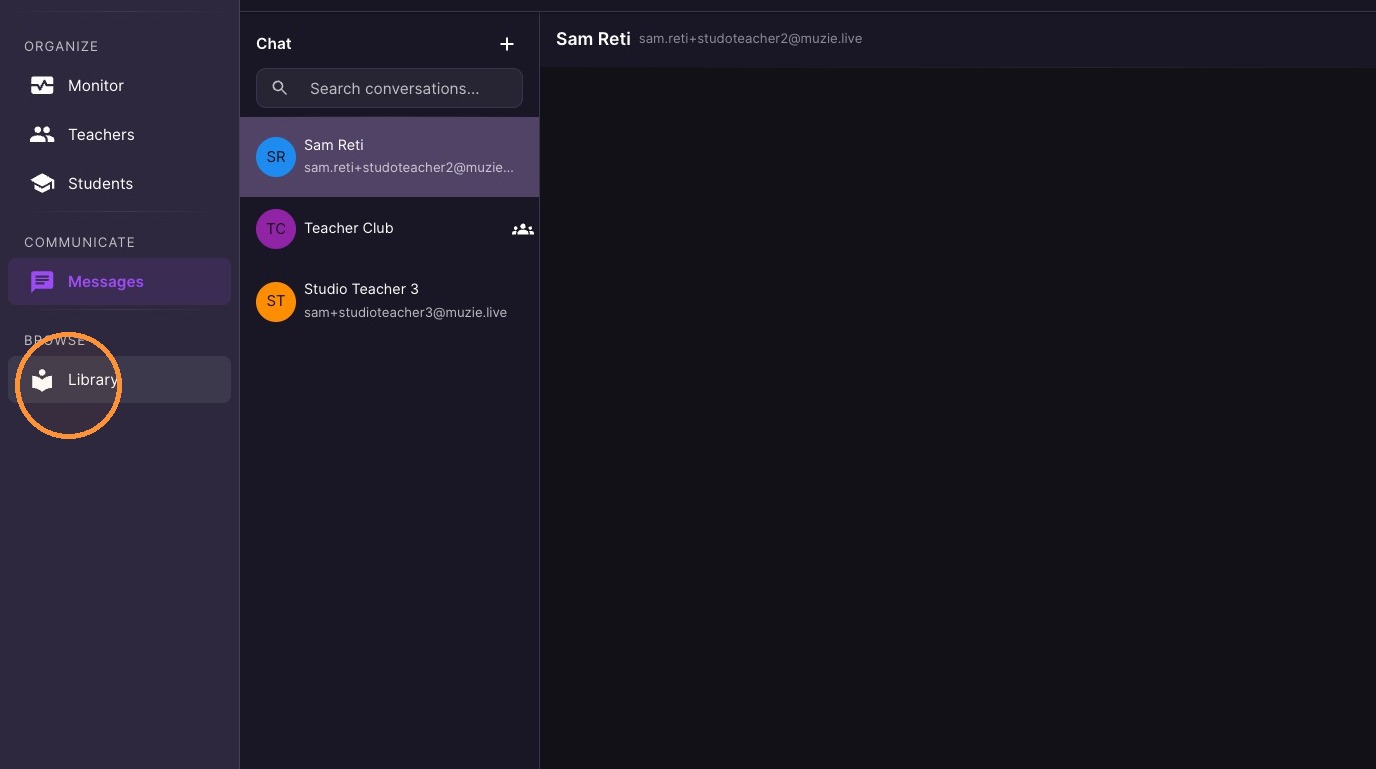
Click "Library"
Folder Management
-
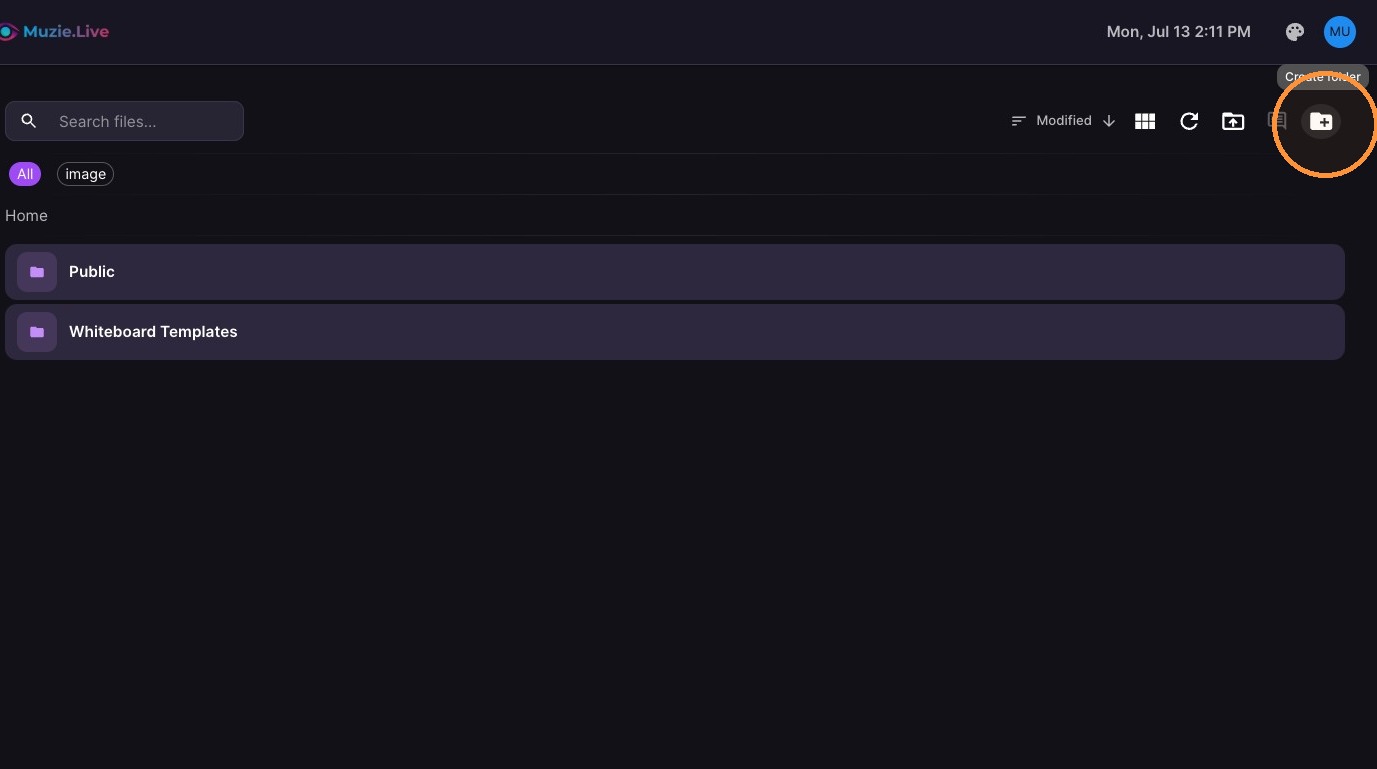
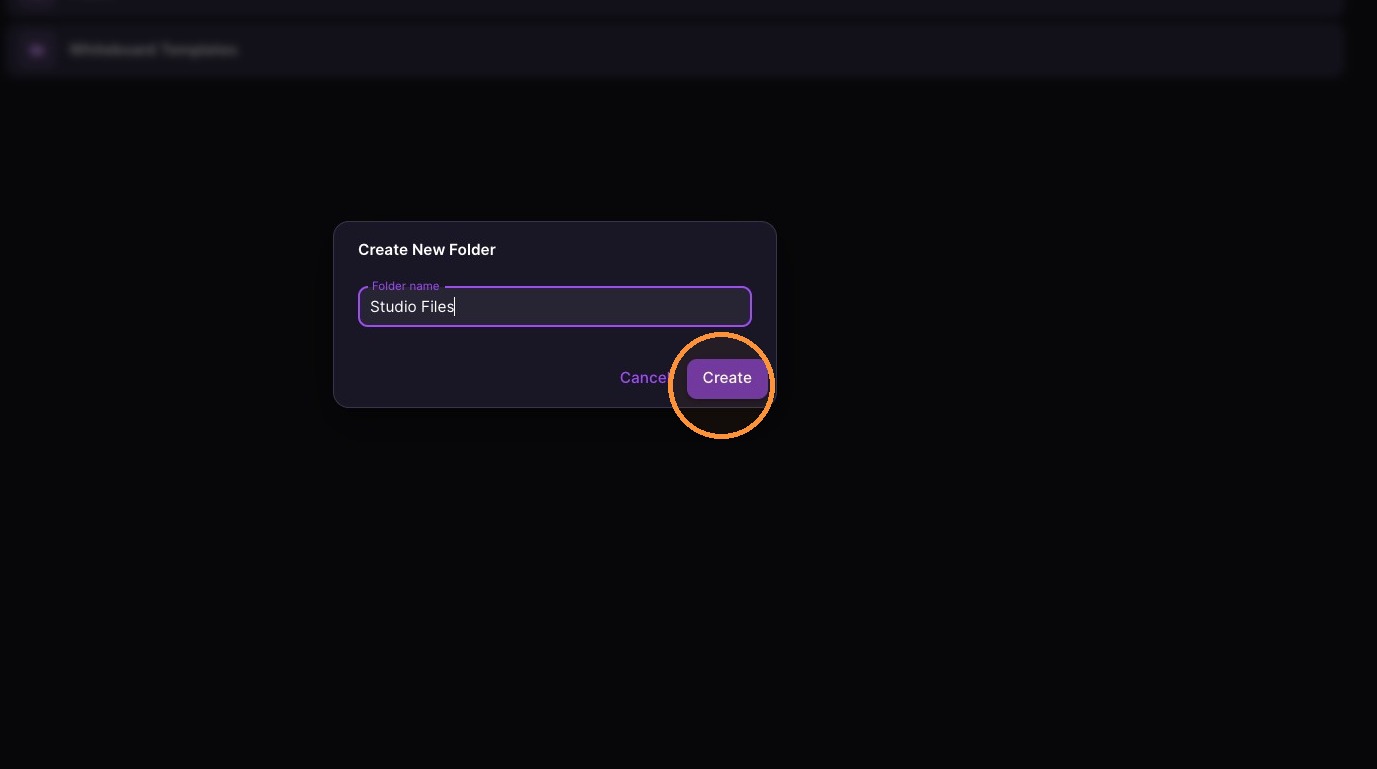
Create a new folder
-
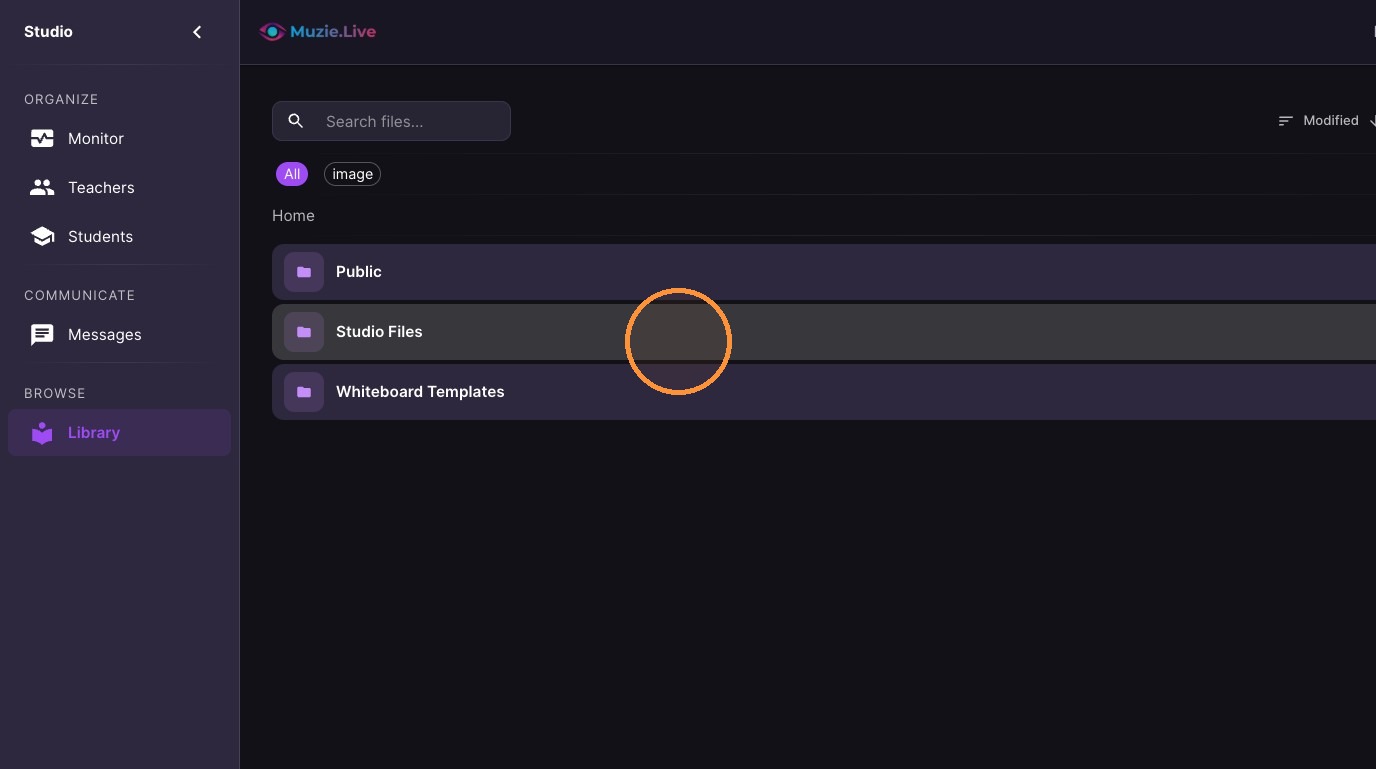
Double-click the folder to open it
-
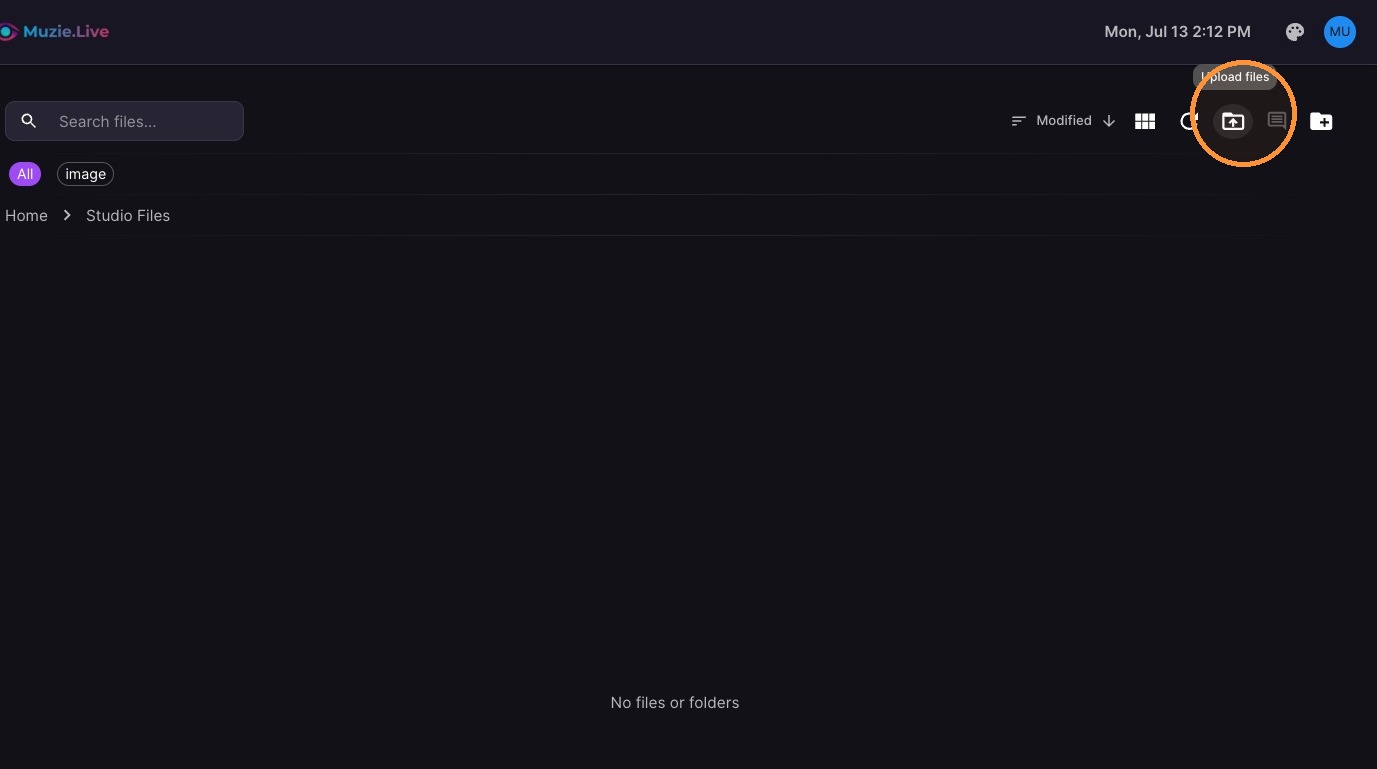
Click "Upload files" icon to add files to the folder
File Distribution
-
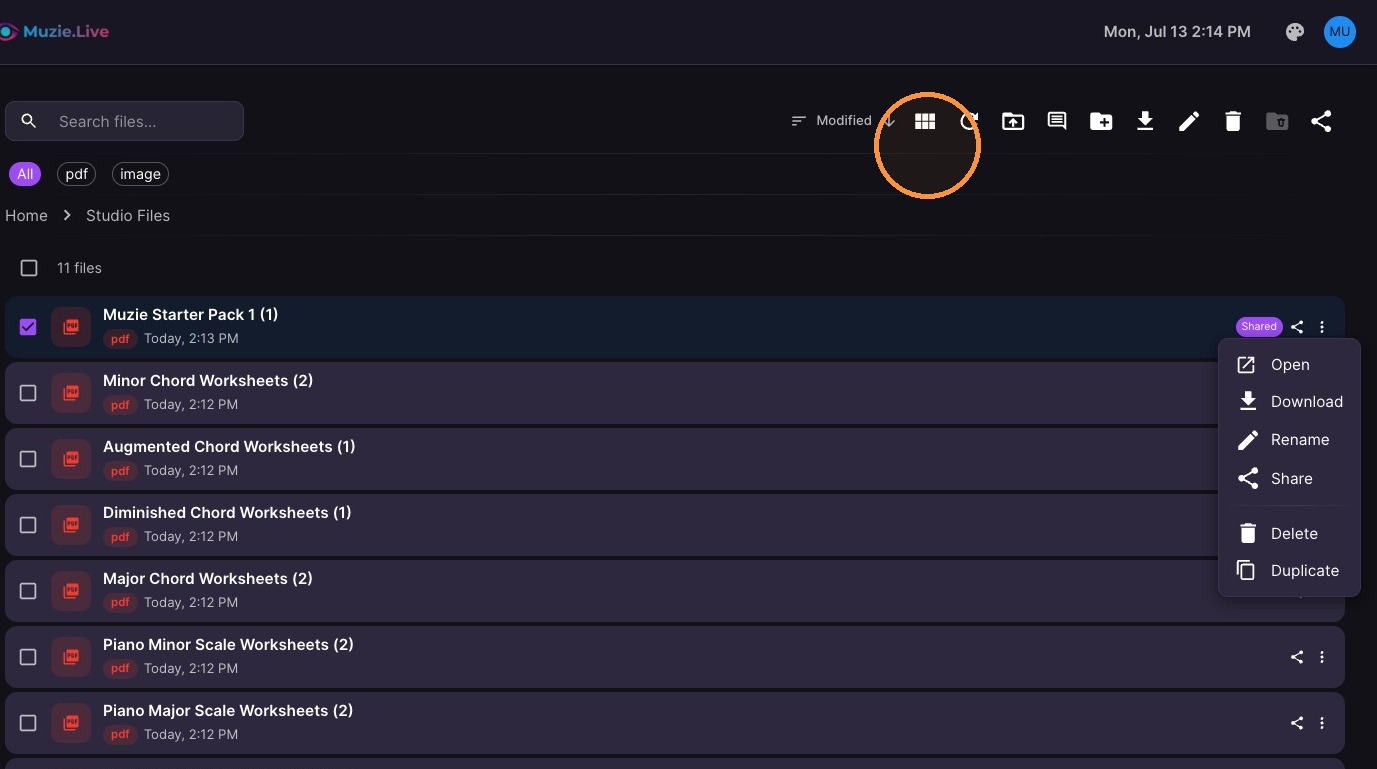
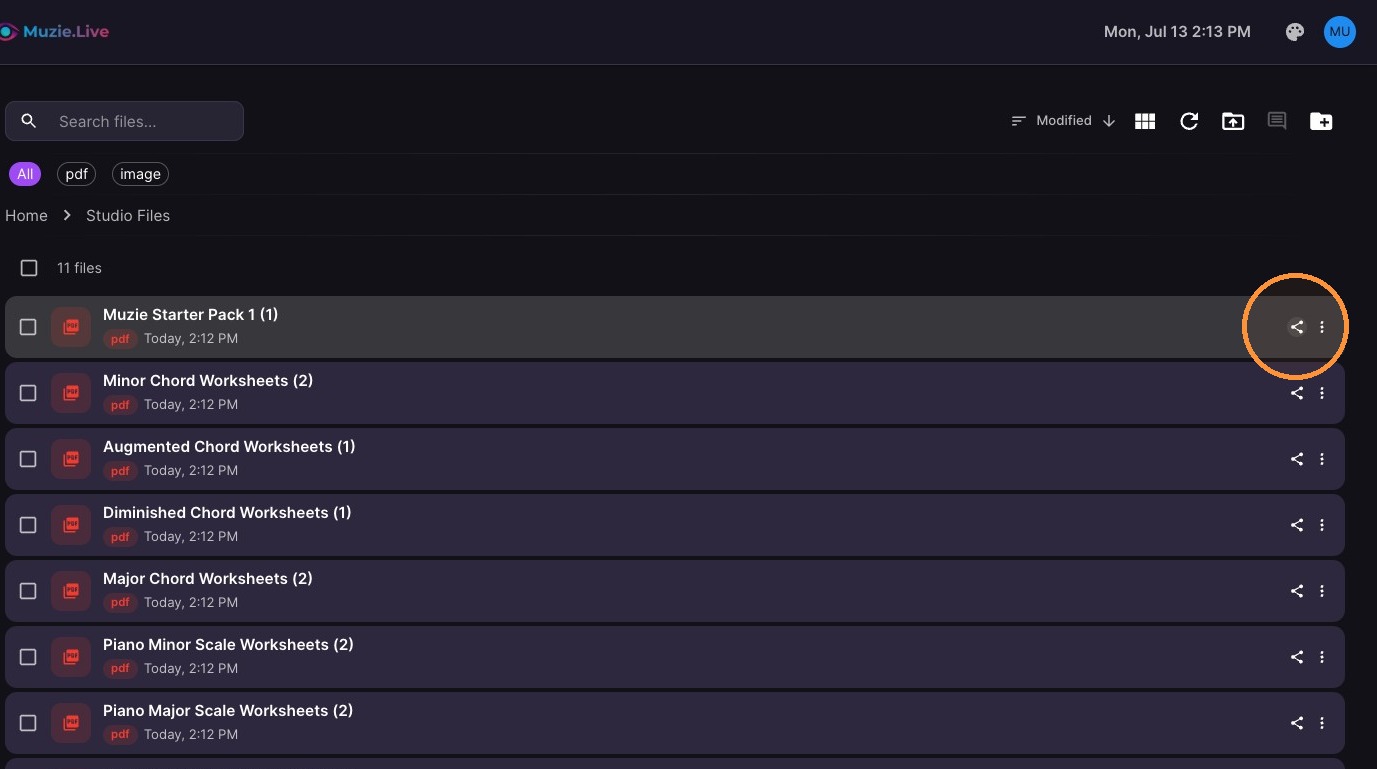
Click "Share" icon next to the file you wish to share
-
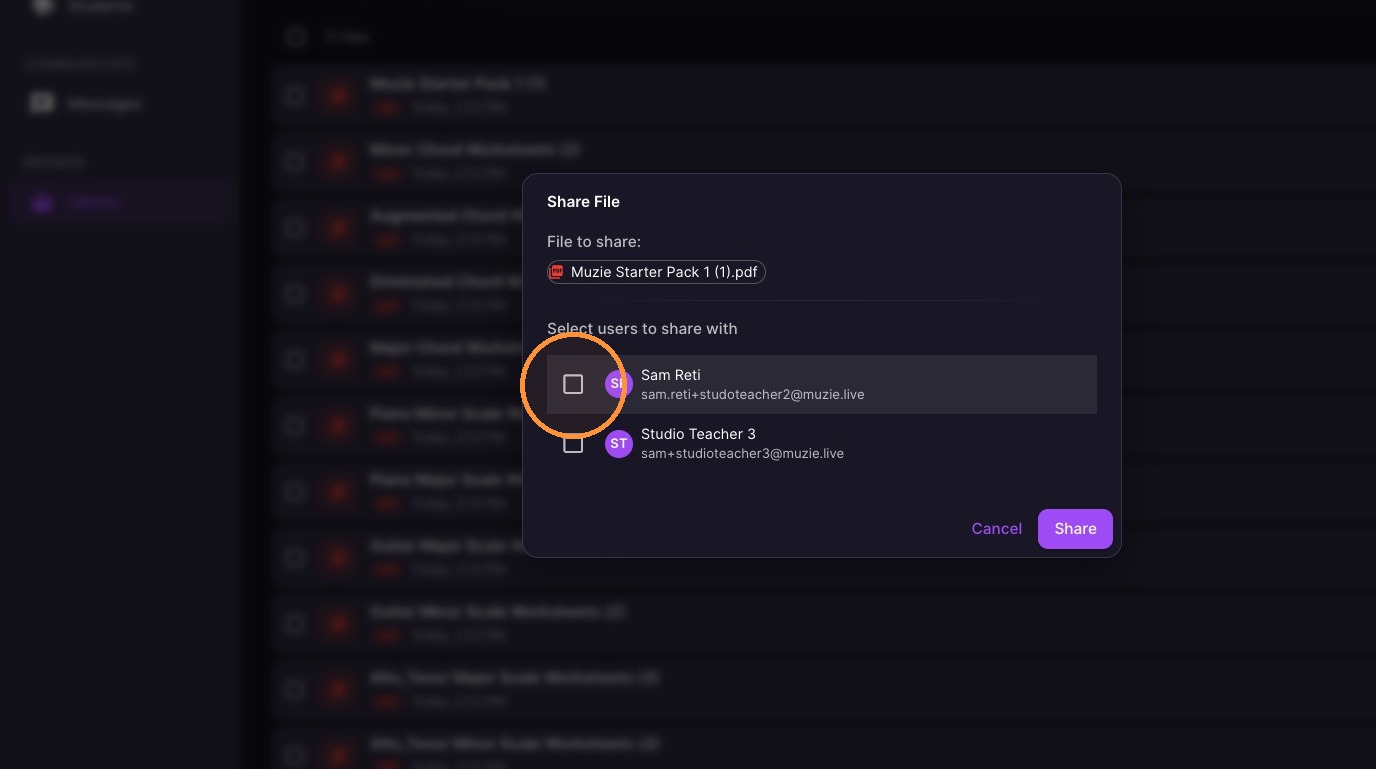
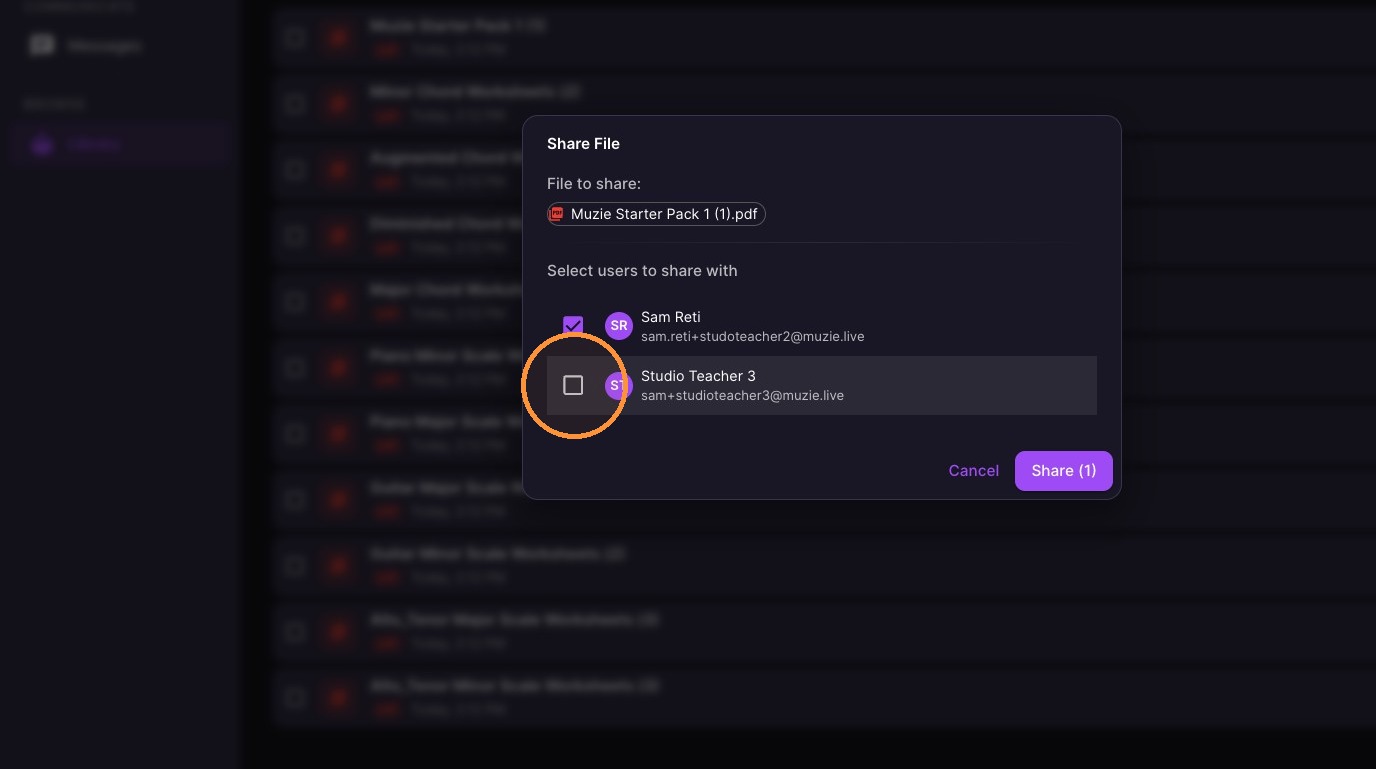
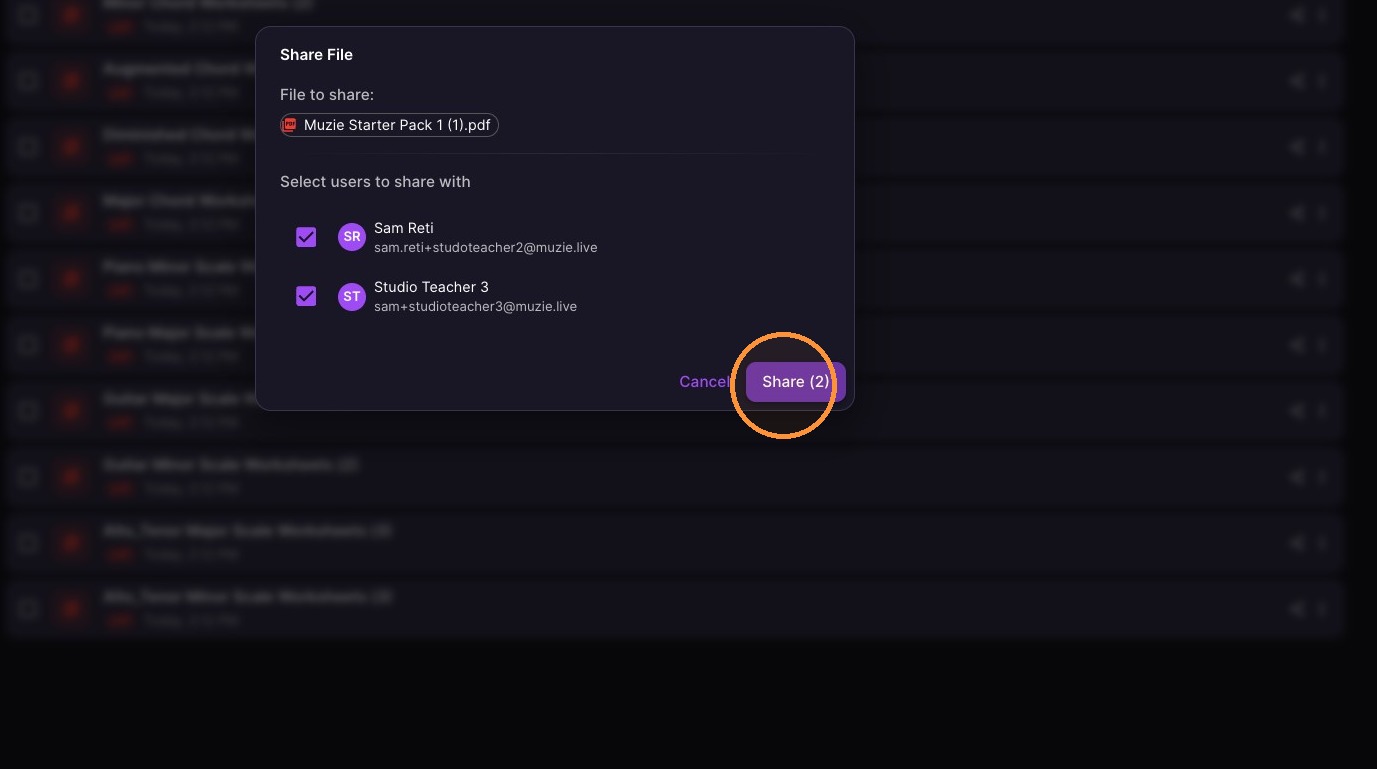
Select the desired recipients and click "Share" to distribute the file
-
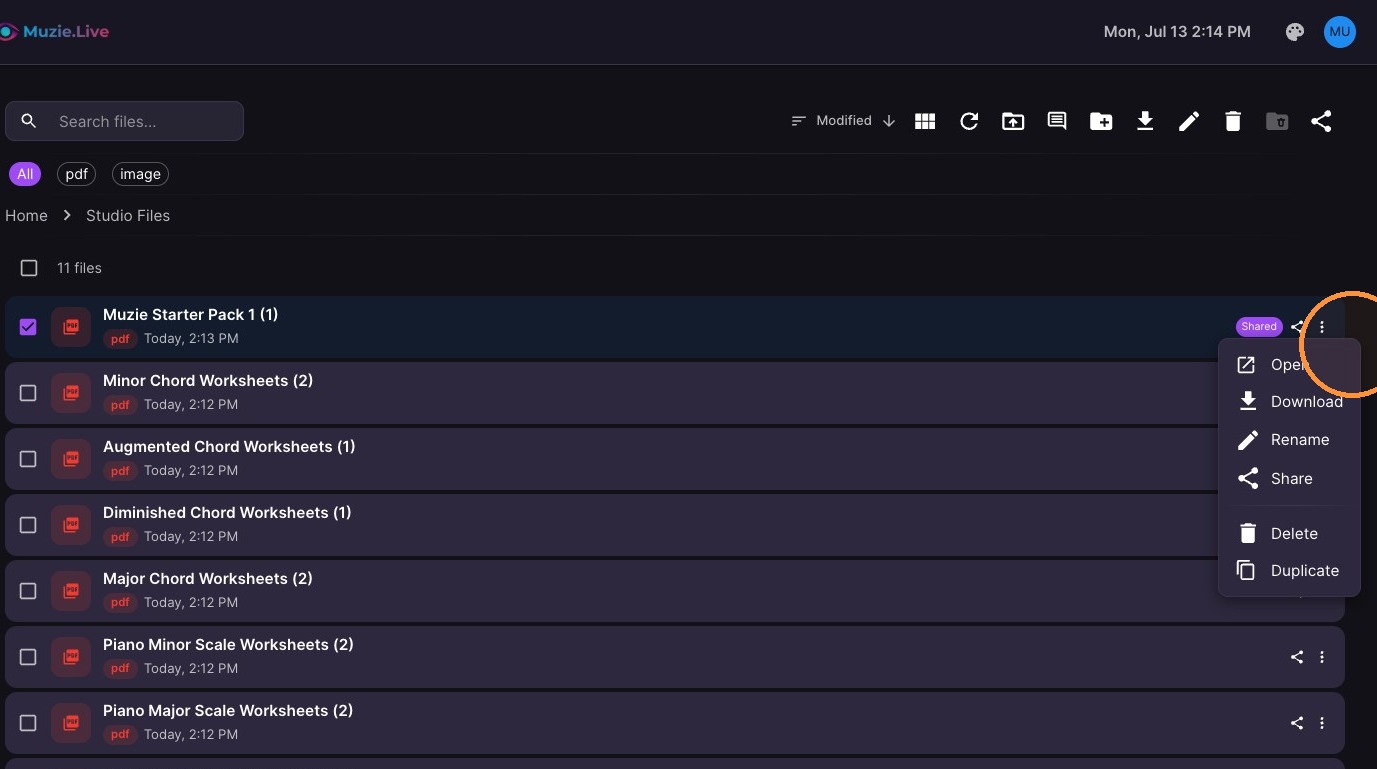
Click the file menu to see additional actions
-
These actions are also on the top toolbar