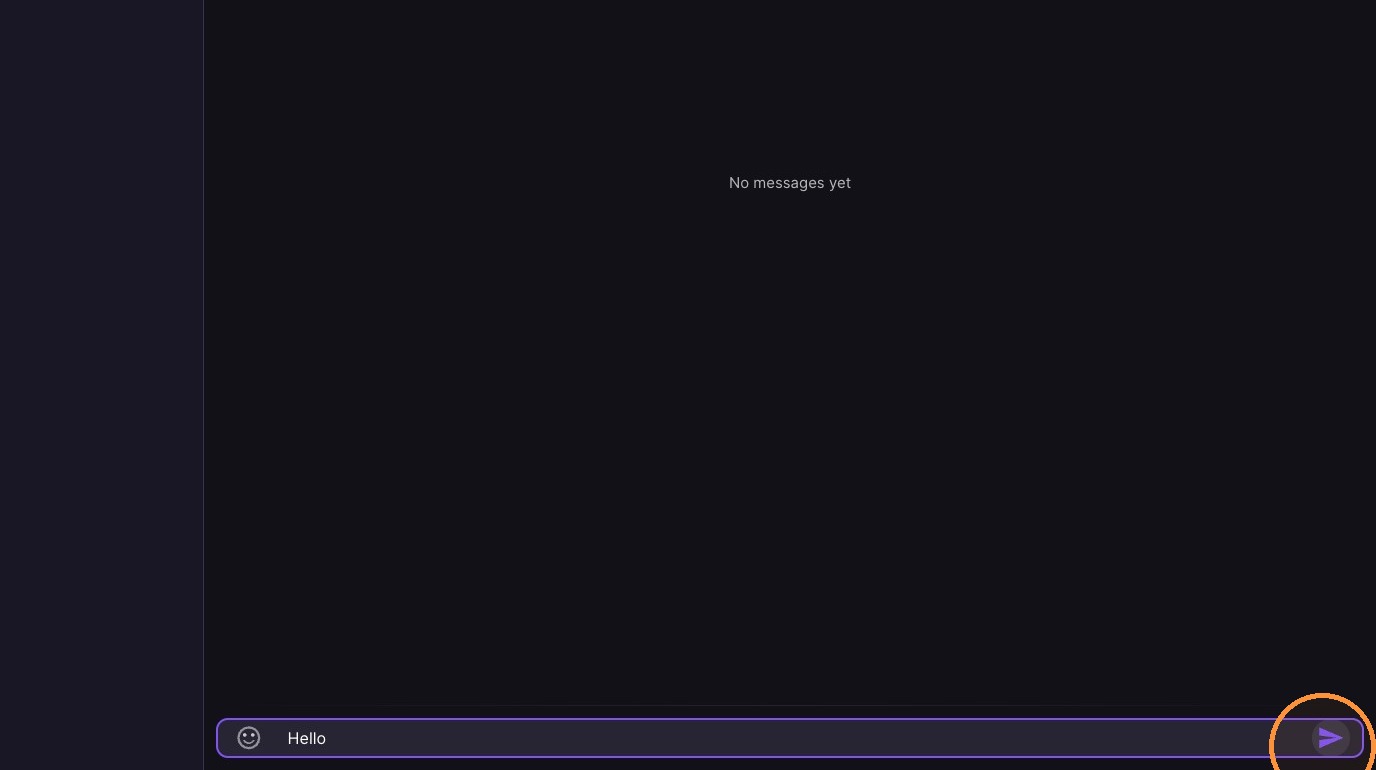
Use Muzie Messages to chat directly with individual students or your whole class.
In this guide, you’ll learn how to start a new chat, choose a classroom or specific student(s), and send your first message - perfect for quick reminders, updates, and check-ins.
Tip: If you select more than one student, Muzie creates a group chat so everyone you chose can see and respond in the same conversation.
-
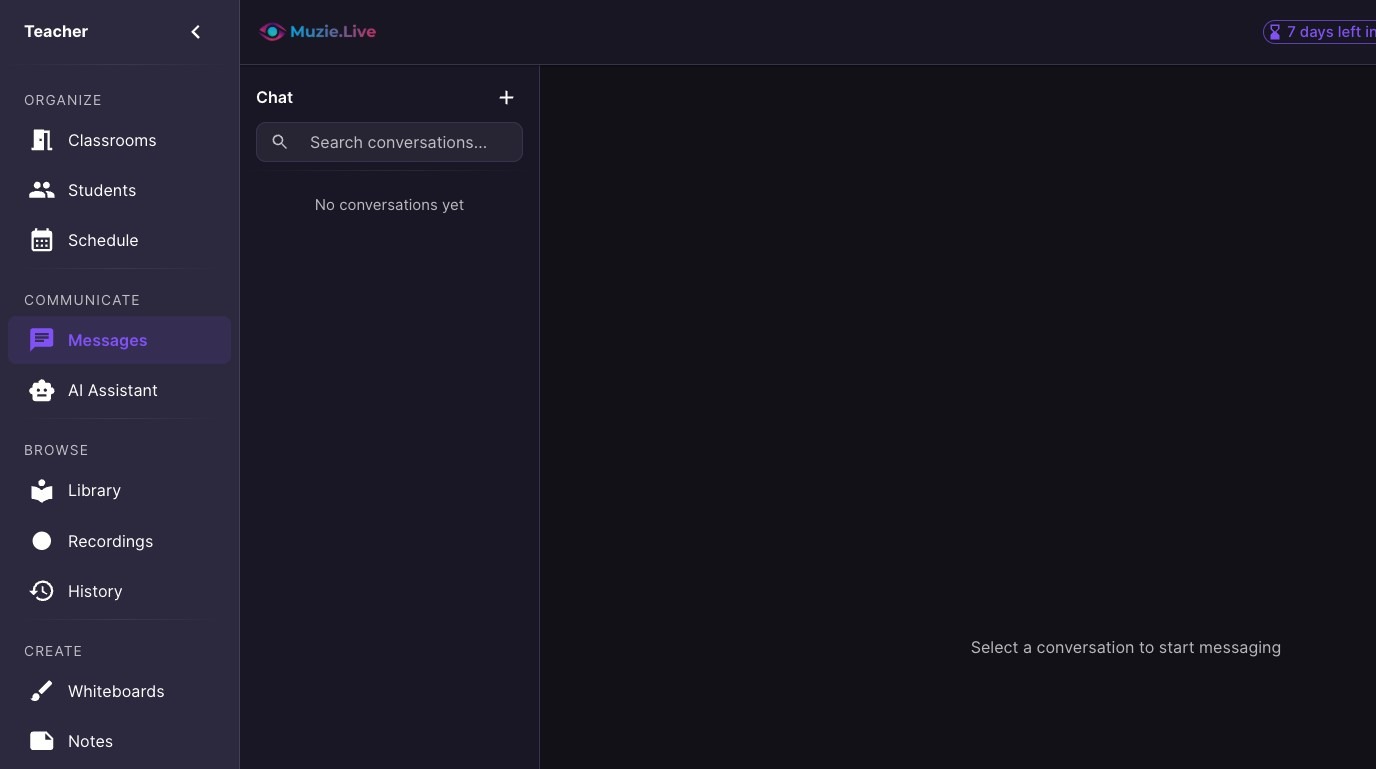
Navigate to Messages
-
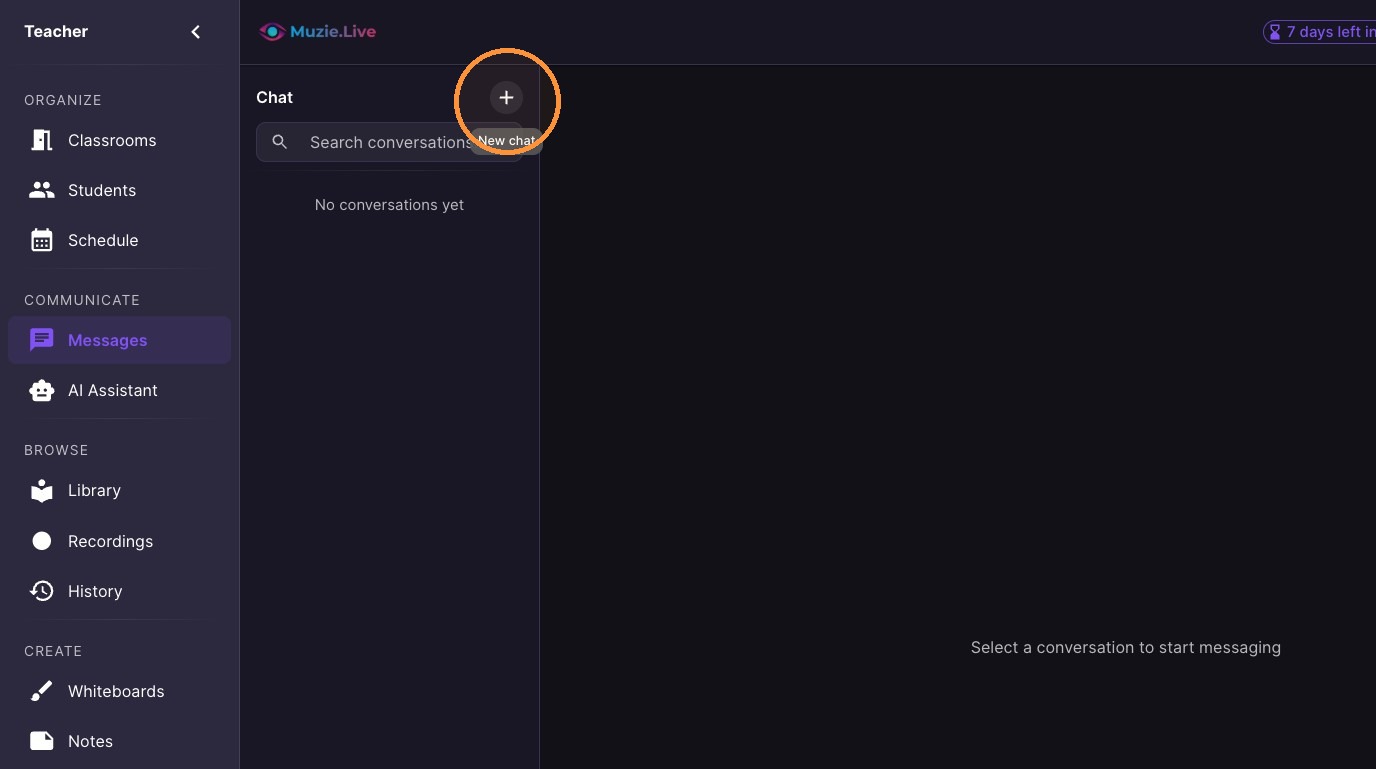
Click '+' icon to start new chat
-
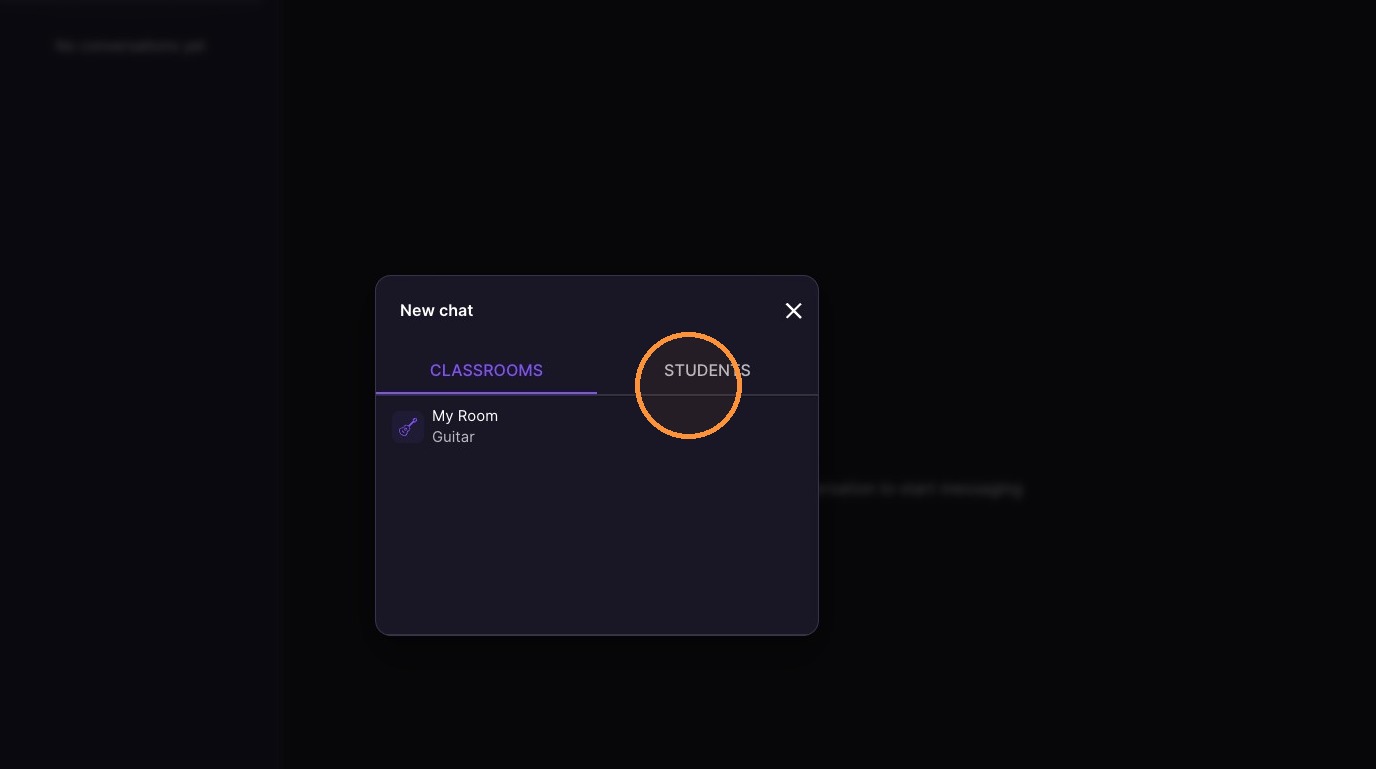
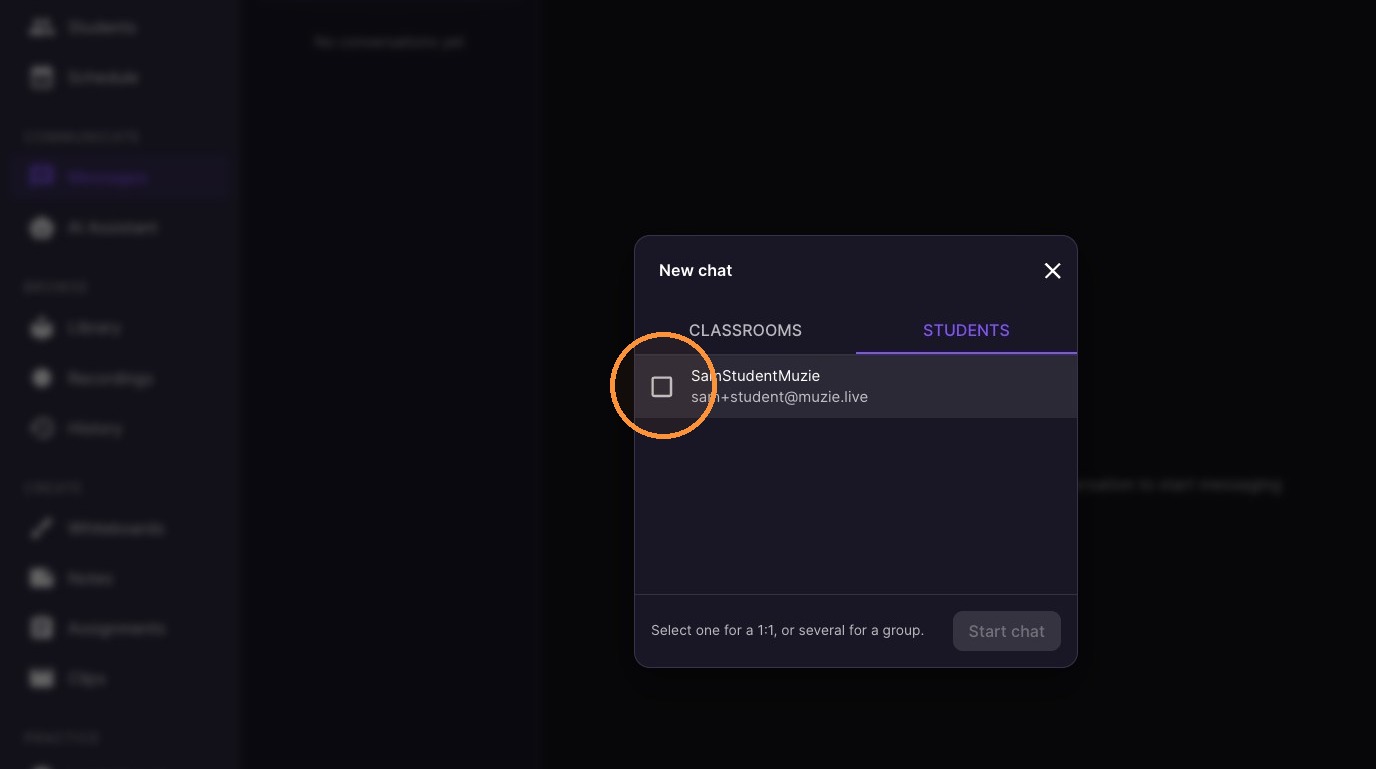
Select either a classroom or student(s) to message
-
Select the student(s) to message
-
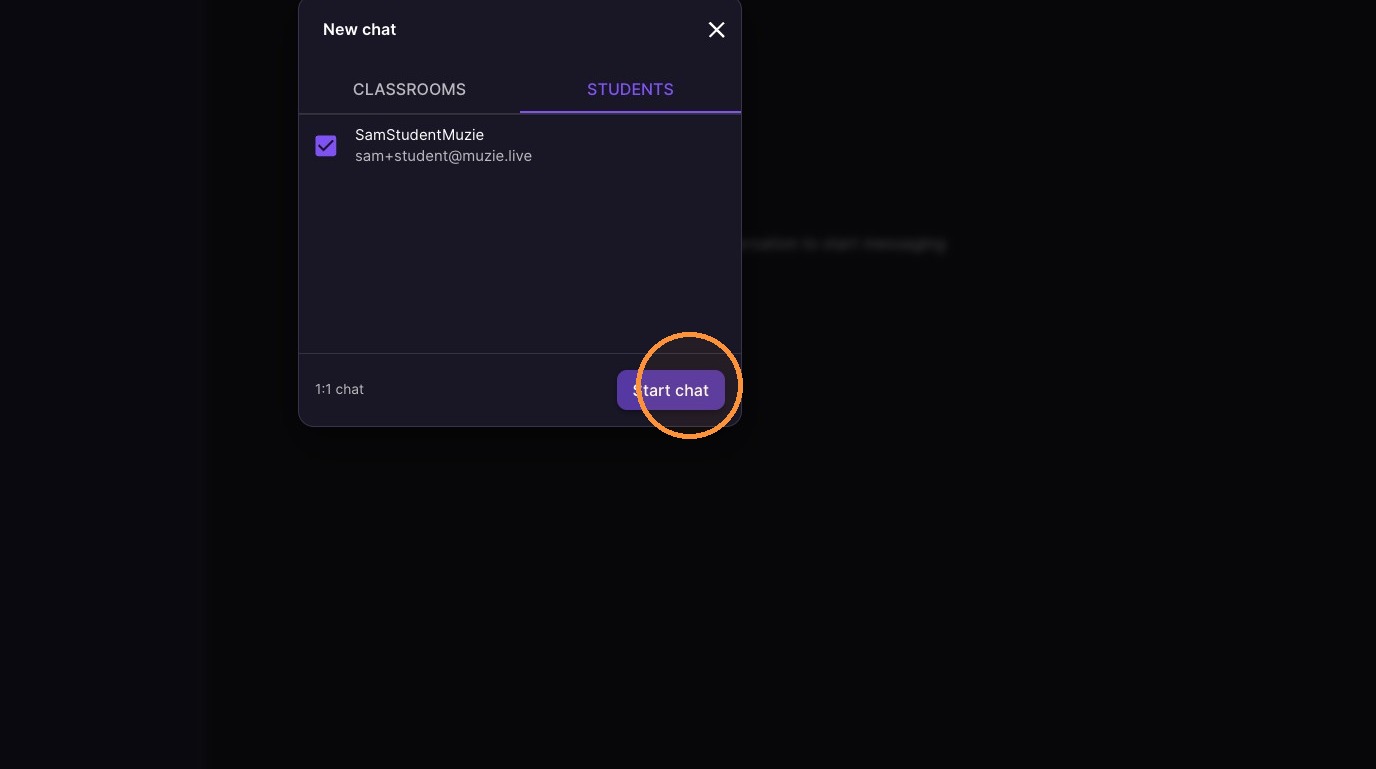
Click "Start chat"
-
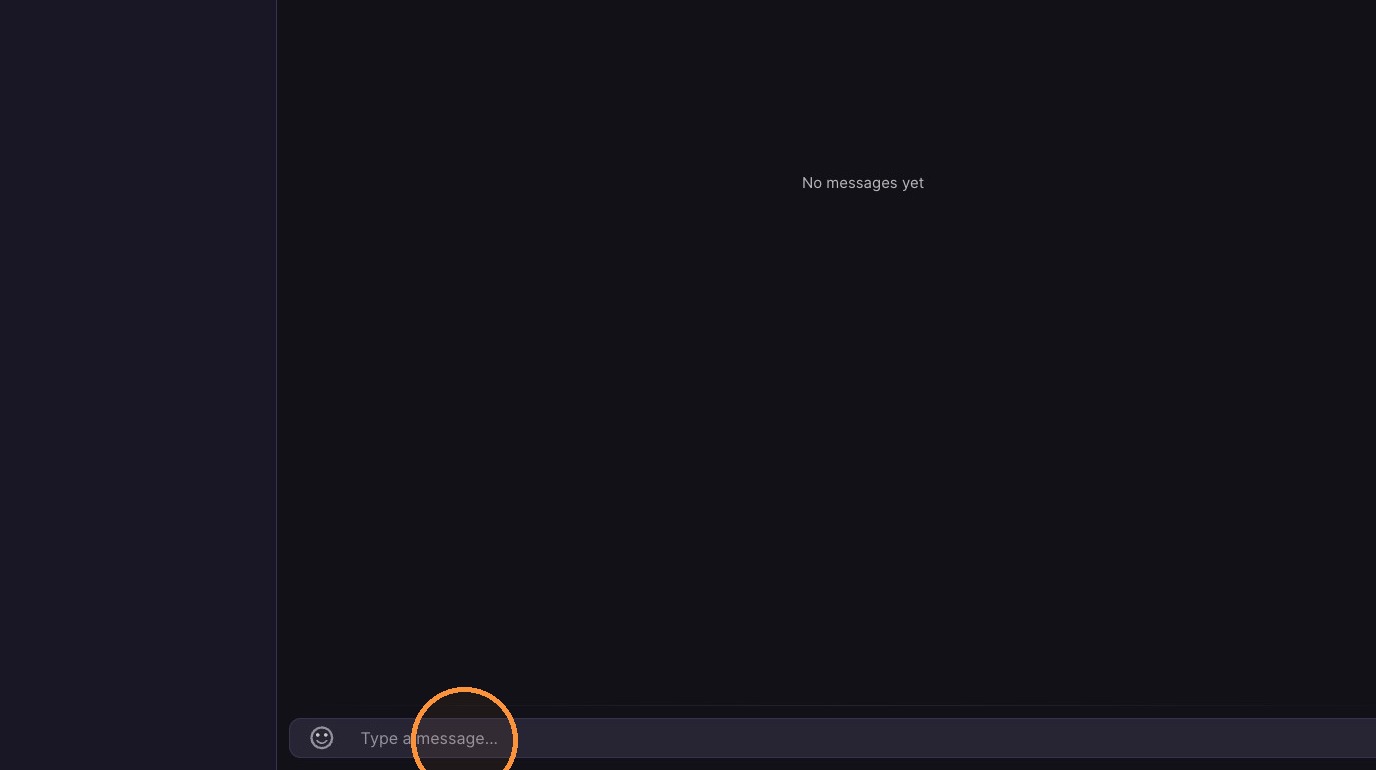
Click the message bar, and type a message
-
Click send icon to send message