

Use Muzie to schedule a new lesson for your students/classrooms in just a few clicks. In this guide, you’ll start from the calendar, choose the lesson date, time, and duration, and select the correct student or classroom before confirming the booking. You’ll also learn how to set up recurring lessons if needed and optionally add the session to your Google Calendar, while Muzie automatically emails the lesson invite to your student.
-
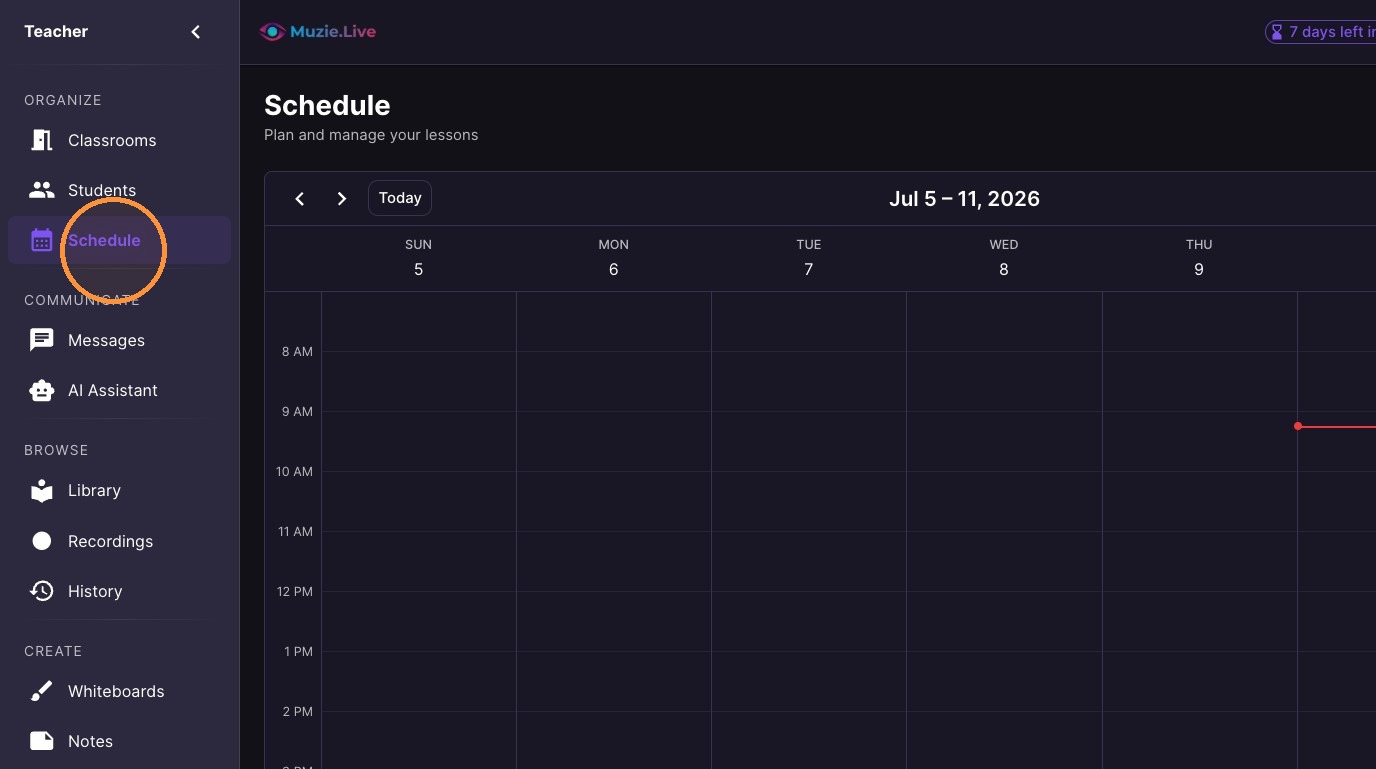
Click "Schedule"
-
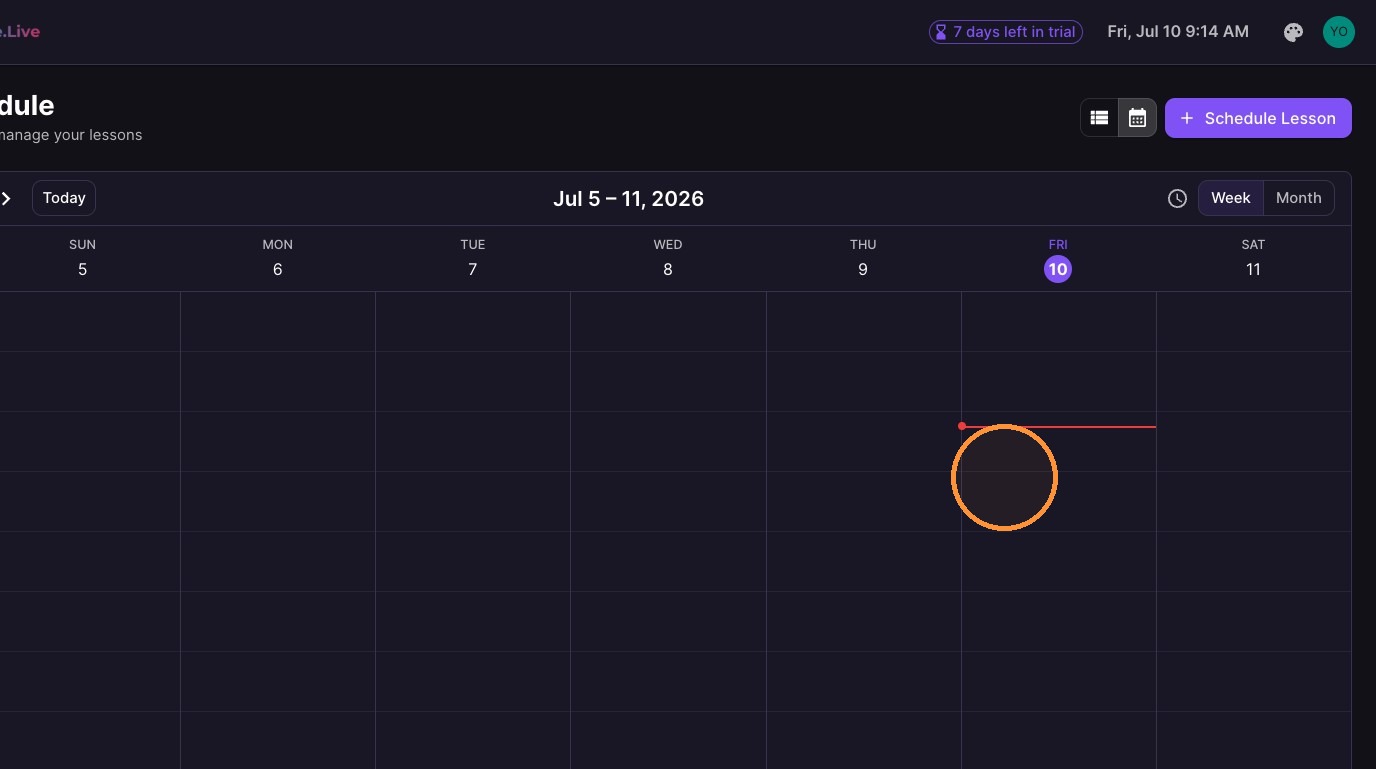
Click/Drag a time slot on the calendar to start scheduling a lesson.
-
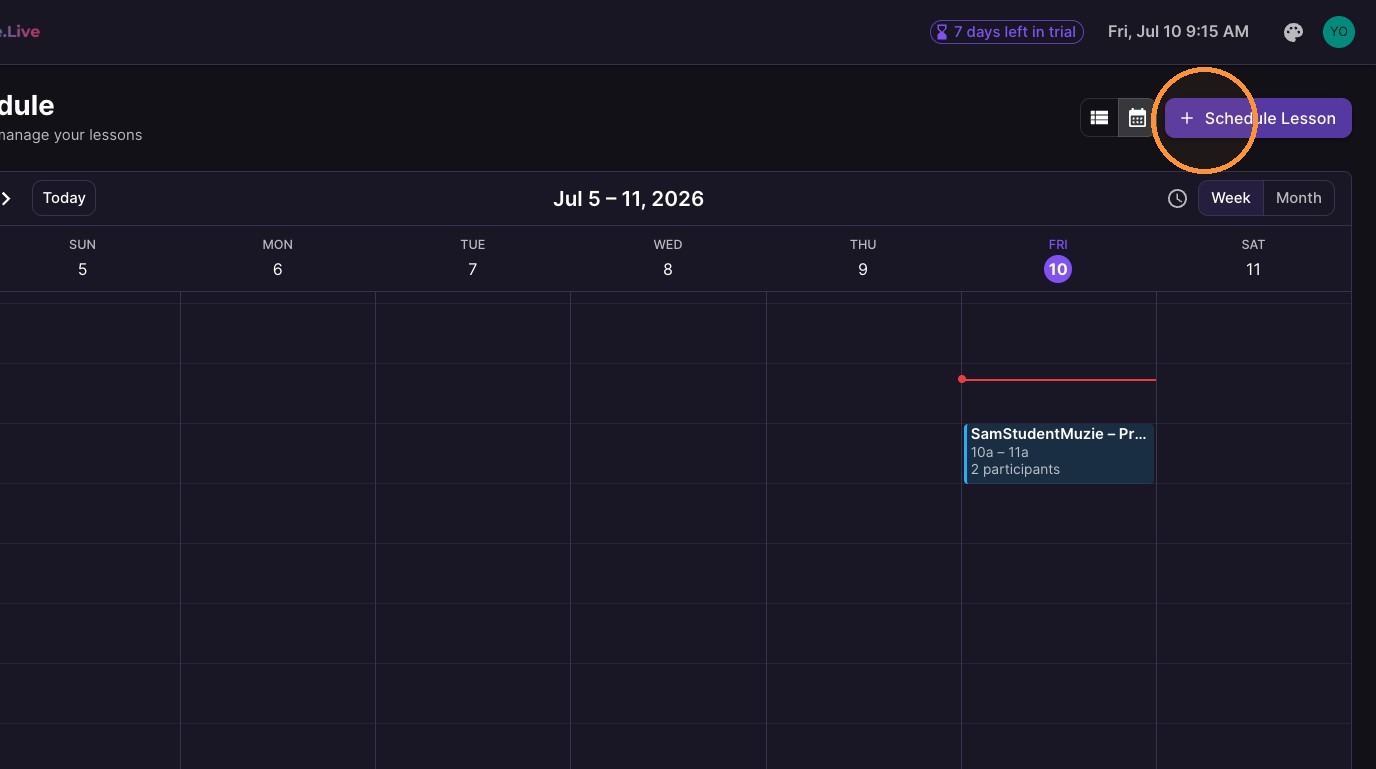
Or - Click the "Schedule Lesson" button in the top-right
-
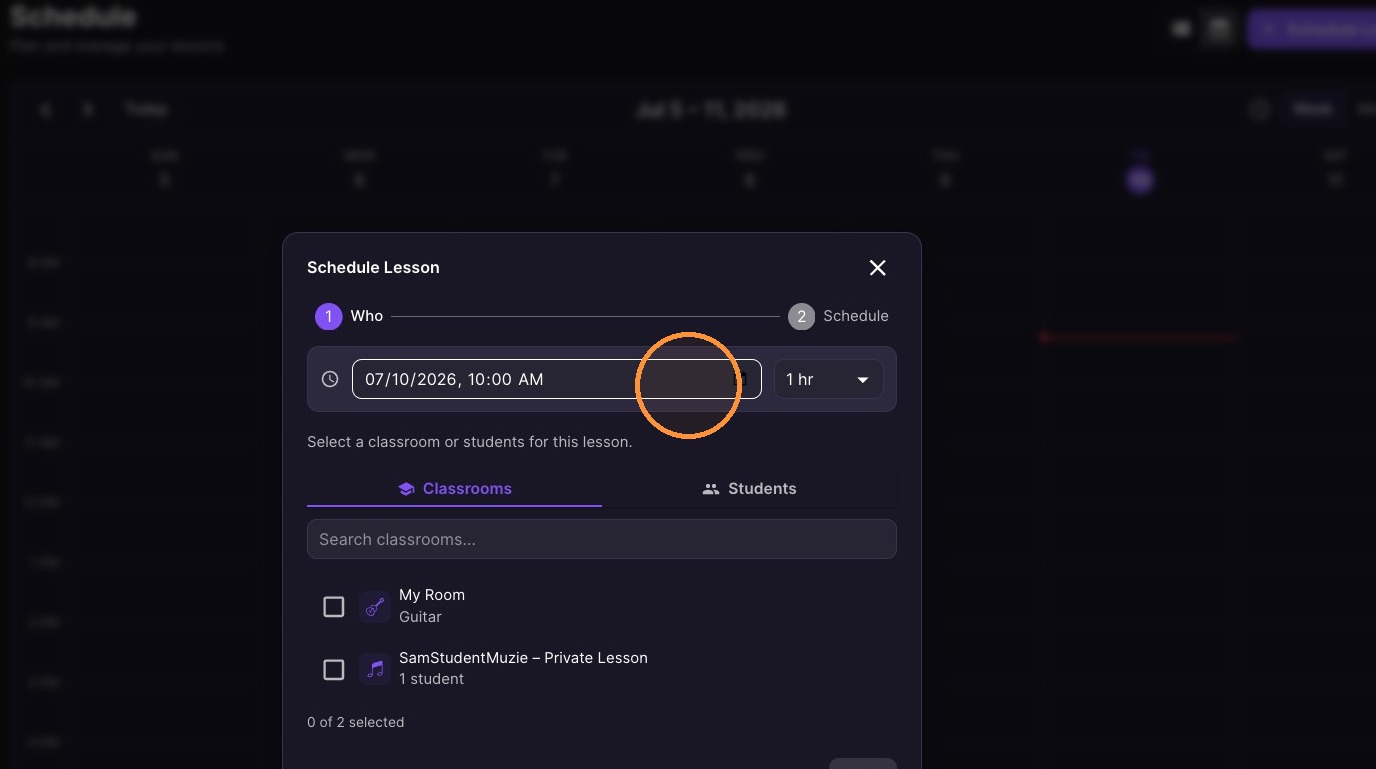
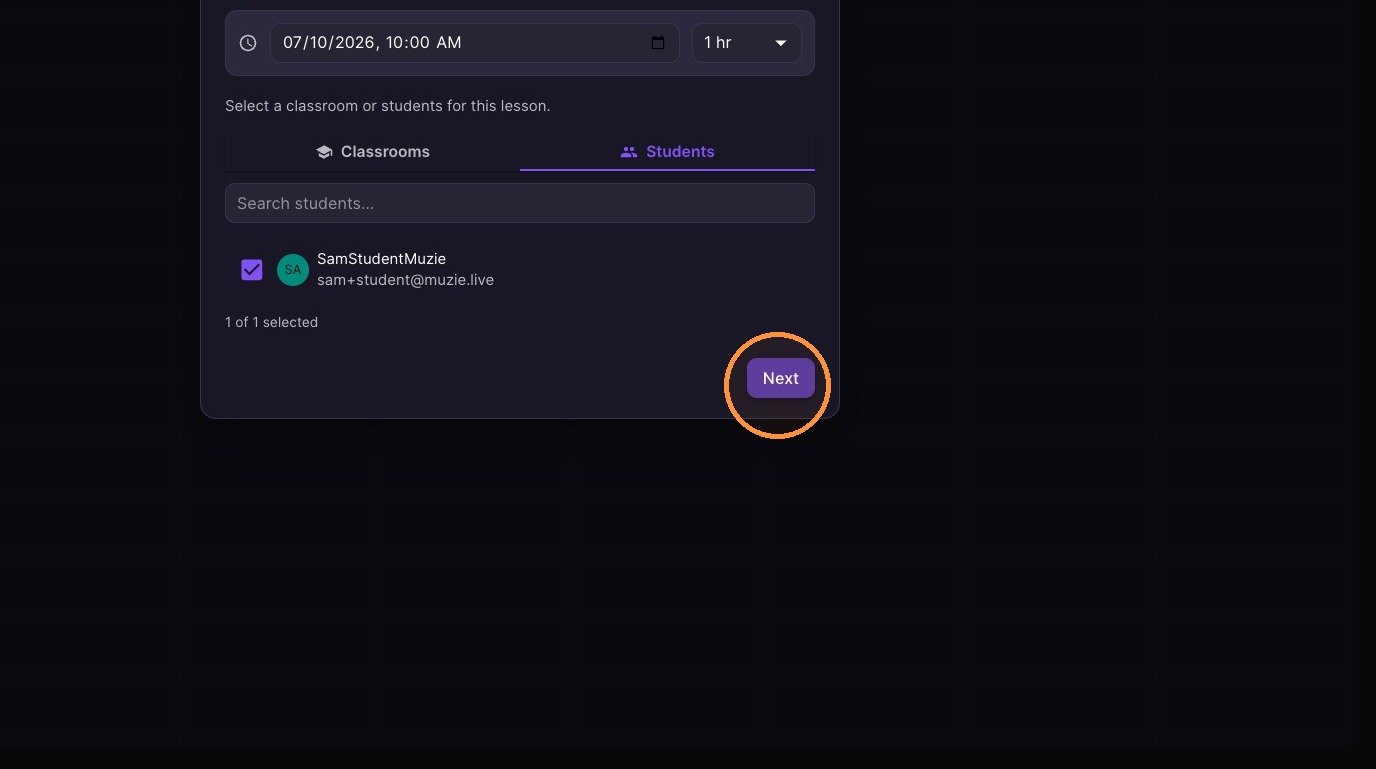
Review or adjust the lesson date and time.
-
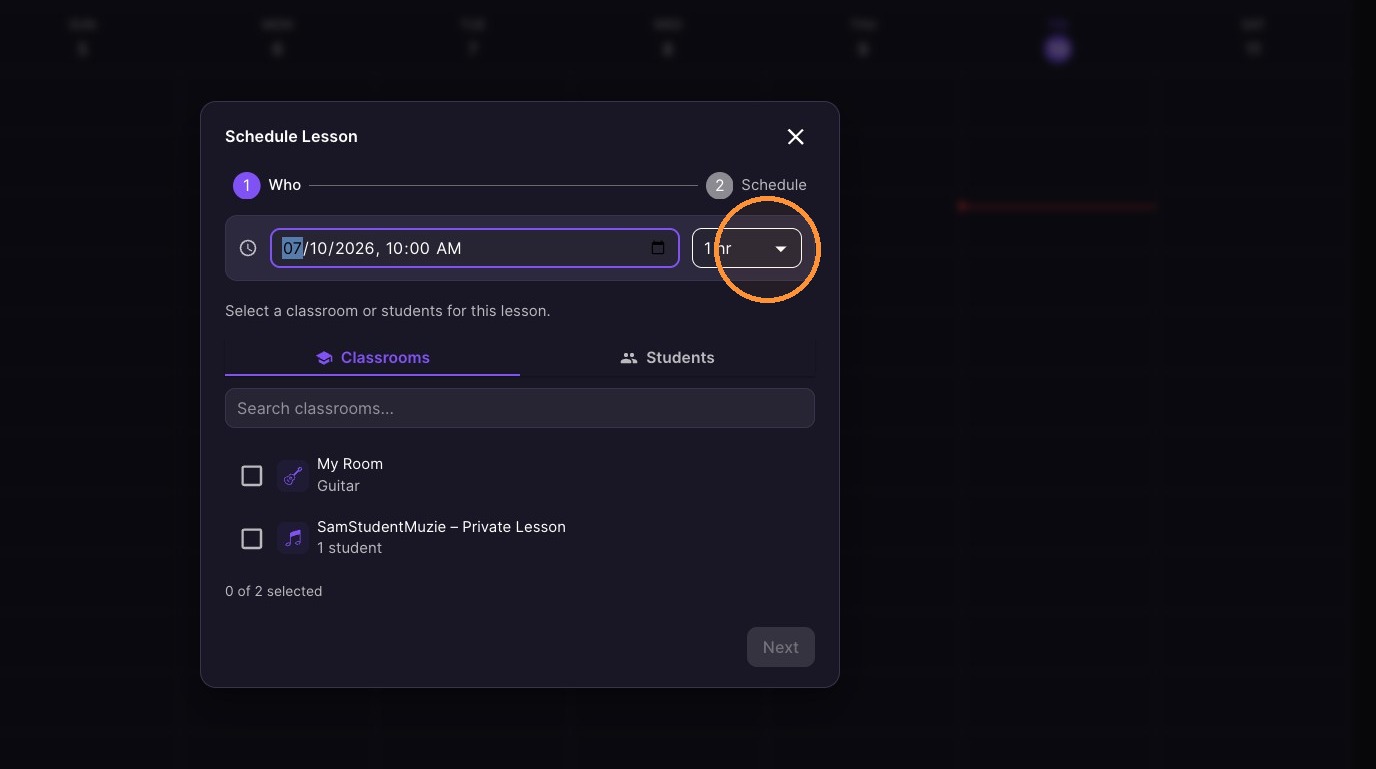
Select the duration for the lesson.
-
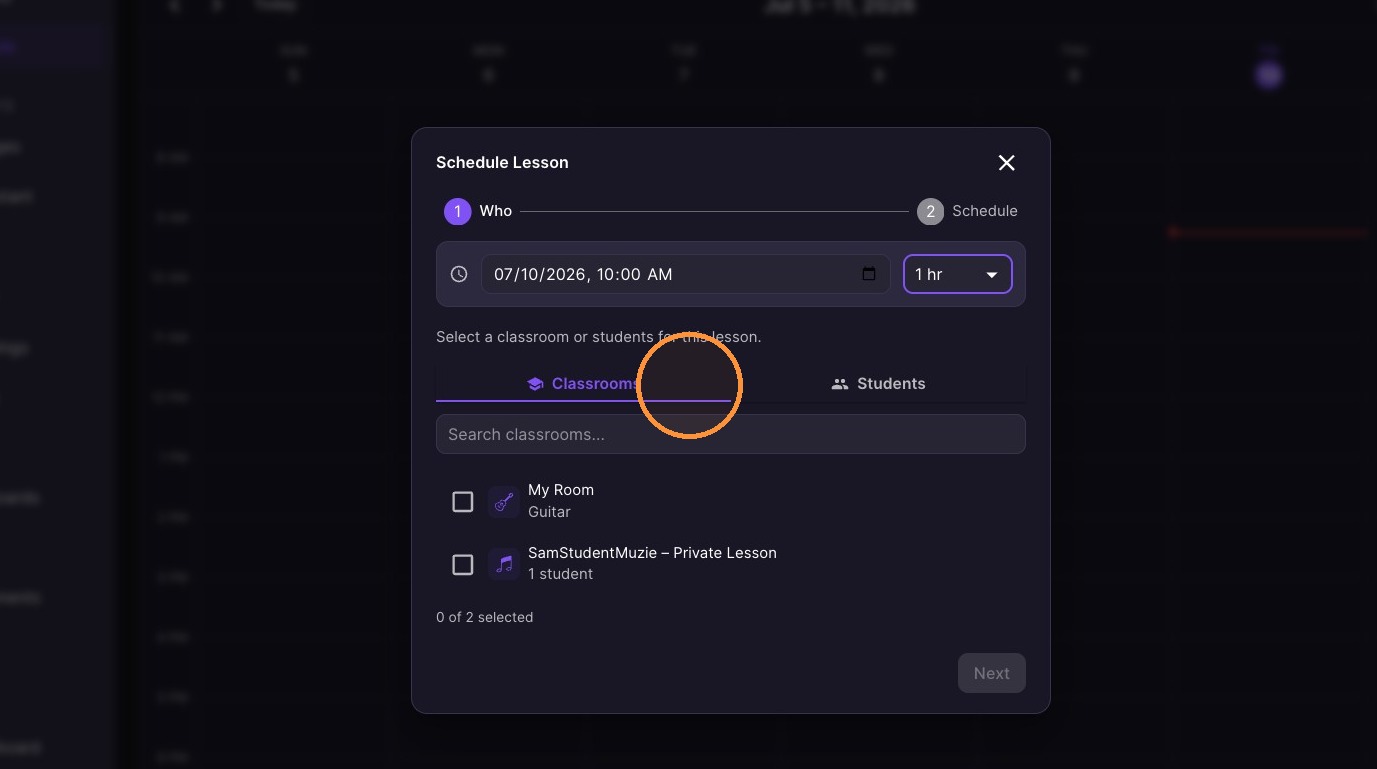
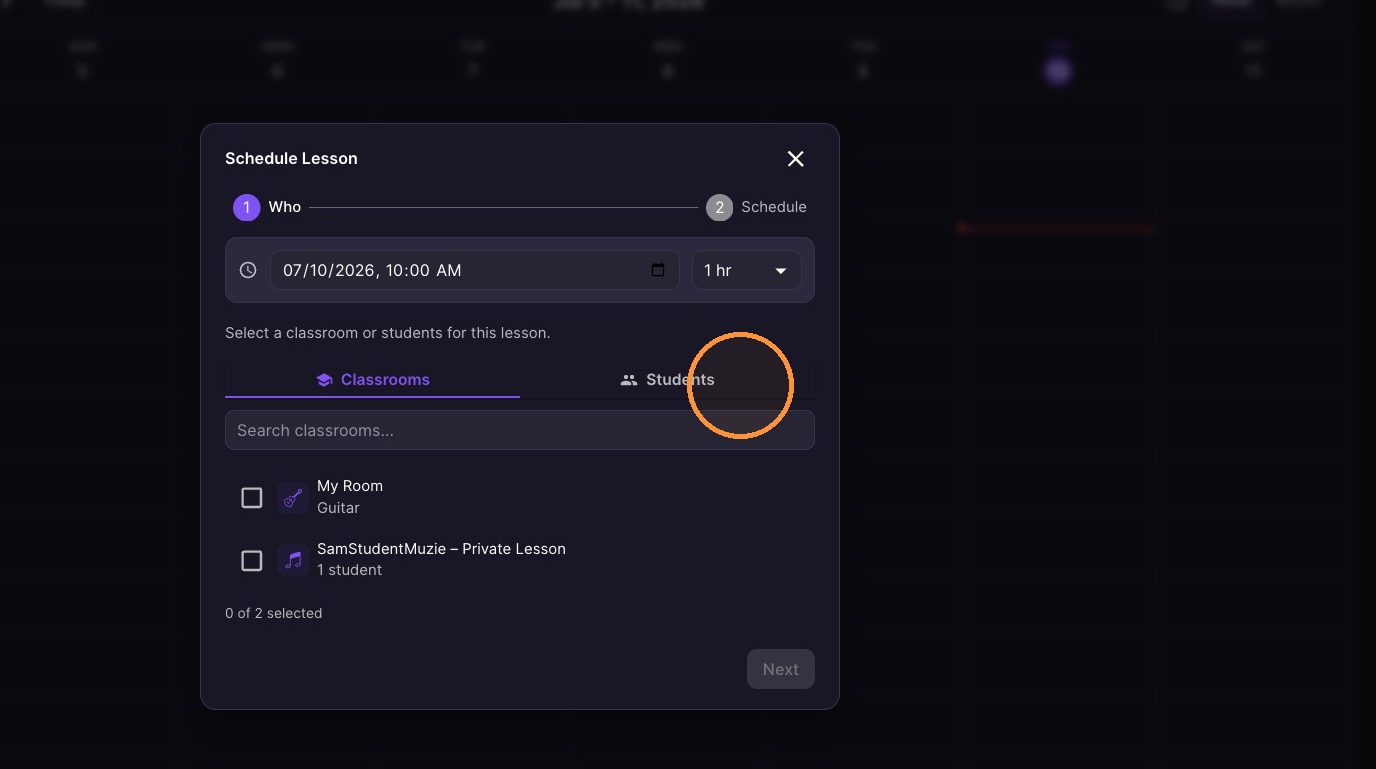
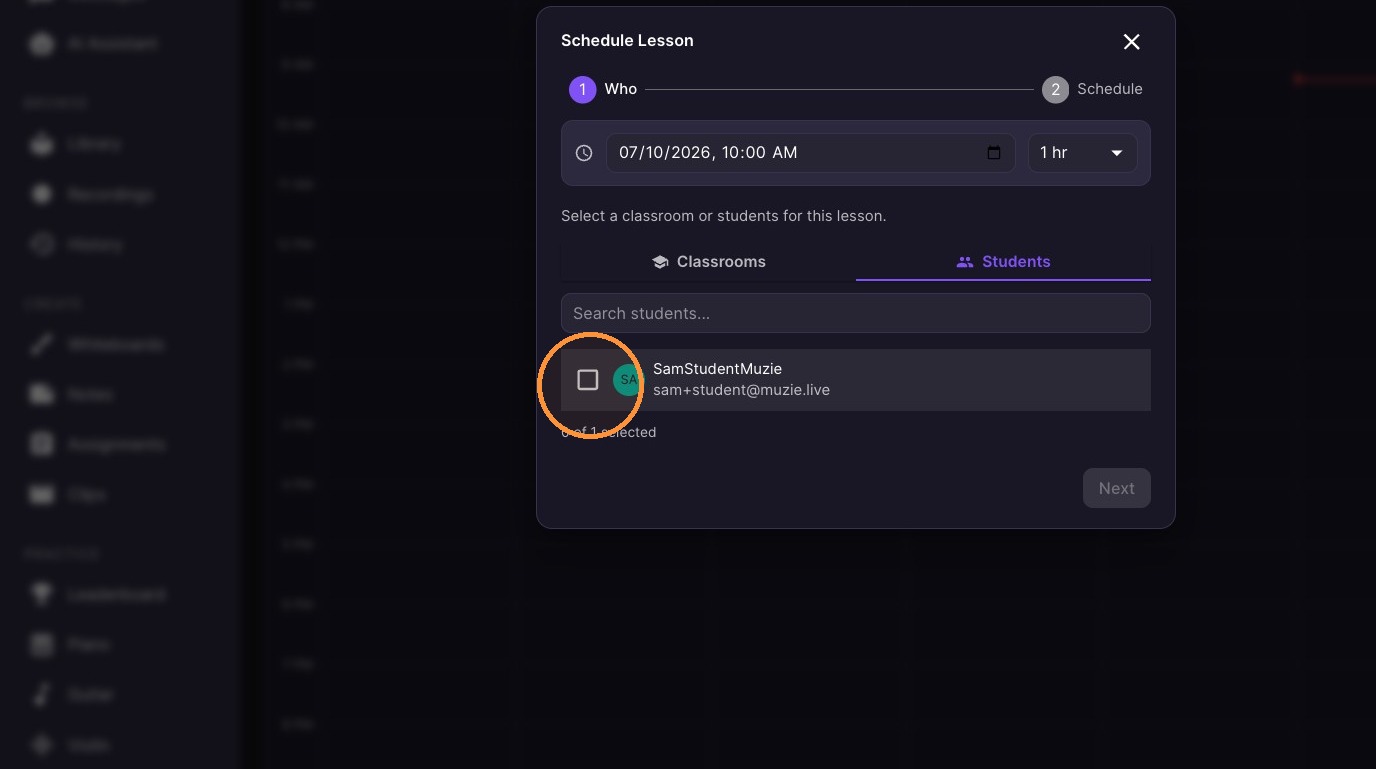
Select the classroom or student for the lesson.
-
Click "Next" in the bottom-right to proceed to the lesson details.
-
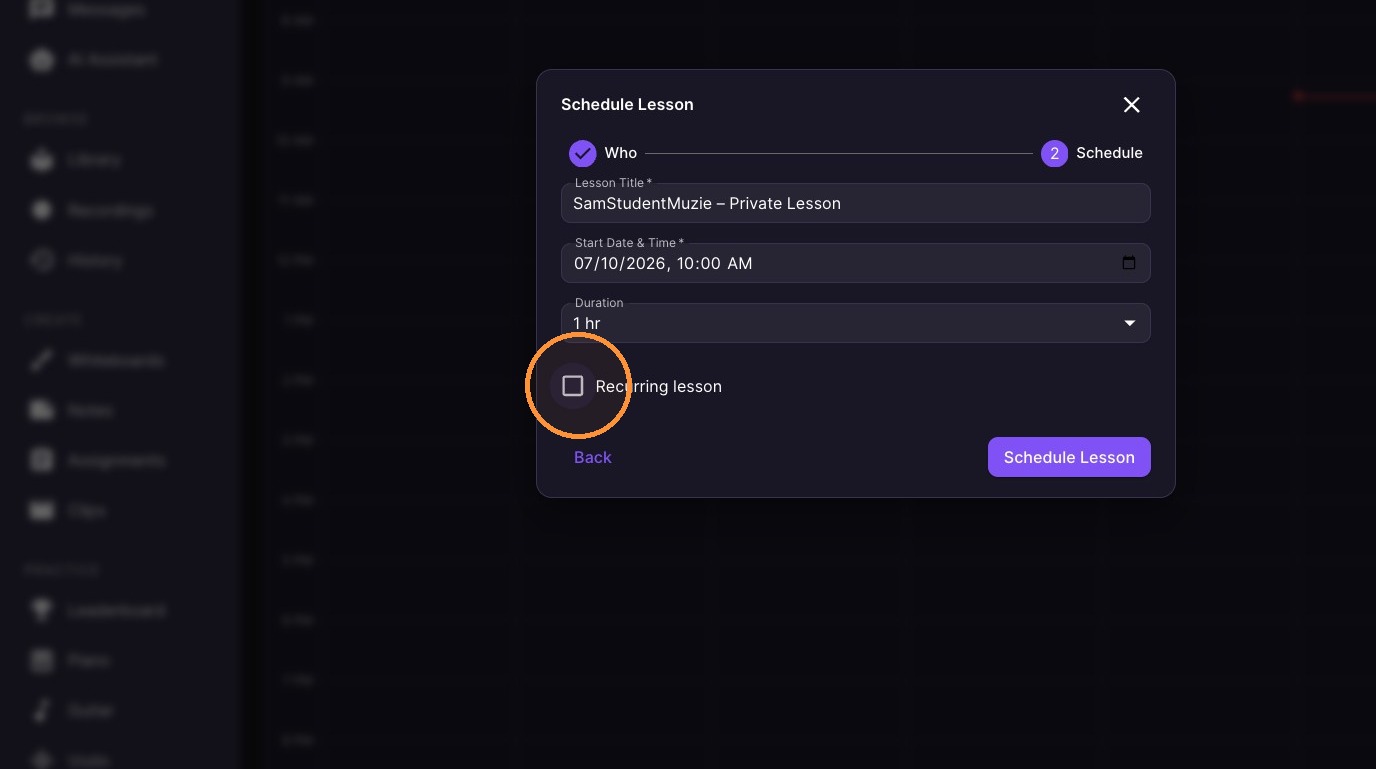
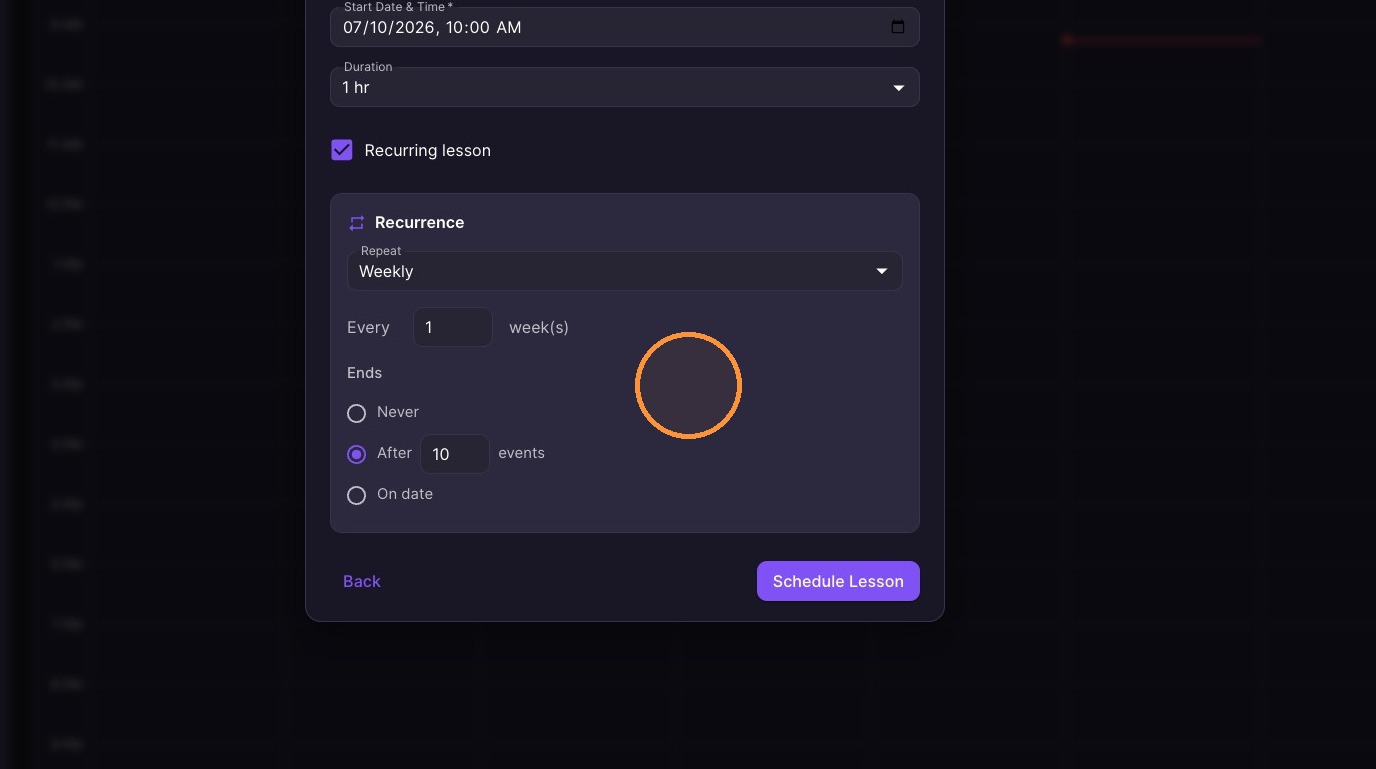
Optional** Enable and configure recurrence settings for the lesson.
-
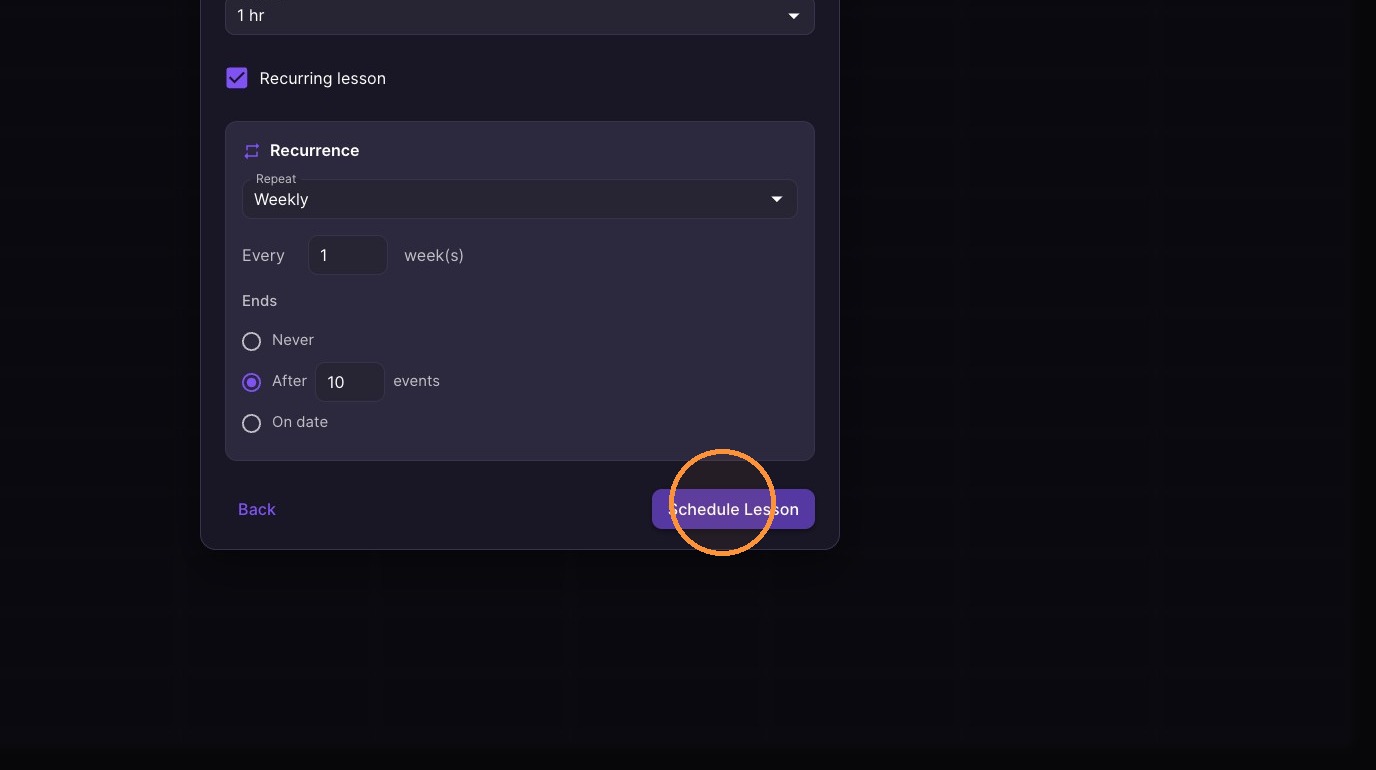
Click "Schedule Lesson" to confirm the booking.
10. Optional** Click "Add to Google Calendar"
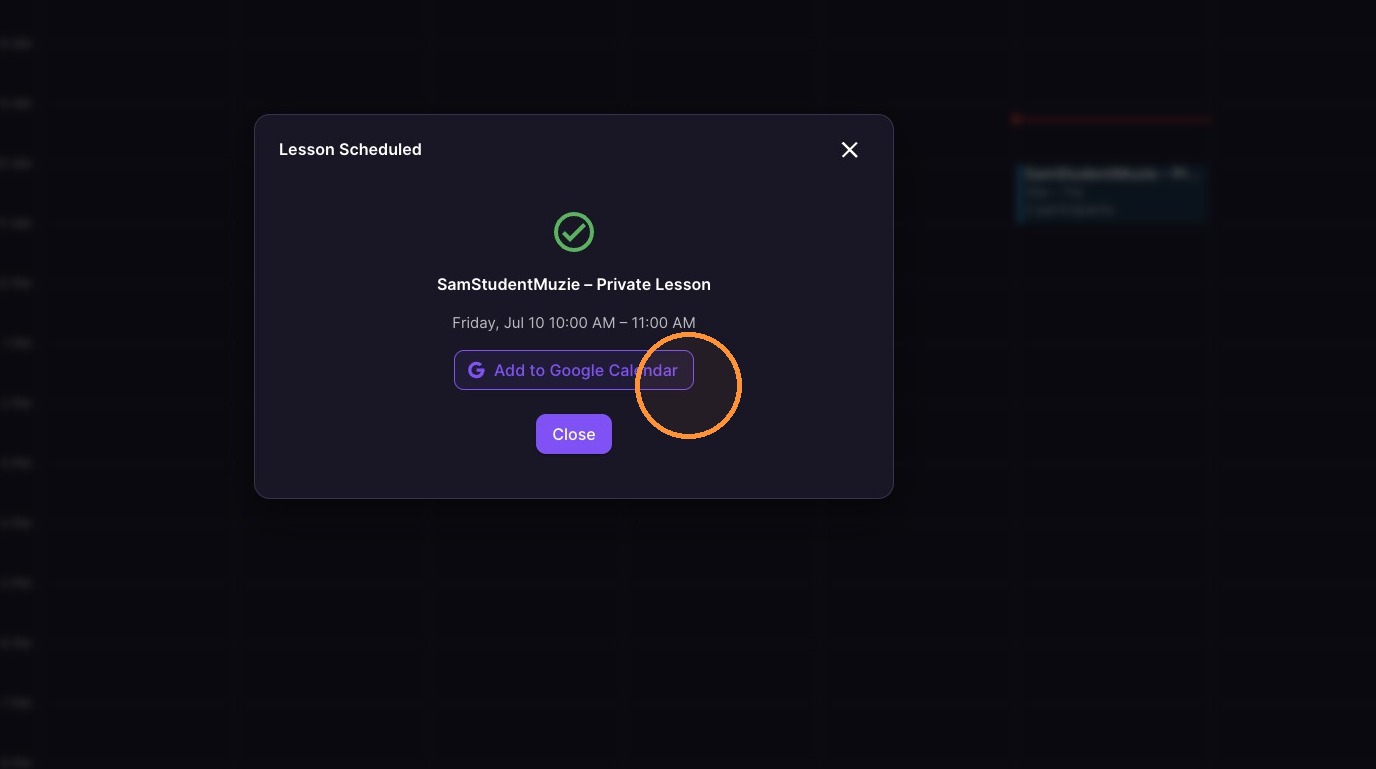
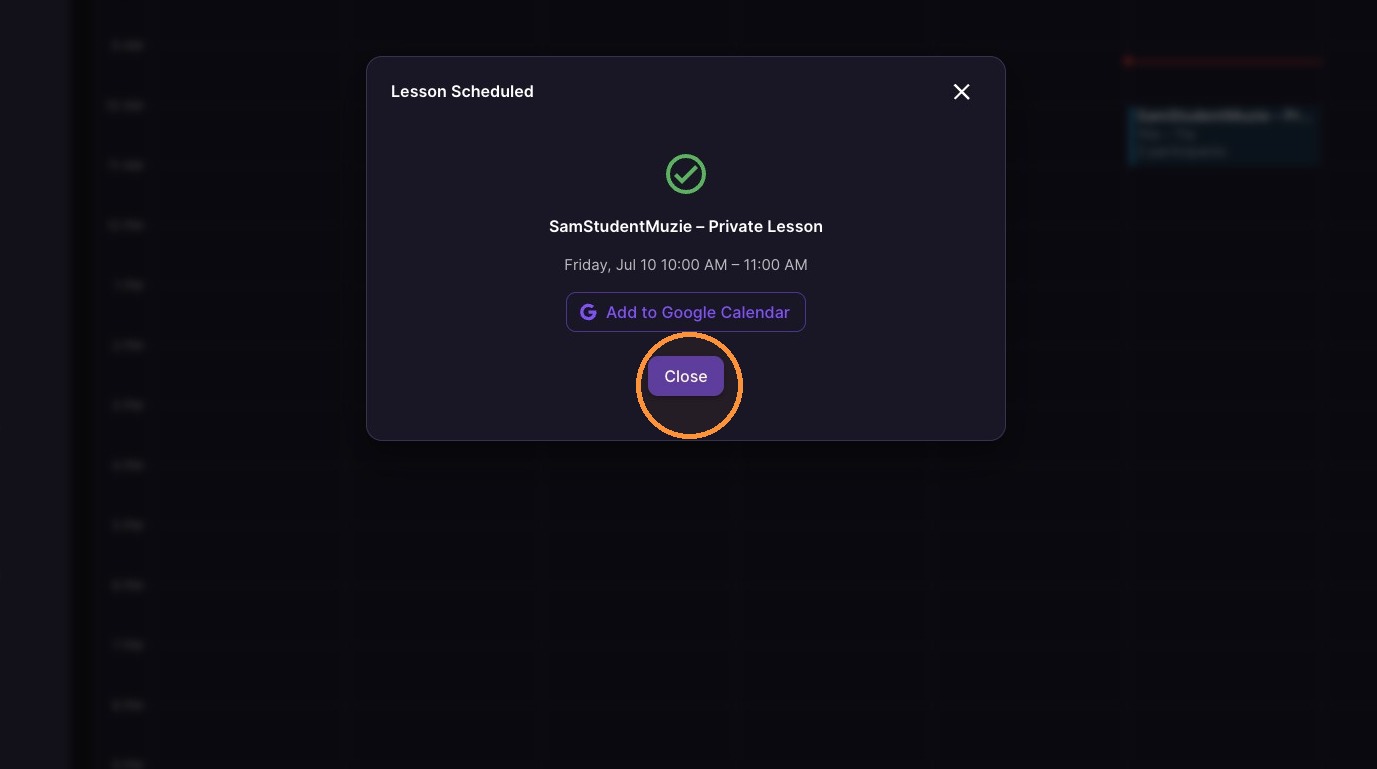
11. Click "Close" - A lesson invite is emailed to the student automatically
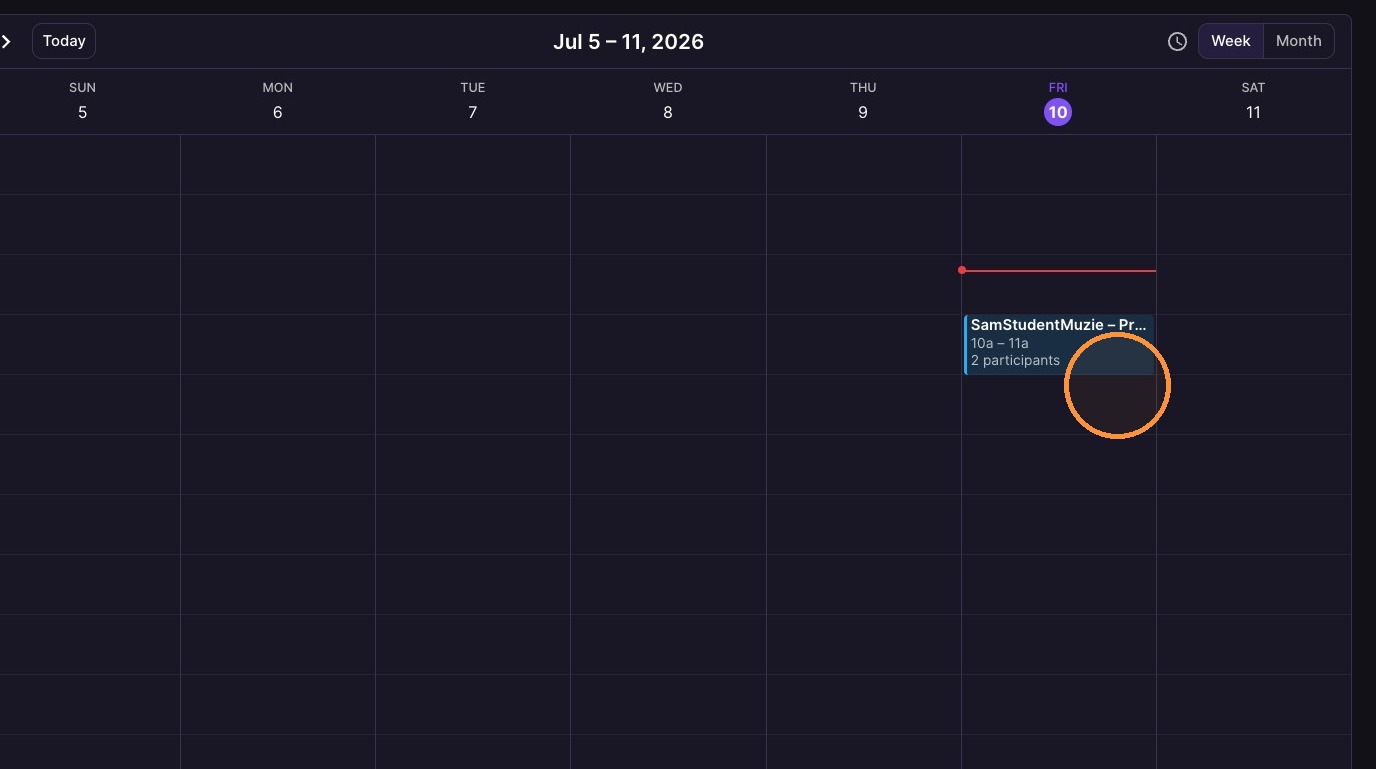
12. See the scheduled lesson in the calendar to verify its details.
Scheduling is optional. A lesson on the schedule is a reminder, not a requirement — you can always start a lesson directly from Students → Start Class. For weekly recurring lessons, note that scheduling emails the student an invite each time; if your students do not want weekly emails, leave the lesson off the schedule and start it from your student list when it is time.