

Learn how to set up and manage your classroom video so students can see you clearly in Muzie Live. In this guide, you’ll learn how to choose the right camera, switch between cameras during class, add a second camera (including using your phone as an extra camera), and save your device preferences so you’re ready to teach quickly each time you join.
-
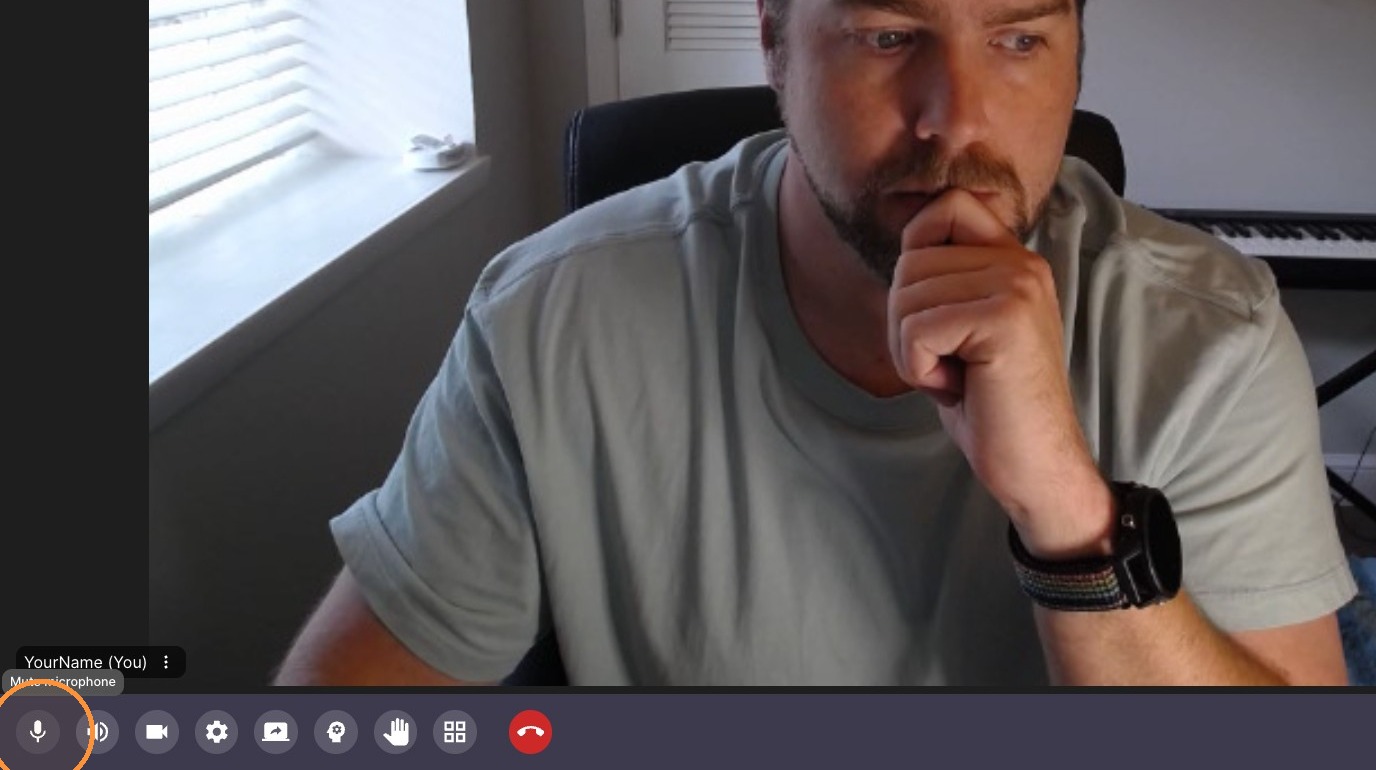
Click microphone icon to mute audio.
-
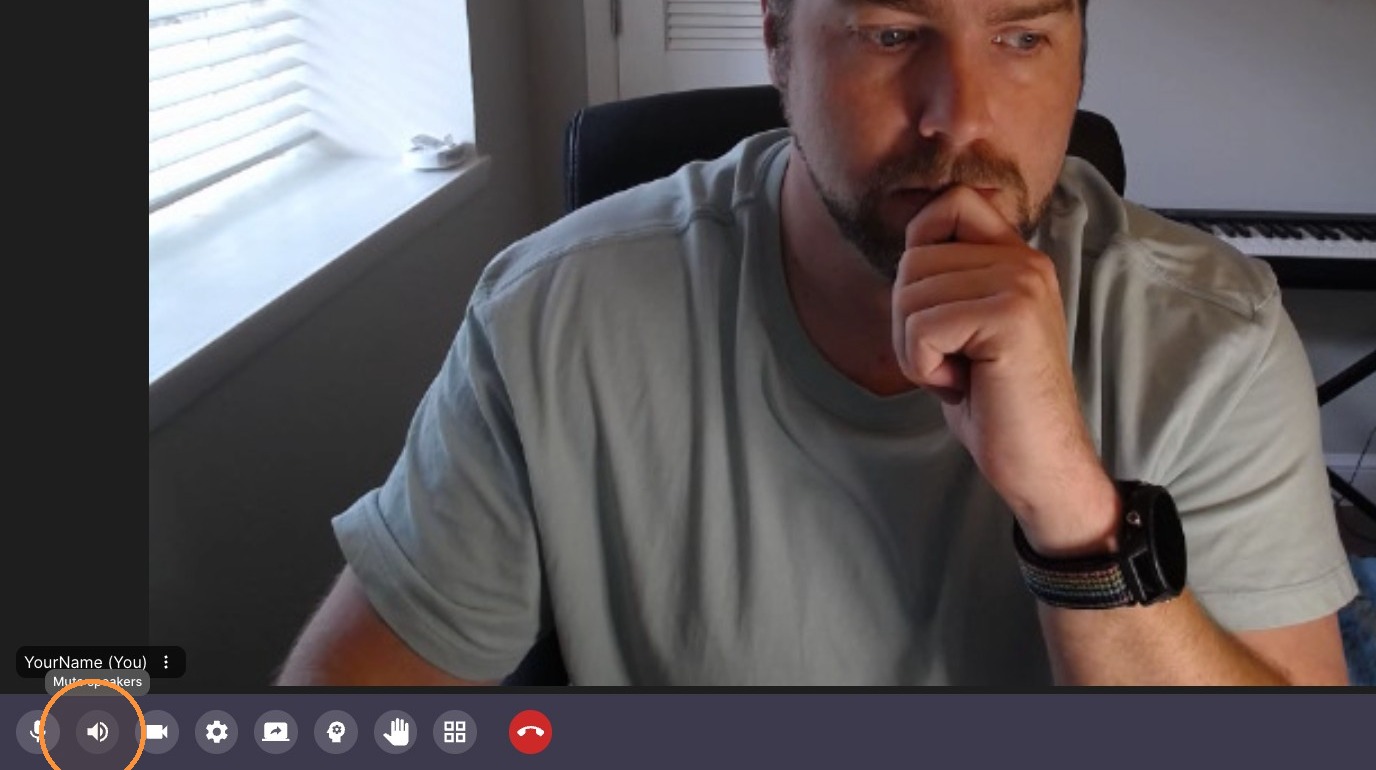
Click speaker icon to mute audio output.
Video Settings
-
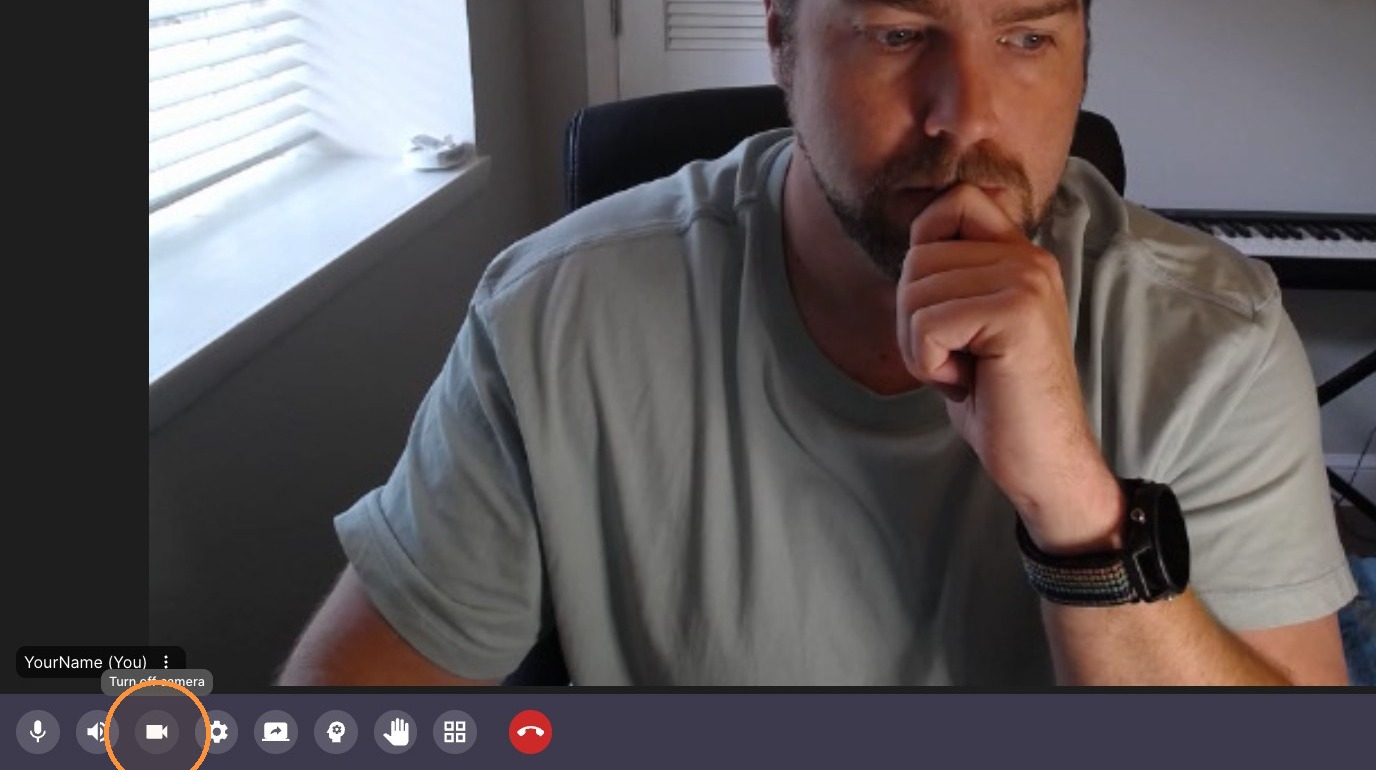
Click Camera for camera settings
-
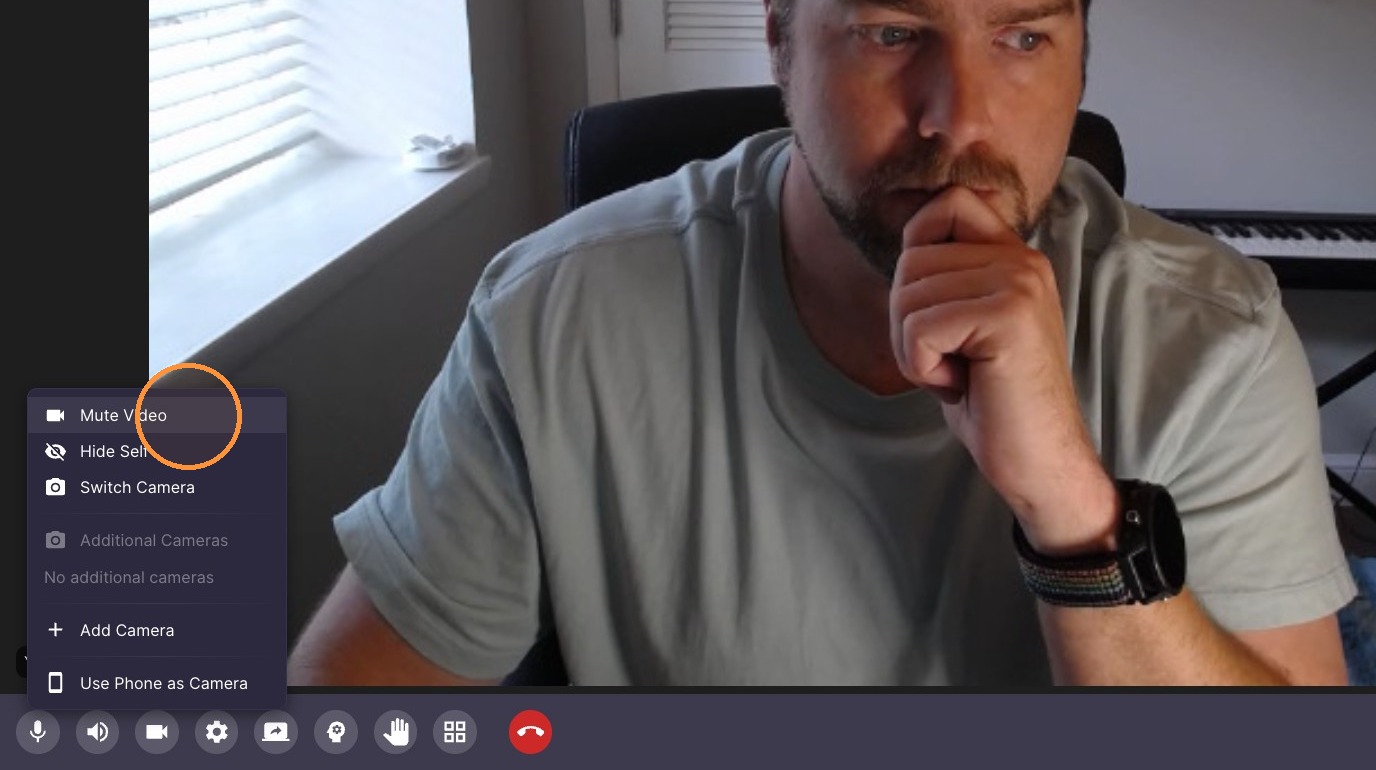
Click "Mute Video"
-
Select 'Hide Self' to hide your own video - but guests can still see you
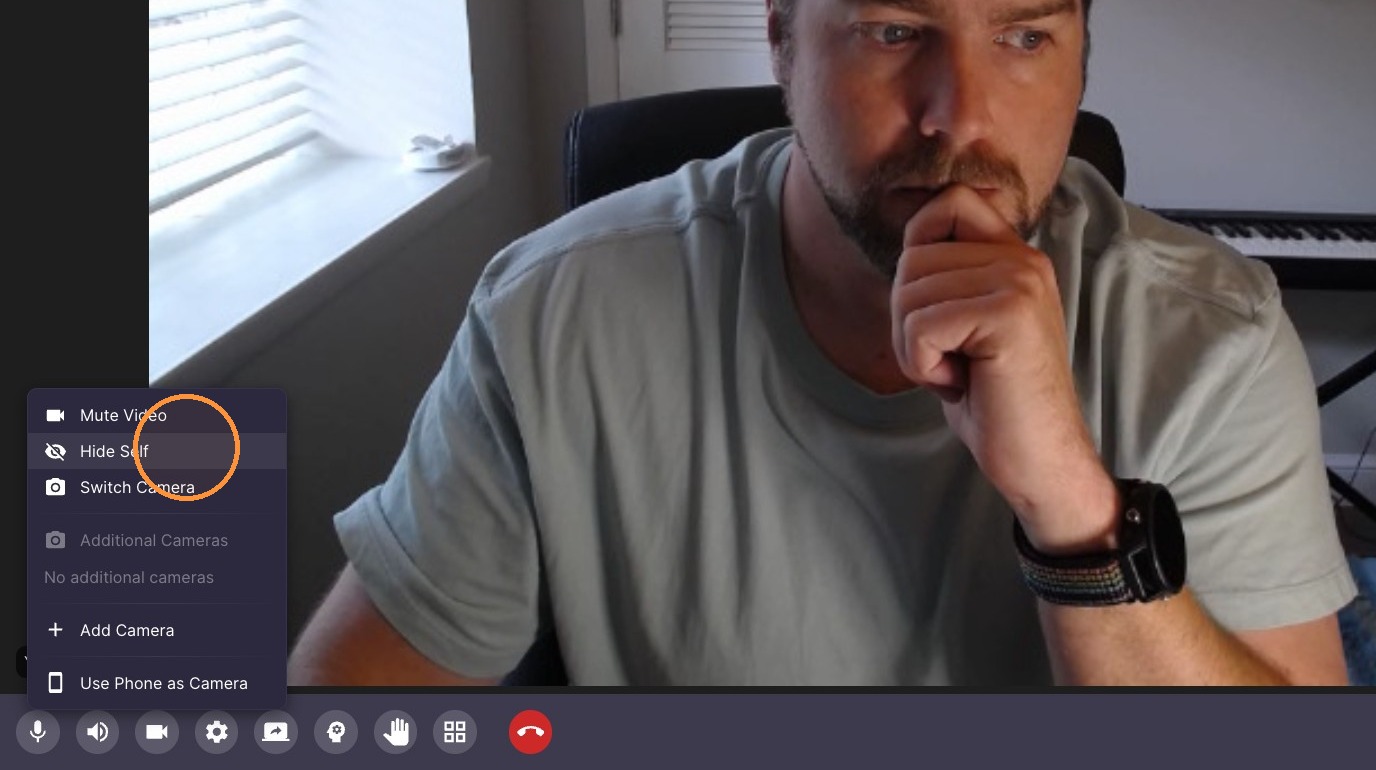
Camera Sources
-
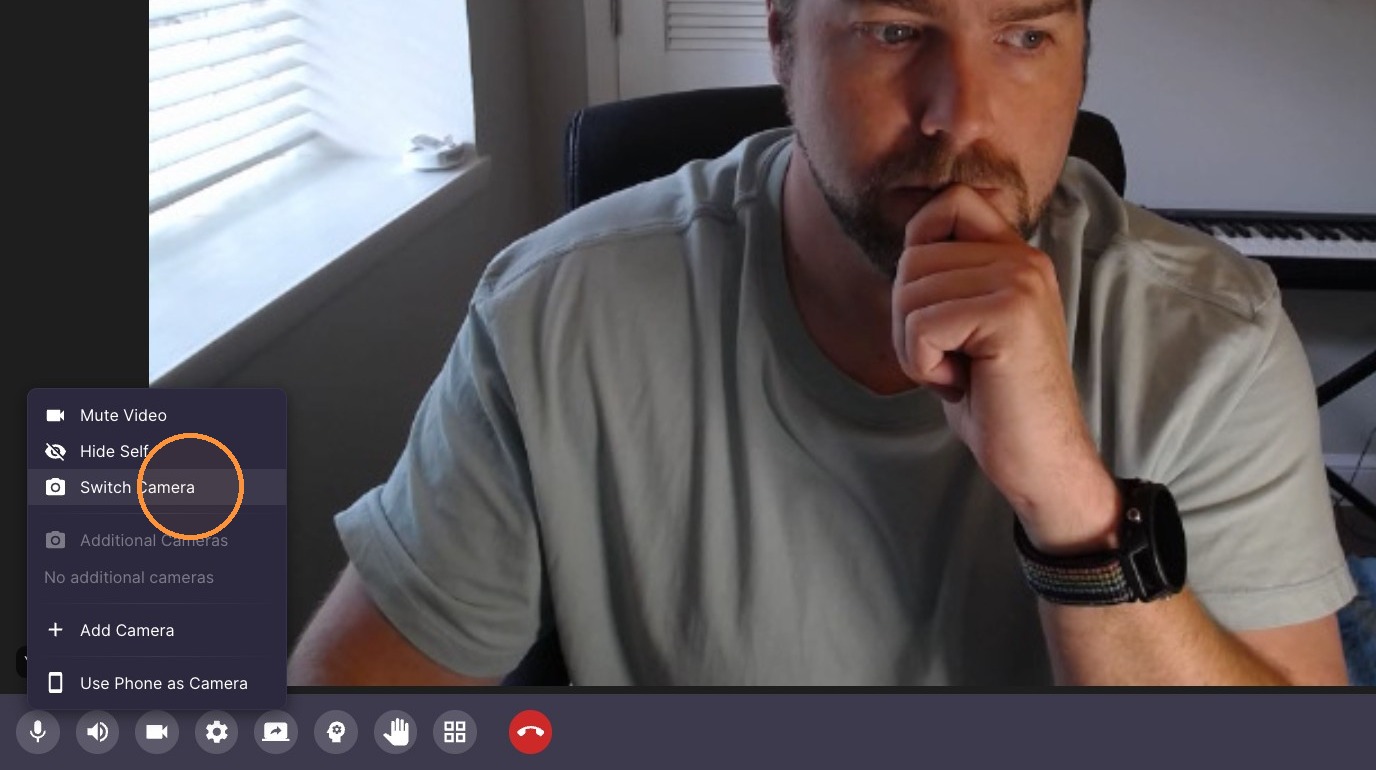
Click "Switch Camera"
-
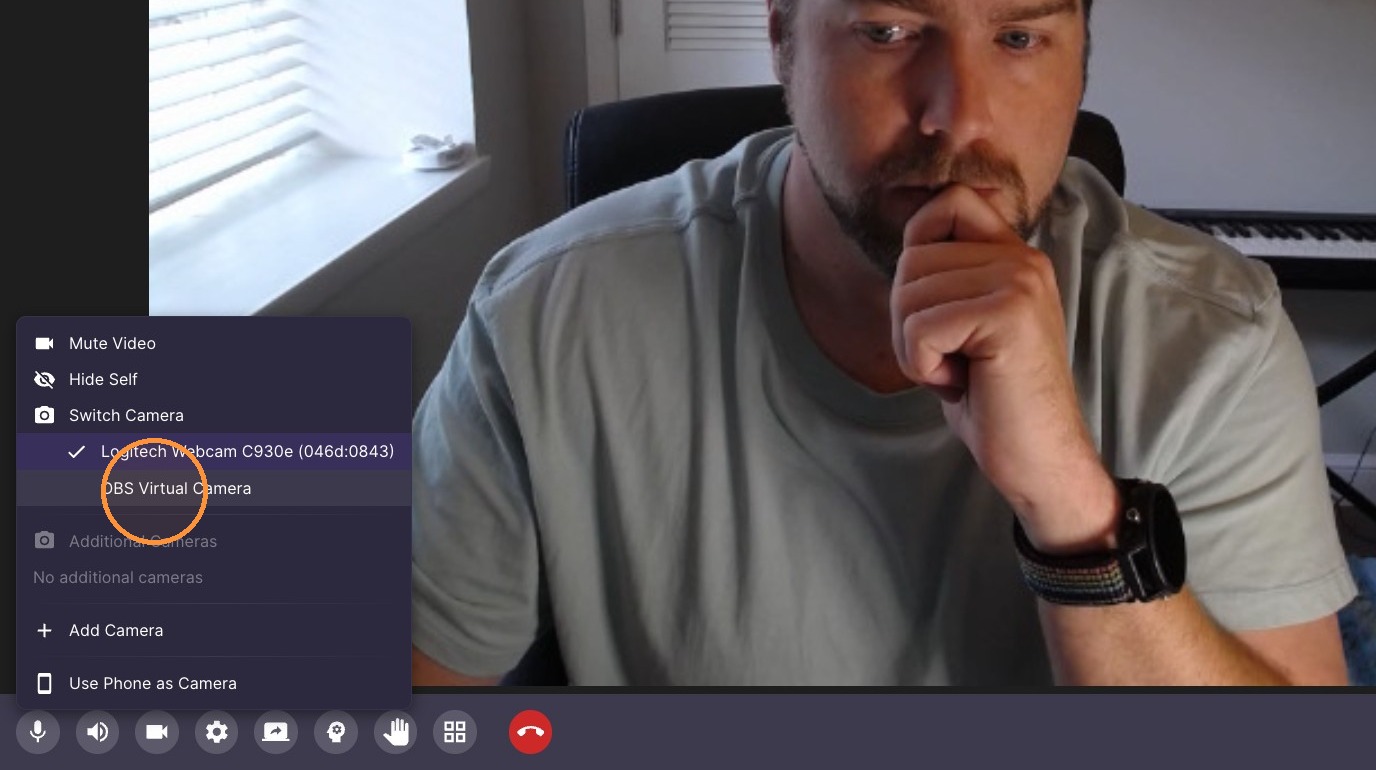
Click "Your Other Camera"
-
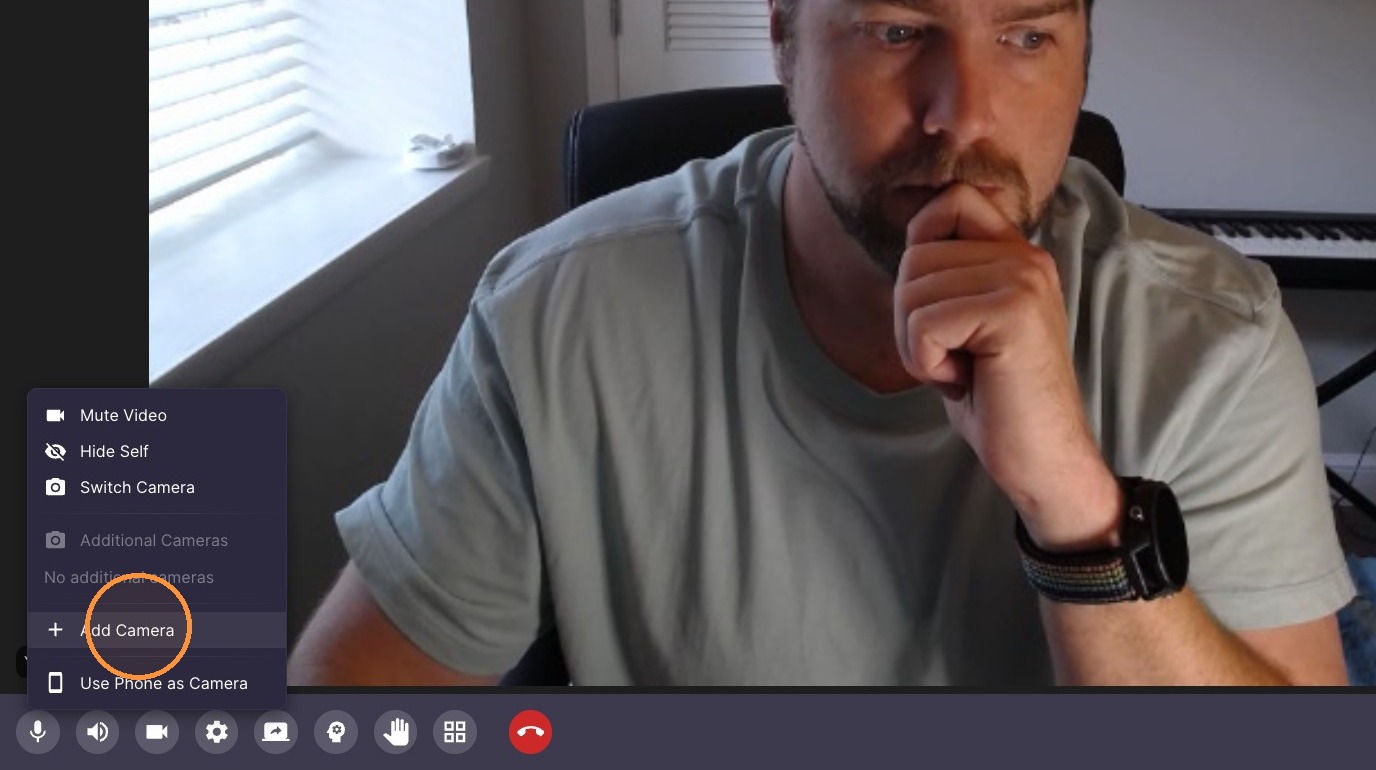
Add secondary camera by selecting device from 'Add Camera' menu.
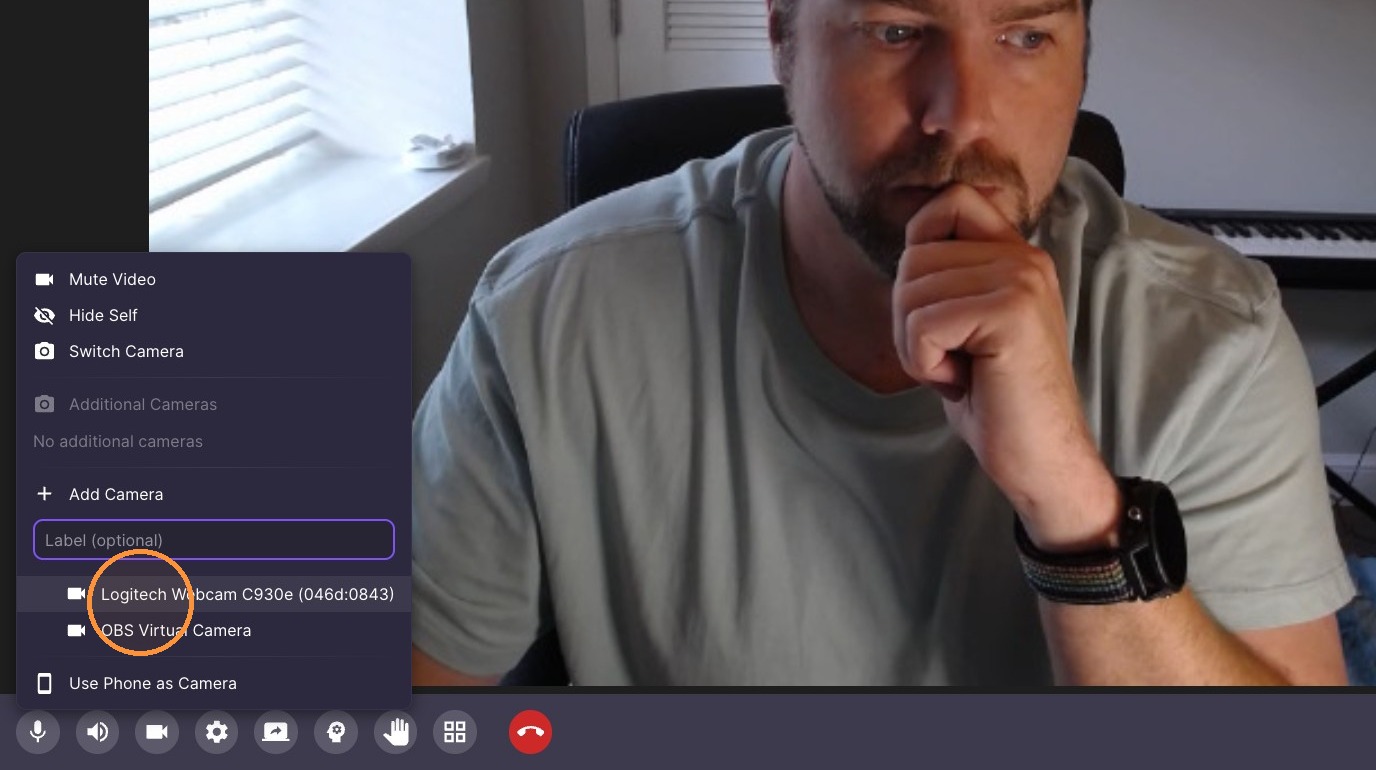
-
Select 'Use Phone as Camera' to view connection QR code.
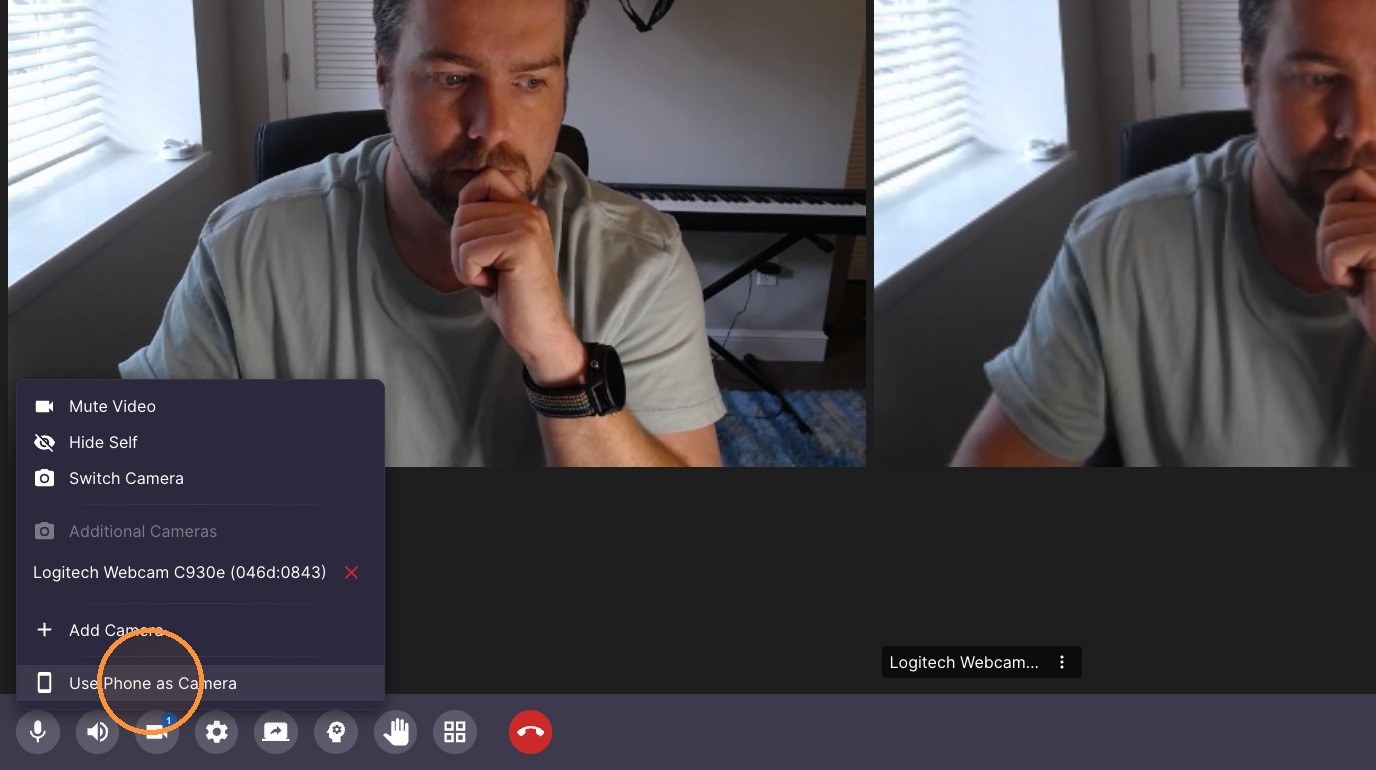
10. Scan the QR code with your phone to connect your phone as a second camera
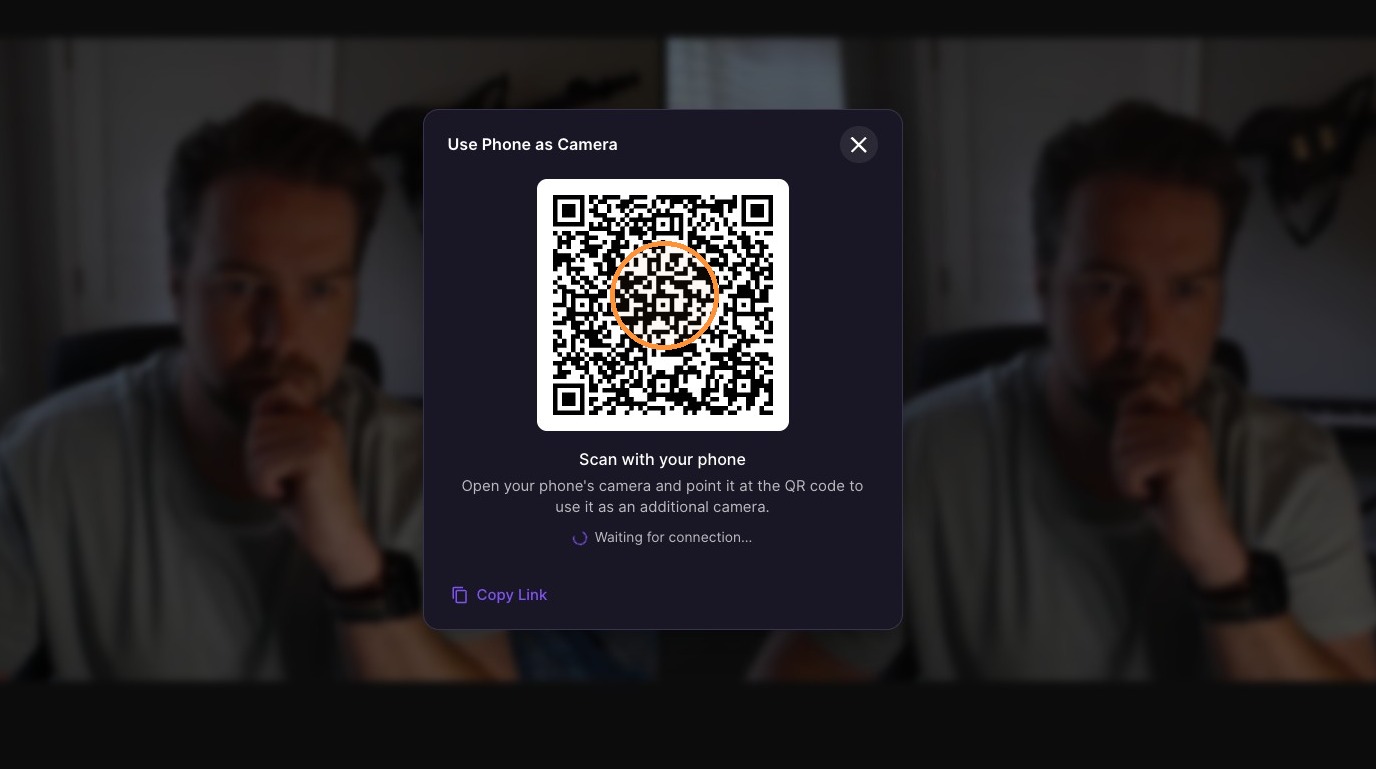
11. Click X to shut off second camera
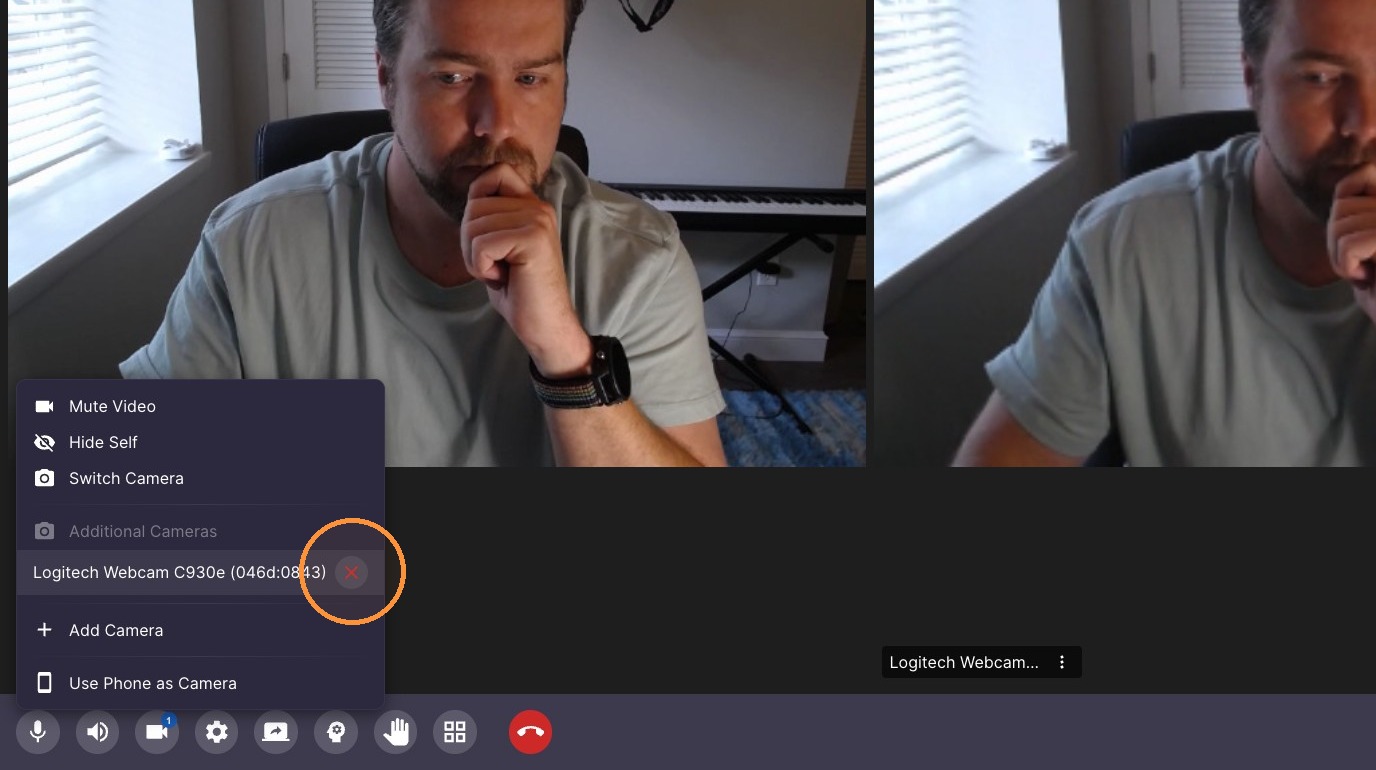
12. Open "Device Settings"
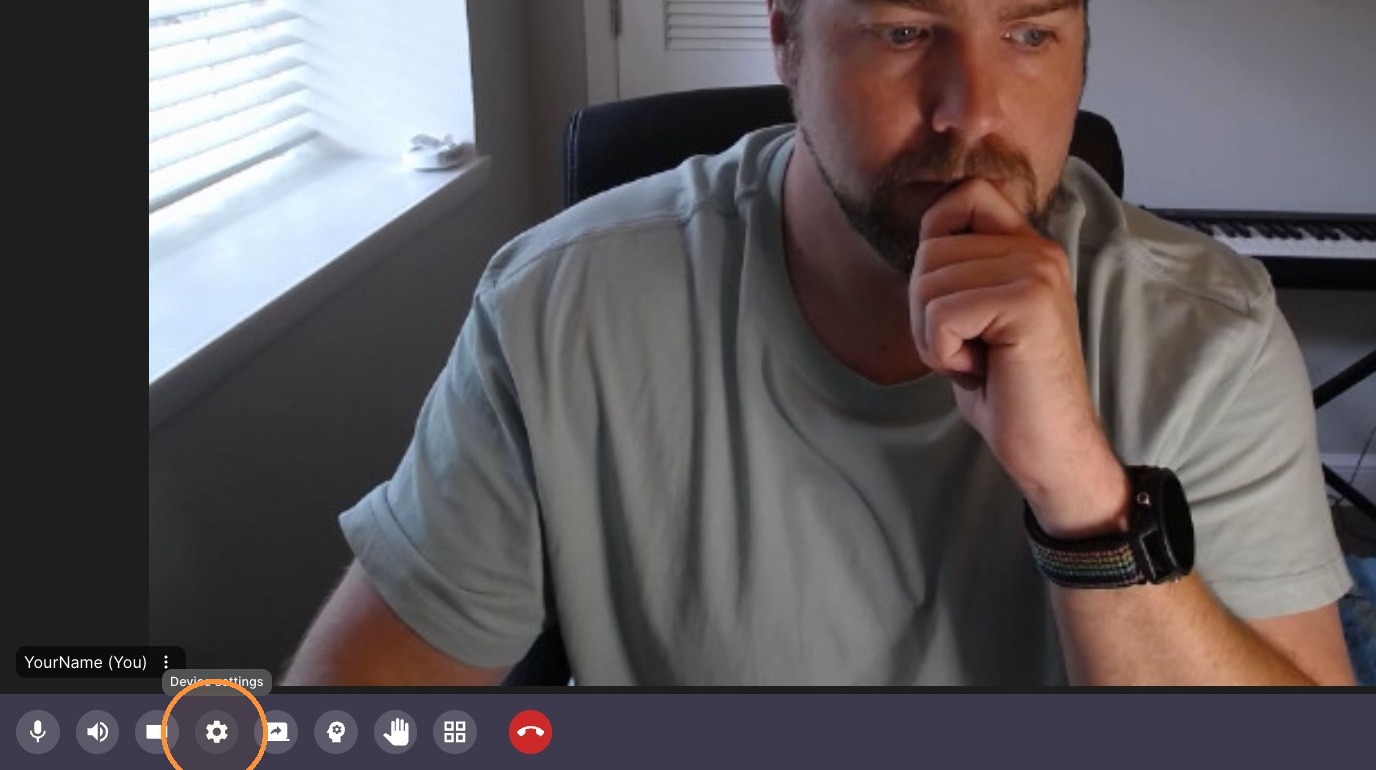
13. Click "Device Settings..."
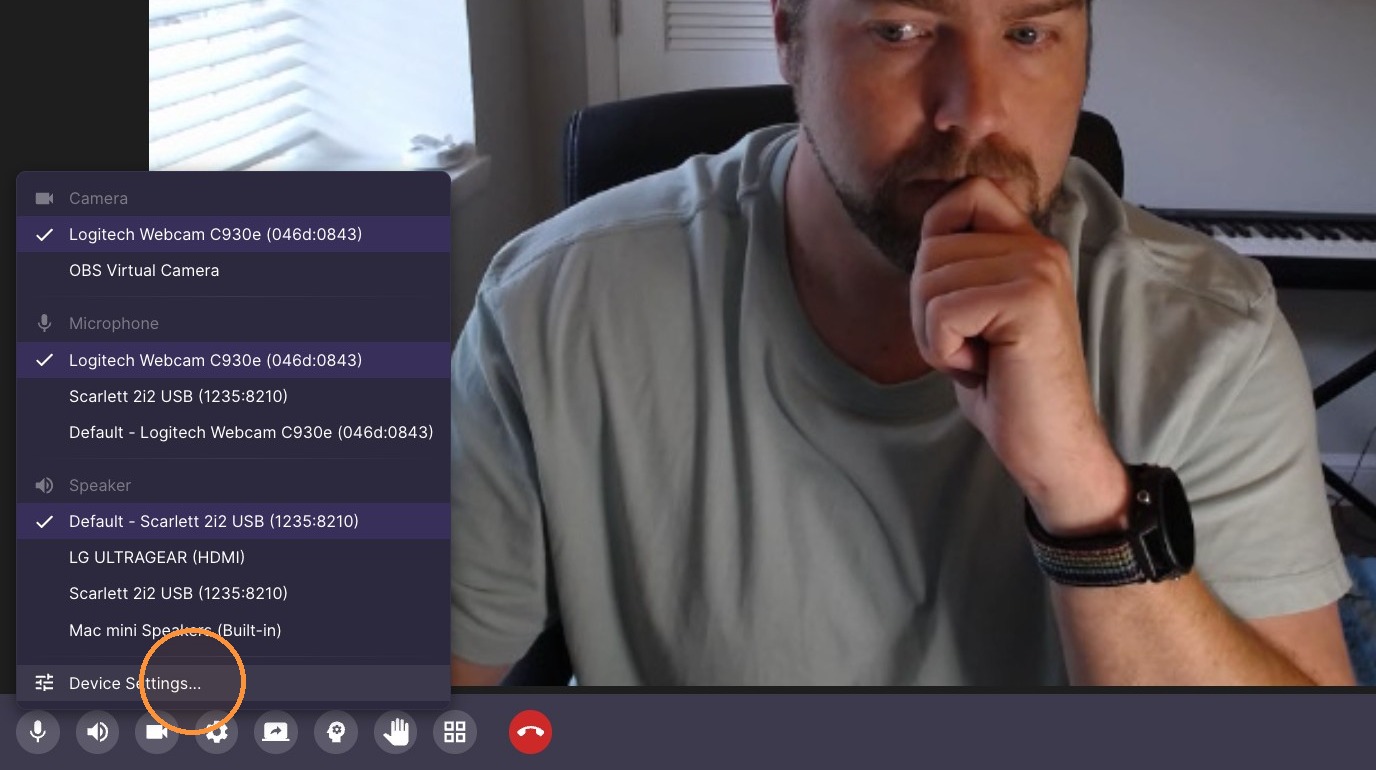
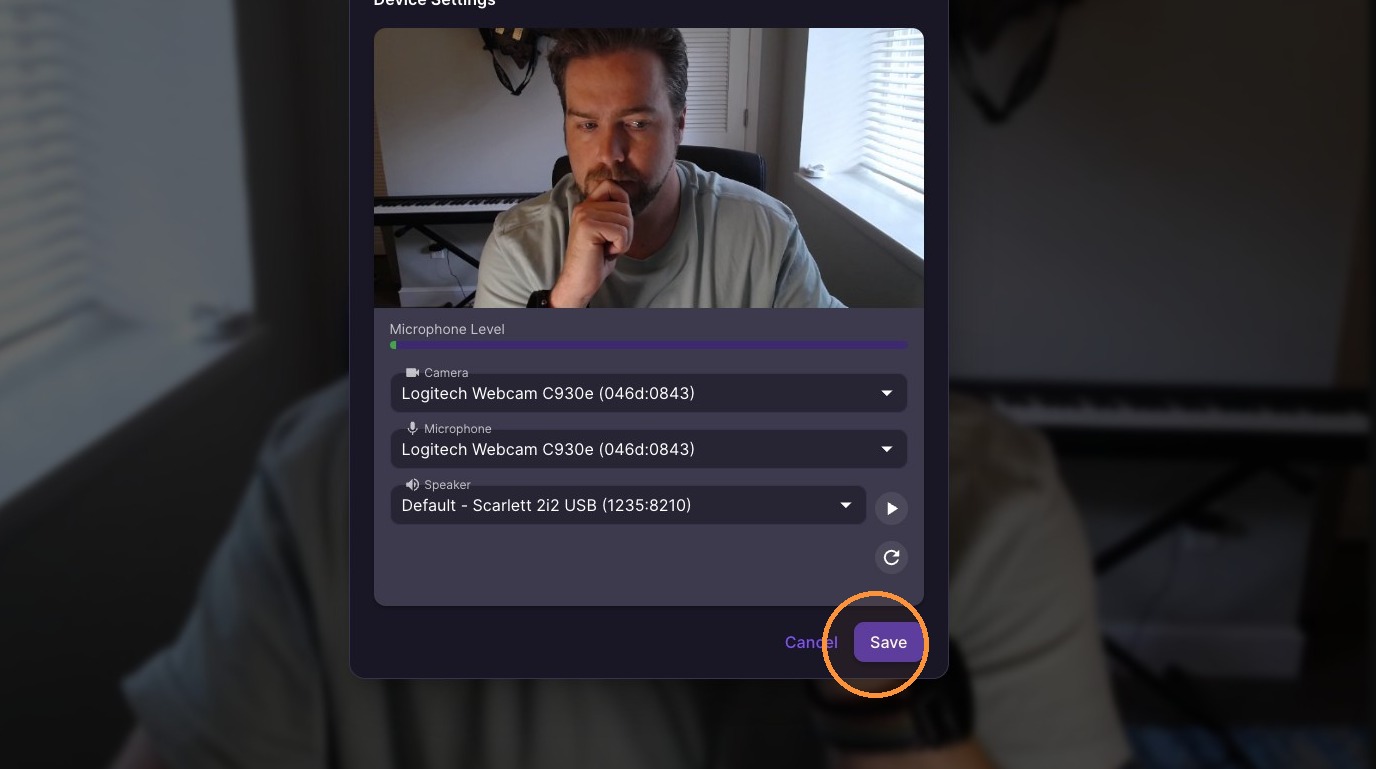
14. Configure devices and Click "Save"
Video looks mirrored or reversed: in the lesson, click the camera icon and choose Flip camera — it flips your view straight away.
Echo in the lesson: open Device settings → Advanced and set the mode to Voice — on both sides, teacher and student. If it persists, use headphones and set the audio output to the headphones.