Muzie Help Guides

General Lesson Room Navigation: Managing Tools, Layouts, and Participant Interaction

Use this guide as a teacher or host to manage the main controls in your lesson room with confidence. You’ll learn how to open and close sidebar tools, configure the instrument panel, control whether students’ sidebars follow your actions, send reactions, copy a guest invite link, start or stop the metronome, change the classroom layout, use hand-raising controls, and end the call when the lesson is finished.


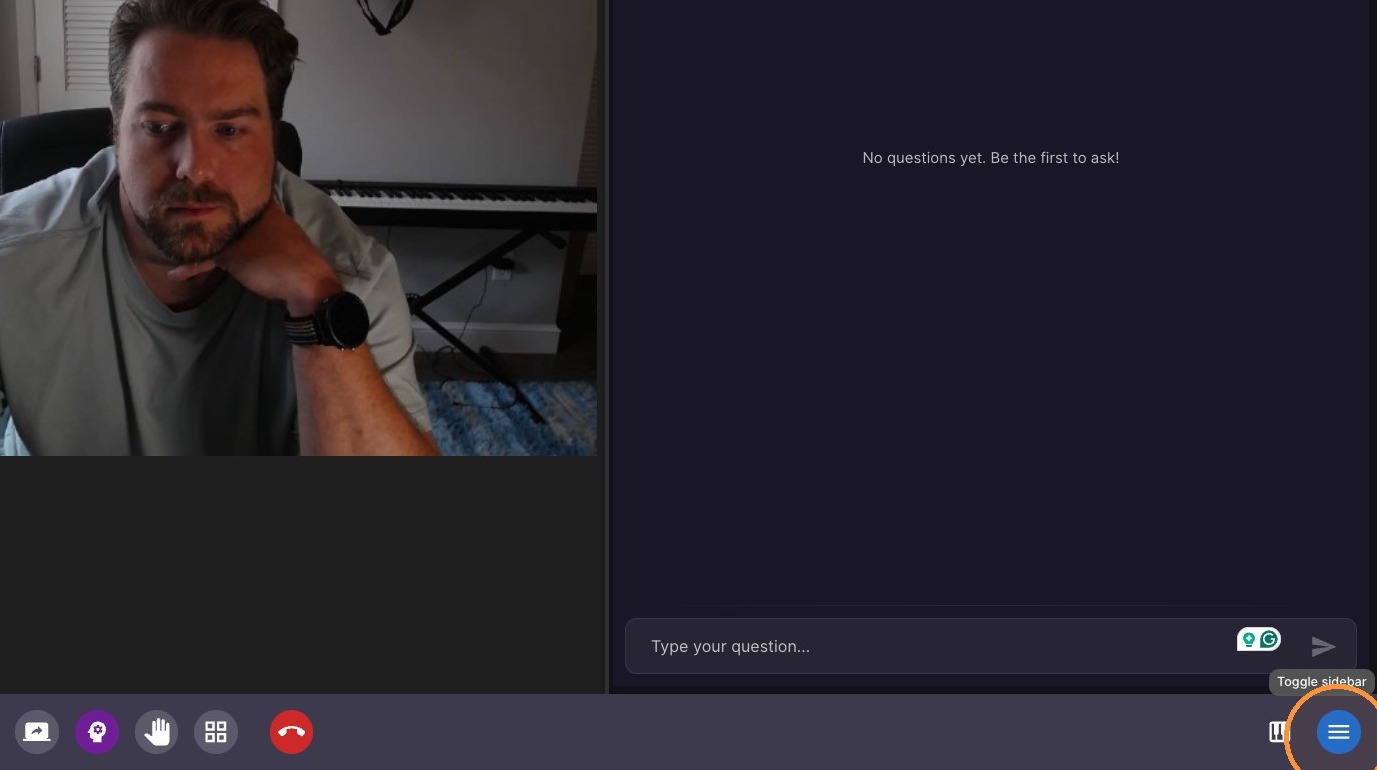
  1. Open and Close Tools

ascreenshot_3c64da1ebf7144cc904d52503c31d28e_text_export.jpeg

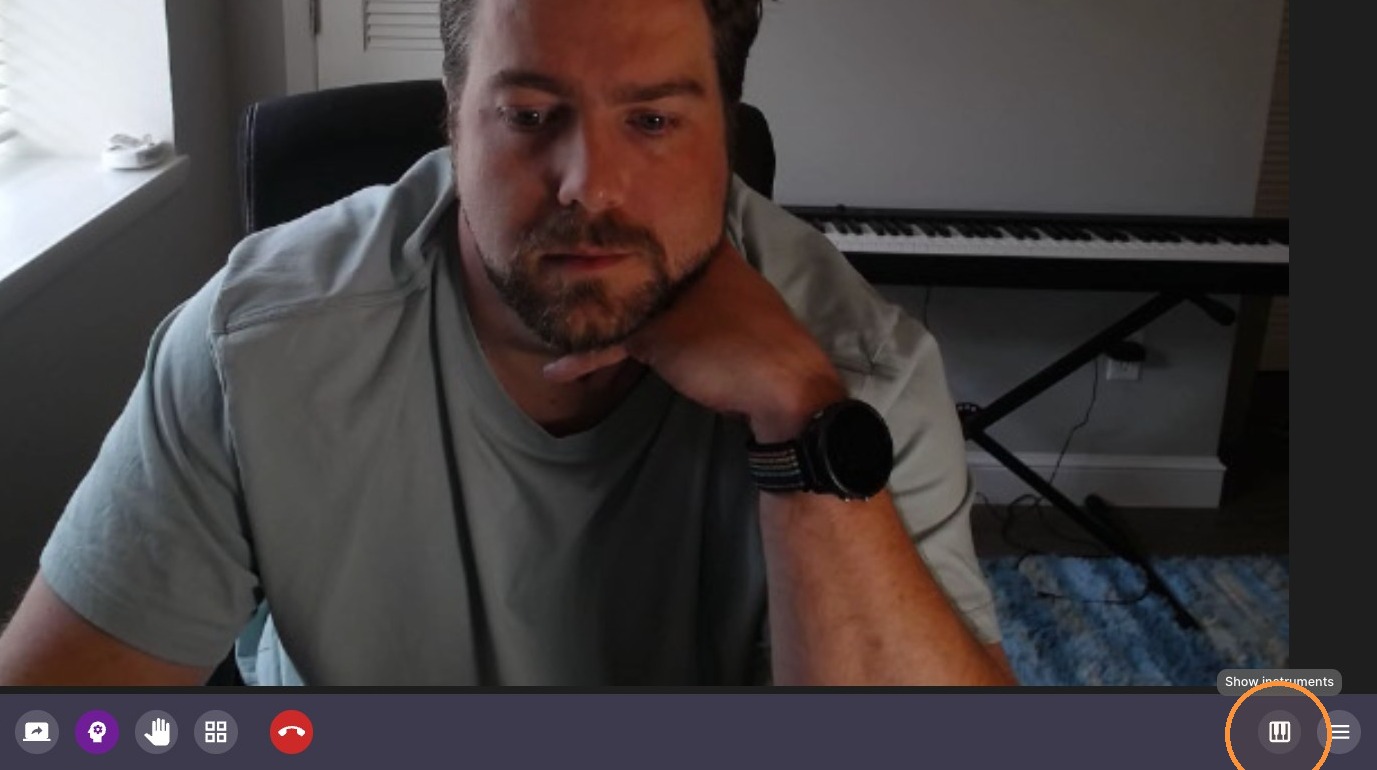
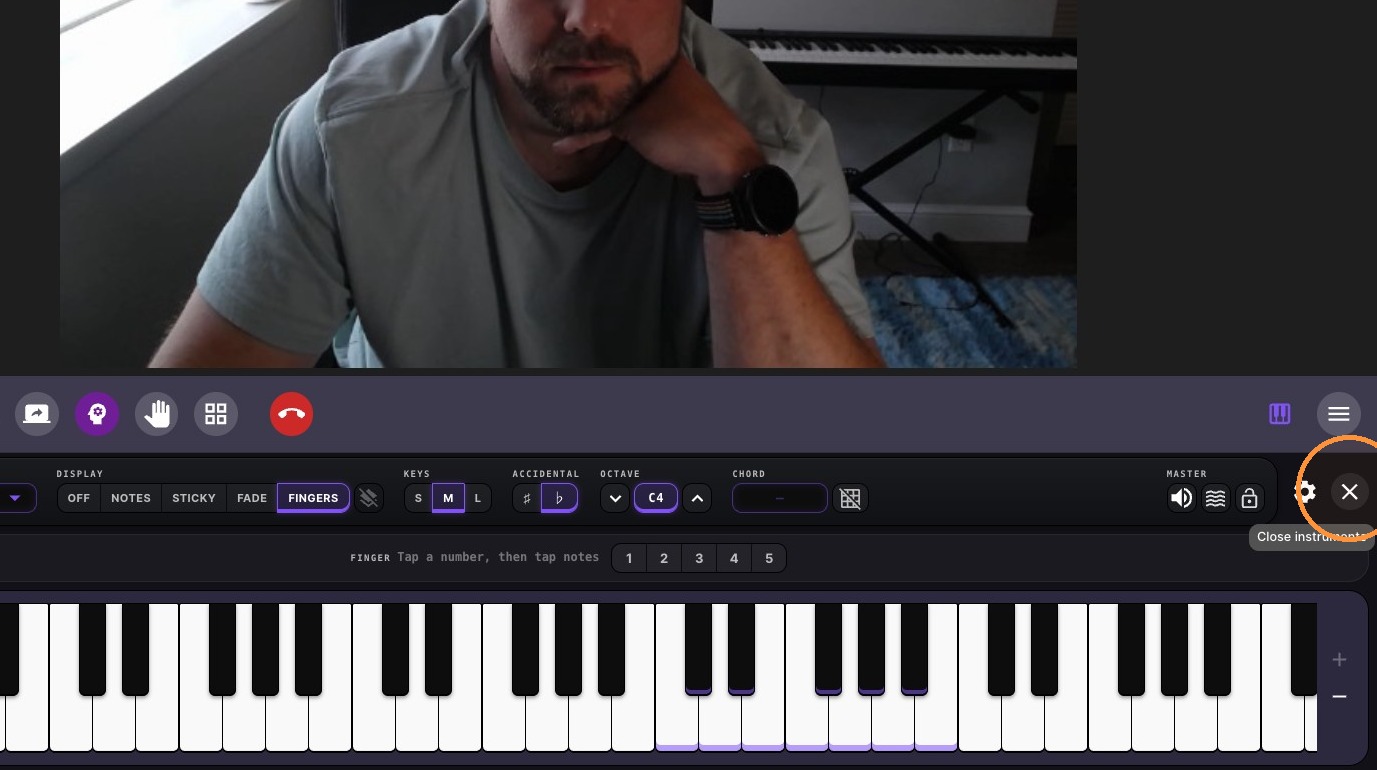
Instrument Panel Configuration

  1. Open instrument panel

ascreenshot_50992005996348cbb603fe8fa1d35afc_text_export.jpeg
  1. Close instrument panel

ascreenshot_c4ac88eea7264f93b6615dab7780a893_text_export.jpeg

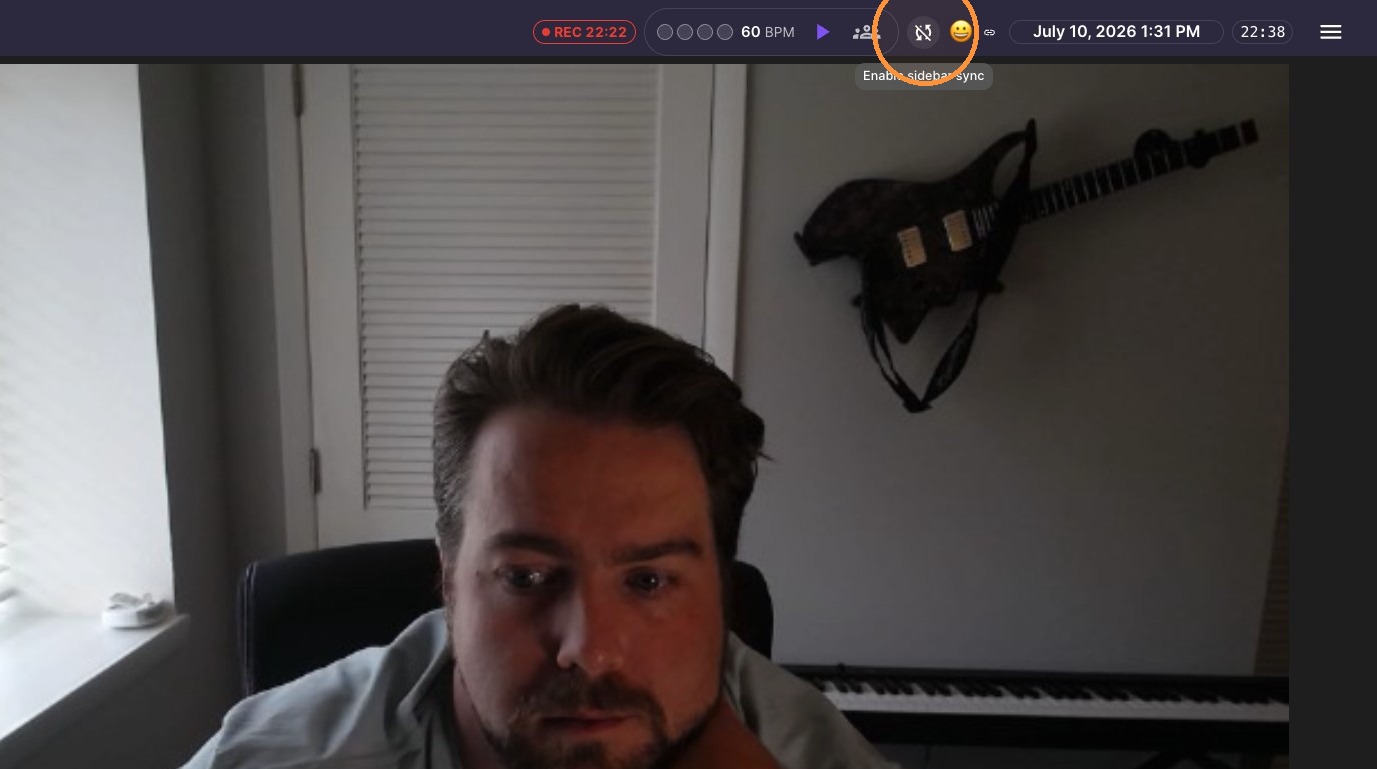
Session Management

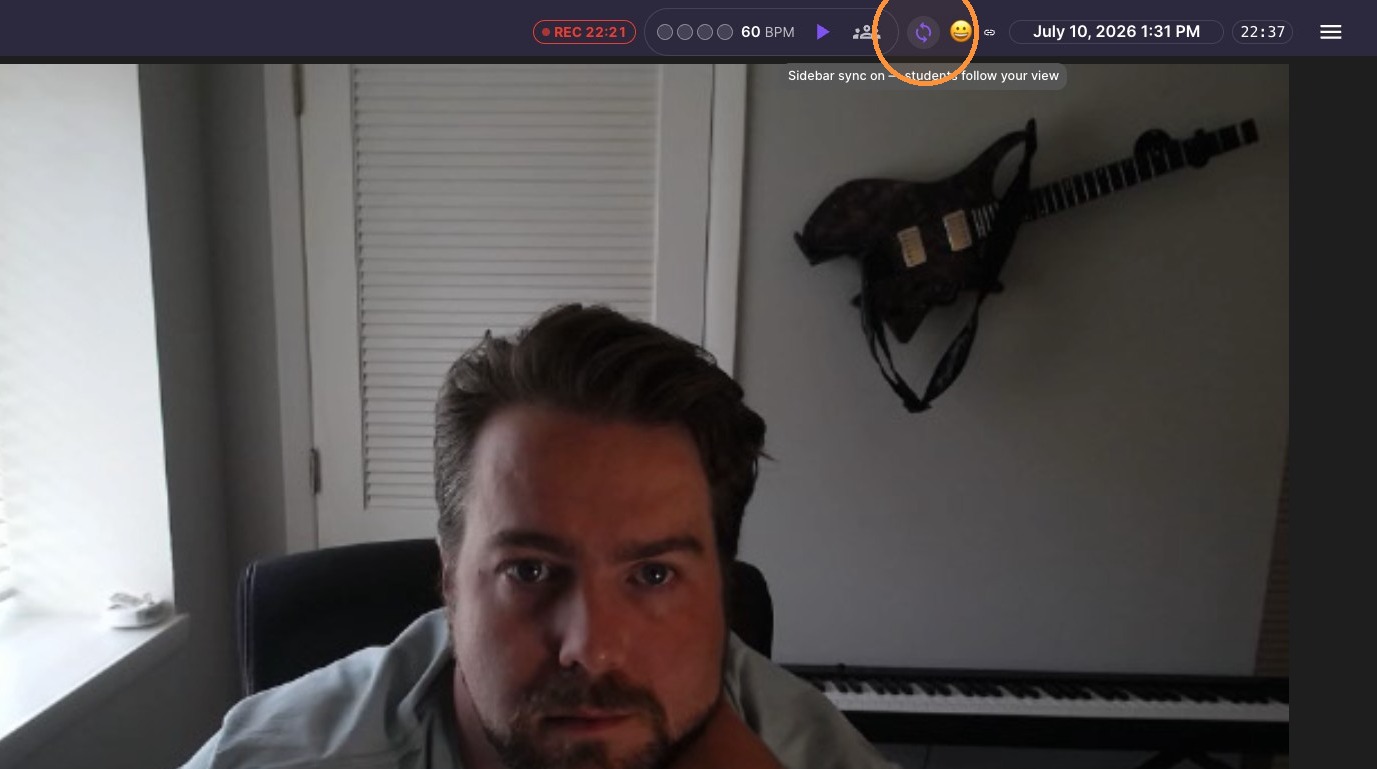
  1. Enable sidebar sync (when on - files and tools opened by the teacher open automatically for the students)
ascreenshot_790c5f35b5e24c8eafd982b49091c8d8_text_export.jpeg
  1. Disable sidebar sync

ascreenshot_6389bd1e021047298d021e54c1732b1b_text_export.jpeg
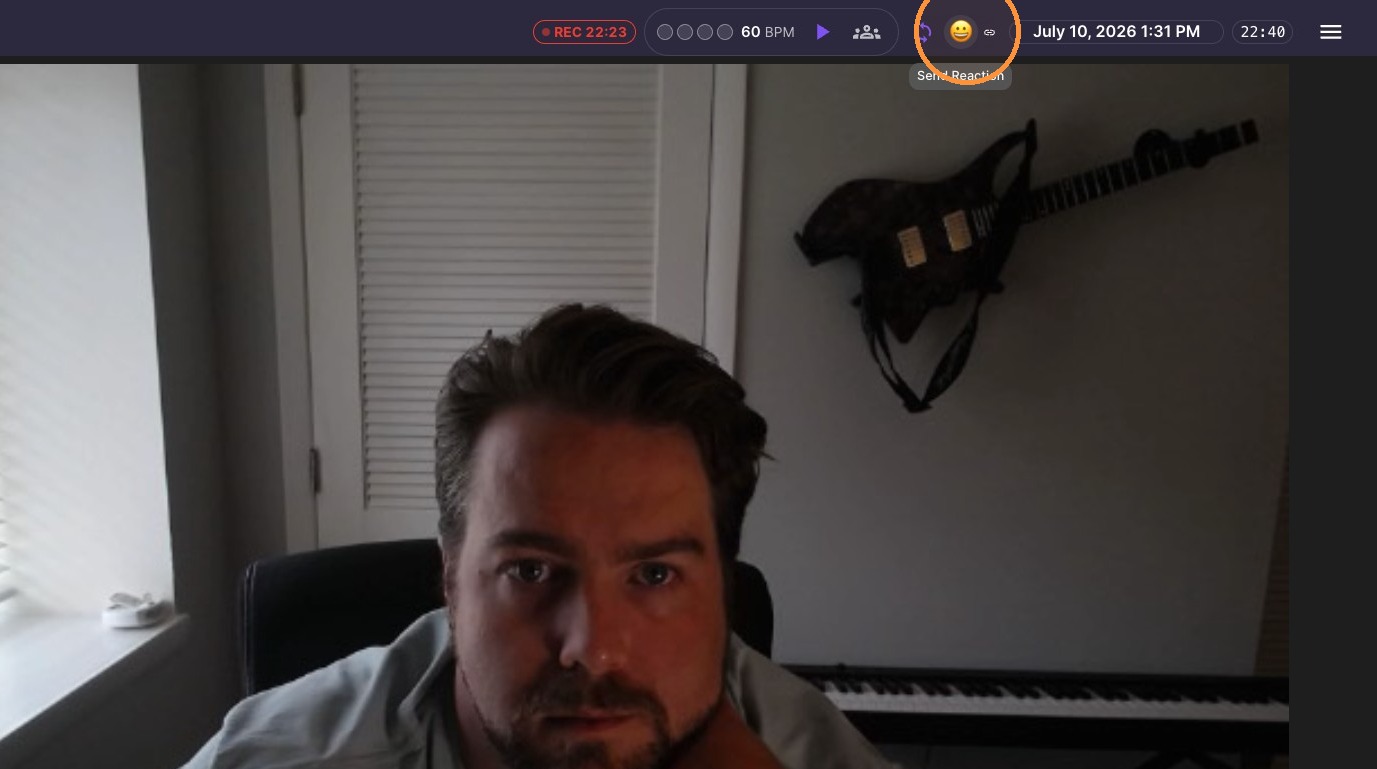
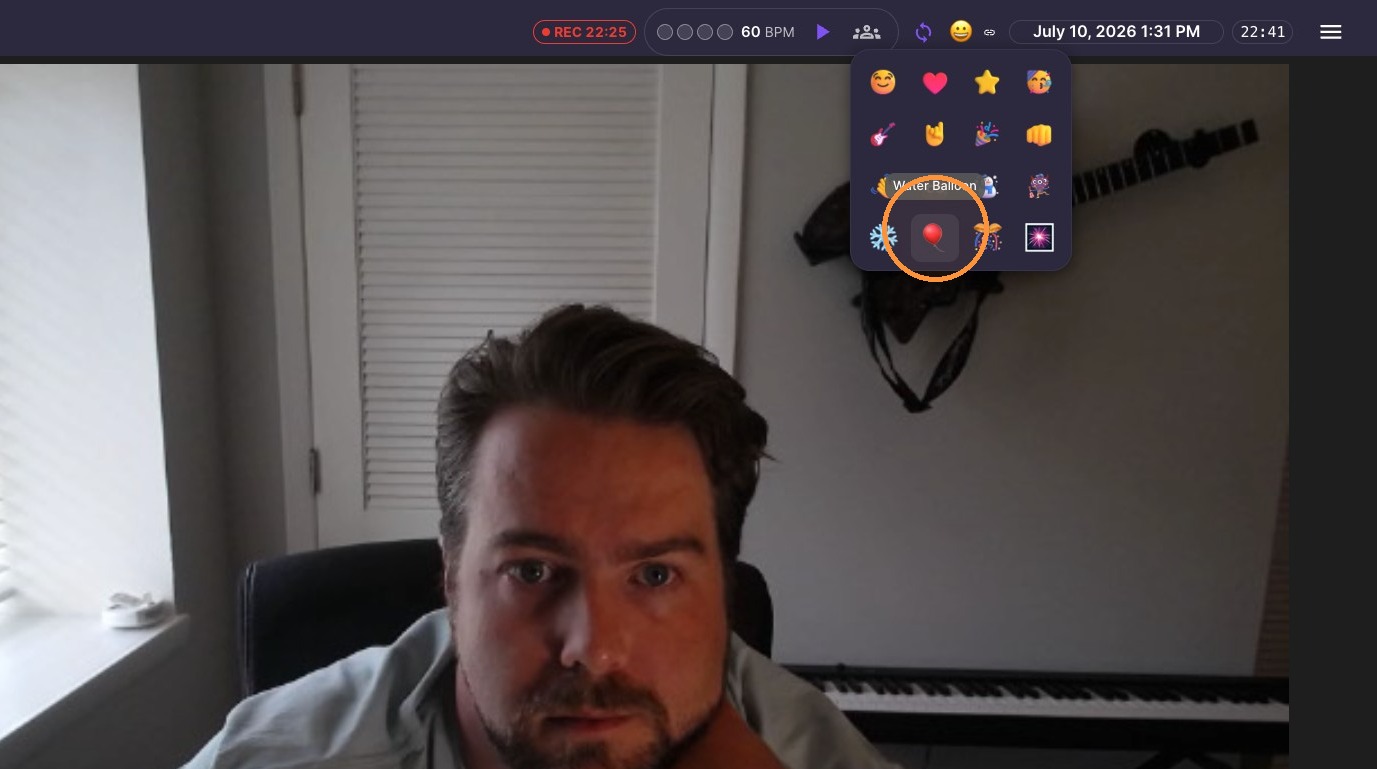
  1. Send a emoji reactions to students

ascreenshot_73538241b21f44df9e51635cae7905b5_text_export.jpeg
ascreenshot_c0d290b00a504c9e90a9346a45c275df_text_export.jpeg
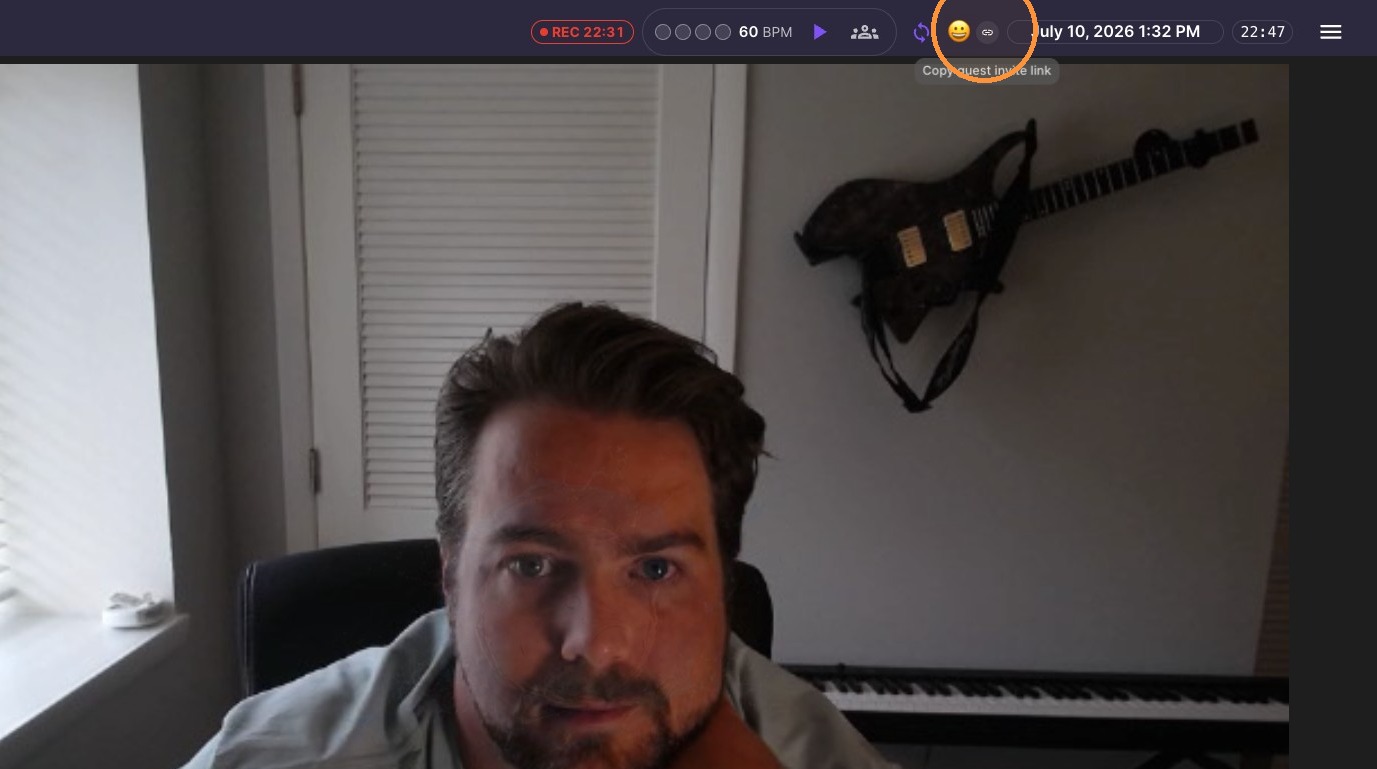
  1. Copy guest invite link

ascreenshot_10b7444cd41c41f0a59be91e8d6b7efd_text_export.jpeg
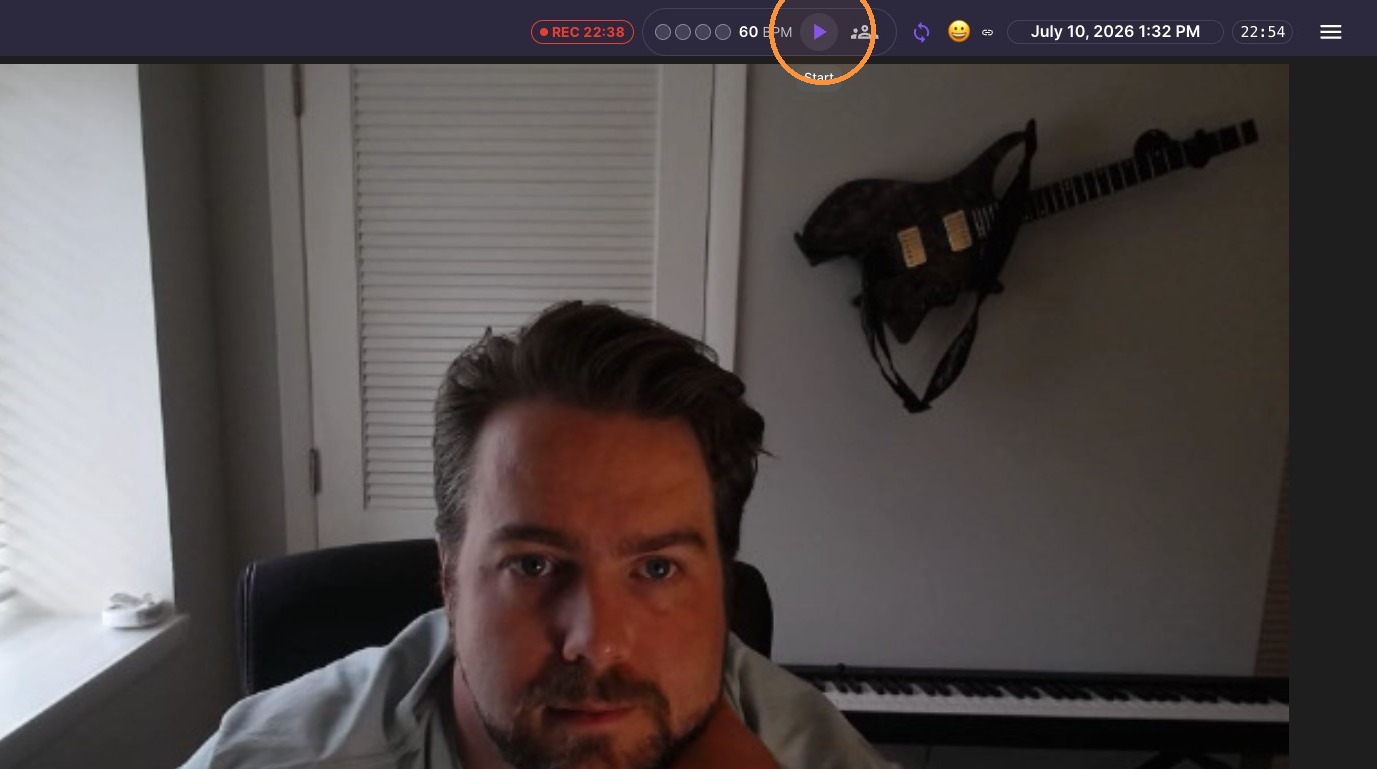
  1. Start metronome

ascreenshot_ef0a54d82a474693abefeb78644eabc2_text_export.jpeg
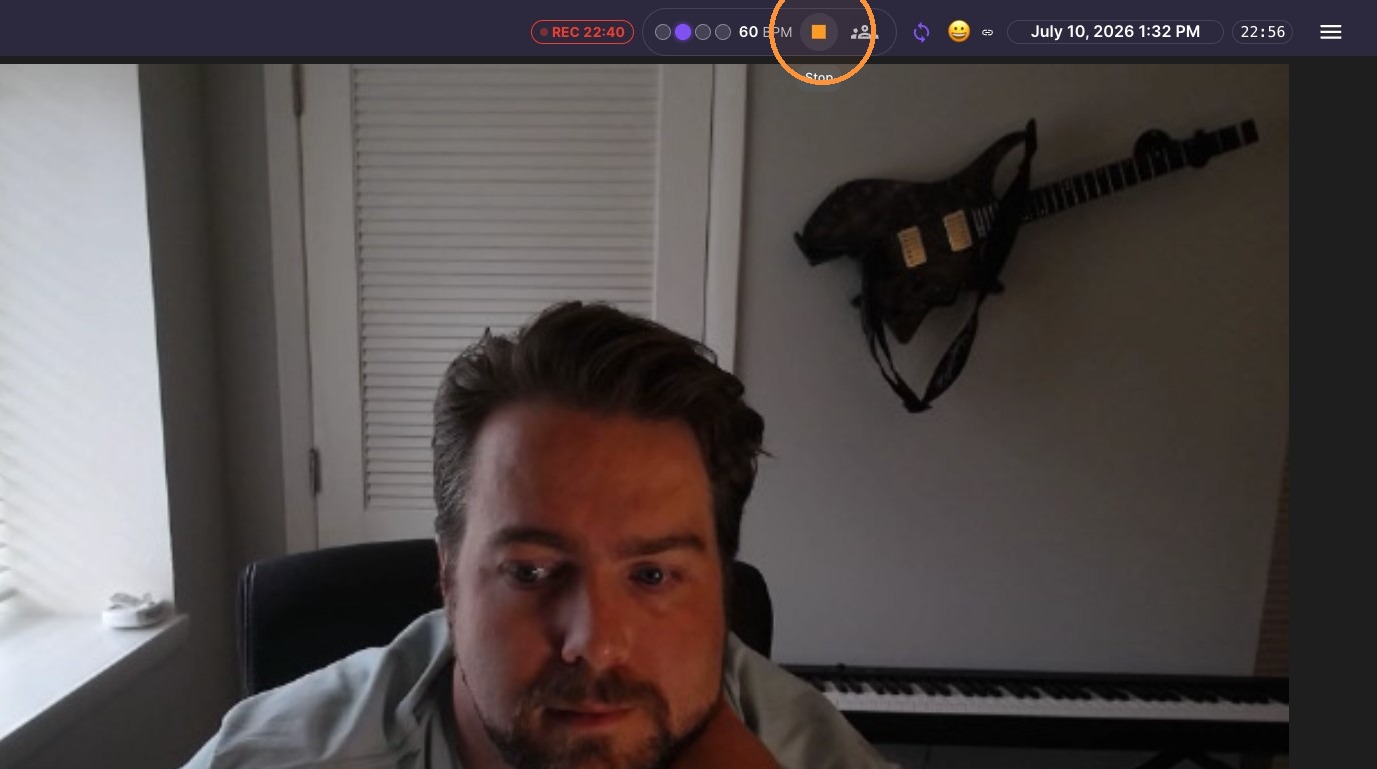
  1. Stop metronome

ascreenshot_2593a0161e354a5184784b38c5a5e865_text_export.jpeg

Layout and Interaction

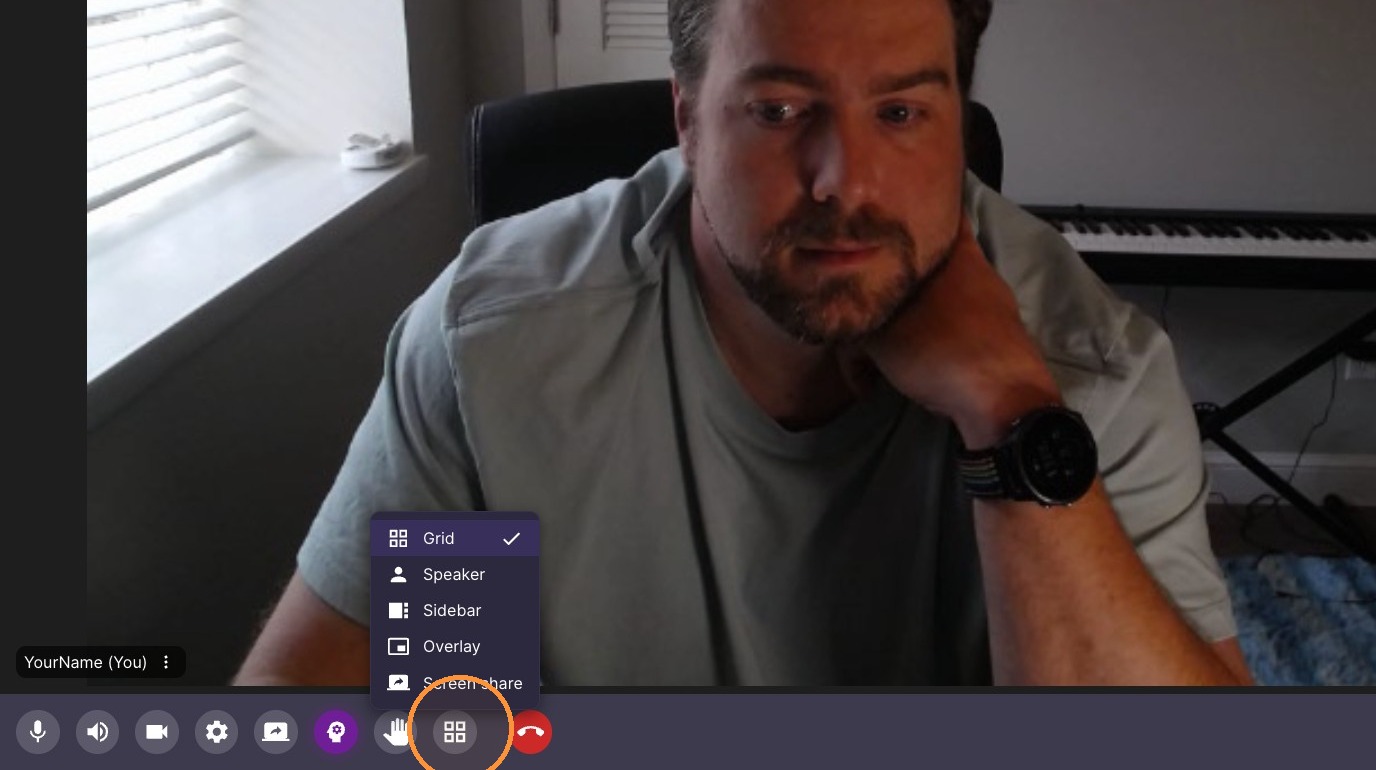
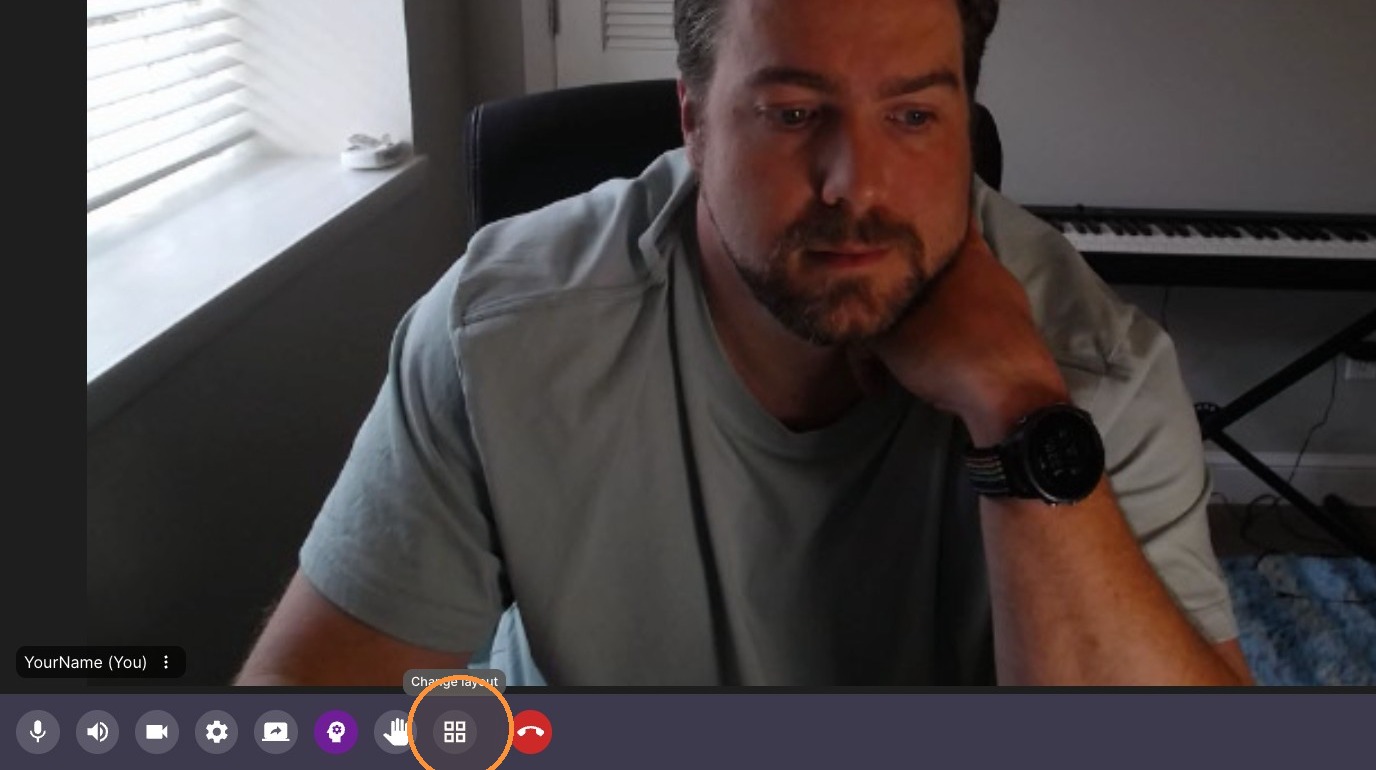
10. Change classroom layout
ascreenshot_825ff3261ca147c8b4e3625e12317e30_text_export.jpeg
ascreenshot_7cc47248ca42423ca8b074be56736dee_text_export.jpeg

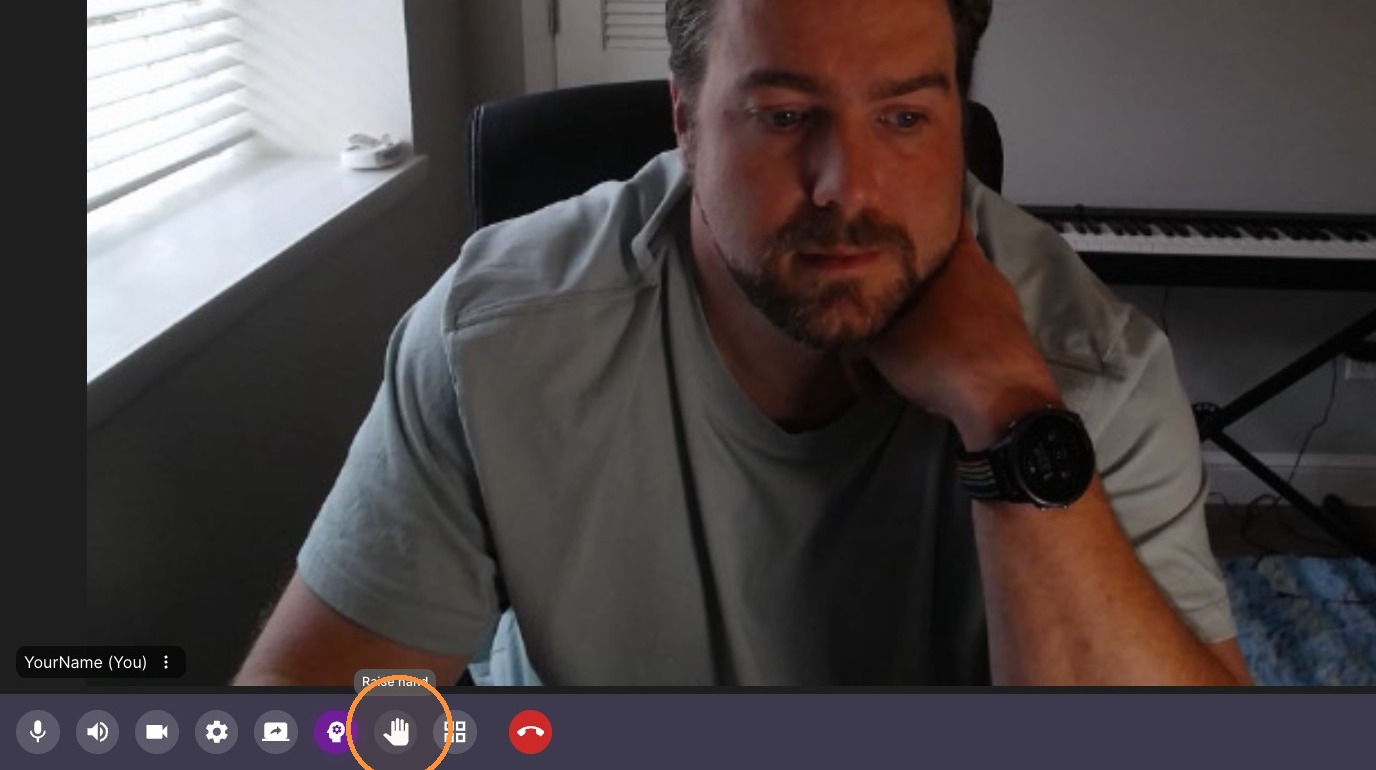
11. Raise hand

ascreenshot_58feee497b324ddabd4e736e6c2182c5_text_export.jpeg

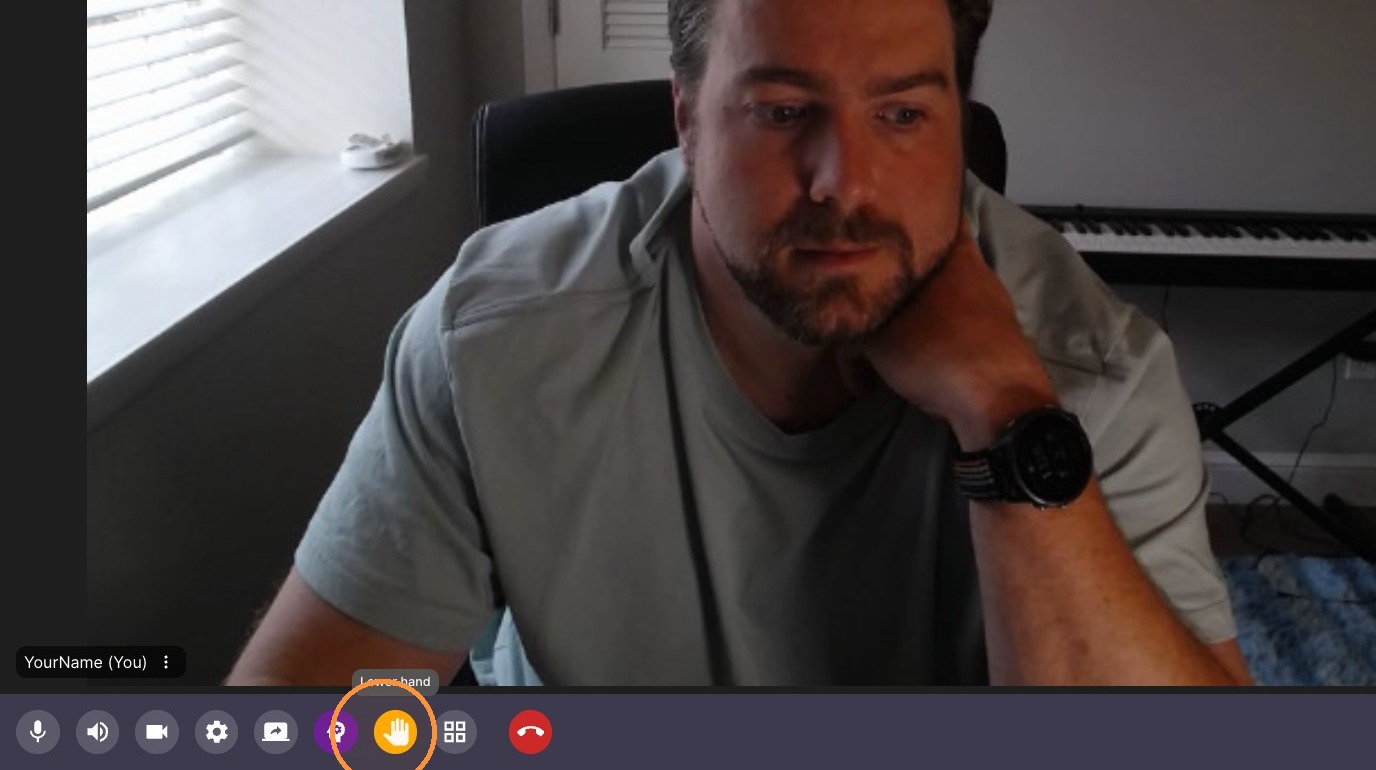
12. Lower hand

ascreenshot_0e1b14f2ab59400583ecdff3796067a7_text_export.jpeg

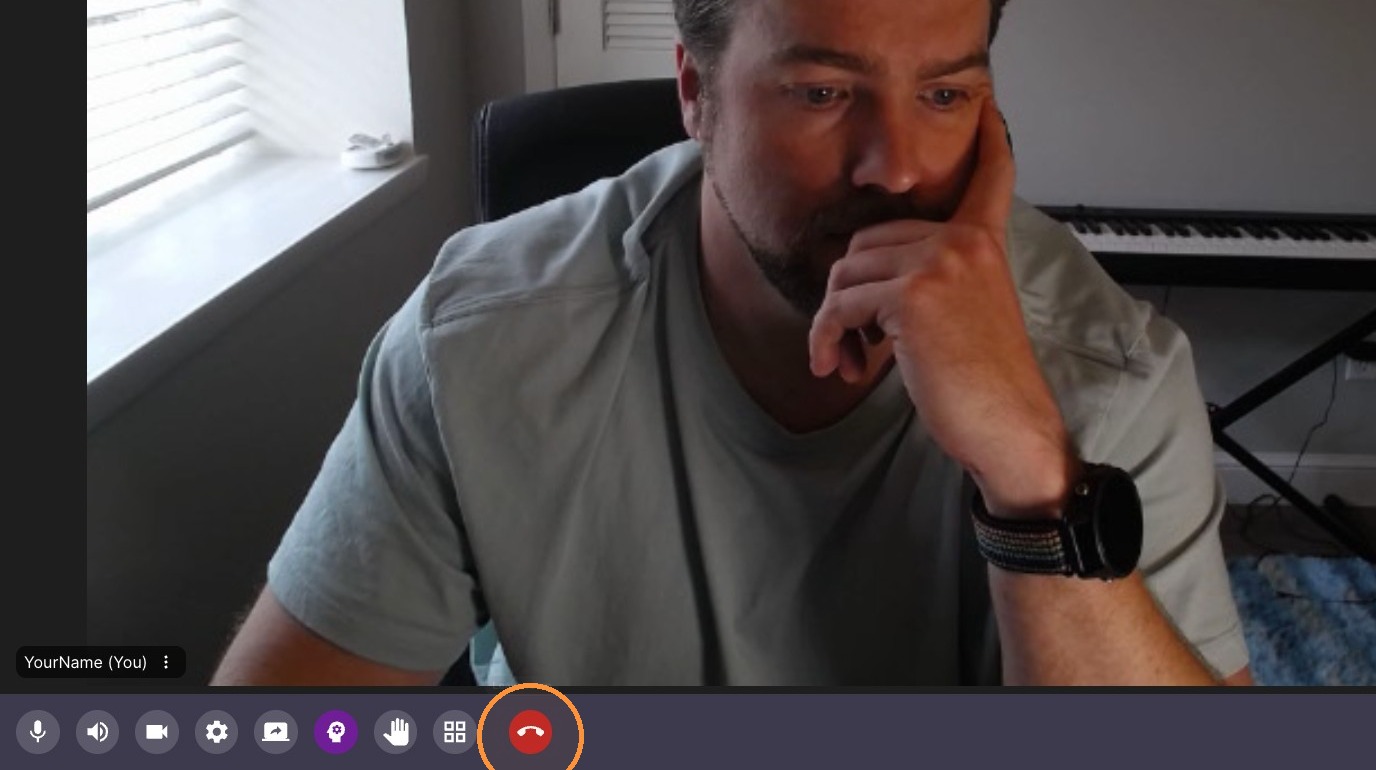
13. End Call

ascreenshot_e69ab680b1f4436081d737e37459557c_text_export.jpeg