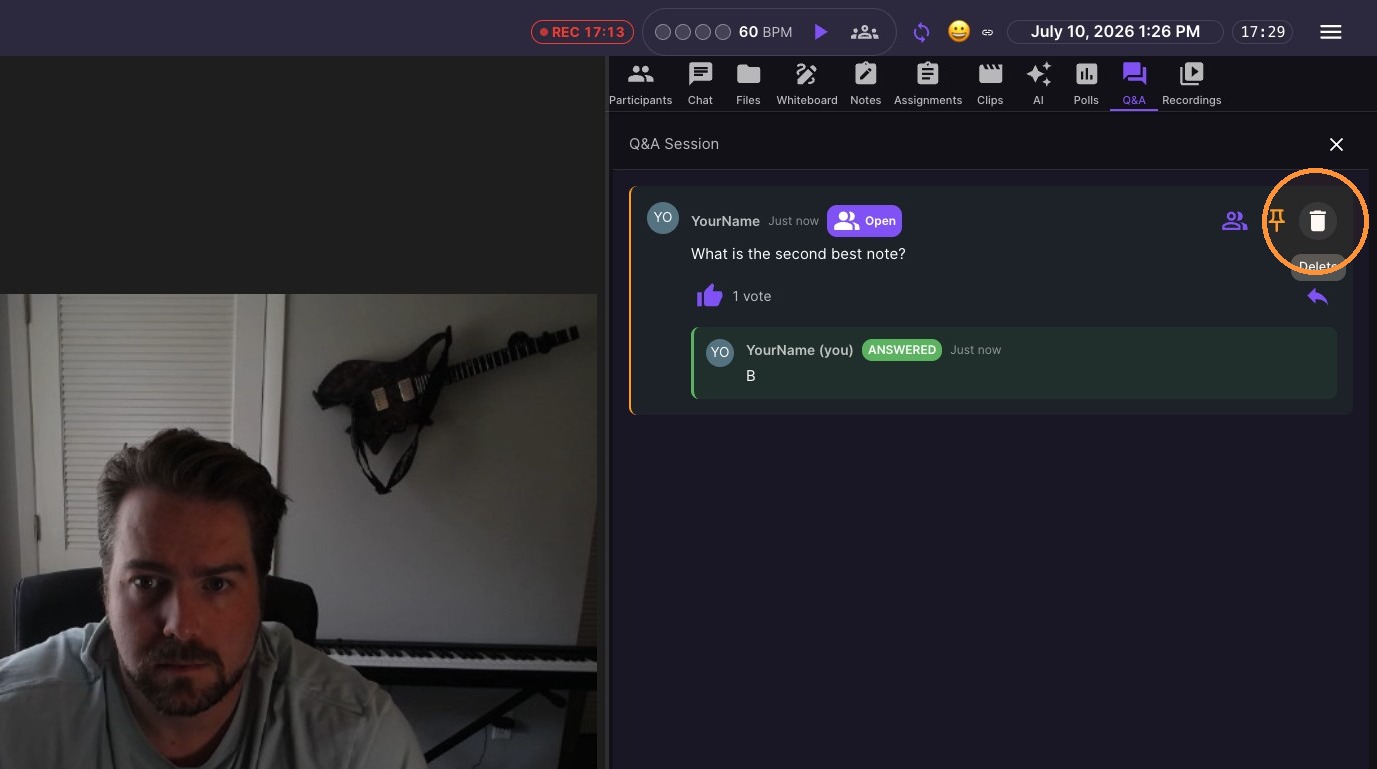
Use Q&A Sessions to keep students engaged and make it easy for them to ask (and upvote) questions during class. In this guide, you’ll learn how to start a Q&A session, post your own prompts, and respond to student questions in real time - so you can manage discussion smoothly without interrupting your lesson.
Session Setup
-
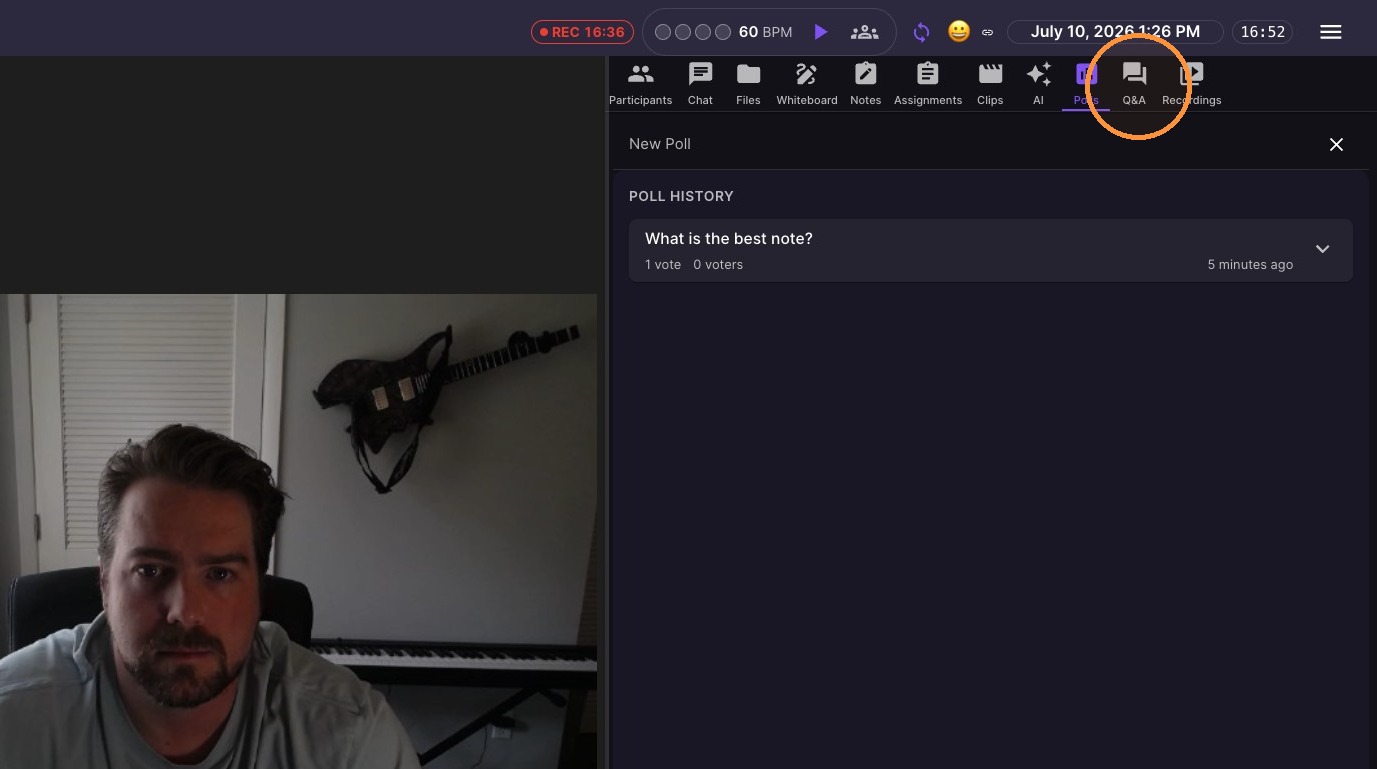
Select Q&A icon.
-
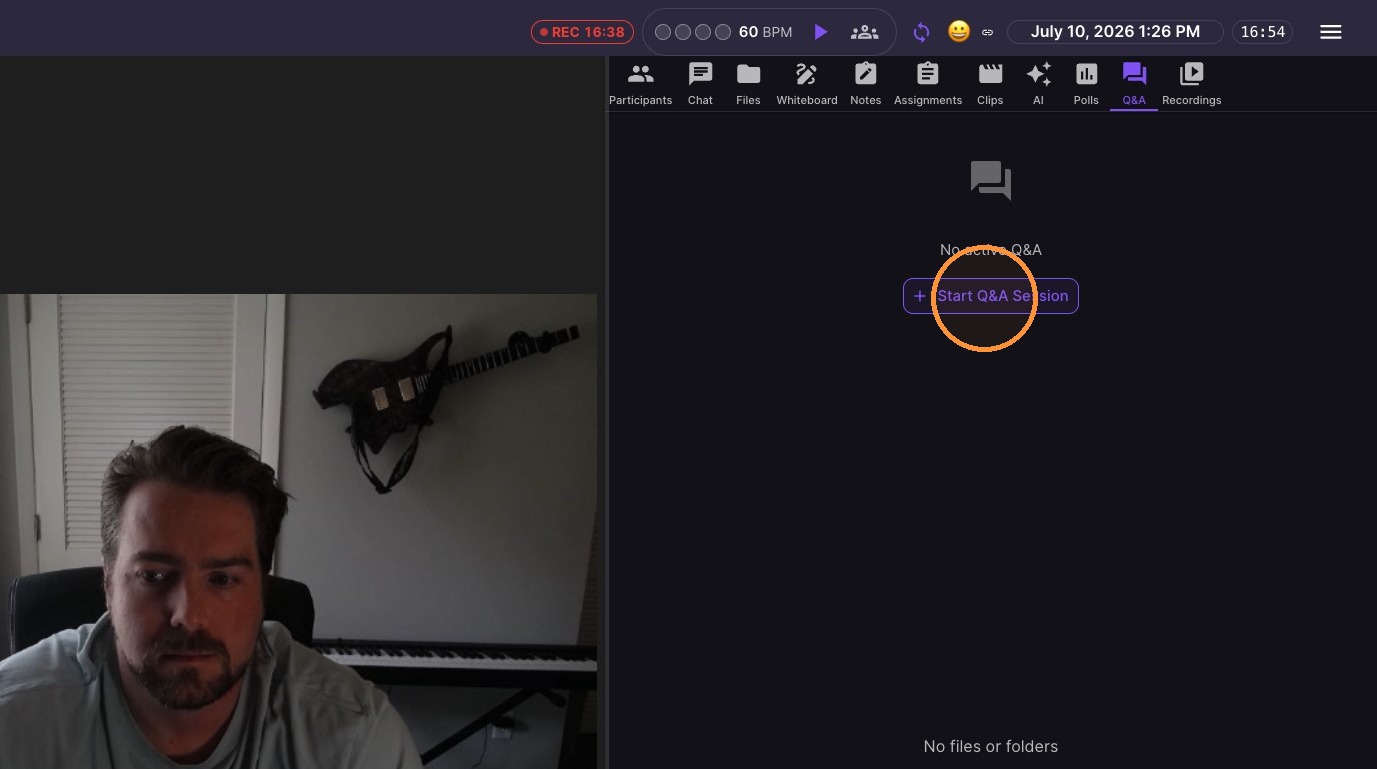
Click "Start Q&A Session"
Question Engagement
-
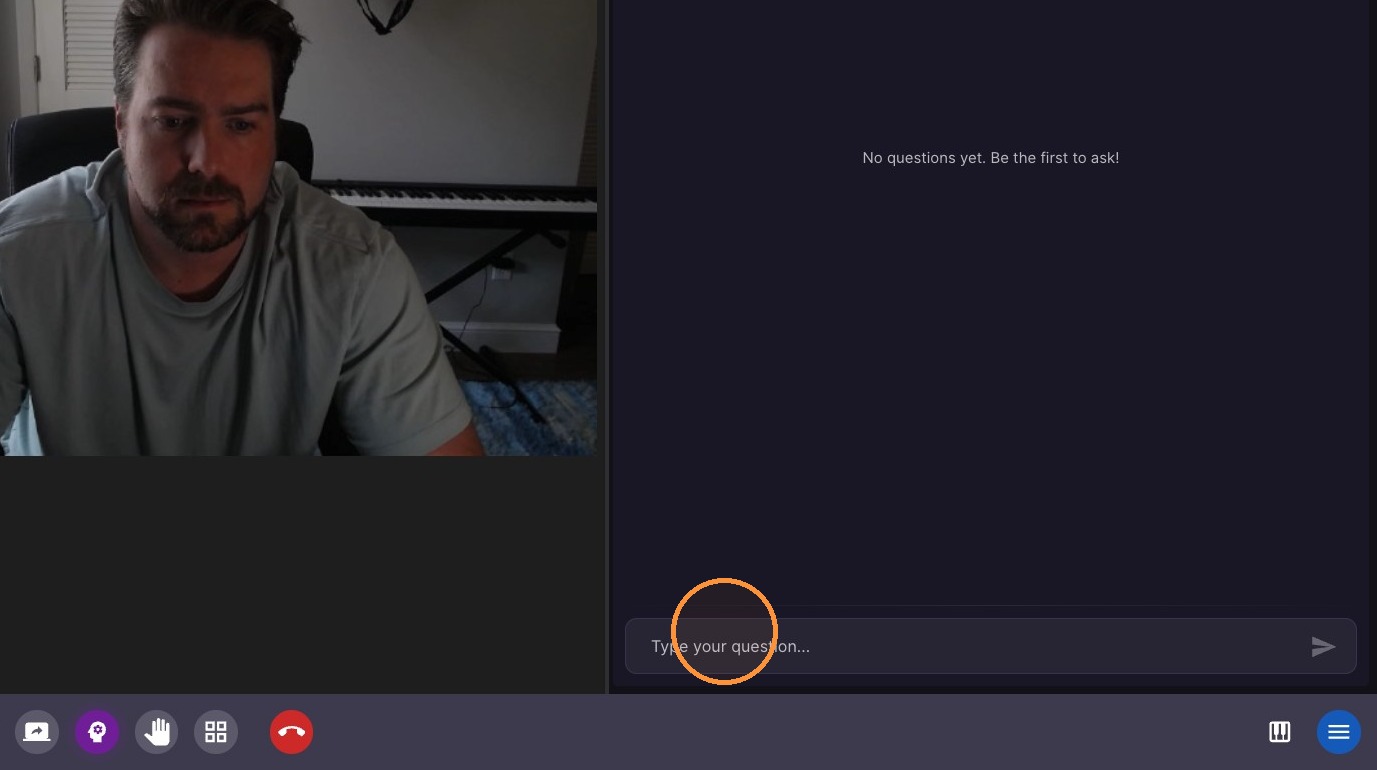
Type "Your Question?" and press Enter.
-
Guests can upvote questions
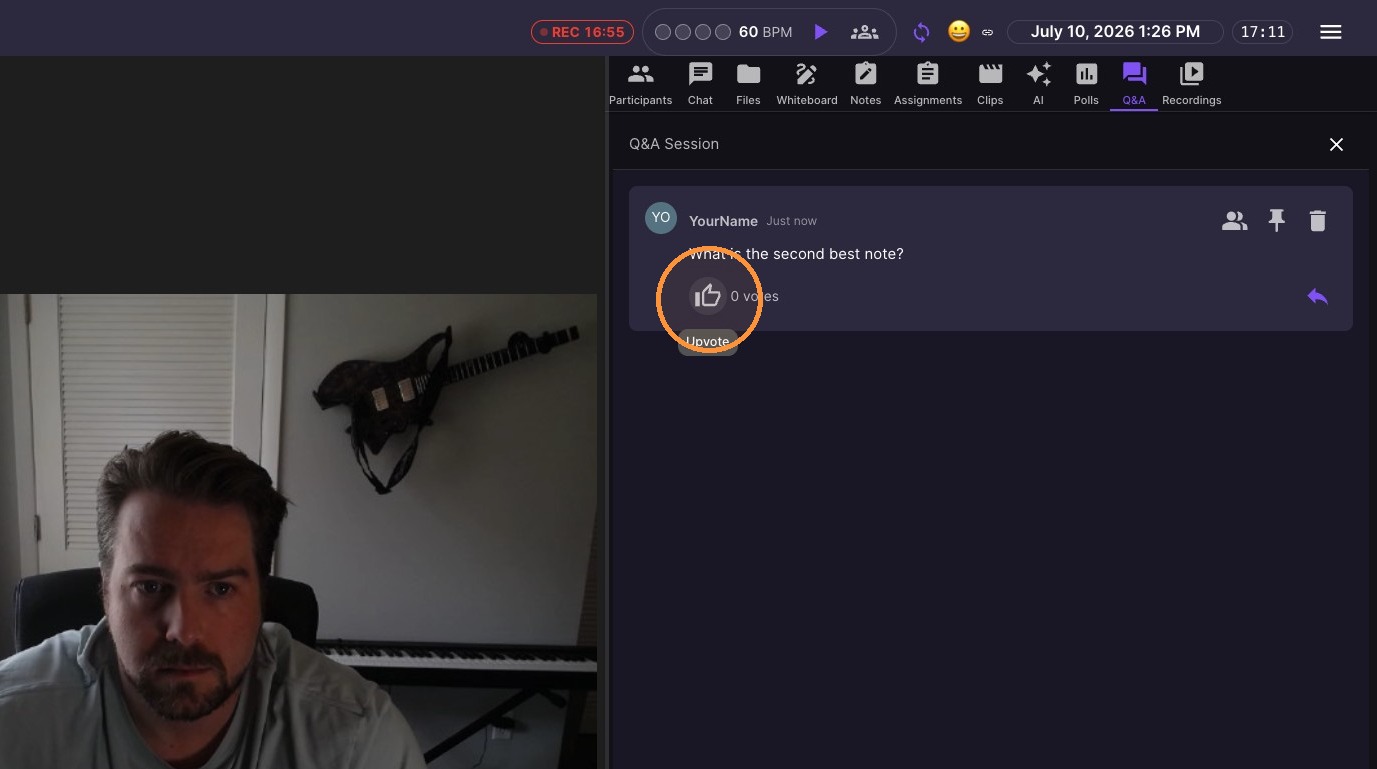
-
Click Answer icon.
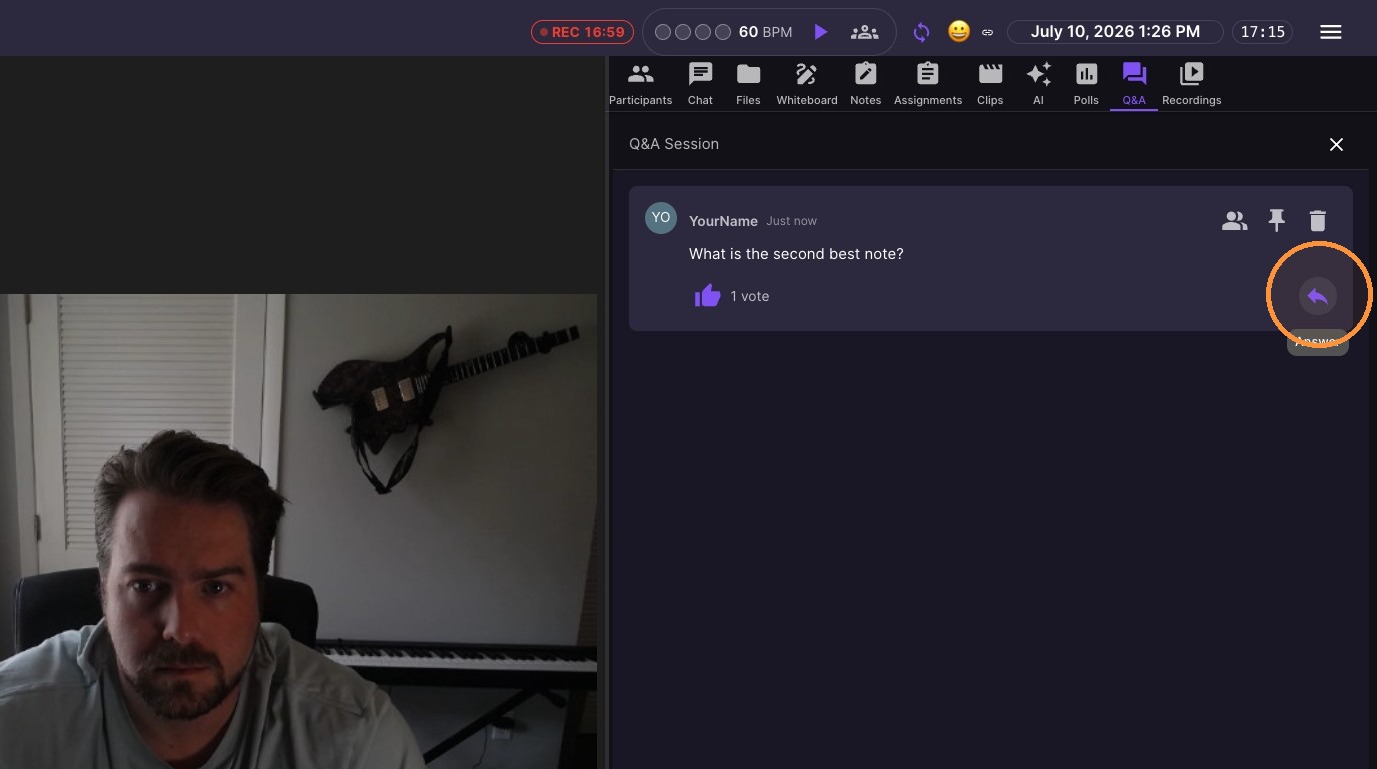
Answering Questions
-
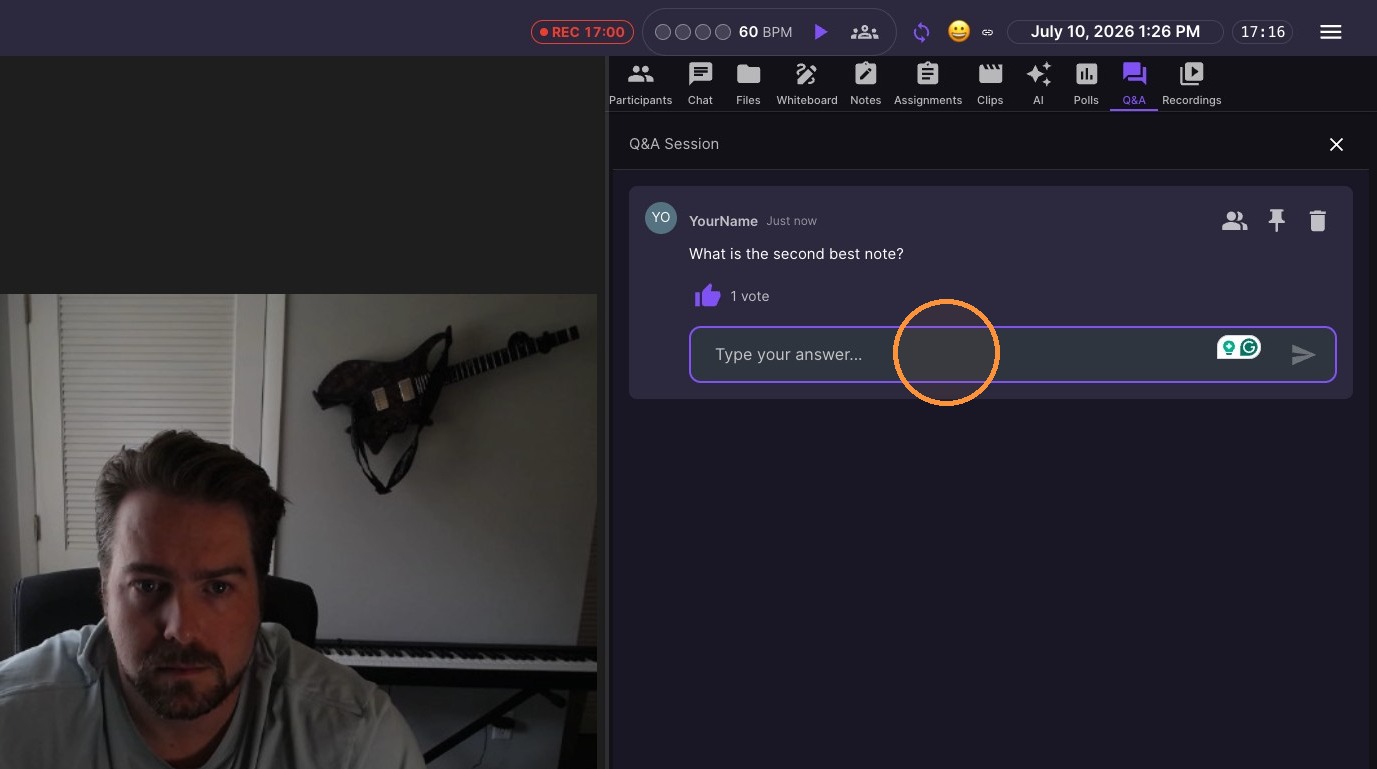
Type into answer field.
-
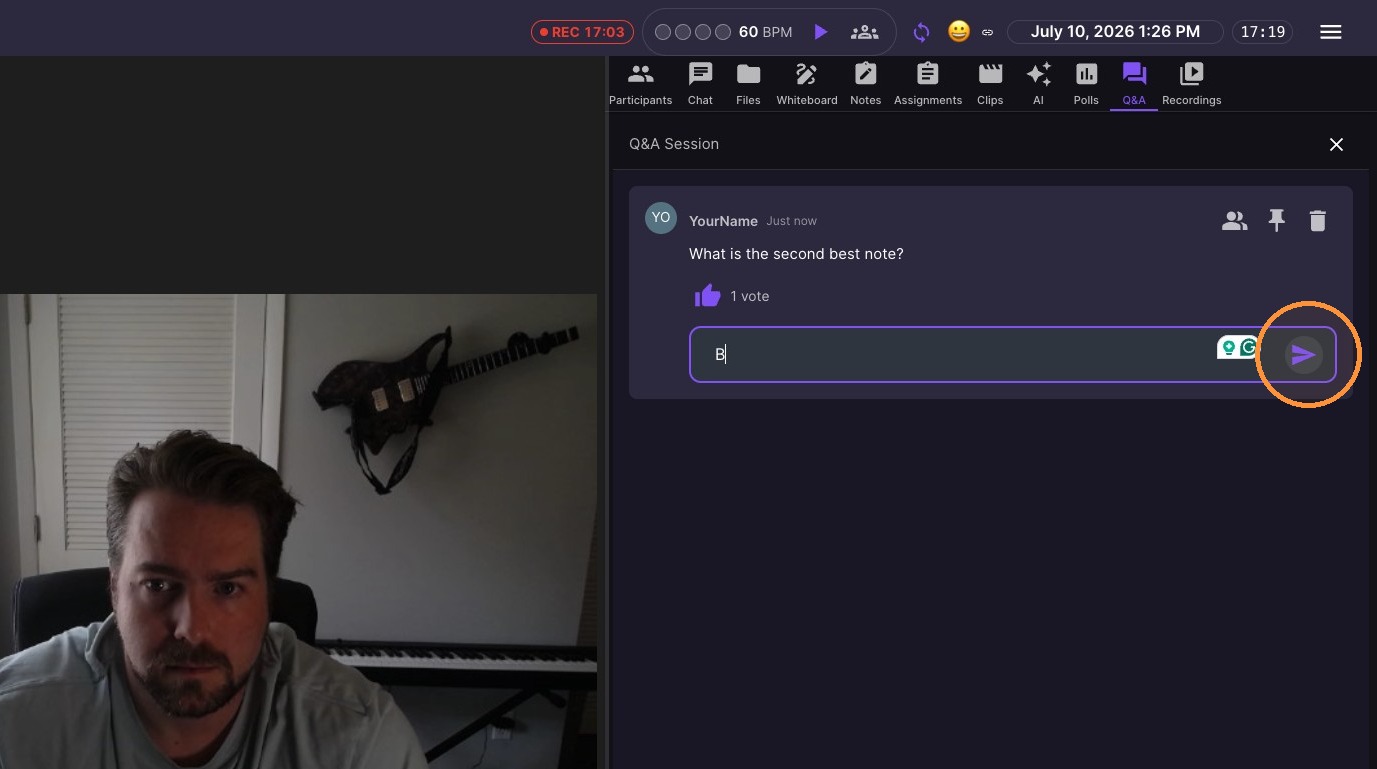
Click send icon.
Question Management
-
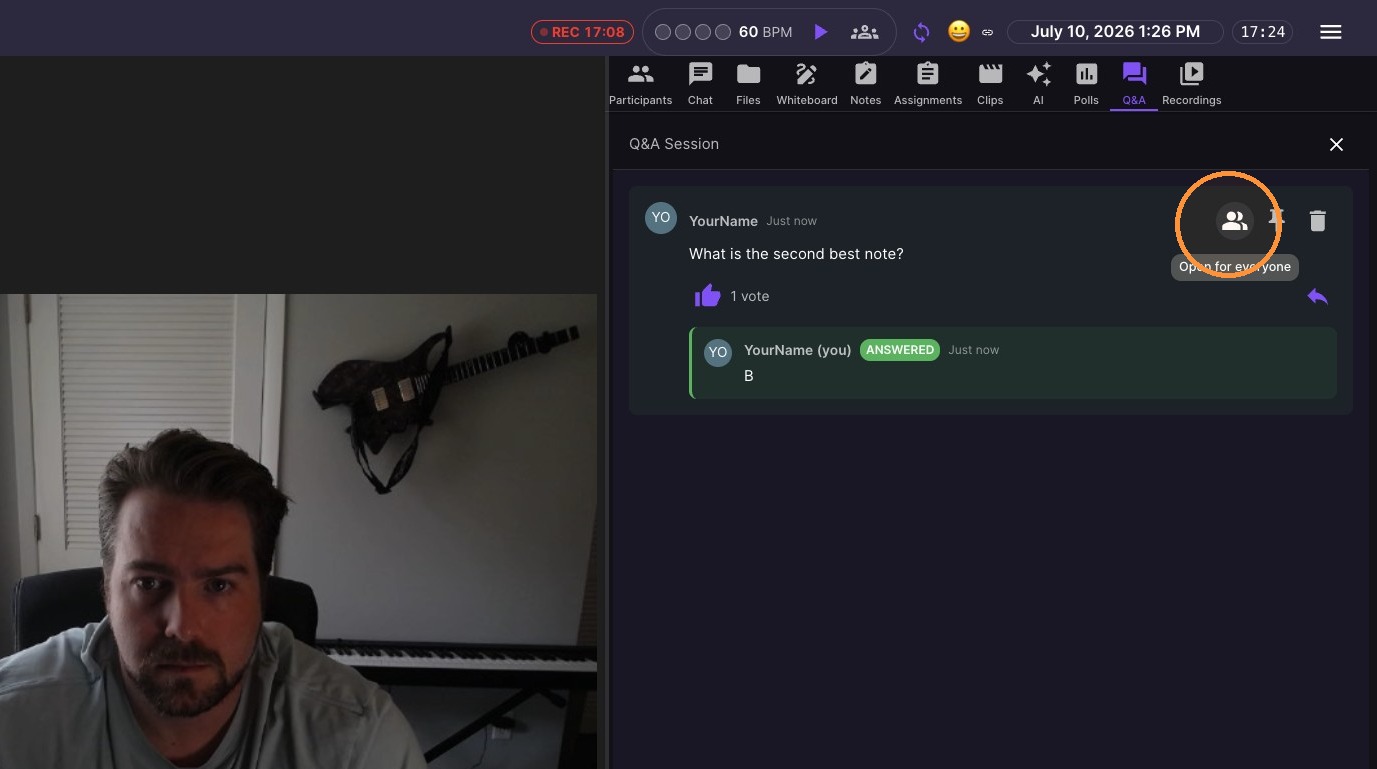
Click "Open for everyone" icon - anyone in the room can answer the question
-
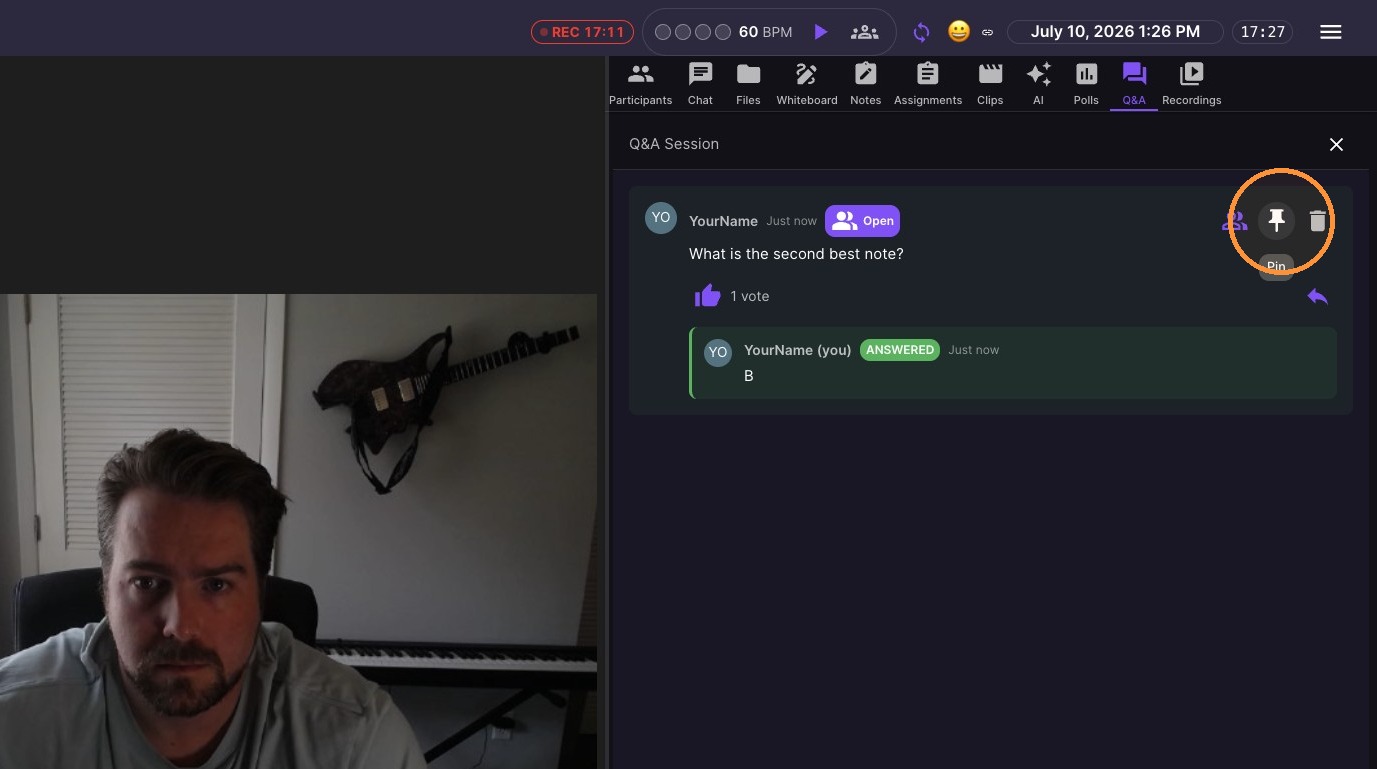
Click Pin icon - to pin it to the top of the question list
10. Click Delete icon to remove the question