

This guide shows how to start screen sharing across browsers and use built-in annotation tools so both teachers and students can draw, clear, lock, and stop sharing. It explains browser differences, choosing pen color and thickness, and how to clear only your drawings vs. all annotations. Follow it to run interactive, controlled screen-share sessions with annotation management.
-
Click Share Screen
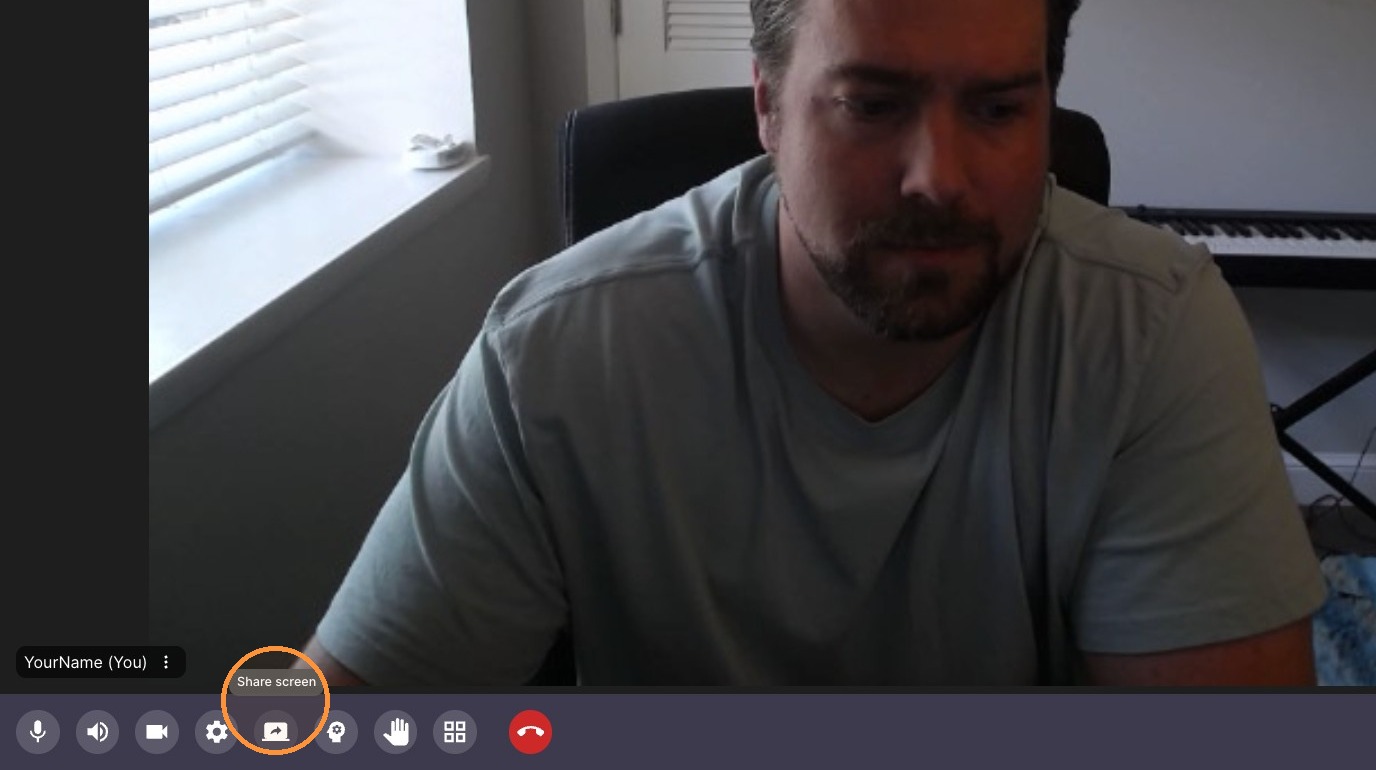
Tip: Depending on your browser you will have different options to select from, Chrome & Edge usually have Tab, Window or Entire Screen - While Safari usually only has "entire screen"
Annotation Tools
-
Click 'Pen' Icon
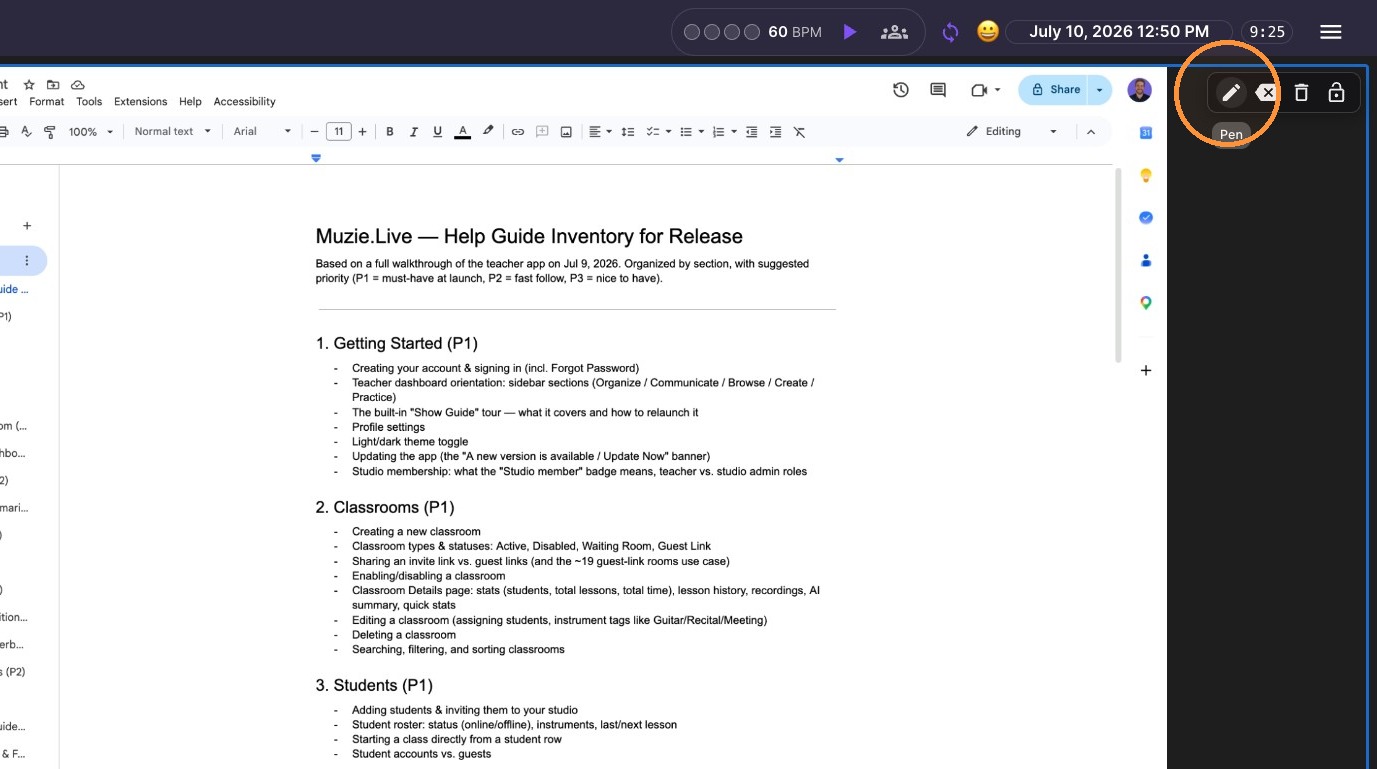
-
Draw on the screen share (both teacher and student can do this)
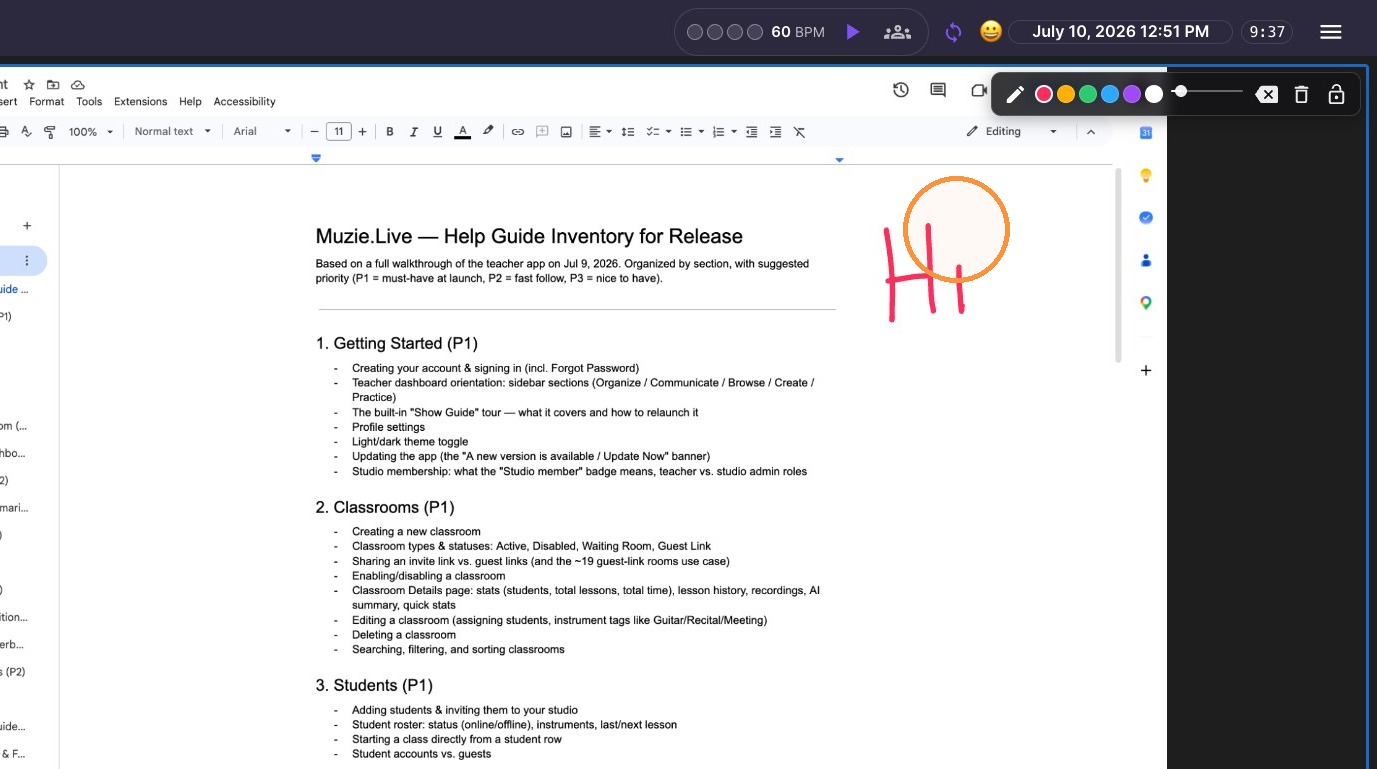
-
Select a drawing color.
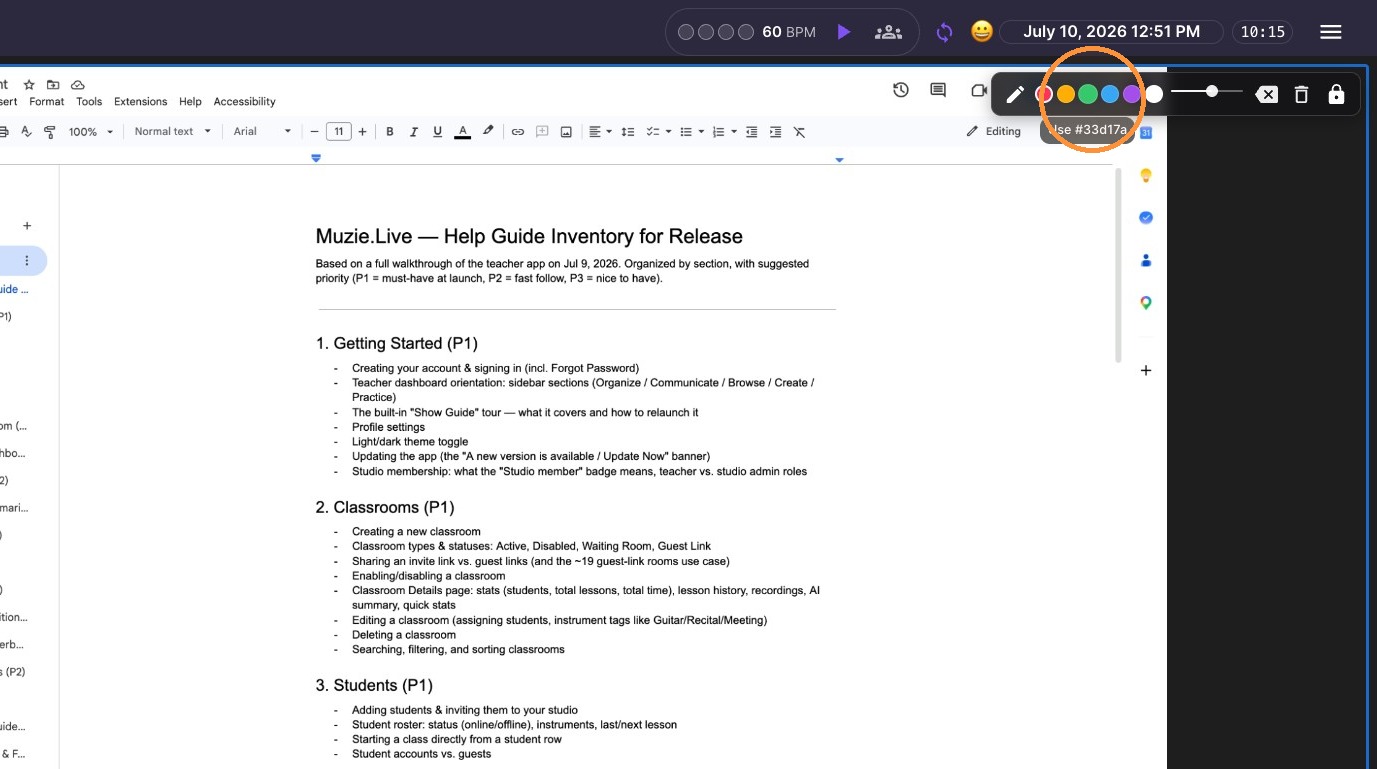
-
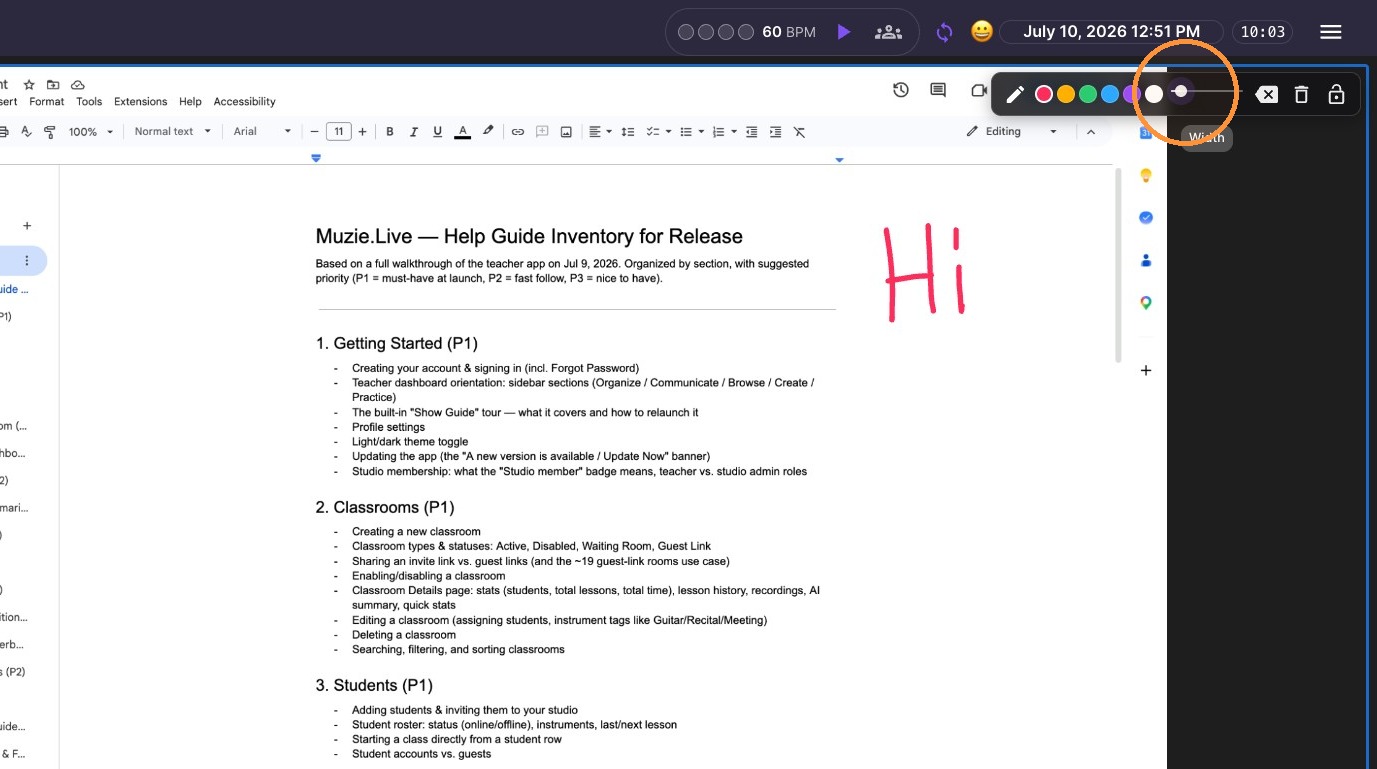
Select the Pen thickness
-
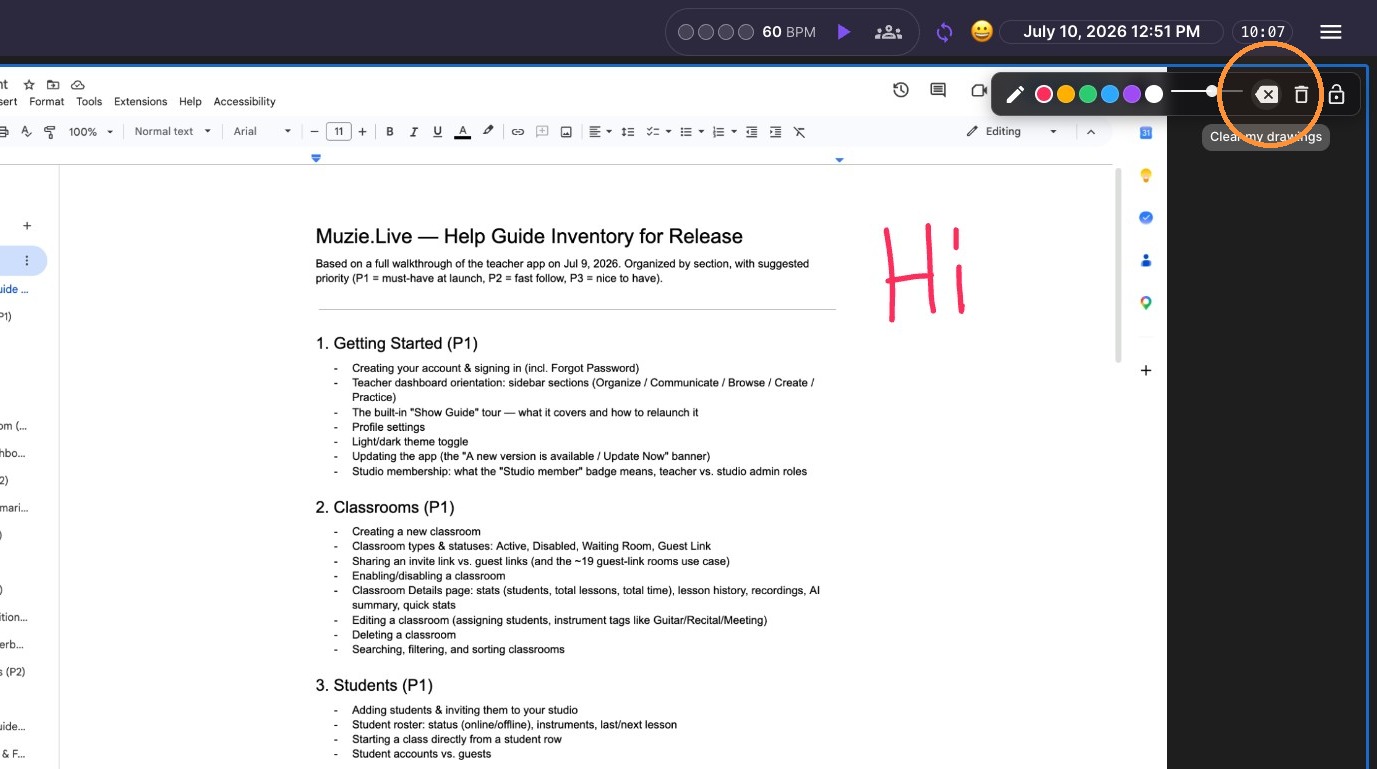
'Clear my drawings' - Clears only what you draw
-
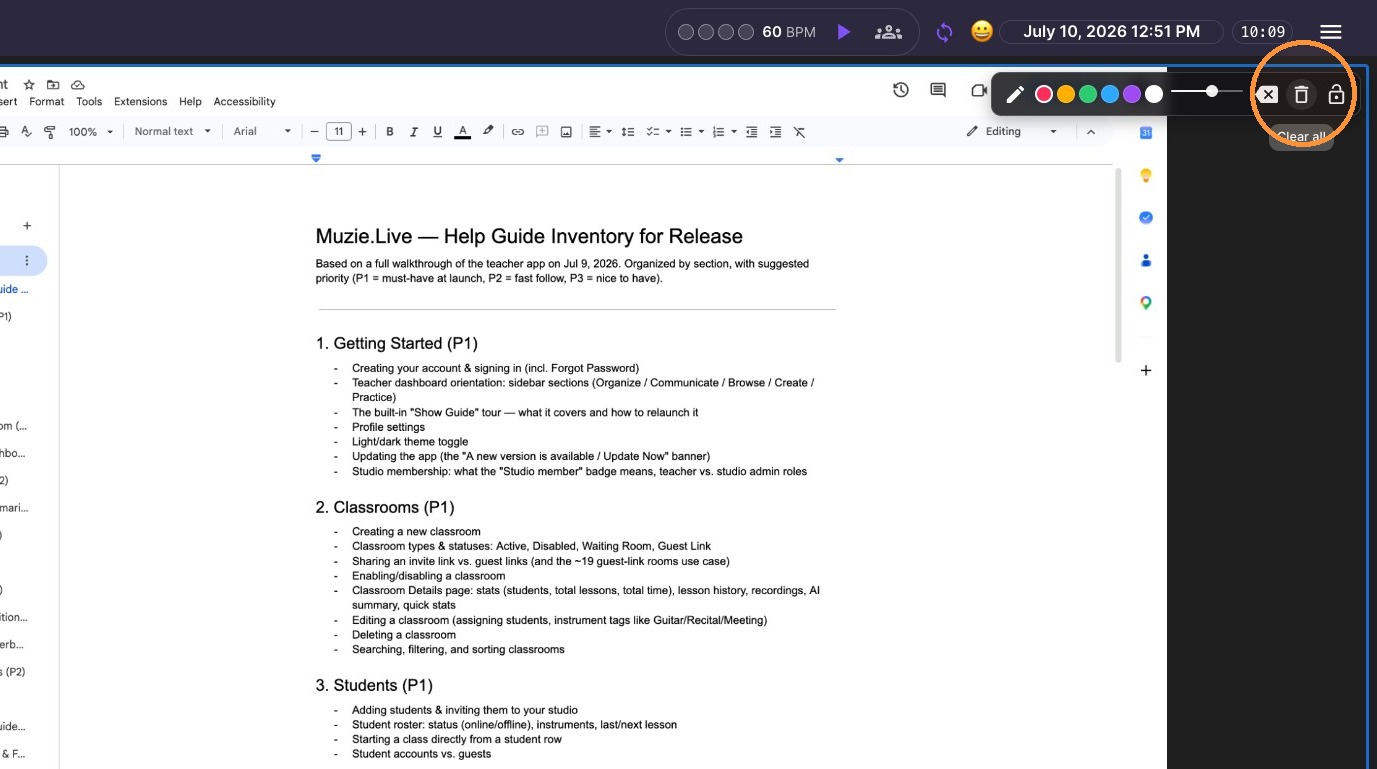
Click 'Clear all' button - clears both teacher and student annotations
-
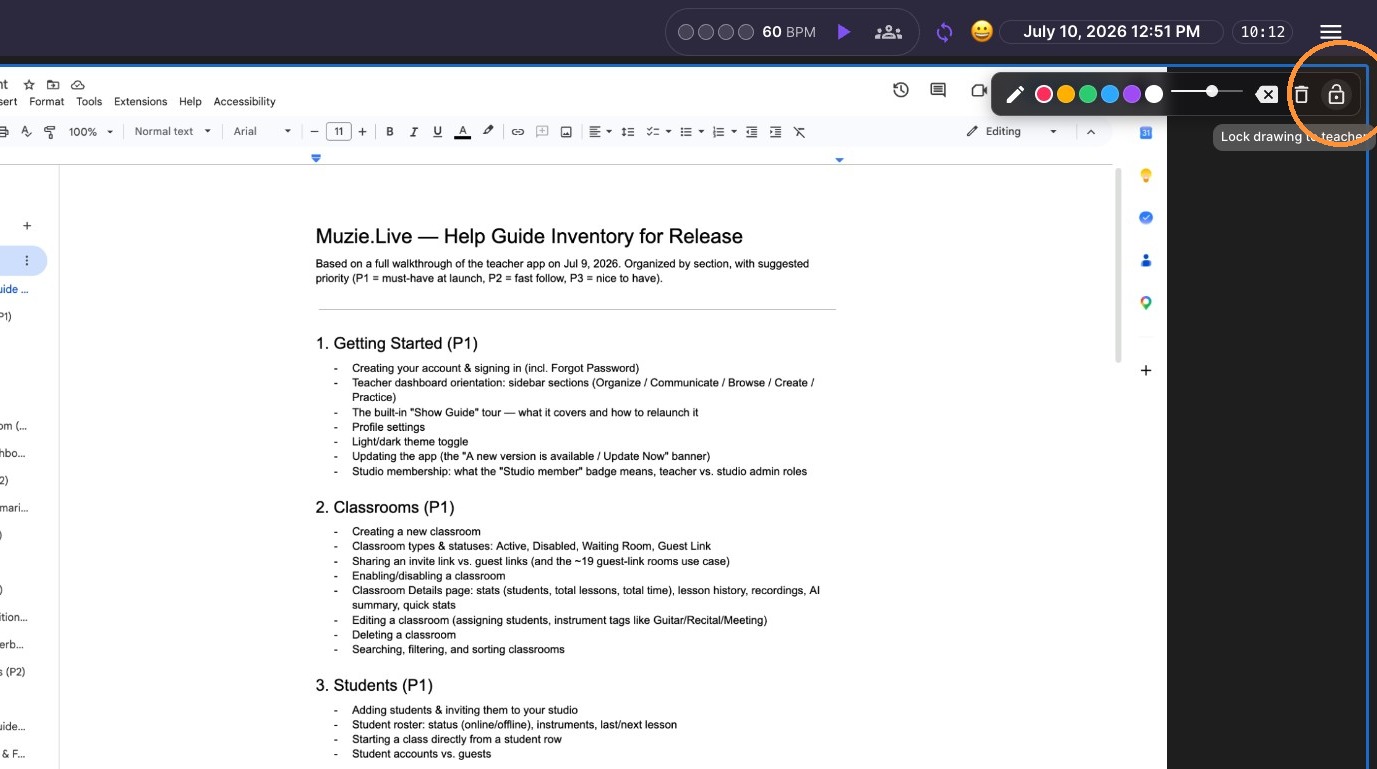
Click 'Lock drawing ' icon to stop students from drawing on the screen share
-
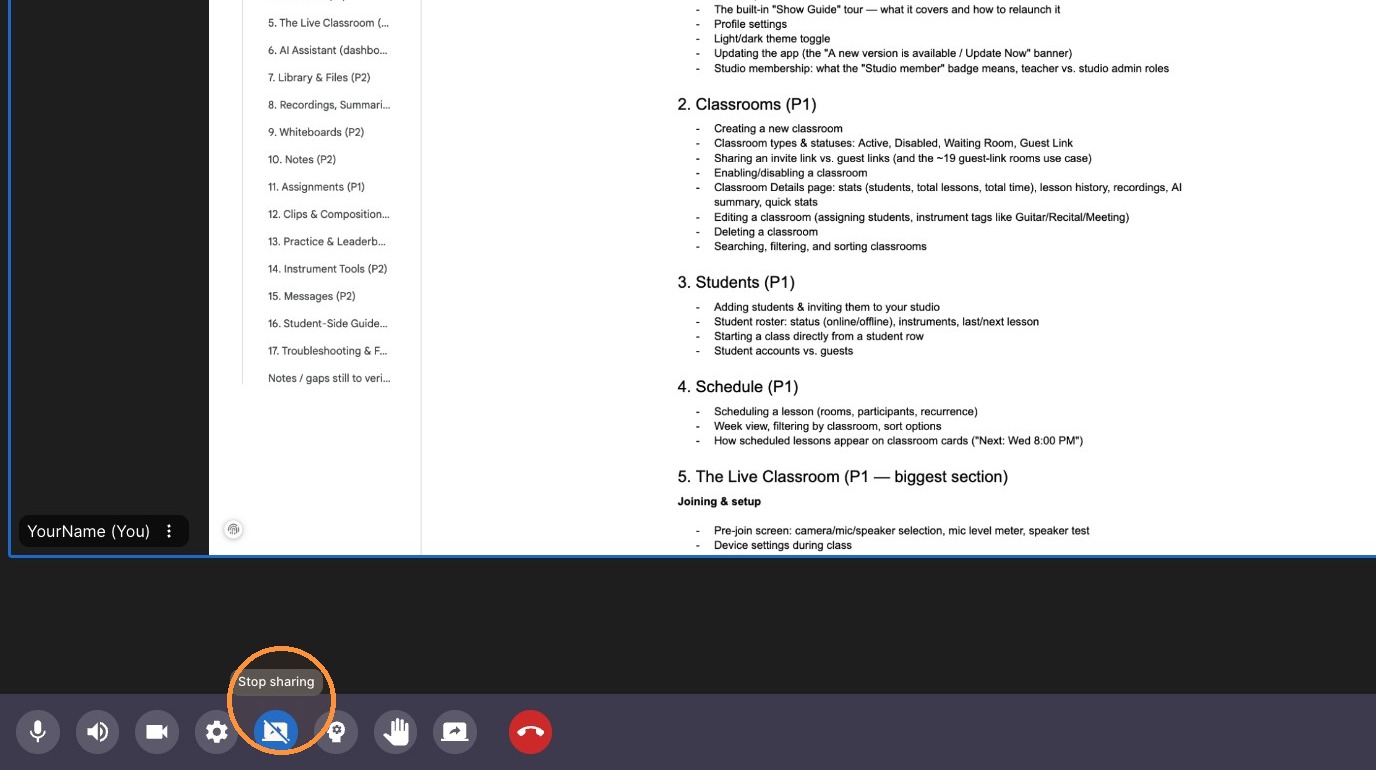
Click 'Stop sharing' icon to end session.
Sharing sound as well as picture: audio only comes through when you share a Chrome tab. Click Share Screen, choose Chrome Tab, and turn on Share audio before you share. This is what to use for playing a backing track or a recording to the other person.