

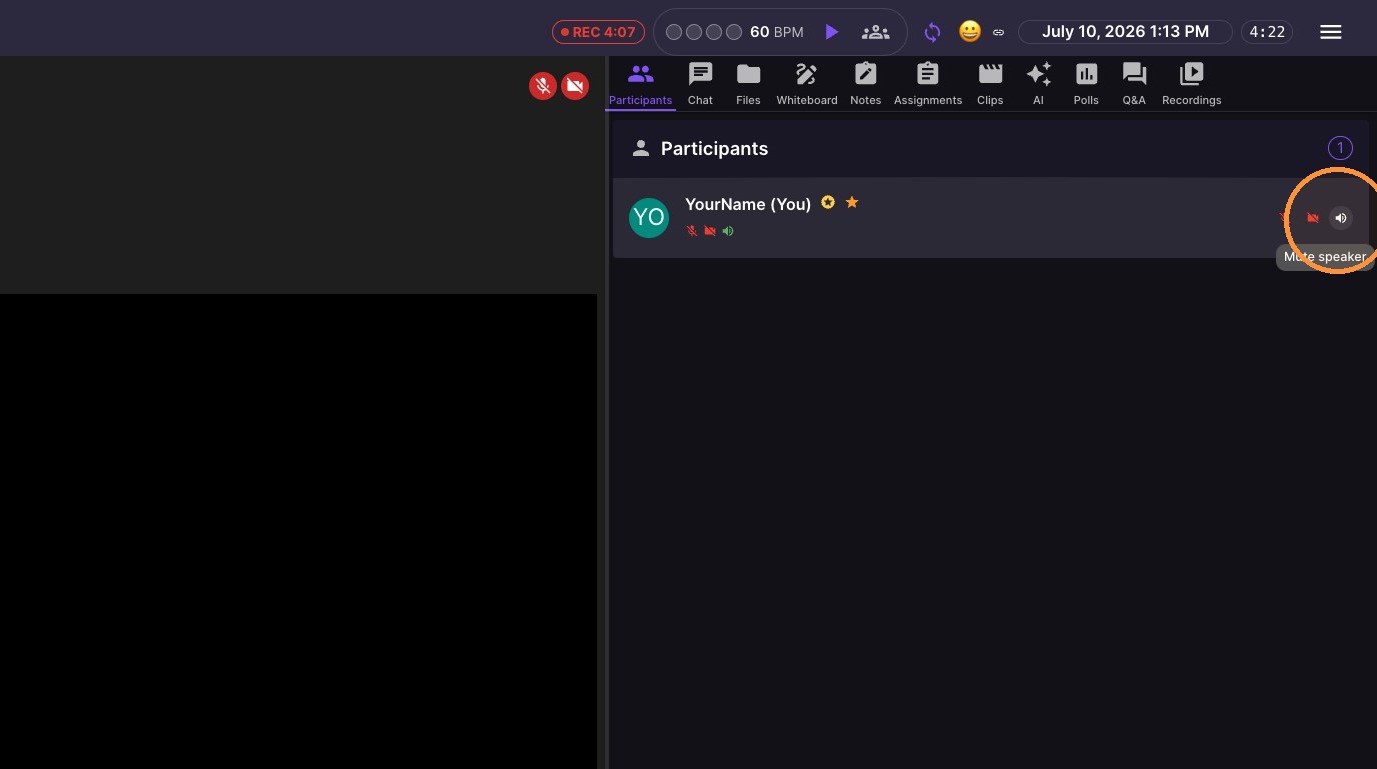
Use breakout audio when you want to speak privately with one student or a small group during a group lesson. From the Participants panel, mute the speaker and microphone for any students who should not be part of the private conversation. Students who still have their speaker and microphone enabled will be able to hear you, and you will be able to hear them, while the muted students remain outside that conversation.
Participant Management
-
Select tools
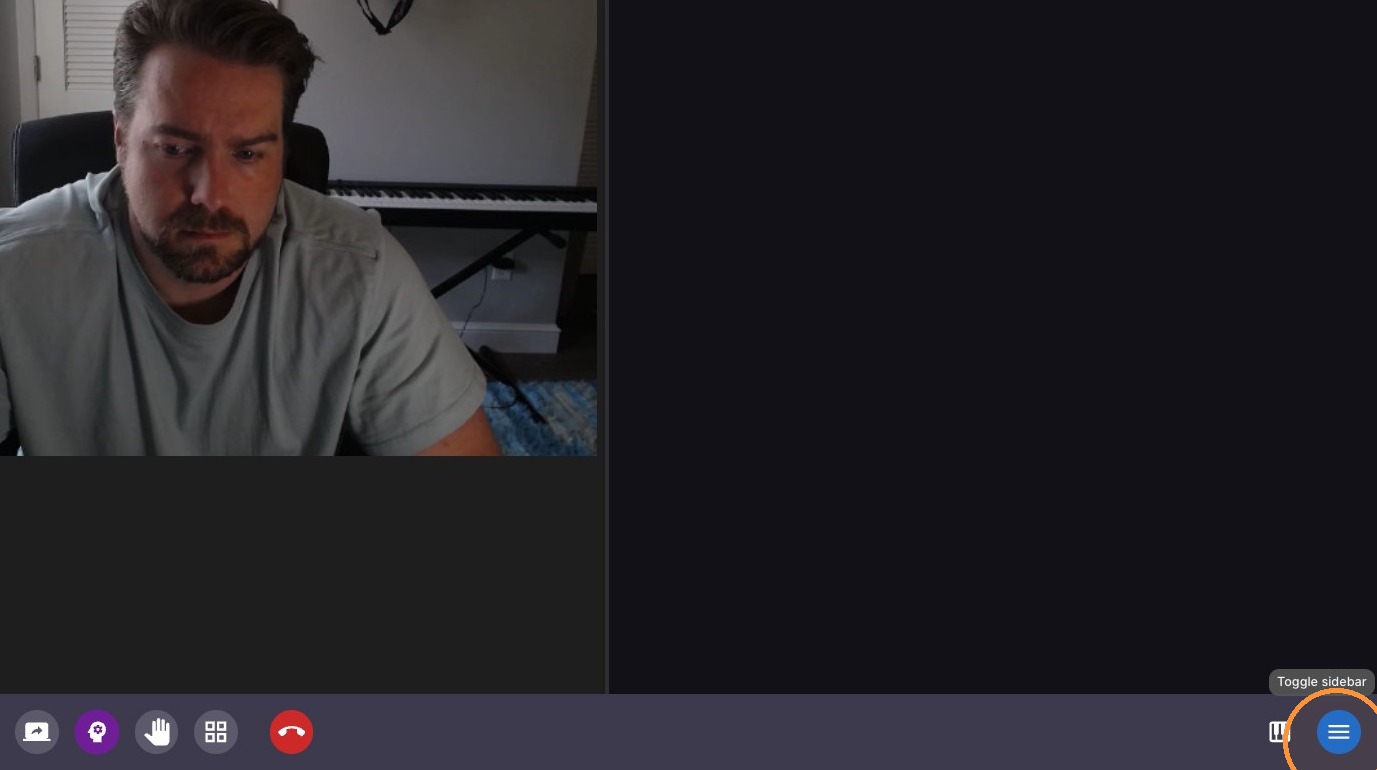
-
Click Participants
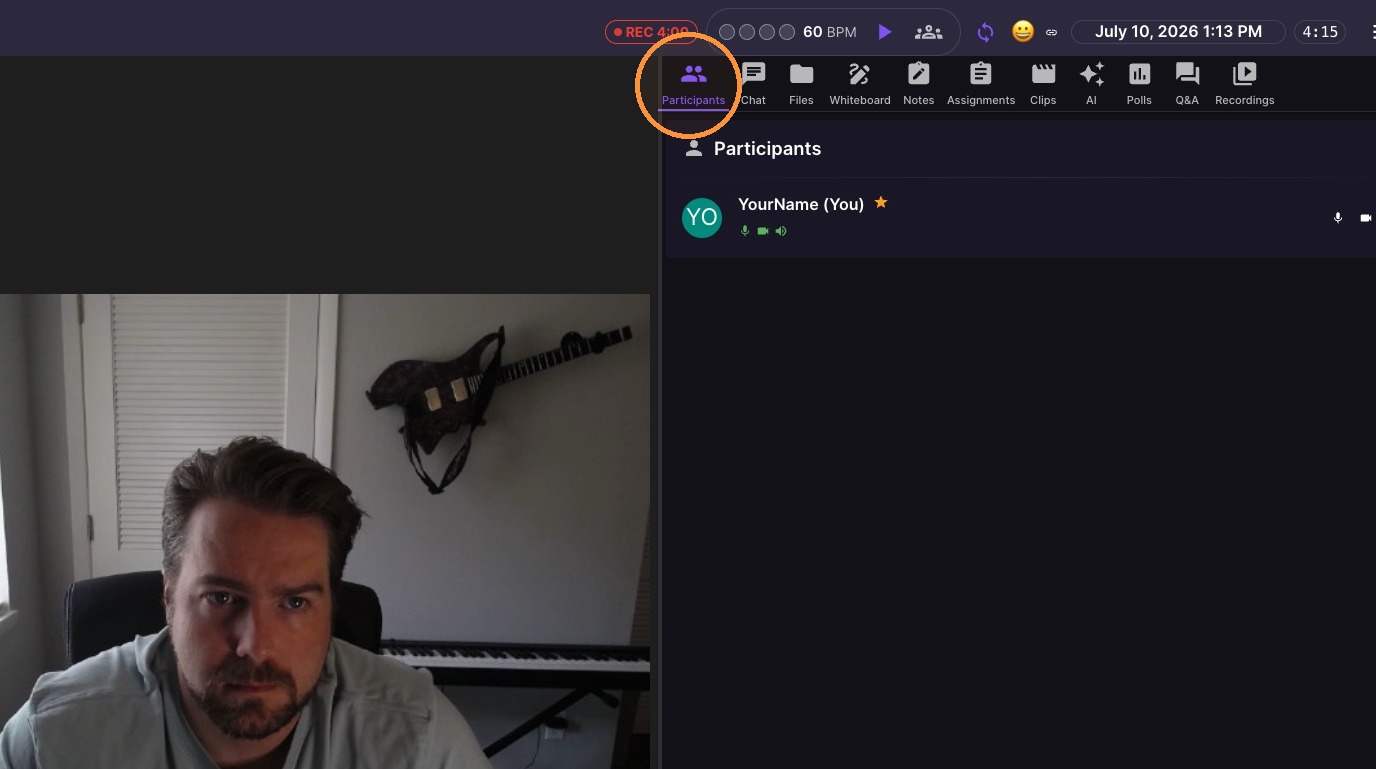
-
Click 'Mute audio' icon.
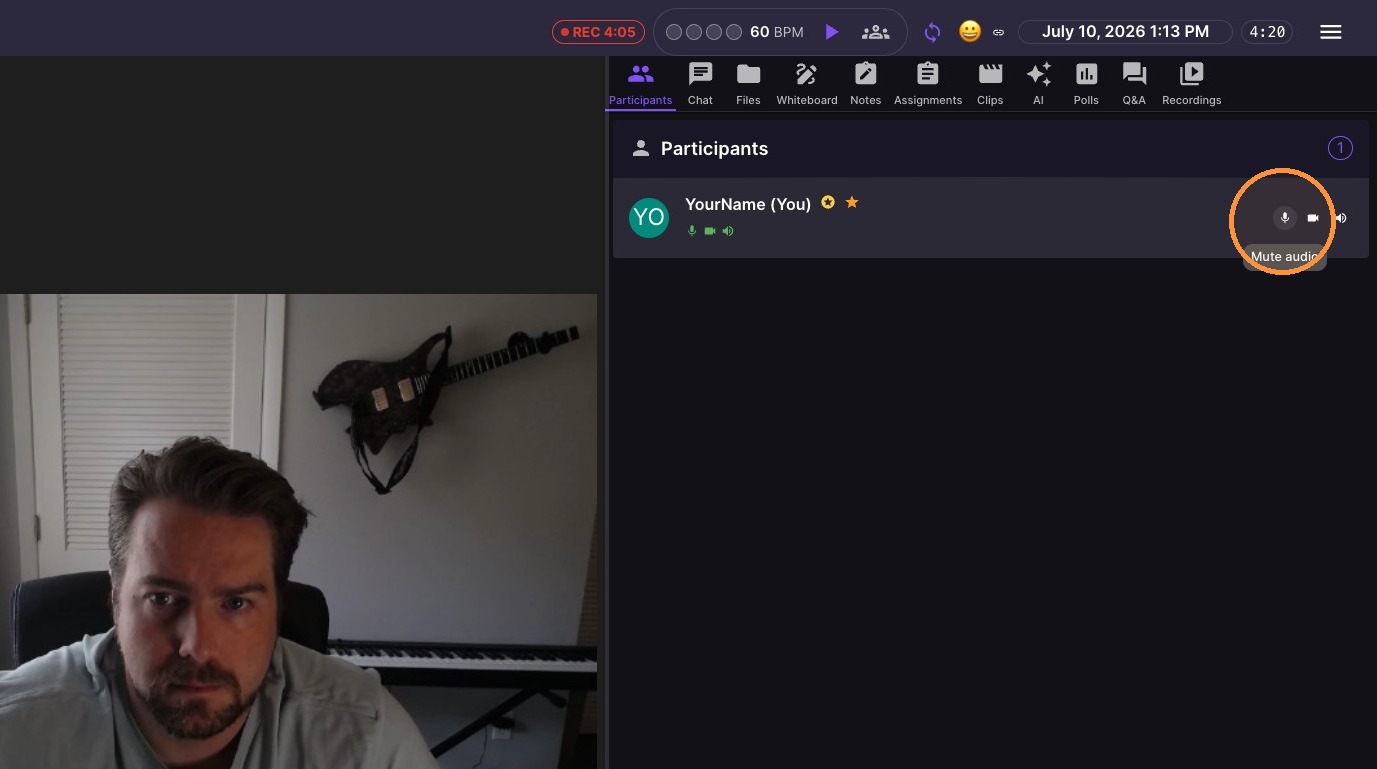
-
Click 'Disable camera' icon.
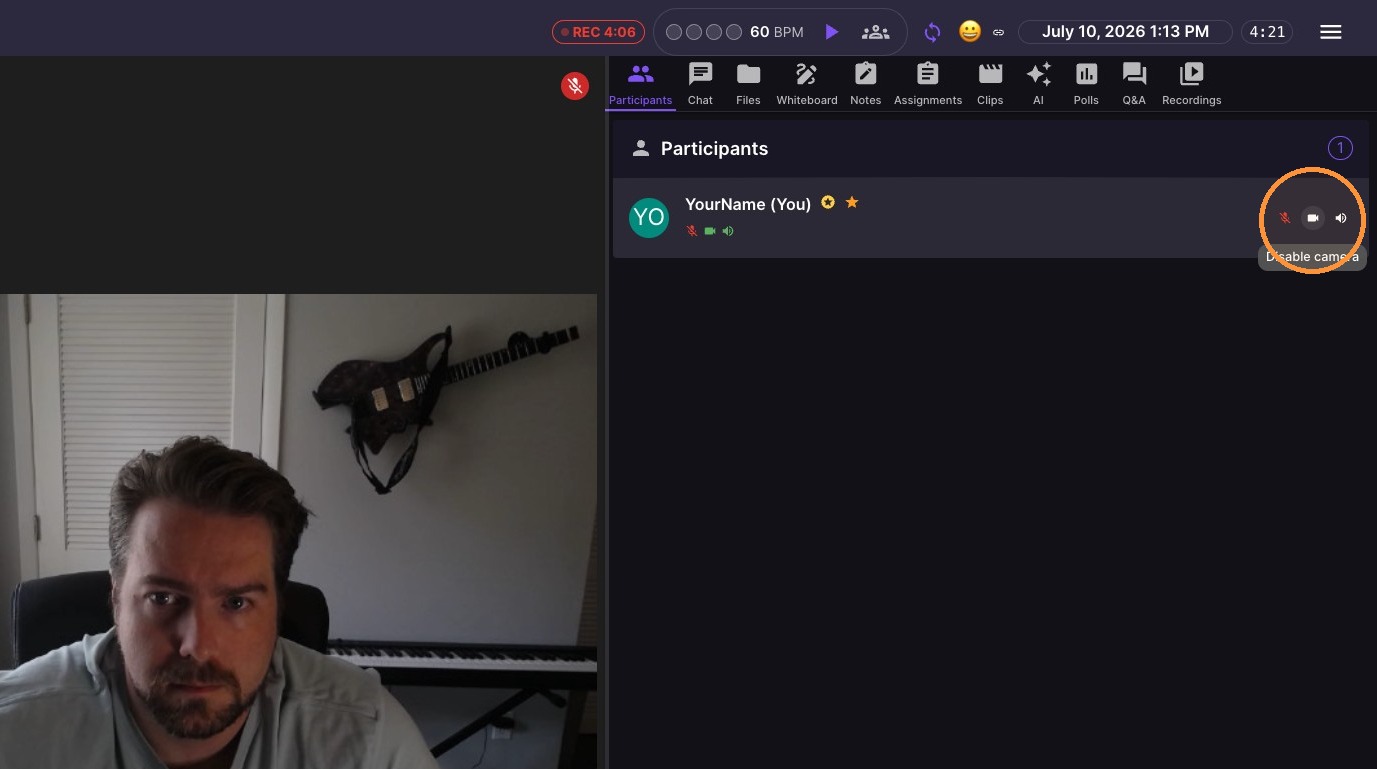
-
Click 'Mute speaker' icon.
-
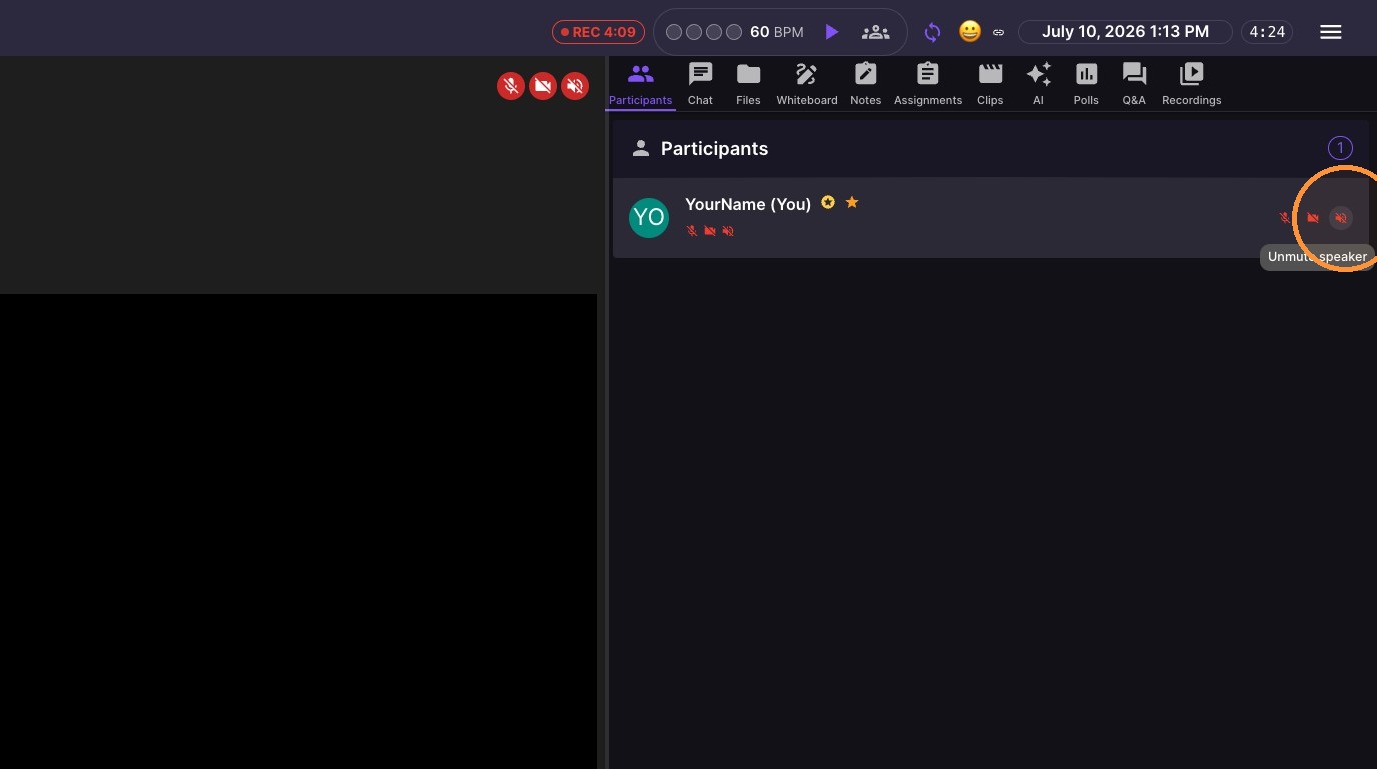
Click 'Unmute speaker' icon.
-
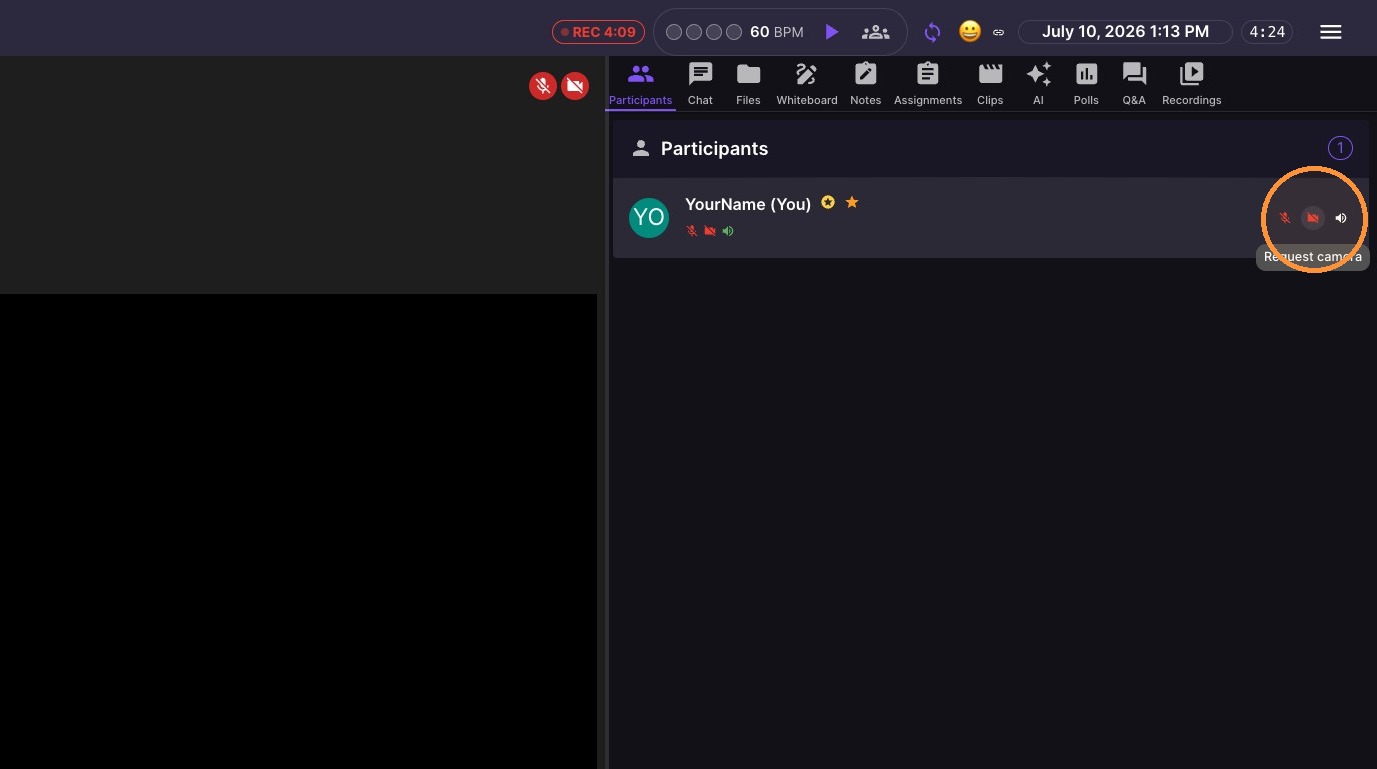
Click 'Request camera' icon.
-
Click 'Unmute audio' icon.
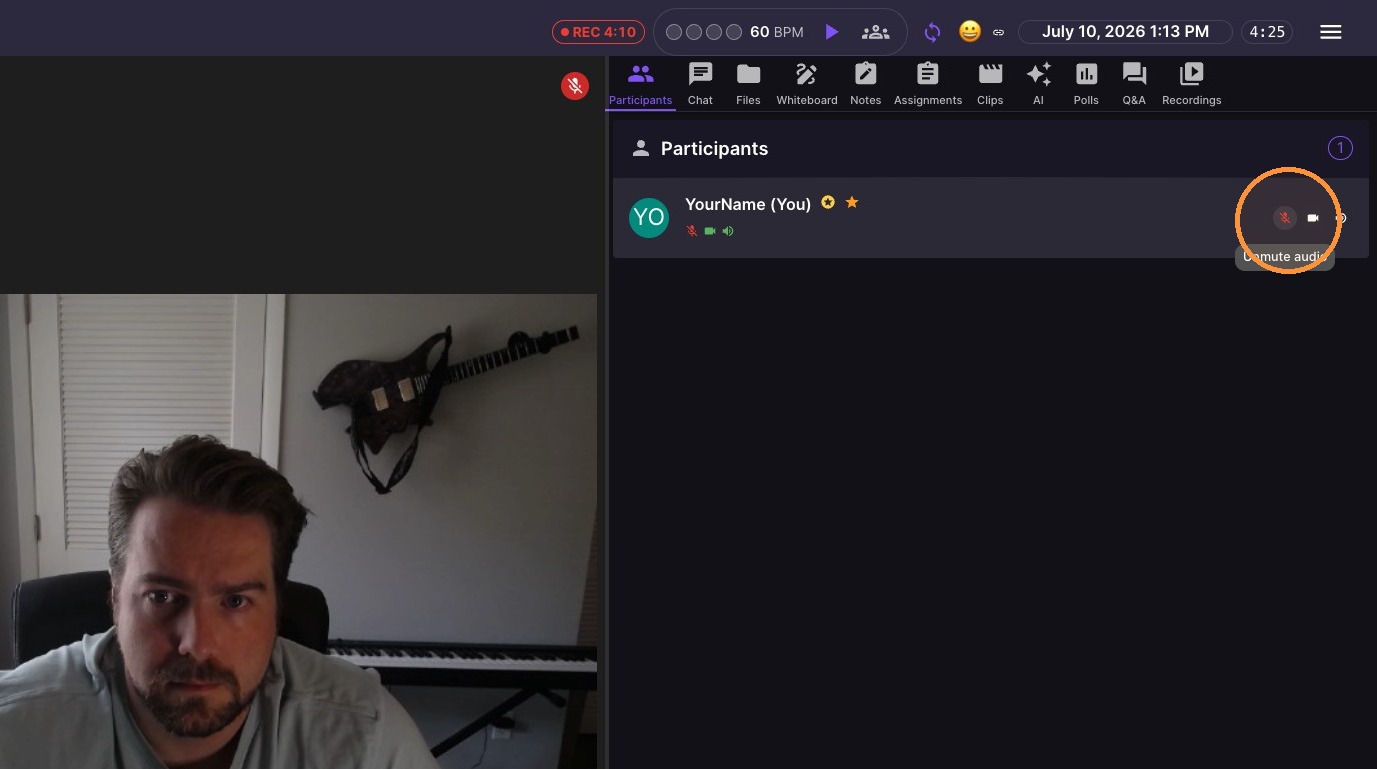
The microphone icon controls whether others hear a student. The speaker icon controls whether the student hears others.
You cannot unmute a student who muted themselves. Ask them to click their own microphone icon.
There are no keyboard shortcuts for muting.