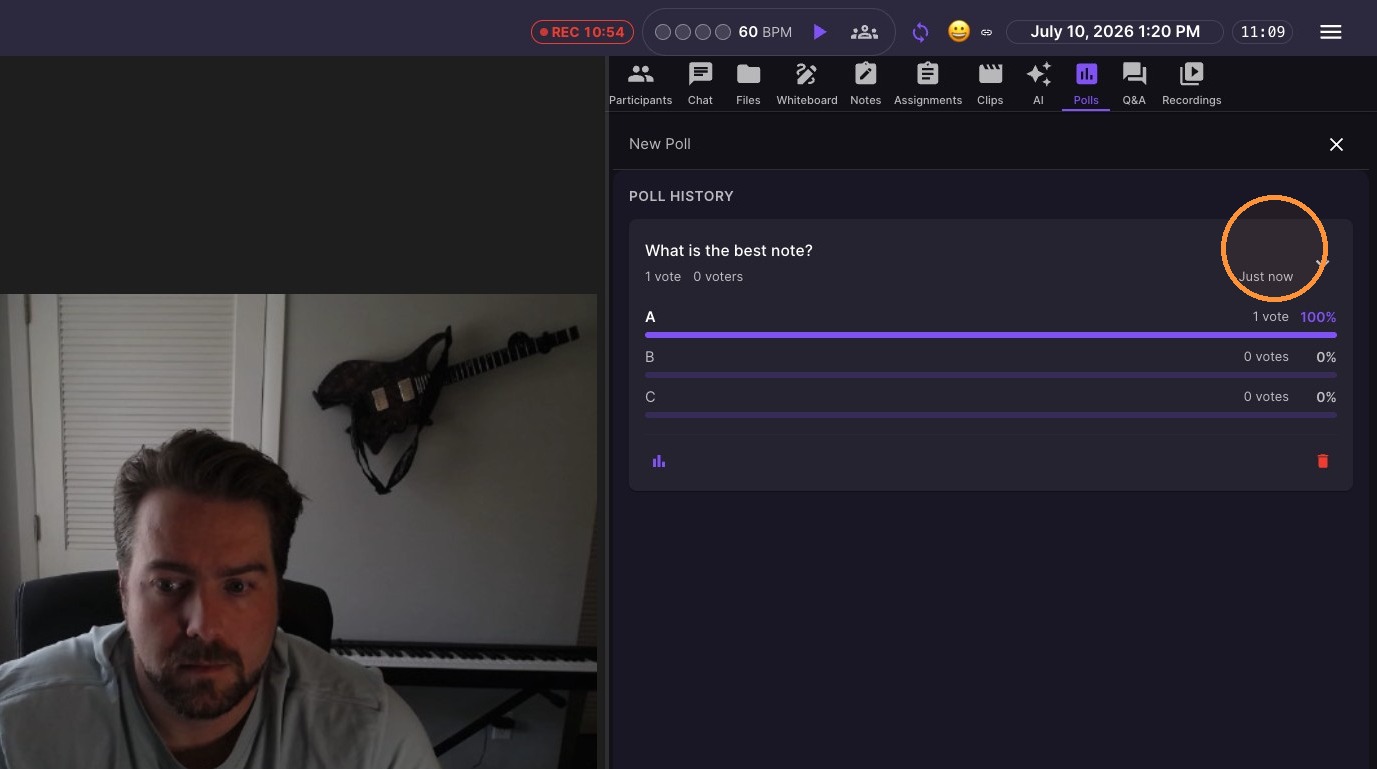
Use Polls to quickly ask your class a question, choose a poll style, and control settings like anonymous voting, live results, and a time limit - then share or end the poll when you’re ready. Great for Polls, Quizzes and student engagement.
Poll Initialization
-
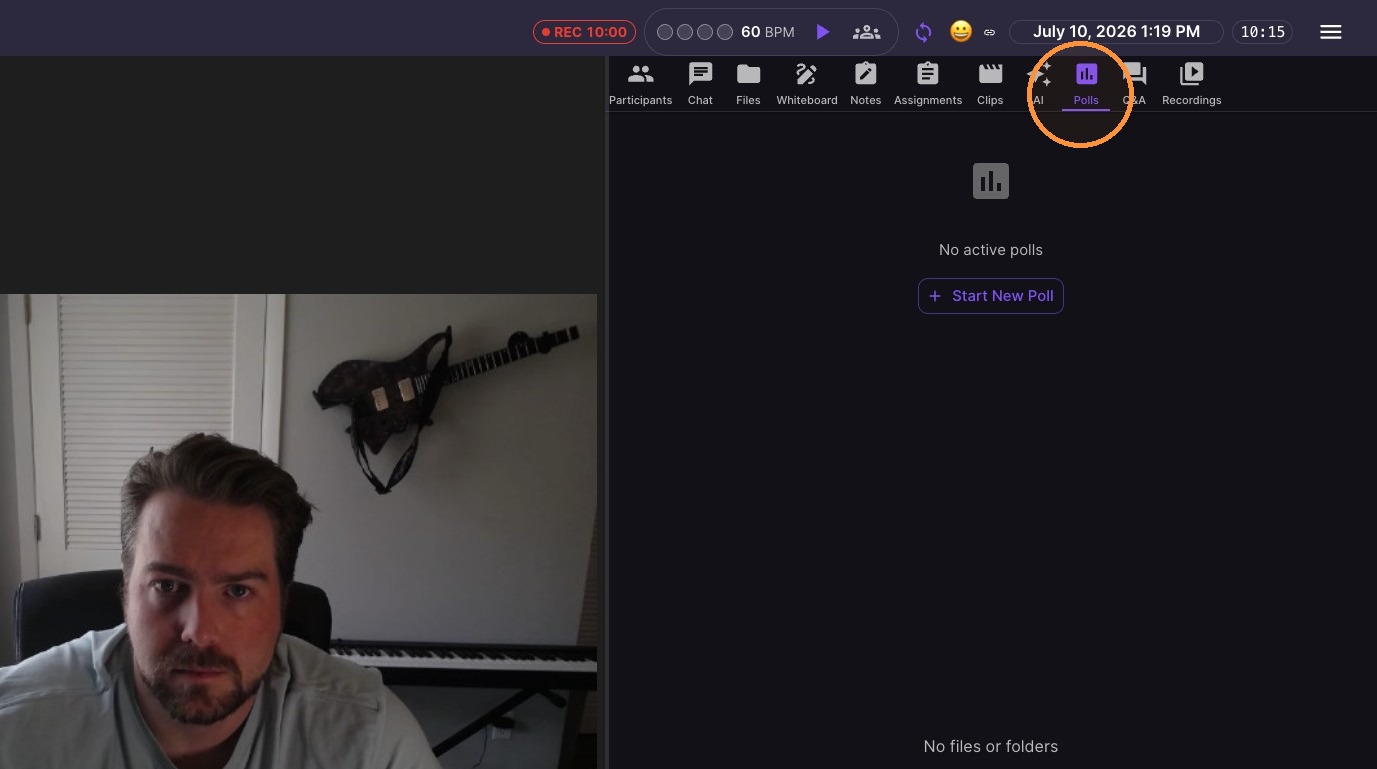
Click "Polls"
-
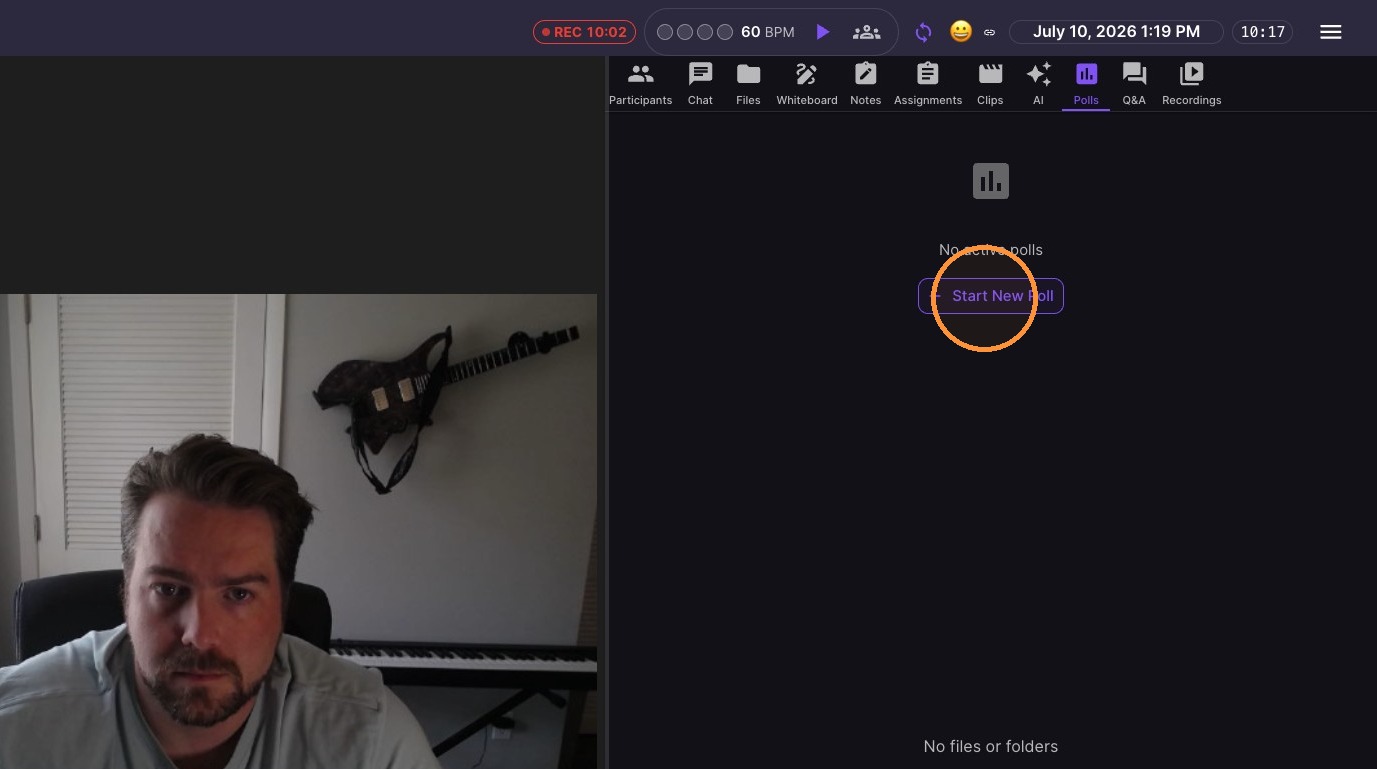
Click "Start New Poll"
Question and Options
-
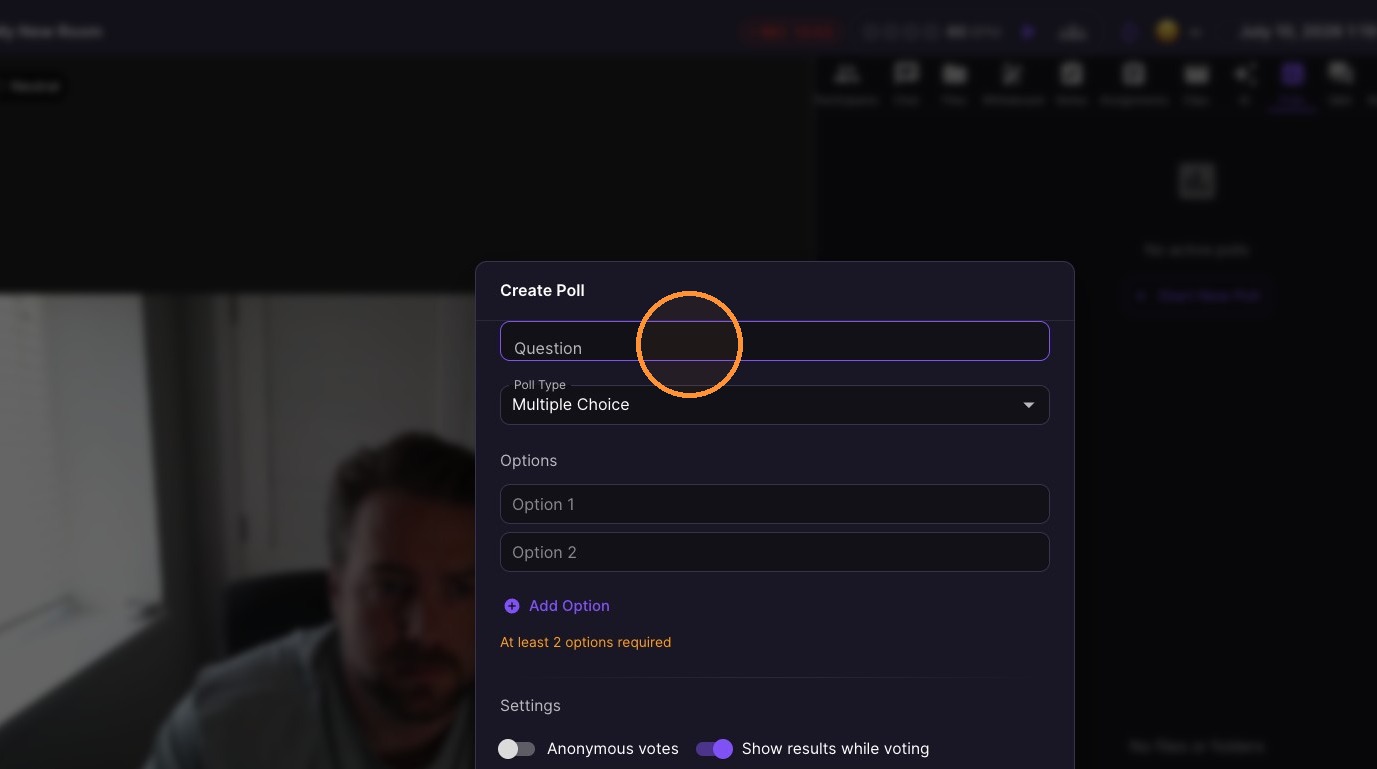
Type into the Question field
-
Select the Poll type
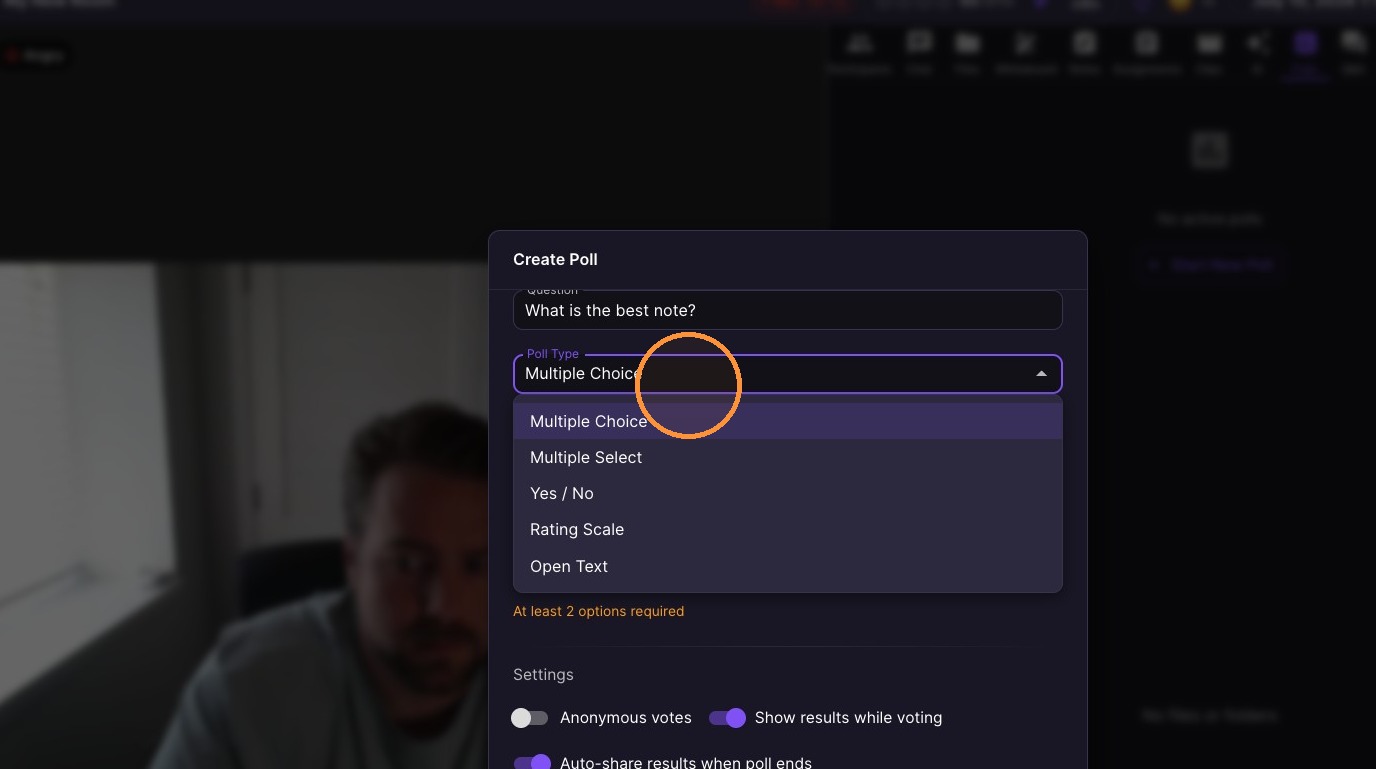
-
Fill in your options
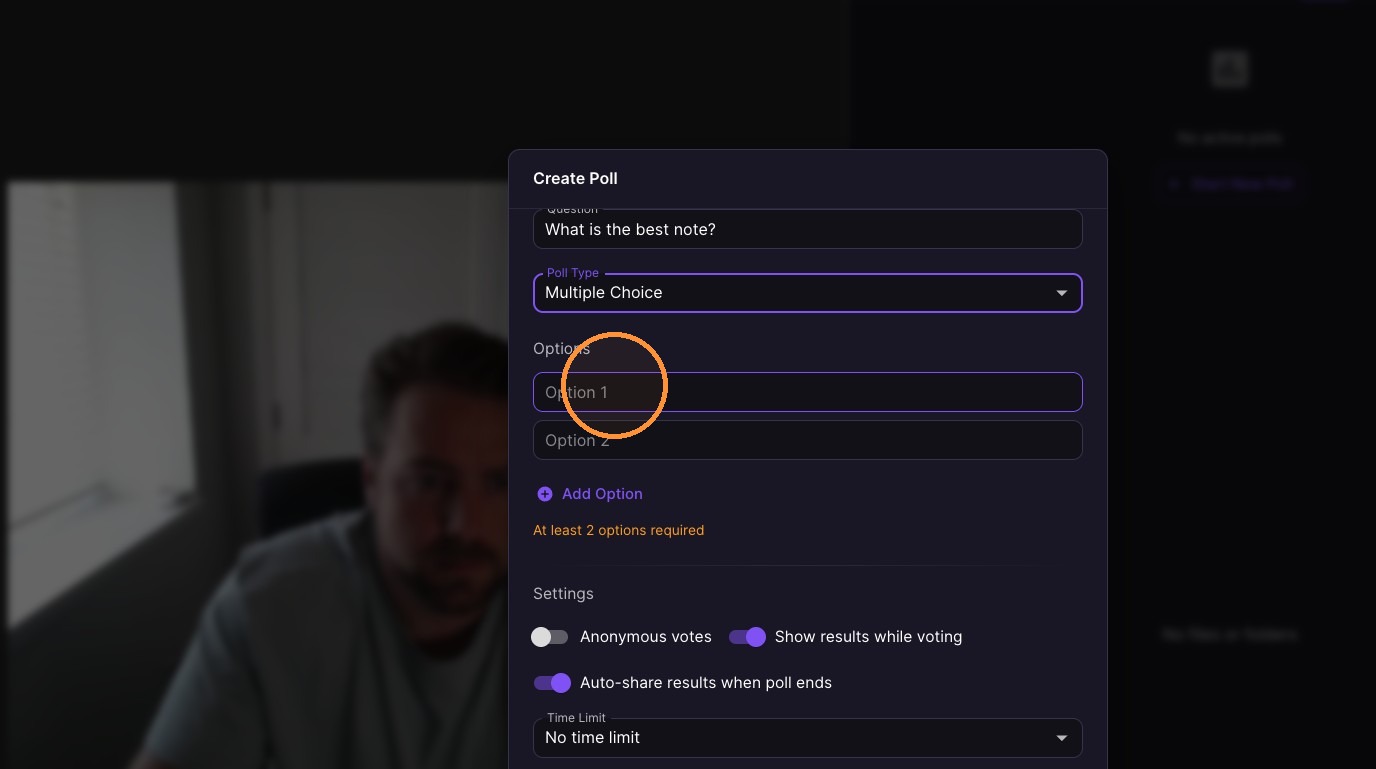
-
Click "Add Option" to add more choices
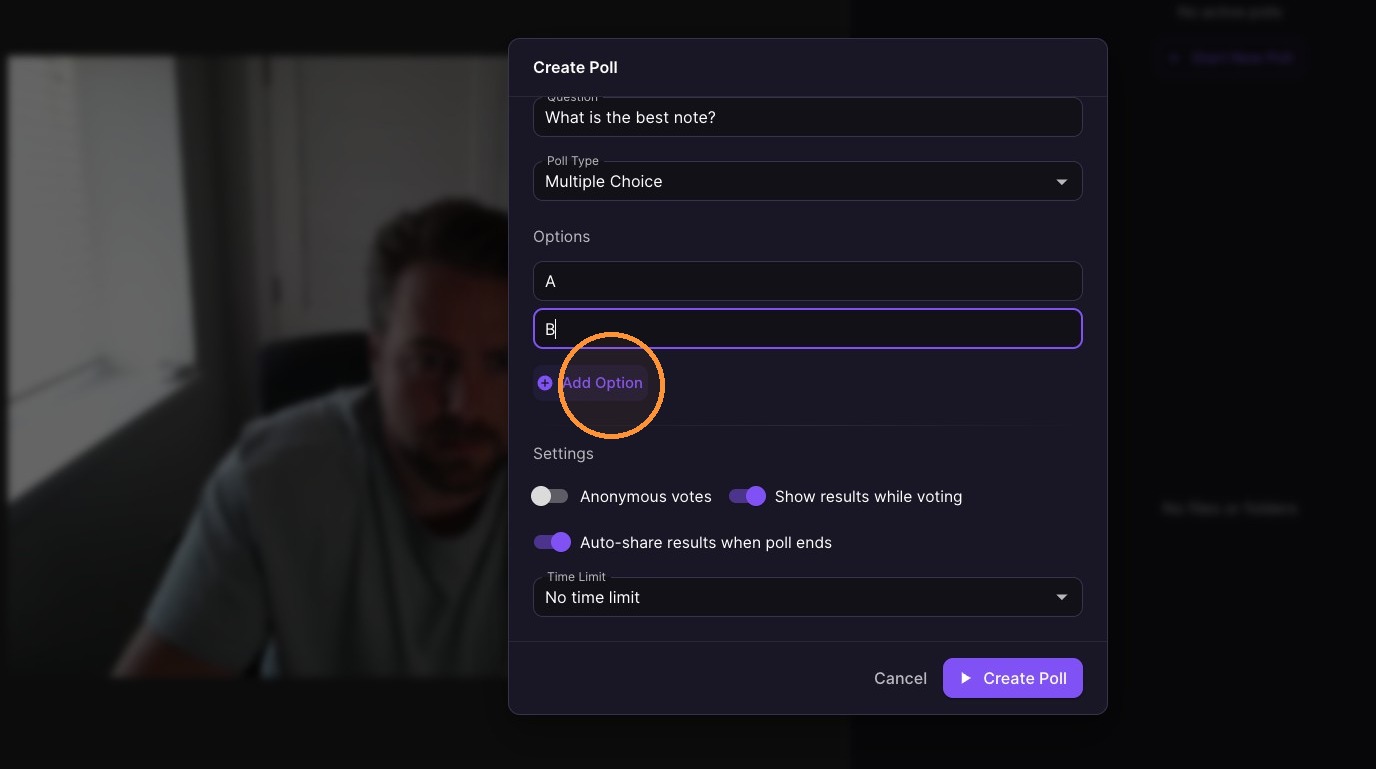
Poll Settings
-
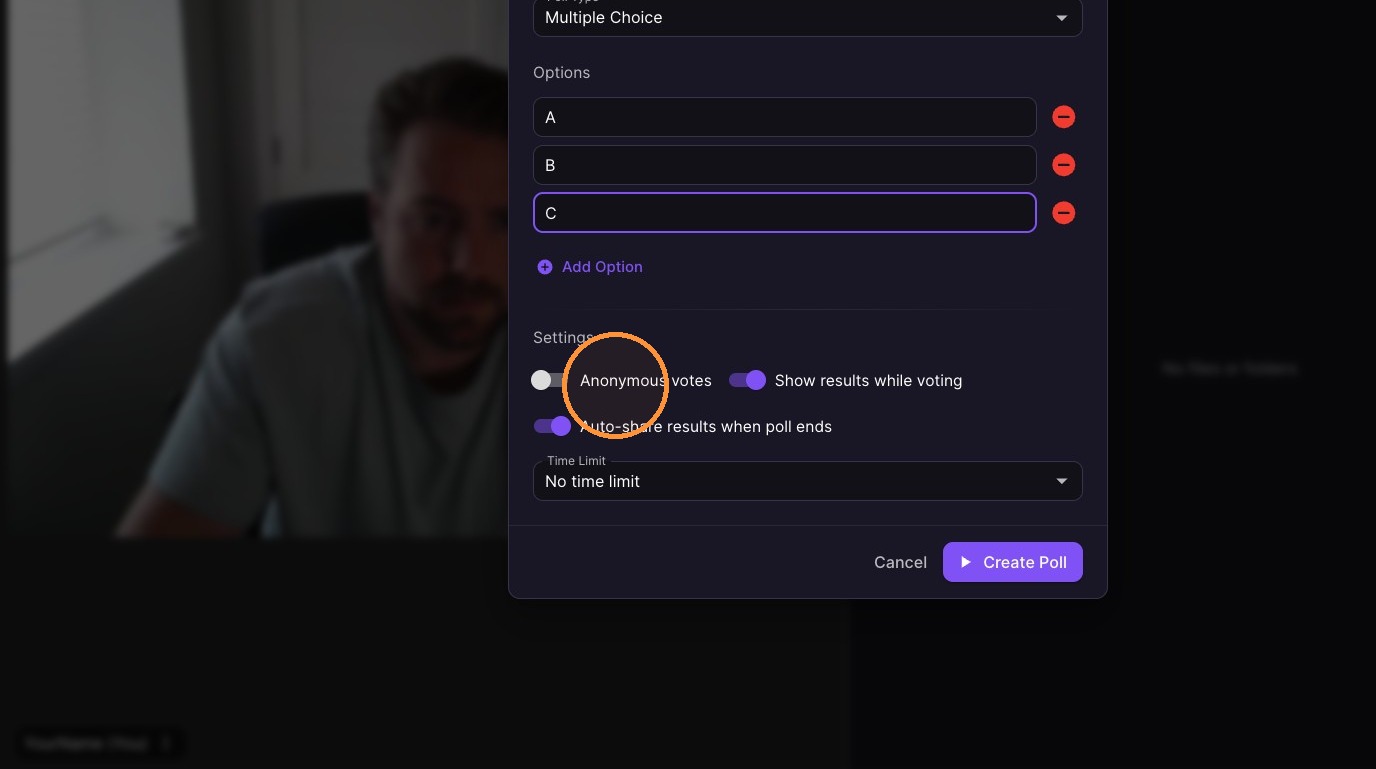
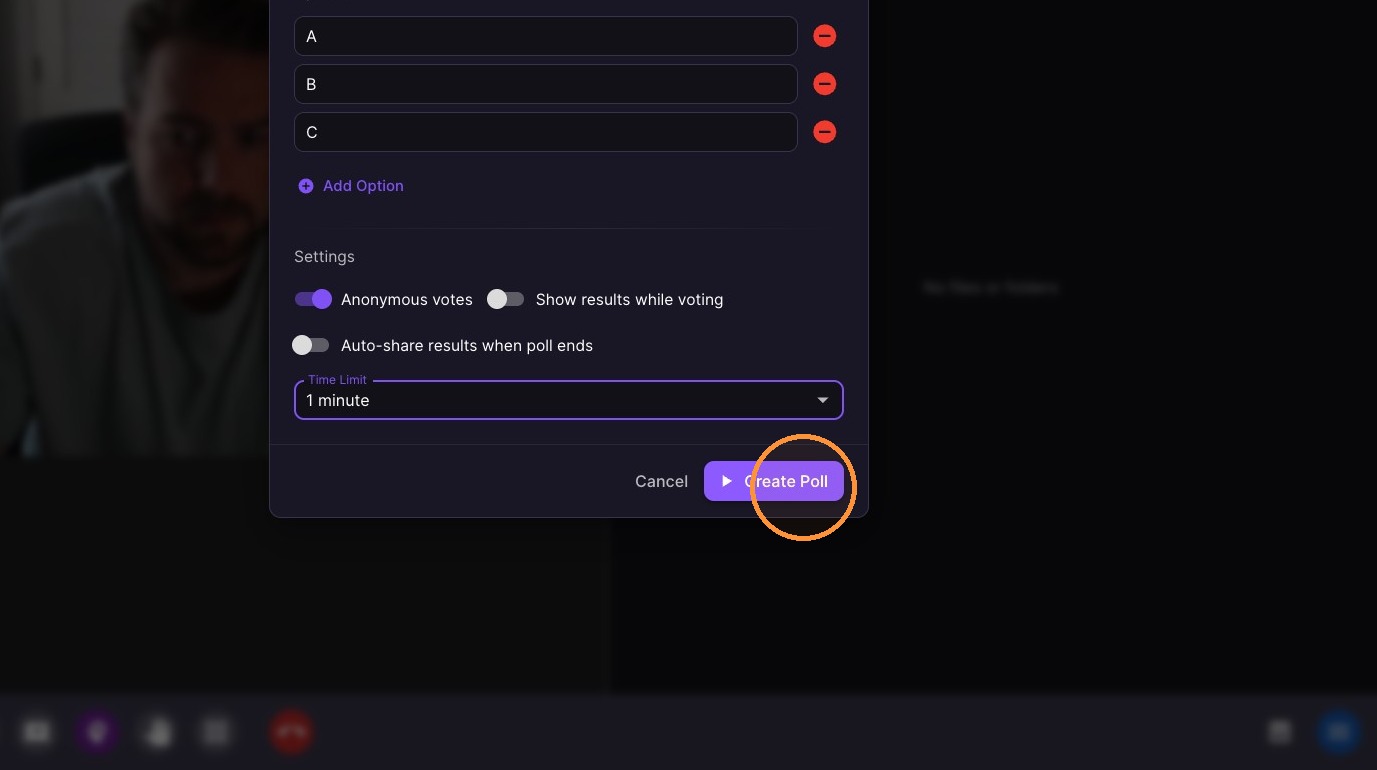
Toggle "Anonymous votes" - if you don't want names to show on answers
-
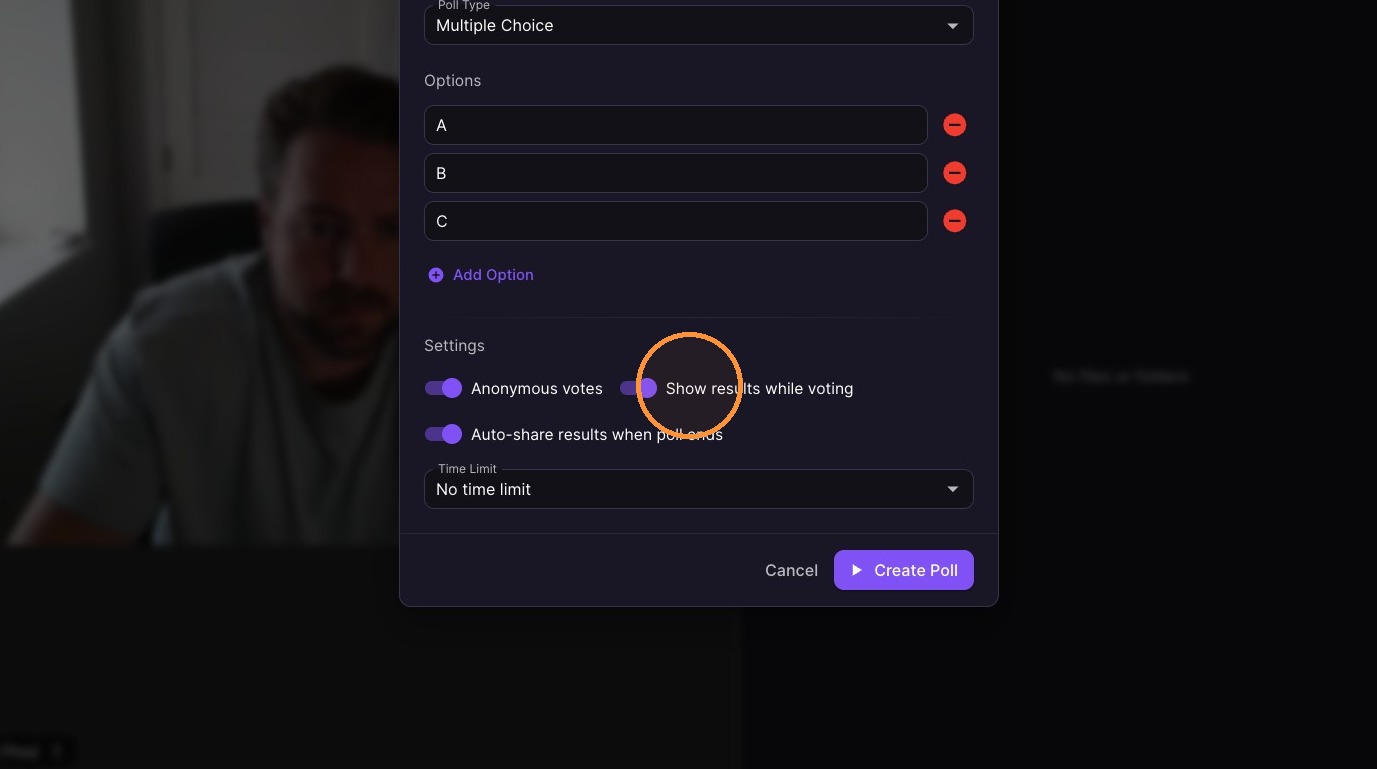
Toggle "Show results while voting" - if you want to show results in real time
-
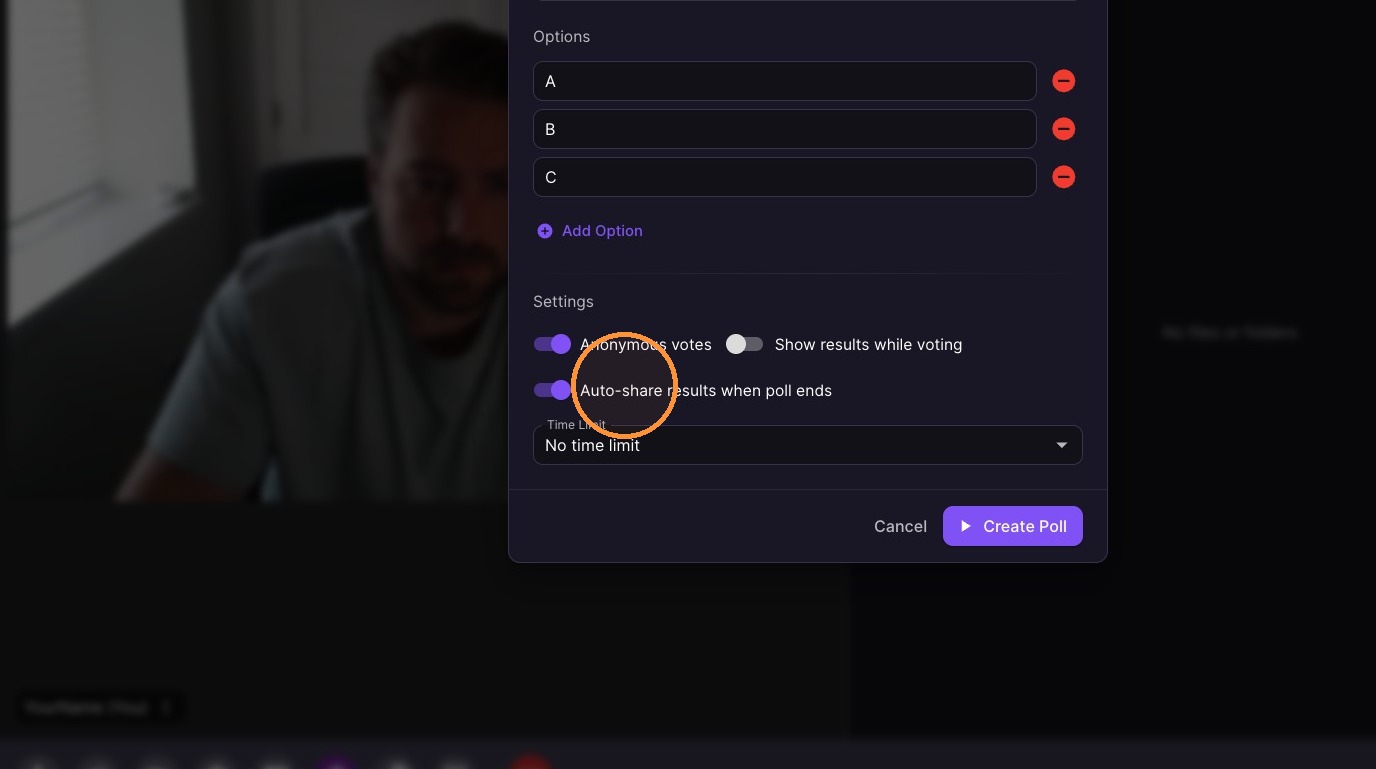
Toggle "Auto-share results when poll ends" - to share results with students right away
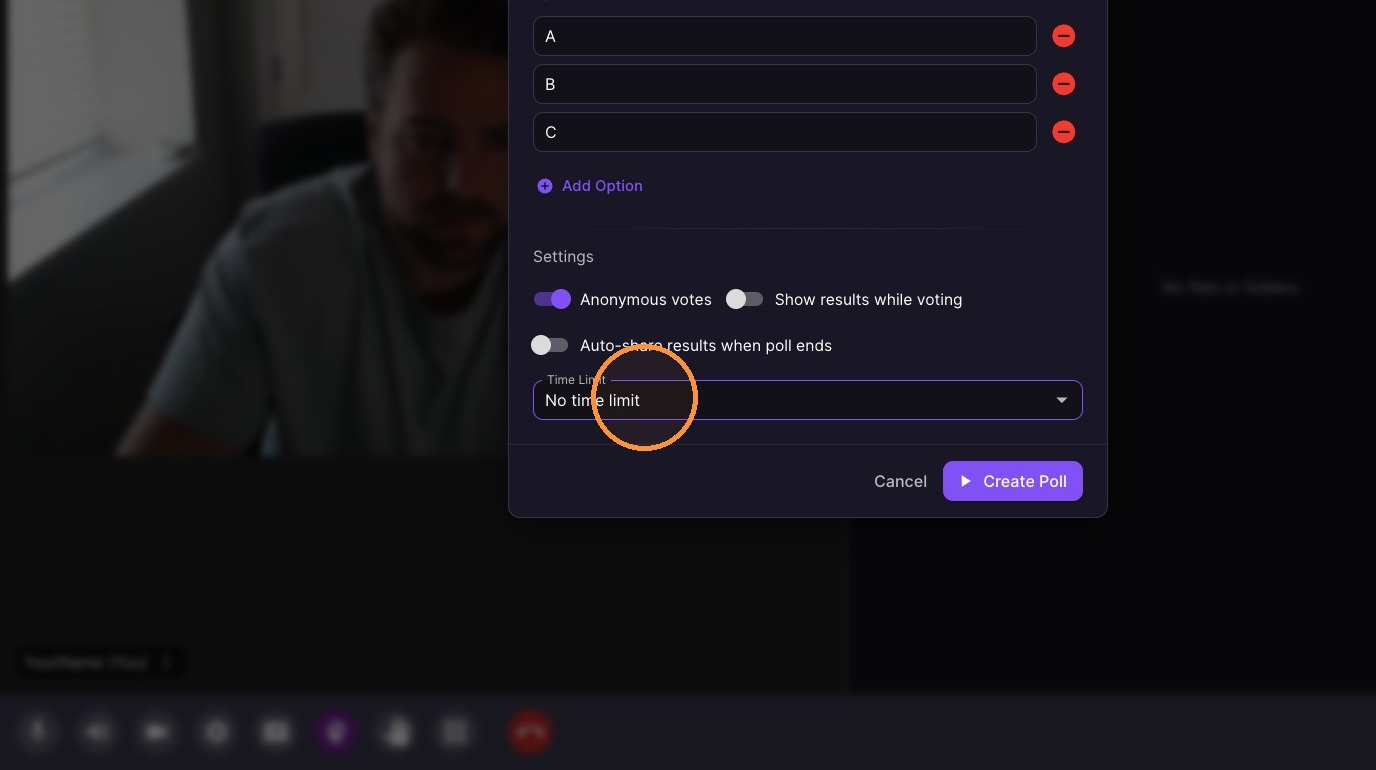
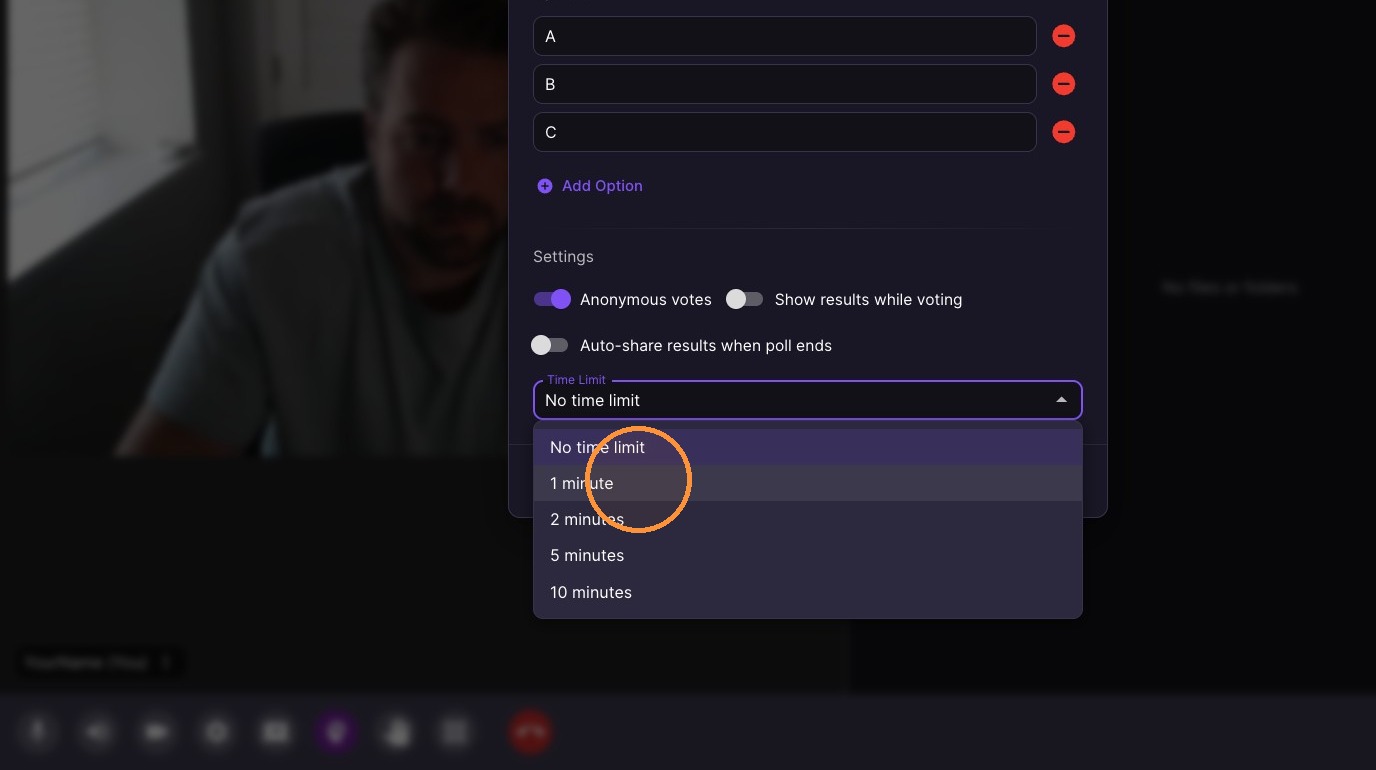
10. Set the Time Limit if you want this poll to end after a specific amount of time
11. Click "Create Poll"
Voting and Results
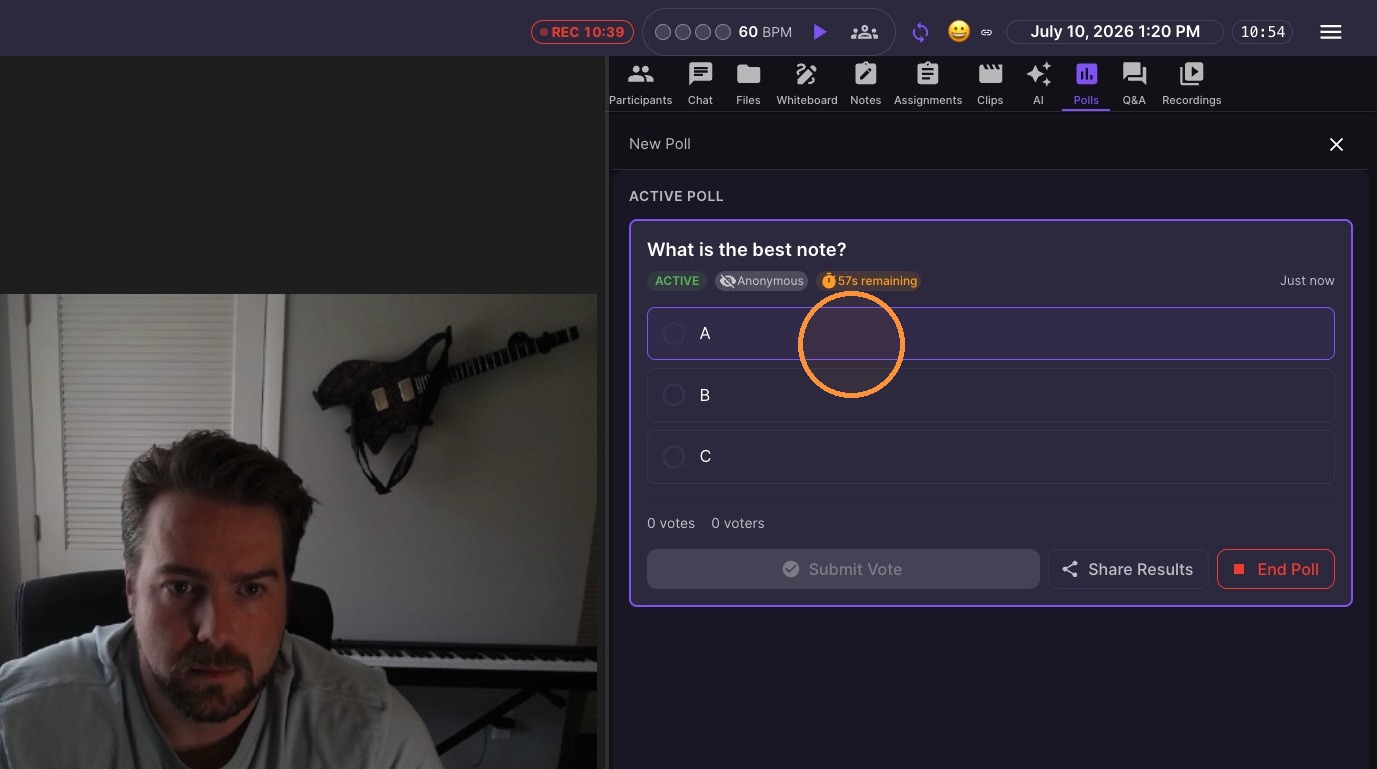
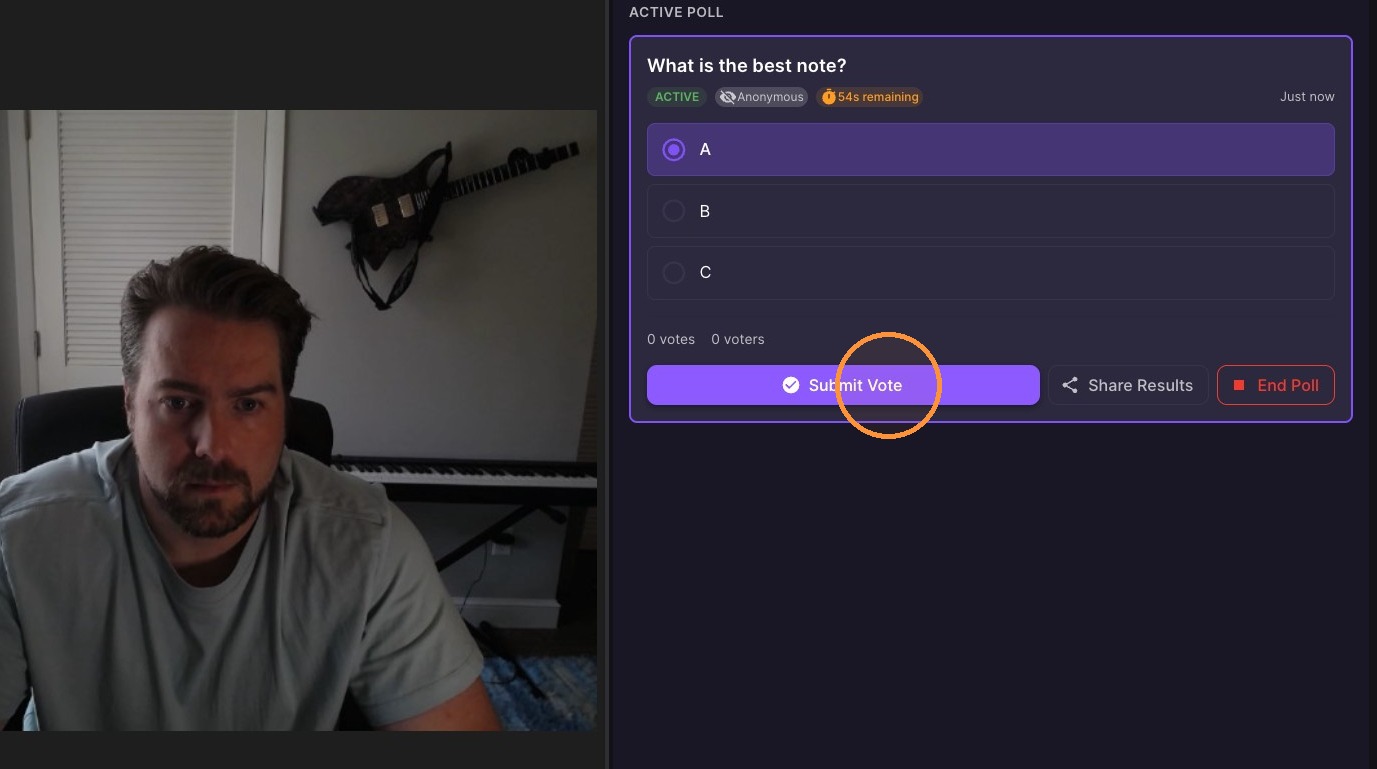
12. Select an answer and click "Submit Vote" to cast your vote
13. Click "Share Results"
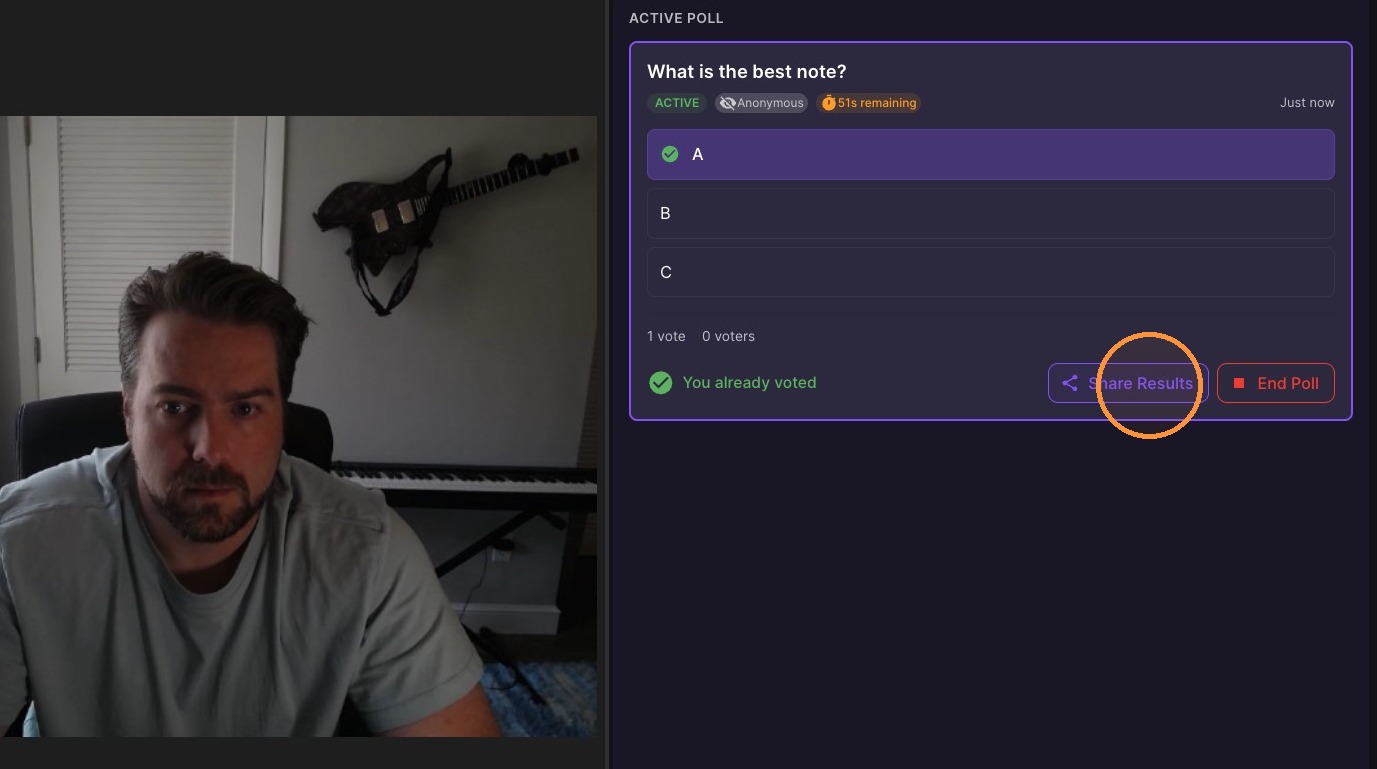
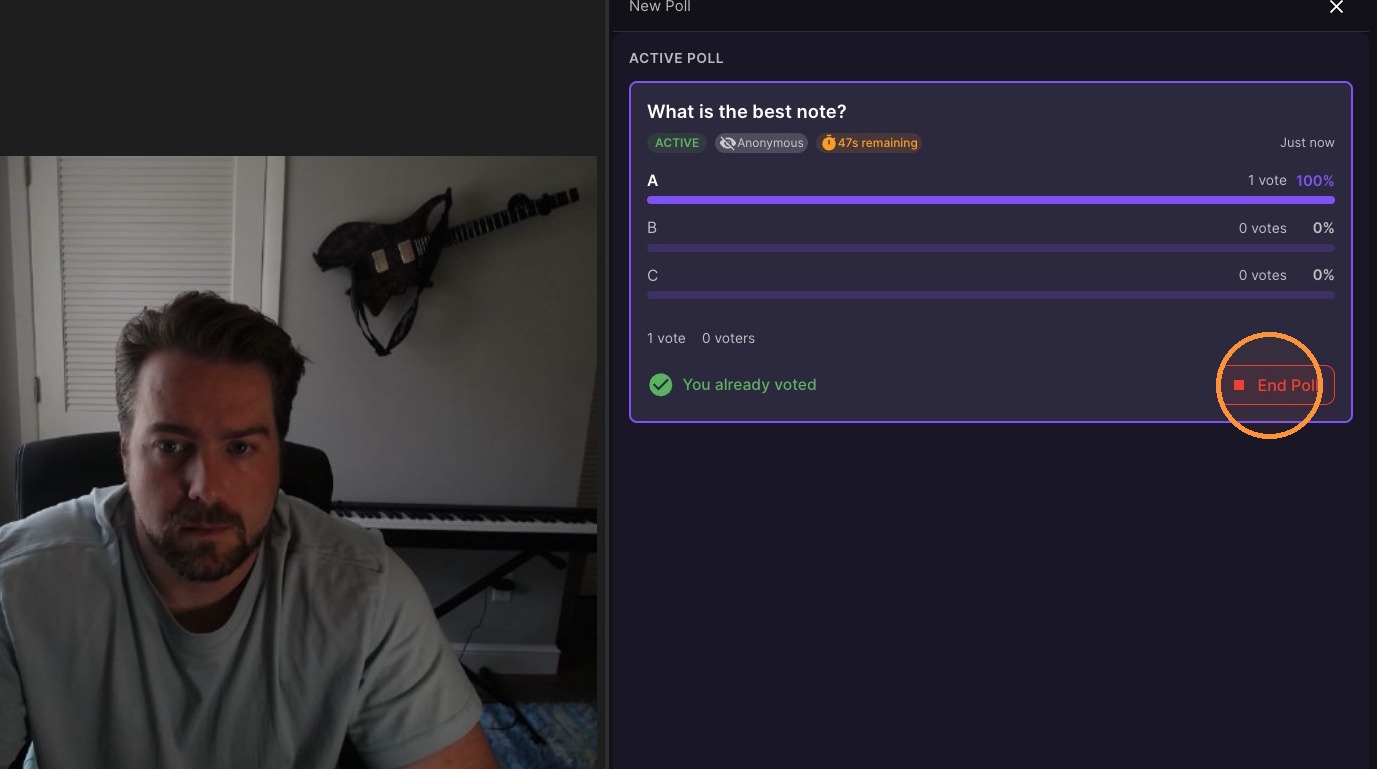
14. Click "End Poll"
Poll History
15. Navigate to poll history
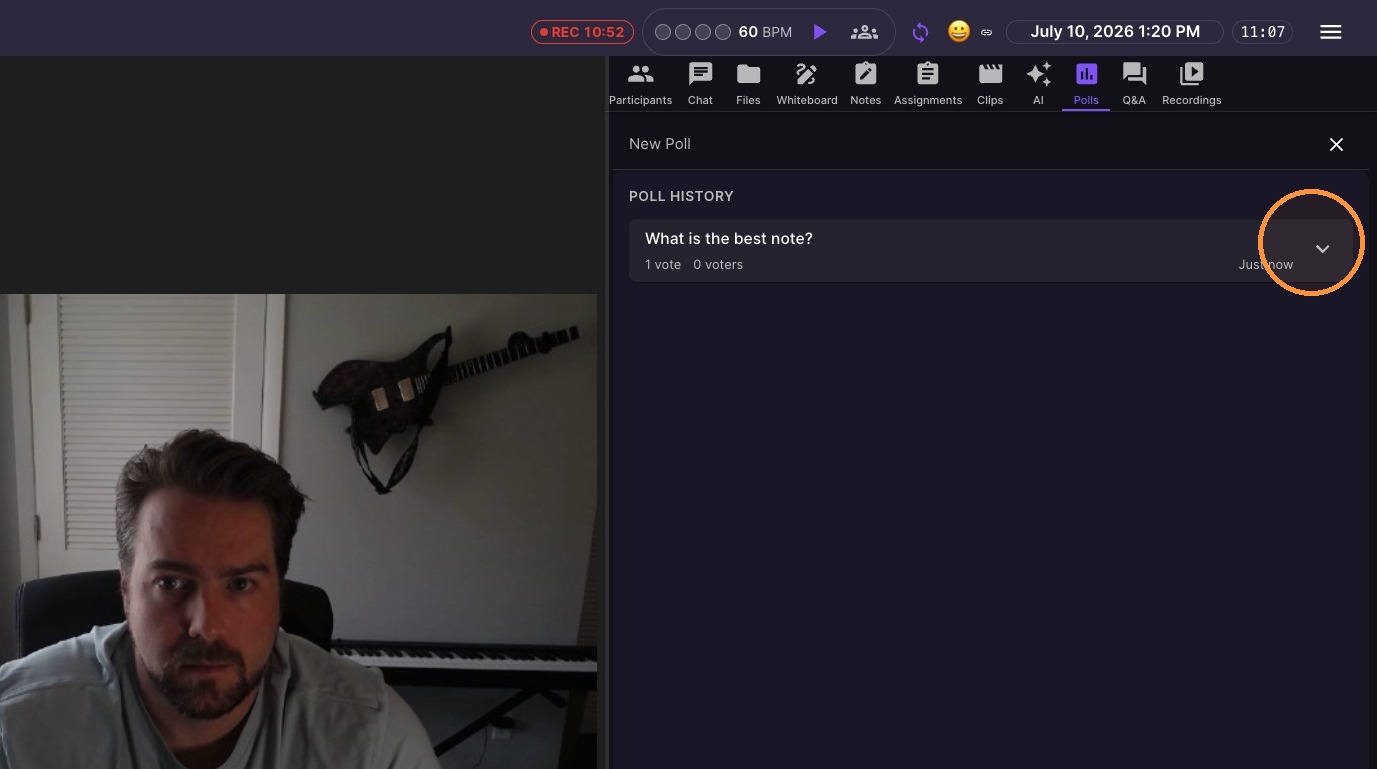
16. Select the poll from history to expand and view results