

Use this guide to customize your Muzie account so it looks and works the way you want. You’ll learn how to switch between Light and Dark mode, pick an accent color, and adjust text size. You’ll also learn how to update your profile details (like the name your teacher sees, instruments you play, phone number for reminders, and your timezone) so your calendar and notifications stay accurate.
Theme Customization
-
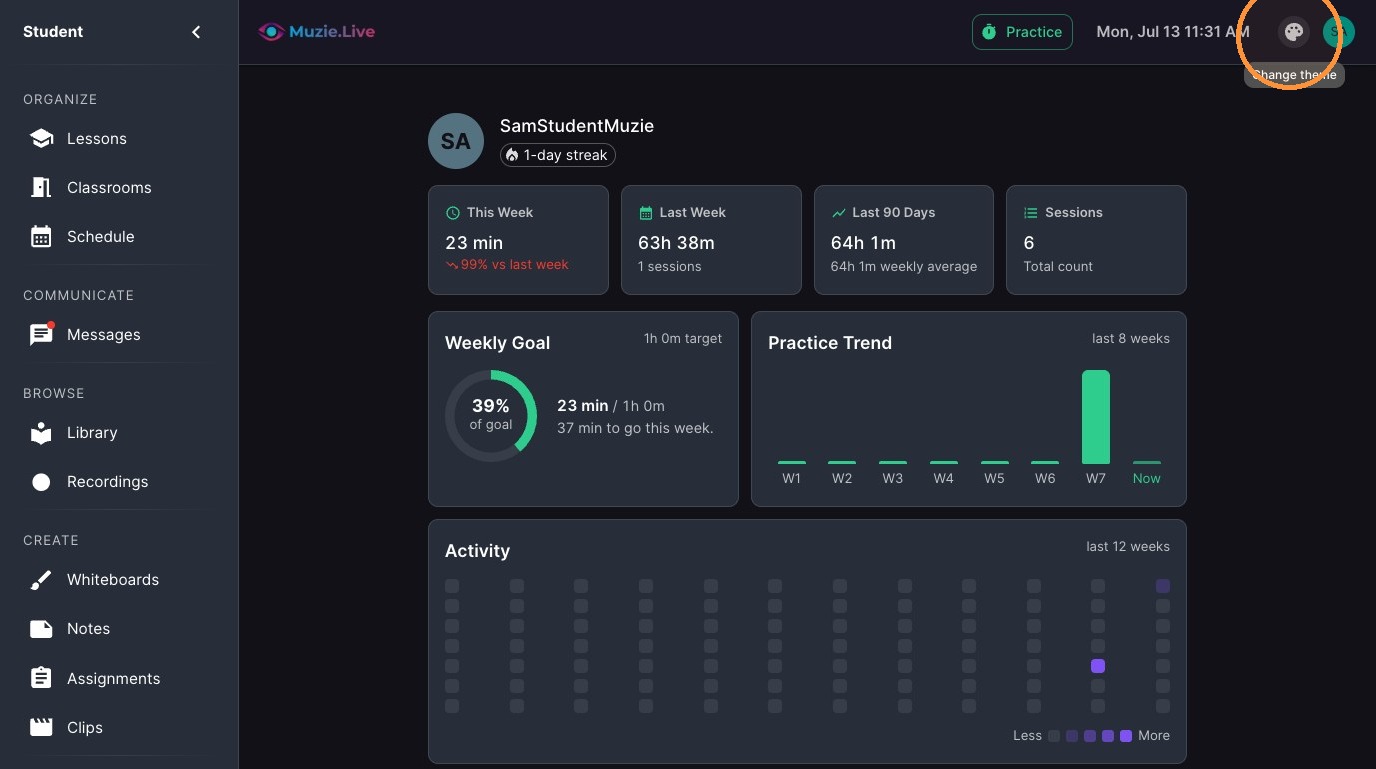
Click "Change theme"
-
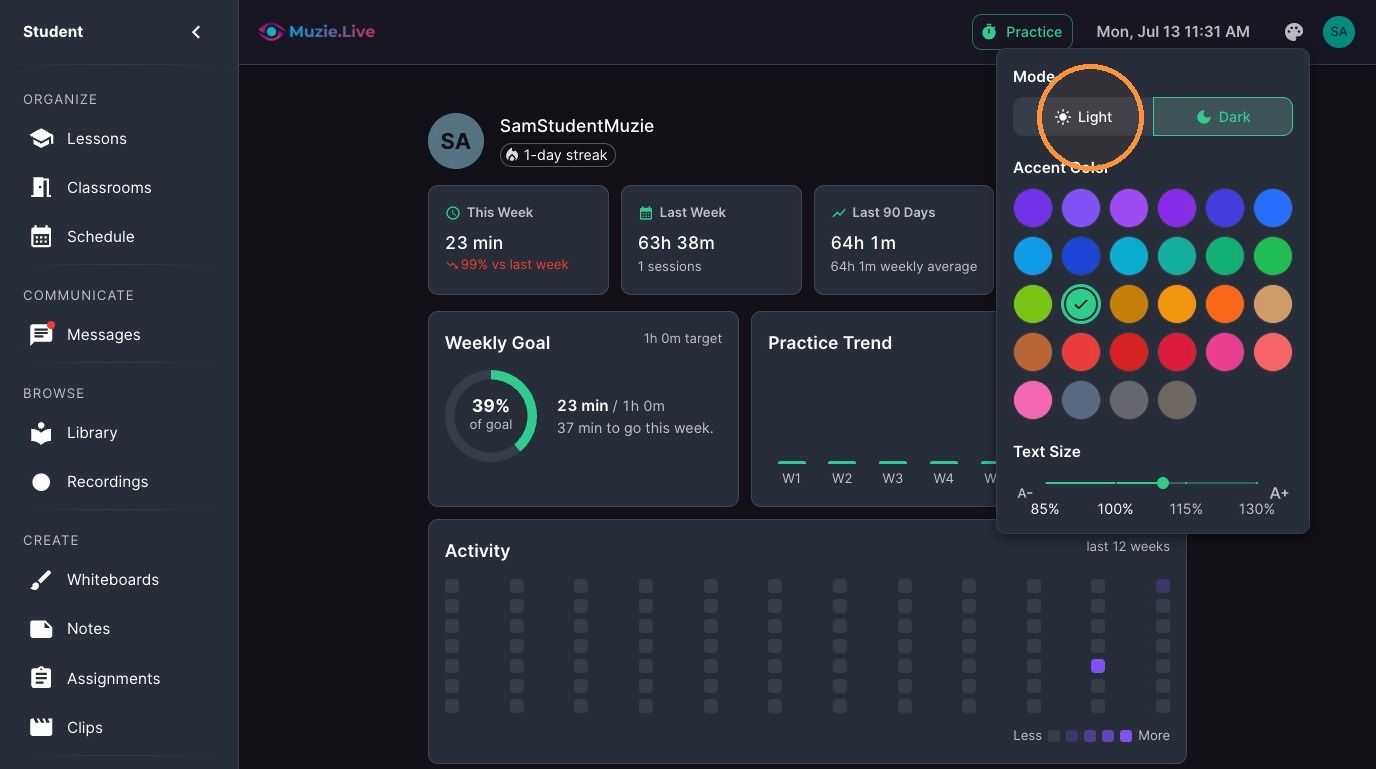
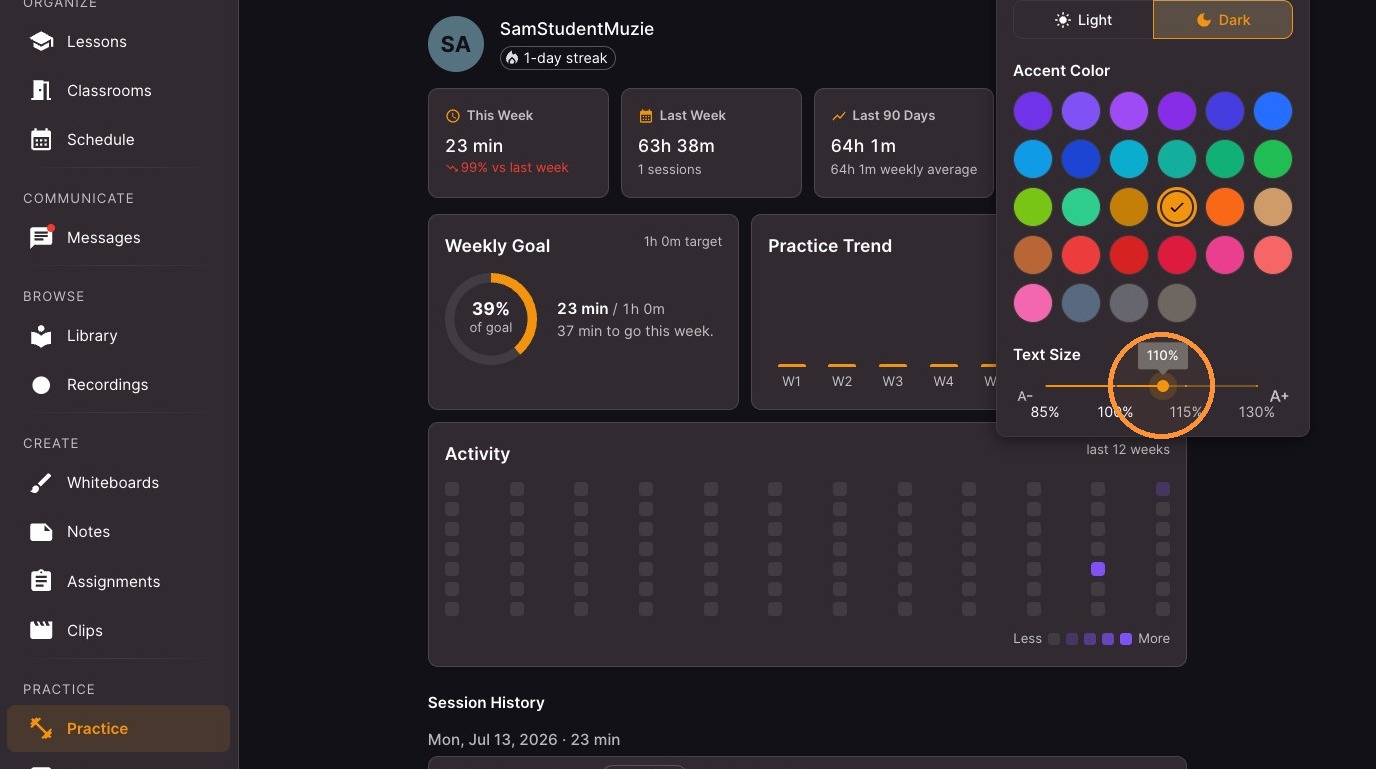
Click "Light" for light mode
-
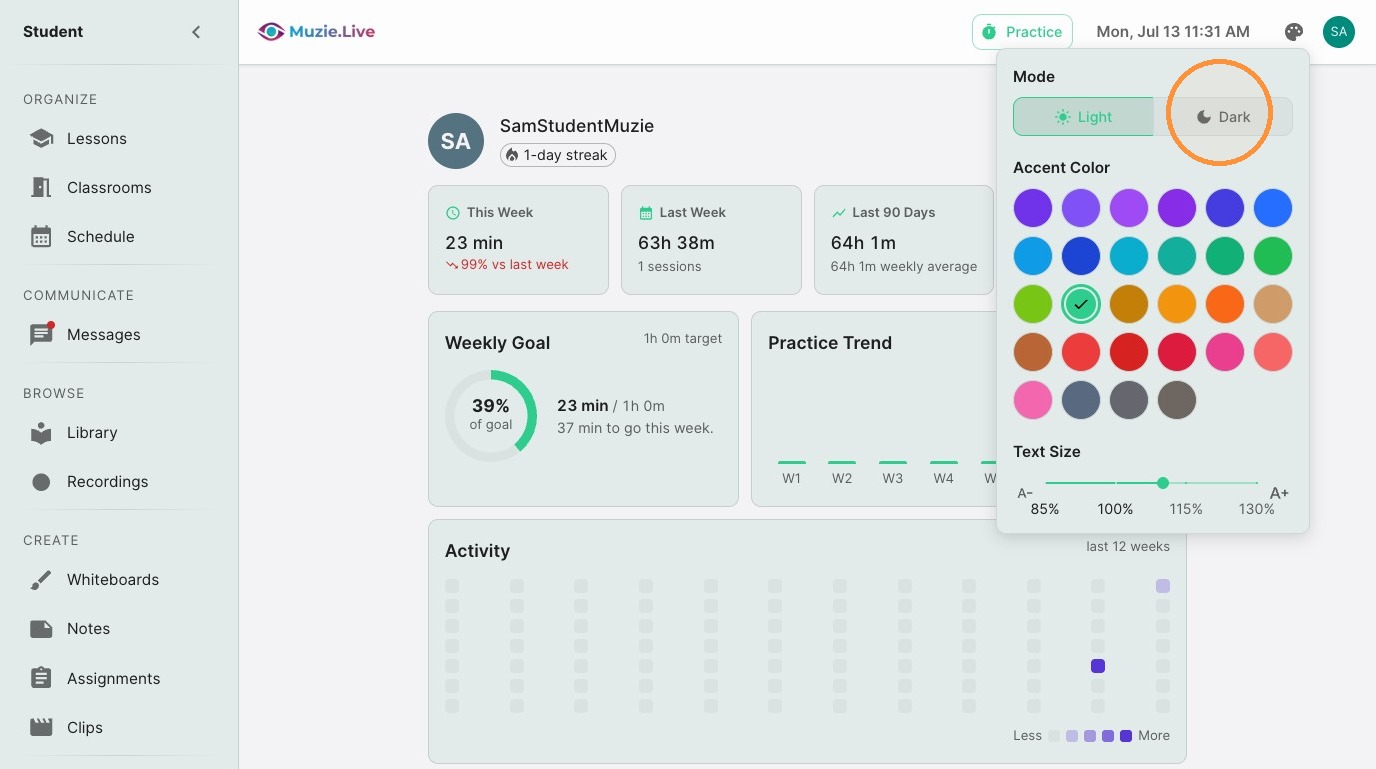
Click "Dark" dark mode
-
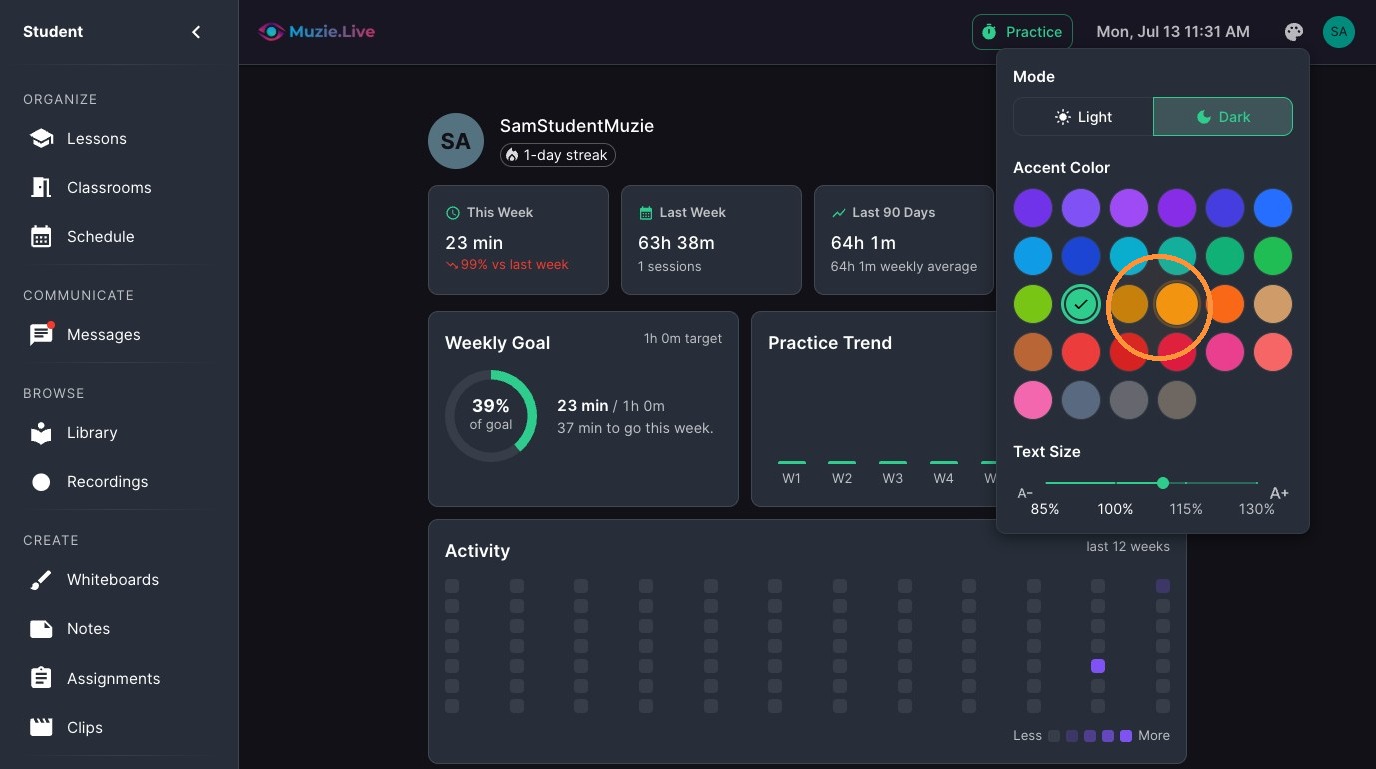
Choose an accent color
-
Adjust the Text Size slider
Profile Updates
-
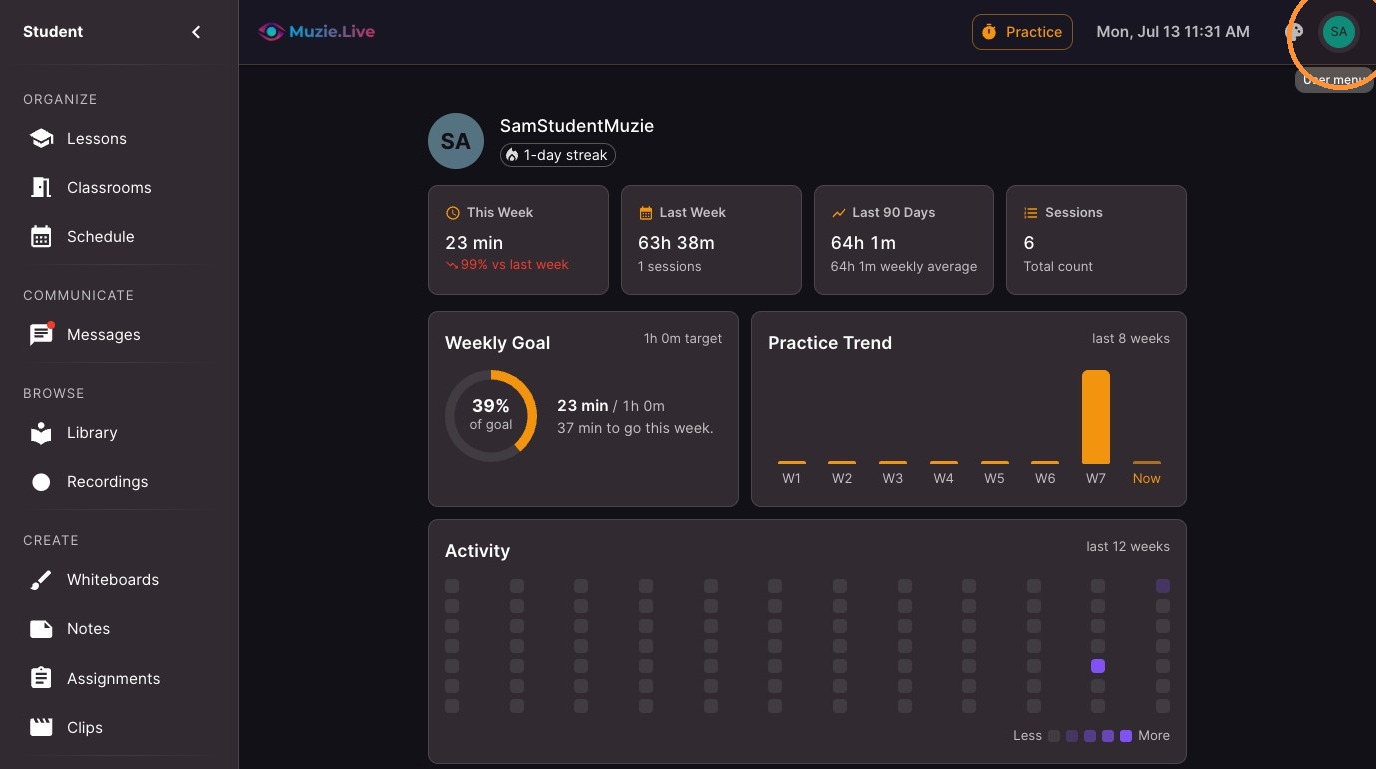
Click the profile icon
-
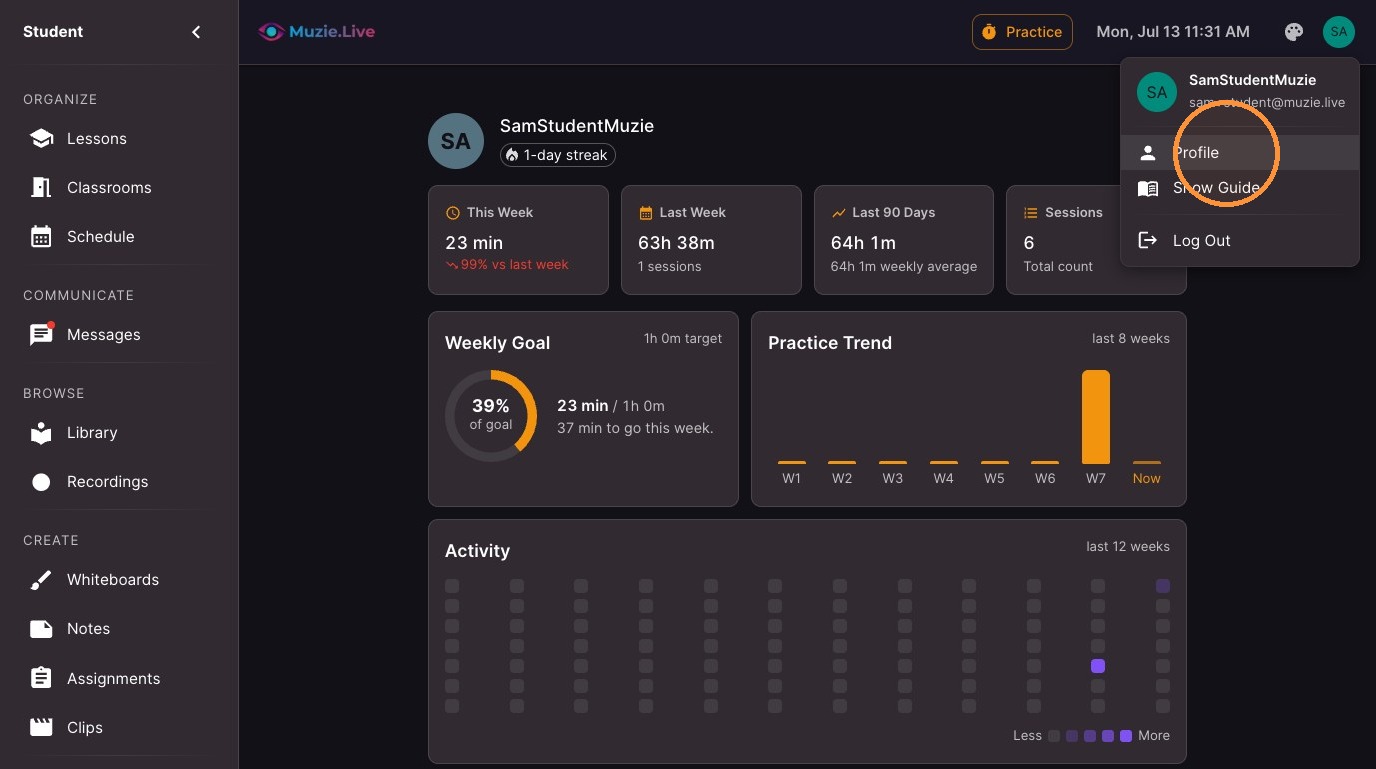
Select "Profile"
-
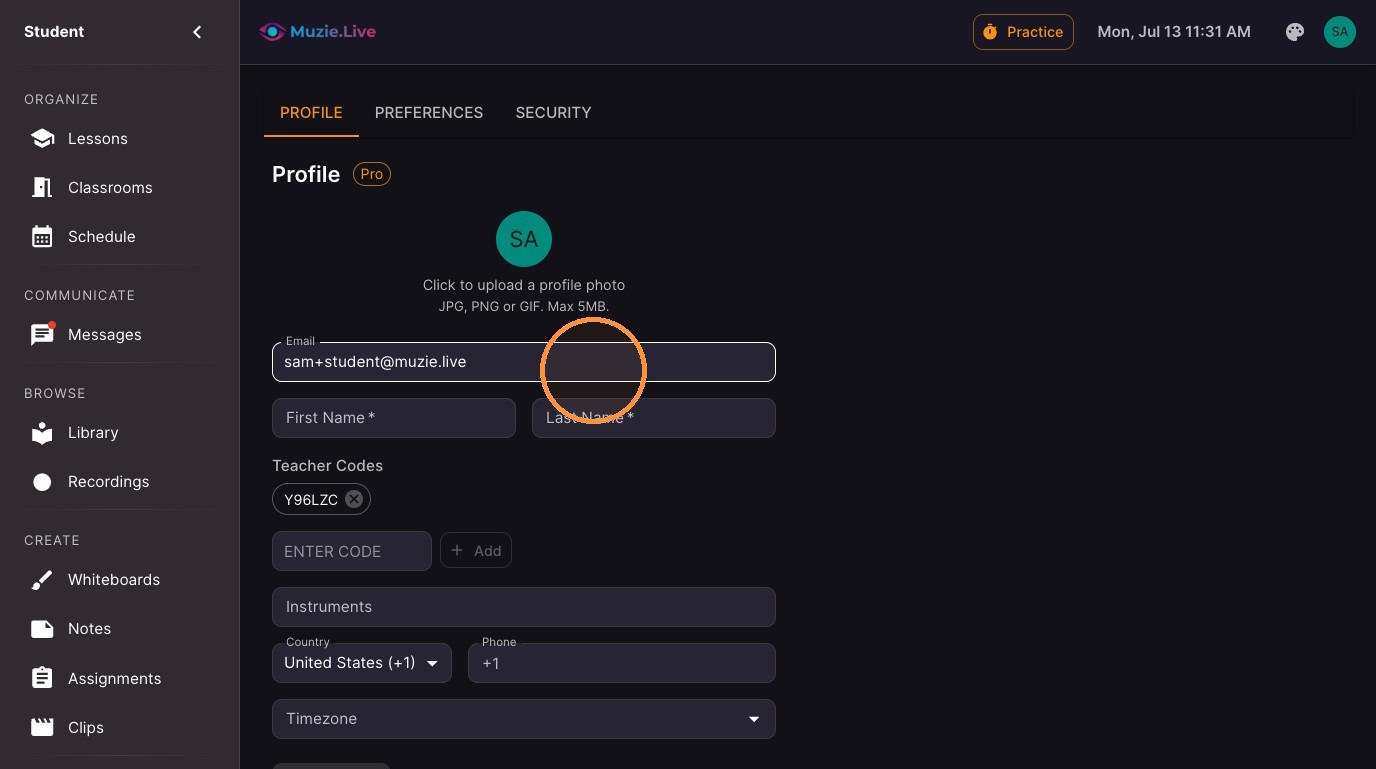
Your email shows here (this can not be changed it is linked to your account log in)
-
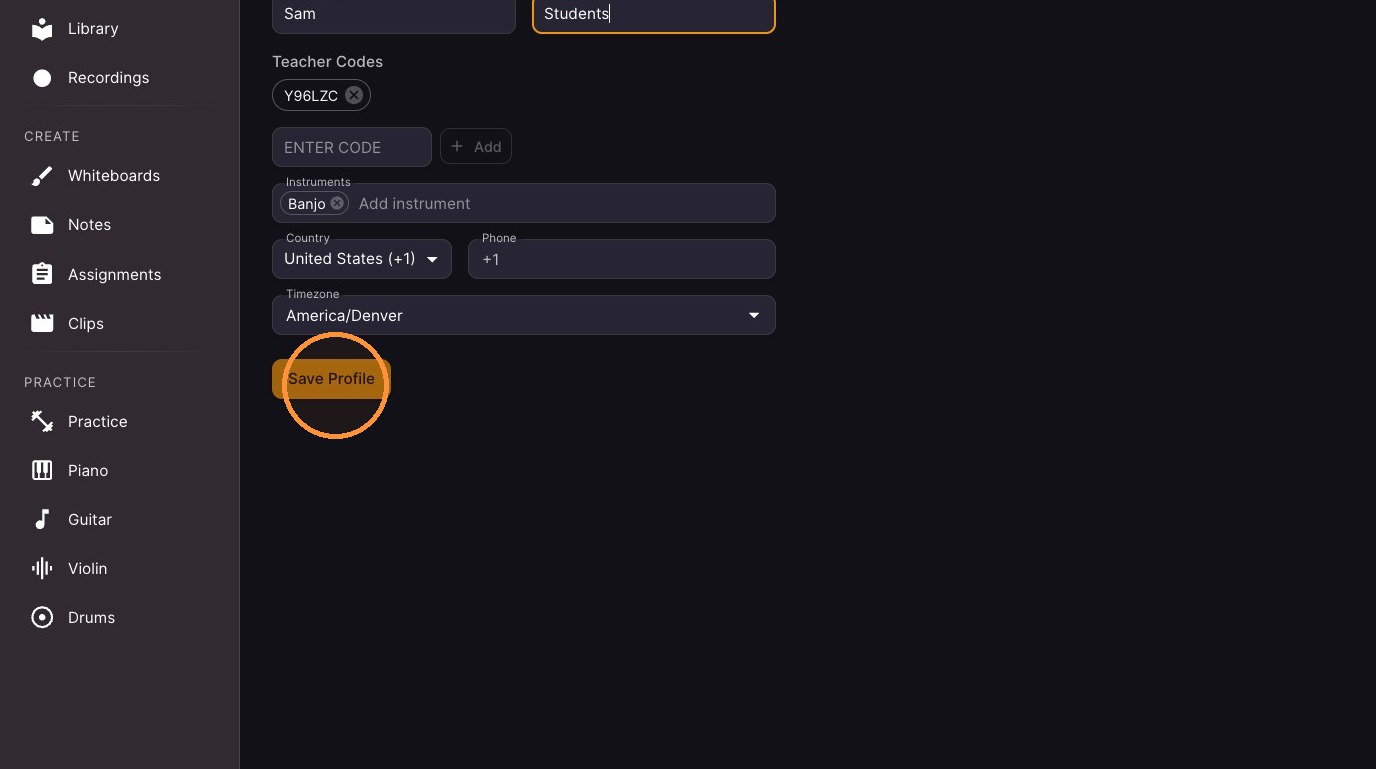
**Optional Enter a Name - this is what your teacher will see you as on their account
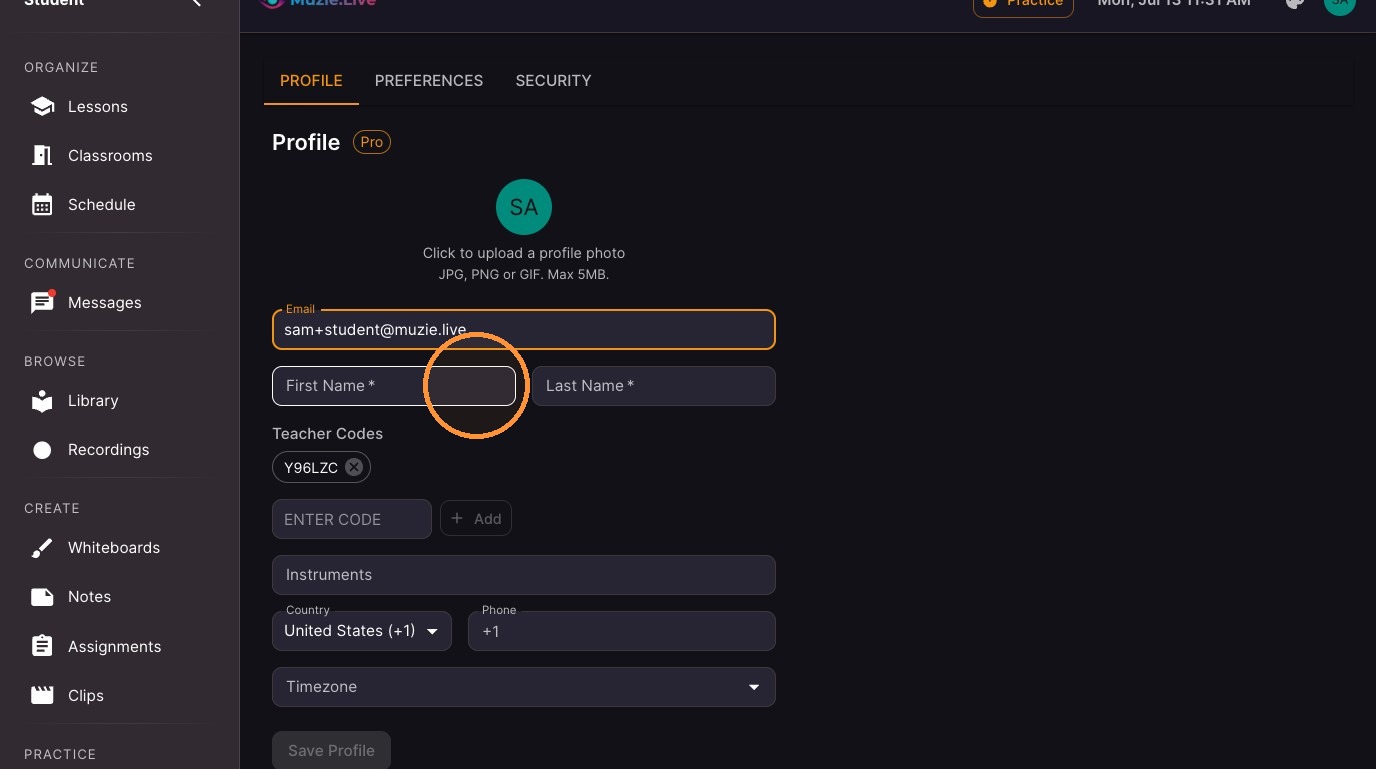
10. This will already have your teacher code - but can be removed or changed if needed
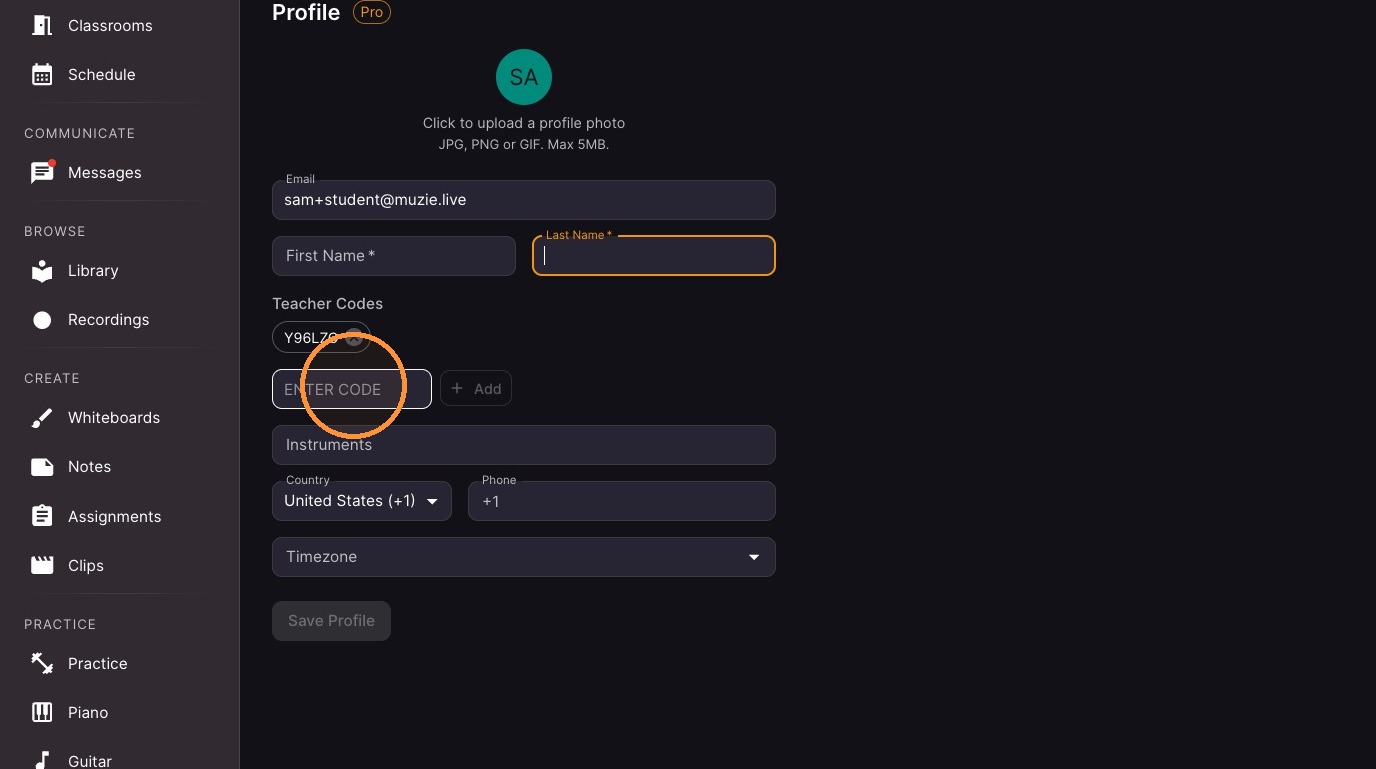
11. **Optional Click the "Instruments" field.
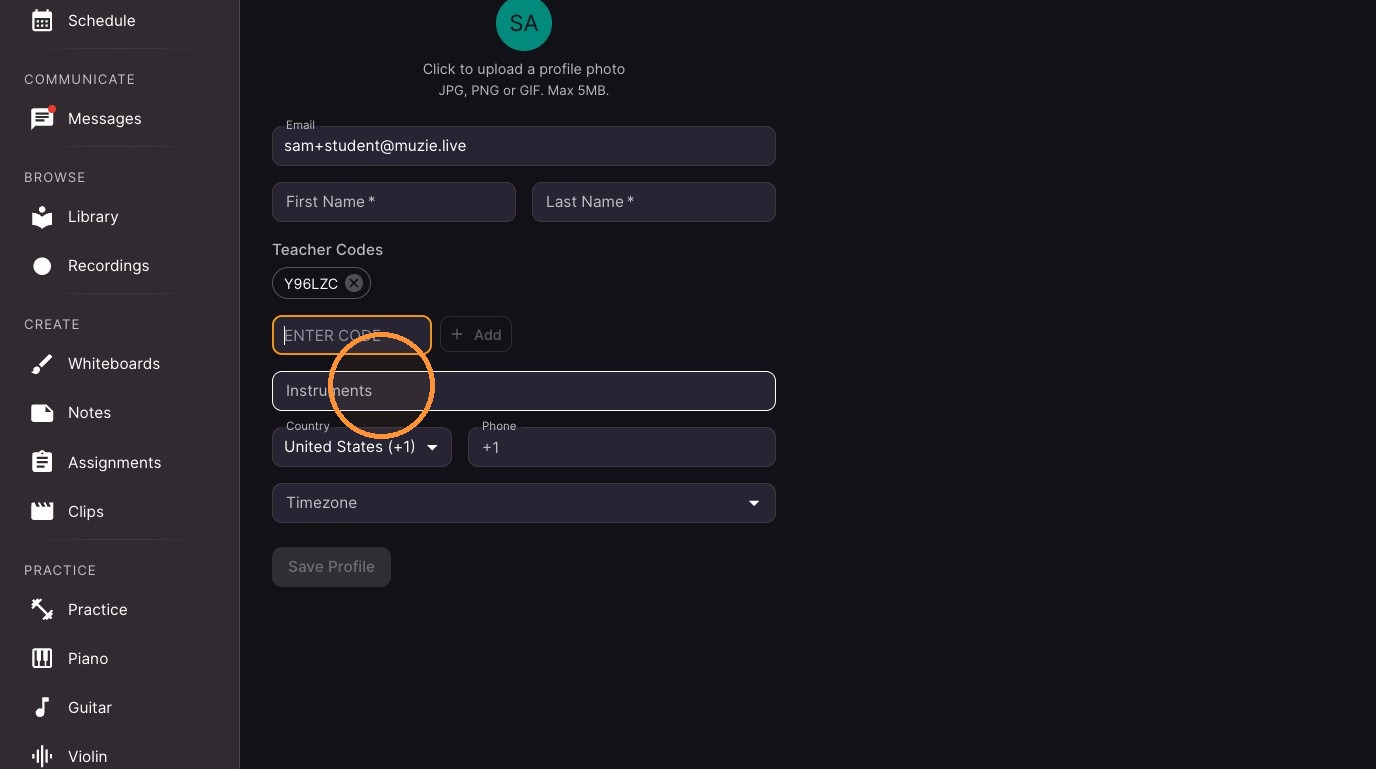
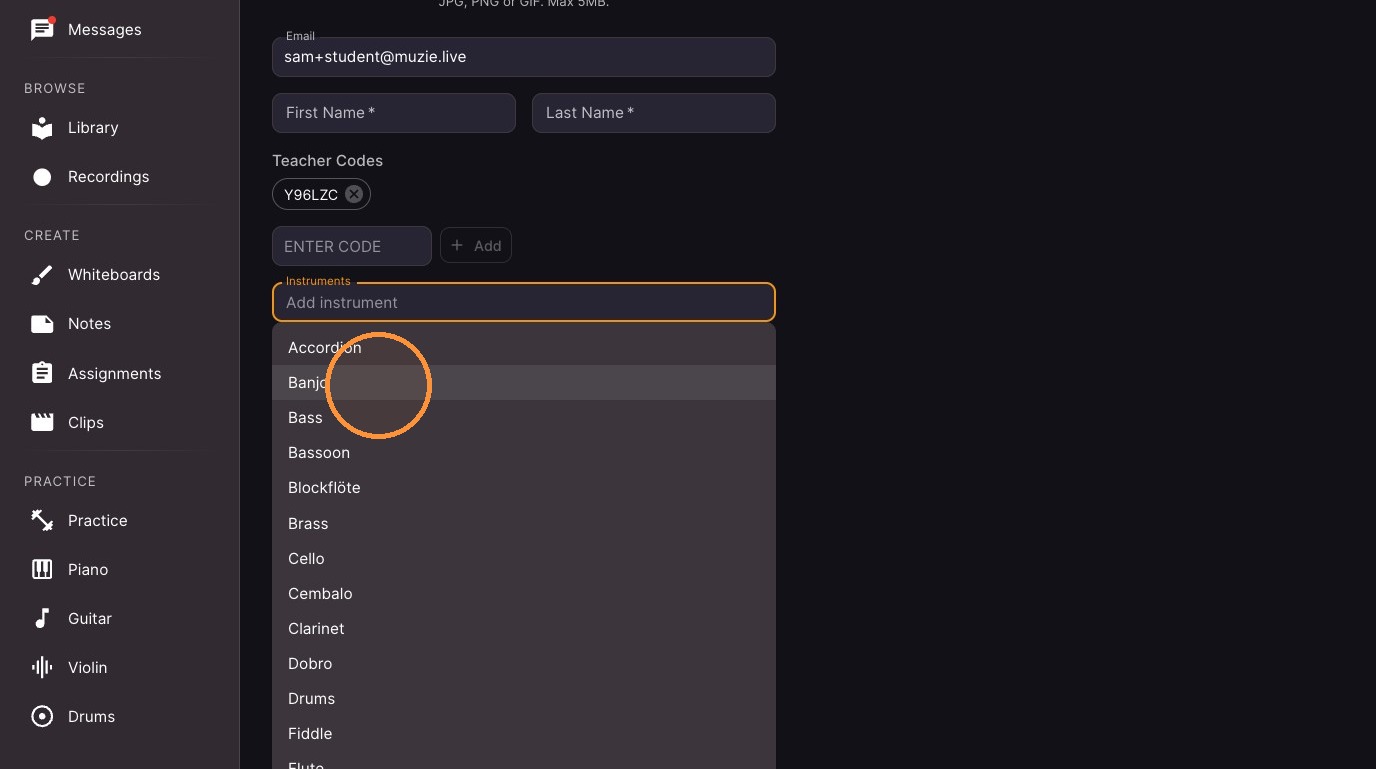
12. **Optional Choose your instrument(s)
13. **Optional Enter a phone number (used for notification and reminders)
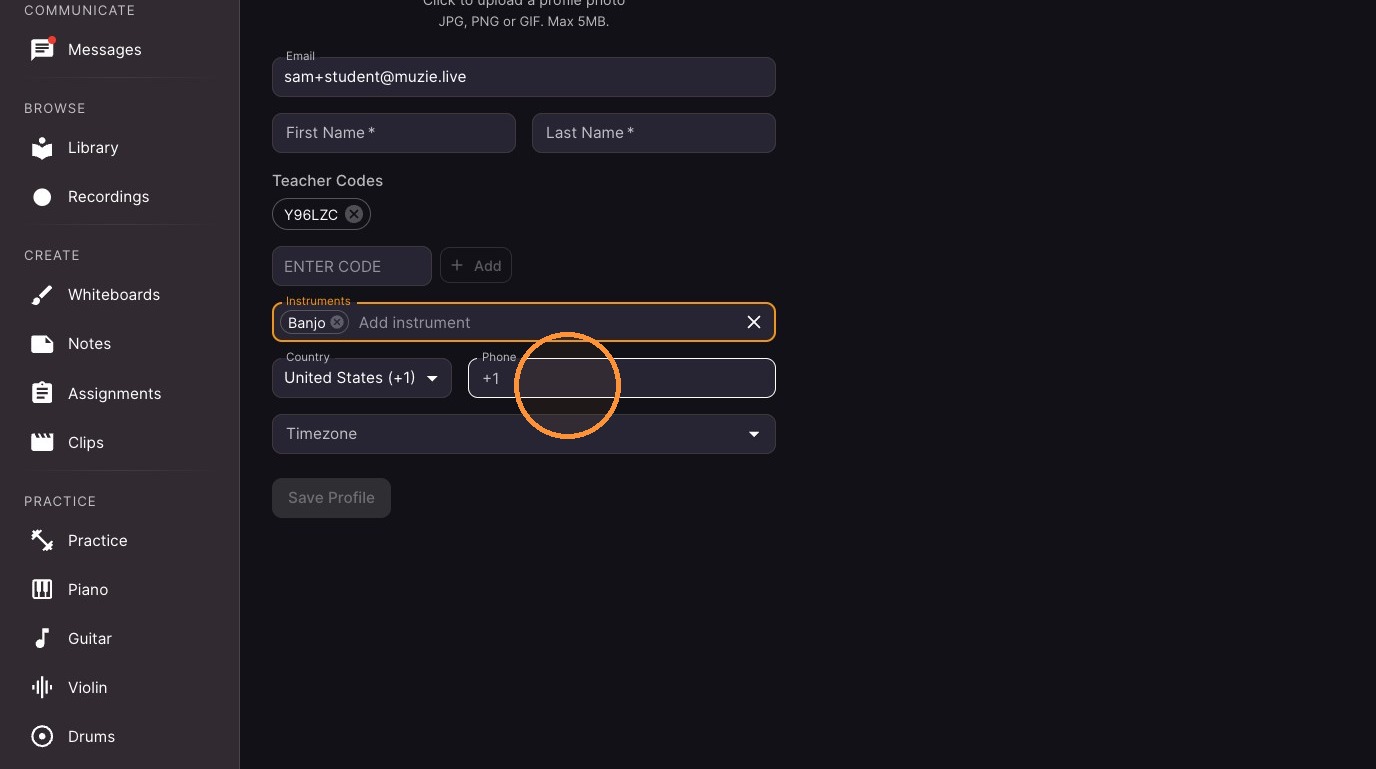
14. Click the "Timezone" field. This makes sure your calendar is showing the correct data/time
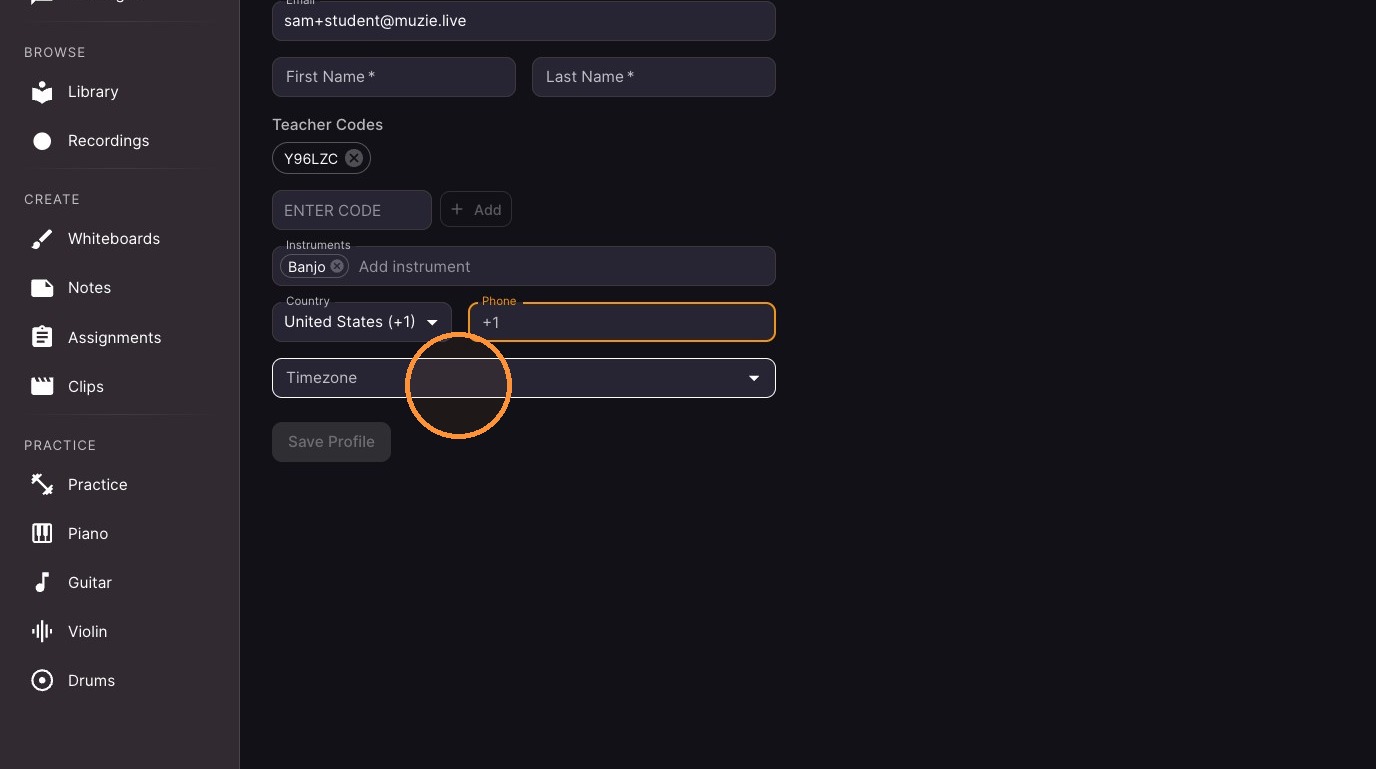
15. Click "Save Profile"
Where to find it: the theme controls are behind the colour-palette icon next to your profile icon at the top of the page. Click it, then choose Light or Dark, an accent colour, and the text size.