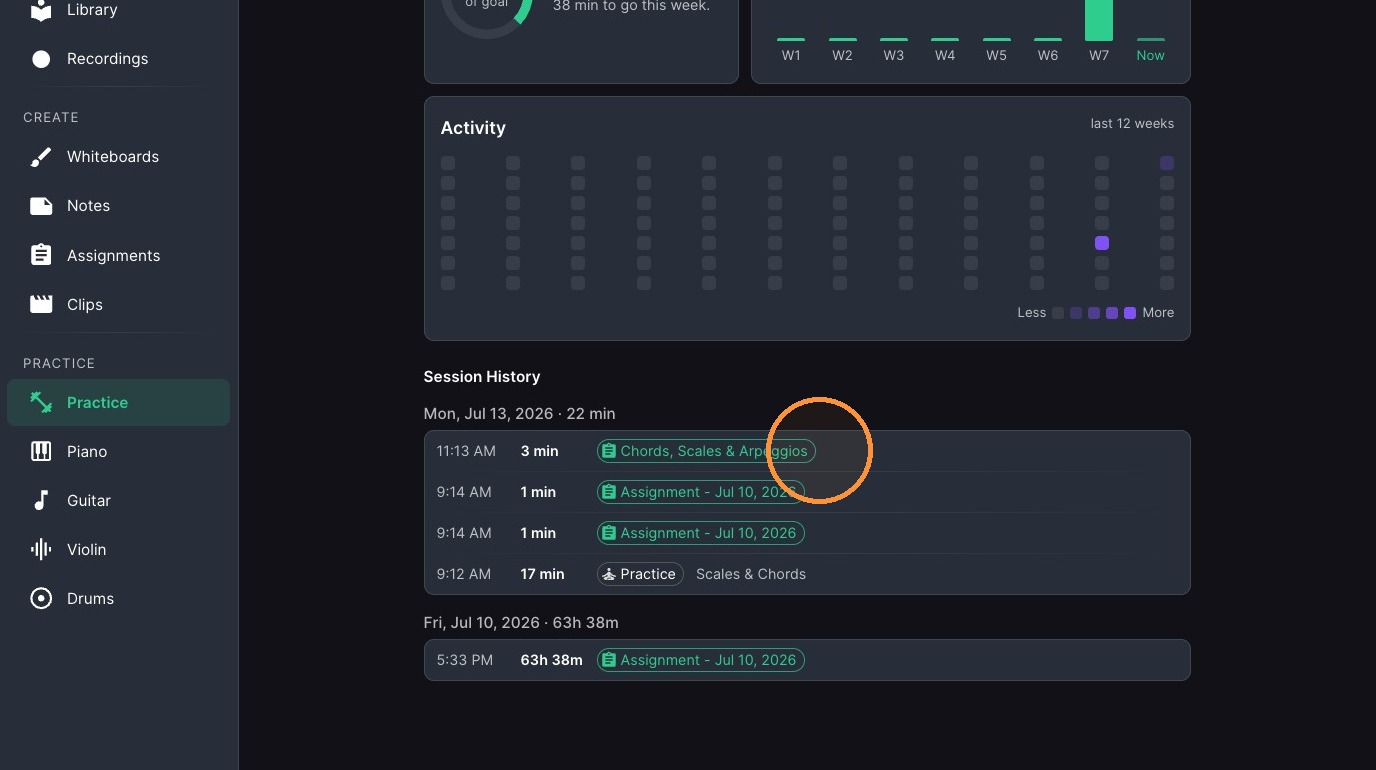
Use your Muzie Practice dashboard to track your practice time and save what you worked on each day. In this guide, you’ll learn how to start and stop the session timer, add notes about what you practiced, and save each session so you can review your weekly totals, goals, and progress over time.
Practice Dashboard Access
-
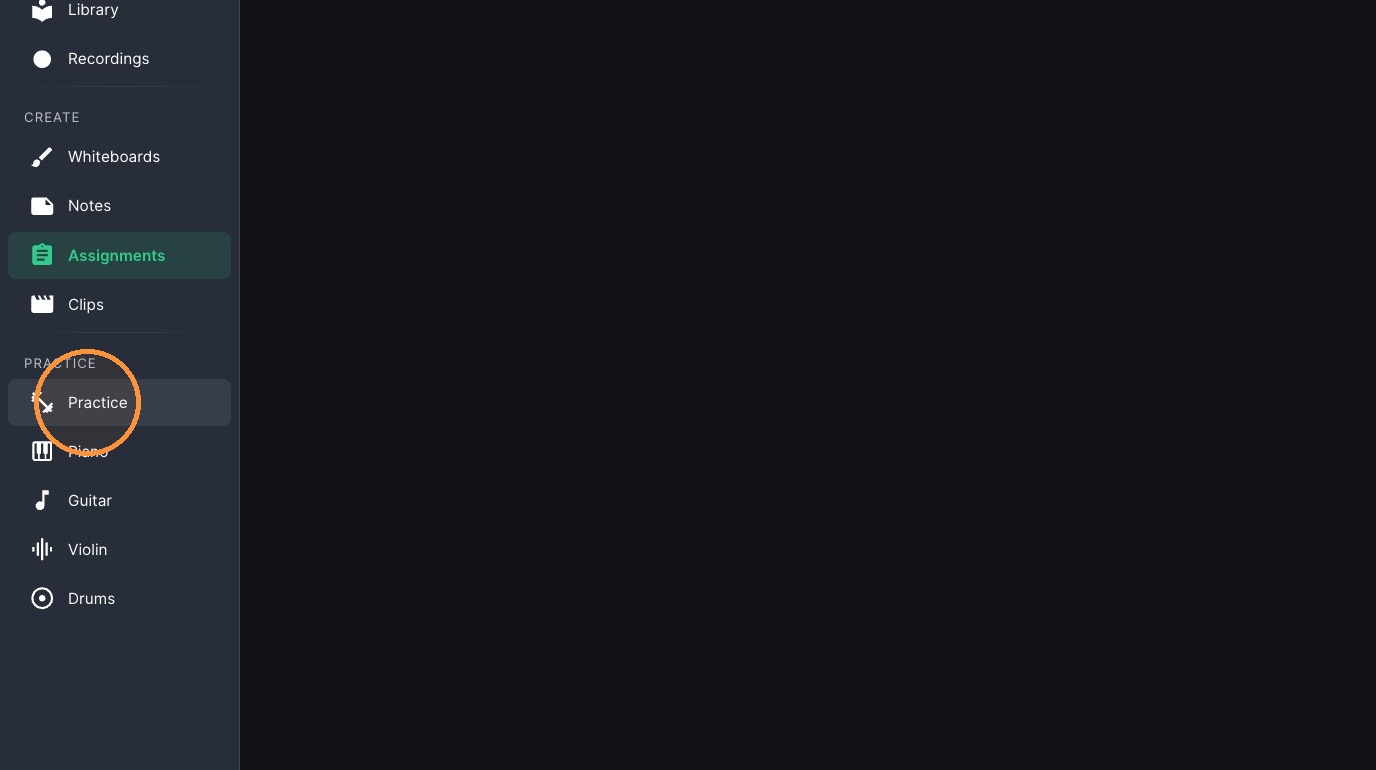
Select "Practice"
-
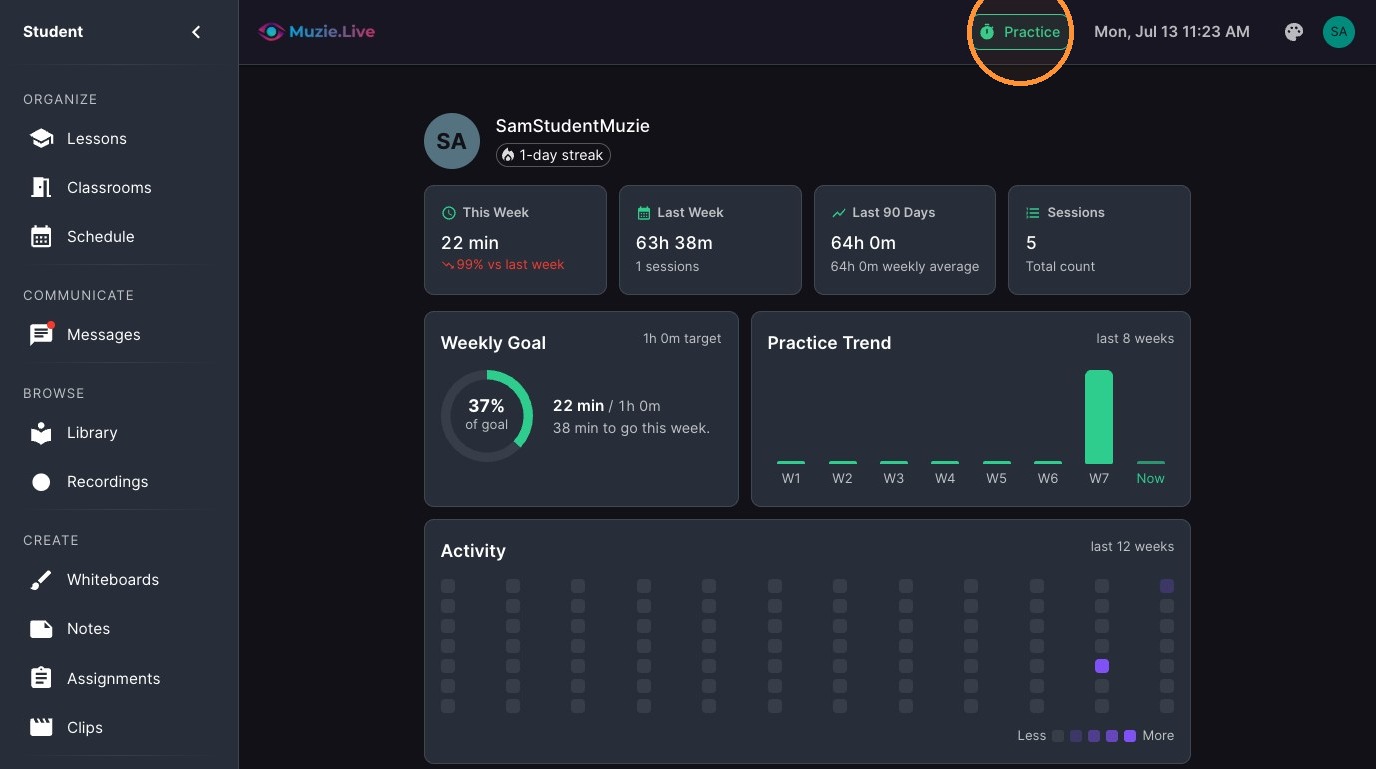
Click "Practice"
Session Timer Management
-
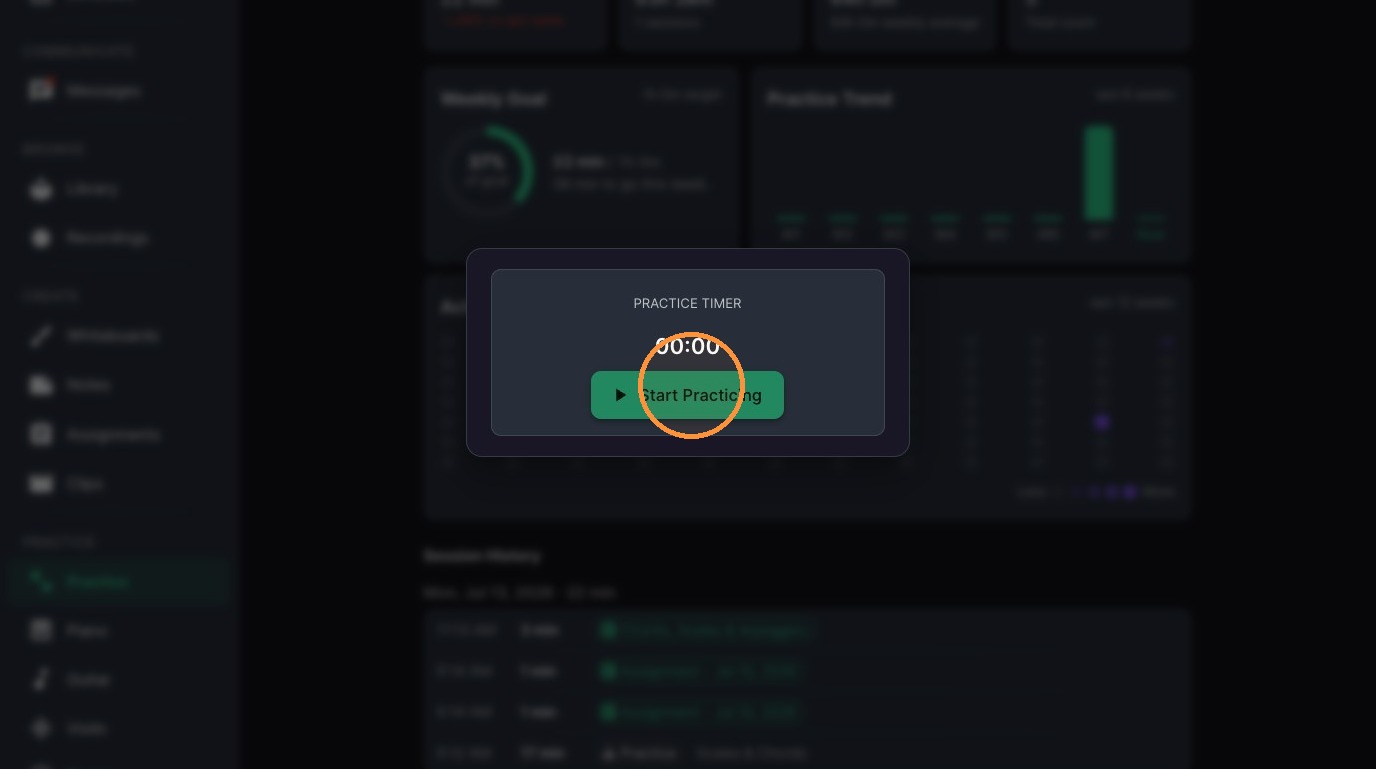
Click "Start Practicing" to start timer.
-
Click "Pause" to pause practice time

-
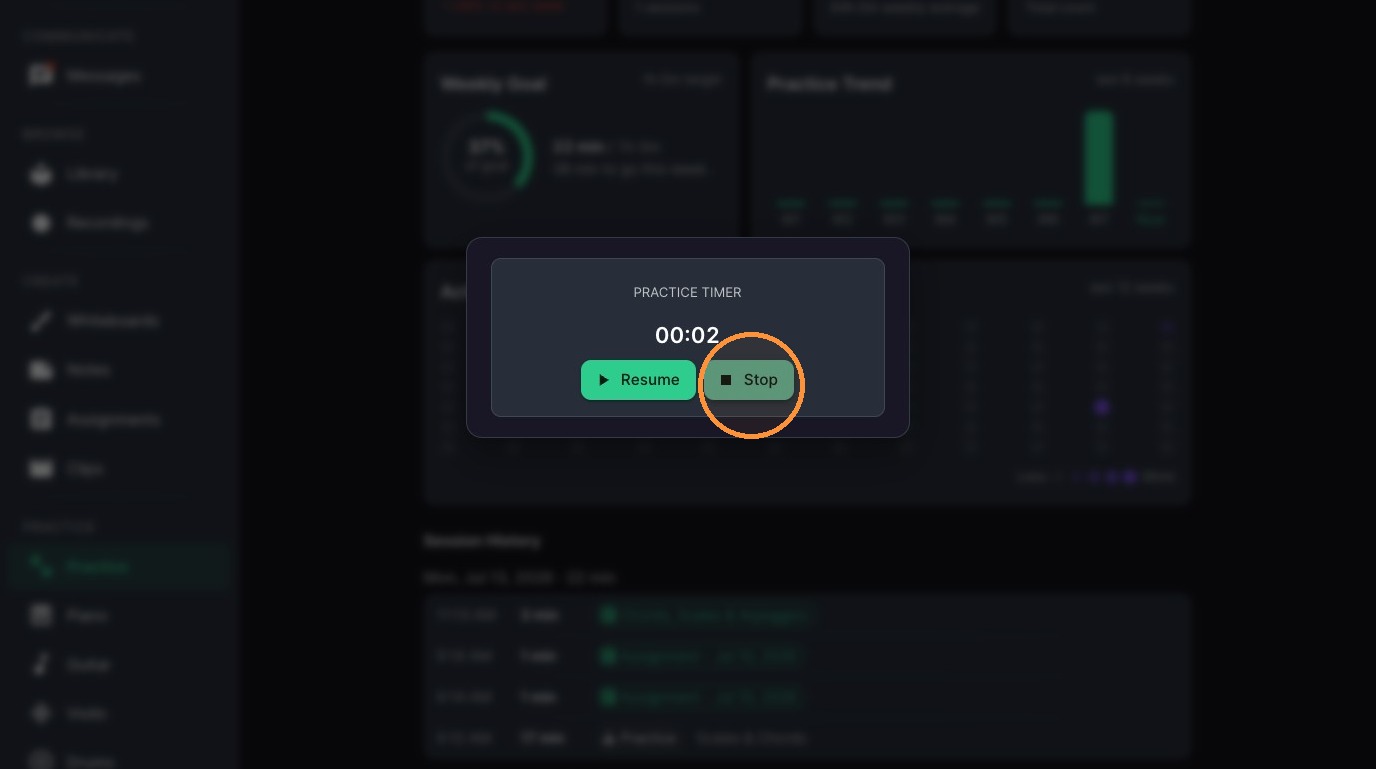
Click "Stop" to end practice session
-
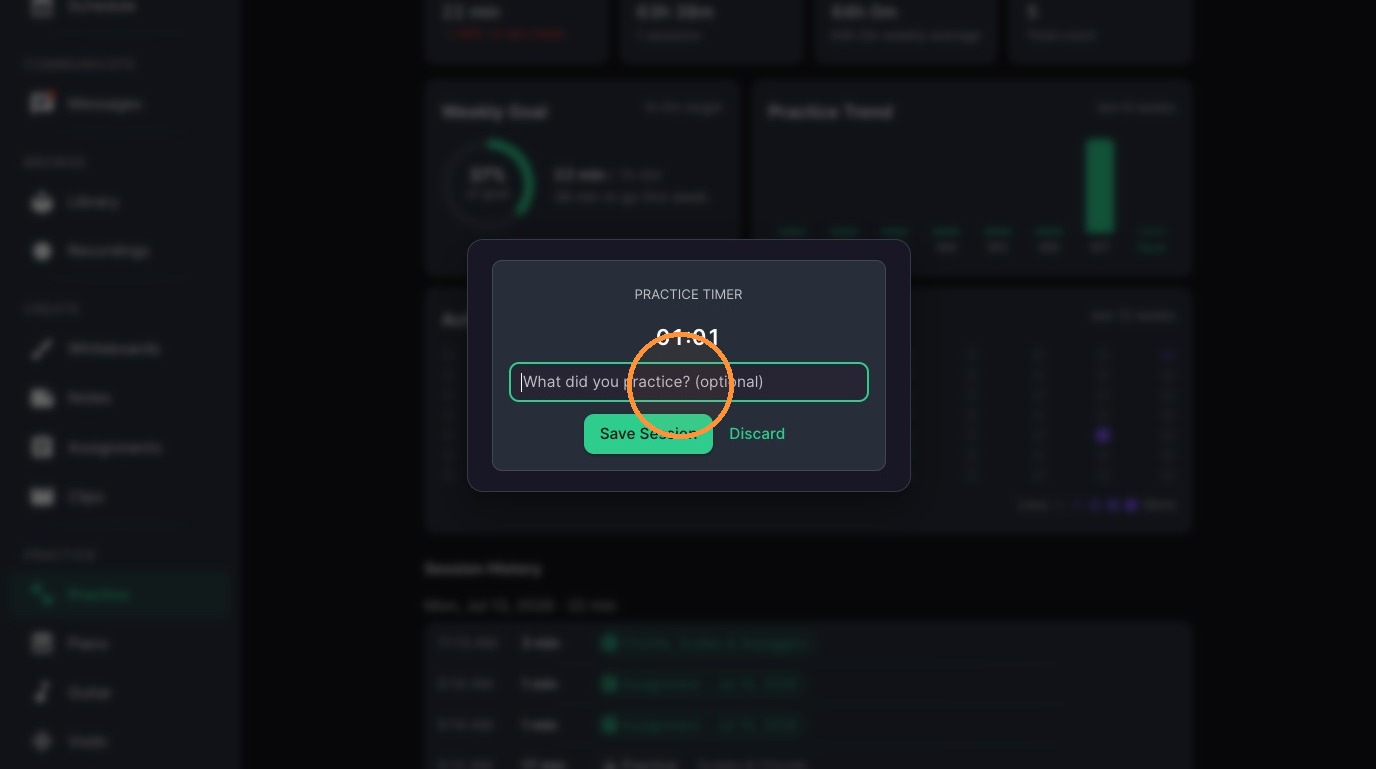
Type what your worked on into the "What did you practice?" field.
-
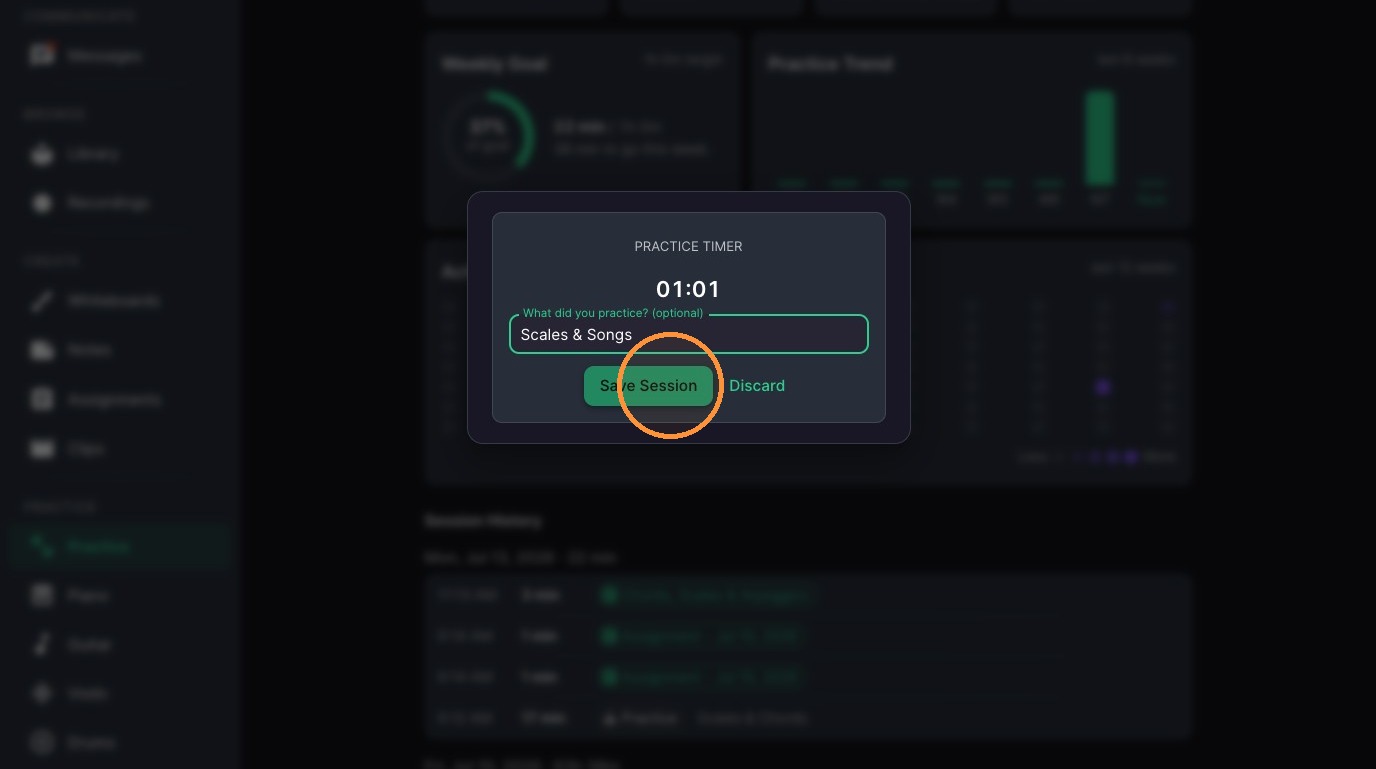
Click "Save Session" to record activity.
-
Click anywhere outside of the timer window to hide this menu

-
Your practice dashboard shows past sessions, weekly totals, goals, and practice trends
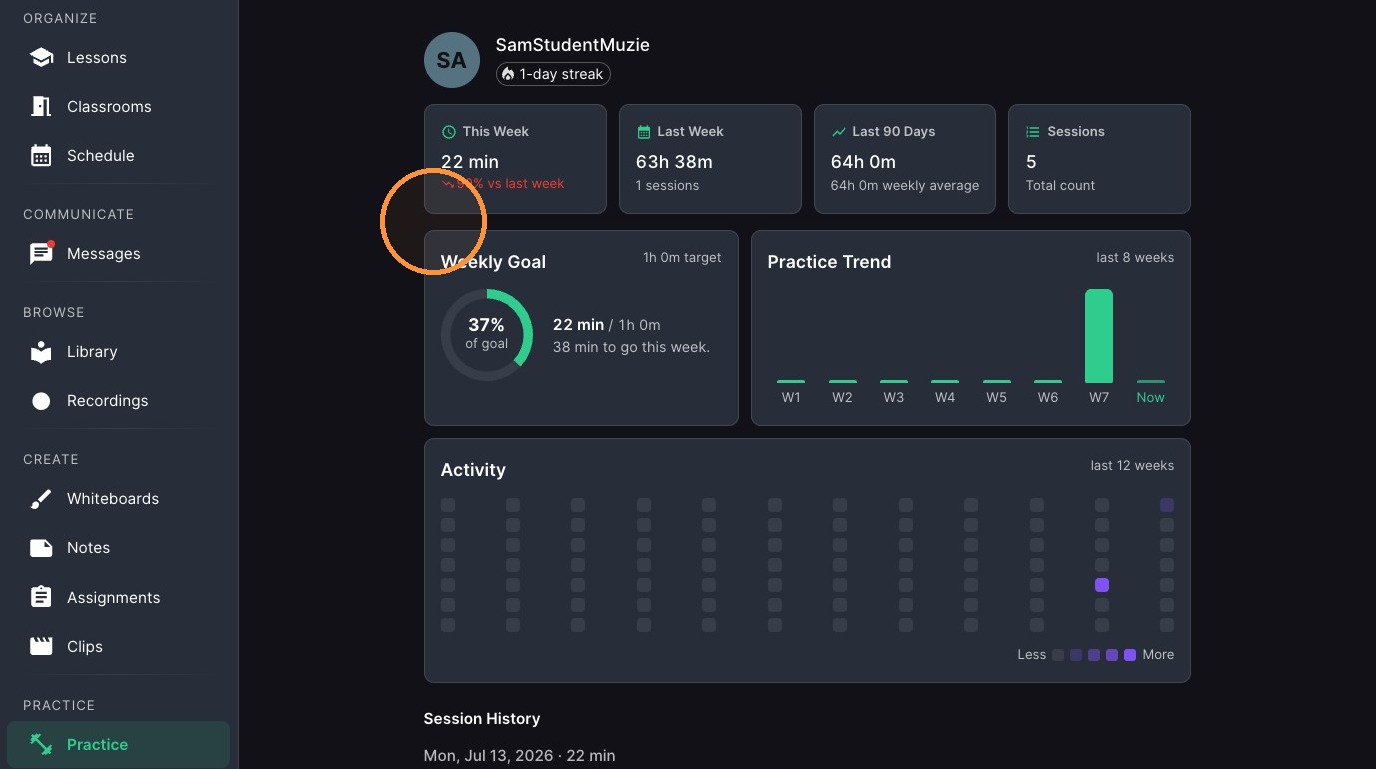
10. Click on past sessions to quickly access those resources