Muzie Help Guides

Practice An Assignment (Students)

Learn how to access your music assignments, attach practice recordings, and track your progress through the Muzie platform. This guide helps you navigate the assignments tools and practice settings to ensure you stay on top of your musical goals.


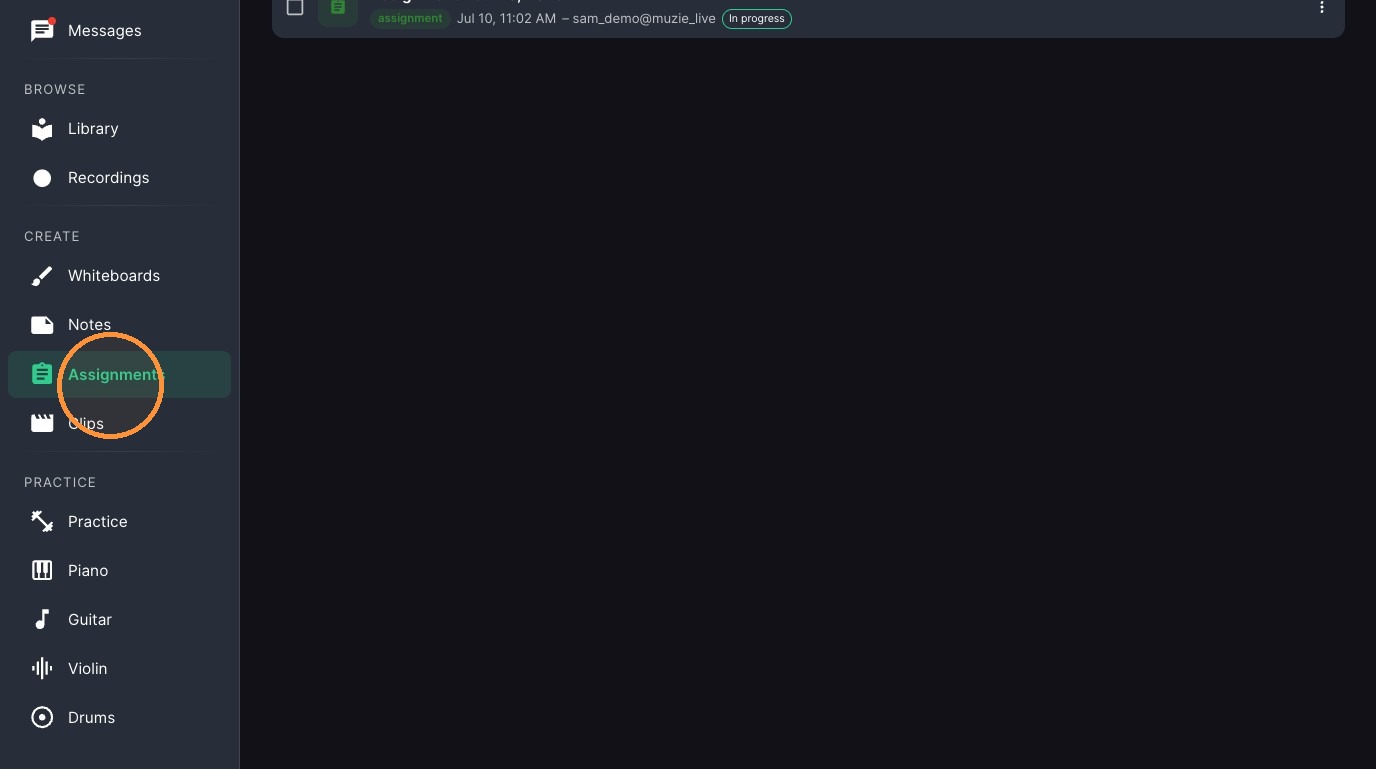
  1. Click "Assignments"

ascreenshot_40bf2f4492364ab4b4695594968050a5_text_export.jpeg

Assignment Selection

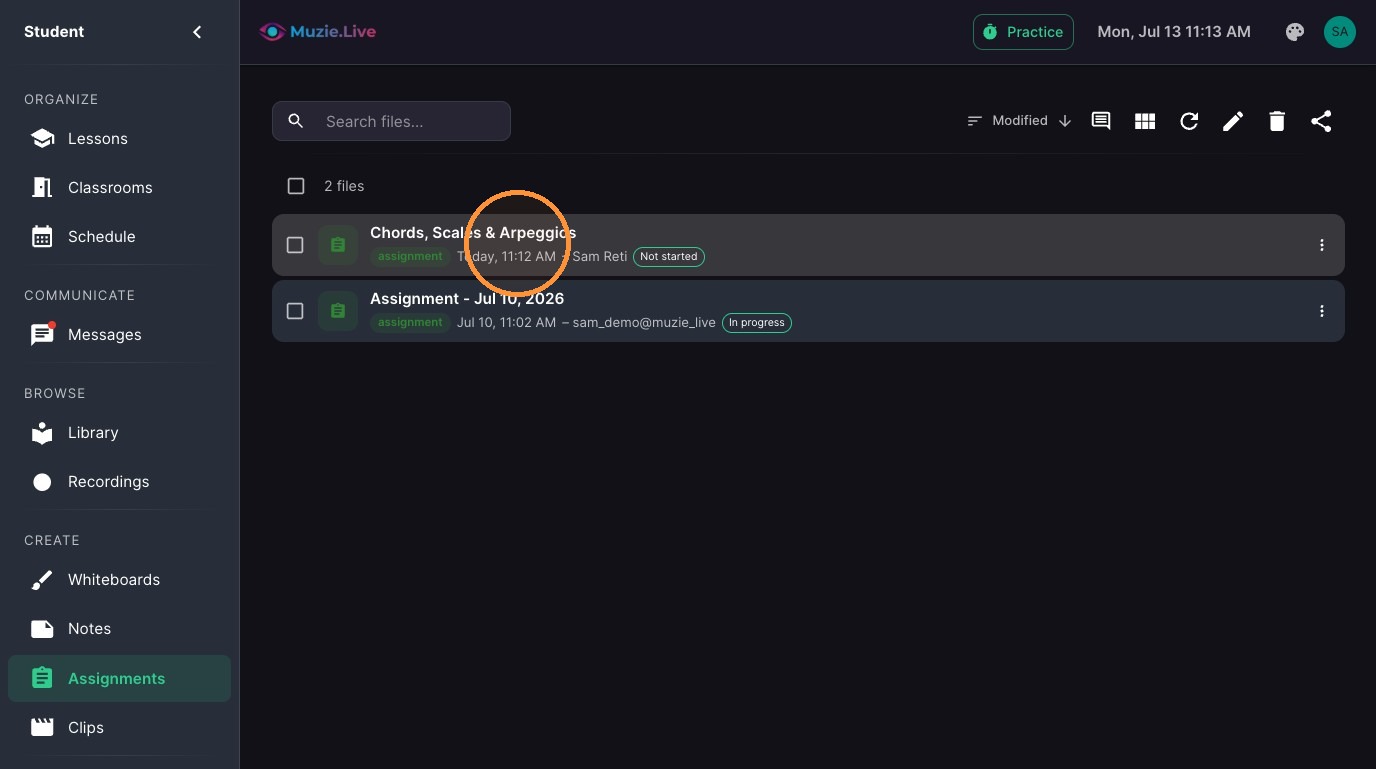
  1. Double-click the assignment.

ascreenshot_5badad7e82a747f6a5bc9d602ae7dd3a_text_export.jpeg

Assignment Review

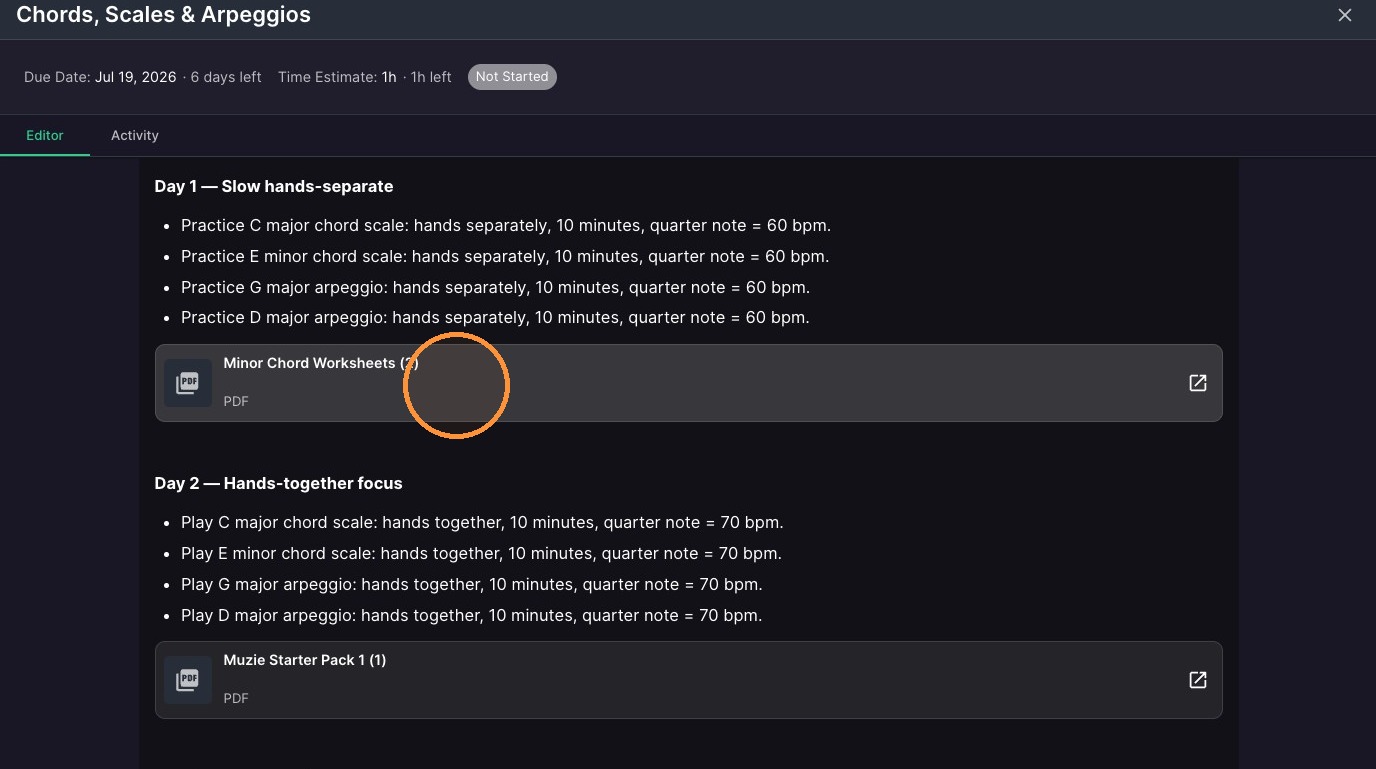
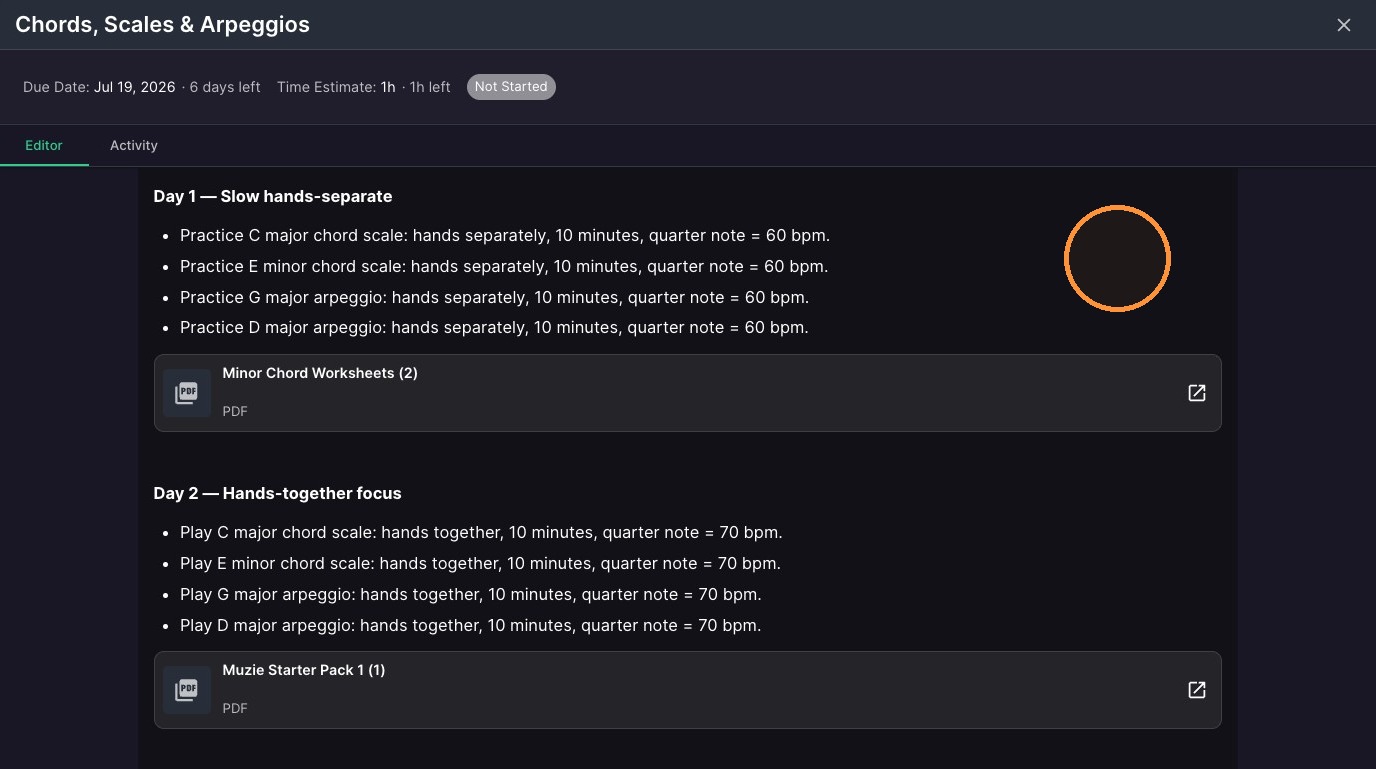
  1. Your instructions and files will show on the first page
ascreenshot_bcf09540cc8a4781a81d71e068290642_text_export.jpeg
  1. Click on file to open it

ascreenshot_de90822d3bd0495281b058f8521ea4a6_text_export.jpeg
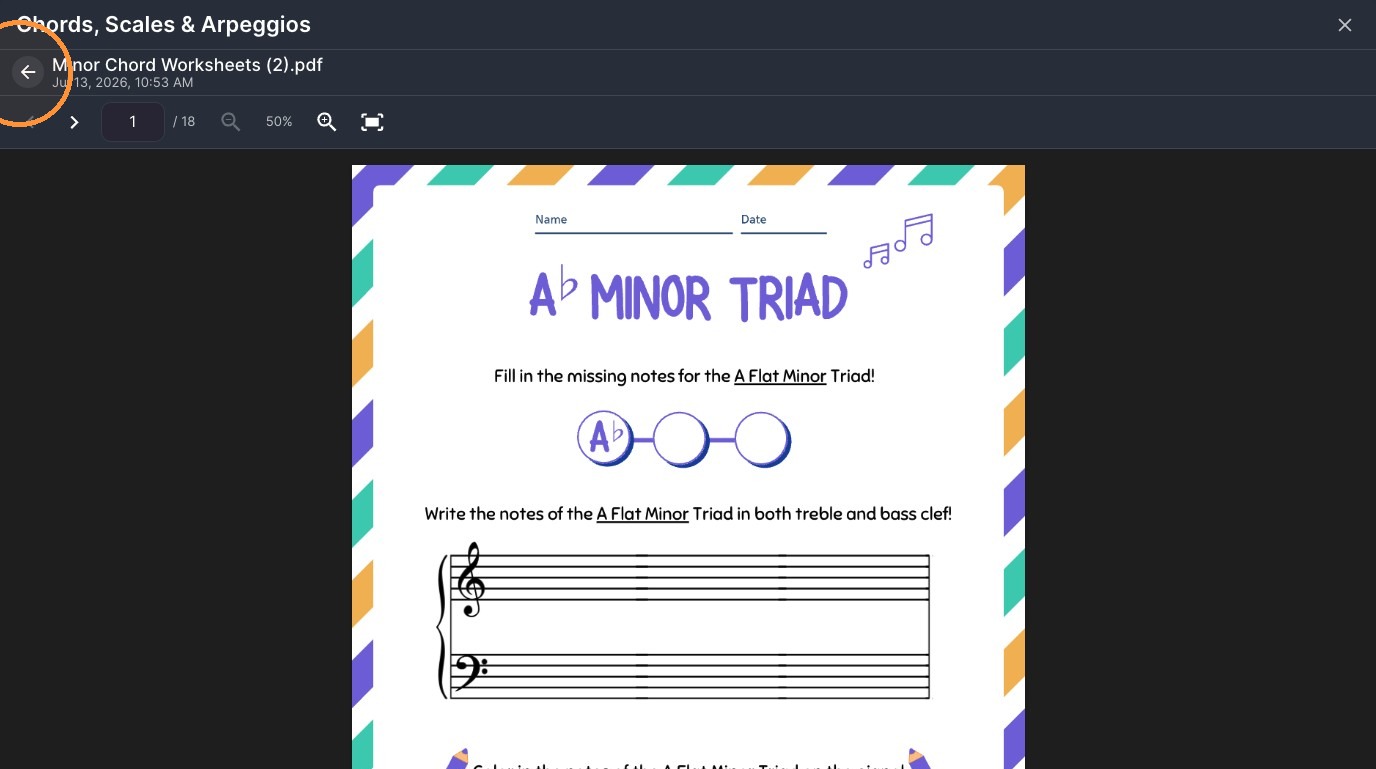
  1. Click back arrow to exit PDF viewer.

ascreenshot_4526848b3d0c4f3b88d630ceabecf3f1_text_export.jpeg
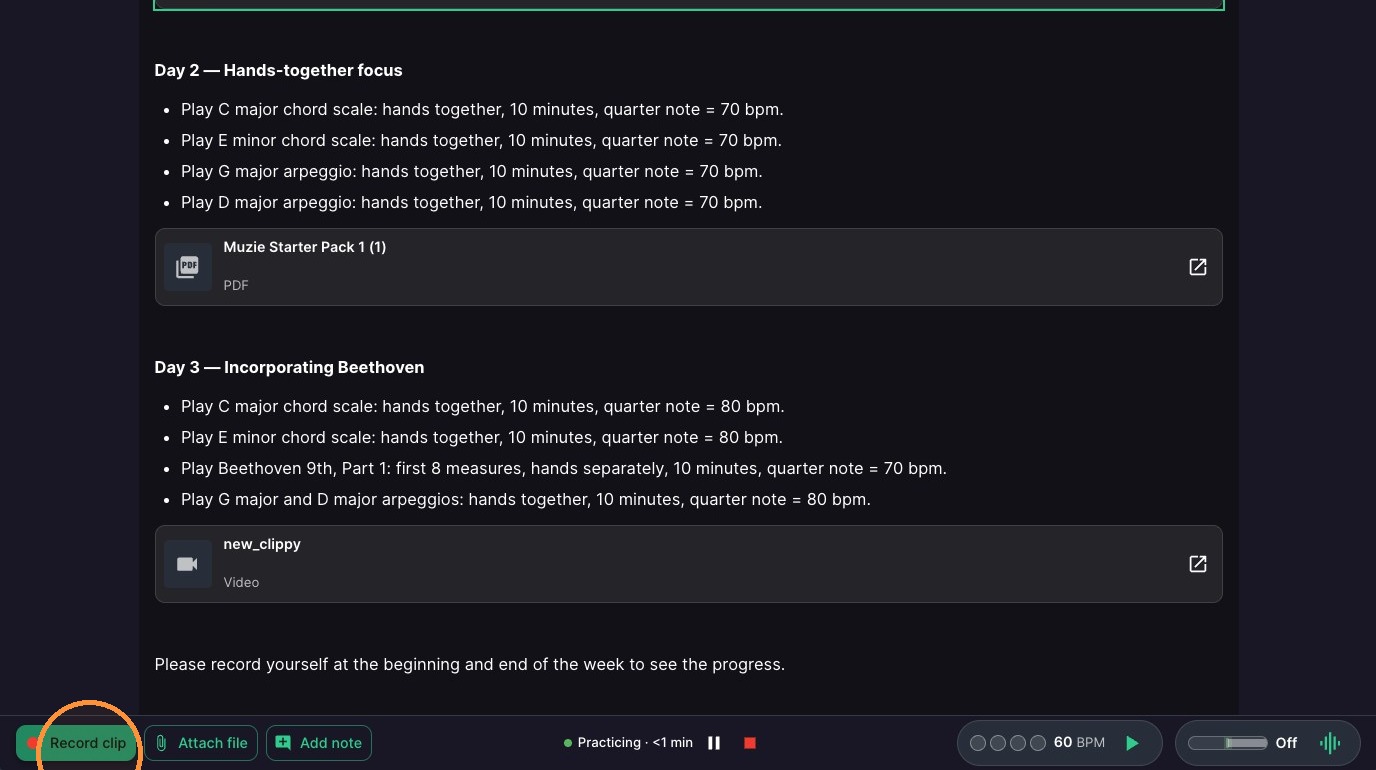
  1. Click "Record clip" to record yourself practicing
ascreenshot_184473e45d114f66b4af790bf9c1a74e_text_export.jpeg
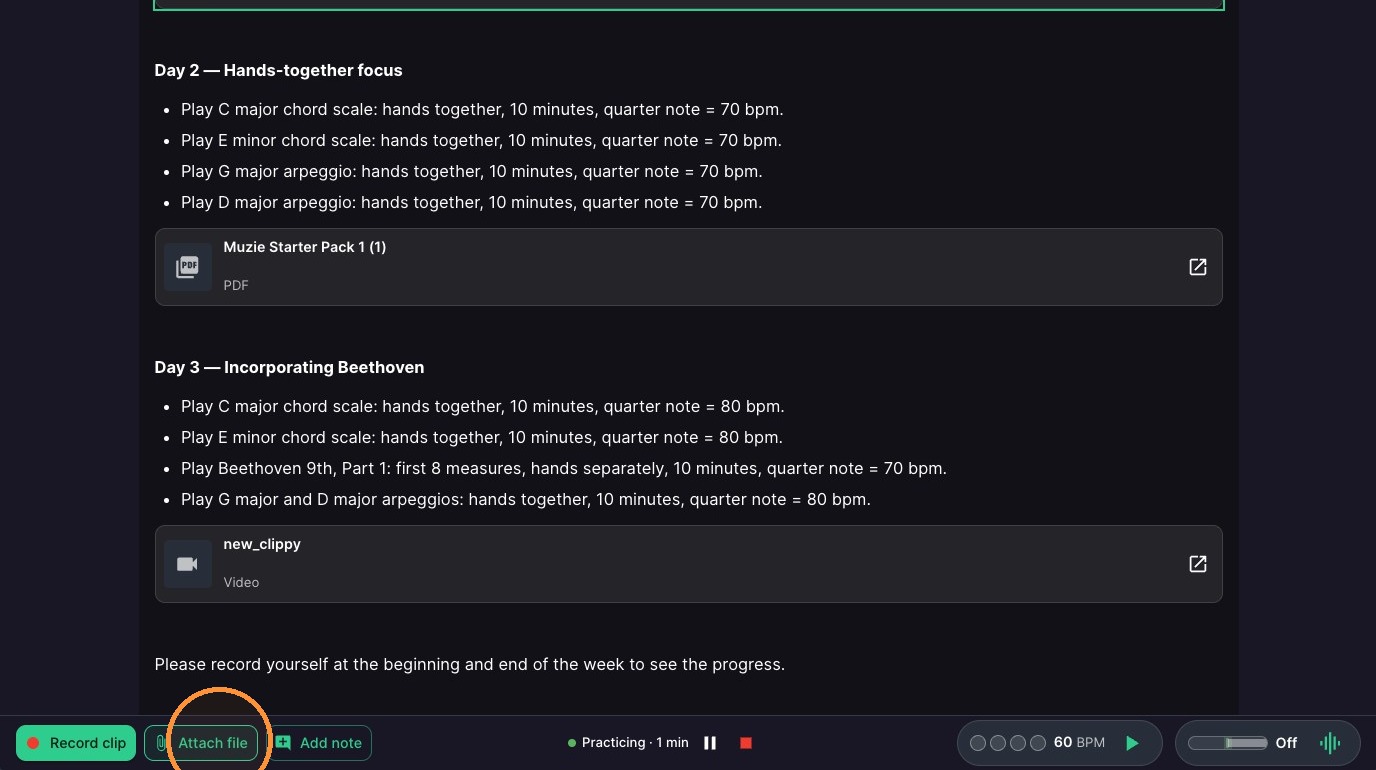
  1. Click "Attach file" to upload a file of your own into an assignment
ascreenshot_56683e74f5694ae78aea8e312df8bf69_text_export.jpeg

Adding Notes

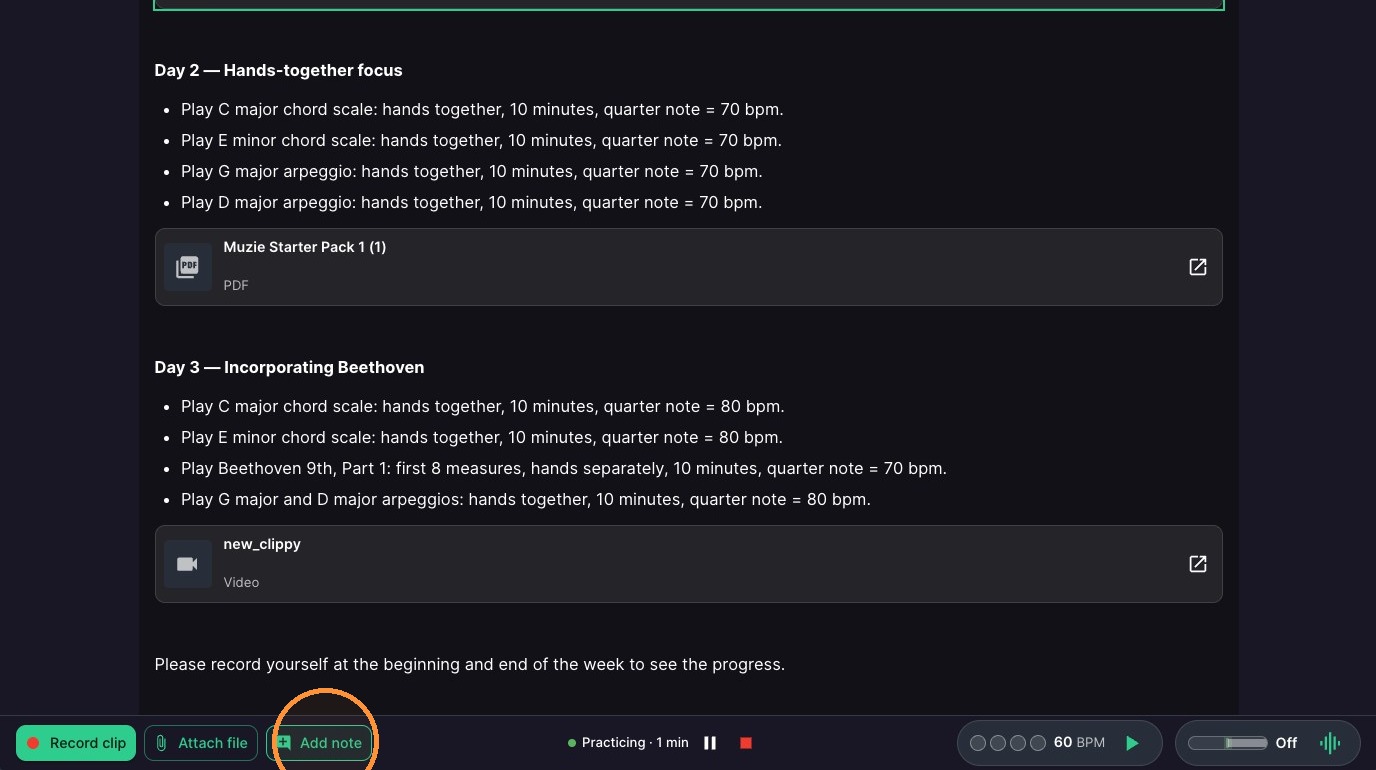
  1. Click "Add note"

ascreenshot_35725abe8c354d828561ecd15610fd48_text_export.jpeg
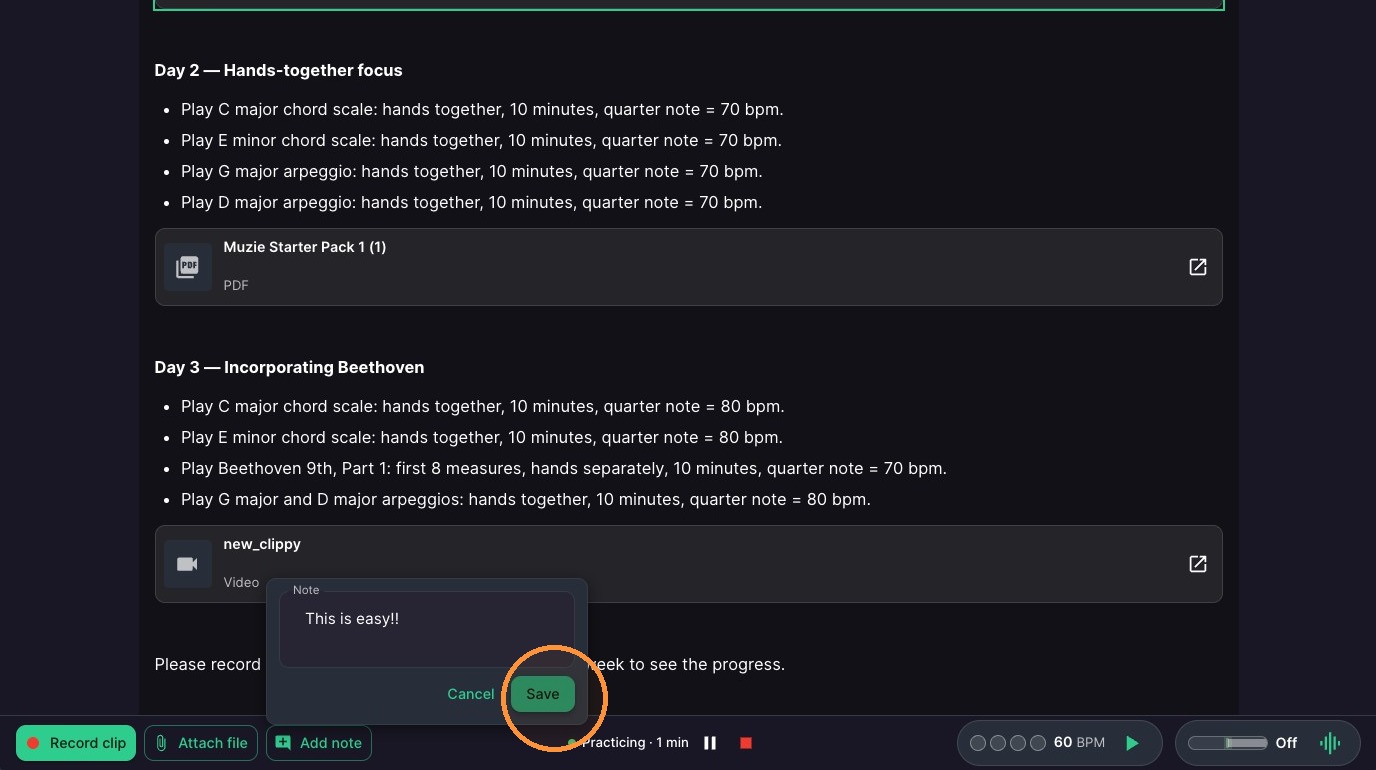
  1. Type a note

10. Click "Save"

ascreenshot_12db7f00e0e24d56b81fdb3663021f96_text_export.jpeg

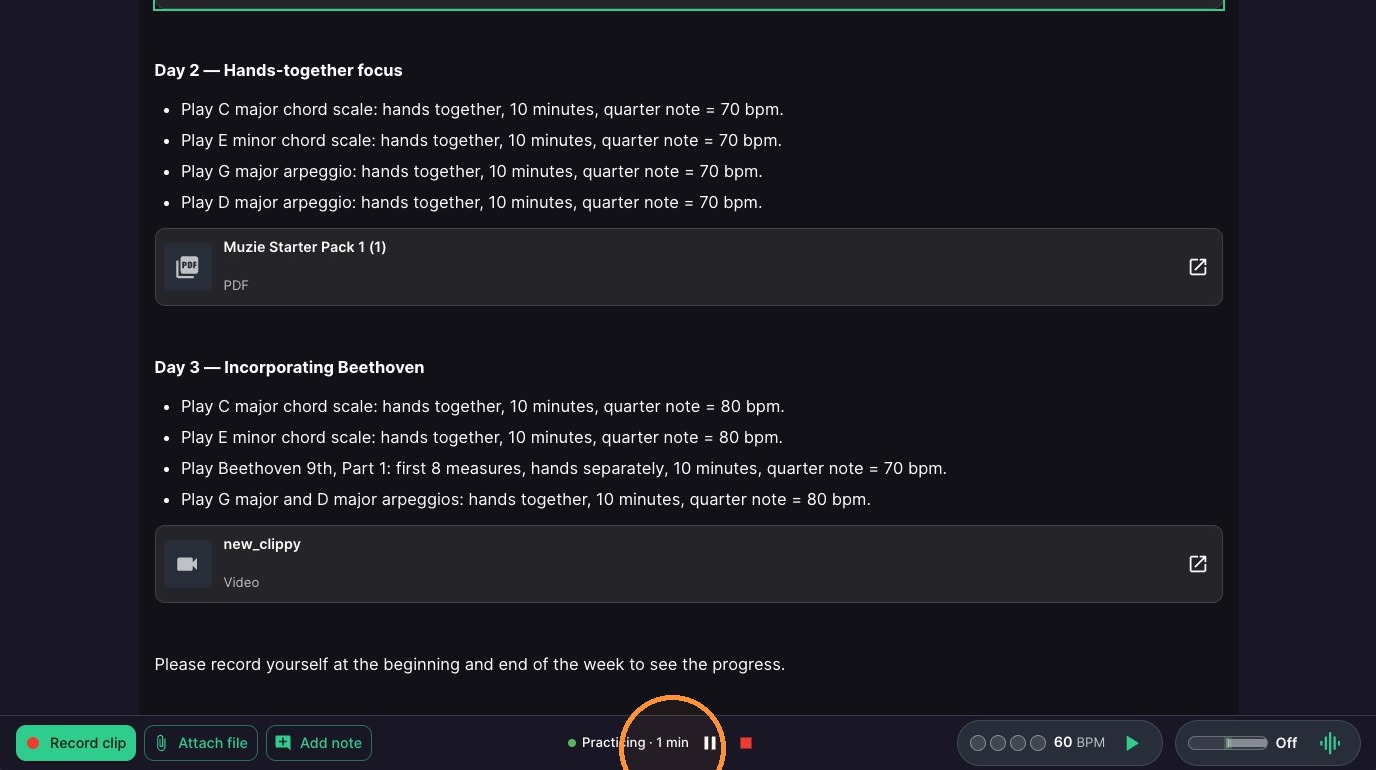
11. Practice timer starts when you open the assignment - pause or end practice here
ascreenshot_27aa67d93dc04ca3ae594974979193c6_text_export.jpeg

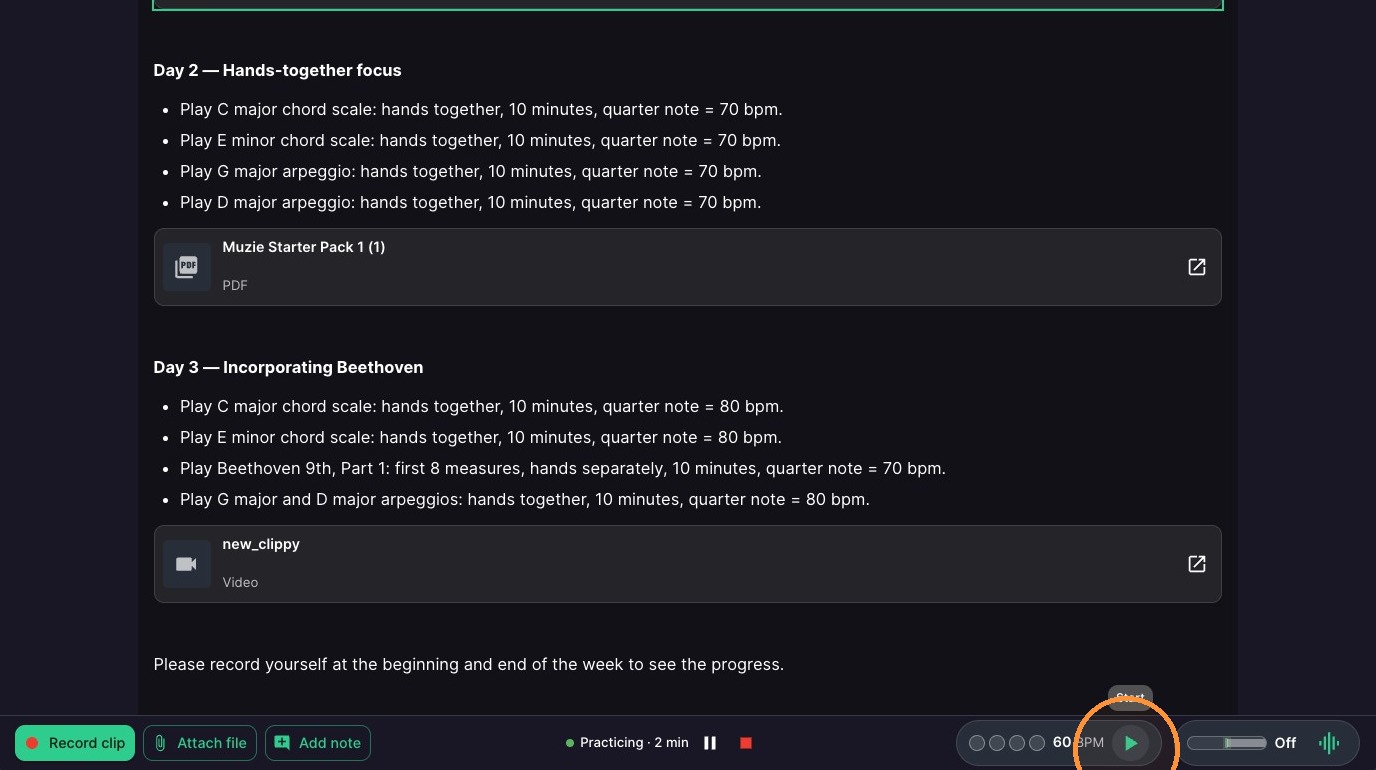
12. Start metronome

ascreenshot_6e6d01aeecd74d999e63acf7d91b9f21_text_export.jpeg

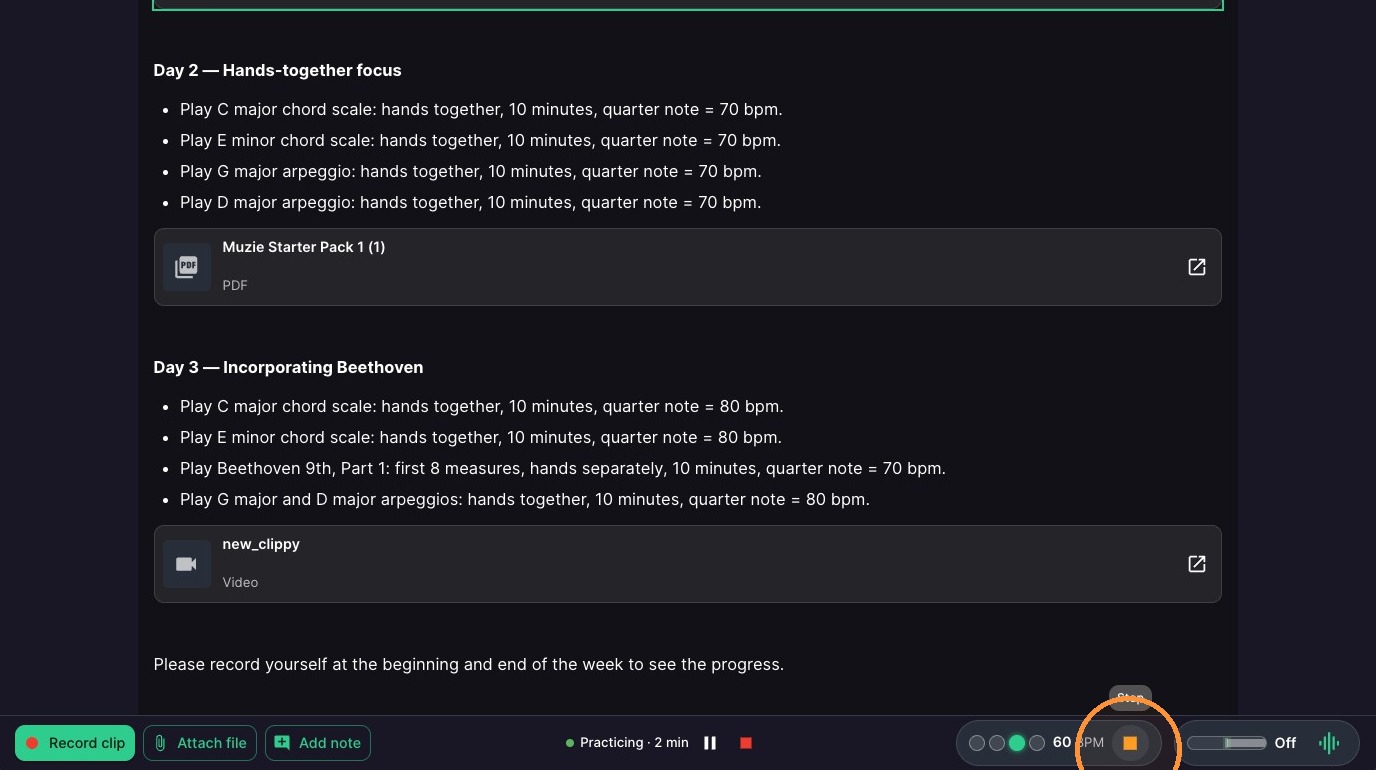
13. End metronome

ascreenshot_a749603e8bfb43209908d322aaa271f2_text_export.jpeg

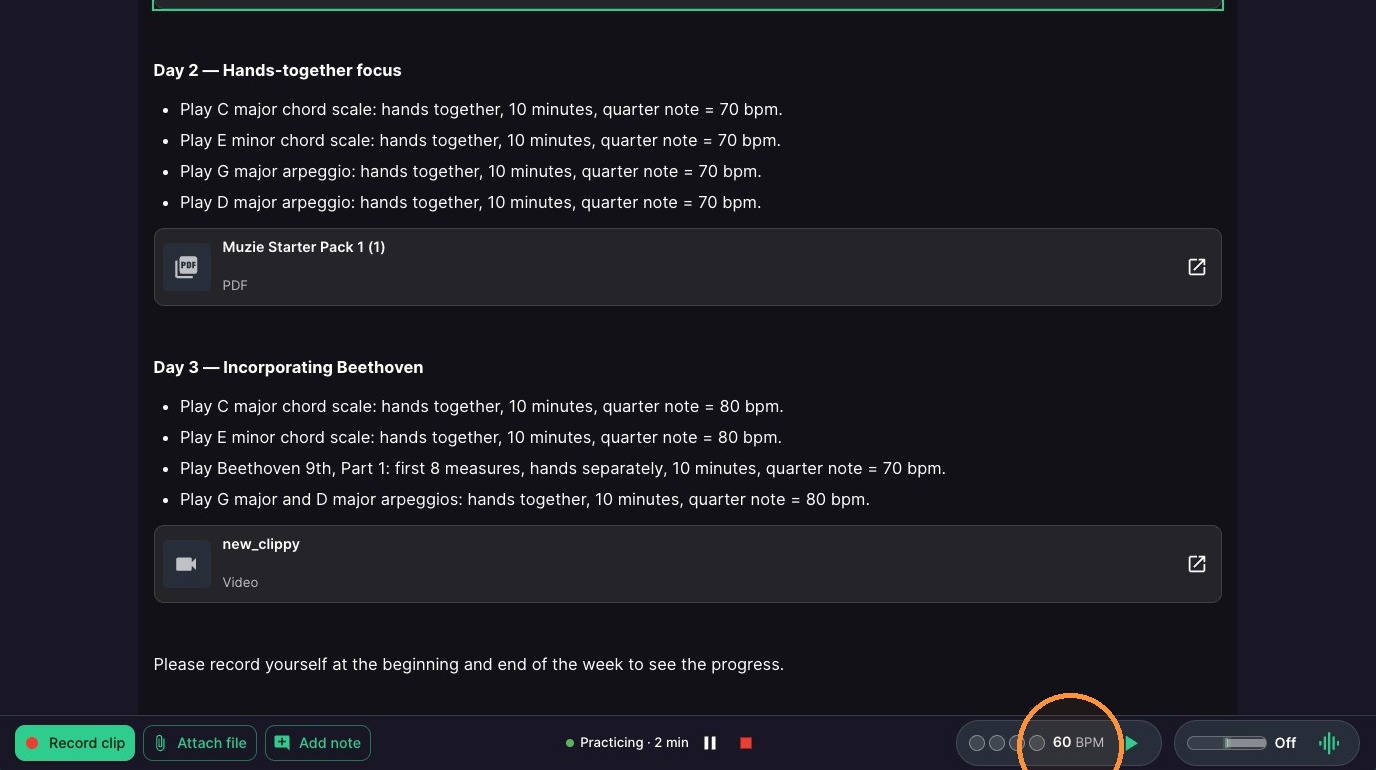
14. Click the tempo to open metronome settings
ascreenshot_813e12cf01614e2f8480ed7337272356_text_export.jpeg
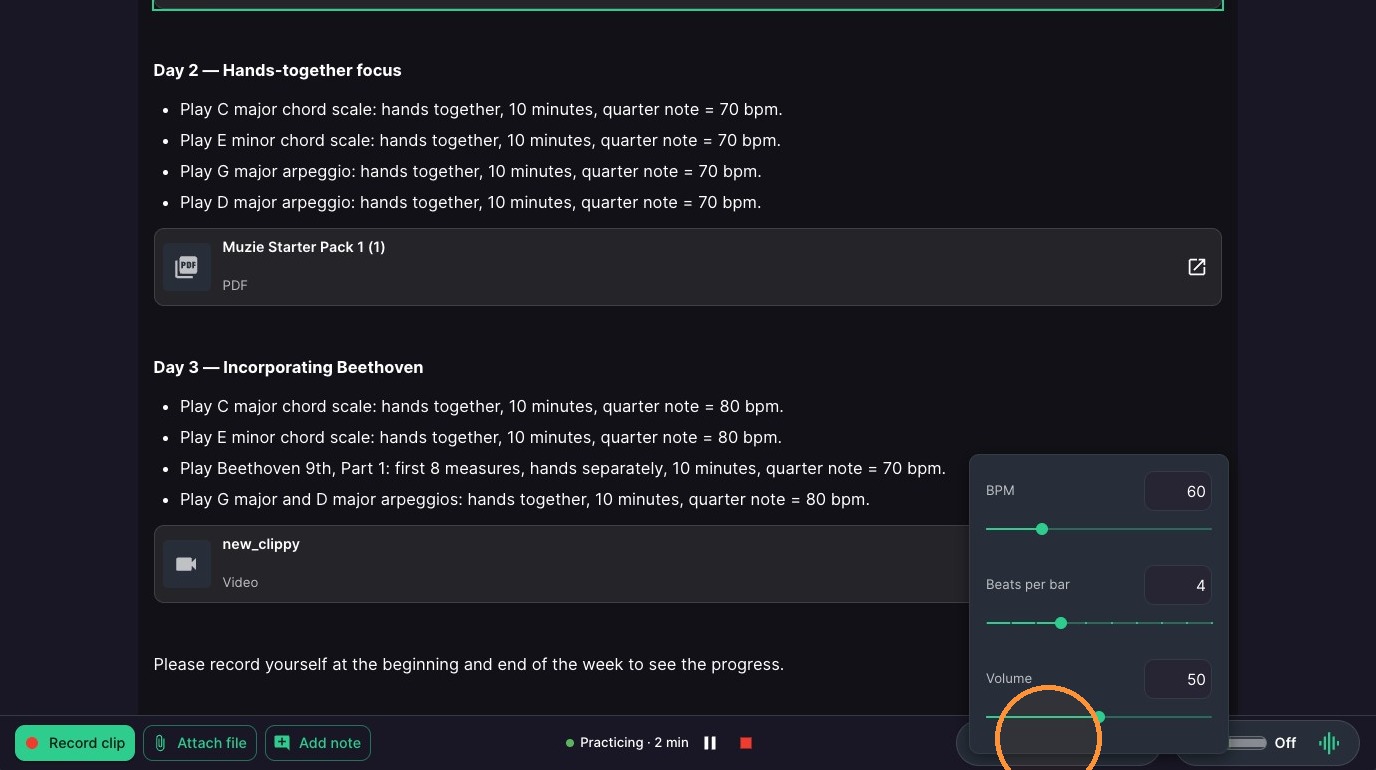
  1. Change Volume, BPM and Number of Beats
ascreenshot_7a3320f636634527997b081ec83aabbd_text_export.jpeg

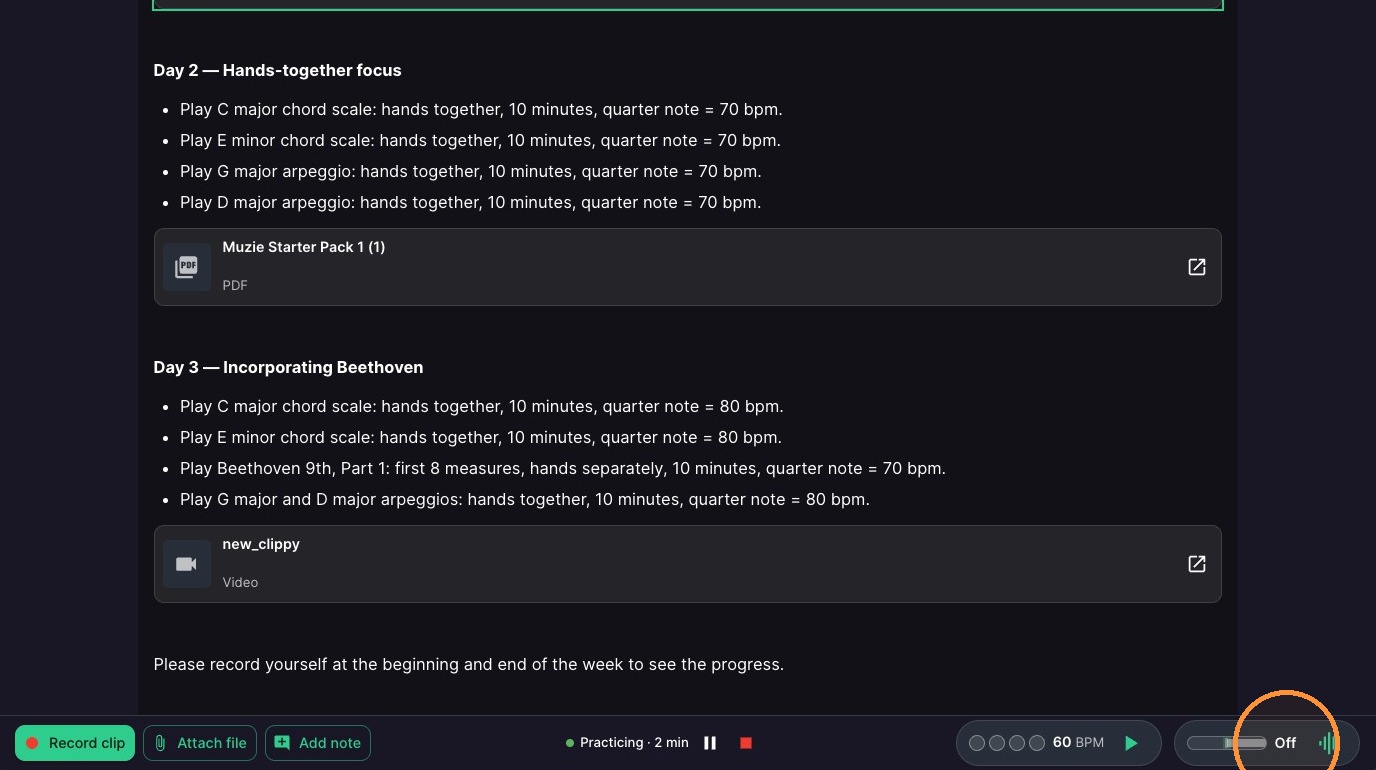
16. Click Tuner to open tuner settings
ascreenshot_a23bdd6c867b42a8b0e42d0e6b463b74_text_export.jpeg

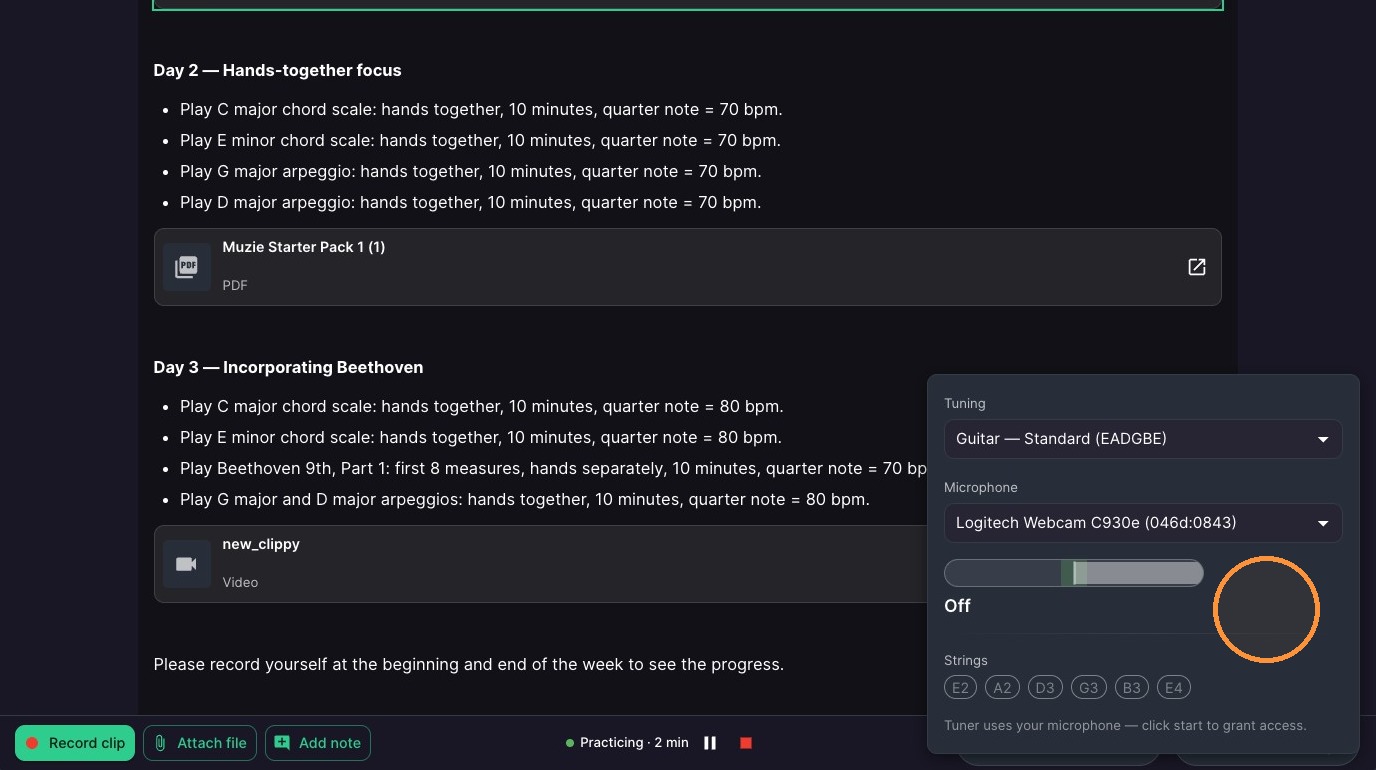
17. Set your instrument, Microphone and settings
ascreenshot_aa24fae4fea441aa83c97d217c2bfb76_text_export.jpeg

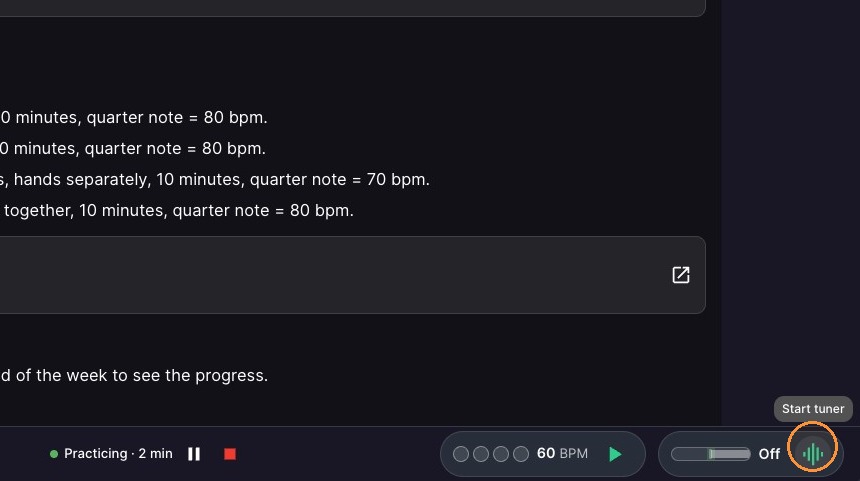
18. Click this icon to start the tuner
ascreenshot_5b0ff34151454379863a8ef603a0306f_text_export.jpeg

19. Click again to stop tuner.

ascreenshot_5cdcd43e362c4835a7d2c554f781e23f_text_export.jpeg

Activity History

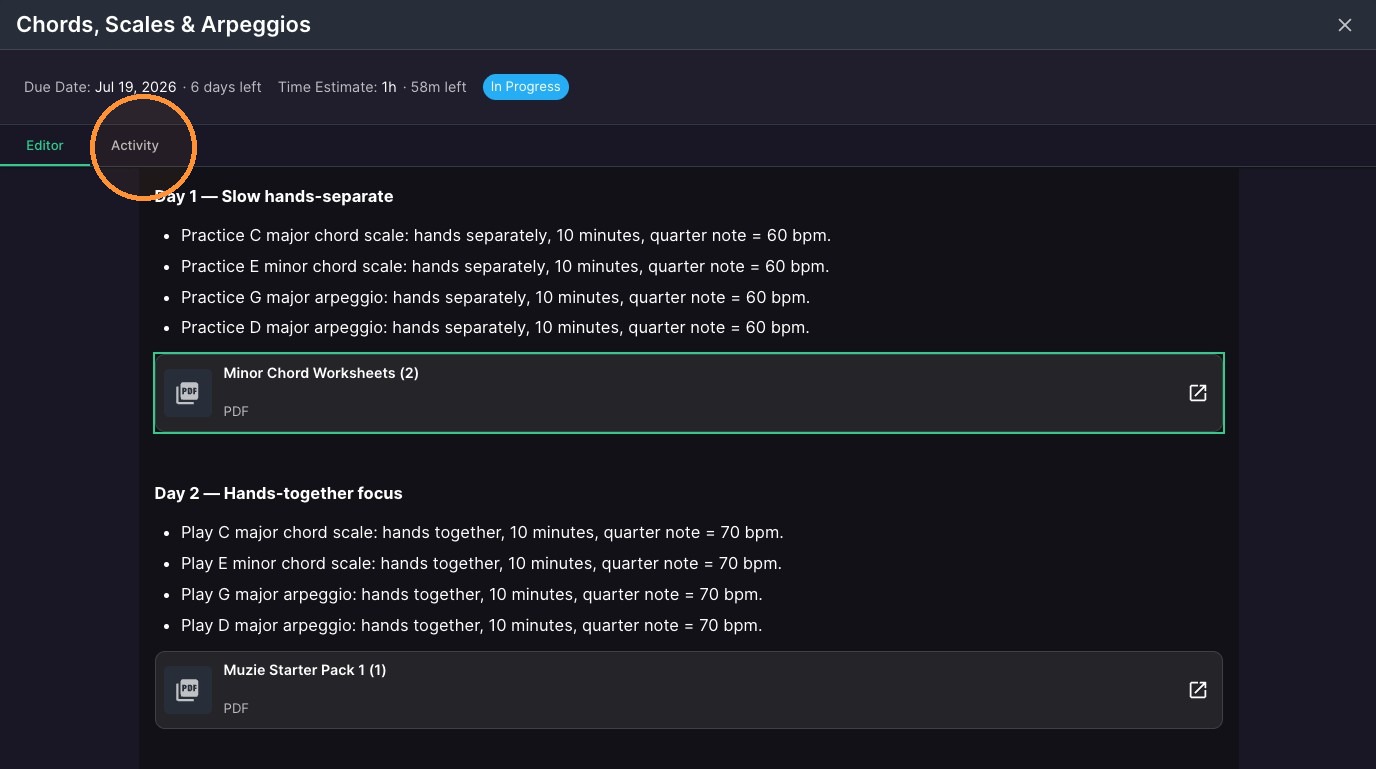
20. Click "Activity"
ascreenshot_ca4494ddbb444fc6a63332807aca2133_text_export.jpeg

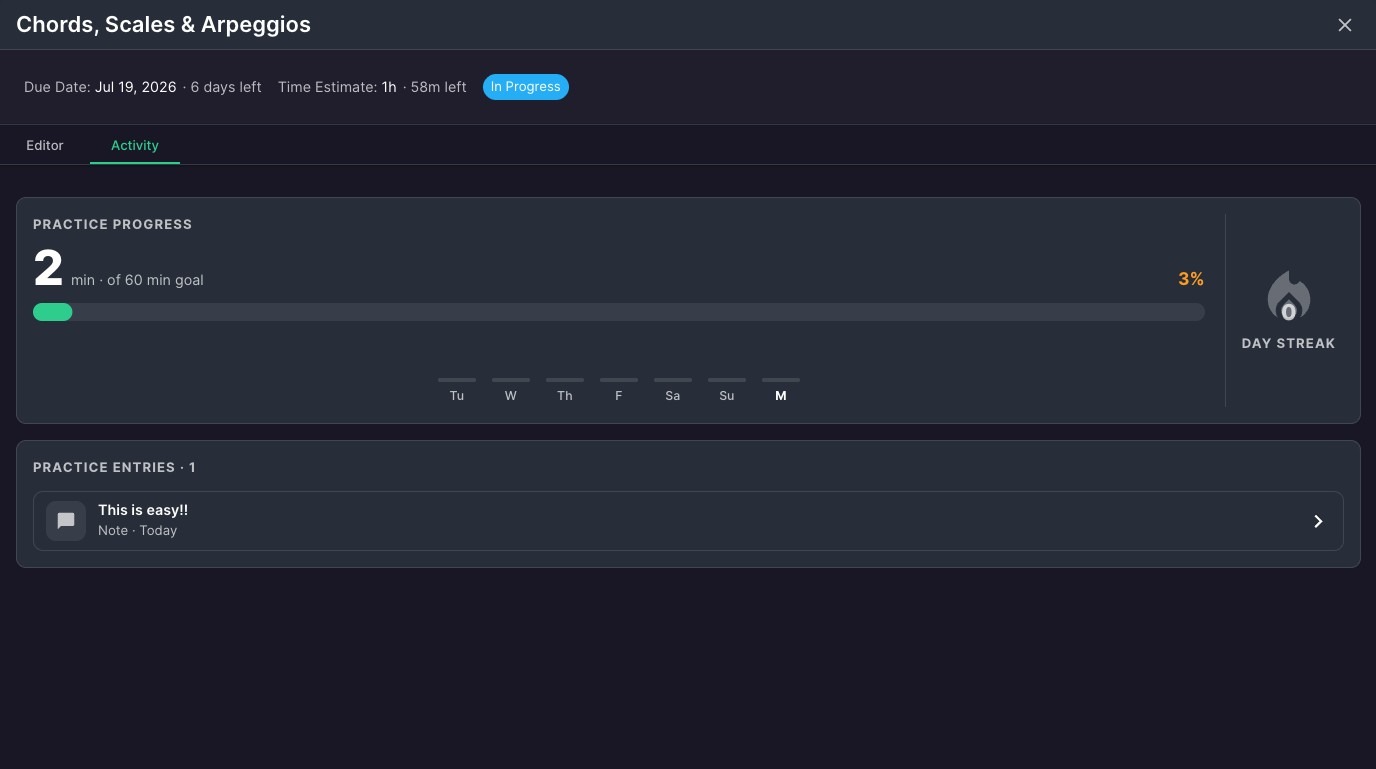
21. Select practice entry to view details.
ascreenshot_1d88ecb9981640dc9b19c1d888bb965b_text_export.jpeg

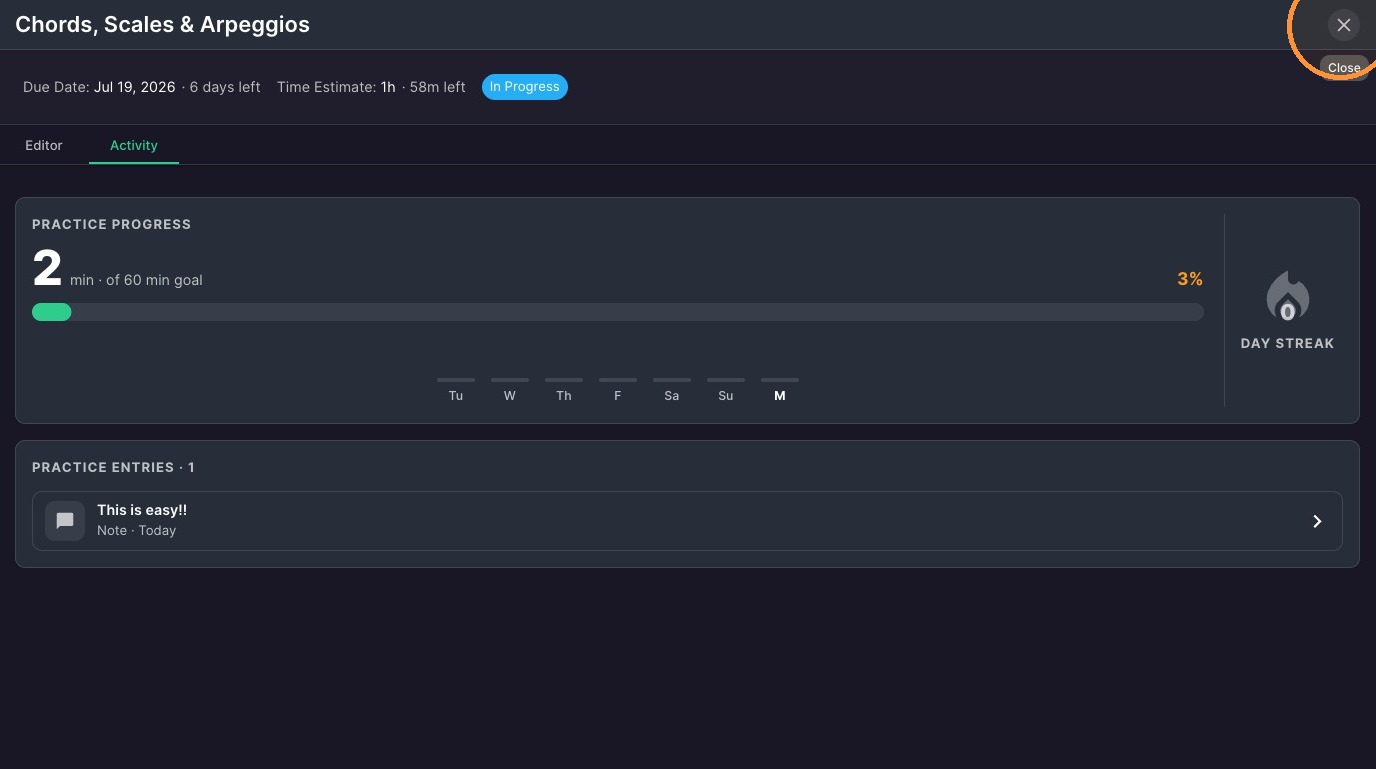
22. Click close icon to exit assignment. This will also auto-save any practice time on this assignment
ascreenshot_13202797a6a749e8a3535bac23ab2355_text_export.jpeg