Muzie Help Guides

View & Share Files (Students)

Most of the time, your teacher will share files with you in your Library. If you ever need to send something to your teacher, you can also upload a file and share it with them right from your Library.


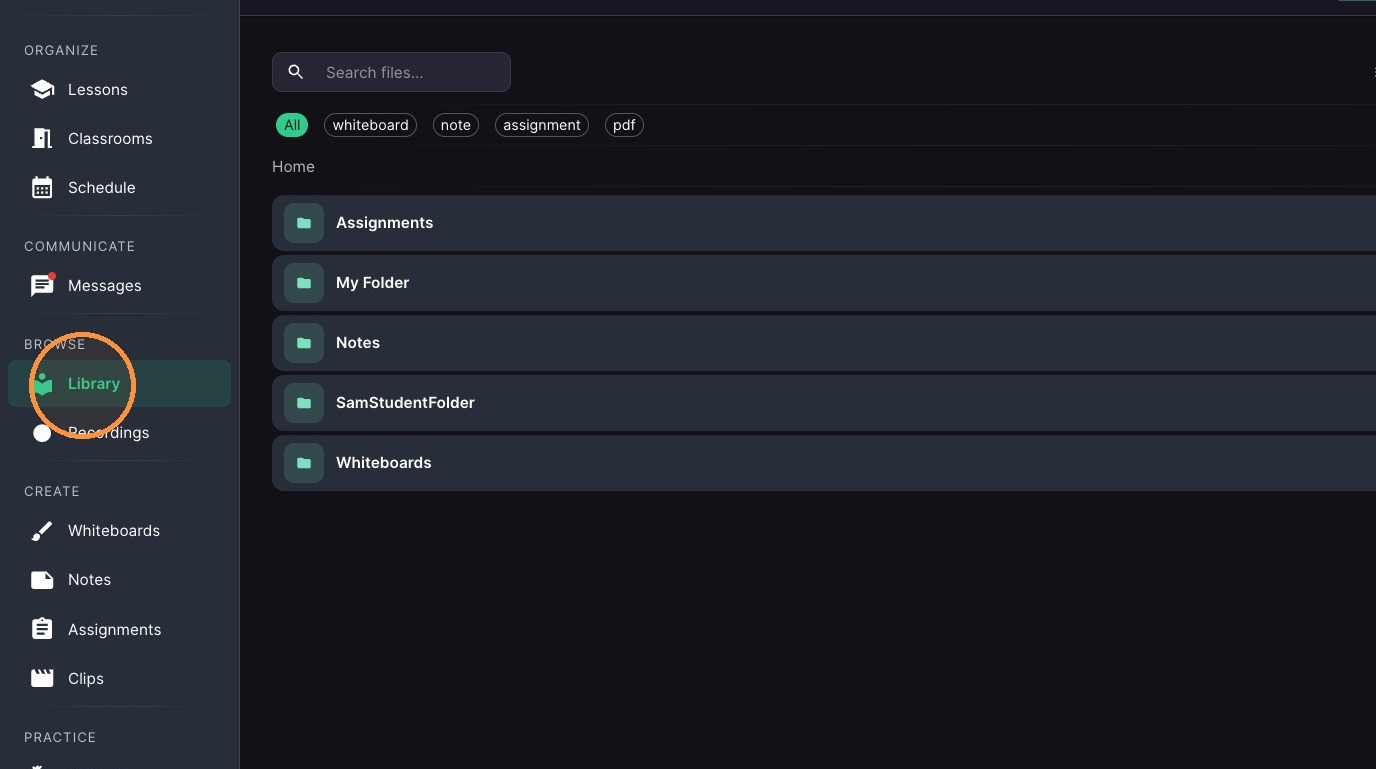
  1. Click "Library"

ascreenshot_868919ba17f0436797f1b22386a6f050_text_export.jpeg
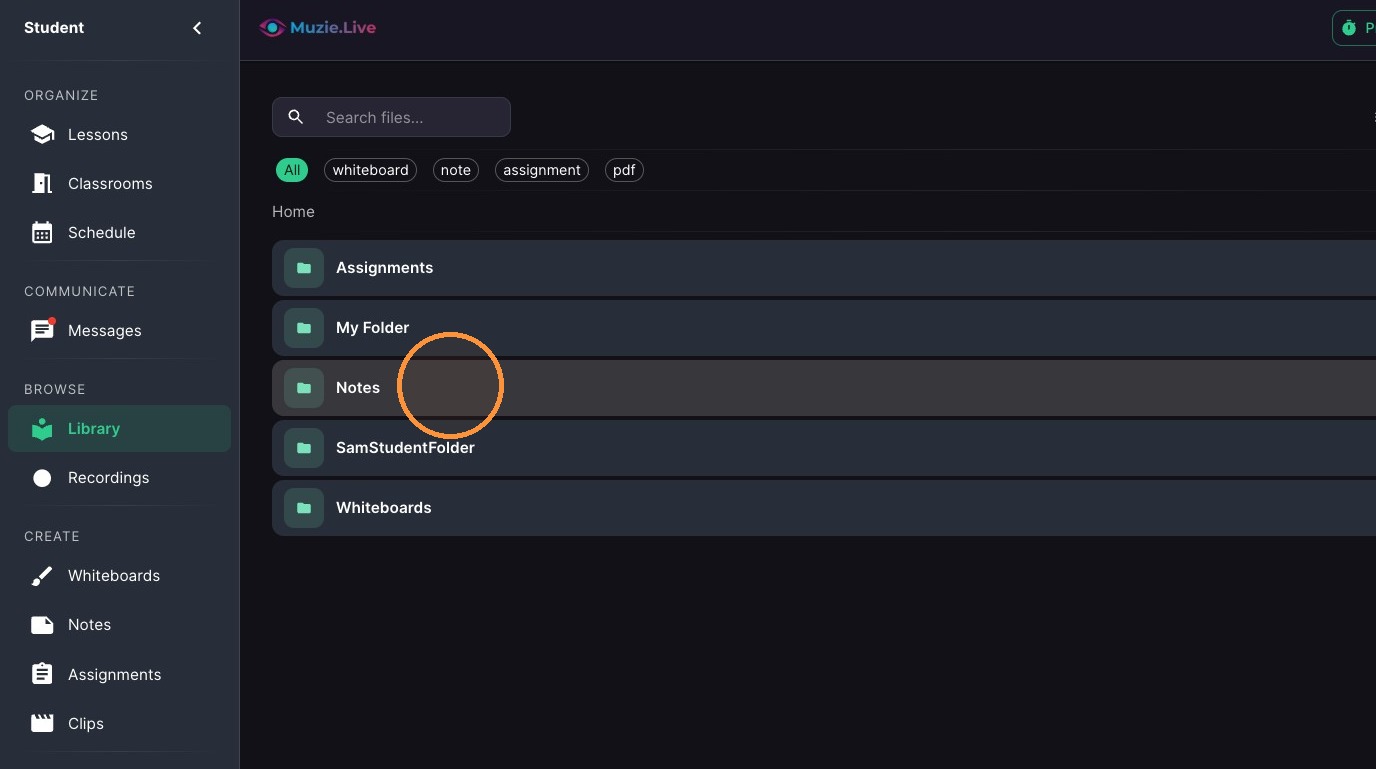
  1. Double-click on a folder to open

ascreenshot_362fe16efa6c45558c54b3869c6a9f4c_text_export.jpeg
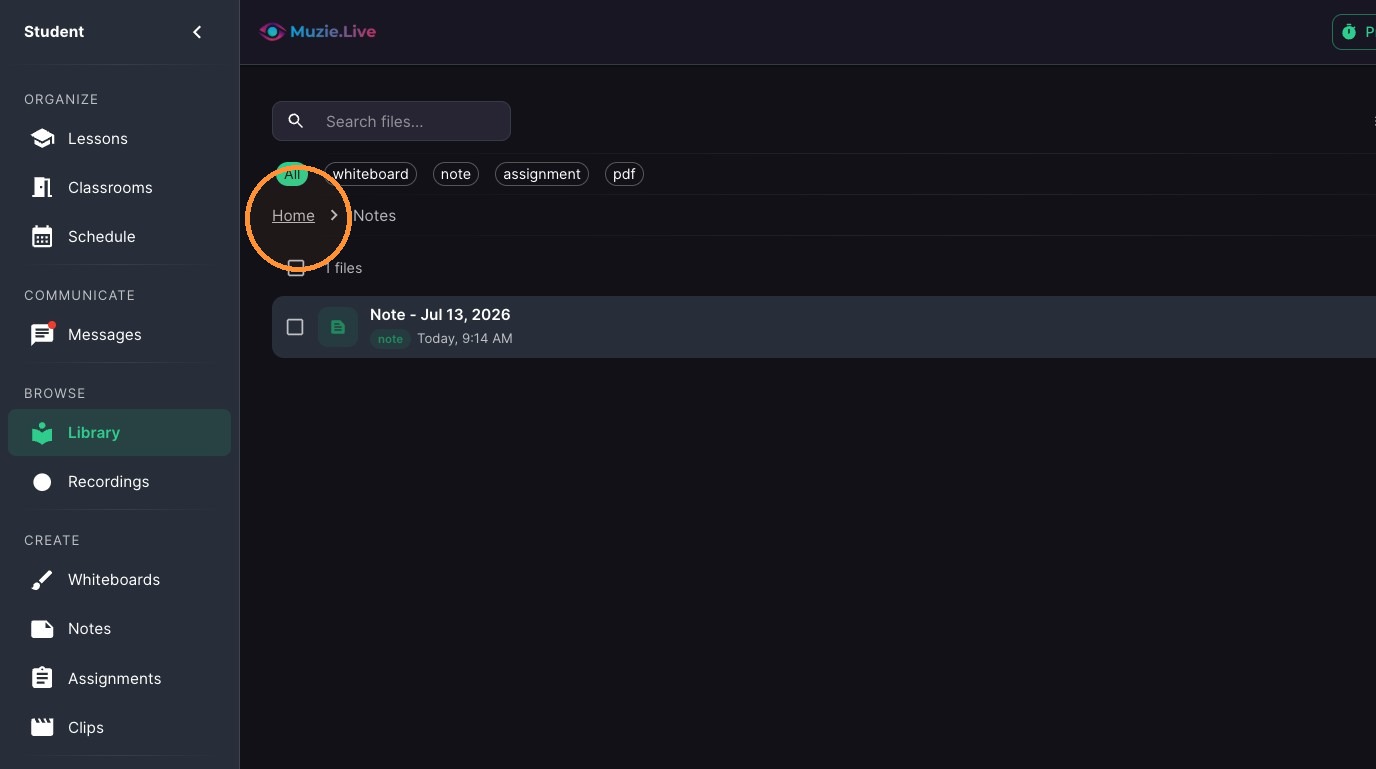
  1. Click "Home" to navigate back

ascreenshot_a408b4d3d8664dd99bf572e7944d6673_text_export.jpeg

Folder Creation

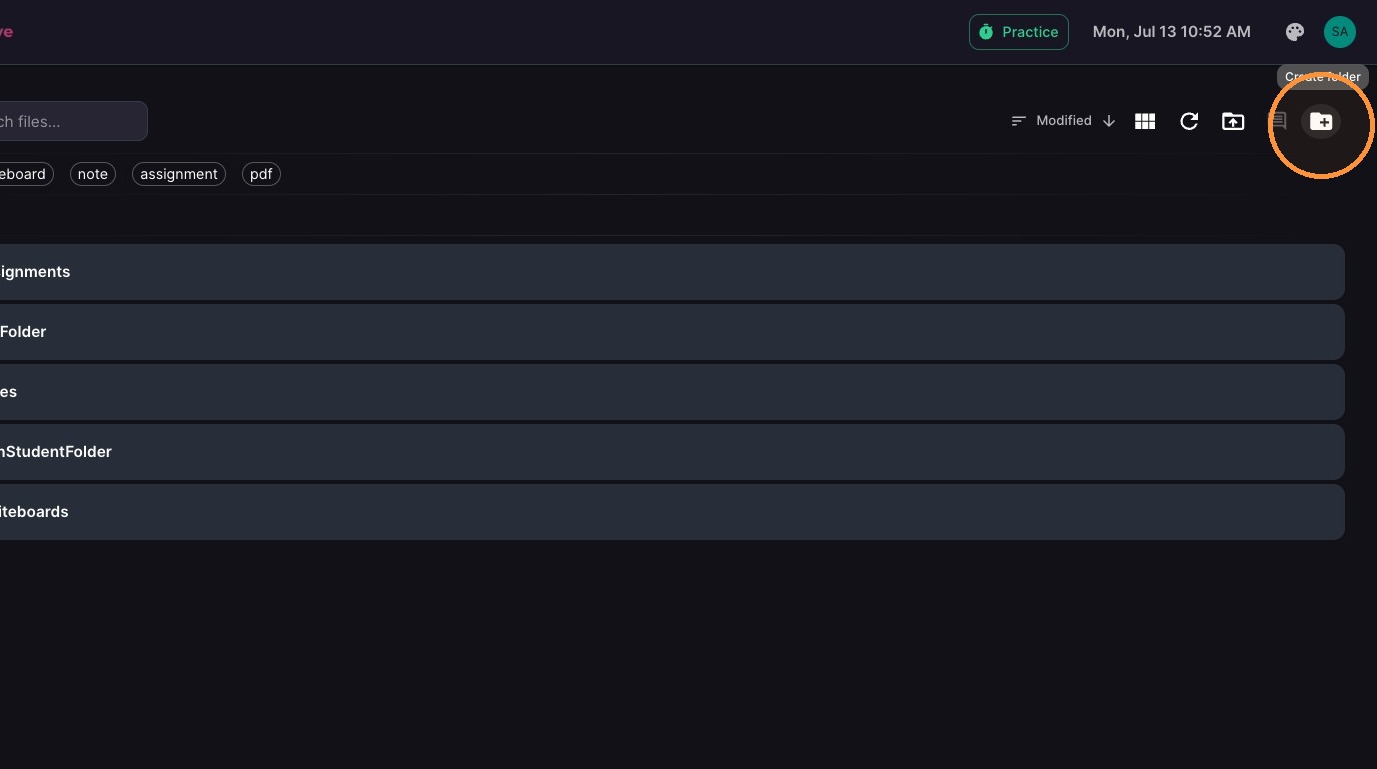
  1. Click Create folder icon.

ascreenshot_a60b496557b646cd9409d80b1b80db28_text_export.jpeg
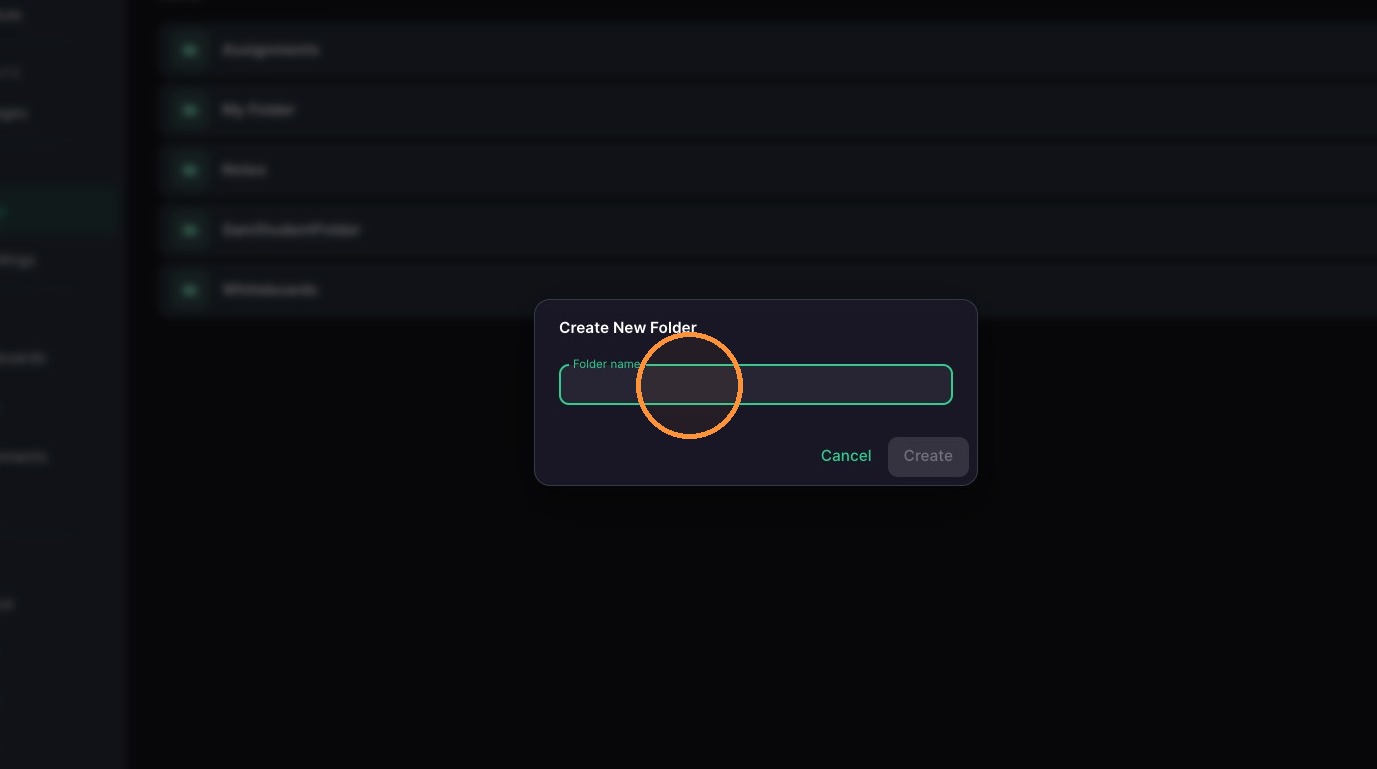
  1. Type a name

ascreenshot_9aec9ec233844869b09ecbac3dfb6067_text_export.jpeg
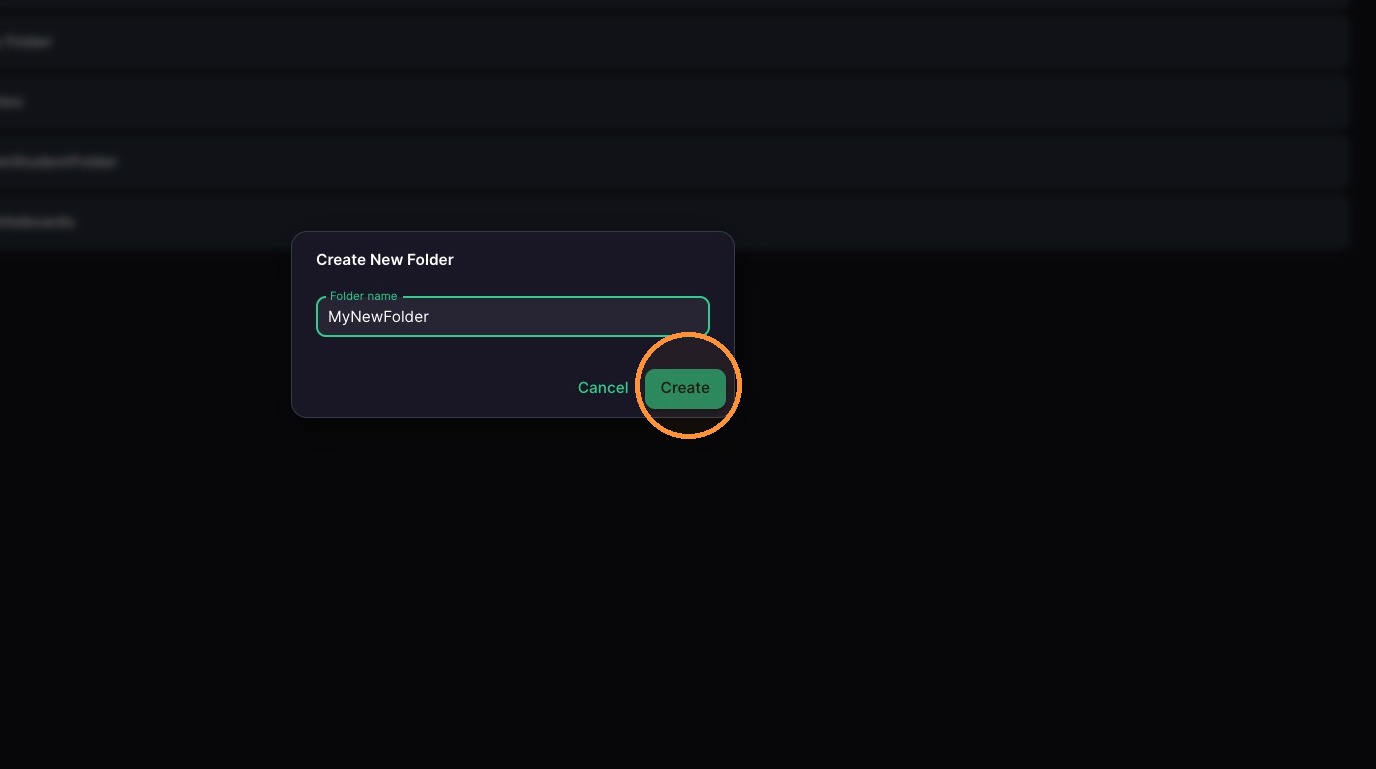
  1. Click "Create"

ascreenshot_a5ac820522f64571857e8785ee68d533_text_export.jpeg

File Management

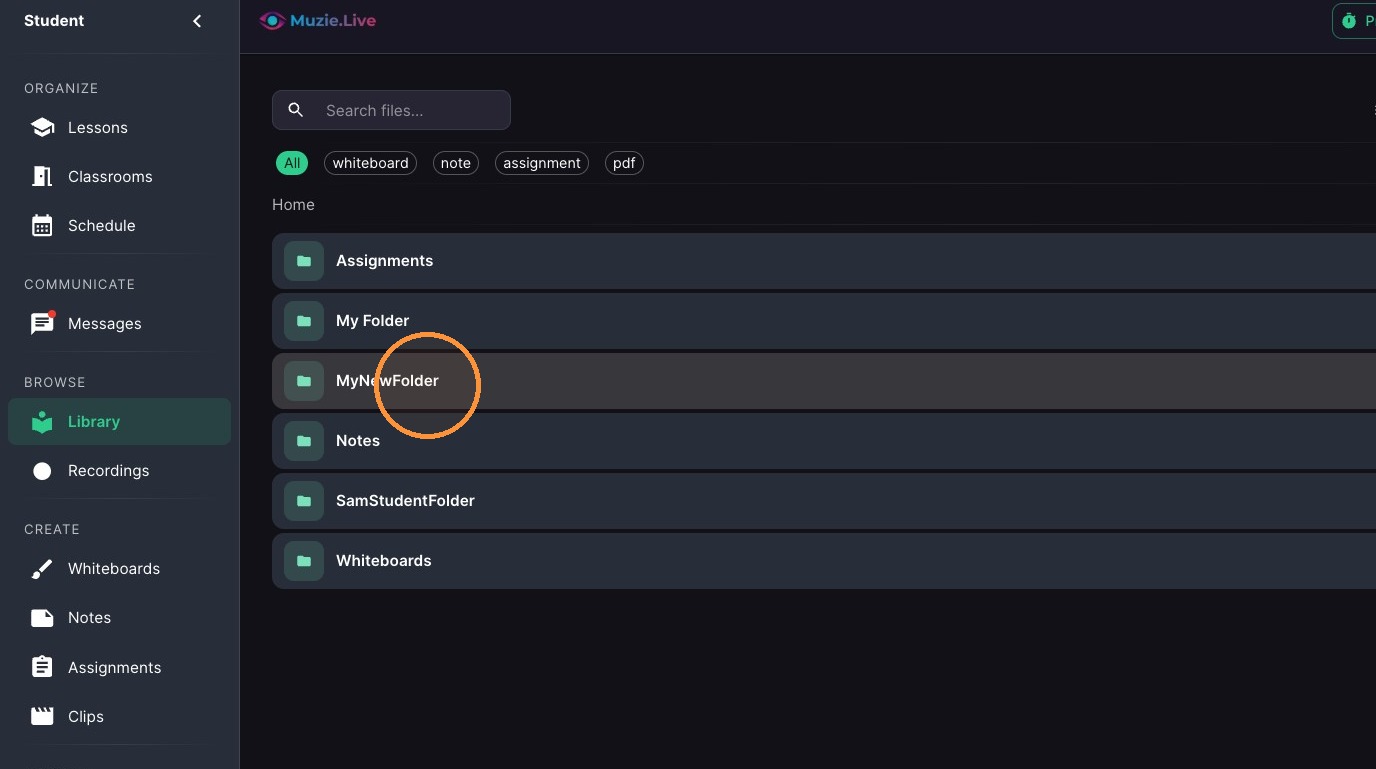
  1. Double-click "MyNewFolder"

ascreenshot_bcd6043e8fa144bfa29085e2133eb7b6_text_export.jpeg
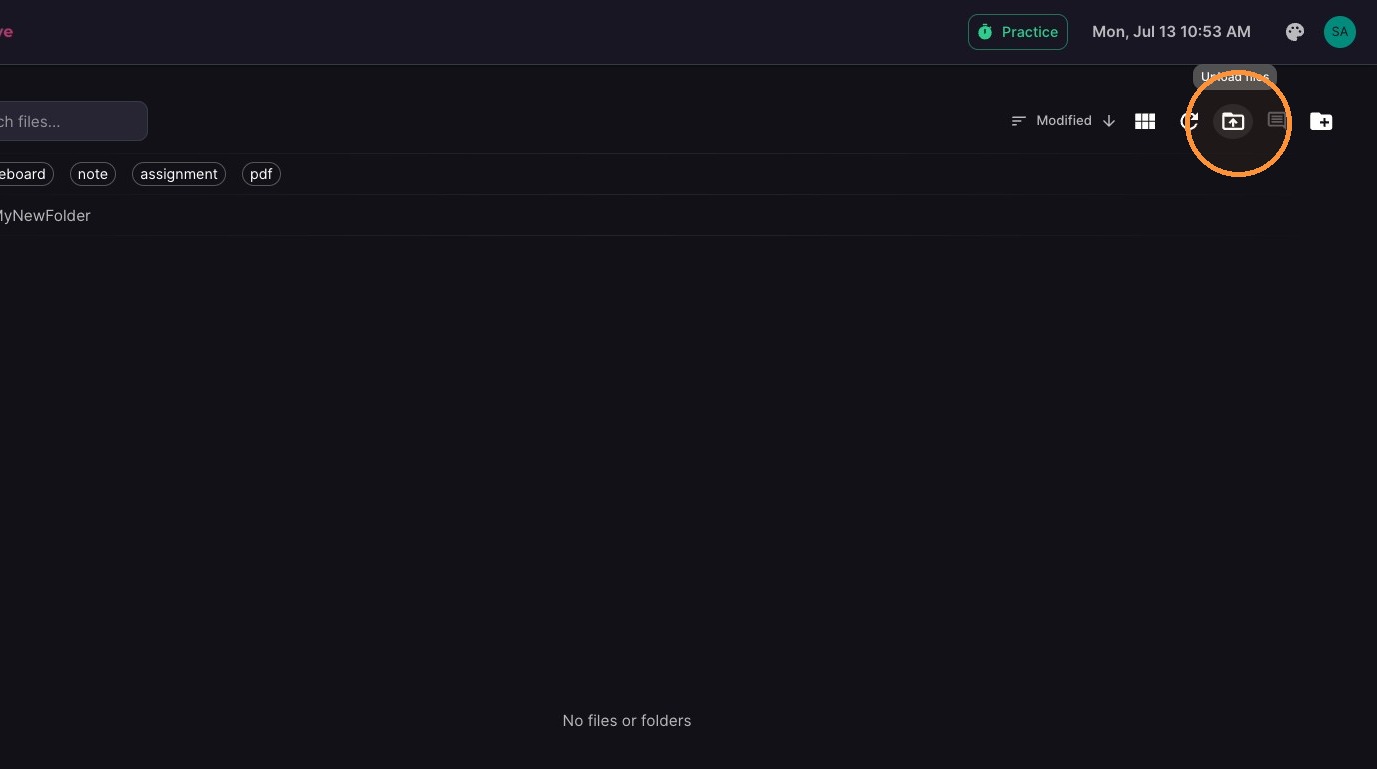
  1. Click Upload files icon.

ascreenshot_bf164733bbf54995be16046feebe9145_text_export.jpeg
  1. Click the Share Icon to share the file with your teacher (the folder will automatically share)
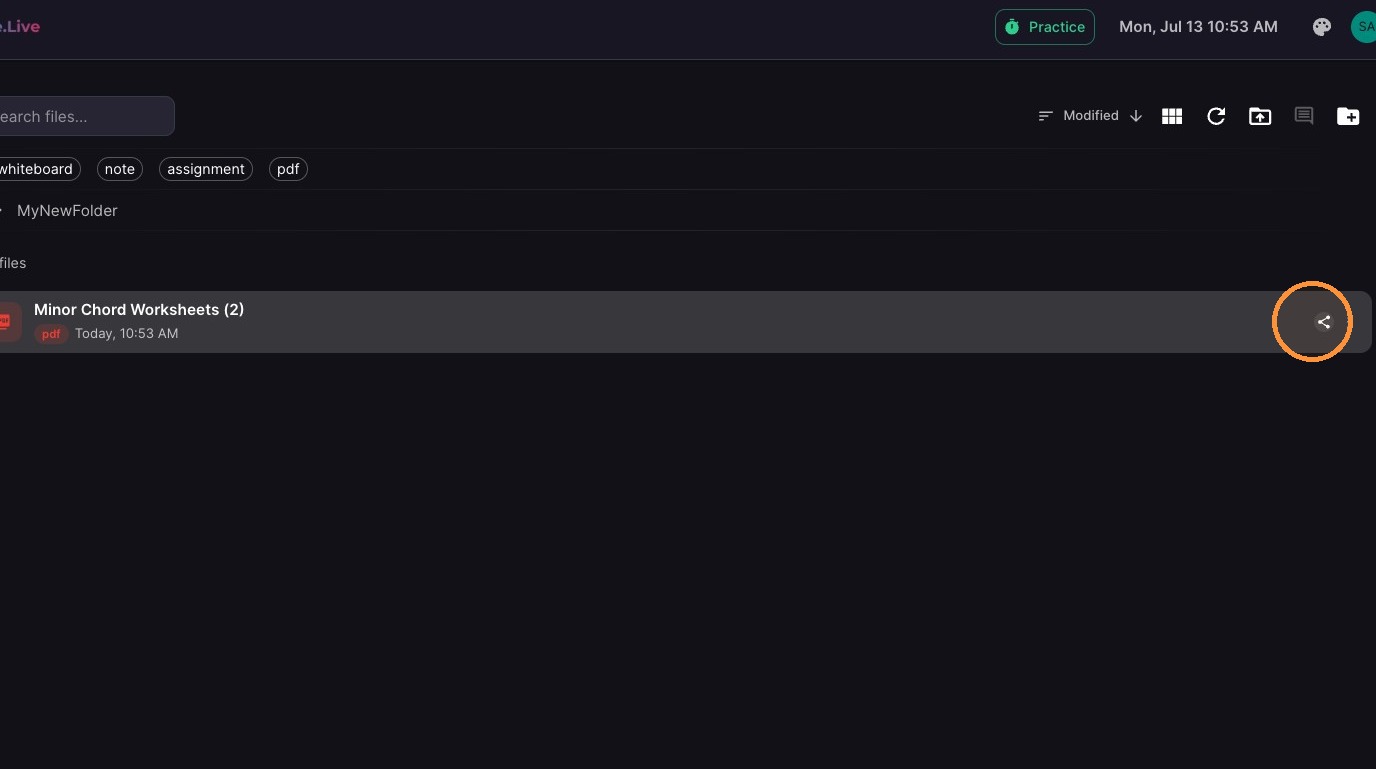
ascreenshot_8da701a72e9141f0a6c58ef2ef58189f_text_export.jpeg

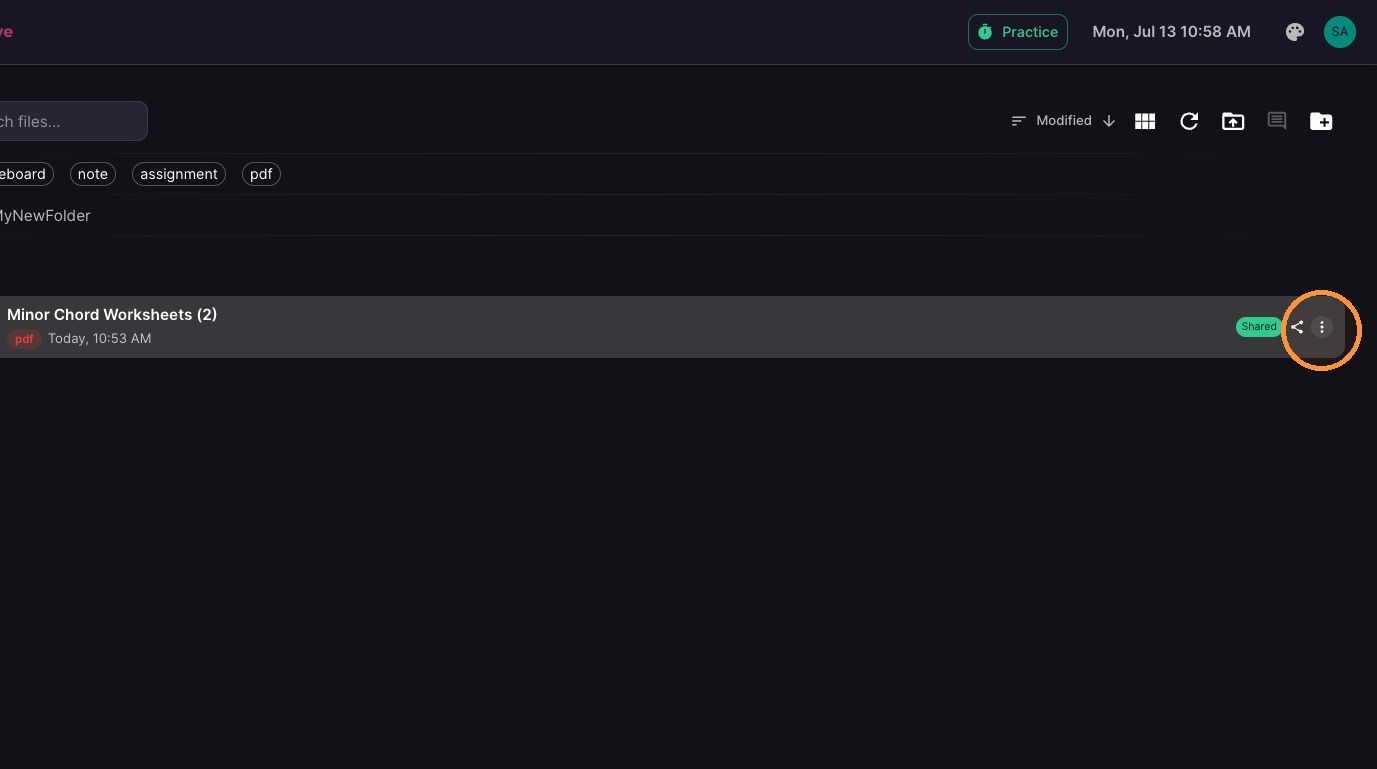
10. Click the options menu

ascreenshot_b4460df1062741889e889ca5a898db6e_text_export.jpeg

11. This menu has additional file controls
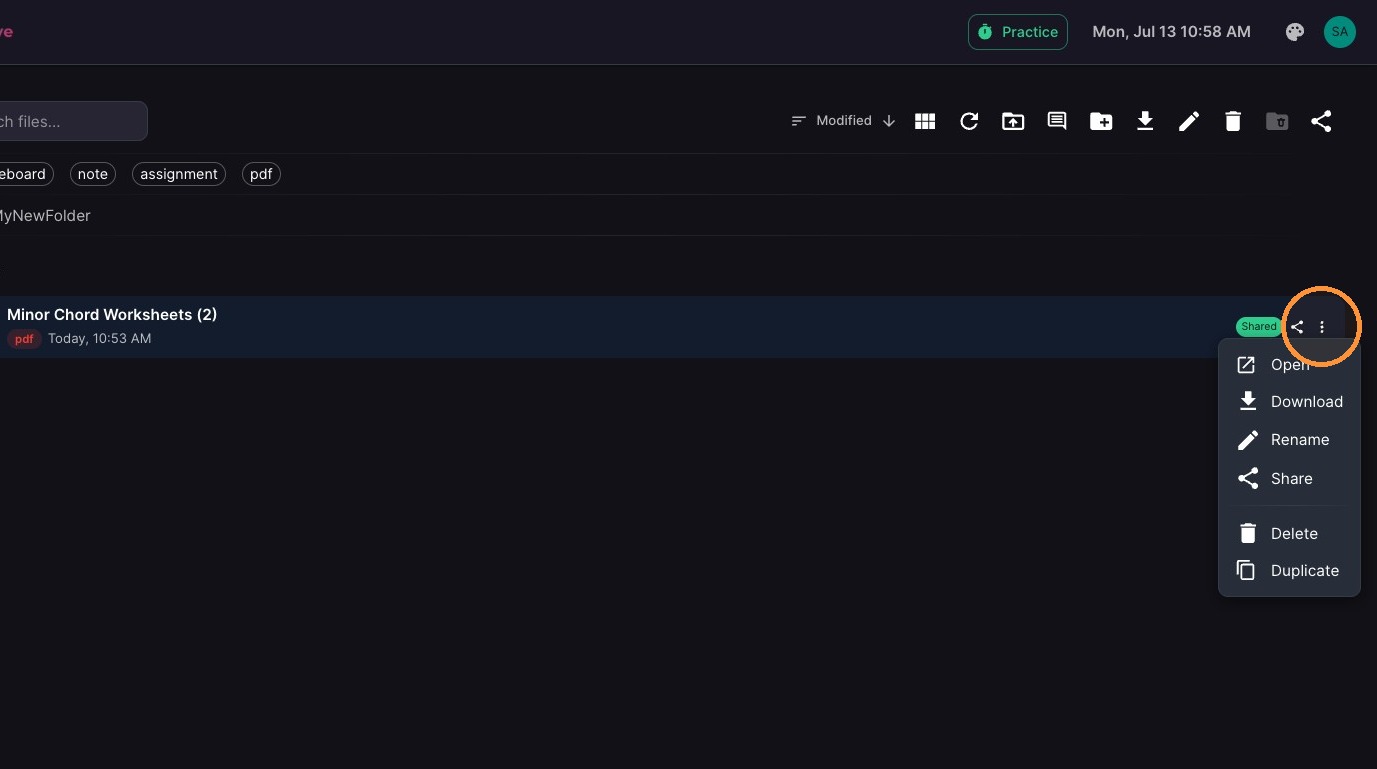
ascreenshot_bf17486750d247b4891ae7a1dc70b57b_text_export.jpeg

12. These controls can also be found on the toolbar
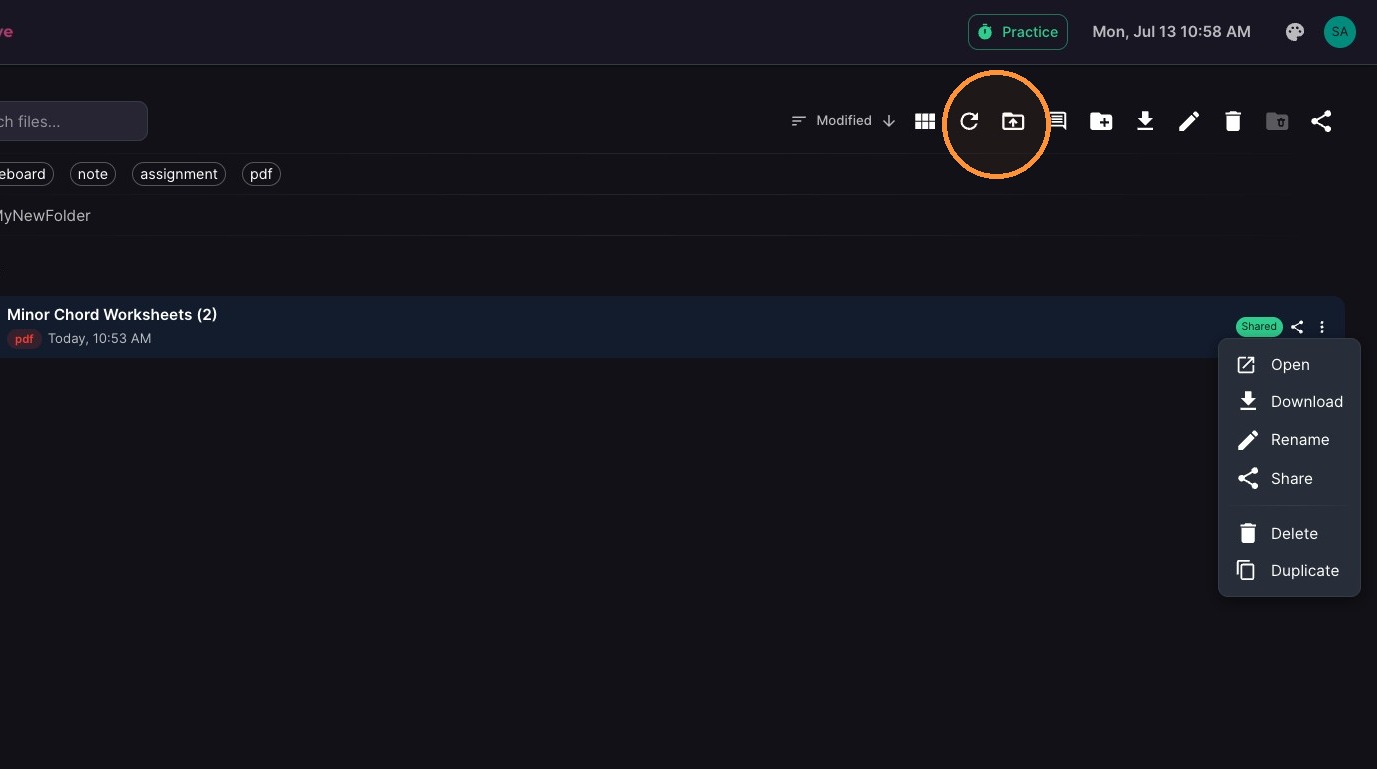
ascreenshot_63835330c0954e7a8078ba951fc9dd7d_text_export.jpeg