Muzie Help Guides

Student Notes in Muzie (Students)

Use Notes in Muzie to create your own lesson notes, keep class information organized, and format your work in a way that is easy to review later. This guide shows you how to start a new note, use formatting tools like bold, lists, tables, and quotes, try AI Magic options, rename your note, and export it as a PDF when you need a copy outside of Muzie.

If a teacher shares a note with you, you may be able to view it only. Some teacher-shared notes cannot be edited, so create your own note if you need to add or change content.


Note Creation

  1. Click "Notes"

ascreenshot_eed2ca51881c411abc3b7e0575f44936_text_export.jpeg
  1. Click "New Note"

ascreenshot_0bac0c954053423b9b5d6b841e10e9e6_text_export.jpeg

Formatting Options

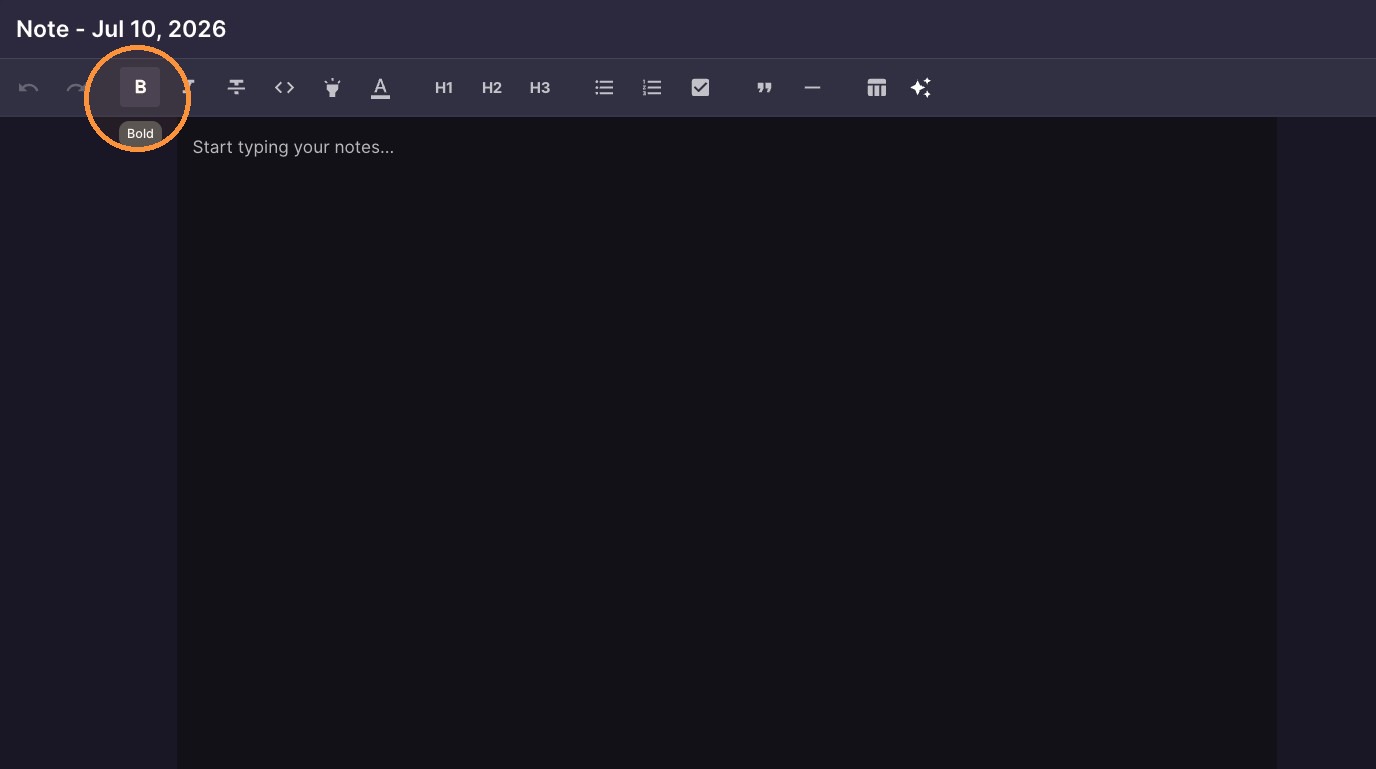
  1. "Bold"

ascreenshot_deb16d095e314d32968a56e78841669a_text_export.jpeg
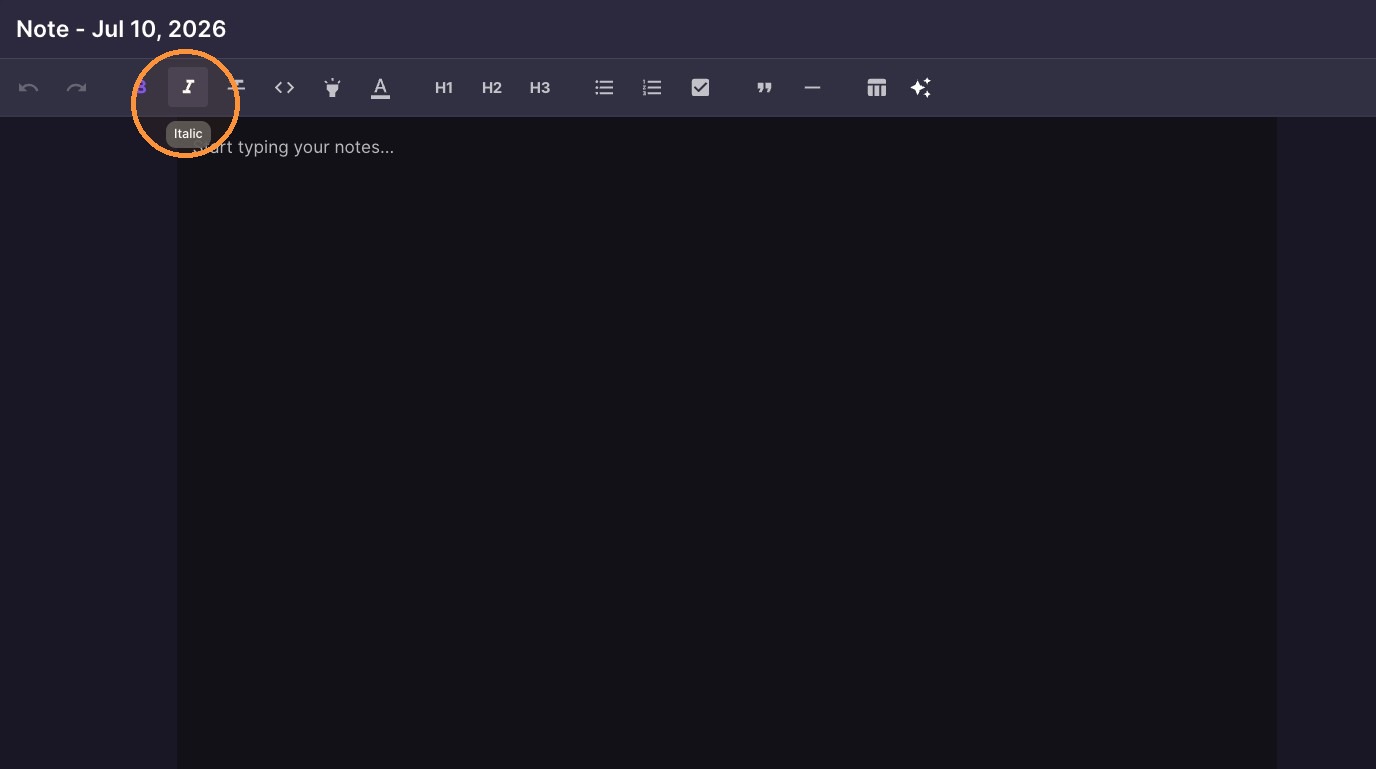
  1. "Italic"

ascreenshot_c7b0dd80983b4551b4987f3d1d59528c_text_export.jpeg
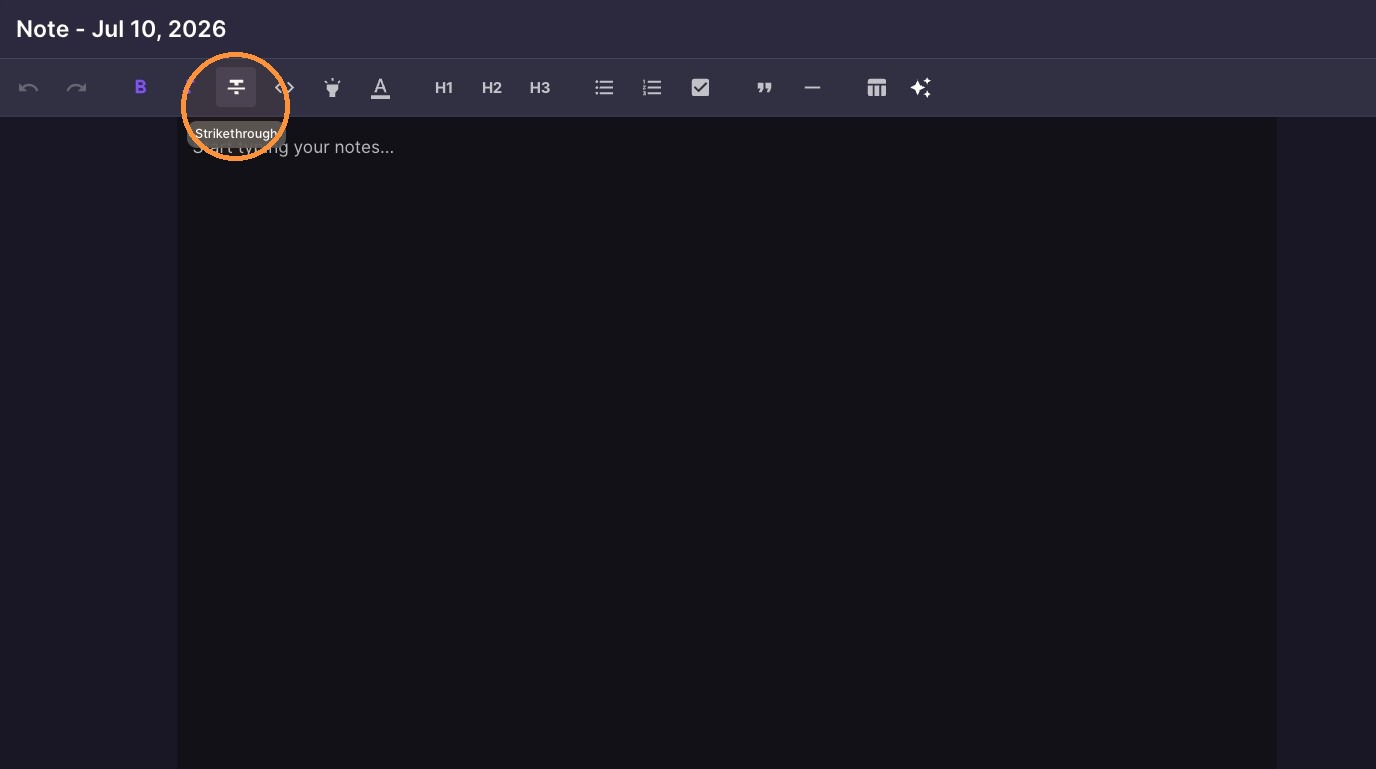
  1. "Strikethrough"

ascreenshot_827216bee1904d5bba6c891ef7ac3a8e_text_export.jpeg
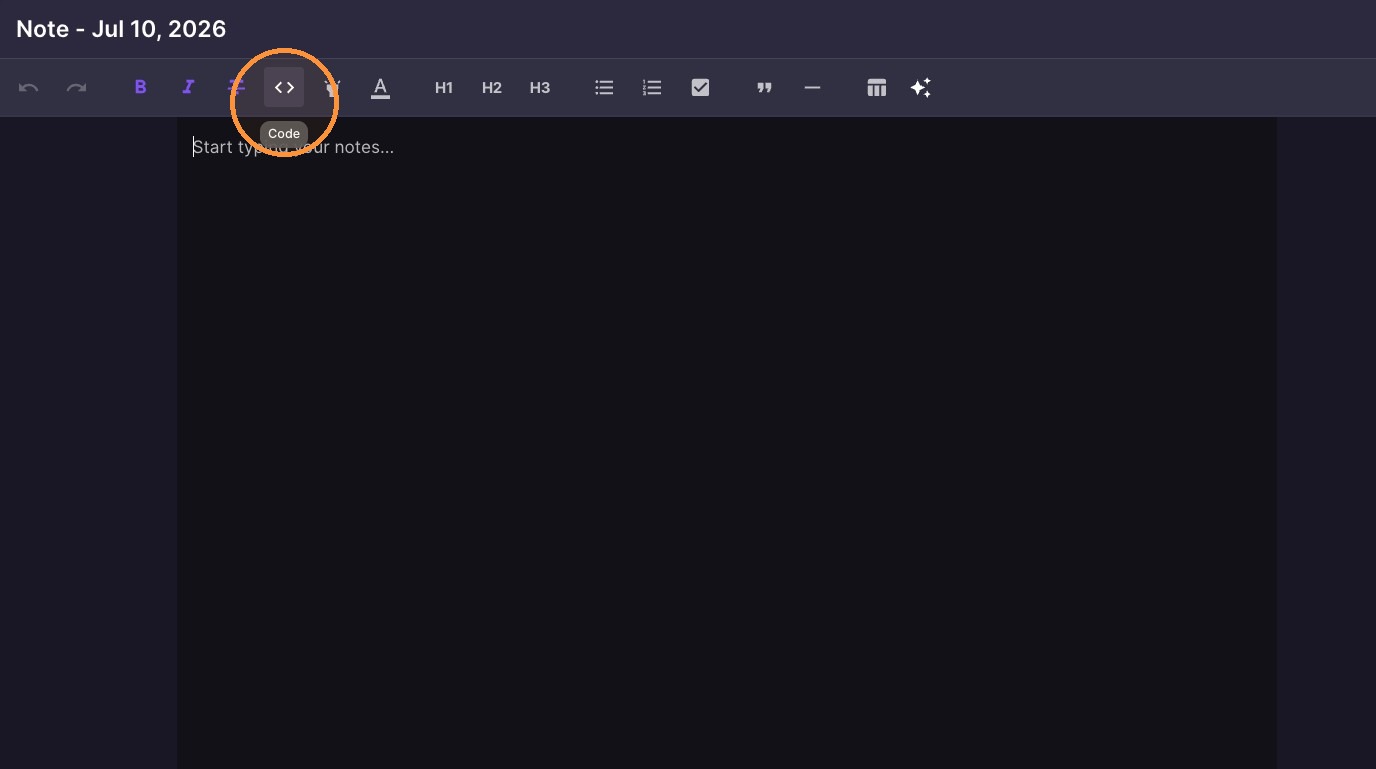
  1. "Code"

ascreenshot_40eaf99bb9704aaca03fc86cd8cb0472_text_export.jpeg
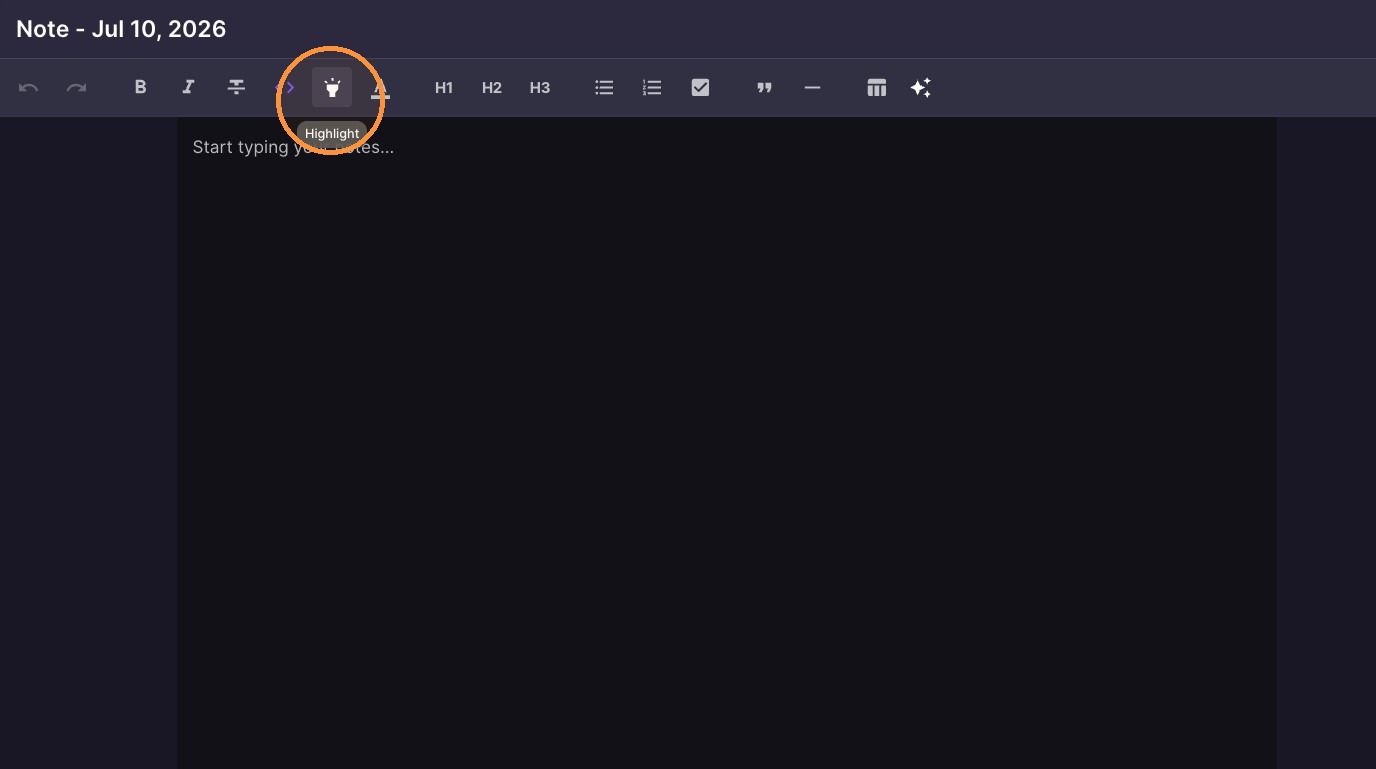
  1. "Highlight"

ascreenshot_a4faa3ba1e3f41c886cc7197064bc7f7_text_export.jpeg
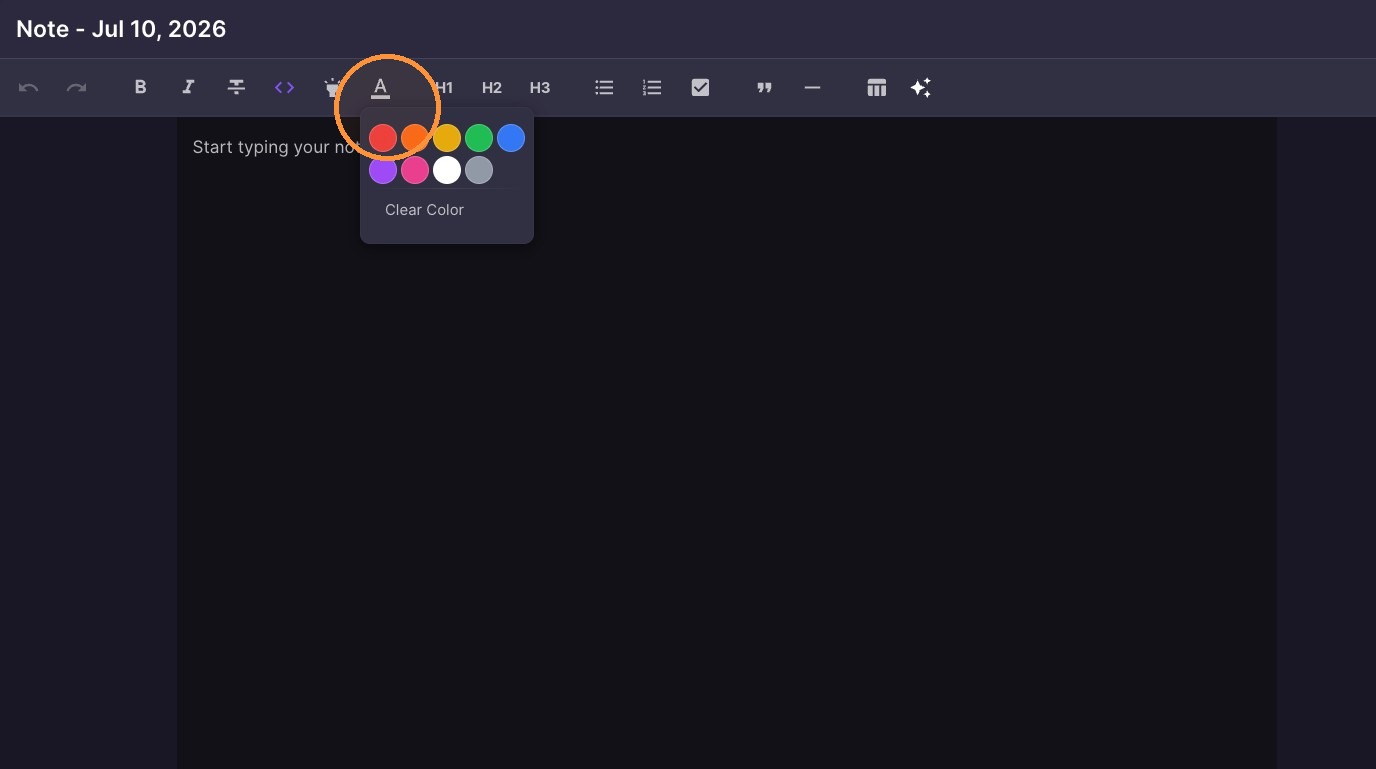
  1. "Text Color"

ascreenshot_d92adc9b43e14fcd861e71143cd83d64_text_export.jpeg
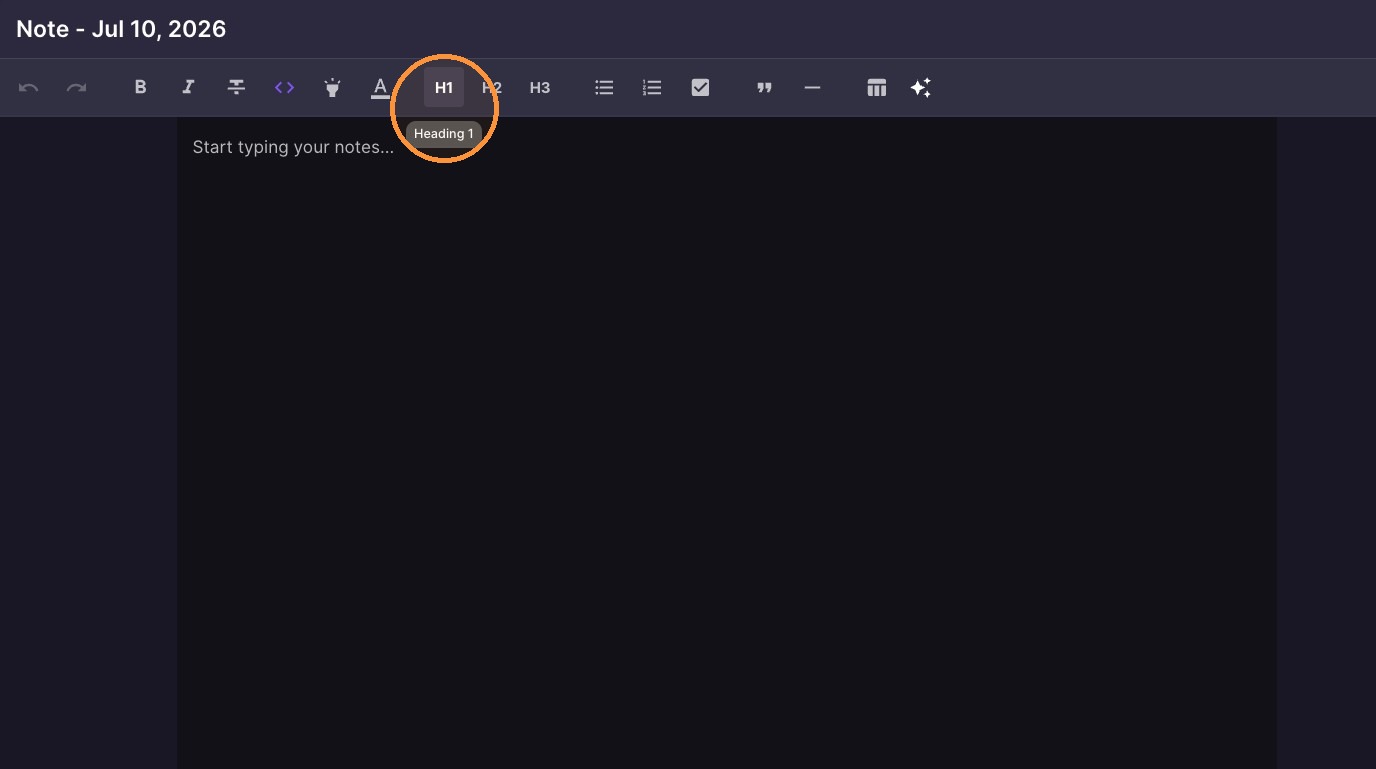
  1. "Heading 1"

ascreenshot_8519b396761a4c0198e9f775f36809d4_text_export.jpeg

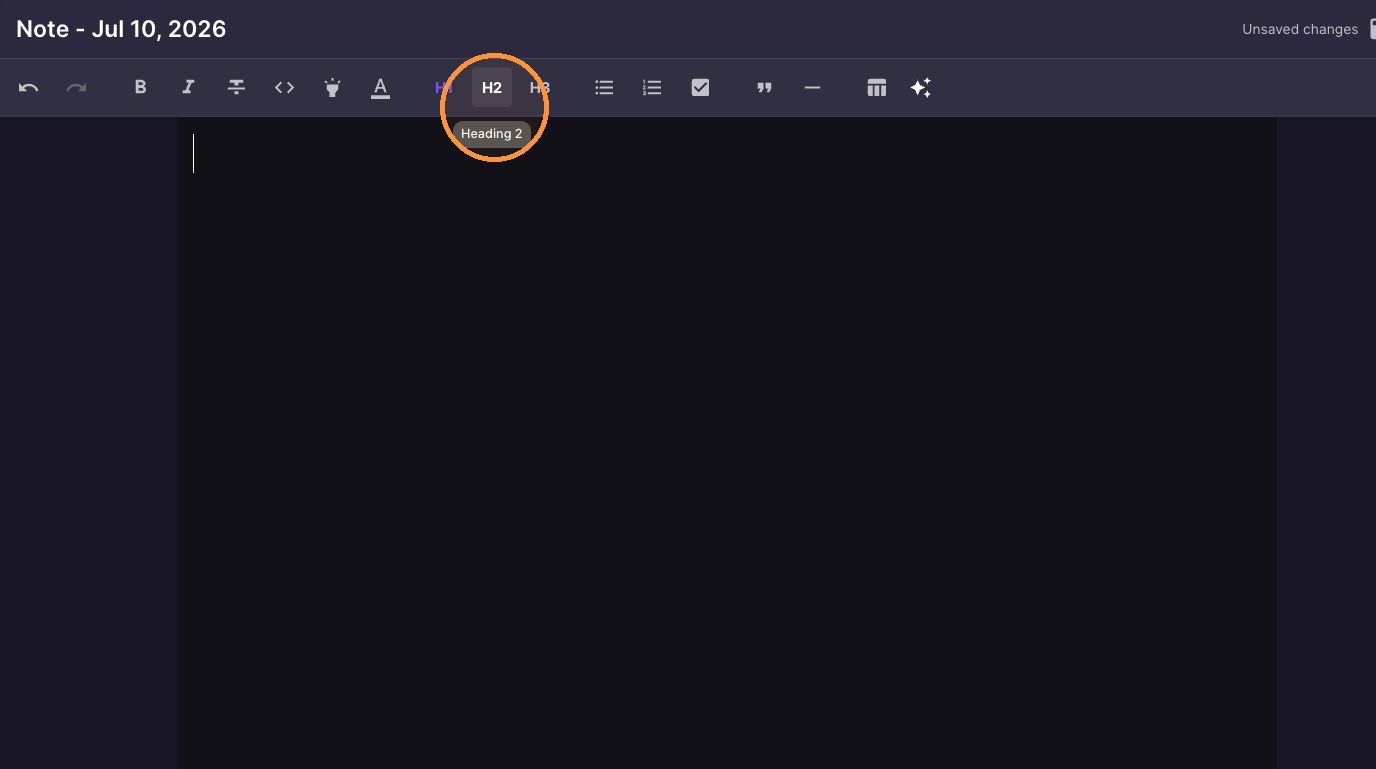
10. "Heading 2"

ascreenshot_a63edd10beda44d09216ac83b8df36f8_text_export.jpeg

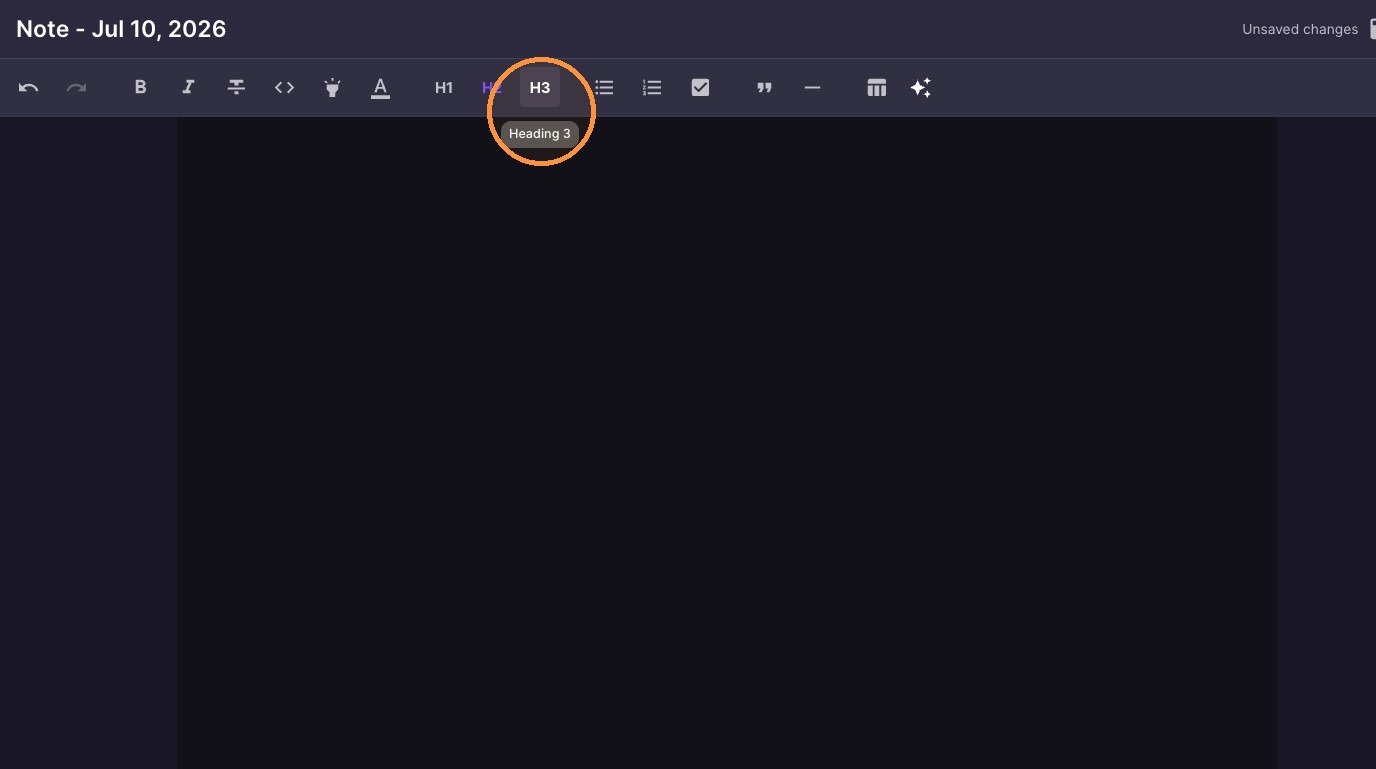
11. "Heading 3"

ascreenshot_2b7288c59da7446296d0f665affb21dd_text_export.jpeg

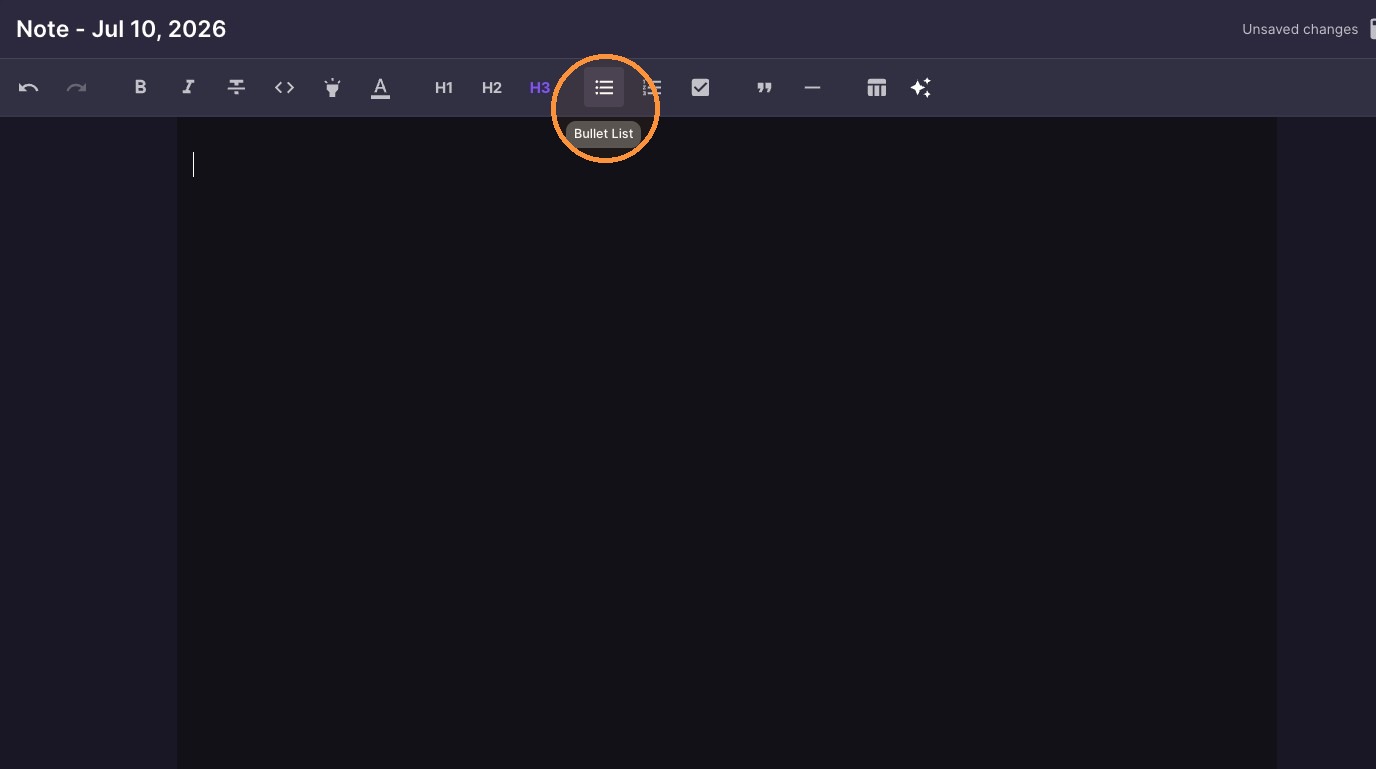
12. "Bullet List"

ascreenshot_5c05e545556641668a701243c74c82b7_text_export.jpeg

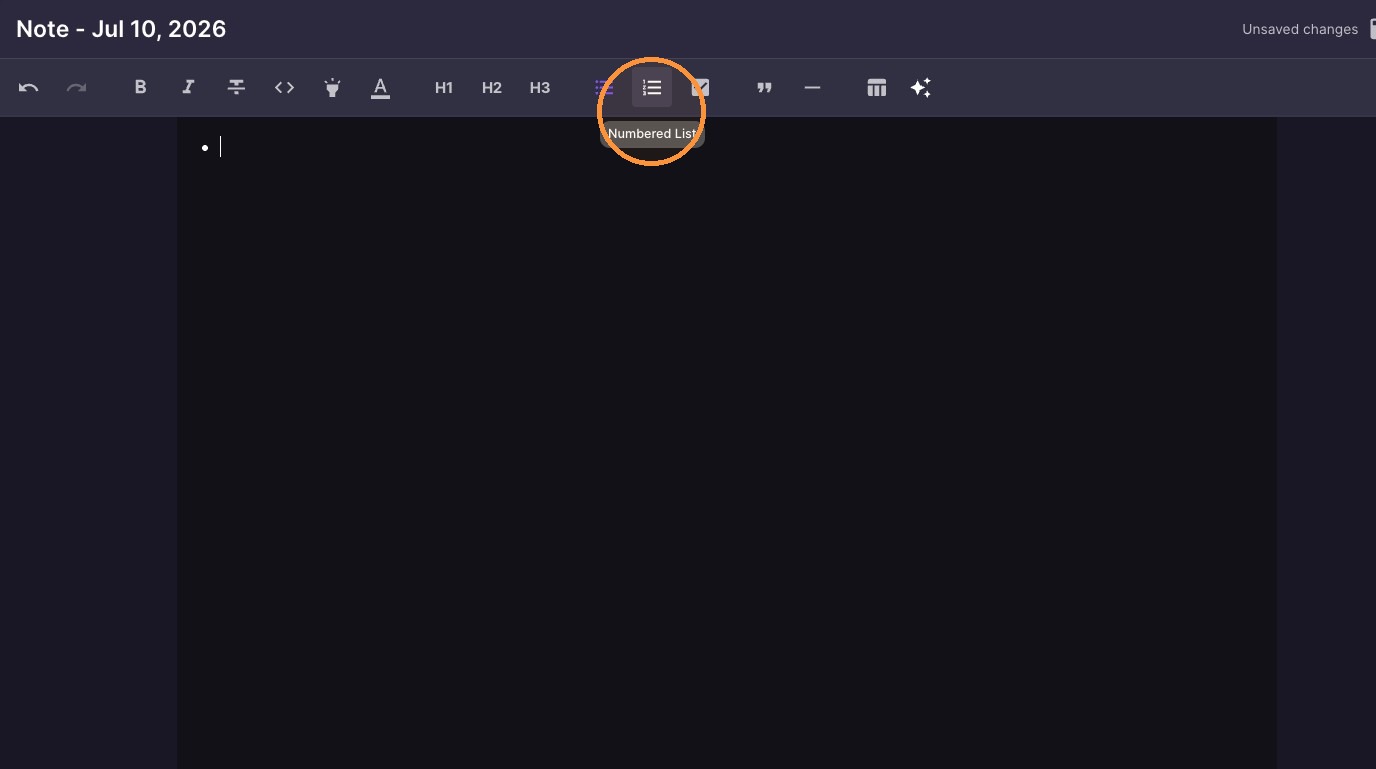
13. "Numbered List"

ascreenshot_b30fdebbc4be4fc3a67a1a7aae049a29_text_export.jpeg

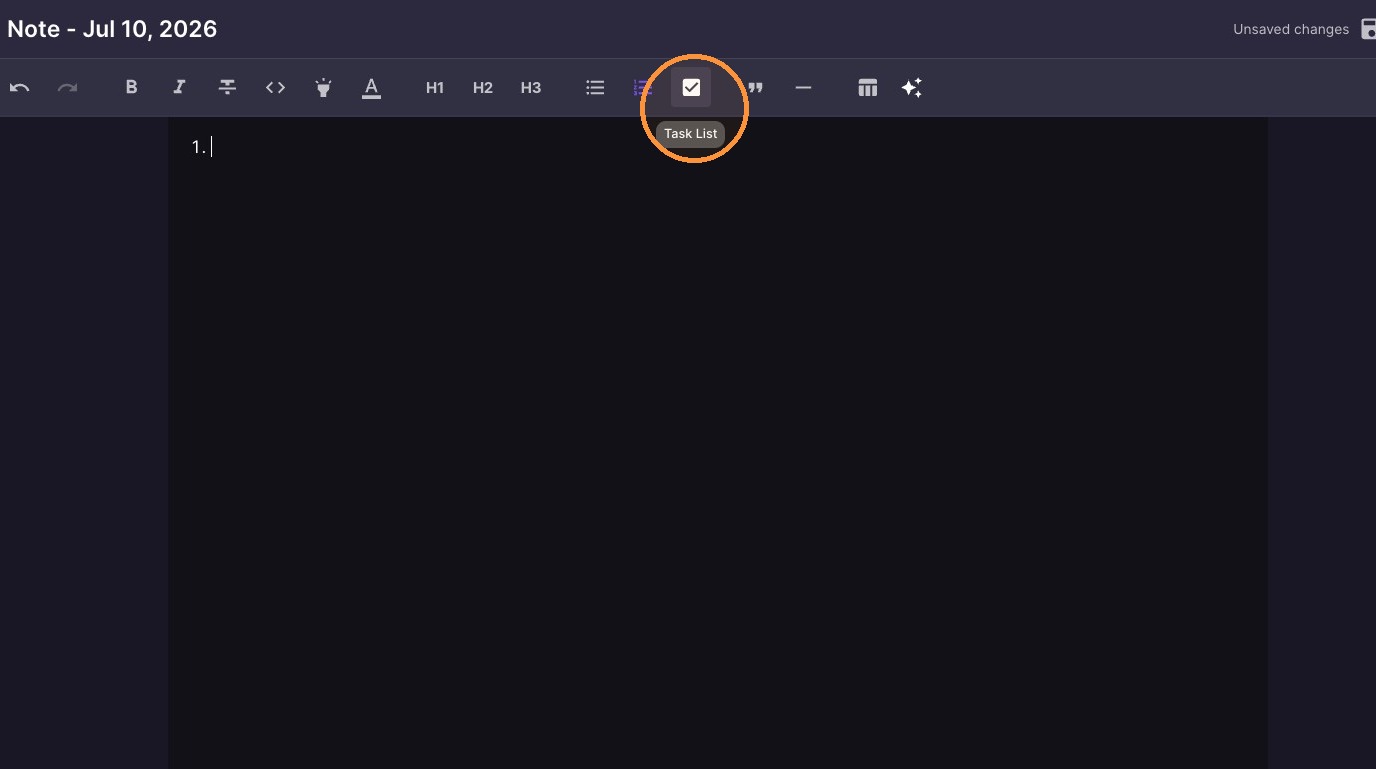
14. "Task List"

ascreenshot_70281d6dfa984ff9a42fbdb0f9601a7e_text_export.jpeg

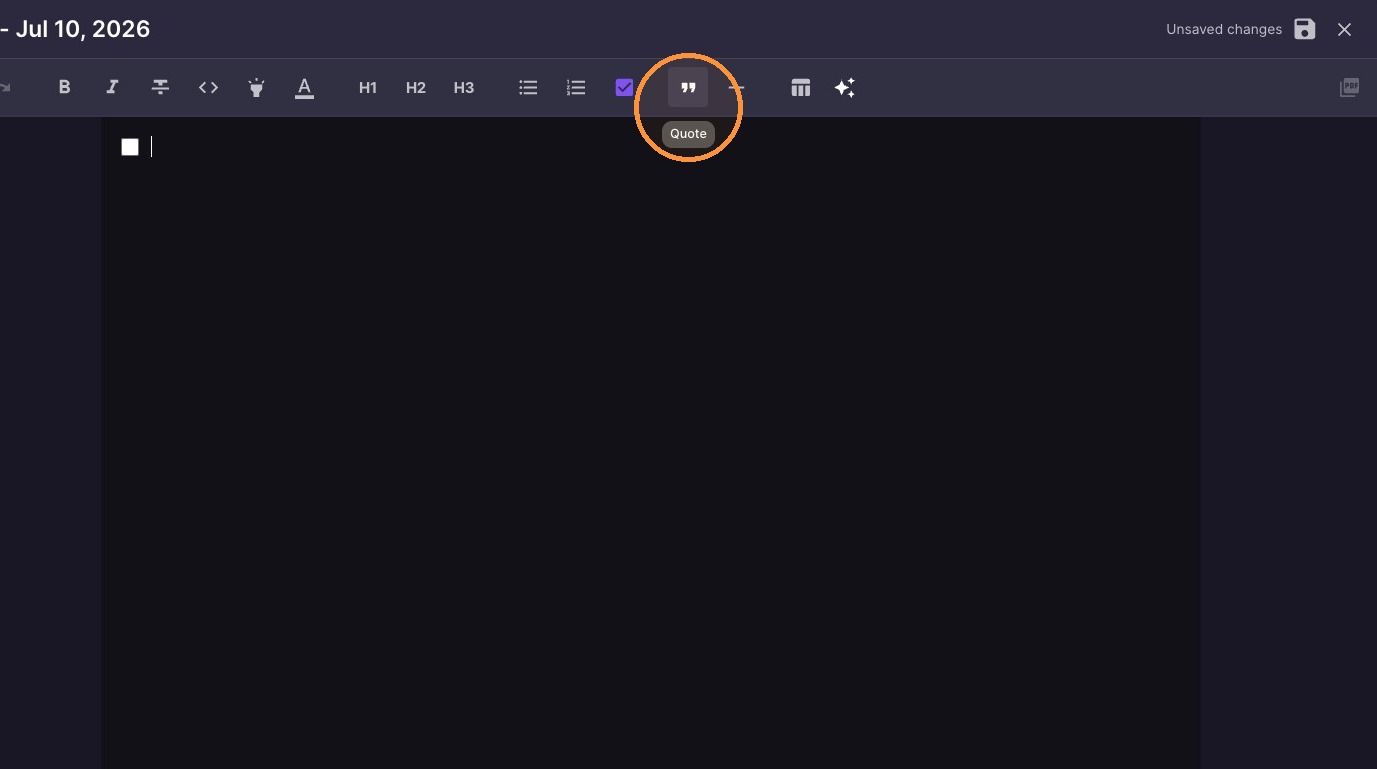
15. "Quote"

ascreenshot_e39bfafdef864da5a6a8f99f5ab4afe5_text_export.jpeg

Advanced Elements and AI

16. "Divider"
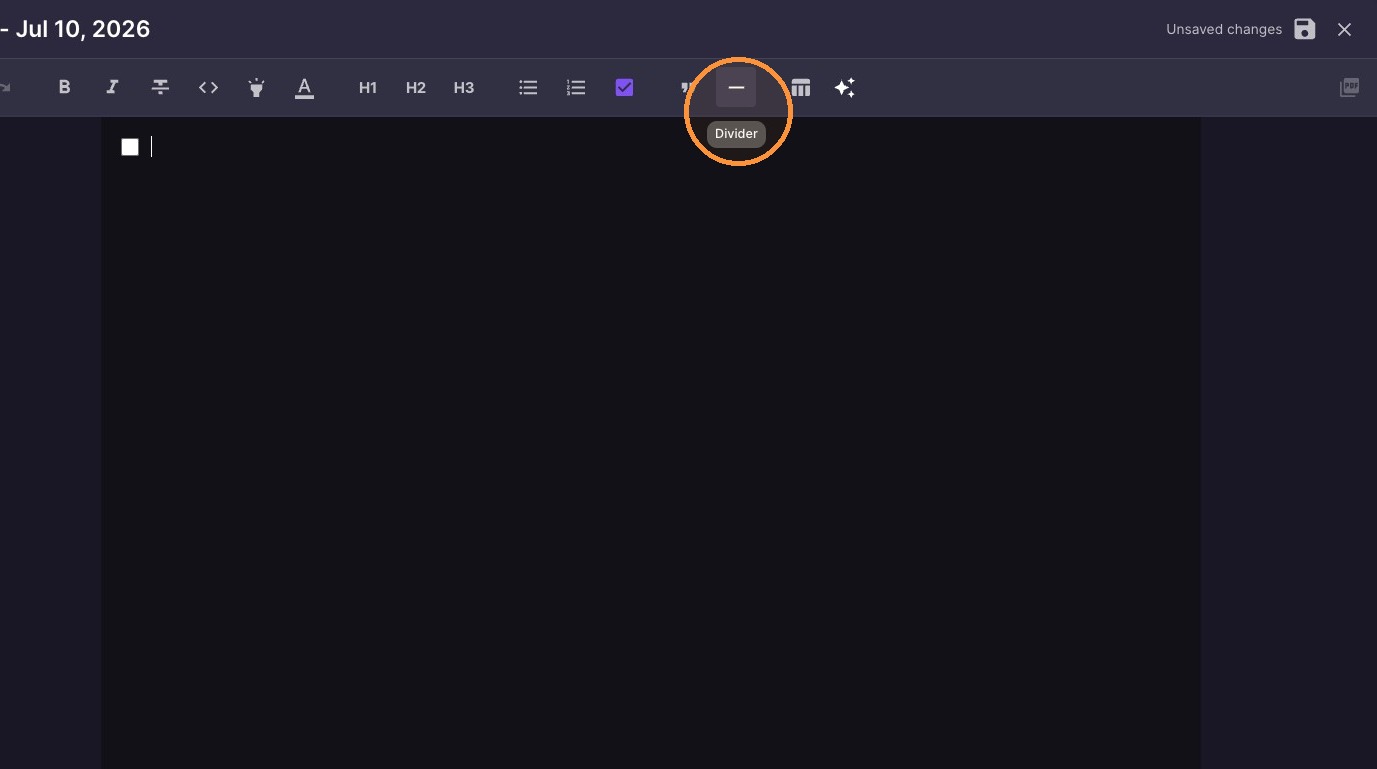
ascreenshot_cc938c6ffebd4d09bc25beac2e52e760_text_export.jpeg

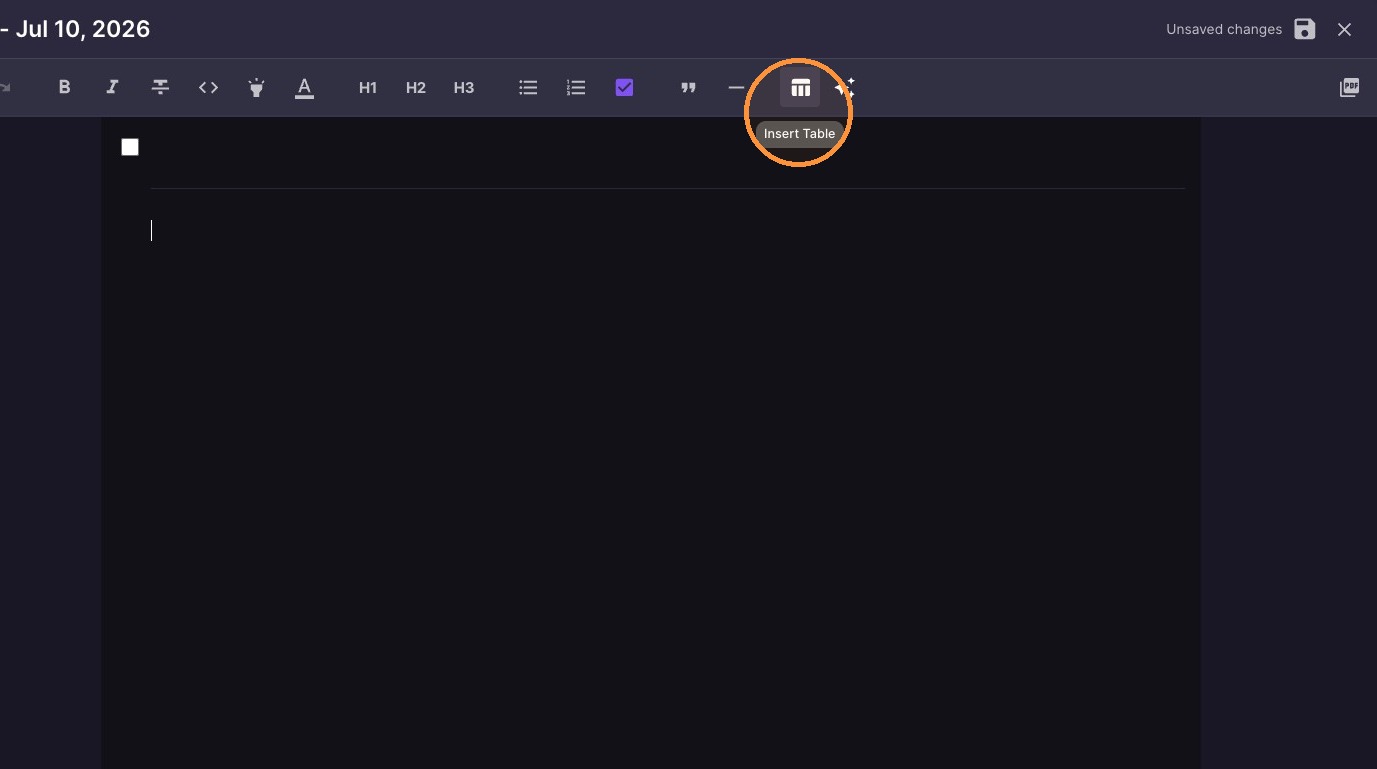
17. "Insert Table"

ascreenshot_f9a269ef790d4ee5ac4f1538bdb932ec_text_export.jpeg

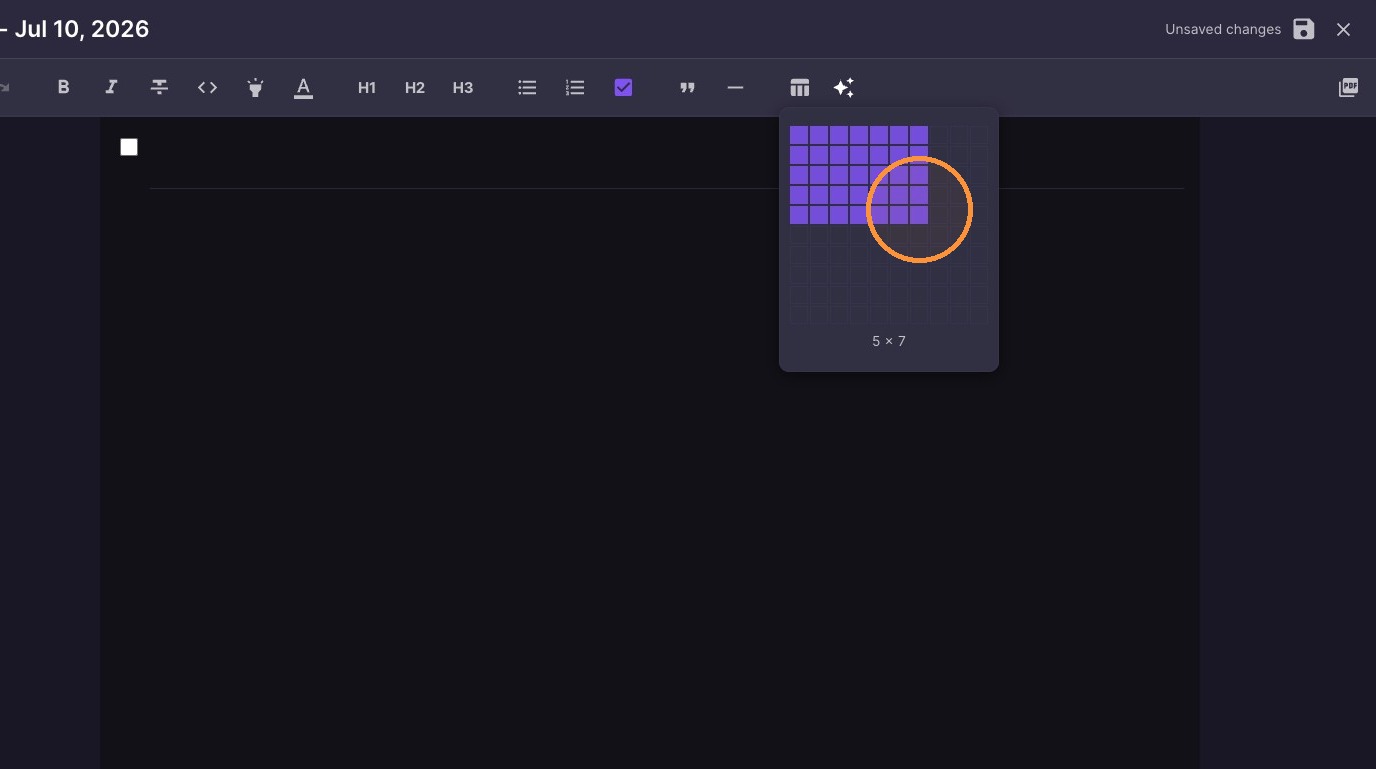
18. Select a table size

ascreenshot_bf29da0298c94255b7735b84c5e94967_text_export.jpeg

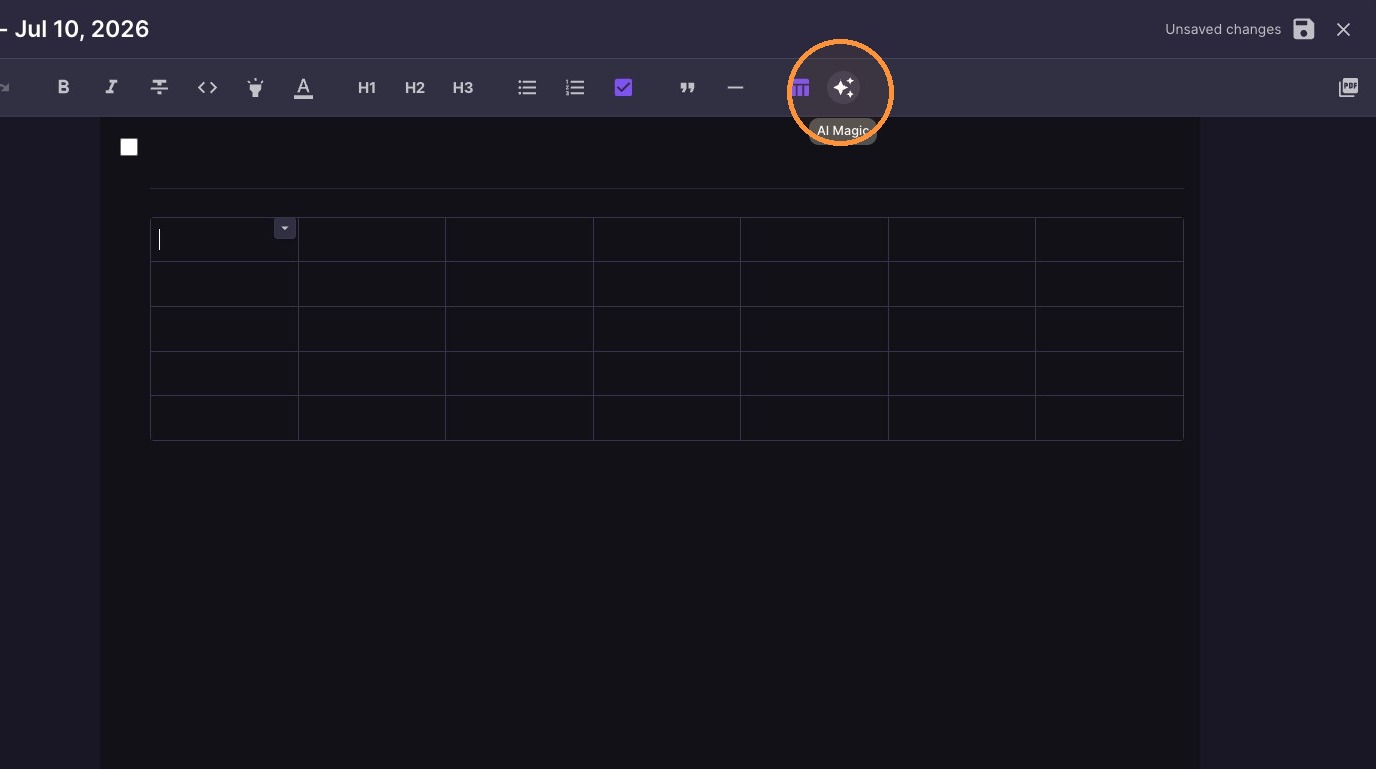
19. Click "AI Magic"

ascreenshot_2c1030ab7b304bc5b54315a4e63bbaa2_text_export.jpeg

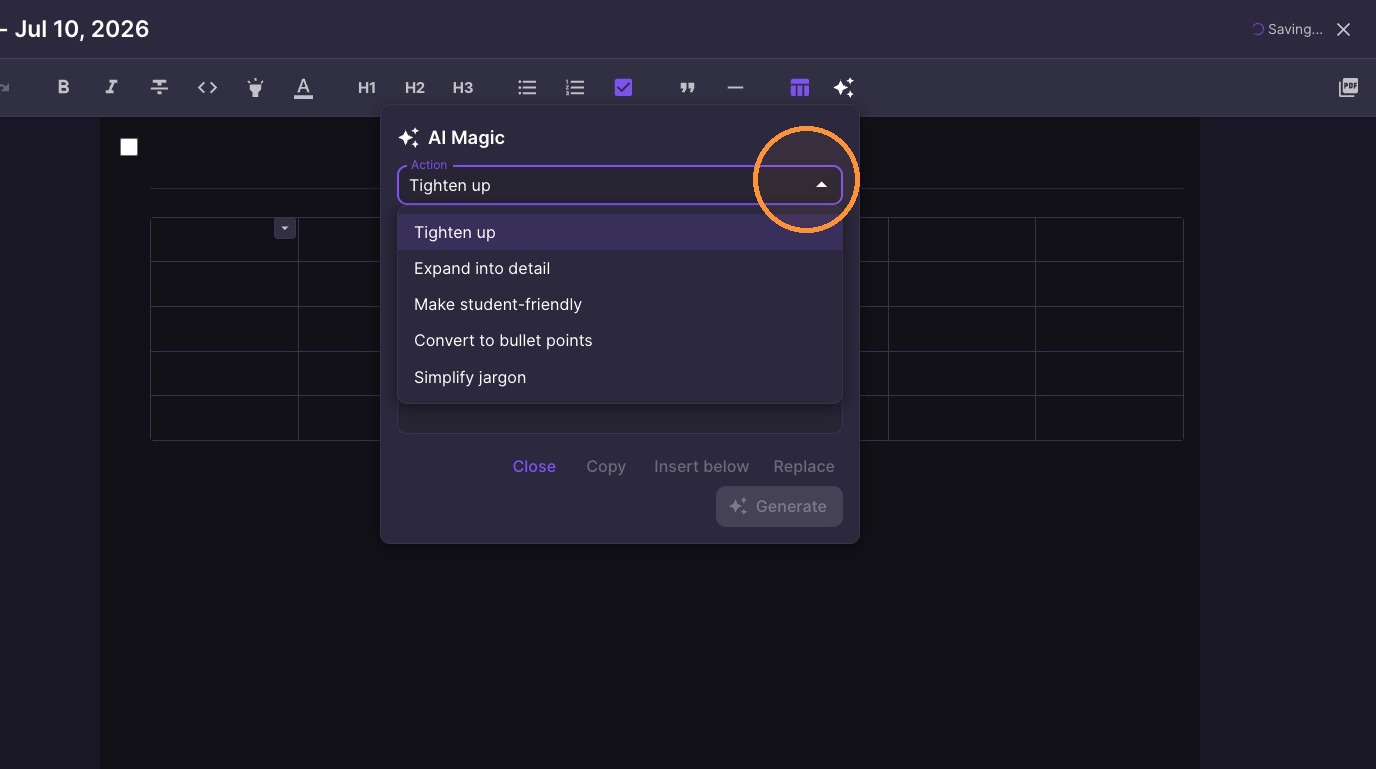
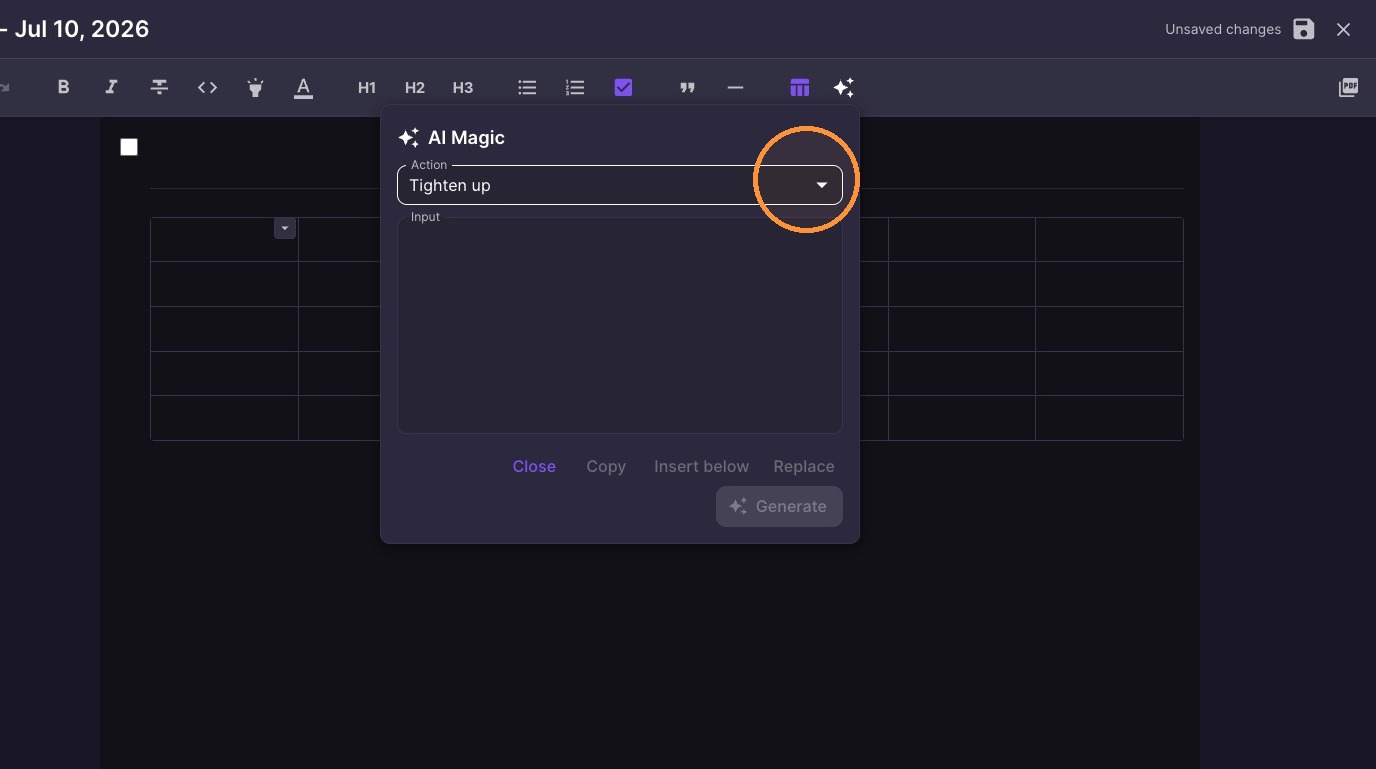
20. Select an action from the AI Magic dropdown menu
ascreenshot_03ce61927fee4373955d44c3b998819b_text_export.jpeg
ascreenshot_f78e708bca2d437ab704149310174d0b_text_export.jpeg

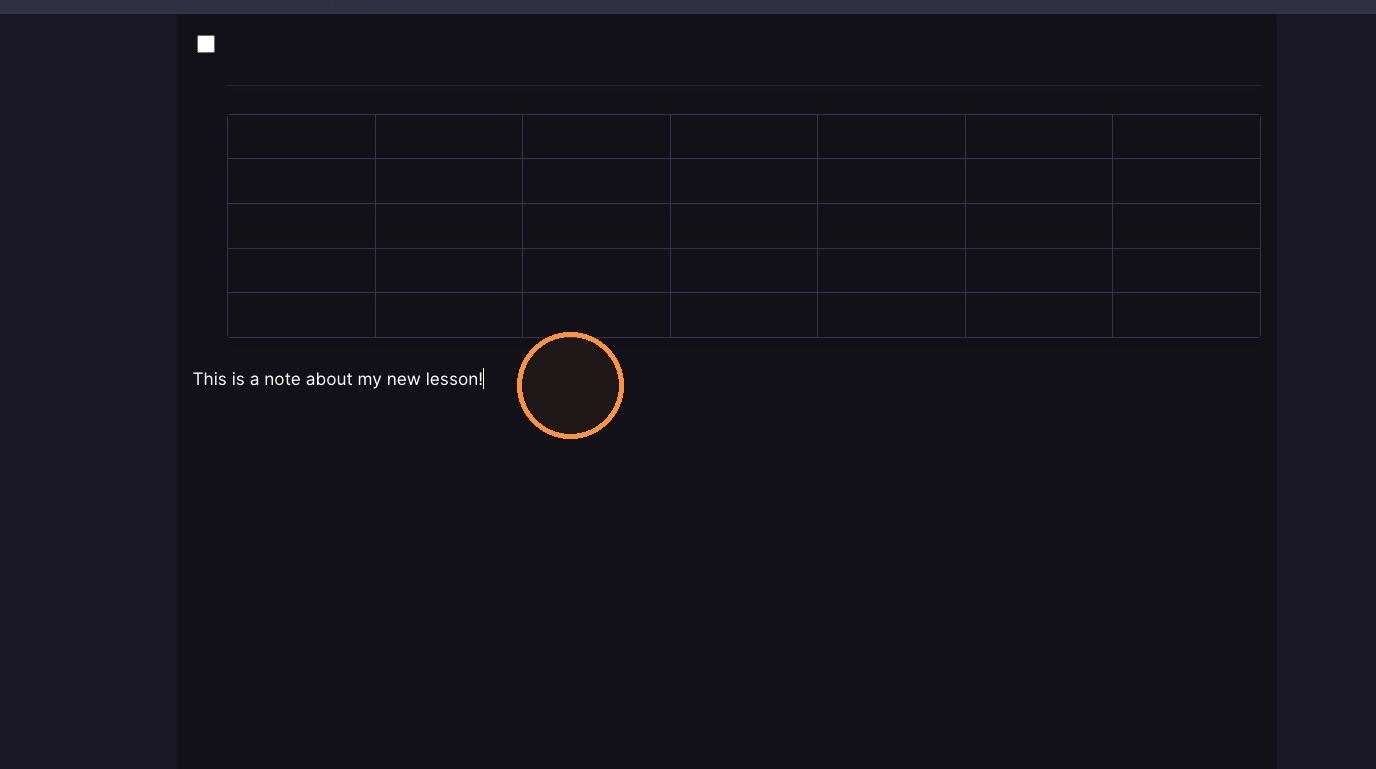
21. Type content into note body

ascreenshot_6b338a430a1b41c78e822da2cfde0906_text_export.jpeg

Organization and Export

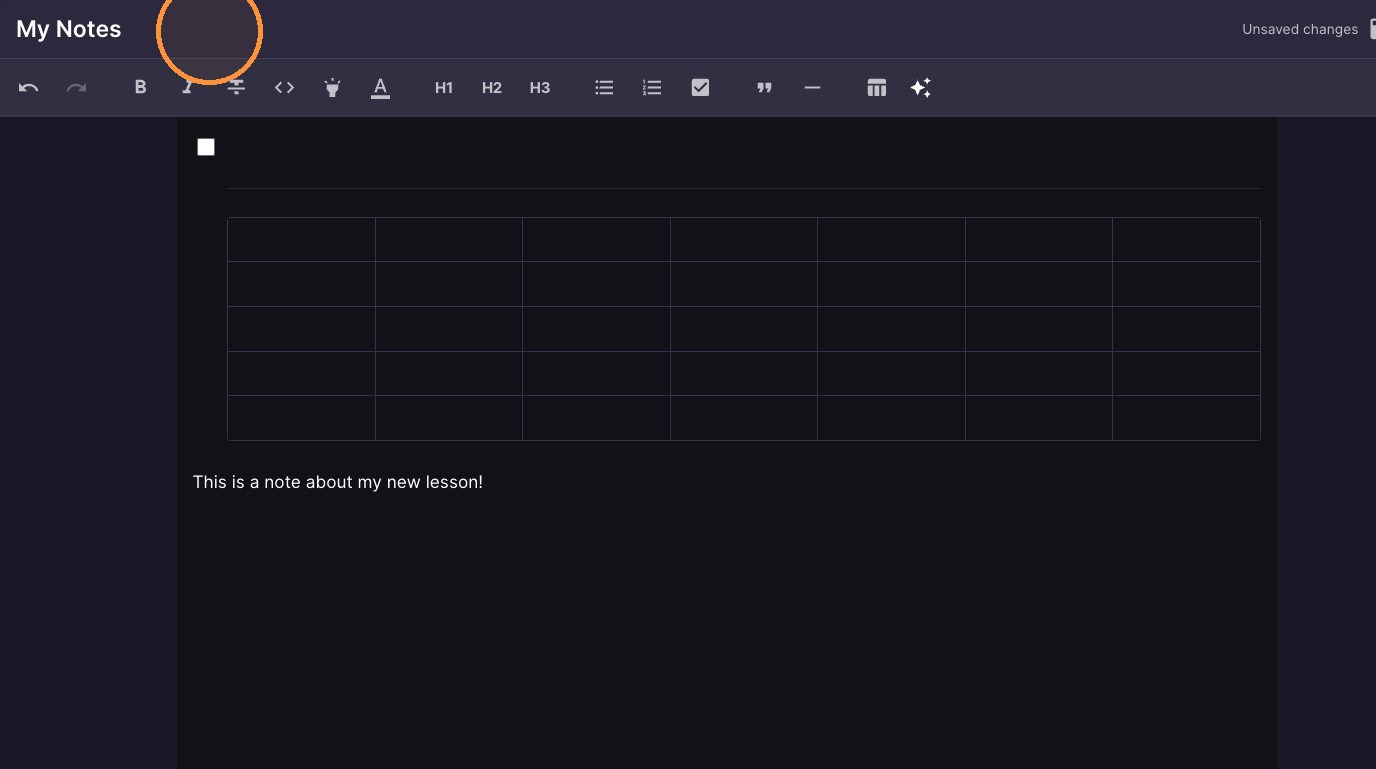
22. Rename the note
ascreenshot_124cbadb18d041f7ae90382de86291f7_text_export.jpeg

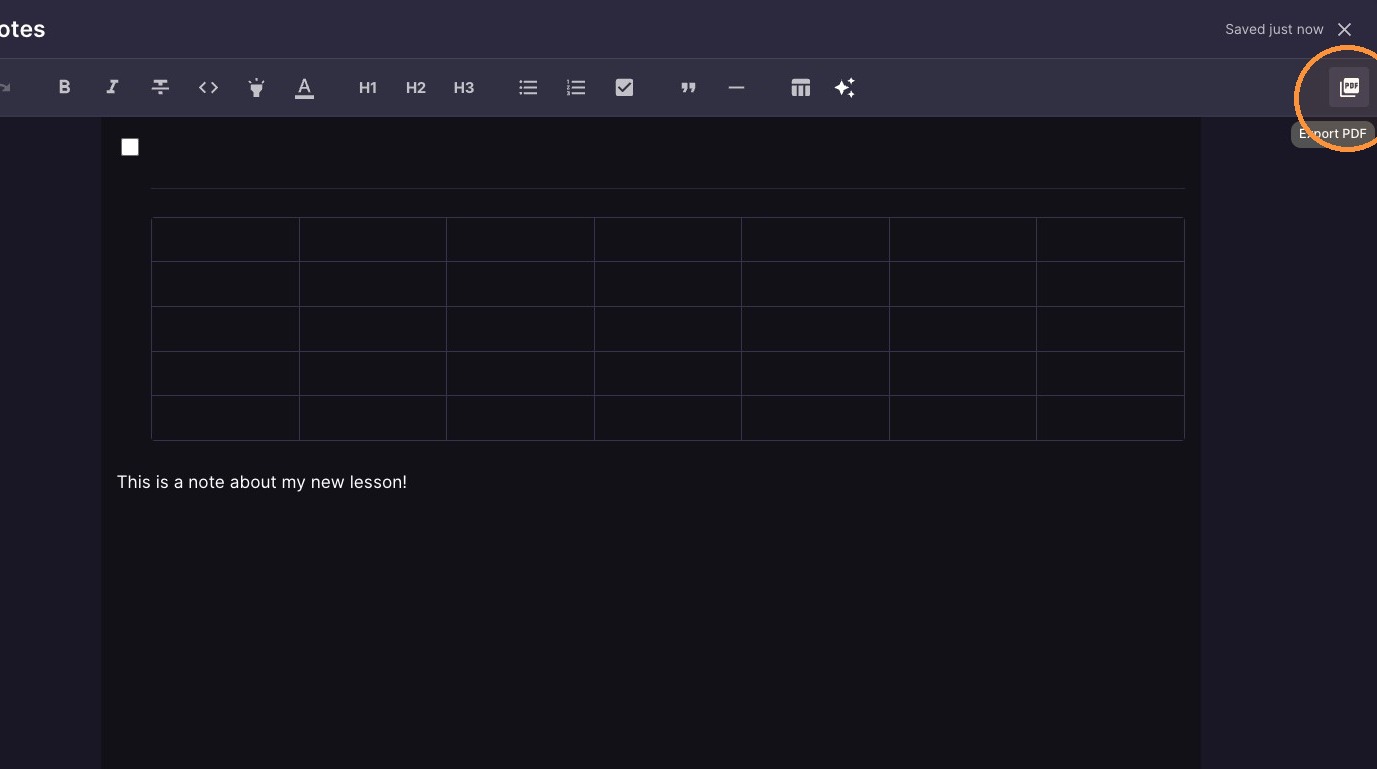
23. "Export PDF"

ascreenshot_d1edd289403c4ba9a8f8581cd9a92a8c_text_export.jpeg