

The MIDI Instruments tool lets you use the Muzie piano interface to choose instrument sounds, show or hide key labels, and map your MIDI device to the on-screen keys. You can use it during lessons with your teacher or on your own for practice.
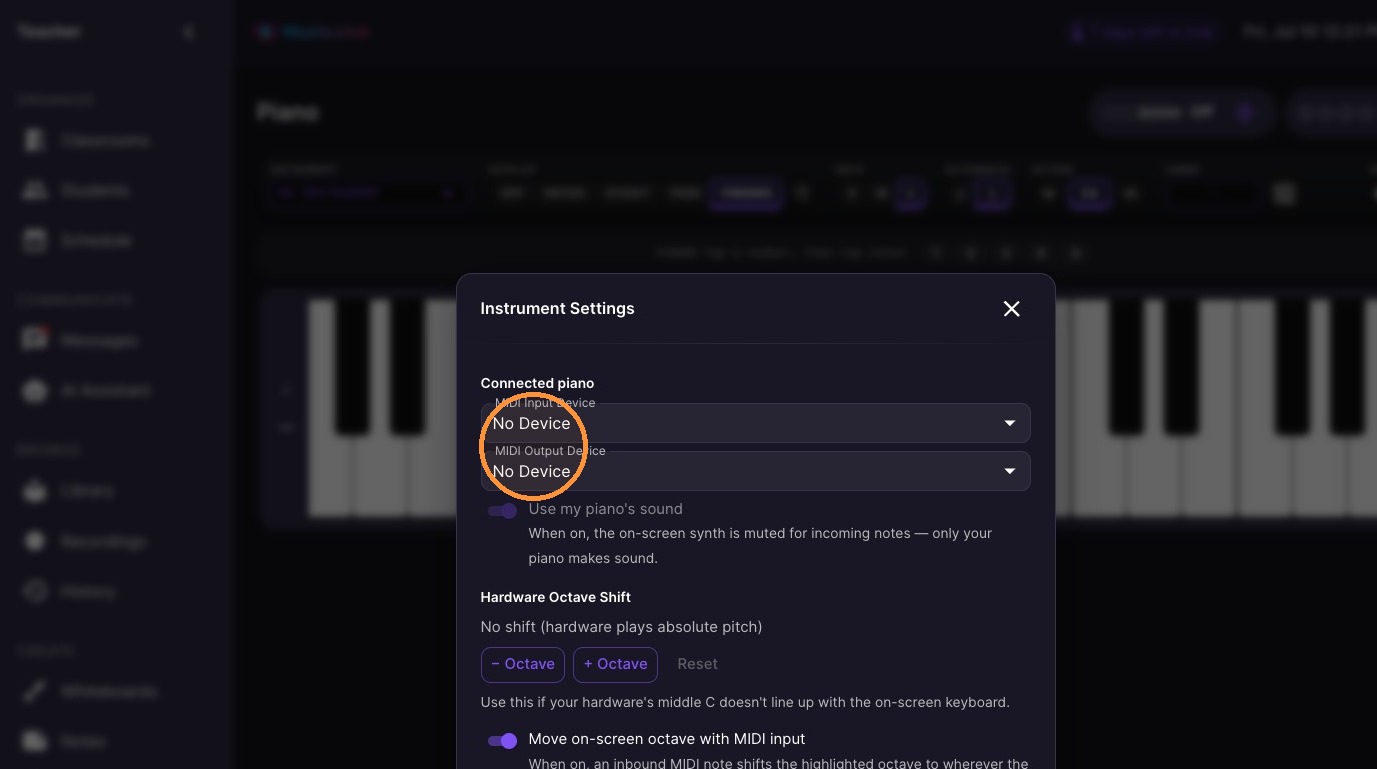
MIDI pass-thru lets you and your teacher connect MIDI devices at the same time. When your teacher plays, the notes are sent to your MIDI device in real time so you can hear and see what they are playing on your setup.
Instrument Selection and Setup
-
Select "Piano" from the sidebar menu.
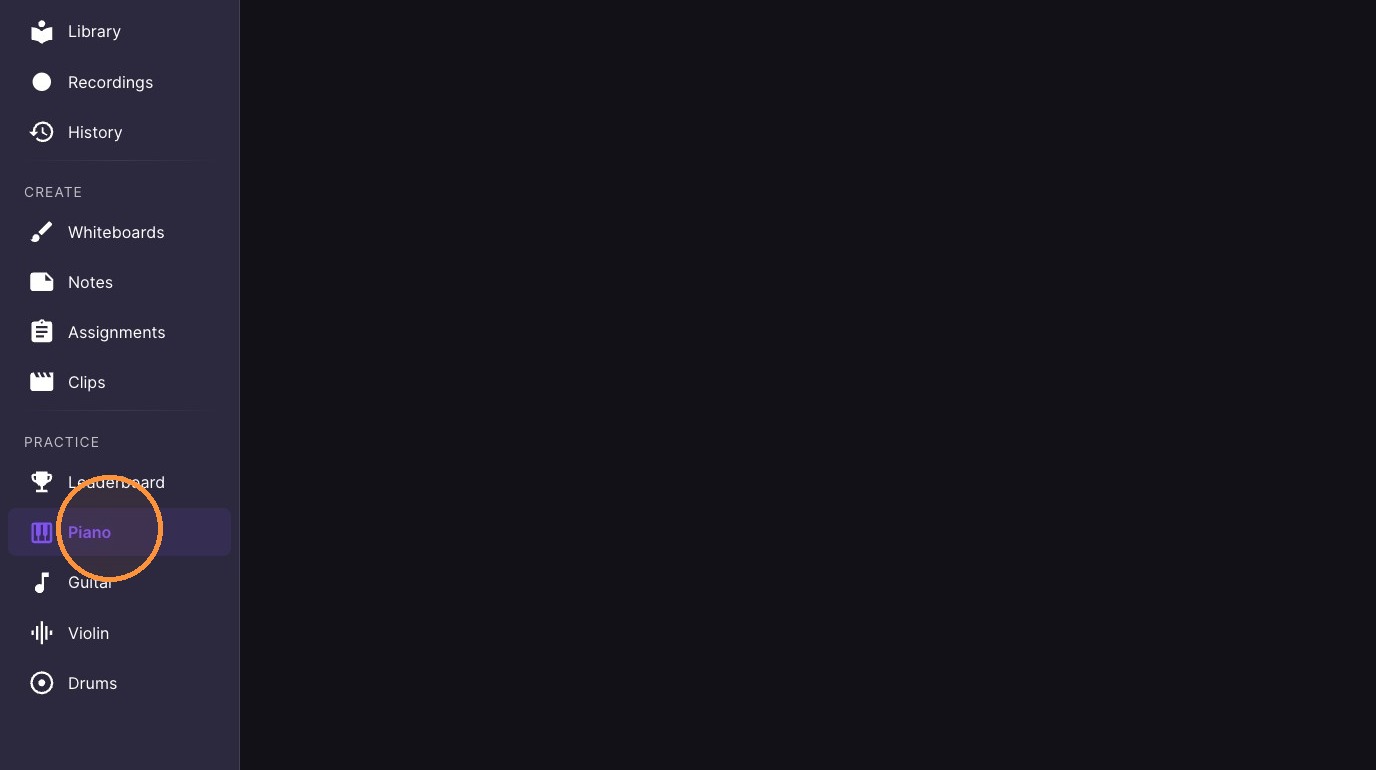
-
Select Midi Sound
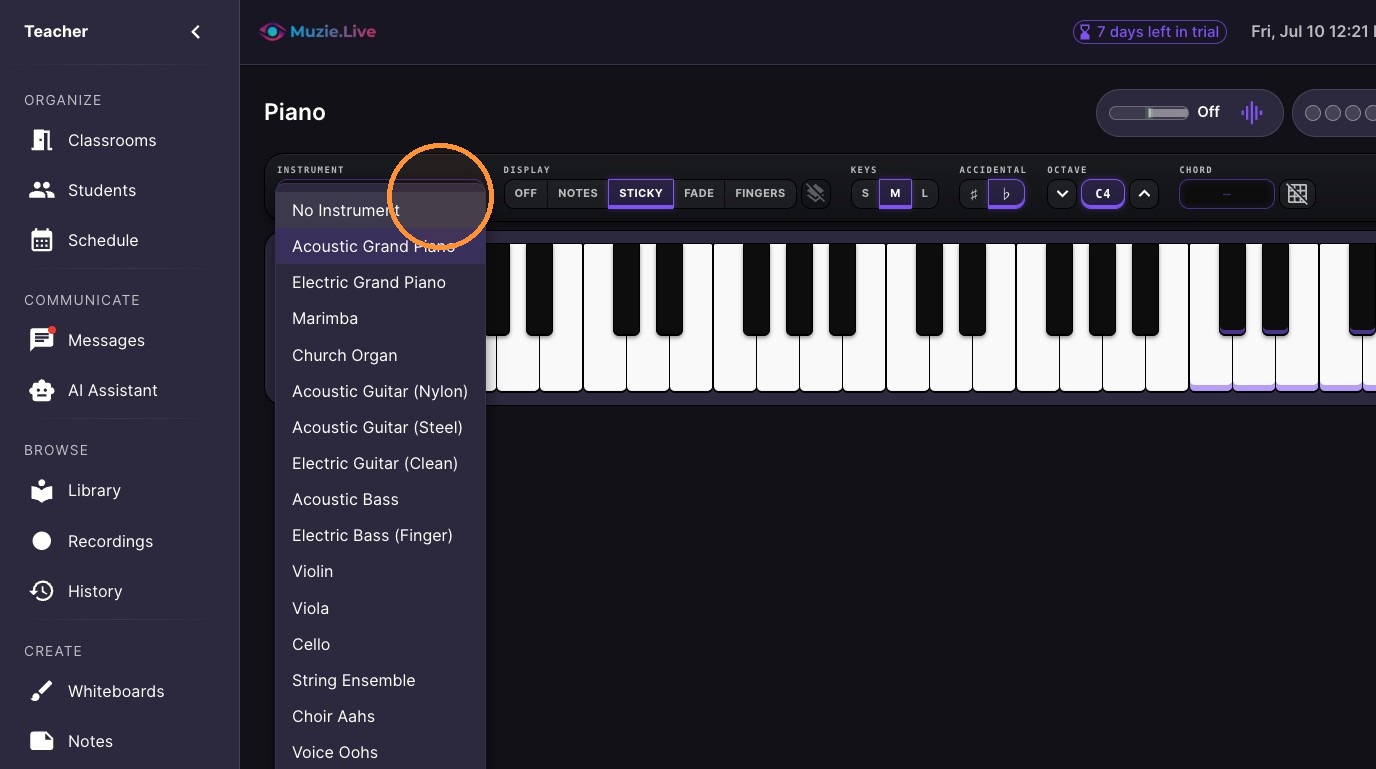
Piano Display and Fingering
-
Turn off notes display
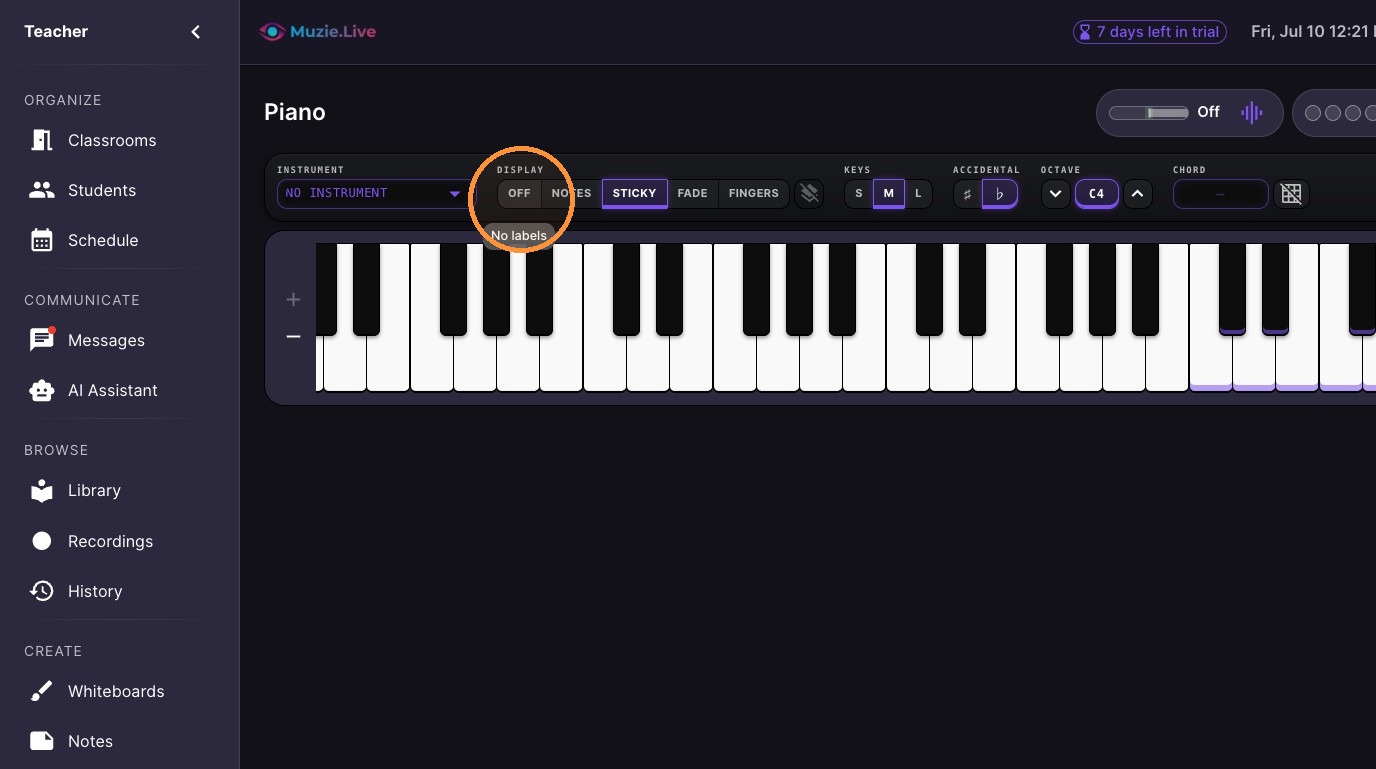
-
Enable "Notes" to show note names on the keyboard.
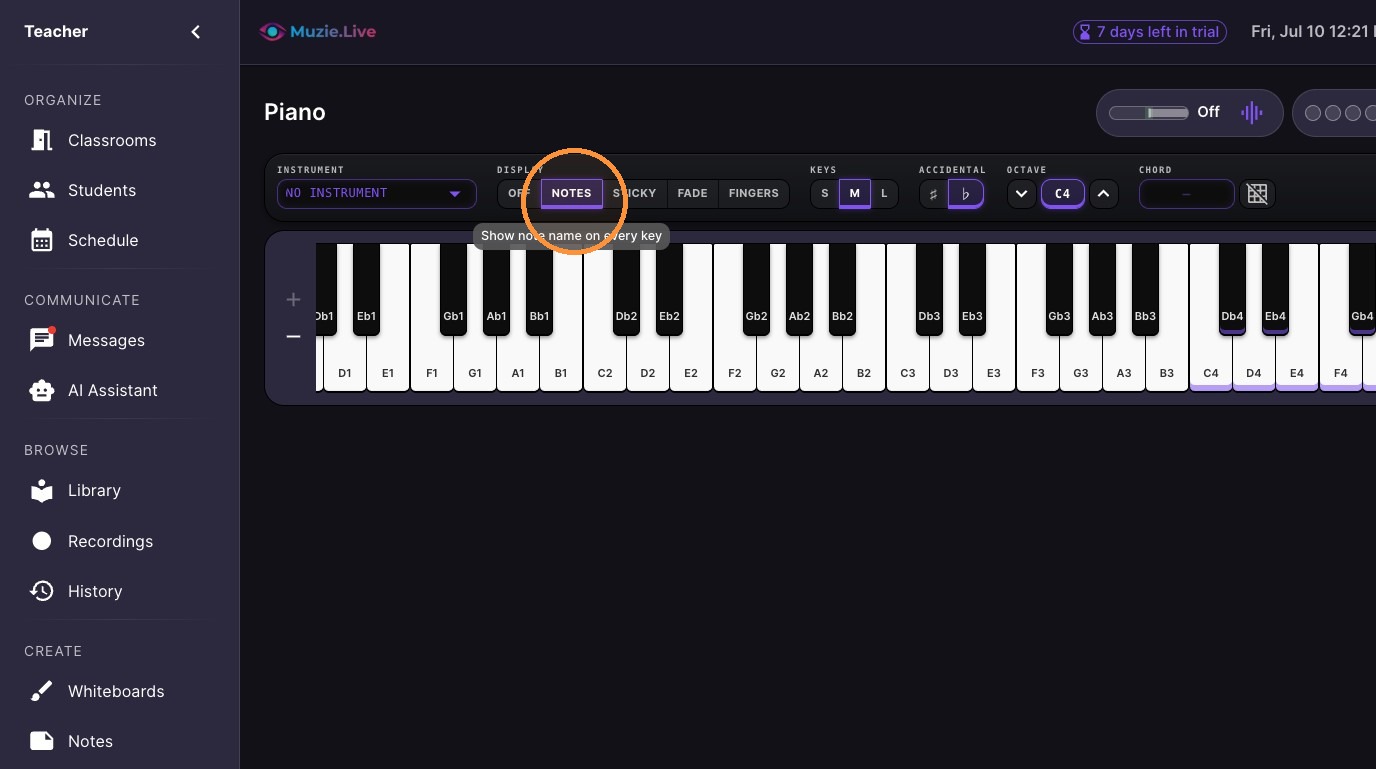
-
Select "Sticky" to pin note names to the keys as you play them
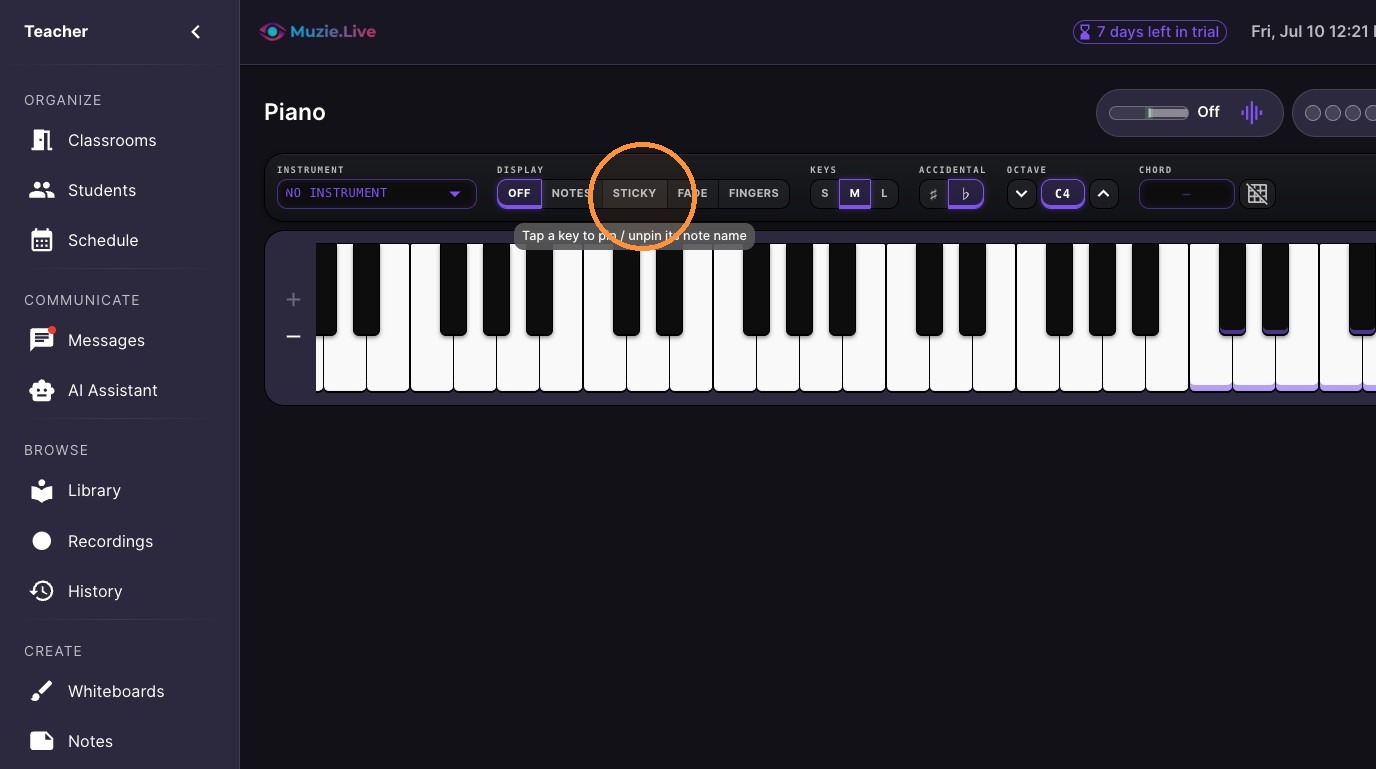
-
Enable "Fade" for notes to display for a few seconds as you play them
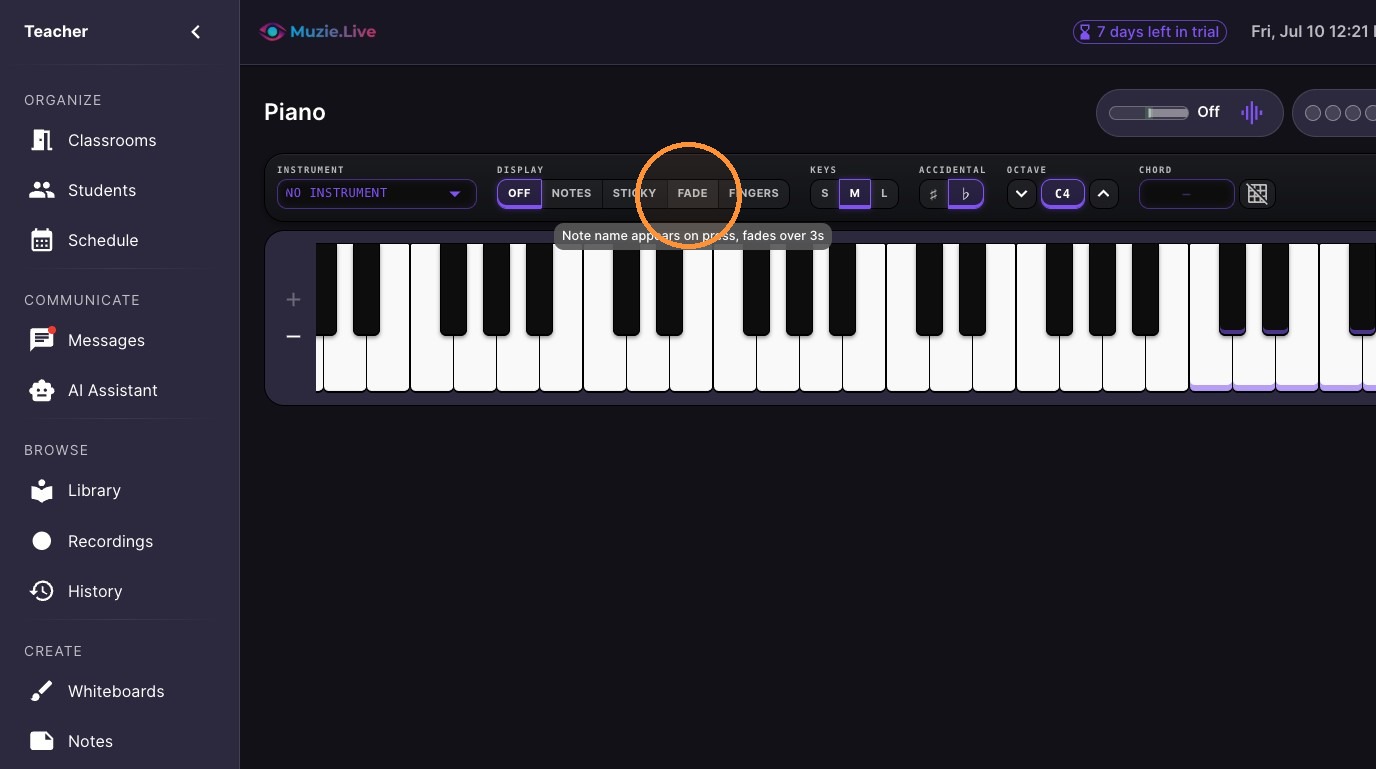
-
Select "Fingers" to assign finger numbers to the keys.
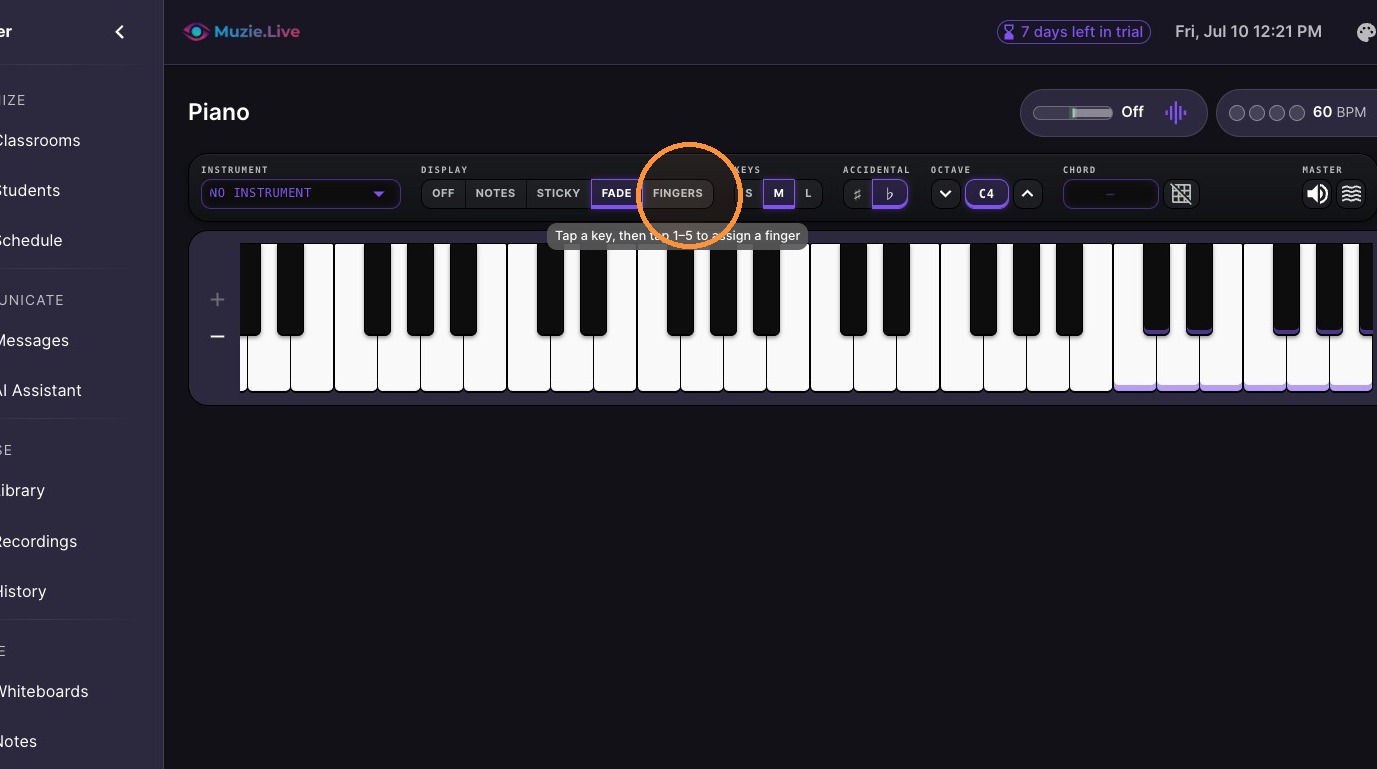
-
Click a key to see the finger number
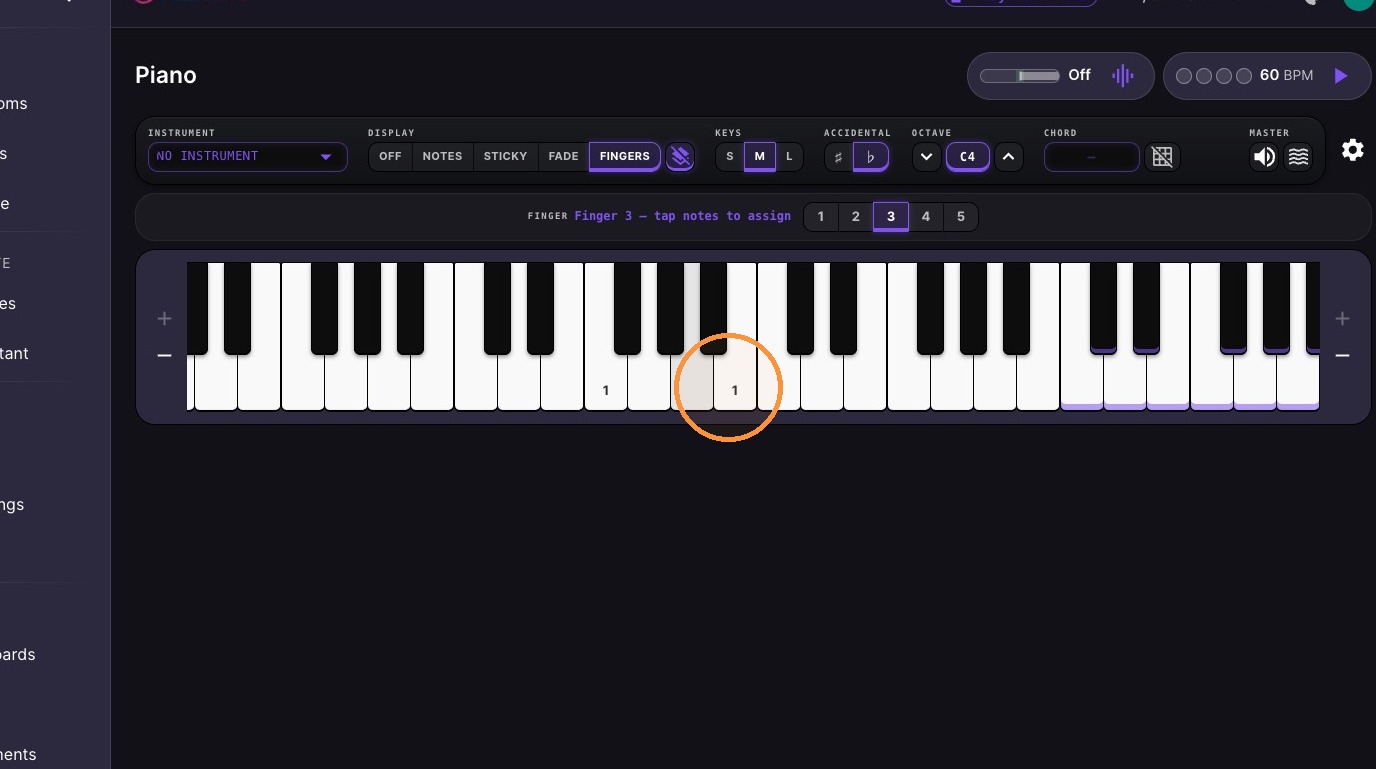
-
Click the "Clear all finger labels" icon.
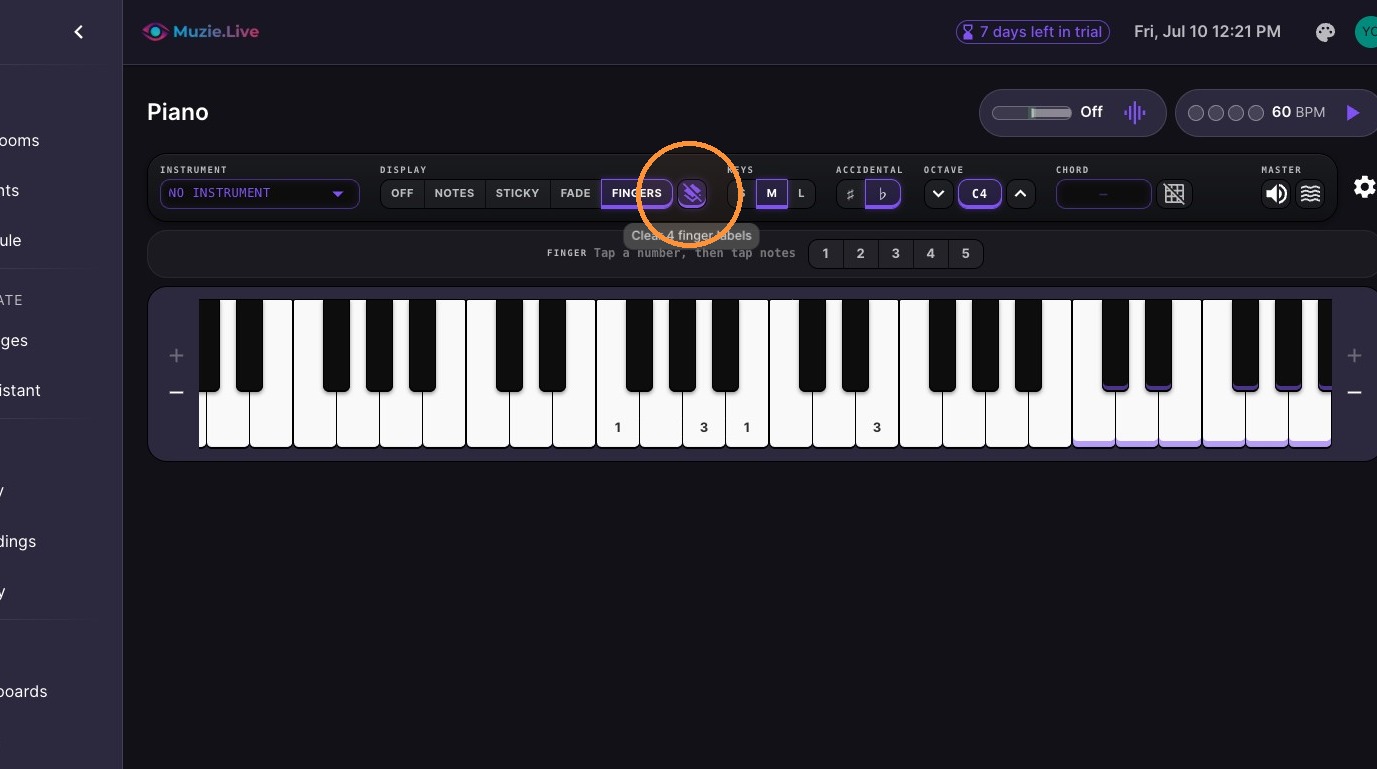
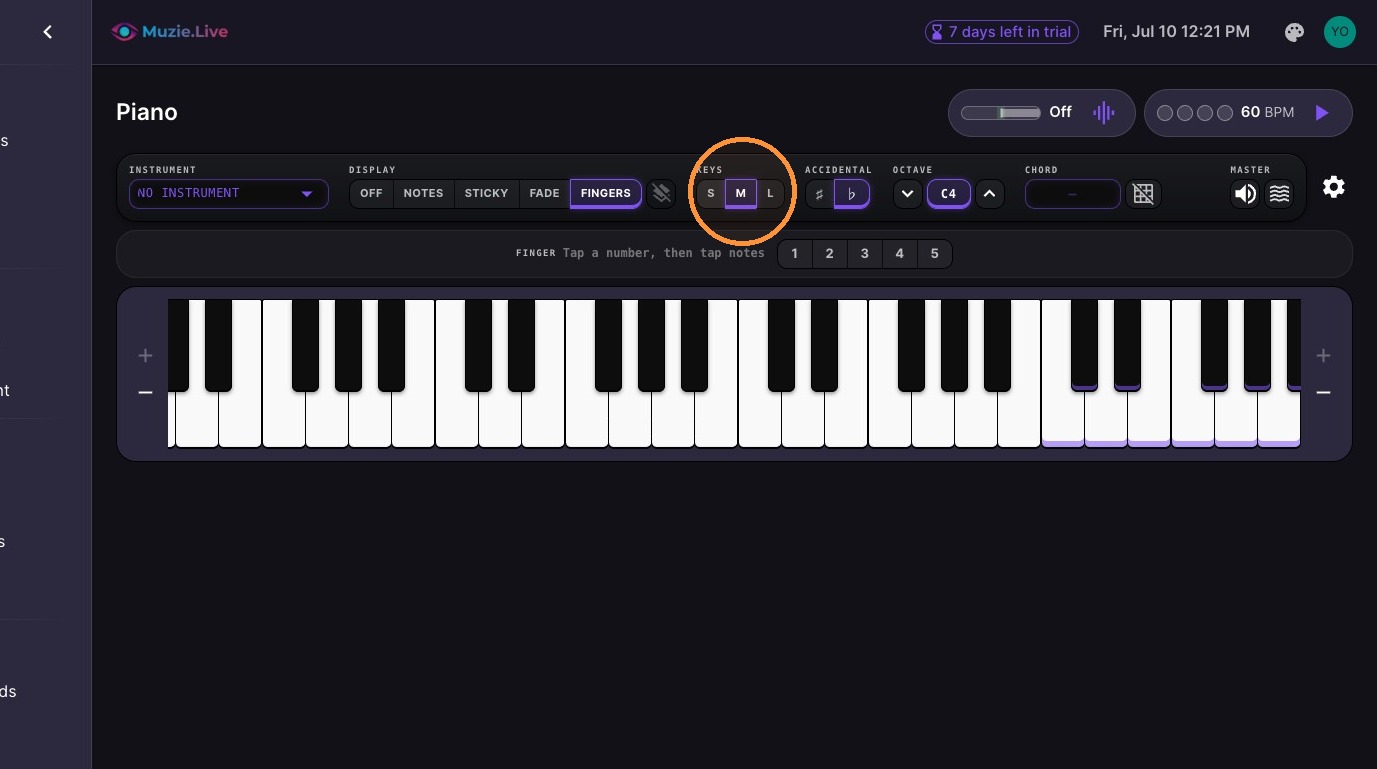
10. Adjust keyboard key sizes
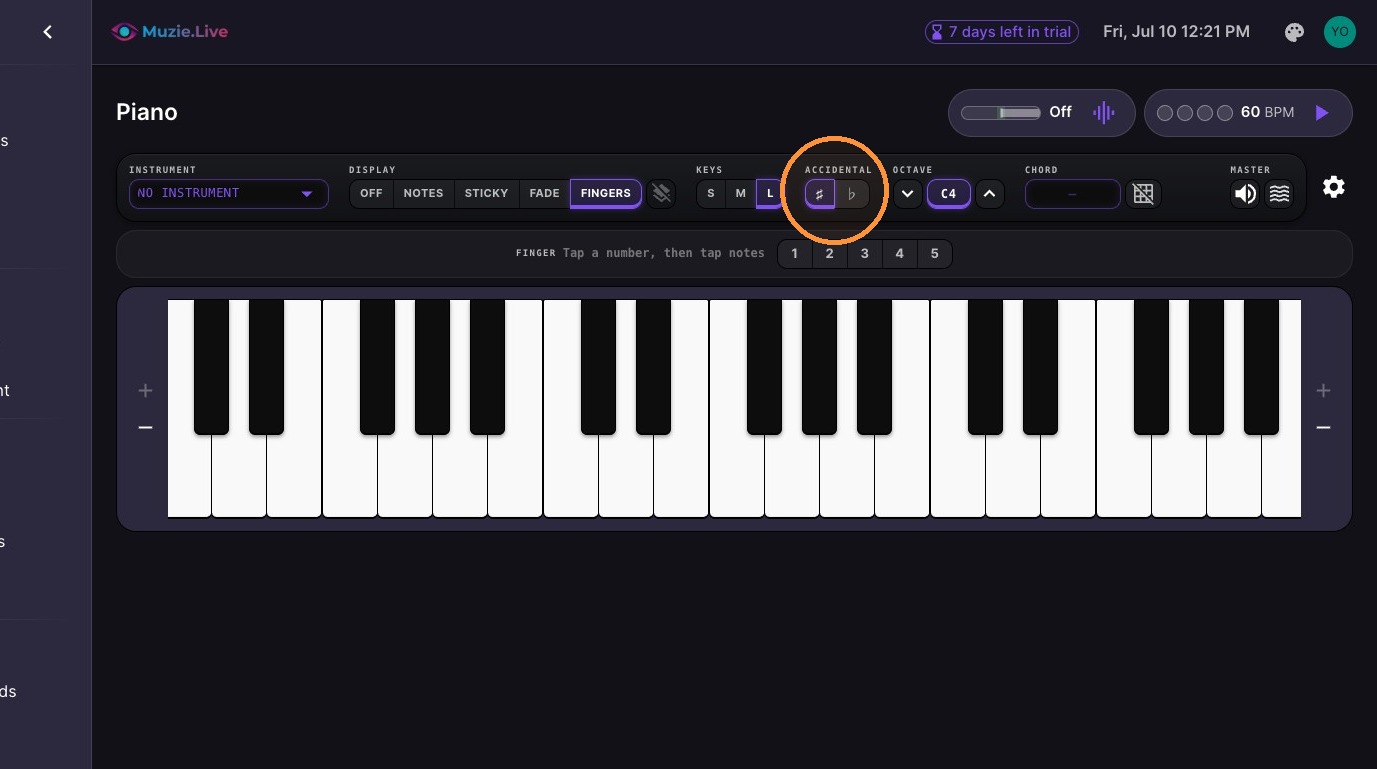
11. Toggle Flats or Sharps
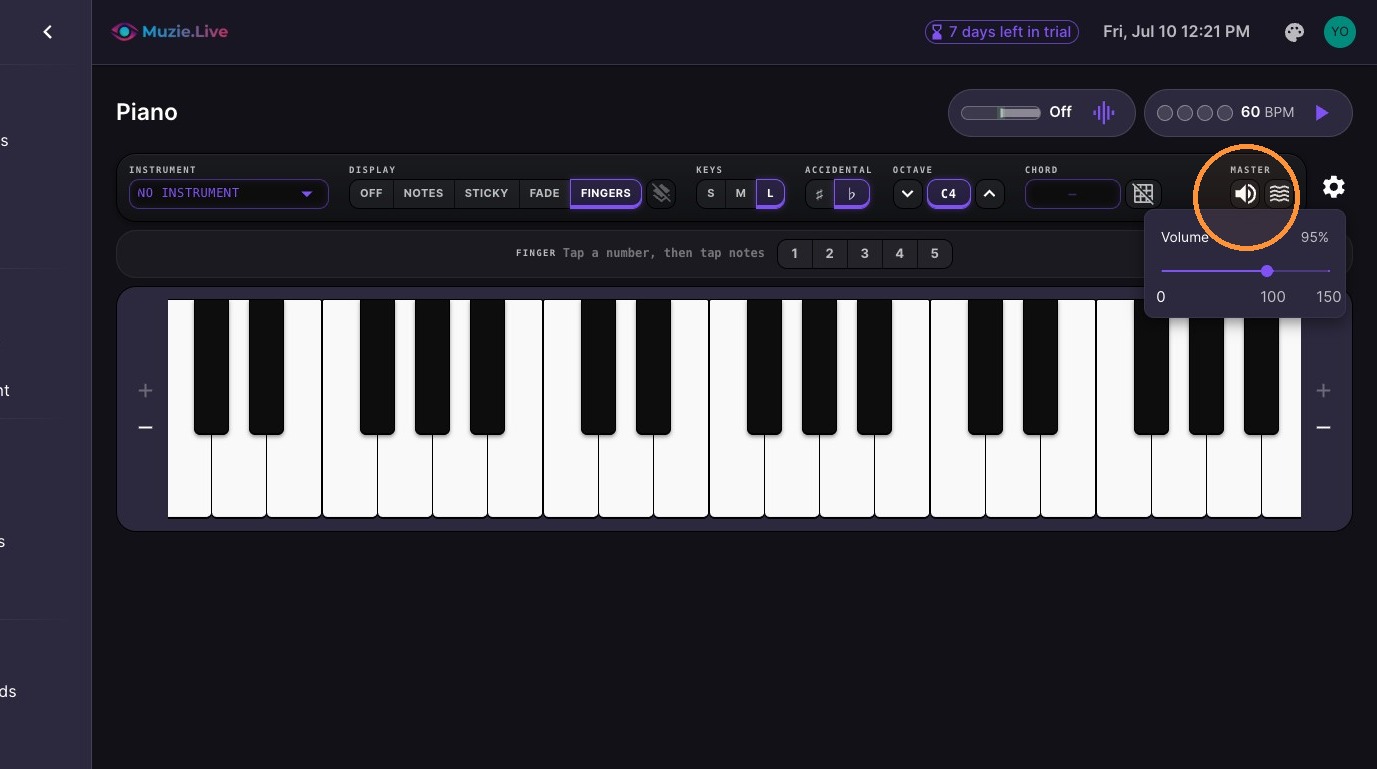
12. Adjust the volume
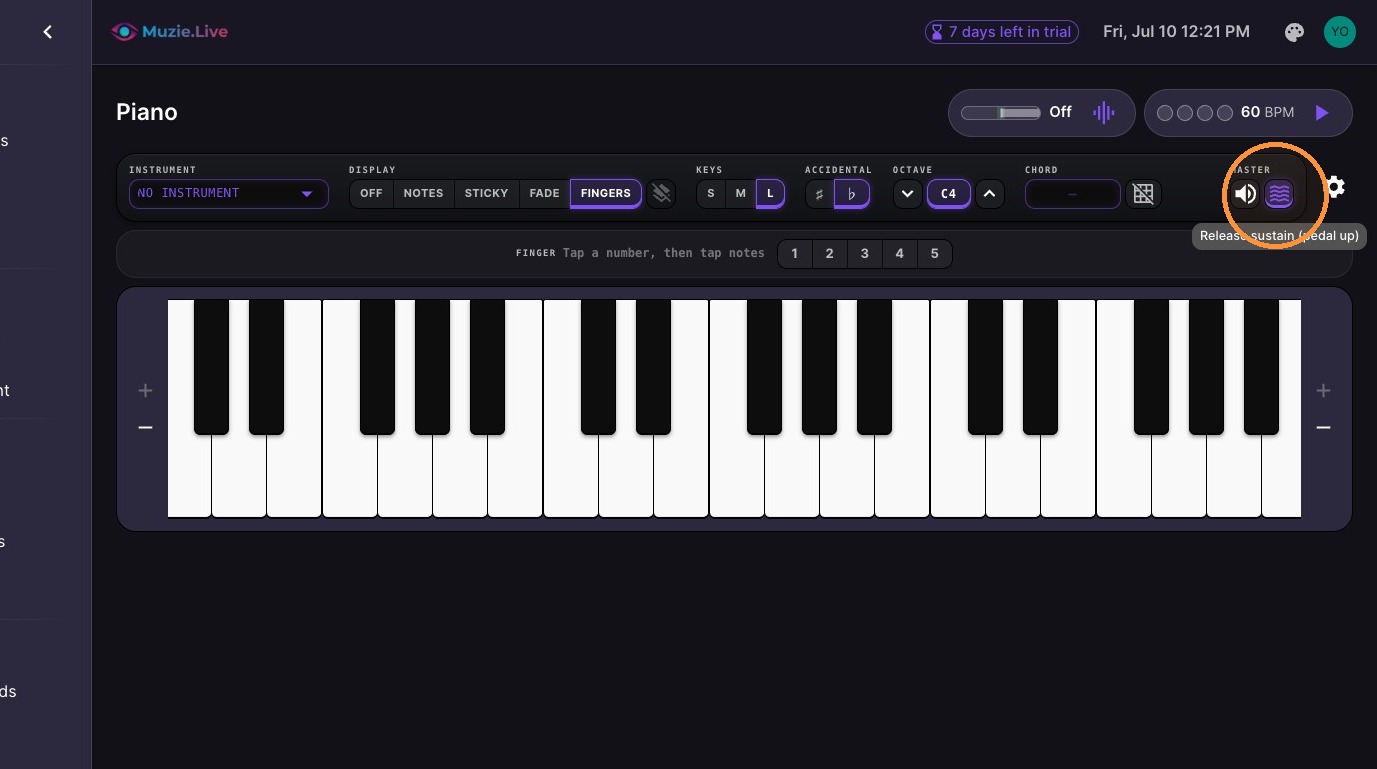
13. Toggle the sustain pedal control
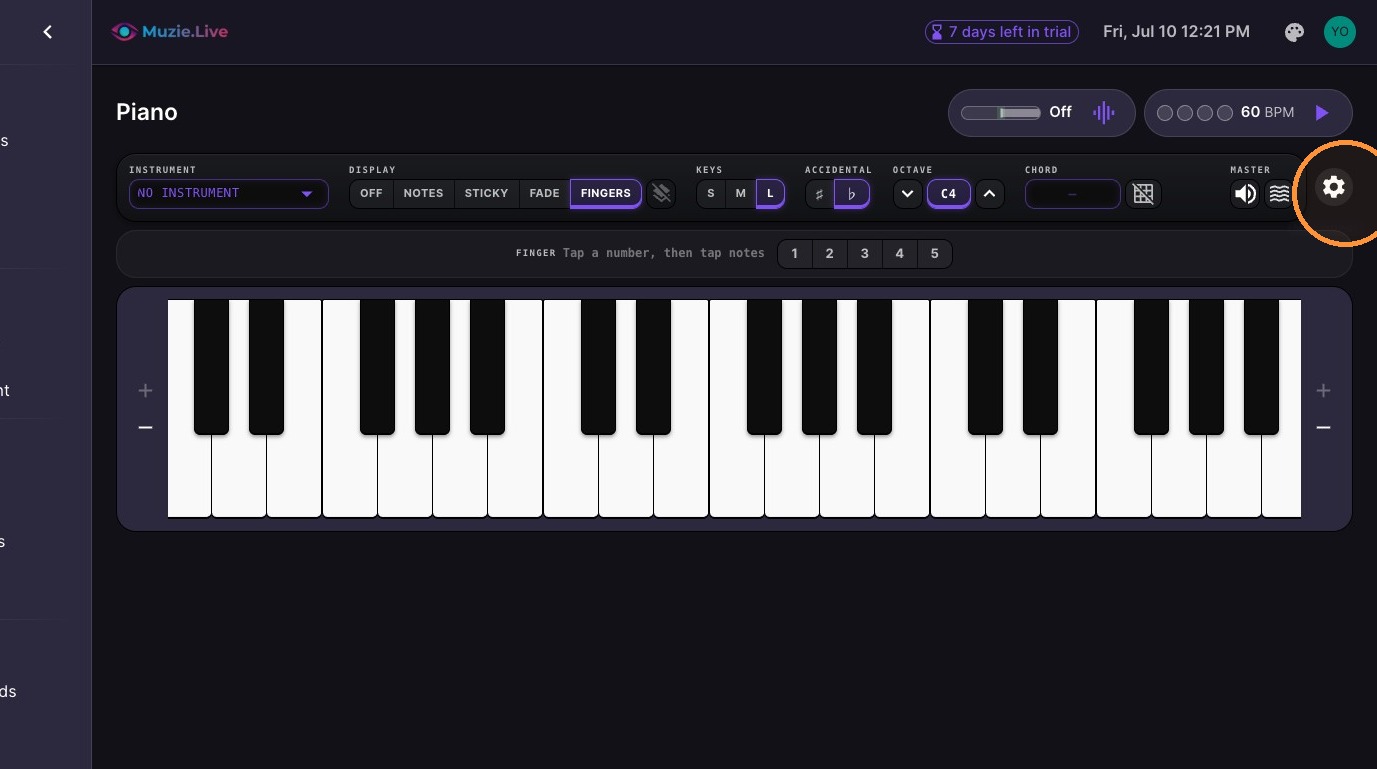
14. Open the Instrument Settings menu.
15. To connect your midi device select the device as input & if you want to use midi pass thru select output as well.
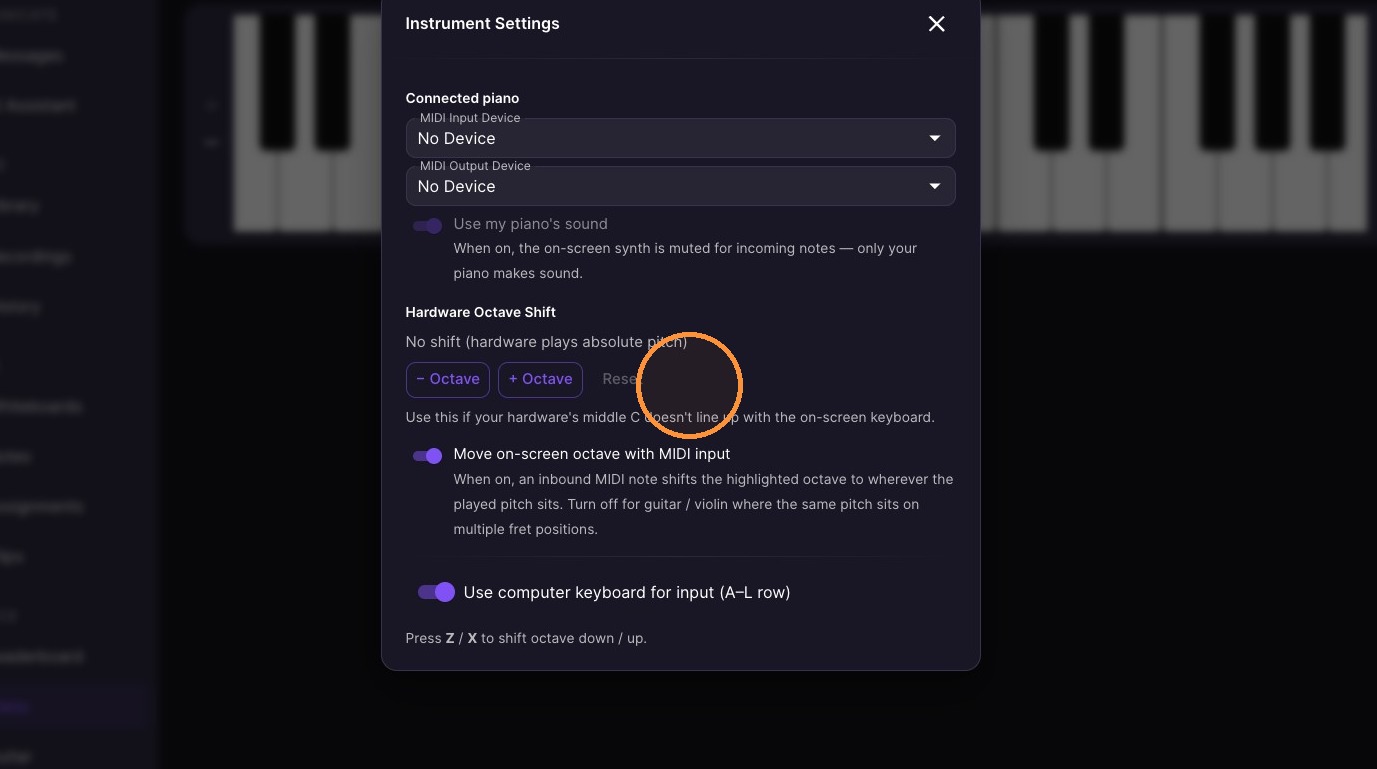
16. Use these settings to align your midi device with the keys on screen (typically used for small 32 key midi keyboards)
Drum, Guitar & Violin Tool Configuration
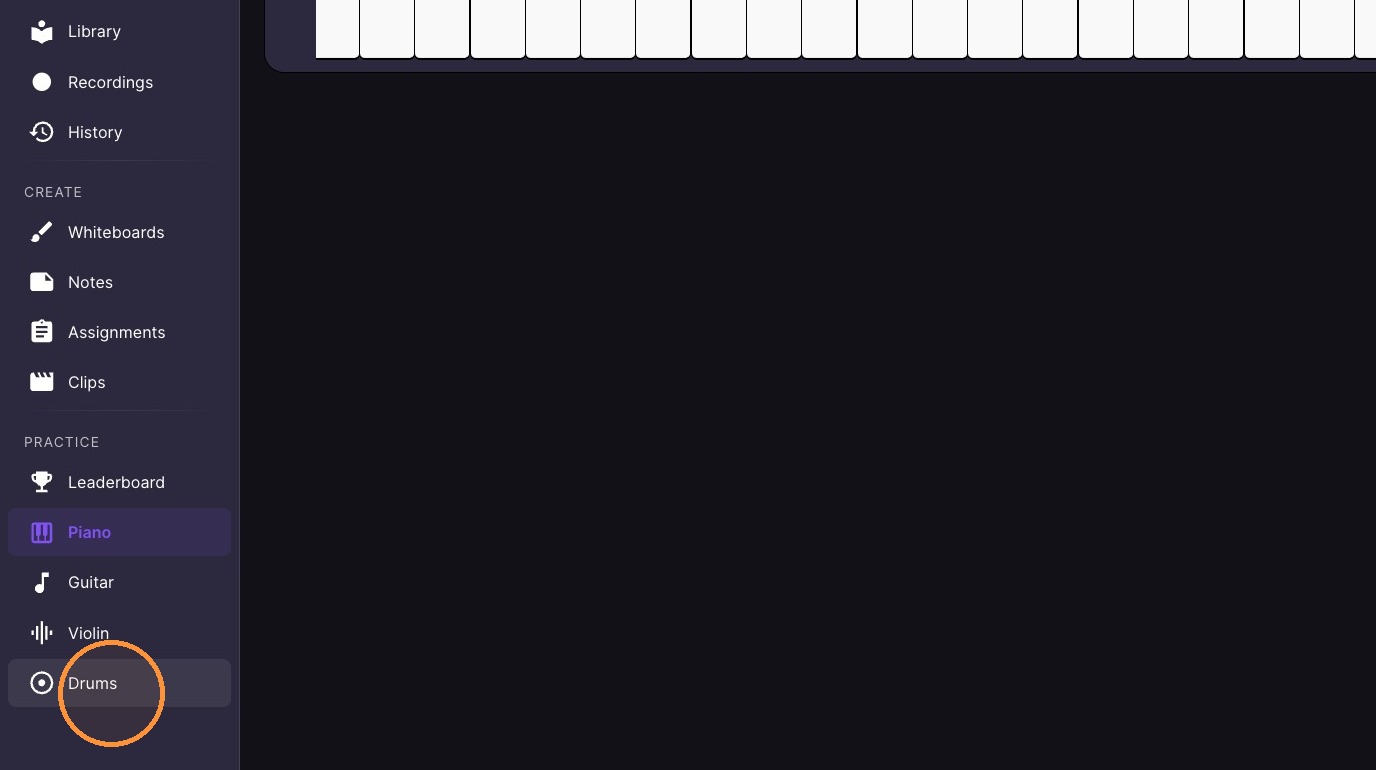
17. Select "Drums" from the sidebar.
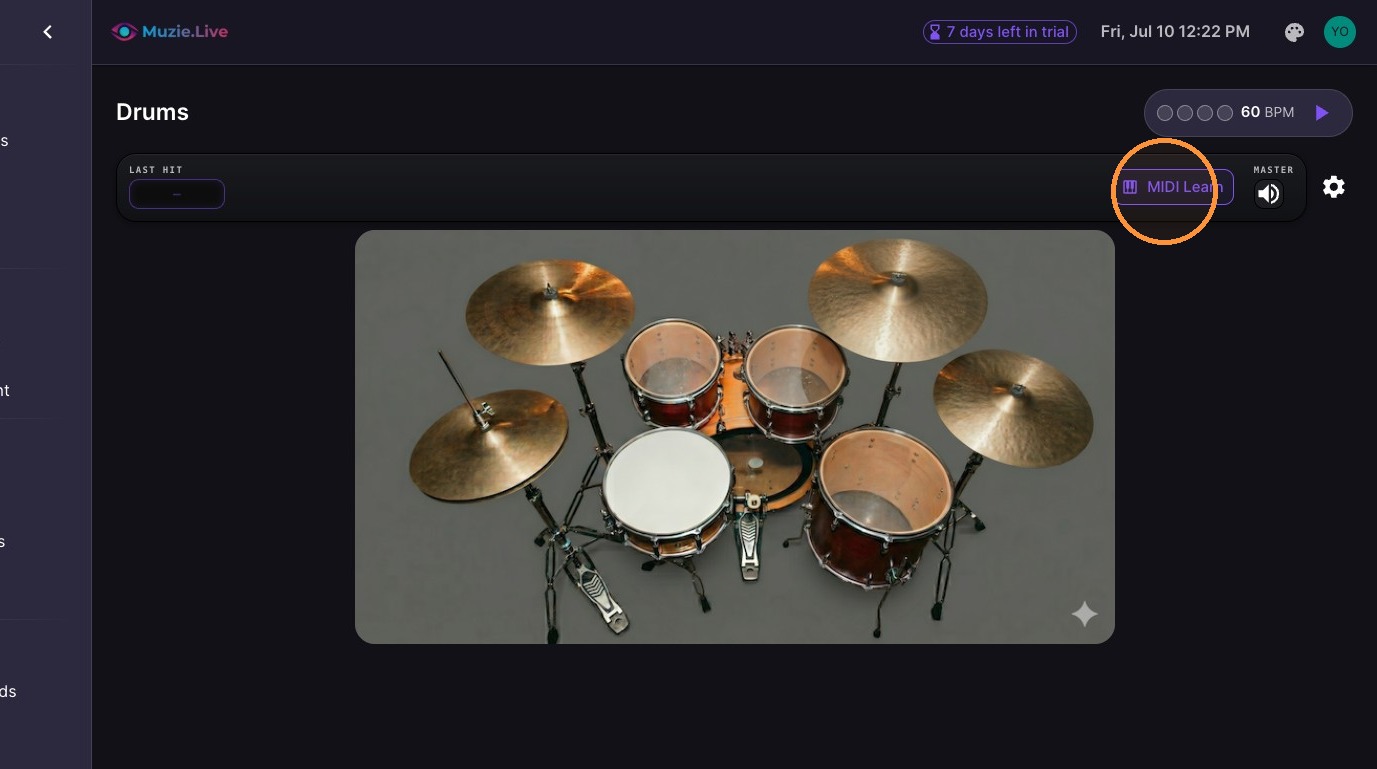
18. Click "MIDI Learn"
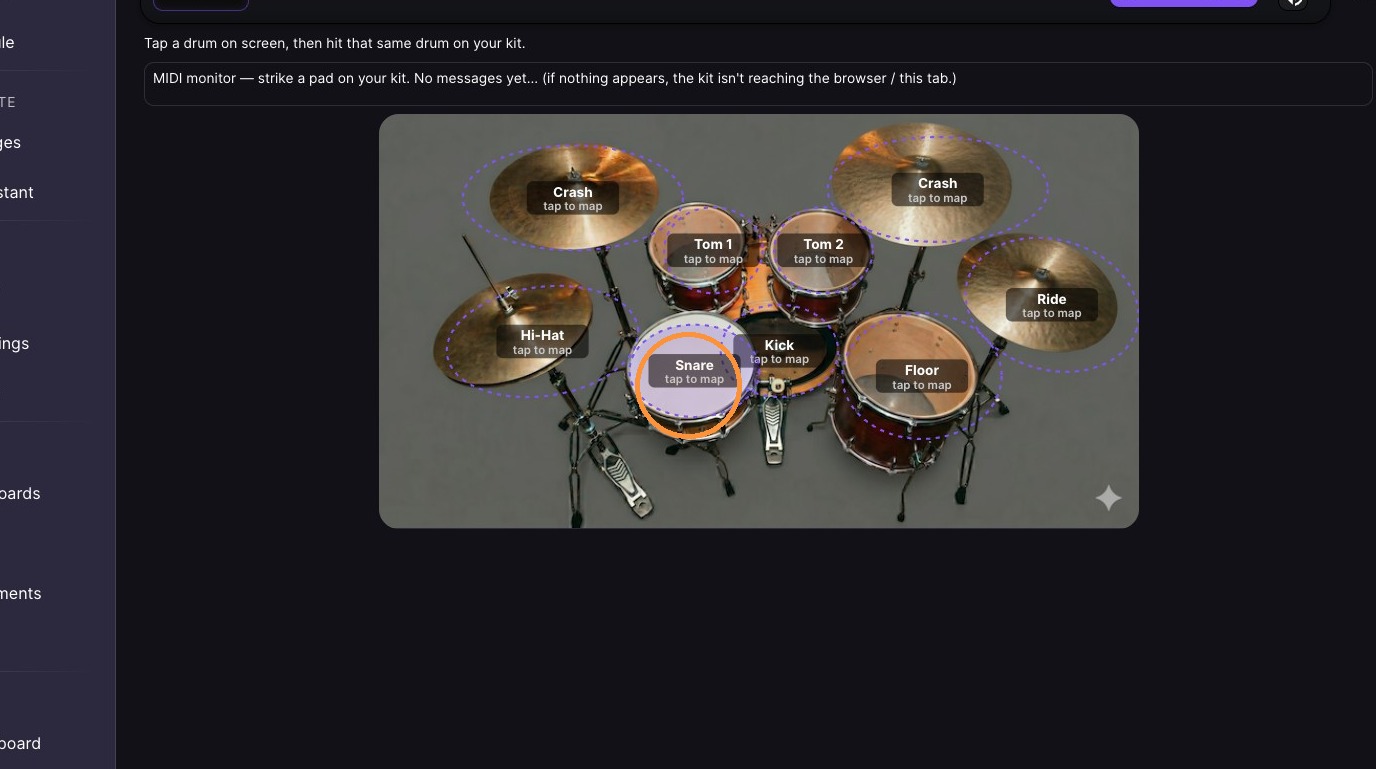
19. Select the drum you want to map, and hit that drum on your kit
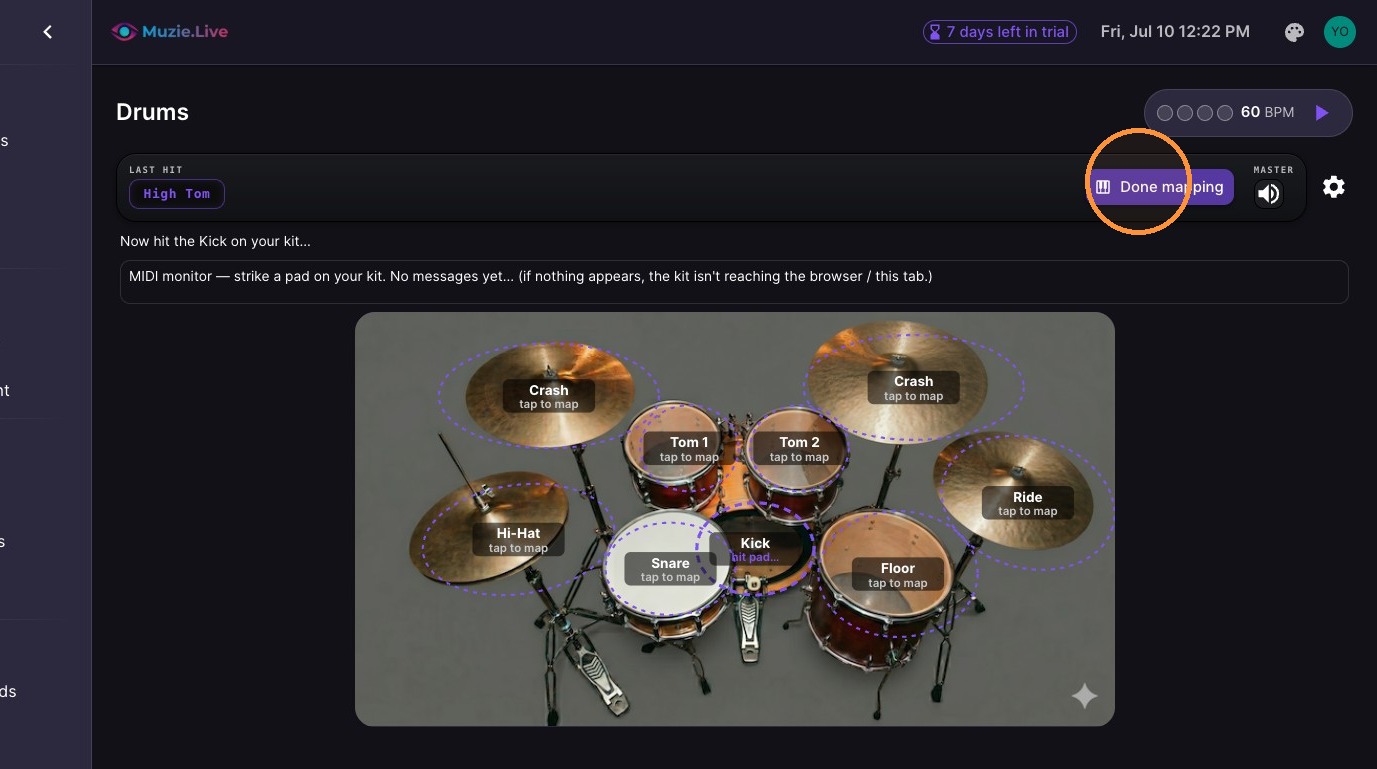
20. Click "Done mapping"
21. Select "Guitar" from the sidebar.
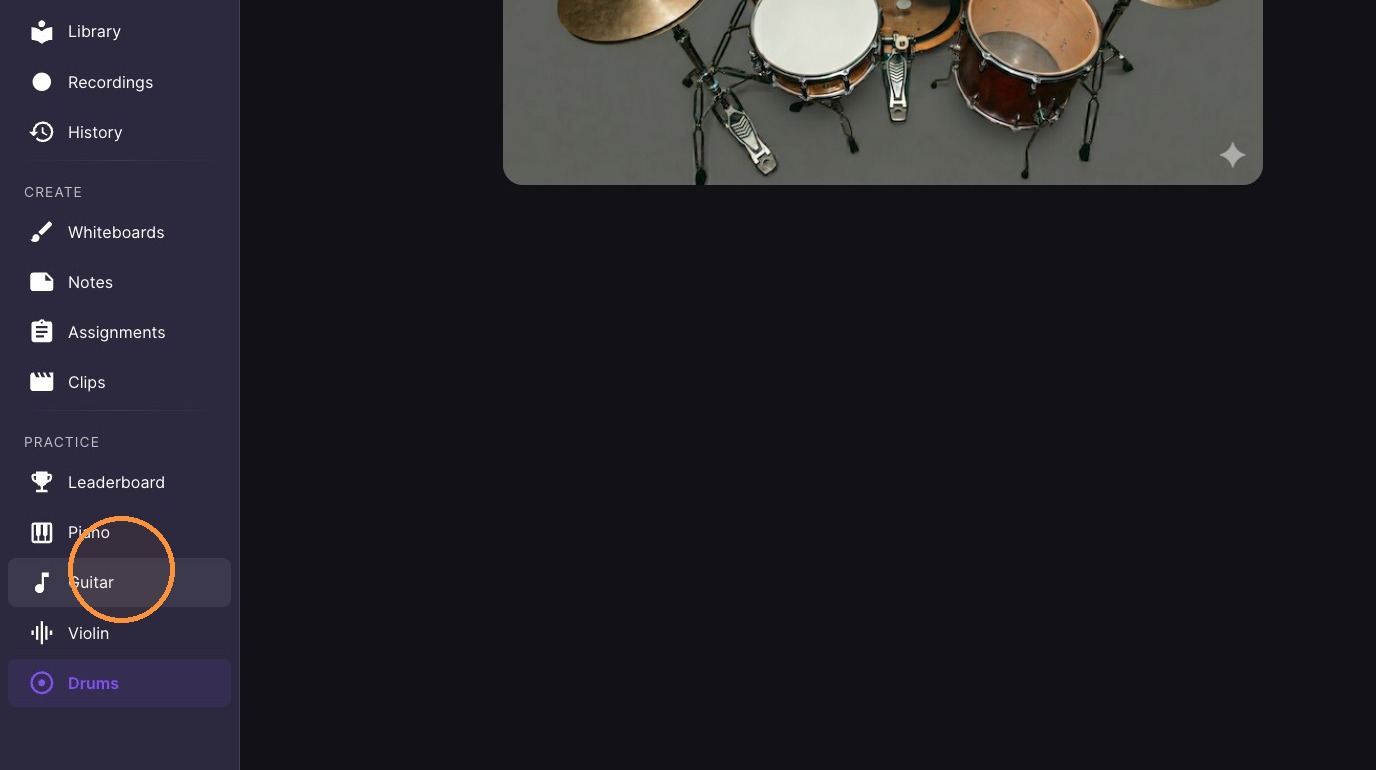
22. Assign finger positions on the guitar fretboard.
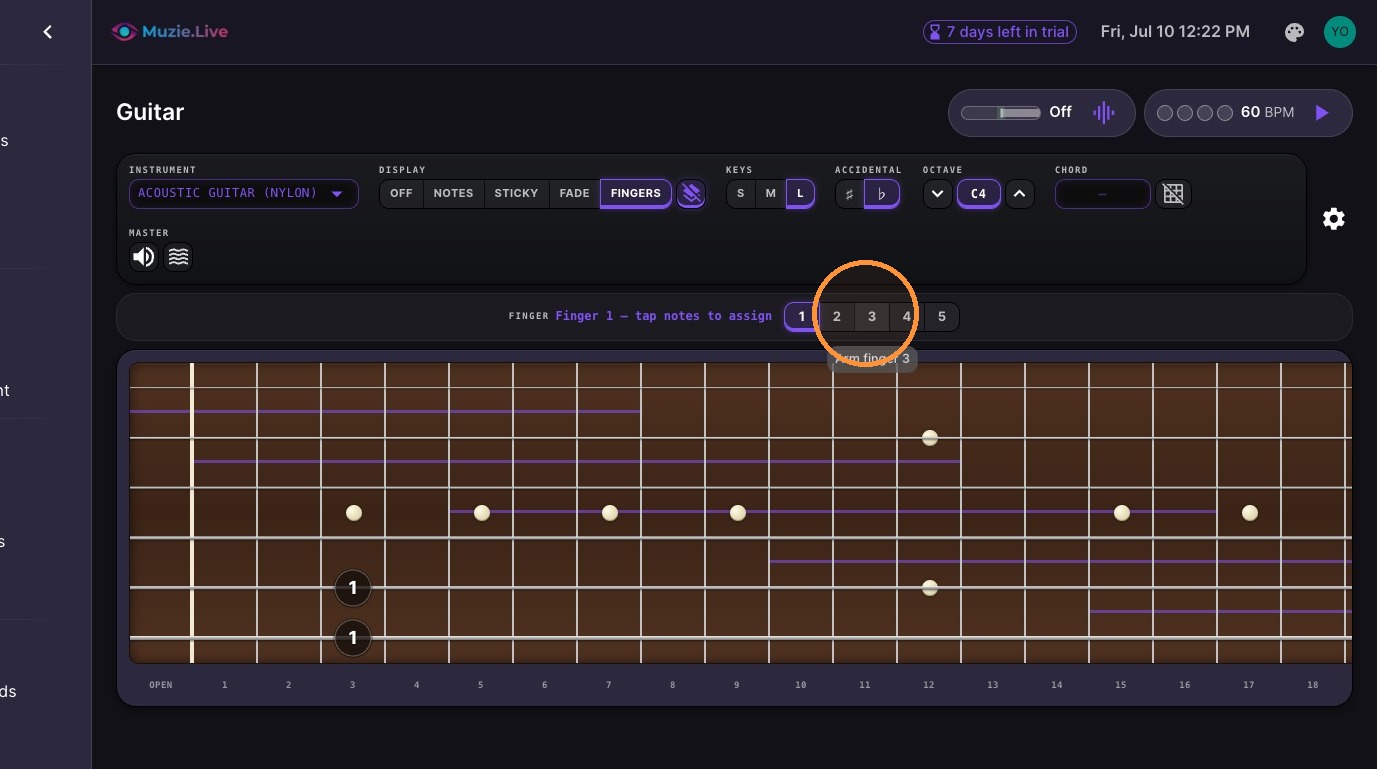
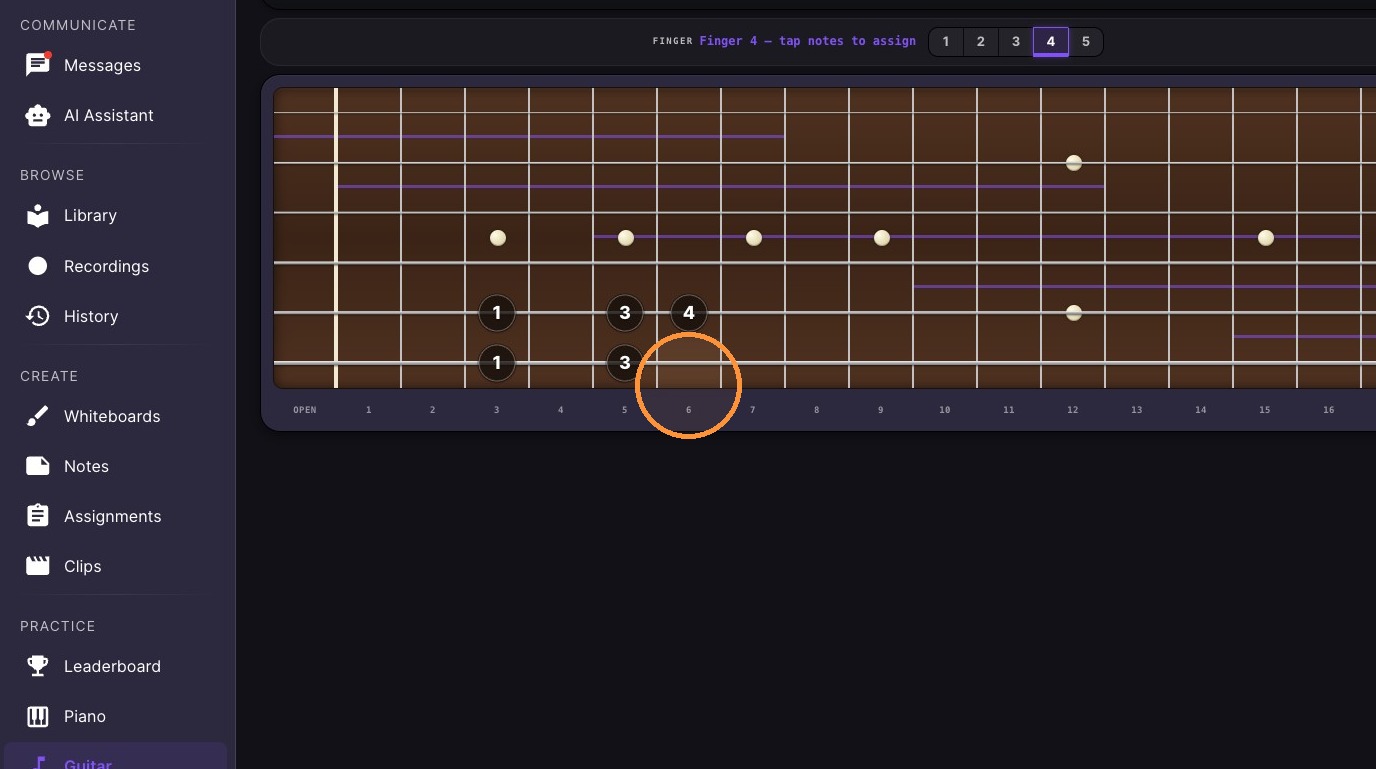
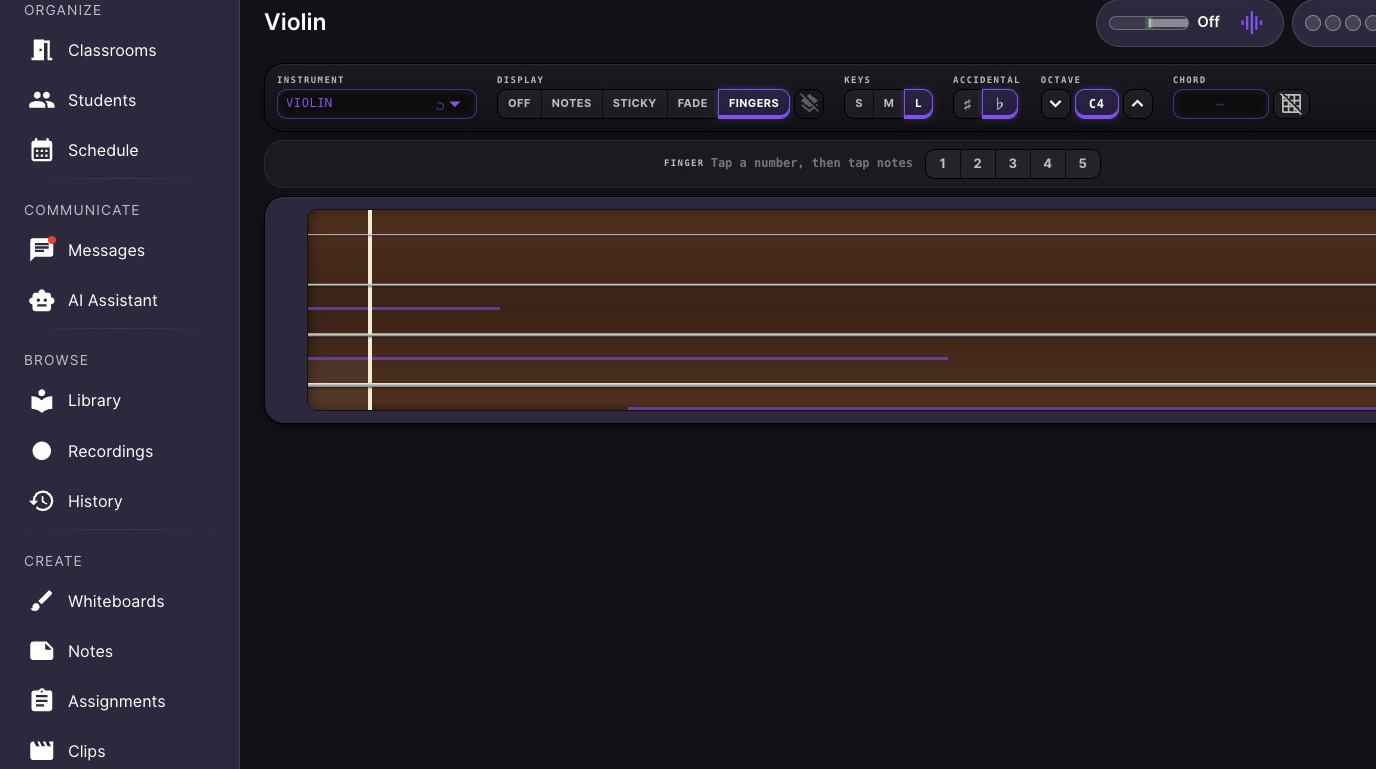
23. Select "Violin" from the sidebar.
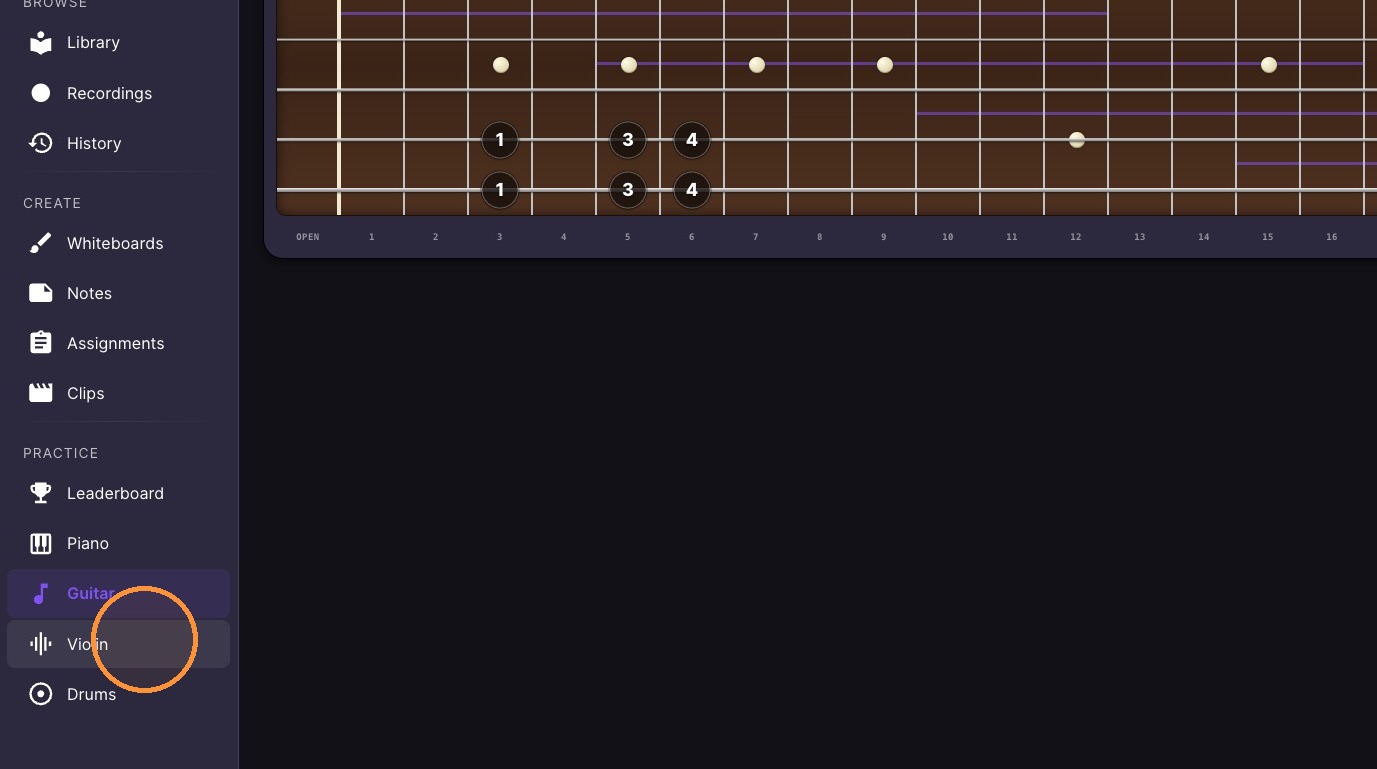
24. View the Midi Violin
"Web MIDI isn't supported in this browser" means Safari — use Chrome or Edge for MIDI, and close spare tabs. If an instrument sounds distorted on an older tablet: switch to Chrome, then try Device settings → Advanced → Voice or Headphones mode.