

See all of your upcoming Muzie lessons in one place so you know what’s next on your schedule. Use the Schedule page to review each lesson’s date and time, and switch to the calendar view if you prefer to see your lessons laid out by day and week.
-
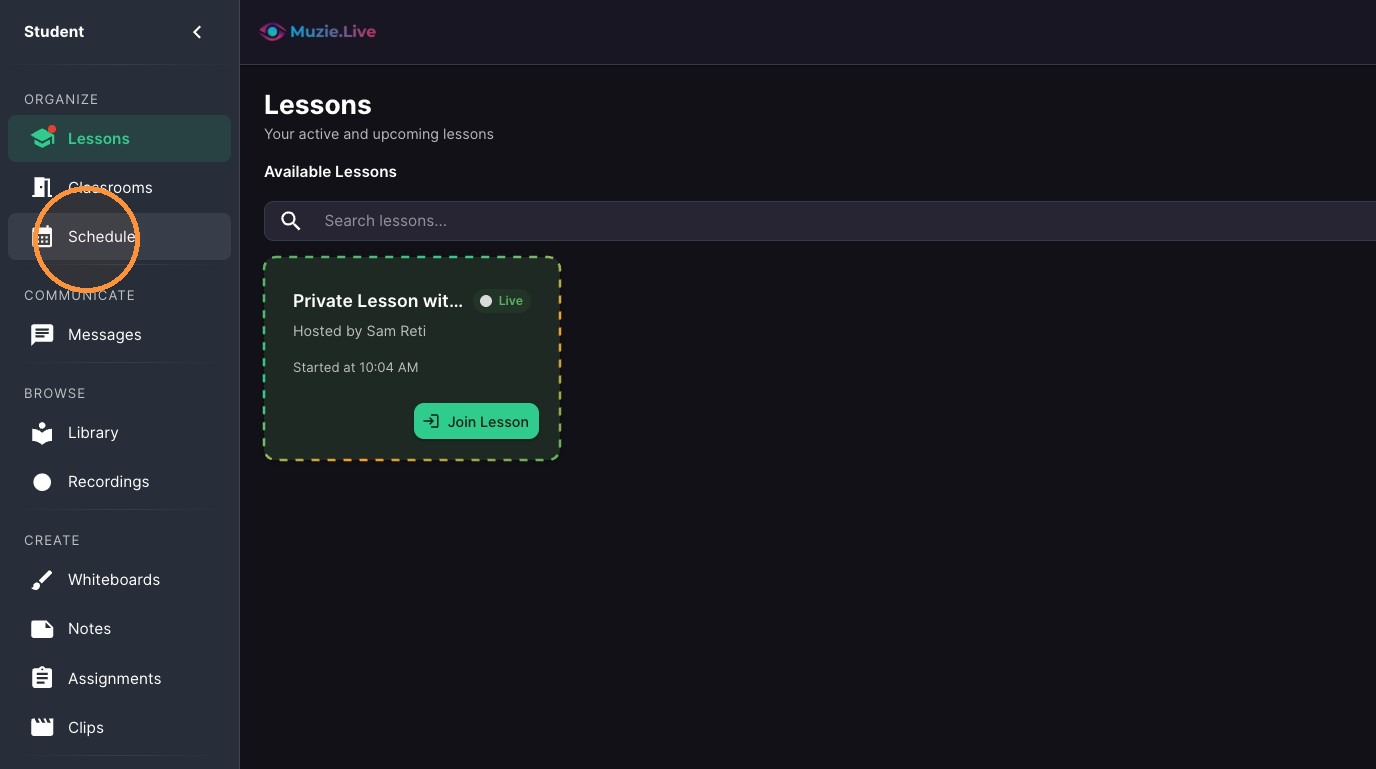
Click "Schedule" in the left sidebar
-
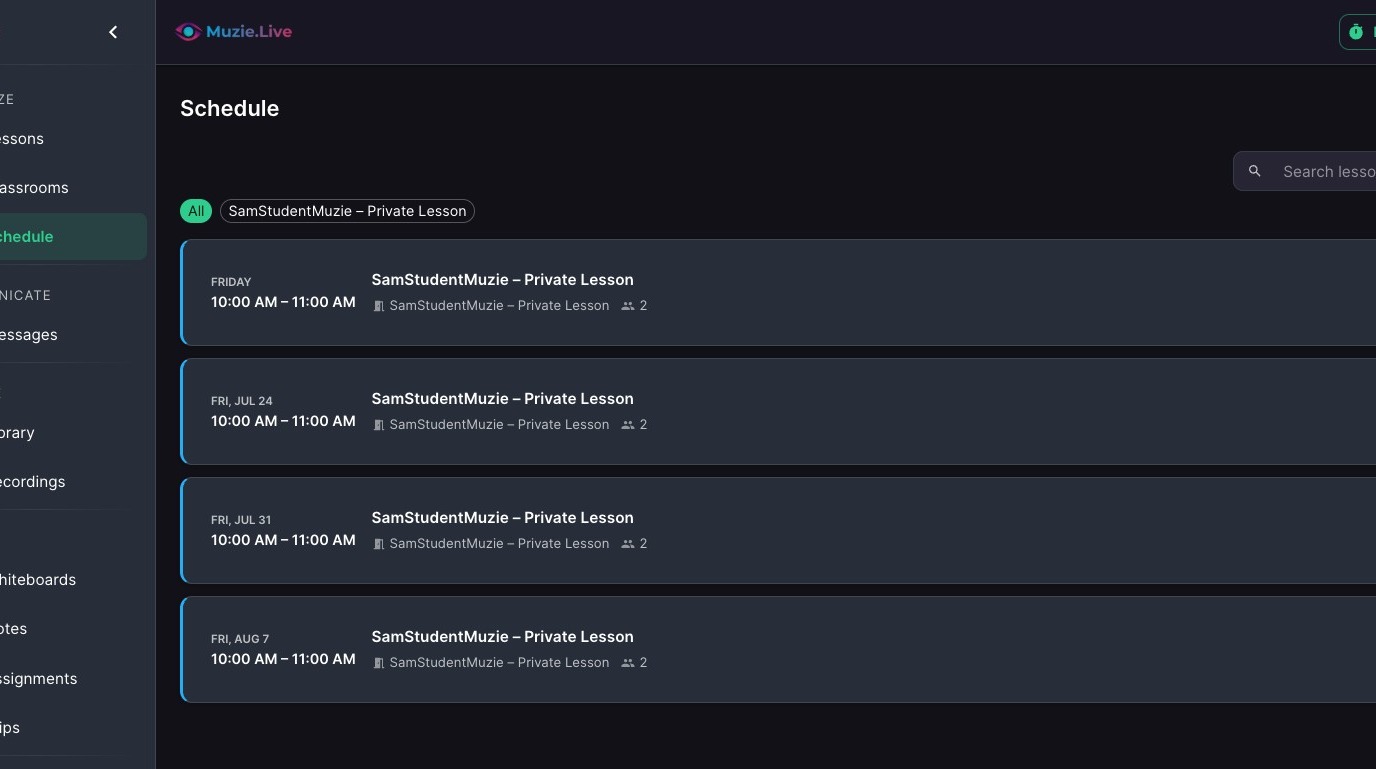
Your lessons appear as a list in the main area, each with its date and time
-
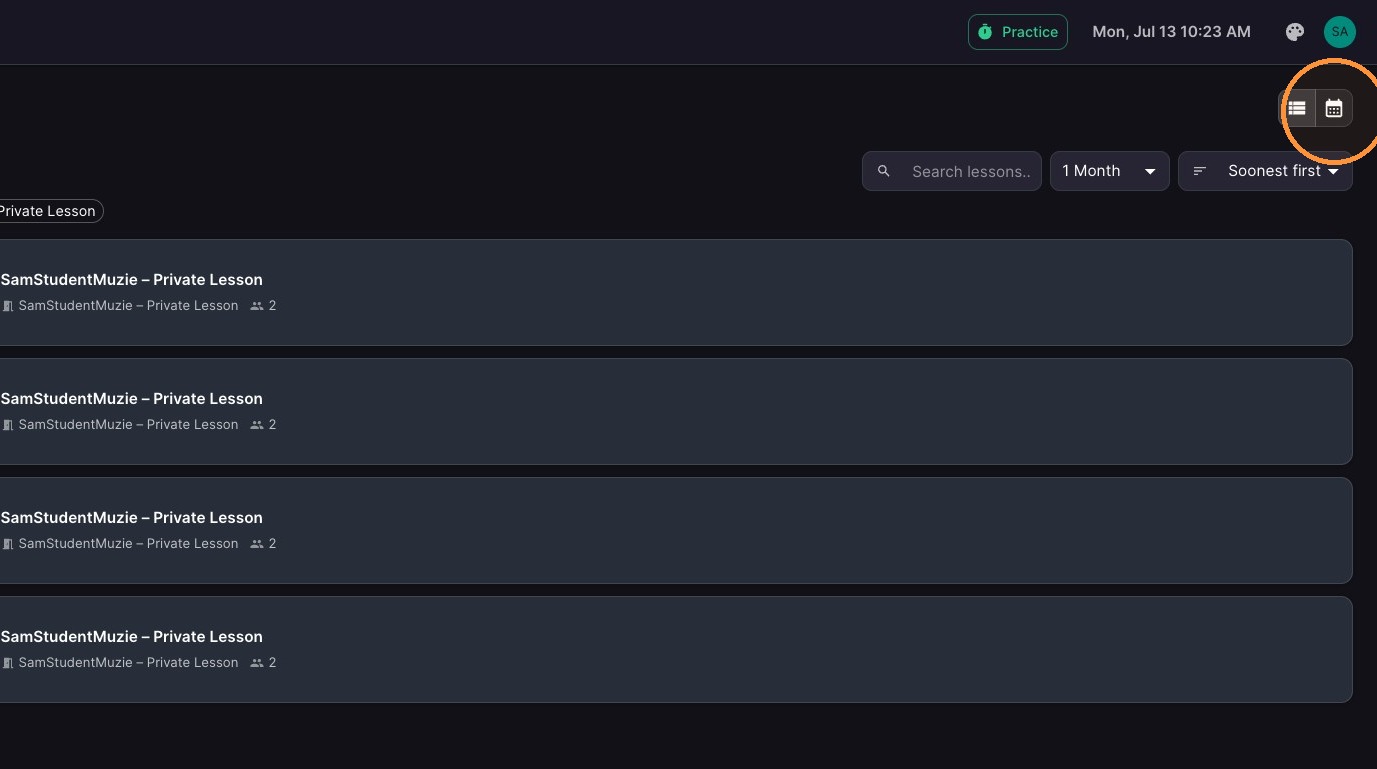
Click the calendar icon in the top-right to switch to day-and-week view
-
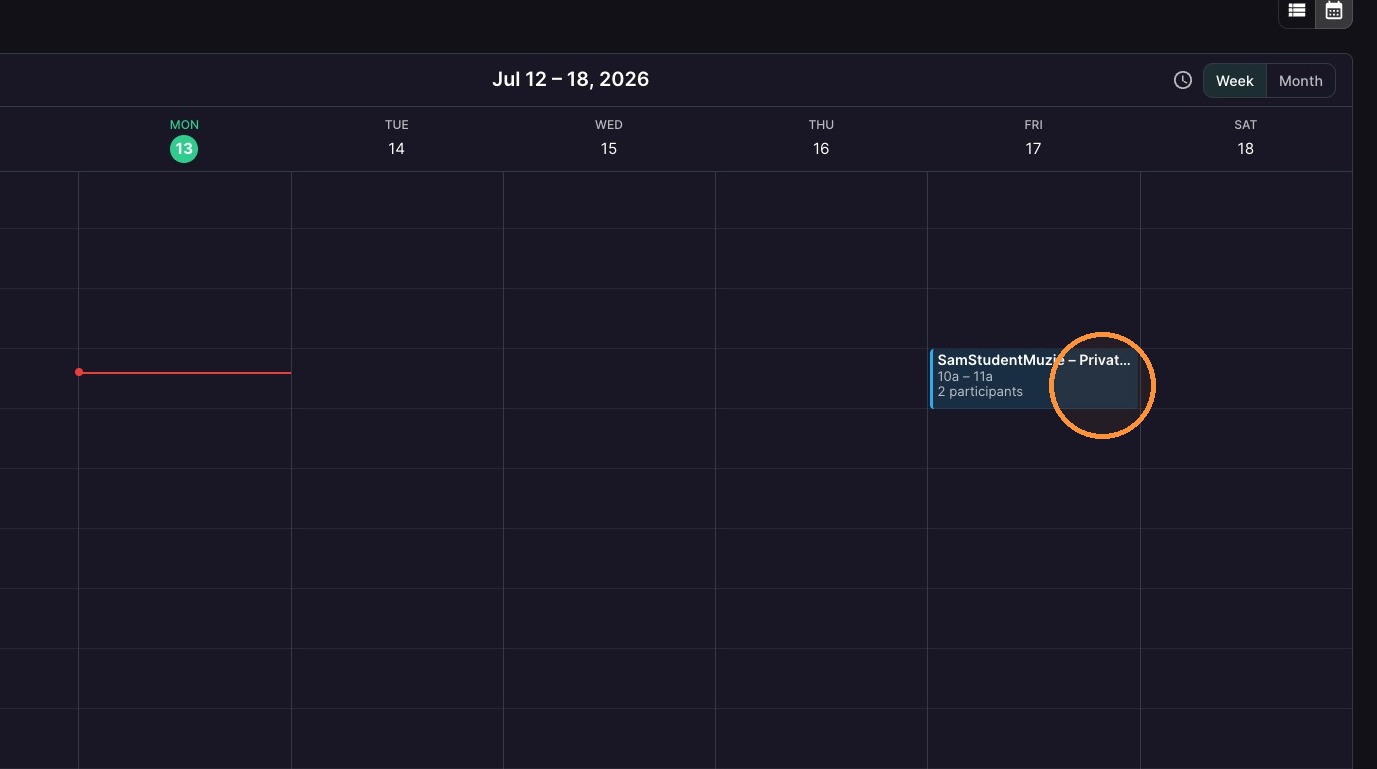
Lessons show as a colored band on the day similar view to google calendar.
Joining a lesson is not done from here: the Schedule only shows when lessons are planned. When your teacher starts a lesson, the invite appears on your Lessons tab in the left hand side bar— go there and click Join Lesson.